radio CHEVROLET TRAX 2017 1.G User Guide
[x] Cancel search | Manufacturer: CHEVROLET, Model Year: 2017, Model line: TRAX, Model: CHEVROLET TRAX 2017 1.GPages: 373, PDF Size: 6.53 MB
Page 109 of 373
Chevrolet TRAX Owner Manual (GMNA-Localizing-U.S./Canada/Mexico-
10122735) - 2017 - crc - 7/12/16
108 Instruments and Controls
Auto Set
Auto Set requires an active
connection to OnStar.
When Auto Set is enabled, the time
displayed on the clock may not
update immediately when driving
into a new time zone.
When Auto Set is enabled, the time
cannot be manually set.
From the Set Time or Set
Date menu:1. Press the preset button under Auto Set.
2. Turn MENU to select Off (Manual) or On-Cell Network,
then press MENU to select it
and return to the Time and
Date menu.
3. To exit without saving, press BACK at any time.
Setting the 12/24 Hour Format
From the Set Time menu:
1. Press the preset button under 12-24 HR to change between
12 hour and 24 hour modes. 2. To return to the Time and Date
menu, press BACK at any time.
Radio with Touchscreen
The infotainment system controls
are used to access the time and
date settings through the menu
system. See Operation0157 on
how to use the menu system.
Setting the Time and Date
When Auto Set is enabled the time
cannot be manually set.
1. Press
{, then touch Settings.
2. Touch Time and Date, then Set Time or Set Date.
3. Touch + or −to adjust the
value.
4. Touch
RorQto adjust AM or
PM for 12 hour format.
5. Touch
0to return to the
Time and Date menu.
Auto Set
Auto Set requires an active
connection to OnStar. When Auto Set is enabled, the time
displayed on the clock may not
update immediately when driving
into a new time zone.
When Auto Set is enabled, the time
cannot be manually set.
1. Press
{, then touch Settings.
2. Touch Time and Date, then Auto Set.
3. Select from the available selections.
4. Touch
0to return to the
Time and Date menu.
Setting the 12/24 Hour Format
1. Press{, then touch Settings.
2. Touch Time and Date, then select 12h or 24h format.
3. Touch
0to return to the
Time and Date menu.
Setting the Month and Day
Format
1. Press{, then touch Settings.
Page 117 of 373
Chevrolet TRAX Owner Manual (GMNA-Localizing-U.S./Canada/Mexico-
10122735) - 2017 - crc - 7/12/16
116 Instruments and Controls
Charging System Light
This light will come on briefly when
the ignition is turned on, and the
engine is not running, as a check to
show it is working.
It should go out when the engine is
started. If it stays on, or comes on
while driving, there may be a
problem with the electrical charging
system. Have it checked by your
dealer. Driving while this light is on
could drain the battery. If a short
distance must be driven with the
light on, turn off all accessories,
such as the radio and air
conditioner, to help reduce the drain
on the battery.
Malfunction Indicator
Lamp (Check Engine
Light)
This light is part of the vehicle’s
emission control on-board
diagnostic system. If this light is on
while the engine is running, a
malfunction has been detected and
the vehicle may require service. The
light should come on to show that it
is working when the ignition is in
ON/RUN with the engine not
running for Key Access or in Service
Only Mode for Keyless Access. See
Ignition Positions (Key Access)
0203 orIgnition Positions (Keyless
Access) 0205.
Malfunctions are often indicated by
the system before any problem is
noticeable. Being aware of the light
and seeking service promptly when
it comes on may prevent damage.
Caution
If the vehicle is driven continually
with this light on, the emission
control system may not work as
well, the fuel economy may be
lower, and the vehicle may not
run smoothly. This could lead to
costly repairs that might not be
covered by the vehicle warranty.
Caution
Modifications to the engine,
transmission, exhaust, intake,
or fuel system, or the use of
replacement tires that do not
meet the original tire
specifications, can cause this light
to come on. This could lead to
costly repairs not covered by the
vehicle warranty. This could also
affect the vehicle’s ability to pass
an Emissions Inspection/
Maintenance test. See
Accessories and
Modifications 0240.
Page 138 of 373
Chevrolet TRAX Owner Manual (GMNA-Localizing-U.S./Canada/Mexico-
10122735) - 2017 - crc - 7/12/16
Instruments and Controls 137
Vehicle
Personalization
Personalization Menu (Radio
without Touchscreen)
The audio system controls are used
to access the personalization
menus for customizing vehicle
features.
The following are all possible
personalization features. Depending
on the vehicle, some may not be
available.
MENU :Turn to scroll through the
menus or setup items. Press to
enter the menus and select the
menu items.
BACK : Press to exit or return to
the previous screen or menu.
To access a menu:
1. Press MENU.
2. Turn MENU to the desired menu.
3. Press MENU to select.
Menus and functions may vary
depending on vehicle options. Entering the Personalization
Menus
Select Settings from the
Home Page.
The following menus may be
available:
.
Time and Date
. Tone Settings
. Auto Volume Control
. Maximum Startup Volume
. Vehicle Settings
Time and Date
Select Time and Date to adjust the
clock. See Clock0107.
Tone Settings
Select to set the radio tone. See
“Tone Settings” under“Radio
Controls without Touchscreen” in
Operation 0157.
Auto Volume Control
This feature automatically adjusts
the radio volume based on the
speed of the vehicle.
Select the desired value.
Maximum Startup Volume
When the vehicle is started and the
radio volume is greater than this set
level, the volume is adjusted to this
level.
Select the desired value.
Vehicle Settings
Select and the following may
display:
.
Comfort and Convenience
. Collision/Detection Systems
. Languages
. Lighting
. Power Door Locks
. Remote Lock, Unlock, Start
. Return to Factory Settings
. Software Information
Comfort and Convenience
Select and the following may
display:
.
Chime Volume
. Auto Wipe in Reverse Gear
Page 141 of 373
Chevrolet TRAX Owner Manual (GMNA-Localizing-U.S./Canada/Mexico-
10122735) - 2017 - crc - 7/12/16
140 Instruments and Controls
Return to Factory Settings
Select to return all vehicle
personalizations to the default
settings.
Select Yes or No.
Software Information
Select to view the radio software
information.
Personalization Menu (Radio
with Touchscreen)
Settings can be made with the
ignition on and the vehicle not
moving.
The following are all possible
personalization features. Depending
on the vehicle, some may not be
available.
{:Press to access the Home
Page Menu.
QorR: Touch to scroll through the
menus or setup items.
0: Touch to exit or return to the
previous screen or menu.
To access the menu:
1. Press
{. 2. Touch Settings.
Touch the menu item to select it.
Each of the menus is detailed in the
following information.
Settings menus and functions may
vary depending on vehicle options.
The following list of menu items may
be available:
. Time and Date
. Language
. Valet Mode
. Radio
. Vehicle
. Bluetooth
. Apple CarPlay
. Android Auto
. USB Auto Launch
. Turn Display Off
. Rear Camera
. Return to Factory Settings
. Software Information
Time and Date
Select Time and Date to adjust the
clock. See Clock0107.
Language
Select, then select from the
available language(s).
Valet Mode (If Equipped)
This will lock the infotainment
system and steering wheel controls.
It may also limit access to vehicle
storage locations (if equipped).
To enable valet mode:
1. Enter a four-digit code on the keypad.
2. Touch Enter to go to the confirmation screen.
3. Re-enter the four-digit code.
Touch LOCK or UNLOCK to lock or
unlock the system. Touch Back to
go back to the previous menu.
Radio
Select and the following may
display:
. Manage Favorites
Page 142 of 373
Chevrolet TRAX Owner Manual (GMNA-Localizing-U.S./Canada/Mexico-
10122735) - 2017 - crc - 7/12/16
Instruments and Controls 141
.Audible Touch Feedback
. Text Scroll
. Tone Settings
. Auto Volume
. Maximum Startup Volume
Manage Favorites
Touch to set the number of favorites
to display.
Audible Touch Feedback
This allows Audible Touch
Feedback to be turned on or off.
Select Off or On.
Text Scroll
Select to see text scroll on the
screen.
Select Off or On.
Tone Settings
Select to adjust the radio tone. See
Operation 0157.
Auto Volume
This feature adjusts the volume
based on vehicle speed and
ambient noise. Select Off, Low, Medium-Low,
Medium, Medium-High, or High.
Maximum Startup Volume
This feature sets the maximum
startup volume. If the vehicle is
started and the volume is greater
than this level, the volume is
adjusted to this level. To set the
maximum startup volume, press +
or
−to increase or decrease.
Vehicle
Select and the following may
display:
.
Climate and Air Quality
. Collision/Detection Systems
. Comfort and Convenience
. Lighting
. Power Door Locks
. Remote Lock, Unlock, Start
Climate and Air Quality
Select and the following may
display:
. Remote Start Heated Seats Remote Start Heated Seats
When on, this feature will turn the
heated seats on when using the
remote start on cold days.
Select On or Off.
Collision/Detection Systems
Select and the following may
display:
.
Park Assist
. Rear Cross Traffic Alert
. Side Blind Zone Alert
Park Assist
This allows the feature to be turned
on or off. See Parking Assist 0227.
Select Off, On, or On with Towbar
Attached.
Rear Cross Traffic Alert
This allows the Rear Cross Traffic
Alert feature to be turned on or off.
Select Off or On.
Side Blind Zone Alert
This allows this feature to be turned
on or off. See Side Blind Zone Alert
(SBZA) 0230.
Page 146 of 373
Chevrolet TRAX Owner Manual (GMNA-Localizing-U.S./Canada/Mexico-
10122735) - 2017 - crc - 7/12/16
Instruments and Controls 145
Turn Display Off
Select to turn the display off. Press
anywhere on the display area or any
faceplate button to turn the
display on.
Rear Camera
Select and the following may
display:
.Guidance Lines
. Rear Park Assist Symbols
Guidance Lines
Select to turn Off or On. See Rear
Vision Camera (RVC) 0225.
Rear Park Assist Symbols
Select to turn Off or On. See Rear
Vision Camera (RVC) 0225.
Return to Factory Settings
Select and the following may
display:
.
Reset Vehicle Settings
. Clear All Private Data
. Restore Radio Settings Reset Vehicle Settings
This allows selection of restoring
vehicle settings.
Select Continue or Cancel.
Clear All Private Data
Select to clear all private information
from the vehicle.
Select Continue or Cancel.
Restore Radio Settings
This allows selection to restore
radio settings.
Select Continue or Cancel.
Software Information
Select to view the infotainment
system current software information.
Page 153 of 373
Chevrolet TRAX Owner Manual (GMNA-Localizing-U.S./Canada/Mexico-
10122735) - 2017 - crc - 7/12/16
152 Infotainment System
Infotainment
System
Introduction
Infotainment . . . . . . . . . . . . . . . . . . 152
Theft-Deterrent Feature . . . . . . 153
Overview . . . . . . . . . . . . . . . . . . . . . 154
Home Page (Radio withTouchscreen) . . . . . . . . . . . . . . . 157
Operation . . . . . . . . . . . . . . . . . . . . . 157
Radio
AM-FM Radio . . . . . . . . . . . . . . . . 160
Satellite Radio . . . . . . . . . . . . . . . . 163
Radio Reception . . . . . . . . . . . . . . 164
Multi-Band Antenna . . . . . . . . . . 165
Audio Players
Avoiding Untrusted Media Devices . . . . . . . . . . . . . . . . . . . . . 165
USB Port . . . . . . . . . . . . . . . . . . . . . 165
Auxiliary Devices . . . . . . . . . . . . . 171
Phone
Bluetooth (Overview) . . . . . . . . . 171
Bluetooth (Infotainment Controls Radio without
Touchscreen) . . . . . . . . . . . . . . . 173 Bluetooth (Infotainment
Controls Radio with
Touchscreen) . . . . . . . . . . . . . . . 177
Apple CarPlay and Android Auto . . . . . . . . . . . . . . . . 181
Hands-Free Phone . . . . . . . . . . . 182
Trademarks and License
Agreements
Trademarks and License Agreements . . . . . . . . . . . . . . . . . 184
Introduction
Infotainment
Read the following pages to
become familiar with the features.
{Warning
Taking your eyes off the road for
too long or too often while using
any infotainment feature can
cause a crash. You or others
could be injured or killed. Do not
give extended attention to
infotainment tasks while driving.
Limit your glances at the vehicle
displays and focus your attention
on driving. Use voice commands
whenever possible.
The infotainment system has built-in
features intended to help avoid
distraction by disabling some
functions when driving. These
functions may gray out when they
are unavailable. Many infotainment
Page 155 of 373
Chevrolet TRAX Owner Manual (GMNA-Localizing-U.S./Canada/Mexico-
10122735) - 2017 - crc - 7/12/16
154 Infotainment System
Overview
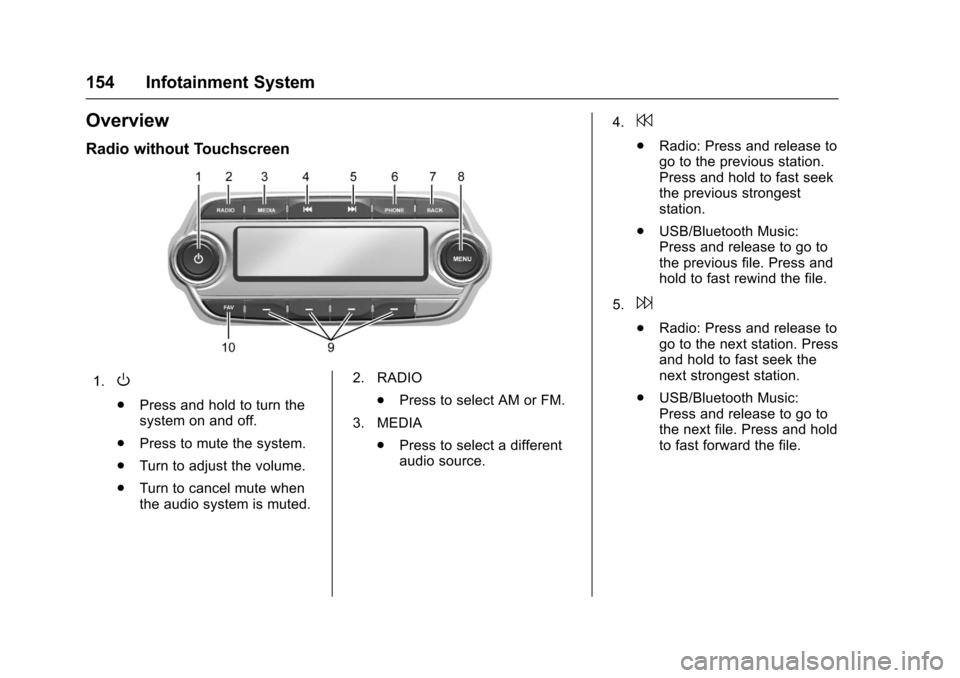
Radio without Touchscreen
1.O
.Press and hold to turn the
system on and off.
. Press to mute the system.
. Turn to adjust the volume.
. Turn to cancel mute when
the audio system is muted. 2. RADIO
.Press to select AM or FM.
3. MEDIA .Press to select a different
audio source. 4.
7
.
Radio: Press and release to
go to the previous station.
Press and hold to fast seek
the previous strongest
station.
. USB/Bluetooth Music:
Press and release to go to
the previous file. Press and
hold to fast rewind the file.
5.
6
. Radio: Press and release to
go to the next station. Press
and hold to fast seek the
next strongest station.
. USB/Bluetooth Music:
Press and release to go to
the next file. Press and hold
to fast forward the file.
Page 156 of 373

Chevrolet TRAX Owner Manual (GMNA-Localizing-U.S./Canada/Mexico-
10122735) - 2017 - crc - 7/12/16
Infotainment System 155
6. PHONE.Press to activate Bluetooth
or OnStar, if equipped.
7. BACK .Press to go to the previous
screen.
. Press to cancel entered
content.
8. MENU .Press to open menus and
select menu items.
. Turn to highlight menu
items or to set values while
in a menu.
. Turn to manually select
radio stations. 9. Preset Buttons 1−4
.Press and hold to store a
station.
. Press to go to a preset
favorite station.
10. FAV .Press to go to a
favorite page.
Page 157 of 373
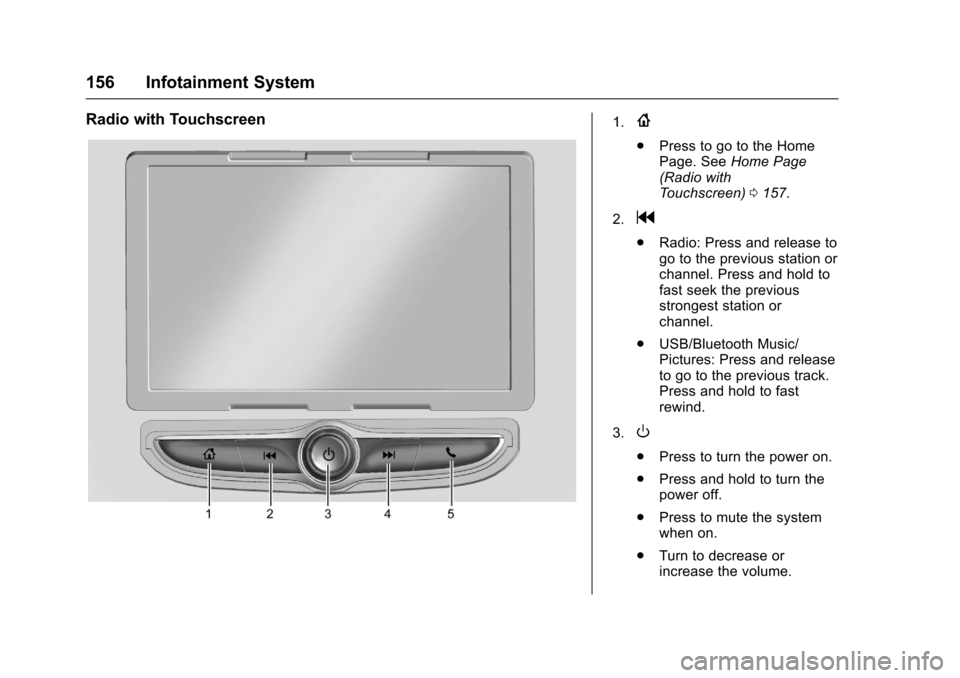
Chevrolet TRAX Owner Manual (GMNA-Localizing-U.S./Canada/Mexico-
10122735) - 2017 - crc - 7/12/16
156 Infotainment System
Radio with Touchscreen1.{
.Press to go to the Home
Page. See Home Page
(Radio with
Touchscreen) 0157.
2.
g
. Radio: Press and release to
go to the previous station or
channel. Press and hold to
fast seek the previous
strongest station or
channel.
. USB/Bluetooth Music/
Pictures: Press and release
to go to the previous track.
Press and hold to fast
rewind.
3.
O
. Press to turn the power on.
. Press and hold to turn the
power off.
. Press to mute the system
when on.
. Turn to decrease or
increase the volume.