ESP CHEVROLET TRAX 2017 1.G Owners Manual
[x] Cancel search | Manufacturer: CHEVROLET, Model Year: 2017, Model line: TRAX, Model: CHEVROLET TRAX 2017 1.GPages: 373, PDF Size: 6.53 MB
Page 22 of 373
Chevrolet TRAX Owner Manual (GMNA-Localizing-U.S./Canada/Mexico-
10122735) - 2017 - crc - 7/12/16
In Brief 21
3.MENU: Press to display the
DIC menus. This button is also
used to return to or exit the last
screen displayed on the DIC.
See Driver Information Center
(DIC) 0125.
Forward Collision Alert
(FCA) System
If equipped, FCA may help avoid or
reduce the harm caused by
front-end crashes. FCA provides a
green indicator,
V, when a vehicle
is detected ahead. This indicator
displays amber if you follow a
vehicle much too closely. When
approaching a vehicle ahead too
quickly, FCA provides a red flashing
alert on the windshield and rapidly
beeps.
See Forward Collision Alert (FCA)
System 0228.
Lane Departure
Warning (LDW)
If equipped, LDW may help avoid
unintentional lane departures at
speeds of 56 km/h (35 mph) or
greater. LDW uses a camera sensor
to detect the lane markings. The
LDW light,
@, is green if a lane
marking is detected. If the vehicle
departs the lane without using a turn
signal in that direction, the light will
change to amber and flash. In
addition, beeps will sound.
See Lane Departure Warning
(LDW) 0231.
Side Blind Zone
Alert (SBZA)
If equipped, SBZA will detect
moving vehicles in the next lane
over in the vehicle's side blind zone
area. When this happens, the SBZA
display will light up in the
corresponding outside side mirror
and will flash if the turn signal is on.
See Side Blind Zone Alert
(SBZA) 0230.
Rear Vision
Camera (RVC)
If equipped, RVC displays a view of
the area behind the vehicle, on the
infotainment display, when the
vehicle is shifted into R (Reverse).
See Rear Vision Camera
(RVC) 0225.
Rear Cross Traffic Alert
(RCTA) System
If equipped, the RCTA system uses
a triangle with an arrow displayed
on the infotainment screen to warn
of traffic behind your vehicle that
may cross your vehicle's path while
in R (Reverse). In addition, beeps
will sound.
See “Rear Cross Traffic Alert
(RCTA)” underRear Vision Camera
(RVC) 0225.
Parking Assist
If equipped, Rear Parking Assist
(RPA) uses sensors on the rear
bumper to assist with parking and
avoiding objects while in
Page 38 of 373
Chevrolet TRAX Owner Manual (GMNA-Localizing-U.S./Canada/Mexico-
10122735) - 2017 - crc - 7/12/16
Keys, Doors, and Windows 37
When the engine starts, the parking
lamps will turn on and remain on as
long as the engine is running. The
doors will be locked and the climate
control system may come on.
The engine will continue to run for
15 minutes. After 30 seconds,
repeat the steps if a 15-minute
extension is desired. Remote start
can be extended only once.
Extending Engine Run Time
The engine run time can also be
extended by another 15 minutes,
if during the first 15 minutes
Steps 1 and 2 are repeated while
the engine is still running. An
extension can be requested
30 seconds after starting. This
provides a total of 30 minutes.
The remote start can only be
extended once.
When the remote start is extended,
the second 15-minute period is
added on to the first 15 minutes for
a total of 30 minutes.
A maximum of two remote starts,
or a remote start with an extension,
are allowed between ignition cycles.The vehicle's ignition must be
changed to ON/RUN and then back
to OFF before the remote start
procedure can be used again.
Canceling a Remote Start
To cancel a remote start, do one of
the following:
.
Press and hold
/until the
parking lamps turn off.
. Turn on the hazard warning
flashers.
. Turn the vehicle on and then off.
Conditions in Which Remote Start
Will Not Work
The remote vehicle start feature will
not operate if:
. The key is in the ignition (Key
Access) or if a transmitter is in
the vehicle (Keyless Access).
. The hood is not closed.
. The hazard warning flashers
are on.
. The malfunction indicator lamp
is on. .
The engine coolant temperature
is too high.
. The oil pressure is low.
. Two remote vehicle starts, or a
single remote start with an
extension, have already
been used.
. The vehicle is not in P (Park).
Door Locks
{Warning
Unlocked doors can be
dangerous.
. Passengers, especially
children, can easily open
the doors and fall out of a
moving vehicle. When a
door is locked, the handle
will not open it. The chance
of being thrown out of the
vehicle in a crash is
increased if the doors are
not locked. So, all
passengers should wear
safety belts properly and the
(Continued)
Page 47 of 373
Chevrolet TRAX Owner Manual (GMNA-Localizing-U.S./Canada/Mexico-
10122735) - 2017 - crc - 7/12/16
46 Keys, Doors, and Windows
Interior Mirrors
Interior Rearview Mirrors
Adjust the rearview mirror for a clear
view of the area behind your
vehicle.
If equipped with OnStar, the vehicle
may have three control buttons at
the bottom of the mirror. See your
dealer for more information about
OnStar and how to subscribe to it.
SeeOnStar Overview 0351.
Do not spray glass cleaner directly
on the mirror. Use a soft towel
dampened with water.
Manual Rearview Mirror
If equipped with a manual rearview
mirror, push the tab forward for
daytime use and pull it for nighttime
use to avoid glare from the
headlamps from behind.
Automatic Dimming
Rearview Mirror
If equipped, automatic dimming
reduces the glare of headlamps
from behind. The dimming feature
comes on when the vehicle is
started.
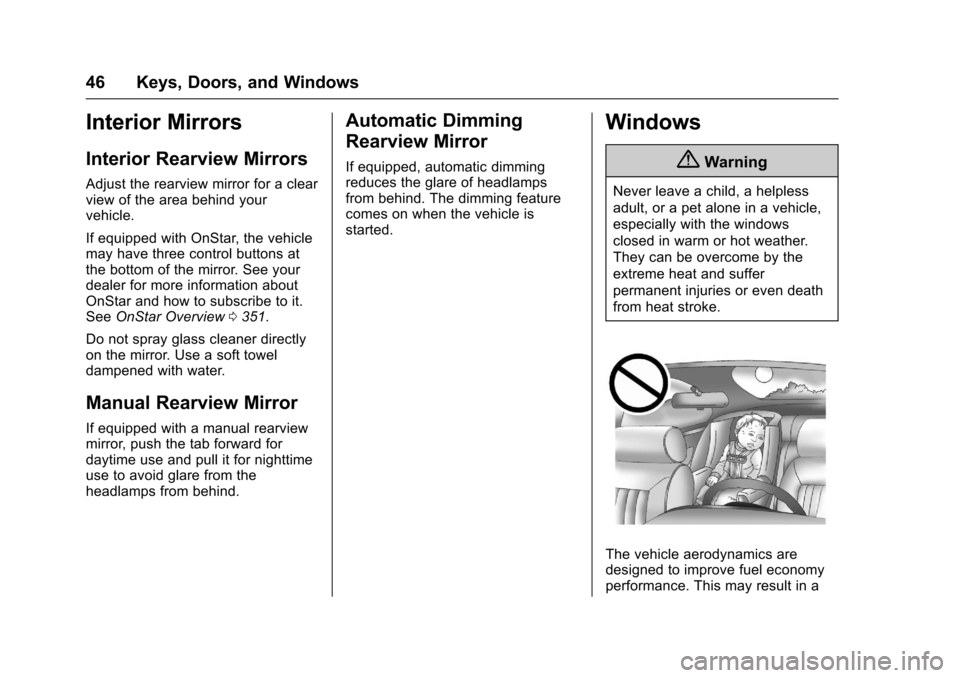
Windows
{Warning
Never leave a child, a helpless
adult, or a pet alone in a vehicle,
especially with the windows
closed in warm or hot weather.
They can be overcome by the
extreme heat and suffer
permanent injuries or even death
from heat stroke.
The vehicle aerodynamics are
designed to improve fuel economy
performance. This may result in a
Page 57 of 373
Chevrolet TRAX Owner Manual (GMNA-Localizing-U.S./Canada/Mexico-
10122735) - 2017 - crc - 7/12/16
56 Seats and Restraints
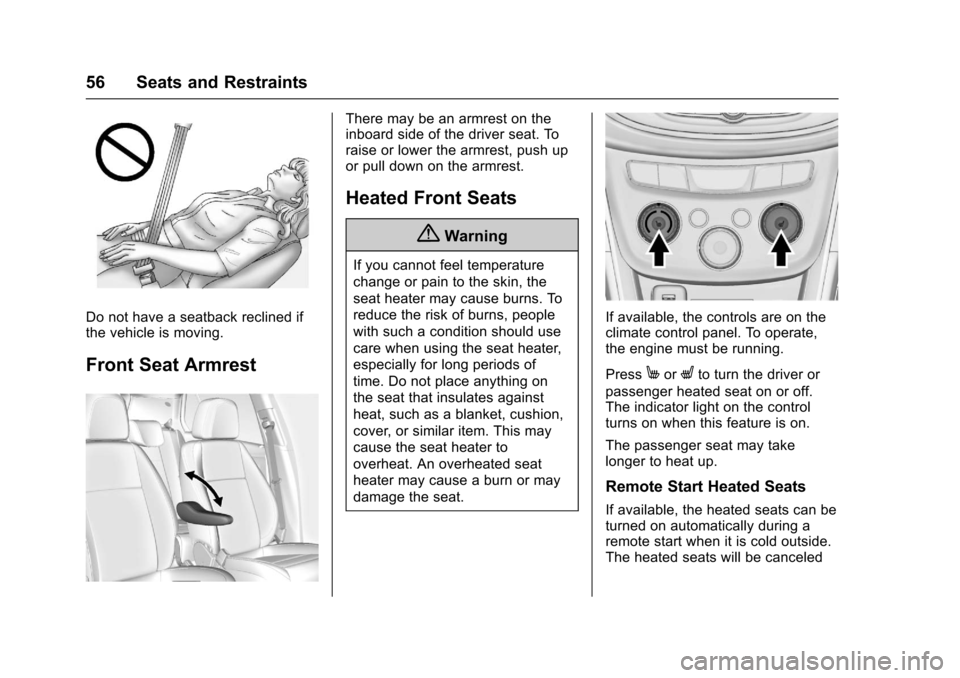
Do not have a seatback reclined if
the vehicle is moving.
Front Seat Armrest
There may be an armrest on the
inboard side of the driver seat. To
raise or lower the armrest, push up
or pull down on the armrest.
Heated Front Seats
{Warning
If you cannot feel temperature
change or pain to the skin, the
seat heater may cause burns. To
reduce the risk of burns, people
with such a condition should use
care when using the seat heater,
especially for long periods of
time. Do not place anything on
the seat that insulates against
heat, such as a blanket, cushion,
cover, or similar item. This may
cause the seat heater to
overheat. An overheated seat
heater may cause a burn or may
damage the seat.
If available, the controls are on the
climate control panel. To operate,
the engine must be running.
Press
MorLto turn the driver or
passenger heated seat on or off.
The indicator light on the control
turns on when this feature is on.
The passenger seat may take
longer to heat up.
Remote Start Heated Seats
If available, the heated seats can be
turned on automatically during a
remote start when it is cold outside.
The heated seats will be canceled
Page 162 of 373
Chevrolet TRAX Owner Manual (GMNA-Localizing-U.S./Canada/Mexico-
10122735) - 2017 - crc - 7/12/16
Infotainment System 161
Favorites List
There are two ways to select a
station from the Favorites List:
.Press FAV repeatedly, until the
desired FAV page is displayed,
then press the preset button of
the desired FAV station.
. Press FAV, turn MENU until the
desired FAV station is
highlighted, then press MENU to
select the desired FAV station.
Stations List 1. From AM or FM, turn MENU to select Stations List, then press
to select.
2. Turn MENU to move to the desired station from the
Stations List, then press to
receive the station.
Category List
Most stations that broadcast an
RDS program type code specify the
type of programming transmitted.
Some stations change the program
type code depending on the content. The system stores the RDS
stations sorted by program type in
the FM category list.
To search for a programming type
determined by station:
1. From the FM menu, turn MENU to select FM Category List,
then press MENU.
2. Turn MENU to move to the desired station, then press
MENU to receive the selected
broadcasting channel.
Update Stations List
From AM or FM, press MENU, turn
MENU to Update Stations List, then
press MENU.
During the AM or FM broadcasting
list update, press the preset button
under Cancel or BACK to stop the
updates.
Storing a Station as a Favorite
Stations from all bands can be
stored in any order in the favorite
pages.
Up to four stations can be stored in
each favorite page. Storing Stations
Press FAV to select the desired
page of saved favorites.
To store the station to a position in
the list, press and hold the
corresponding preset button 1−4
until a beep is heard.
Playing the Radio with
Touchscreen
Audio Source Menu
{:
Press to go to the Home Page.
O:Press to turn on, mute,
or unmute the system. Press and
hold to turn off the system.
Selecting a Band
1. Press{.
2. Touch AUDIO.
3. Touch Source.
4. Select AM, FM, or SXM, if equipped.
The last station that was playing
starts playing again.
Page 163 of 373
Chevrolet TRAX Owner Manual (GMNA-Localizing-U.S./Canada/Mexico-
10122735) - 2017 - crc - 7/12/16
162 Infotainment System
Selecting an Auxiliary Device
Connect the auxiliary device to the
AUX input terminal. Play will begin
when the system has finished
reading the information on the
device.
If the auxiliary device is already
connected:1. Press
{.
2. Touch AUDIO.
3. Touch Source.
4. Select the device.
Selecting a Station
Seek Tuning
If the radio station is not known:
Press
gordto automatically
search for available radio stations.
Direct Tune
From the AM or FM menu:
1. Touch Tune.
2. Enter the station number.
3. Touch Go. Favorite
1. Touch
SorTto scroll through
the favorite pages.
2. Touch the station to select it.
Station List 1. From the AM or FM menu, touch Menu.
2. Select Station List.
3. Touch
QorRto scroll through
the list. Touch the station to
select it.
Update Station List
. From the AM or FM menu, touch
Menu, then touch Update Station
List. The broadcasting list
updating will begin.
. During the AM or FM
broadcasting list update, touch
Cancel to stop the updates.
Menu
Touch to choose between available
menus for the current source.
Storing a Station as a Favorite
Stations from all bands can be
stored in any order in the favorite
pages.
Up to 15 stations can be stored.
Storing Stations
To store the station to a position in
the list, touch the corresponding
button 1−5 until a beep is heard.
1. Select the desired station.
2. Touch
SorTto select the
desired page of saved
favorites.
3. Touch and hold any of the preset buttons to save the
current radio station to that
button of the selected
favorites page.
To change a preset button, tune to
the new desired radio station and
touch and hold the preset button.
Page 165 of 373
Chevrolet TRAX Owner Manual (GMNA-Localizing-U.S./Canada/Mexico-
10122735) - 2017 - crc - 7/12/16
164 Infotainment System
Tone Settings1. Touch Tone Settings. See “Tone Settings” under
Operation 0157.
2. Touch
0.
Auto Volume 1. Touch Auto Volume. See “Auto
Volume” under
Operation 0157.
2. Touch
0.
Categories 1. Touch Categories.
2. Touch
QorRto find the
desired category. Touch the
category to select it.
Explicit Content Filter
When on, only a filtered list of
channels will be received. When off,
all regular SXM programming
subscribed to will be received. 1. Touch SXM Explicit Filter.
2. Select to enable or disable.
Radio Reception
Frequency interference and static
can occur during normal radio
reception if items such as mobile
phone chargers, vehicle
convenience accessories, and
external electronic devices are
plugged into the accessory power
outlet. If there is interference or
static, unplug the item from the
accessory power outlet.
FM
FM signals only reach about 16 to
65 km (10 to 40 mi). Although the
radio has a built-in electronic circuit
that automatically works to reduce
interference, some static can occur,
especially around tall buildings or
hills, causing the sound to fade in
and out.
AM
The range for most AM stations is
greater than for FM, especially at
night. The longer range can cause
station frequencies to interfere with
each other. Static can occur when
things like storms and power lines interfere with radio reception. When
this happens, try reducing the treble
on the radio.
SiriusXM®Satellite Radio
Service
SiriusXM Satellite Radio Service
gives digital radio reception from
coast to coast in the 48 contiguous
United States, and in Canada. Just
as with FM, tall buildings or hills can
interfere with satellite radio signals,
causing the sound to fade in and
out. In addition, traveling or standing
under heavy foliage, bridges,
garages, or tunnels may cause loss
of the SiriusXM signal for a period
of time.
Cell Phone Usage
Cell phone usage, such as making
or receiving phone calls, charging,
or just having the phone on may
cause static interference in the
radio. Unplug the phone or turn it off
if this happens.
Page 173 of 373
Chevrolet TRAX Owner Manual (GMNA-Localizing-U.S./Canada/Mexico-
10122735) - 2017 - crc - 7/12/16
172 Infotainment System
contact lists clearly and delete
duplicate or rarely used entries.
If possible, program speed dial
or other shortcuts.
. Review the controls and
operation of the infotainment
system.
. Pair cell phone(s) to the vehicle.
The system may not work with
all cell phones. See “Pairing”
under Bluetooth (Infotainment
Controls Radio with
Touchscreen) 0177 orBluetooth
(Infotainment Controls Radio
without Touchscreen) 0173 or
Bluetooth (Overview) 0171.
. See “Deleting a Bluetooth
Device” underBluetooth
(Infotainment Controls Radio
with Touchscreen) 0177 or
Bluetooth (Infotainment Controls
Radio without Touchscreen)
0 173 orBluetooth
(Overview) 0171.{Warning
When using a cell phone, it can
be distracting to look too long or
too often at the screen of the
phone or the infotainment system.
Taking your eyes off the road too
long or too often could cause a
crash resulting in injury or death.
Focus your attention on driving.
Vehicles with a Bluetooth system
can use a Bluetooth-capable cell
phone with a Hands-Free Profile to
make and receive phone calls. The
infotainment system is used to
control the system. The system can
be used while in ACC/ACCESSORY
or ON/RUN. See Retained
Accessory Power (RAP) 0210. Not
all phones support all functions and
not all phones work with the
Bluetooth system. See
www.gm.com/bluetooth for more
information about compatible
phones in the U.S. and
Canada only.
The Bluetooth system range can be
up to 9.1 m (30 ft). There may be restrictions on using
Bluetooth wireless technology in
some locations.
Due to the variety of Bluetooth
devices and their firmware versions,
the device may respond differently
when performing over Bluetooth.
On a current phone call, an image
of the current contact from the
phone's contact list may be
displayed. Not all phones are
compatible with this feature.
Refer to the cell phone
manufacturer
’s user guide for
questions about the phone's
Bluetooth functionality.
Bluetooth Controls
If equipped with Bluetooth capability,
use the buttons on the infotainment
system and the steering wheel to
operate the system.
Page 185 of 373
Chevrolet TRAX Owner Manual (GMNA-Localizing-U.S./Canada/Mexico-
10122735) - 2017 - crc - 7/12/16
184 Infotainment System
Making a Call from Call History1. Touch Call History on the phone screen.
2. Touch one of the following for:
.
WAll calls history.
.
[Dialed calls.
.
YMissed calls.
.
XReceived calls.
3. Select the contact entry to call.
Making a Call with Speed Dial
Numbers
Touch and hold the speed dial
number using the keypad on the
phone screen.
Only speed dial numbers already
stored on the cell phone can be
used for speed dial calls. Up to
two-digit speed dial numbers are
supported.
For two-digit speed dial numbers,
touch and hold the second digit to
make a call to the speed dial
number.
Trademarks and
License Agreements
FCC Information
See Radio Frequency
Statement 0347.
Bluetooth
®
The Bluetooth word mark and logos
are owned by the Bluetooth®SIG,
Inc. and any use of such marks by
General Motors is under license.
Other trademarks and trade names
are those of their respective owners.
“Made for iPod” and“Made for
iPhone” mean that an electronic
accessory has been designed to
connect specifically to iPod or
iPhone and has been certified by
the developer to meet Apple
performance standards. iPod and iPhone are trademarks of
Apple Computer, Inc., registered in
the U.S. and other countries.
Fees and Taxes: Subscription fee,
taxes, one time activation fee, and
other fees may apply. Subscription
fee is consumer only. All fees and
programming subject to change.
Subscriptions subject to Customer
Agreement available at
www.siriusxm.com or
www.siriusxm.ca. SiriusXM
®service
only available in the 48 contiguous
United States and Canada.
In Canada: Some deterioration of
service may occur in extreme
northern latitudes. This is beyond
the control of SiriusXM
®Satellite
Radio.
It is prohibited to copy, decompile,
disassemble, reverse engineer,
hack, manipulate, or otherwise
Page 193 of 373
Chevrolet TRAX Owner Manual (GMNA-Localizing-U.S./Canada/Mexico-
10122735) - 2017 - crc - 7/12/16
192 Driving and Operating
Driving Information
Driver Behavior
Driving is an important
responsibility. Driver behavior, the
driving environment, and the
vehicle's design all affect how well a
vehicle performs.
Being aware of these factors can
help in understanding how the
vehicle handles and what can be
done to avoid many types of
crashes, including a rollover crash.
Most serious injuries and fatalities to
unbelted occupants can be reduced
or prevented by the use of safety
belts. In a rollover crash, an
unbelted person is significantly
more likely to die than a person
wearing a safety belt. In addition,
avoiding excessive speed, sudden
or abrupt turns, and drunken or
aggressive driving can help make
trips safer and avoid the possibility
of a crash.
Driving Environment
Be prepared for driving in inclement
weather, at night, or during other
times where visibility or traction may
be limited, such as on curves,
slippery roads, or hilly terrain.
Unfamiliar surroundings can also
have hidden hazards.
Vehicle Design
Utility vehicles have a significantly
higher rollover rate than other types
of vehicles. This is because they
have a higher ground clearance and
a narrower track or shorter
wheelbase than passenger cars,
which makes them more capable for
off-road driving. While these design
characteristics provide the driver
with a better view of the road, these
vehicles do have a higher center of
gravity than other types of vehicles.
A utility vehicle does not handle the
same as a vehicle with a lower
center of gravity, like a car, in similar
situations.Safe driver behavior and
understanding of the environment
can help avoid a rollover crash in
any type of vehicle, including utility
vehicles.
Distracted Driving
Distraction comes in many forms
and can take your focus from the
task of driving. Exercise good
judgment and do not let other
activities divert your attention away
from the road. Many local
governments have enacted laws
regarding driver distraction. Become
familiar with the local laws in
your area.
To avoid distracted driving, keep
your eyes on the road, keep your
hands on the steering wheel, and
focus your attention on driving.
.
Do not use a phone in
demanding driving situations.
Use a hands-free method to
place or receive necessary
phone calls.