onstar CHEVROLET TRAX 2017 1.G Owners Manual
[x] Cancel search | Manufacturer: CHEVROLET, Model Year: 2017, Model line: TRAX, Model: CHEVROLET TRAX 2017 1.GPages: 373, PDF Size: 6.53 MB
Page 2 of 373

Chevrolet TRAX Owner Manual (GMNA-Localizing-U.S./Canada/Mexico-
10122735) - 2017 - crc - 7/12/16
ContentsIntroduction . . . . . . . . . . . . . . . . . . . . . . 2
In Brief . . . . . . . . . . . . . . . . . . . . . . . . . . . 5
Keys, Doors, and Windows . . . . . 25
Seats and Restraints . . . . . . . . . . . 51
Storage . . . . . . . . . . . . . . . . . . . . . . . . . 99
Instruments and Controls . . . . . . 103
Lighting . . . . . . . . . . . . . . . . . . . . . . . 146
Infotainment System . . . . . . . . . . 152
Climate Controls . . . . . . . . . . . . . . 186
Driving and Operating . . . . . . . . . 191
Vehicle Care . . . . . . . . . . . . . . . . . . 238
Service and Maintenance . . . . . 320
Technical Data . . . . . . . . . . . . . . . . 333
Customer Information . . . . . . . . . 337
Reporting Safety Defects . . . . . . 347
OnStar . . . . . . . . . . . . . . . . . . . . . . . . 351
Index . . . . . . . . . . . . . . . . . . . . 361
Page 4 of 373
Chevrolet TRAX Owner Manual (GMNA-Localizing-U.S./Canada/Mexico-
10122735) - 2017 - crc - 7/12/16
Introduction 3
Danger, Warning, and
Caution
Warning messages found on vehicle
labels and in this manual describe
hazards and what to do to avoid or
reduce them.
{Danger
Danger indicates a hazard with a
high level of risk which will result
in serious injury or death.
{Warning
Warning indicates a hazard that
could result in injury or death.
Caution
Caution indicates a hazard that
could result in property or vehicle
damage.
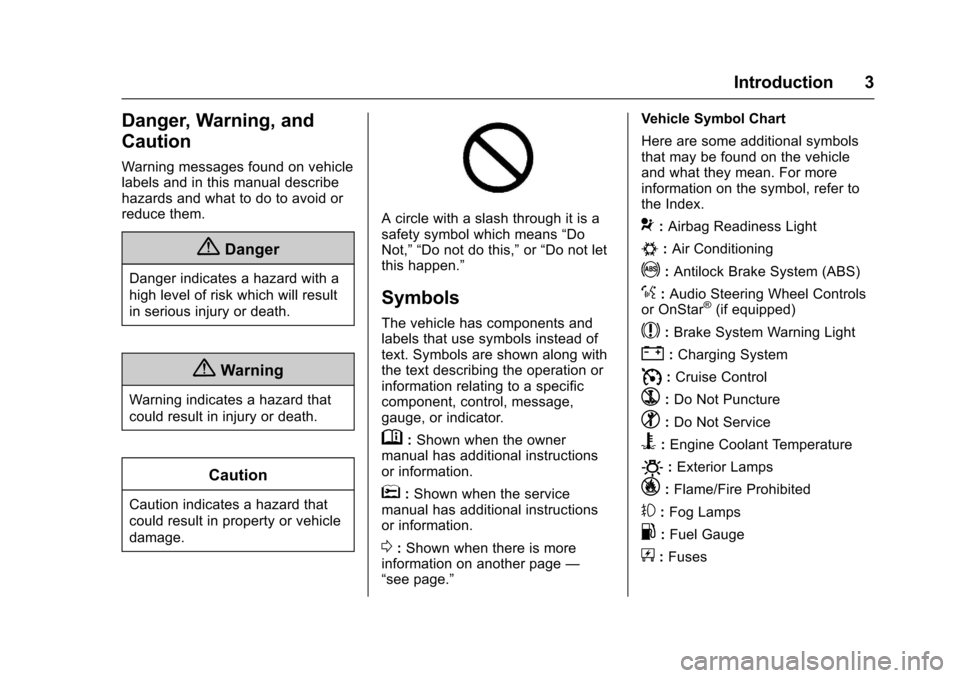
A circle with a slash through it is a
safety symbol which means“Do
Not,” “Do not do this,” or“Do not let
this happen.”
Symbols
The vehicle has components and
labels that use symbols instead of
text. Symbols are shown along with
the text describing the operation or
information relating to a specific
component, control, message,
gauge, or indicator.
M: Shown when the owner
manual has additional instructions
or information.
*: Shown when the service
manual has additional instructions
or information.
0: Shown when there is more
information on another page —
“see page.” Vehicle Symbol Chart
Here are some additional symbols
that may be found on the vehicle
and what they mean. For more
information on the symbol, refer to
the Index.
9:
Airbag Readiness Light
#:Air Conditioning
!:Antilock Brake System (ABS)
%:Audio Steering Wheel Controls
or OnStar®(if equipped)
$: Brake System Warning Light
":Charging System
I: Cruise Control
`:Do Not Puncture
^:Do Not Service
B:Engine Coolant Temperature
O:Exterior Lamps
_: Flame/Fire Prohibited
#:Fog Lamps
.:Fuel Gauge
+: Fuses
Page 20 of 373
Chevrolet TRAX Owner Manual (GMNA-Localizing-U.S./Canada/Mexico-
10122735) - 2017 - crc - 7/12/16
In Brief 19
Satellite Radio
If equipped, a SiriusXM®satellite
radio tuner and a valid SiriusXM
satellite radio subscription can
receive SiriusXM programming.
SiriusXM Satellite Radio
Service
SiriusXM is a satellite radio service
based in the 48 contiguous United
States and 10 Canadian provinces.
SiriusXM satellite radio has a wide
variety of programming and
commercial-free music, coast to
coast, and in digital-quality sound.
A fee is required to receive the
SiriusXM service.
Refer to:
. www.siriusxm.com or call
1-888-601-6296 (U.S.).
. www.siriusxm.ca or call
1-877-438-9677 (Canada).
See Satellite Radio 0163.
Portable Audio Devices
This vehicle has a 3.5 mm (1/8 in)
auxiliary input and two USB ports.
One in the center stack and one in
the center console. External devices
such as iPods
®, MP3 players, and
USB storage devices may be
connected.
See Auxiliary Devices 0171 and
USB Port 0165.
Bluetooth®
The Bluetooth®system allows users
with a Bluetooth-enabled mobile
phone to make and receive
hands-free calls using the vehicle
audio system and controls.
The Bluetooth-enabled mobile
phone must be paired with the
in-vehicle Bluetooth system before it
can be used in the vehicle. Not all
phones will support all functions.
See Bluetooth (Infotainment
Controls Radio with Touchscreen)
0 177 orBluetooth (Infotainment
Controls Radio without
Touchscreen) 0173 orBluetooth
(Overview) 0171.
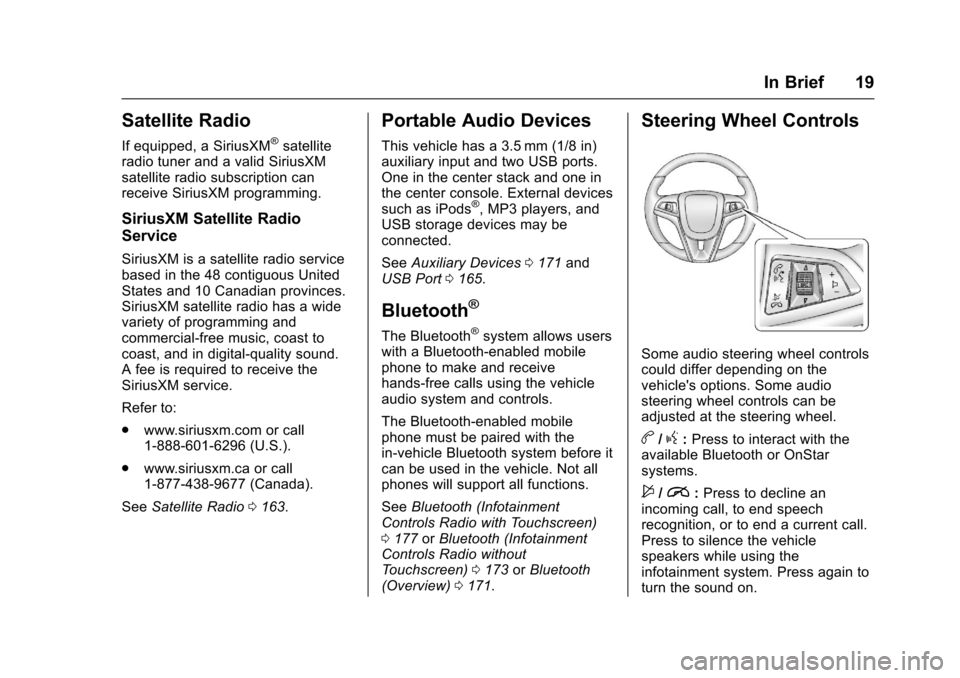
Steering Wheel Controls
Some audio steering wheel controls
could differ depending on the
vehicle's options. Some audio
steering wheel controls can be
adjusted at the steering wheel.
b/g:Press to interact with the
available Bluetooth or OnStar
systems.
$/i: Press to decline an
incoming call, to end speech
recognition, or to end a current call.
Press to silence the vehicle
speakers while using the
infotainment system. Press again to
turn the sound on.
Page 21 of 373
Chevrolet TRAX Owner Manual (GMNA-Localizing-U.S./Canada/Mexico-
10122735) - 2017 - crc - 7/12/16
20 In Brief
For vehicles with OnStar or
Bluetooth systems, press to reject
an incoming call, or end a
current call.
_SRC^:Press to select an audio
source.
Toggle up or down to select the next
or previous favorite radio station,
CD/MP3 track, USB file, iPod/
iPhone song or Bluetooth music.
Toggle and hold up or down to fast
forward or reverse the radio
stations, CD/MP3 tracks, USB files,
iPod/iPhone songs, or Bluetooth
music.
+
x− :Press + or −to increase or
decrease the volume.
See Steering Wheel Controls 0104.
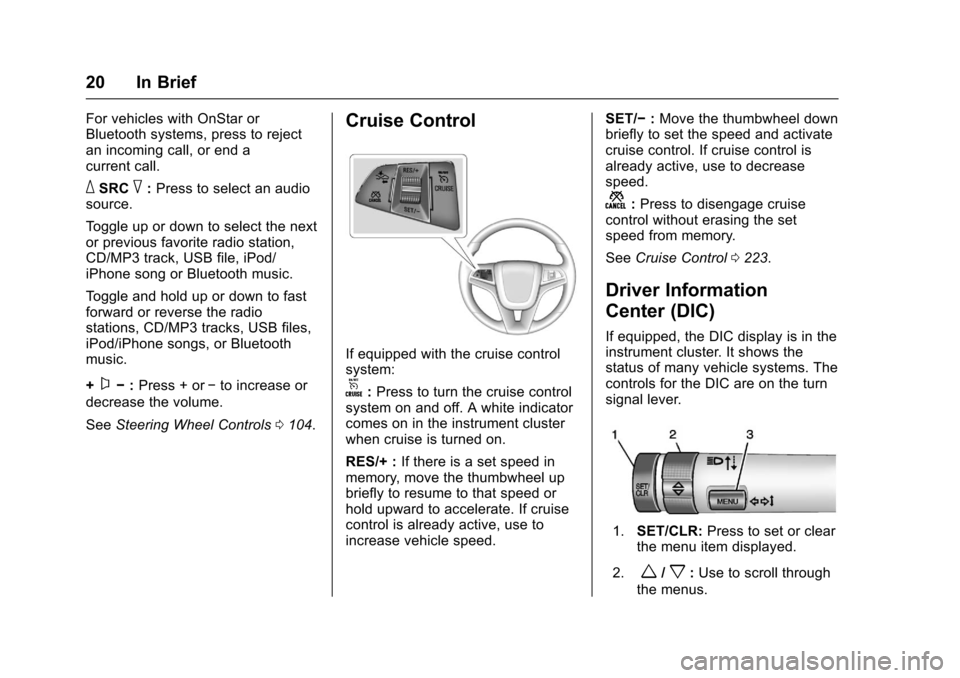
Cruise Control
If equipped with the cruise control
system:
o:Press to turn the cruise control
system on and off. A white indicator
comes on in the instrument cluster
when cruise is turned on.
RES/+ : If there is a set speed in
memory, move the thumbwheel up
briefly to resume to that speed or
hold upward to accelerate. If cruise
control is already active, use to
increase vehicle speed. SET/−
:Move the thumbwheel down
briefly to set the speed and activate
cruise control. If cruise control is
already active, use to decrease
speed.
n: Press to disengage cruise
control without erasing the set
speed from memory.
See Cruise Control 0223.
Driver Information
Center (DIC)
If equipped, the DIC display is in the
instrument cluster. It shows the
status of many vehicle systems. The
controls for the DIC are on the turn
signal lever.
1. SET/CLR: Press to set or clear
the menu item displayed.
2.
w/x: Use to scroll through
the menus.
Page 28 of 373
Chevrolet TRAX Owner Manual (GMNA-Localizing-U.S./Canada/Mexico-
10122735) - 2017 - crc - 7/12/16
Keys, Doors, and Windows 27
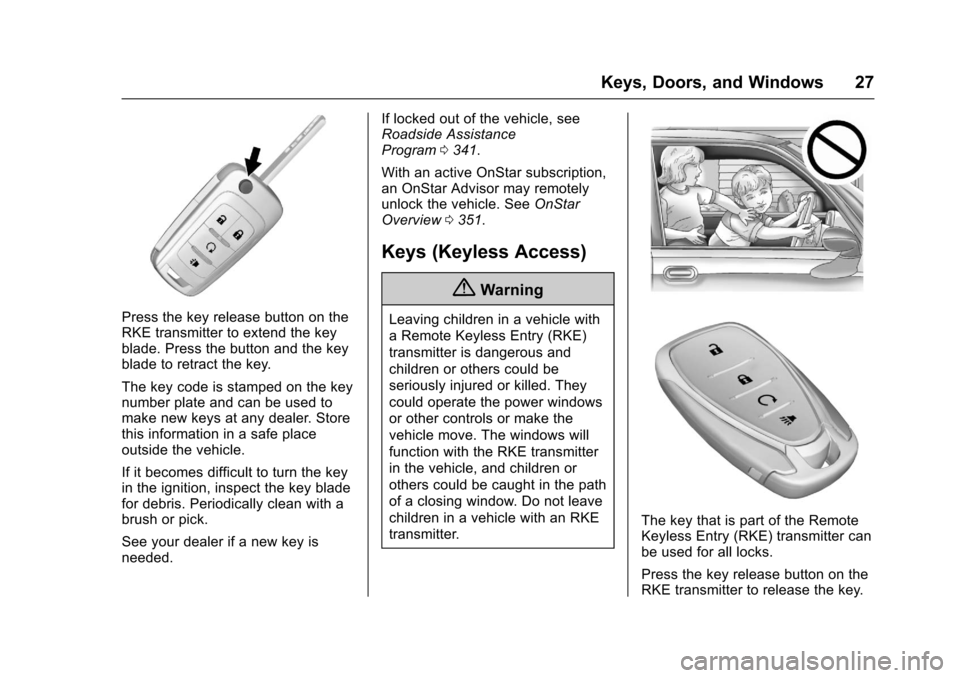
Press the key release button on the
RKE transmitter to extend the key
blade. Press the button and the key
blade to retract the key.
The key code is stamped on the key
number plate and can be used to
make new keys at any dealer. Store
this information in a safe place
outside the vehicle.
If it becomes difficult to turn the key
in the ignition, inspect the key blade
for debris. Periodically clean with a
brush or pick.
See your dealer if a new key is
needed.If locked out of the vehicle, see
Roadside Assistance
Program
0341.
With an active OnStar subscription,
an OnStar Advisor may remotely
unlock the vehicle. See OnStar
Overview 0351.
Keys (Keyless Access)
{Warning
Leaving children in a vehicle with
a Remote Keyless Entry (RKE)
transmitter is dangerous and
children or others could be
seriously injured or killed. They
could operate the power windows
or other controls or make the
vehicle move. The windows will
function with the RKE transmitter
in the vehicle, and children or
others could be caught in the path
of a closing window. Do not leave
children in a vehicle with an RKE
transmitter.
The key that is part of the Remote
Keyless Entry (RKE) transmitter can
be used for all locks.
Press the key release button on the
RKE transmitter to release the key.
Page 29 of 373
Chevrolet TRAX Owner Manual (GMNA-Localizing-U.S./Canada/Mexico-
10122735) - 2017 - crc - 7/12/16
28 Keys, Doors, and Windows
The key code is stamped on the key
number plate and can be used to
make new keys at any dealer. Store
this information in a safe place
outside the vehicle.
See your dealer if a new key is
needed.
If locked out of the vehicle, see
Roadside Assistance
Program0341.
With an active OnStar subscription,
an OnStar Advisor may remotely
unlock the vehicle. See OnStar
Overview 0351.
Remote Keyless Entry
(RKE) System
See Radio Frequency
Statement 0347.
If there is a decrease in the Remote
Keyless Entry (RKE) operating
range:
. Check the distance. The
transmitter may be too far from
the vehicle. .
Check the location. Other
vehicles or objects may be
blocking the signal.
. Check the transmitter's battery.
See “Battery Replacement” later
in this section.
. If the transmitter is still not
working correctly, see your
dealer or a qualified technician
for service.
Remote Keyless Entry
(RKE) System Operation
(Key Access)
The RKE transmitter may work up to
30 m (98 ft) away from the vehicle.
Other conditions can affect the
performance of the transmitter. See
Remote Keyless Entry (RKE)
System 028.
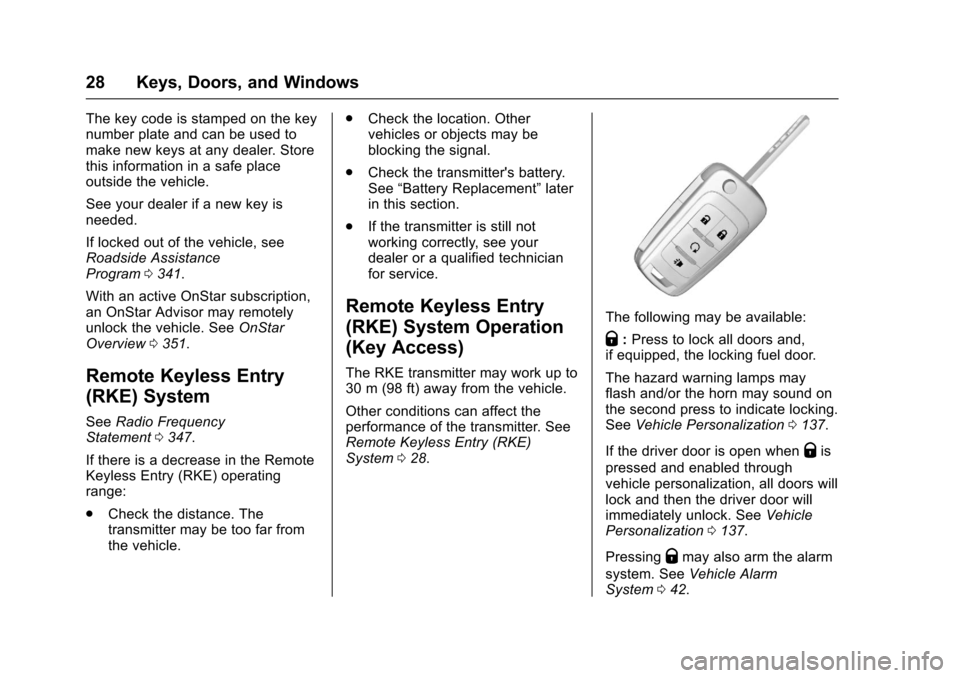
The following may be available:
Q:Press to lock all doors and,
if equipped, the locking fuel door.
The hazard warning lamps may
flash and/or the horn may sound on
the second press to indicate locking.
See Vehicle Personalization 0137.
If the driver door is open when
Qis
pressed and enabled through
vehicle personalization, all doors will
lock and then the driver door will
immediately unlock. See Vehicle
Personalization 0137.
Pressing
Qmay also arm the alarm
system. See Vehicle Alarm
System 042.
Page 47 of 373
Chevrolet TRAX Owner Manual (GMNA-Localizing-U.S./Canada/Mexico-
10122735) - 2017 - crc - 7/12/16
46 Keys, Doors, and Windows
Interior Mirrors
Interior Rearview Mirrors
Adjust the rearview mirror for a clear
view of the area behind your
vehicle.
If equipped with OnStar, the vehicle
may have three control buttons at
the bottom of the mirror. See your
dealer for more information about
OnStar and how to subscribe to it.
SeeOnStar Overview 0351.
Do not spray glass cleaner directly
on the mirror. Use a soft towel
dampened with water.
Manual Rearview Mirror
If equipped with a manual rearview
mirror, push the tab forward for
daytime use and pull it for nighttime
use to avoid glare from the
headlamps from behind.
Automatic Dimming
Rearview Mirror
If equipped, automatic dimming
reduces the glare of headlamps
from behind. The dimming feature
comes on when the vehicle is
started.
Windows
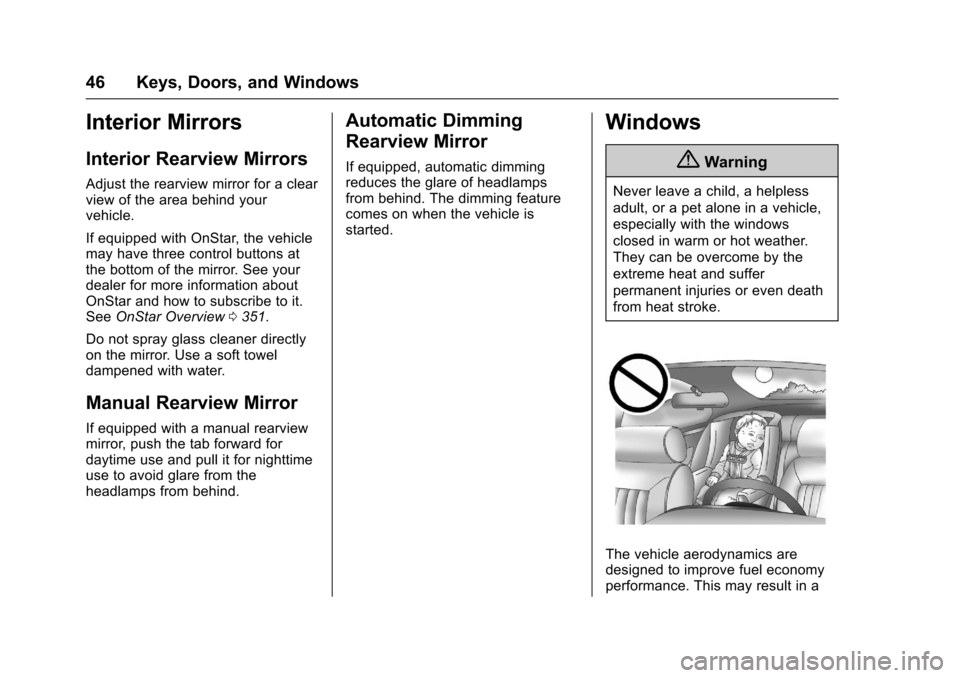
{Warning
Never leave a child, a helpless
adult, or a pet alone in a vehicle,
especially with the windows
closed in warm or hot weather.
They can be overcome by the
extreme heat and suffer
permanent injuries or even death
from heat stroke.
The vehicle aerodynamics are
designed to improve fuel economy
performance. This may result in a
Page 105 of 373
Chevrolet TRAX Owner Manual (GMNA-Localizing-U.S./Canada/Mexico-
10122735) - 2017 - crc - 7/12/16
104 Instruments and Controls
Service Vehicle Messages . . . . 135
Tire Messages . . . . . . . . . . . . . . . . 135
Transmission Messages . . . . . . 136
Vehicle ReminderMessages . . . . . . . . . . . . . . . . . . . 136
Window Messages . . . . . . . . . . . 136
Vehicle Personalization
Vehicle Personalization . . . . . . . 137
Controls
Steering Wheel
Adjustment
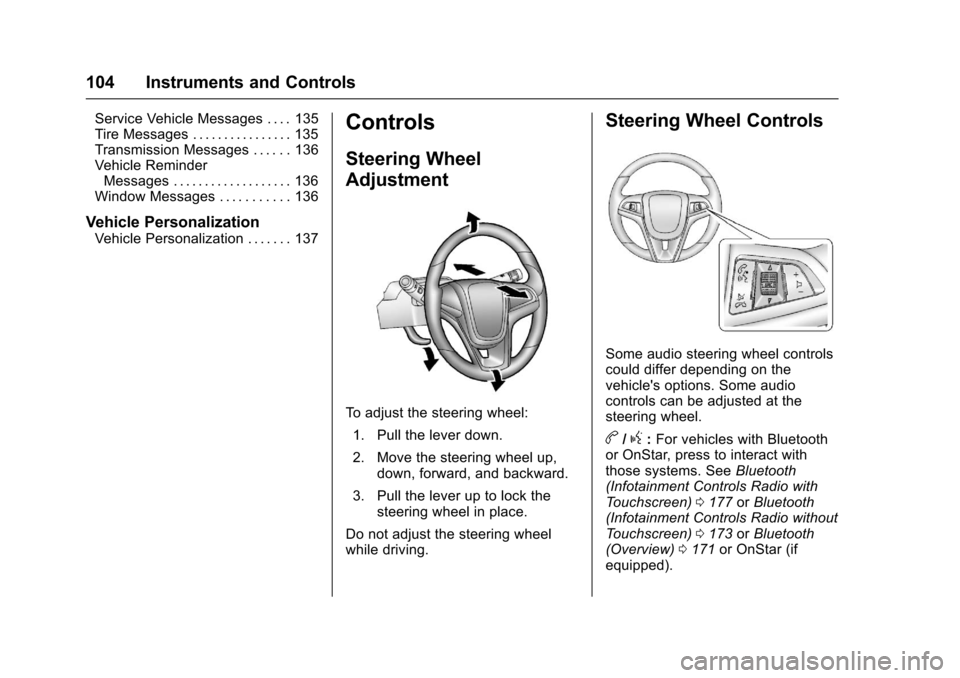
To adjust the steering wheel:
1. Pull the lever down.
2. Move the steering wheel up, down, forward, and backward.
3. Pull the lever up to lock the steering wheel in place.
Do not adjust the steering wheel
while driving.
Steering Wheel Controls
Some audio steering wheel controls
could differ depending on the
vehicle's options. Some audio
controls can be adjusted at the
steering wheel.
b/g: For vehicles with Bluetooth
or OnStar, press to interact with
those systems. See Bluetooth
(Infotainment Controls Radio with
Touchscreen) 0177 orBluetooth
(Infotainment Controls Radio without
Touchscreen) 0173 orBluetooth
(Overview) 0171 or OnStar (if
equipped).
Page 106 of 373
Chevrolet TRAX Owner Manual (GMNA-Localizing-U.S./Canada/Mexico-
10122735) - 2017 - crc - 7/12/16
Instruments and Controls 105
$/i:Press to decline an
incoming call, to end speech
recognition, or to end a current call.
Press to silence the vehicle
speakers while using the
infotainment system. Press again to
turn the sound on.
For vehicles with OnStar or
Bluetooth systems, press to reject
an incoming call or end a
current call.
_SRC^: Press to select an audio
source.
Toggle up or down to select the next
or previous favorite radio station,
CD/MP3 track, USB file, iPod/
iPhone song or Bluetooth music.
Toggle and hold up or down to fast
forward or reverse the radio
stations, CD/MP3 tracks, USB files,
iPod/iPhone songs, or Bluetooth
music.
+
x− :Press + or −to increase or
decrease the volume.
Horn
Pressaon the steering wheel pad
to sound the horn.
Windshield Wiper/Washer
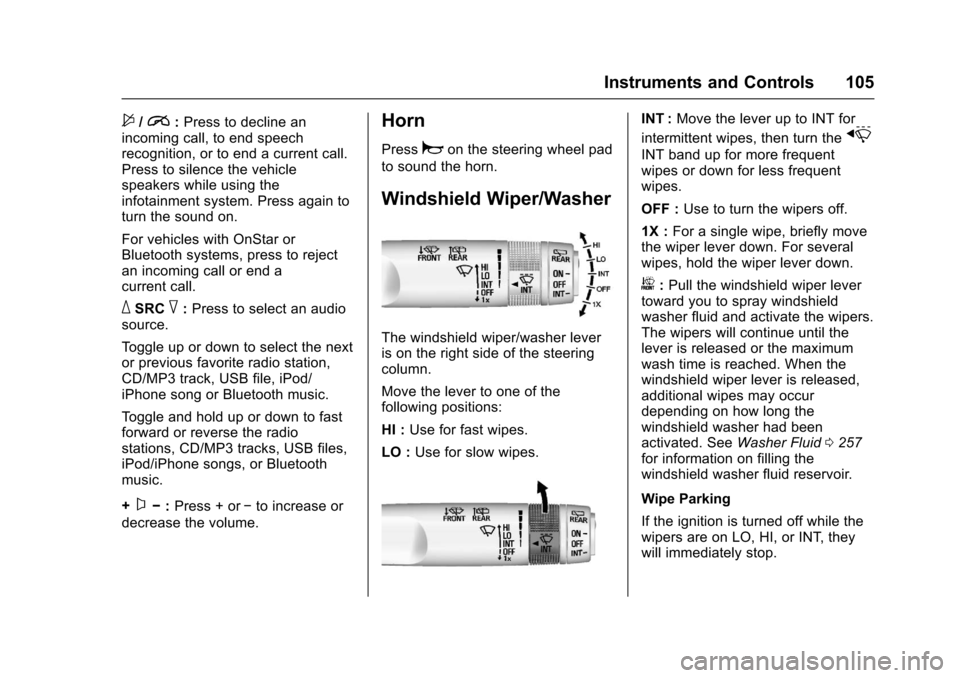
The windshield wiper/washer lever
is on the right side of the steering
column.
Move the lever to one of the
following positions:
HI : Use for fast wipes.
LO : Use for slow wipes.
INT : Move the lever up to INT for
intermittent wipes, then turn the
x
INT band up for more frequent
wipes or down for less frequent
wipes.
OFF : Use to turn the wipers off.
1X : For a single wipe, briefly move
the wiper lever down. For several
wipes, hold the wiper lever down.
b: Pull the windshield wiper lever
toward you to spray windshield
washer fluid and activate the wipers.
The wipers will continue until the
lever is released or the maximum
wash time is reached. When the
windshield wiper lever is released,
additional wipes may occur
depending on how long the
windshield washer had been
activated. See Washer Fluid0257
for information on filling the
windshield washer fluid reservoir.
Wipe Parking
If the ignition is turned off while the
wipers are on LO, HI, or INT, they
will immediately stop.
Page 109 of 373
Chevrolet TRAX Owner Manual (GMNA-Localizing-U.S./Canada/Mexico-
10122735) - 2017 - crc - 7/12/16
108 Instruments and Controls
Auto Set
Auto Set requires an active
connection to OnStar.
When Auto Set is enabled, the time
displayed on the clock may not
update immediately when driving
into a new time zone.
When Auto Set is enabled, the time
cannot be manually set.
From the Set Time or Set
Date menu:1. Press the preset button under Auto Set.
2. Turn MENU to select Off (Manual) or On-Cell Network,
then press MENU to select it
and return to the Time and
Date menu.
3. To exit without saving, press BACK at any time.
Setting the 12/24 Hour Format
From the Set Time menu:
1. Press the preset button under 12-24 HR to change between
12 hour and 24 hour modes. 2. To return to the Time and Date
menu, press BACK at any time.
Radio with Touchscreen
The infotainment system controls
are used to access the time and
date settings through the menu
system. See Operation0157 on
how to use the menu system.
Setting the Time and Date
When Auto Set is enabled the time
cannot be manually set.
1. Press
{, then touch Settings.
2. Touch Time and Date, then Set Time or Set Date.
3. Touch + or −to adjust the
value.
4. Touch
RorQto adjust AM or
PM for 12 hour format.
5. Touch
0to return to the
Time and Date menu.
Auto Set
Auto Set requires an active
connection to OnStar. When Auto Set is enabled, the time
displayed on the clock may not
update immediately when driving
into a new time zone.
When Auto Set is enabled, the time
cannot be manually set.
1. Press
{, then touch Settings.
2. Touch Time and Date, then Auto Set.
3. Select from the available selections.
4. Touch
0to return to the
Time and Date menu.
Setting the 12/24 Hour Format
1. Press{, then touch Settings.
2. Touch Time and Date, then select 12h or 24h format.
3. Touch
0to return to the
Time and Date menu.
Setting the Month and Day
Format
1. Press{, then touch Settings.