no start CHEVROLET TRAX 2018 Workshop Manual
[x] Cancel search | Manufacturer: CHEVROLET, Model Year: 2018, Model line: TRAX, Model: CHEVROLET TRAX 2018Pages: 366, PDF Size: 5.44 MB
Page 133 of 366
Chevrolet TRAX Owner Manual (GMNA-Localizing-U.S./Canada/Mexico-
11354406) - 2018 - crc - 10/12/17
132 Instruments and Controls
Remember, the Oil Life display must
be reset after each oil change. It will
not reset itself. Also, be careful not
to reset the Oil Life display
accidentally at any time other than
when the oil has just been changed.
It cannot be reset accurately until
the next oil change. To reset the
engine oil life system, press SET/
CLR while the Oil Life display is
active. SeeEngine Oil Life System
0 236.Vehicle Messages
Vehicle Messages (Base
Level)
DIC messages display when the
status of the vehicle has changed
and action may be needed to
correct the condition. Multiple
messages appear one after another.
All messages should be taken
seriously.
On the base level cluster, vehicle
messages appear as code numbers.
Some of these codes may appear
along with the service vehicle soon
light and the owner manual symbol
in the DIC display.
2 : No Remote Detected, Press
Clutch To Restart
4 : A/C Off Due to High
Engine Temp
5 : Steering Column Is Locked
7 : Turn Steering Wheel, Turn Key
Off, Then On
9 : Turn Steering Wheel, Start
Vehicle Again 10 :
Brakes Overheated
15 : Check High Mounted
Brake Lamp
16 : Check Brake Lamps
17 : Headlamp Leveling Malfunction
— Contact Service
18 : Left Low Beam Failure
20 : Right Low Beam Failure
21 : Check Left Position Lamp
22 : Check Right Position Lamp
23 : Reversing Lamp Failure
24 : License Plate Lamp Failure
25 : Left Front Turn Indicator Failure
26 : Left Rear Turn Indicator Failure
27 : Right Front Turn Indicator
Failure
28 : Right Rear Turn Indicator
Failure
35 : Replace Battery In Remote Key
49 : Lane Departure Warning
Unavailable
52 : Change Timing Belt –See
Owner ’s Manual
Page 134 of 366
Chevrolet TRAX Owner Manual (GMNA-Localizing-U.S./Canada/Mexico-
11354406) - 2018 - crc - 10/12/17
Instruments and Controls 133
53 :Tighten Gas Cap
59 : Open, Then Close Driver
Window
65 : Theft Attempted
66 : Service Theft Alarm
67 : Service Steering Column Lock
68 : Service Power Steering, Drive
with Care
77 : Service Front Camera
79 : Engine Oil Low –Add Oil
81 : Service Transmission
84 : Engine Power Is Reduced
88 : Use Transmitter Pocket to Start
89 : Service Vehicle Soon
91 : No Remote Detected
92 : No Remote Detected, Press
Brake To Restart
93 : Press Button Again To Turn
Engine Off
94 : Shift to Park
95 : Service Airbag
174 : Low Battery 258 :
Park Assist Off
Engine Oil Messages
:% CHANGE
This message displays when the
engine oil needs to be changed.
When changing the engine oil, be
sure to reset the Oil Life System.
See Engine Oil Life System 0236,
Engine Oil 0234, and Maintenance
Schedule 0312.
Vehicle Messages
(Uplevel)
Messages displayed on the DIC
indicate the status of the vehicle or
some action that may be needed to
correct a condition. Multiple
messages may appear one after
another.
The messages that do not require
immediate action can be
acknowledged and cleared by
pressing SET/CLR. The messages
that require immediate action cannot
be cleared until that action is
performed. All messages should be taken
seriously; clearing the message
does not correct the problem.
If a SERVICE message appears,
see your dealer.
Follow the instructions given in the
messages. The system displays
messages regarding the following
topics:
.
Service Messages
. Fluid Levels
. Vehicle Security
. Brakes
. Ride Control Systems
. Driver Assistance Systems
. Cruise Control
. Lighting and Bulb Replacement
. Wiper/Washer Systems
. Doors and Windows
. Seat Belts
. Airbag Systems
. Engine and Transmission
. Tire Pressure
Page 137 of 366
Chevrolet TRAX Owner Manual (GMNA-Localizing-U.S./Canada/Mexico-
11354406) - 2018 - crc - 10/12/17
136 Instruments and Controls
Power Door Locks
Touch and the following may
display:
.Open Door Anti Lock Out
. Auto Door Unlock
. Delayed Door Lock
Open Door Anti Lock Out
This setting prevents the driver door
from locking when the door is open.
If this setting is on, the Delayed
Door Lock menu will not be
available.
Touch Off or On.
Auto Door Unlock
This setting allows you to select
which doors will automatically
unlock when the vehicle is shifted
into P (Park).
Touch Off, All Doors, or Driver Door.
Delayed Door Lock
This setting delays the locking of
the doors. To override the delay,
press the power door lock switch on
the door. Touch Off or On.Remote Lock, Unlock, Start
Touch and the following may
display:
.
Remote Unlock Light Feedback
. Remote Lock Feedback
. Remote Door Unlock
. Remote Start Auto Heat Seats
. Passive Door Unlock
. Passive Door Lock
. Remote Left in Vehicle Alert
Remote Unlock Light Feedback
This setting flashes the exterior
lamps when you remotely unlock
the vehicle.
Touch Off or Flash Lights.
Remote Lock Feedback
This setting specifies how the
vehicle responds when you remotely
lock the vehicle.
Touch Off, Lights and Horn, Lights
Only, or Horn Only. Remote Door Unlock
This setting specifies whether all
doors, or just the drivers door,
unlock when pressingKon the
RKE transmitter.
Touch All Doors or Driver Door.
Remote Start Auto Heat Seats
This setting automatically turns on
the heated seats when using the
remote start function on cold days.
See Heated Front Seats 060 and
Remote Vehicle Start 039.
Touch Off or On.
Passive Door Unlock
This setting specifies which doors
unlock when using the button on the
driver door handle to unlock the
vehicle.
Touch All Doors or Driver Door Only.
Passive Door Lock
This setting specifies whether the
vehicle will automatically lock,
or lock and alert you after all the
doors are closed, and you walk
away from the vehicle with the RKE
Page 142 of 366
Chevrolet TRAX Owner Manual (GMNA-Localizing-U.S./Canada/Mexico-
11354406) - 2018 - crc - 10/12/17
Lighting 141
Turn and Lane-Change
Signals
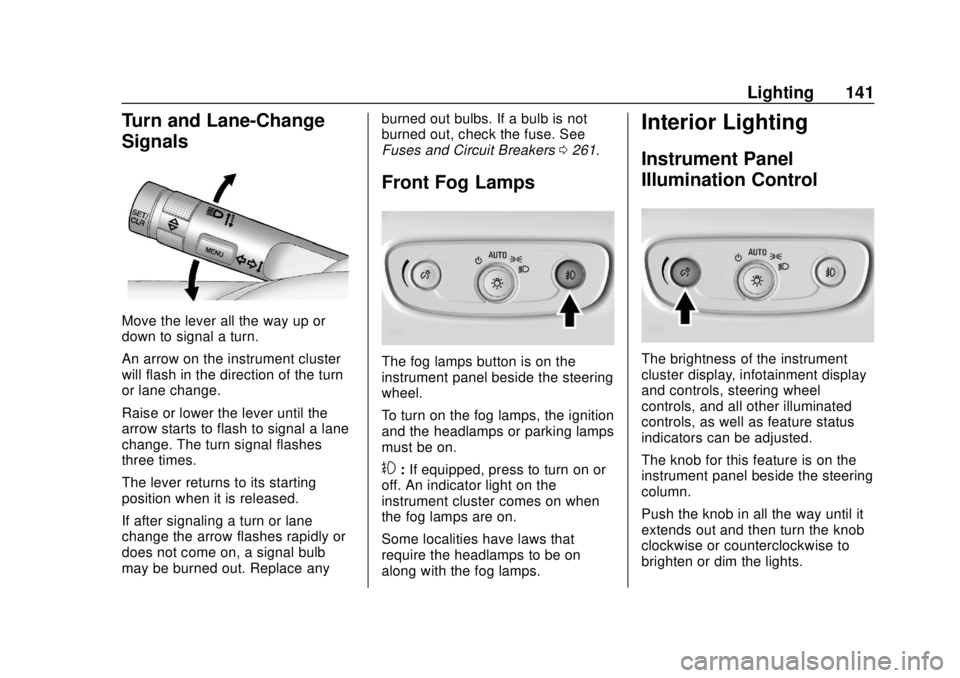
Move the lever all the way up or
down to signal a turn.
An arrow on the instrument cluster
will flash in the direction of the turn
or lane change.
Raise or lower the lever until the
arrow starts to flash to signal a lane
change. The turn signal flashes
three times.
The lever returns to its starting
position when it is released.
If after signaling a turn or lane
change the arrow flashes rapidly or
does not come on, a signal bulb
may be burned out. Replace anyburned out bulbs. If a bulb is not
burned out, check the fuse. See
Fuses and Circuit Breakers
0261.
Front Fog Lamps
The fog lamps button is on the
instrument panel beside the steering
wheel.
To turn on the fog lamps, the ignition
and the headlamps or parking lamps
must be on.
#:If equipped, press to turn on or
off. An indicator light on the
instrument cluster comes on when
the fog lamps are on.
Some localities have laws that
require the headlamps to be on
along with the fog lamps.
Interior Lighting
Instrument Panel
Illumination Control
The brightness of the instrument
cluster display, infotainment display
and controls, steering wheel
controls, and all other illuminated
controls, as well as feature status
indicators can be adjusted.
The knob for this feature is on the
instrument panel beside the steering
column.
Push the knob in all the way until it
extends out and then turn the knob
clockwise or counterclockwise to
brighten or dim the lights.
Page 145 of 366
Chevrolet TRAX Owner Manual (GMNA-Localizing-U.S./Canada/Mexico-
11354406) - 2018 - crc - 10/12/17
144 Lighting
Normally, these actions occur in
steps or levels, without being
noticeable. In rare cases at the
highest levels of corrective action,
this action may be noticeable to the
driver.
Battery Power Protection
The battery saver feature protects
against draining the vehicle's
battery.
If some interior lamps or the manual
parking lamps or headlamps are left
on and the ignition is turned off, the
battery rundown protection system
automatically turns the lamp off after
some time.
To restart the 10-minute timer, turn
the exterior lamp control to the
O
position and then back to the;or
5position. To keep the lamps on
for more than 10 minutes, the
ignition must be on or in ACC/
ACCESSORY.
Exterior Lighting Battery
Saver
The exterior lamps turn off about
10 minutes after the ignition is
turned off, if the parking lamps or
headlamps have been manually left
on. This protects against draining
the battery. To restart the 10-minute
timer, turn the exterior lamp control
to the off position and then back to
the parking lamp or headlamp
position.
To keep the lamps on for more than
10 minutes, the ignition must be on
or in ACC/ACCESSORY.
Page 150 of 366
Chevrolet TRAX Owner Manual (GMNA-Localizing-U.S./Canada/Mexico-
11354406) - 2018 - crc - 10/17/17
Infotainment System 149
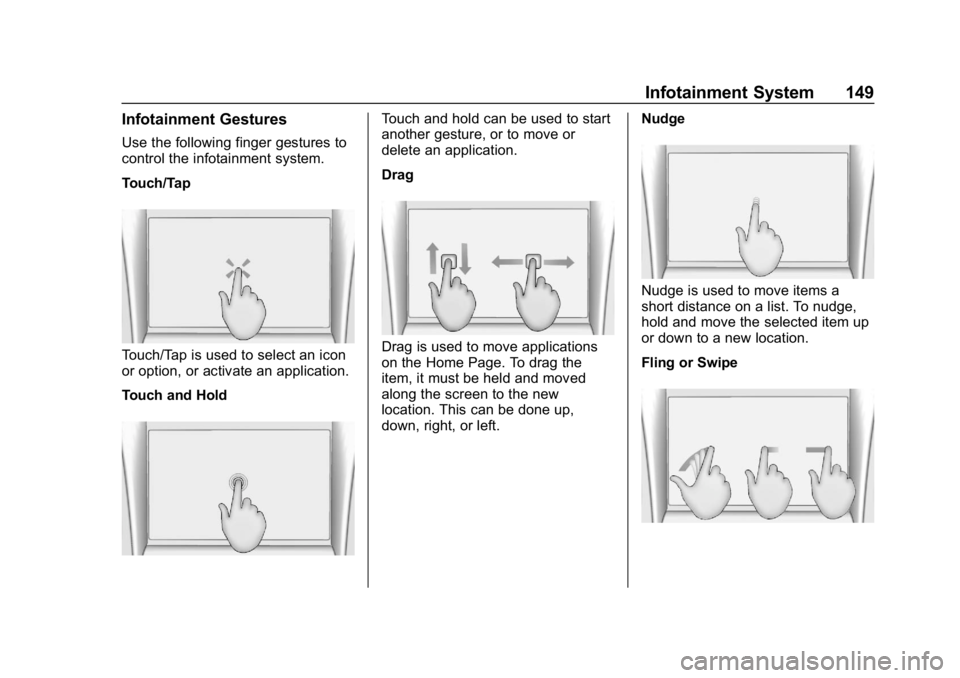
Infotainment Gestures
Use the following finger gestures to
control the infotainment system.
Touch/Tap
Touch/Tap is used to select an icon
or option, or activate an application.
Touch and Hold
Touch and hold can be used to start
another gesture, or to move or
delete an application.
Drag
Drag is used to move applications
on the Home Page. To drag the
item, it must be held and moved
along the screen to the new
location. This can be done up,
down, right, or left.Nudge
Nudge is used to move items a
short distance on a list. To nudge,
hold and move the selected item up
or down to a new location.
Fling or Swipe
Page 156 of 366
Chevrolet TRAX Owner Manual (GMNA-Localizing-U.S./Canada/Mexico-
11354406) - 2018 - crc - 10/17/17
Infotainment System 155
Artists:1. Touch to view the list of artists stored on the USB.
2. Select an artist name to view a list of all albums by the artist.
3. To select a song, press All Songs or press an album and
then select a song from the list.
Songs:
1. Touch to display a list of all songs on the USB.
2. To begin playback, select a song from the list.
Albums: 1. Touch to view the albums on the USB.
2. Select the album to view a list of all songs on the album.
3. Select a song from the list to begin playback. Genres:
1. Touch to view the genres on the USB.
2. Select a genre to view a list of artists.
3. Select an artist to view albums by that artist.
4. Select an album to view songs on the album.
5. Select a song to start playback.
iTunes Radio: Touch to view iTunes
Radio on the iPhone to get a list of
stations.
Compilations: Touch to view the
Compilations on the USB.
Composers:
1. Touch to view the composers on the USB.
2. Select a Composer to view a list of albums by that
composer.
3. Select an album or all songs to view a list of songs.
4. Select a song from the list to begin playback. Folders:
1. Touch to view the directories on the USB.
2. Select a folder to view a list of all files.
3. Select a file from the list to begin playback.
Podcasts: Touch to view the
podcasts on the USB and get a list
of podcast episodes.
Audiobooks:
1. Touch to view the audiobooks stored on the device.
2. Select an audiobook to get a list of chapters.
3. Select the chapter from the list to begin playback.
File System and Naming
File systems supported by the
USB are:
. FAT32
. NTFS
. HFS+
Page 158 of 366
Chevrolet TRAX Owner Manual (GMNA-Localizing-U.S./Canada/Mexico-
11354406) - 2018 - crc - 10/17/17
Infotainment System 157
This jack is not an audio output. Do
not plug headphones into the
auxiliary input jack. Set up an
auxiliary device while the vehicle is
in P (Park).
Connect a 3.5 mm (1/8 in) cable
from the auxiliary device to the
auxiliary input jack. When a device
is connected, the system can play
audio from the device over the
vehicle speakers.
If an auxiliary device has already
been connected, but a different
source is currently active, touch
More and select AUX to make the
source active.
Shuffle and Browse are not
available in the AUX source menu.
Bluetooth Audio
Music may be played from a paired
Bluetooth device. See“Pairing”
following.
Volume and song selection may be
controlled by using the infotainment
controls or the phone/device.
If Bluetooth is selected and no volume is present, check the
volume setting on both your phone/
device and the infotainment system.
Music can be launched by touching
Bluetooth from the recent sources
list on the left of the screen or touch
More and select the Bluetooth
device.
To play music via Bluetooth:
1. Power on the device, and pair to connect the device.
2. Once paired, touch Audio from the Home Page, and touch
Bluetooth.
Bluetooth Sound Menu
See “Infotainment System Sound
Menu” underAM-FM Radio 0150.
Manage Bluetooth Devices
From the Home Page: 1. Touch Audio.
2. Touch More.
3. Touch Bluetooth.
4. Touch Devices to add or delete devices. When selecting Bluetooth, the radio
may not be able to launch the audio
player on the connected device to
start playing. When the vehicle is
not moving, use the phone to begin
playback.
All devices launch audio differently.
When selecting Bluetooth as a
source, the radio may show as
paused on the screen. Press play
on the device or touch
pon the
screen to begin playback.
Browse functionality will be provided
where supported by the Bluetooth
device. This media content will not
be part of the MyMedia
source mode.
Some phones support sending
Bluetooth music information to
display on the radio. When the radio
receives this information, it will
check to see if any is available and
display it. For more information
about supported Bluetooth features,
see my.chevrolet.com/learn.
Page 161 of 366
Chevrolet TRAX Owner Manual (GMNA-Localizing-U.S./Canada/Mexico-
11354406) - 2018 - crc - 10/17/17
160 Infotainment System
Infotainment System Controls
For information about how to
navigate the menu system using the
infotainment controls, see
Introduction0145.
PHONE : Touch the PHONE icon on
the Home Page to enter the phone
main menu.
Audio System
When using the Bluetooth phone
system, sound comes through the
vehicle's front audio system
speakers and overrides the audio
system. The volume level while on a
phone call can be adjusted by
pressing the steering wheel controls
or touching the volume control on
the center stack. The adjusted
volume level remains in memory for
later calls. The volume cannot be
lowered beyond a certain level.
Bluetooth (Pairing and
Using the Phone)
Pairing
A Bluetooth-enabled cell phone
must be paired to the Bluetooth
system and then connected to the
vehicle before it can be used. See
the cell phone manufacturer's user
guide for Bluetooth functions before
pairing the cell phone.
Pairing Information
. A Bluetooth phone with music
capability can be paired to the
vehicle as a phone and a music
player at the same time.
. Up to 10 devices can be paired
to the Bluetooth system.
. The pairing process is disabled
when the vehicle is moving.
. Pairing only needs to be
completed once, unless the
pairing information on the cell
phone changes or the cell phone
is deleted from the system. .
If multiple paired cell phones are
within range of the system, the
system connects to the paired
cell phone that is set to First to
Connect. If there is no phone set
to First to Connect, it will link to
the device which was used last.
To link to a different paired
phone, see “Linking to a
Different Phone” later in this
section.
Pairing a Phone 1. Make sure Bluetooth has been enabled on the cell phone
before pairing is started.
2. Touch the PHONE icon on the Home Page or the phone
shortcut on the applications
tray at the bottom of the
screen.
3. Touch Phone at the top of the infotainment display. There
may also be an Add option in
the middle of the Phone
screen. Touching this Add
Phone option will shortcut to
the Phone List menu.
4. Touch Add Phone.
Page 162 of 366
Chevrolet TRAX Owner Manual (GMNA-Localizing-U.S./Canada/Mexico-
11354406) - 2018 - crc - 10/17/17
Infotainment System 161
5. Select the vehicle name shownon the infotainment display
from your phone’ s Bluetooth
Settings list.
6. Follow the instructions on the cell phone to confirm the
six-digit code shown on the
infotainment display and
touch Pair.
7. Start the pairing process on the cell phone to be paired to the
vehicle. See the cell phone
manufacturer's user guide for
information on this process.
Once the cell phone is paired,
it will show under Connected.
8. If the vehicle does not appear on your phone, there are a few
ways to start the pairing
process over.
.Turn the phone off and then
back on.
. Go back to the beginning of
the Phone menus on the
infotainment display and
restart the pairing process. .
Reset the phone, but this
step should be done as a
last-effort.
9. If the phone prompts to accept connection or allow phone
book download, select Always
Accept and Allow. The phone
book may not be available if
not accepted.
10. Repeat Steps 1−8 to pair additional phones.
First to Connect Paired Phones
If multiple paired cell phones are
within the range of the system, the
system connects to the paired cell
phone that is set as First to
Connect. To enable a paired phone
as the First to Connect phone, make
sure the phone is turned on, then
touch Settings, then System, and
then touch Phones. Phones will
display all paired and all connected
phones, and media player devices.
Phones can be added and removed,
connected and disconnected. To set
a phone as First to Connect, touch
4
to the right of the phone to open the phone’s settings menu. Select the
First to Connect option, to enable
the setting for that device.
Secondary Phone
A cell phone can be enabled as a
Secondary Phone by touching
4to
the right of the paired cell phone
name to open the phone settings
menu. If a cell phone is enabled as
a Secondary Phone, it can connect
simultaneously alongside another
Bluetooth mobile device. In doing
so, the Secondary Phone will be
labeled as Incoming Calls. This
means the device can only receive
calls. The Address Book of a
Secondary Phone will not be
available and hands-free outgoing
calls cannot be placed using this
cell phone.
If needed, touch the Secondary
Phone while in the Phones list to
swap it into the Outgoing and
Incoming role. This role makes it
possible to place outgoing calls from
the Contacts and Recents list.