radio controls CHEVROLET TRAX 2018 Owner's Manual
[x] Cancel search | Manufacturer: CHEVROLET, Model Year: 2018, Model line: TRAX, Model: CHEVROLET TRAX 2018Pages: 366, PDF Size: 5.44 MB
Page 6 of 366
Chevrolet TRAX Owner Manual (GMNA-Localizing-U.S./Canada/Mexico-
11354406) - 2018 - crc - 10/12/17
In Brief 5
In Brief
Instrument Panel
Instrument Panel . . . . . . . . . . . . . . . . 6
Initial Drive Information
Initial Drive Information . . . . . . . . . . 8
Remote Keyless Entry (RKE)System . . . . . . . . . . . . . . . . . . . . . . . . 8
Remote Vehicle Start . . . . . . . . . . . 9
Door Locks . . . . . . . . . . . . . . . . . . . . . 9
Liftgate . . . . . . . . . . . . . . . . . . . . . . . . 10
Windows . . . . . . . . . . . . . . . . . . . . . . . 10
Seat Adjustment . . . . . . . . . . . . . . . 11
Second Row Seats . . . . . . . . . . . . 12
Heated Seats . . . . . . . . . . . . . . . . . . 13
Head Restraint Adjustment . . . . 13
Seat Belts . . . . . . . . . . . . . . . . . . . . . 13
Passenger Sensing System . . . 13
Mirror Adjustment . . . . . . . . . . . . . . 14
Steering Wheel Adjustment . . . . 14
Interior Lighting . . . . . . . . . . . . . . . . 15
Exterior Lighting . . . . . . . . . . . . . . . 16
Windshield Wiper/Washer . . . . . . 16
Climate Controls . . . . . . . . . . . . . . . 17
Transmission . . . . . . . . . . . . . . . . . . 18
Vehicle Features
Infotainment System . . . . . . . . . . . 19
Radio(s) . . . . . . . . . . . . . . . . . . . . . . . 19
Satellite Radio . . . . . . . . . . . . . . . . . 19
Portable Audio Devices . . . . . . . . 20
Bluetooth . . . . . . . . . . . . . . . . . . . . . . 20
Steering Wheel Controls . . . . . . . 20
Cruise Control . . . . . . . . . . . . . . . . . 21
Driver Information Center (DIC) . . . . . . . . . . . . . . . . . 21
Forward Collision Alert (FCA) System . . . . . . . . . . . . . . . . . . . . . . . 22
Lane Departure Warning (LDW) . . . . . . . . . . . . . . . 22
Side Blind Zone Alert (SBZA) . . . . . . . . . . . . . . . . . . 22
Rear Vision Camera (RVC) . . . . 22
Rear Cross Traffic Alert (RCTA) System . . . . . . . . . . . . . . . . . . . . . . . 22
Parking Assist . . . . . . . . . . . . . . . . . 23
Power Outlets . . . . . . . . . . . . . . . . . 23
Sunroof . . . . . . . . . . . . . . . . . . . . . . . . 23
Performance and Maintenance
Traction Control/Electronic Stability Control . . . . . . . . . . . . . . 24
Tire Pressure Monitor . . . . . . . . . . 25
Fuel . . . . . . . . . . . . . . . . . . . . . . . . . . . 25
E85 or FlexFuel . . . . . . . . . . . . . . . . 25
Engine Oil Life System . . . . . . . . 25
Driving for Better Fuel Economy . . . . . . . . . . . . . . . . . . . . . 26
Roadside Assistance Program . . . . . . . . . . . . . . . . . . . . . . 27
Page 20 of 366
Chevrolet TRAX Owner Manual (GMNA-Localizing-U.S./Canada/Mexico-
11354406) - 2018 - crc - 10/12/17
In Brief 19
Vehicle Features
Infotainment System
Read the following pages to
become familiar with the features.
{Warning
Taking your eyes off the road for
too long or too often while using
any infotainment feature can
cause a crash. You or others
could be injured or killed. Do not
give extended attention to
infotainment tasks while driving.
Limit your glances at the vehicle
displays and focus your attention
on driving. Use voice commands
whenever possible.
The infotainment system has built-in
features intended to help avoid
distraction by disabling some
functions when driving. These
functions may gray out when they
are unavailable. Many infotainment features are also available through
the instrument cluster and steering
wheel controls.
Before driving:
.
Become familiar with the
operation, center stack controls,
and infotainment display
controls.
. Set up the audio by presetting
favorite stations, setting the
tone, and adjusting the
speakers.
. Set up phone numbers in
advance so they can be called
easily by pressing a single
button or by using a single voice
command if equipped with
Bluetooth phone capability.
See Defensive Driving 0178.
To play the infotainment system with
the ignition off, see Retained
Accessory Power (RAP) 0195.
Radio(s)
O
:Press to turn the system on.
Press and hold to turn the system
off. Turn to increase or decrease the
volume.
g: Press and release to go to the
previous station, channel, or track.
Press and hold to fast seek the
previous strongest station.
d: Press and release to go to the
next station, channel, or track.
Press and hold to fast seek the next
strongest station.
Source : Touch to choose between
available sources.
Menu : Touch to choose between
available menus.
SorT: Touch to view saved
favorite stations or channels.
See Overview 0146.
Satellite Radio
If equipped, a SiriusXM satellite
radio tuner and a valid SiriusXM
satellite radio subscription can
receive SiriusXM programming.
Page 21 of 366
Chevrolet TRAX Owner Manual (GMNA-Localizing-U.S./Canada/Mexico-
11354406) - 2018 - crc - 10/12/17
20 In Brief
SiriusXM Satellite Radio
Service
SiriusXM is a satellite radio service
based in the 48 contiguous United
States and 10 Canadian provinces.
SiriusXM satellite radio has a wide
variety of programming and
commercial-free music, coast to
coast, and in digital-quality sound.
A fee is required to receive the
SiriusXM service.
Refer to:
.www.siriusxm.com or call
1-888-601-6296 (U.S.).
. www.siriusxm.ca or call
1-877-438-9677 (Canada).
See Satellite Radio 0152.
Portable Audio Devices
This vehicle has a 3.5 mm (1/8 in)
auxiliary input and two USB ports on
the center stack. External devices
such as iPods, MP3 players, and
USB storage devices may be
connected.
See Auxiliary Jack 0156 andUSB
Port 0153.
Bluetooth
The Bluetooth system allows users
with a Bluetooth-enabled cell phone
to make and receive hands-free
calls using the vehicle audio system
and controls.
The Bluetooth-enabled cell phone
must be paired with the in-vehicle
Bluetooth system before it can be
used in the vehicle. Not all phones
will support all functions.
See Bluetooth (Overview) 0159 or
Bluetooth (Pairing and Using the
Phone) 0160.
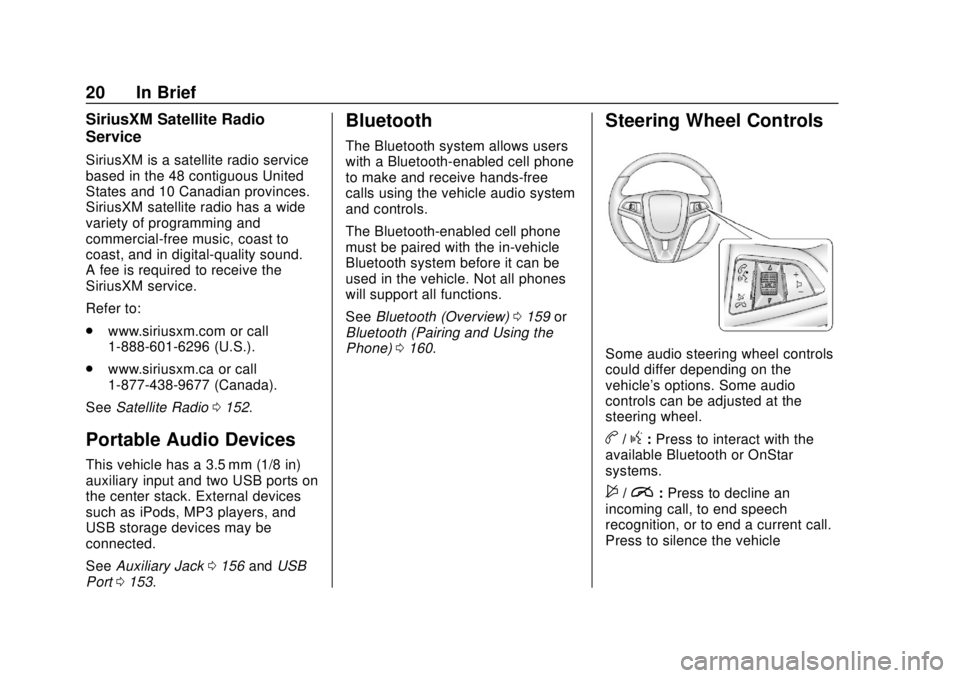
Steering Wheel Controls
Some audio steering wheel controls
could differ depending on the
vehicle's options. Some audio
controls can be adjusted at the
steering wheel.
b/g:Press to interact with the
available Bluetooth or OnStar
systems.
$/i: Press to decline an
incoming call, to end speech
recognition, or to end a current call.
Press to silence the vehicle
Page 22 of 366
Chevrolet TRAX Owner Manual (GMNA-Localizing-U.S./Canada/Mexico-
11354406) - 2018 - crc - 10/12/17
In Brief 21
speakers while using the
infotainment system. Press again to
turn the sound on.
For vehicles with OnStar or
Bluetooth systems, press to reject
an incoming call or end a
current call.
_SRC^:Press to select an audio
source.
Toggle up or down to select the next
or previous favorite radio station,
CD/MP3 track, USB file, iPod/
iPhone song or Bluetooth music.
Toggle and hold up or down to fast
forward or reverse the radio
stations, CD/MP3 tracks, USB files,
iPod/iPhone songs, or Bluetooth
music.
+
x− :Press + or −to increase or
decrease the volume.
See Steering Wheel Controls 0108.
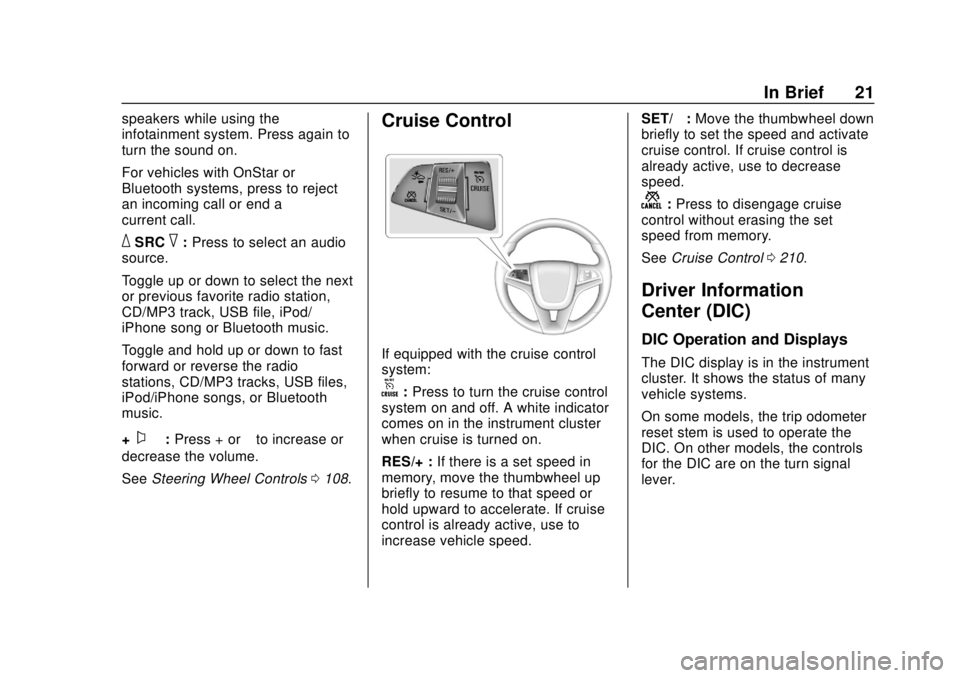
Cruise Control
If equipped with the cruise control
system:
o:Press to turn the cruise control
system on and off. A white indicator
comes on in the instrument cluster
when cruise is turned on.
RES/+ : If there is a set speed in
memory, move the thumbwheel up
briefly to resume to that speed or
hold upward to accelerate. If cruise
control is already active, use to
increase vehicle speed. SET/−
:Move the thumbwheel down
briefly to set the speed and activate
cruise control. If cruise control is
already active, use to decrease
speed.
n: Press to disengage cruise
control without erasing the set
speed from memory.
See Cruise Control 0210.
Driver Information
Center (DIC)
DIC Operation and Displays
The DIC display is in the instrument
cluster. It shows the status of many
vehicle systems.
On some models, the trip odometer
reset stem is used to operate the
DIC. On other models, the controls
for the DIC are on the turn signal
lever.
Page 109 of 366
Chevrolet TRAX Owner Manual (GMNA-Localizing-U.S./Canada/Mexico-
11354406) - 2018 - crc - 10/12/17
108 Instruments and Controls
Controls
Steering Wheel
Adjustment
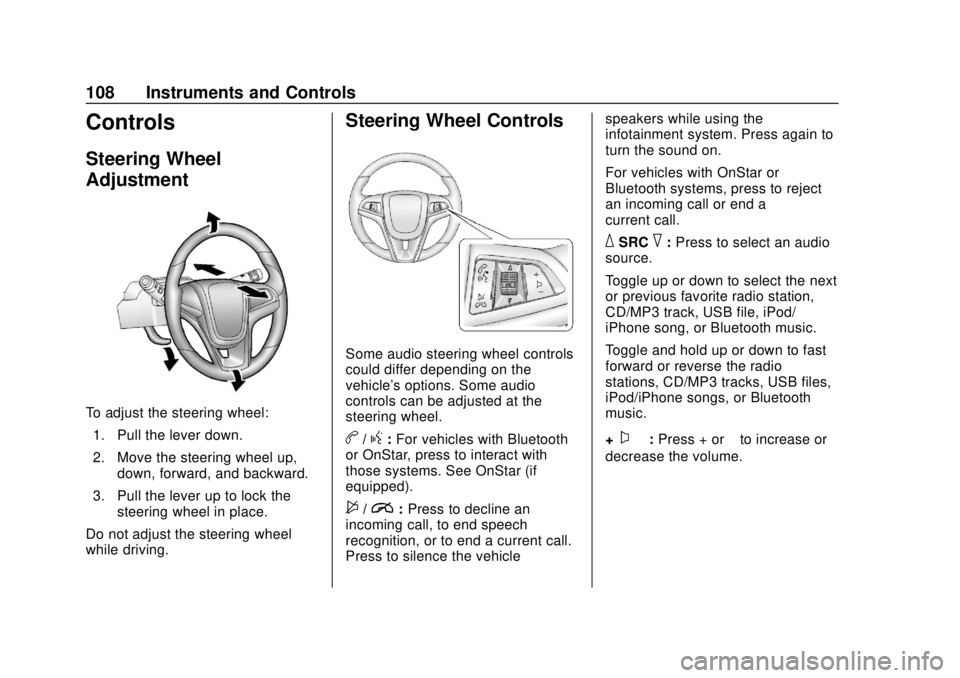
To adjust the steering wheel:1. Pull the lever down.
2. Move the steering wheel up, down, forward, and backward.
3. Pull the lever up to lock the steering wheel in place.
Do not adjust the steering wheel
while driving.
Steering Wheel Controls
Some audio steering wheel controls
could differ depending on the
vehicle's options. Some audio
controls can be adjusted at the
steering wheel.
b/g: For vehicles with Bluetooth
or OnStar, press to interact with
those systems. See OnStar (if
equipped).
$/i: Press to decline an
incoming call, to end speech
recognition, or to end a current call.
Press to silence the vehicle speakers while using the
infotainment system. Press again to
turn the sound on.
For vehicles with OnStar or
Bluetooth systems, press to reject
an incoming call or end a
current call.
_SRC^:
Press to select an audio
source.
Toggle up or down to select the next
or previous favorite radio station,
CD/MP3 track, USB file, iPod/
iPhone song, or Bluetooth music.
Toggle and hold up or down to fast
forward or reverse the radio
stations, CD/MP3 tracks, USB files,
iPod/iPhone songs, or Bluetooth
music.
+
x− :Press + or −to increase or
decrease the volume.
Page 119 of 366
Chevrolet TRAX Owner Manual (GMNA-Localizing-U.S./Canada/Mexico-
11354406) - 2018 - crc - 10/12/17
118 Instruments and Controls
outboard passenger frontal airbag
and knee airbag are allowed to
inflate.
If the word OFF or the off symbol is
lit on the passenger airbag status
indicator, it means that the
passenger sensing system has
turned off the front outboard
passenger frontal airbag and
passenger knee airbag.
If, after several seconds, both status
indicator lights remain on, or if there
are no lights at all, there may be a
problem with the lights or the
passenger sensing system. See
your dealer for service.
{Warning
If the airbag readiness light ever
comes on and stays on, it means
that something may be wrong
with the airbag system. To help
avoid injury to yourself or others,
have the vehicle serviced right
away. SeeAirbag Readiness
(Continued)
Warning (Continued)
Light0117 for more information,
including important safety
information.
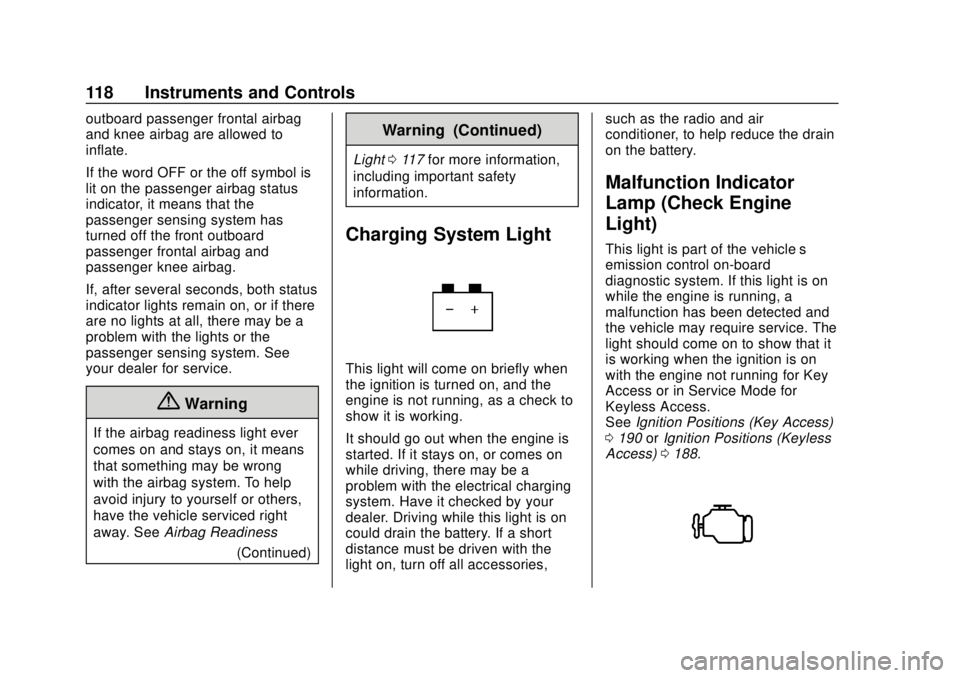
Charging System Light
This light will come on briefly when
the ignition is turned on, and the
engine is not running, as a check to
show it is working.
It should go out when the engine is
started. If it stays on, or comes on
while driving, there may be a
problem with the electrical charging
system. Have it checked by your
dealer. Driving while this light is on
could drain the battery. If a short
distance must be driven with the
light on, turn off all accessories, such as the radio and air
conditioner, to help reduce the drain
on the battery.
Malfunction Indicator
Lamp (Check Engine
Light)
This light is part of the vehicle’s
emission control on-board
diagnostic system. If this light is on
while the engine is running, a
malfunction has been detected and
the vehicle may require service. The
light should come on to show that it
is working when the ignition is on
with the engine not running for Key
Access or in Service Mode for
Keyless Access.
See
Ignition Positions (Key Access)
0 190 orIgnition Positions (Keyless
Access) 0188.
Page 146 of 366
Chevrolet TRAX Owner Manual (GMNA-Localizing-U.S./Canada/Mexico-
11354406) - 2018 - crc - 10/17/17
Infotainment System 145
Infotainment
System
Introduction
Introduction . . . . . . . . . . . . . . . . . . . 145
Overview . . . . . . . . . . . . . . . . . . . . . 146
Using the System . . . . . . . . . . . . 148
Radio
AM-FM Radio . . . . . . . . . . . . . . . . 150
Satellite Radio . . . . . . . . . . . . . . . . 152
Radio Reception . . . . . . . . . . . . . . 152
Backglass Antenna . . . . . . . . . . . 152
Multi-Band Antenna . . . . . . . . . . 153
Audio Players
Avoiding Untrusted MediaDevices . . . . . . . . . . . . . . . . . . . . . 153
USB Port . . . . . . . . . . . . . . . . . . . . . 153
Auxiliary Jack . . . . . . . . . . . . . . . . 156
Bluetooth Audio . . . . . . . . . . . . . . 157
OnStar System
OnStar System . . . . . . . . . . . . . . . 158
Phone
Bluetooth (Overview) . . . . . . . . . 159
Bluetooth (Pairing and Using the Phone) . . . . . . . . . . . . . . . . . . 160 Apple CarPlay and
Android Auto . . . . . . . . . . . . . . . . 164
Settings
Settings . . . . . . . . . . . . . . . . . . . . . . 166
Trademarks and License
Agreements
Trademarks and LicenseAgreements . . . . . . . . . . . . . . . . . 169
Introduction
Read the following pages to
become familiar with the features.
{Warning
Taking your eyes off the road for
too long or too often while using
any infotainment feature can
cause a crash. You or others
could be injured or killed. Do not
give extended attention to
infotainment tasks while driving.
Limit your glances at the vehicle
displays and focus your attention
on driving. Use voice commands
whenever possible.
The infotainment system has built-in
features intended to help avoid
distraction by disabling some
functions when driving. These
functions may gray out when they
are unavailable. Many infotainment
features are also available through
the instrument cluster and steering
wheel controls.
Page 148 of 366
Chevrolet TRAX Owner Manual (GMNA-Localizing-U.S./Canada/Mexico-
11354406) - 2018 - crc - 10/17/17
Infotainment System 147
Infotainment System
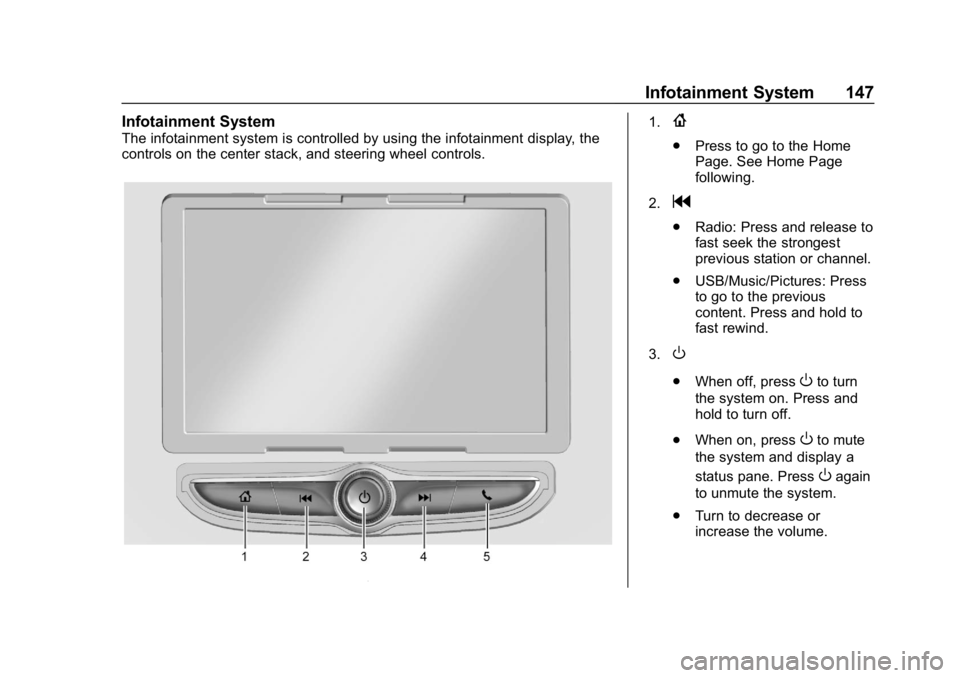
The infotainment system is controlled by using the infotainment display, the
controls on the center stack, and steering wheel controls.
1.{
.Press to go to the Home
Page. See Home Page
following.
2.
g
. Radio: Press and release to
fast seek the strongest
previous station or channel.
. USB/Music/Pictures: Press
to go to the previous
content. Press and hold to
fast rewind.
3.
O
. When off, pressOto turn
the system on. Press and
hold to turn off.
. When on, press
Oto mute
the system and display a
status pane. Press
Oagain
to unmute the system.
. Turn to decrease or
increase the volume.
Page 151 of 366
Chevrolet TRAX Owner Manual (GMNA-Localizing-U.S./Canada/Mexico-
11354406) - 2018 - crc - 10/17/17
150 Infotainment System
Fling or swipe is used to scroll
through a list, or change page
views. Do this by placing a finger on
the screen then moving it rapidly up
and down or right and left.
Cleaning High Gloss Surfaces
and Vehicle Information and
Radio Displays
For vehicles with high gloss
surfaces or vehicle displays, use a
microfiber cloth to wipe surfaces.
Before wiping the surface with the
microfiber cloth, use a soft bristle
brush to remove dirt that could
scratch the surface. Then use the
microfiber cloth by gently rubbing to
clean. Never use window cleaners
or solvents. Periodically hand wash
the microfiber cloth separately,
using mild soap. Do not use bleach
or fabric softener. Rinse thoroughly
and air dry before next use.
Radio
AM-FM Radio
Playing the Radio
From the Home Page, touch the
Audio icon to display the active
audio source page. Choose from a
list of the three most recently used
sources listed at the left side of the
screen. Choose More to display a
list of available resources.
Examples of available sources are
AM, FM, SXM, MyMedia, SD, USB,
AUX, and Bluetooth.
Infotainment System
Sound Menu
From any of the audio source main
pages, touch Sound to display the
following:
Equalizer :Touch to adjust Bass,
Midrange, and Treble using the
controls on the infotainment display.
Fade/Balance : Touch to adjust
using the controls on the
infotainment display or by tapping/
dragging the crosshair.
Finding a Station
Seeking a Station
From the AM, FM, or SXM screen,
touch
7or6to search for the
previous or next strong station.
Browsing Stations
From the AM, FM, or SXM screen,
touch Browse to list all available
stations. Navigate up and down
through all stations by scrolling the
list. Touch the station you want to
listen to. Touch
Hto save the
station as a favorite.
If equipped, touch Update Station
List to update the active stations in
your area.
Page 158 of 366
Chevrolet TRAX Owner Manual (GMNA-Localizing-U.S./Canada/Mexico-
11354406) - 2018 - crc - 10/17/17
Infotainment System 157
This jack is not an audio output. Do
not plug headphones into the
auxiliary input jack. Set up an
auxiliary device while the vehicle is
in P (Park).
Connect a 3.5 mm (1/8 in) cable
from the auxiliary device to the
auxiliary input jack. When a device
is connected, the system can play
audio from the device over the
vehicle speakers.
If an auxiliary device has already
been connected, but a different
source is currently active, touch
More and select AUX to make the
source active.
Shuffle and Browse are not
available in the AUX source menu.
Bluetooth Audio
Music may be played from a paired
Bluetooth device. See“Pairing”
following.
Volume and song selection may be
controlled by using the infotainment
controls or the phone/device.
If Bluetooth is selected and no volume is present, check the
volume setting on both your phone/
device and the infotainment system.
Music can be launched by touching
Bluetooth from the recent sources
list on the left of the screen or touch
More and select the Bluetooth
device.
To play music via Bluetooth:
1. Power on the device, and pair to connect the device.
2. Once paired, touch Audio from the Home Page, and touch
Bluetooth.
Bluetooth Sound Menu
See “Infotainment System Sound
Menu” underAM-FM Radio 0150.
Manage Bluetooth Devices
From the Home Page: 1. Touch Audio.
2. Touch More.
3. Touch Bluetooth.
4. Touch Devices to add or delete devices. When selecting Bluetooth, the radio
may not be able to launch the audio
player on the connected device to
start playing. When the vehicle is
not moving, use the phone to begin
playback.
All devices launch audio differently.
When selecting Bluetooth as a
source, the radio may show as
paused on the screen. Press play
on the device or touch
pon the
screen to begin playback.
Browse functionality will be provided
where supported by the Bluetooth
device. This media content will not
be part of the MyMedia
source mode.
Some phones support sending
Bluetooth music information to
display on the radio. When the radio
receives this information, it will
check to see if any is available and
display it. For more information
about supported Bluetooth features,
see my.chevrolet.com/learn.