audio CHEVROLET TRAX 2020 User Guide
[x] Cancel search | Manufacturer: CHEVROLET, Model Year: 2020, Model line: TRAX, Model: CHEVROLET TRAX 2020Pages: 355, PDF Size: 5.75 MB
Page 142 of 355
Chevrolet TRAX Owner Manual (GMNA-Localizing-U.S./Canada/Mexico-
13556235) - 2020 - CRC - 9/19/19
Infotainment System 141
If Bluetooth is selected and no
volume is present, check the
volume setting on both your phone/
device and the infotainment system.
Music can be launched by touching
Bluetooth from the recent sources
list on the left of the screen or touch
More and select the Bluetooth
device.
To play music via Bluetooth:1. Power on the device, and pair to connect the device.
2. Once paired, touch Audio from the Home Page, and touch
Bluetooth.
Bluetooth Sound Menu
See “Infotainment System Sound
Menu” underAM-FM Radio 0134.
Manage Bluetooth Devices
From the Home Page: 1. Touch Audio.
2. Touch More.
3. Touch Bluetooth.
4. Touch Devices to add or delete devices. When selecting Bluetooth, the radio
may not be able to launch the audio
player on the connected device to
start playing. When the vehicle is
not moving, use the phone to begin
playback.
All devices launch audio differently.
When selecting Bluetooth as a
source, the radio may show as
paused on the screen. Press play
on the device or touch
pon the
screen to begin playback.
Browse functionality will be provided
where supported by the Bluetooth
device. This media content will not
be part of the MyMedia
source mode.
Some phones support sending
Bluetooth music information to
display on the radio. When the radio
receives this information, it will
check to see if any is available and
display it. For more information
about supported Bluetooth features,
see my.chevrolet.com/learn.
OnStar System
4G LTE
If equipped with 4G LTE, up to
seven devices, such as
smartphones, tablets, and laptops,
can be connected to high-speed
Internet through the vehicle’s built-in
Wi-Fi hotspot.
Call 1-888-4ONSTAR
(1-888-466-7827) to connect to an
OnStar Advisor for assistance. See
www.onstar.com for vehicle
availability, details, and system
limitations. Service and connectivity
may vary by make, model, year,
carrier, availability, and conditions.
4G LTE service is available in select
markets. 4G LTE performance is
based on industry averages and
vehicle systems design. Some
services require a data plan.
The OnStar App
If equipped, the infotainment system
has OnStar controls in the
embedded OnStar app on the Home
Page. All OnStar functions that can
be performed with the buttons can
Page 144 of 355
Chevrolet TRAX Owner Manual (GMNA-Localizing-U.S./Canada/Mexico-
13556235) - 2020 - CRC - 9/19/19
Infotainment System 143
Phone
Bluetooth (Overview)
The Bluetooth-capable system can
interact with many cell phones,
allowing:
.Placement and receipt of calls in
a hands-free mode.
. Sharing of the cell phone’s
address book or contact list with
the vehicle.
To minimize driver distraction,
before driving, and with the vehicle
parked:
. Become familiar with the
features of the cell phone.
Organize the phone book and
contact lists clearly and delete
duplicate or rarely used entries.
If possible, program speed dial
or other shortcuts.
. Review the controls and
operation of the infotainment
system. .
Pair cell phone(s) to the vehicle.
The system may not work with
all cell phones. See “Pairing”
later in this section.
Vehicles with a Bluetooth system
can use a Bluetooth-capable cell
phone with a Hands-Free Profile to
make and receive phone calls. The
infotainment system and voice
recognition are used to control the
system. The system can be used
while the ignition is on or in ACC/
ACCESSORY. The range of the
Bluetooth system can be up to 9.1 m
(30 ft). Not all phones support all
functions and not all phones work
with the Bluetooth system. See
www.my.chevrolet.com for more
information about compatible
phones.
Controls
Use the buttons on the infotainment
system and the steering wheel to
operate the Bluetooth system.
Steering Wheel Controls
See Steering Wheel Controls 092. Infotainment System Controls
For information about how to
navigate the menu system using the
infotainment controls, see
Introduction
0129.
PHONE : Touch the PHONE icon on
the Home Page to enter the phone
main menu.
Audio System
When using the Bluetooth phone
system, sound comes through the
vehicle's front audio system
speakers and overrides the audio
system. The volume level while on a
phone call can be adjusted by
pressing the steering wheel controls
or touching the volume control on
the center stack. The adjusted
volume level remains in memory for
later calls. The volume cannot be
lowered beyond a certain level.
Page 152 of 355
Chevrolet TRAX Owner Manual (GMNA-Localizing-U.S./Canada/Mexico-
13556235) - 2020 - CRC - 9/19/19
Infotainment System 151
.Maximum Startup Volume: This
setting adjusts the maximum
volume of the infotainment
system when you start the
vehicle. Use the controls on the
infotainment display to set the
desired startup volume.
. Audbile Touch Feedback: This
setting determines if sounds play
when you touch the infotainment
display or press any
infotainment control on the
center stack.
Favorites
Touch and the following may
display:
. Manage Favorites: Touch to
display a list of Audio or Mobile
Devices favorites.
Favorites can be moved,
renamed, or deleted.
To move, touch and hold the
favorite, and then drag up or
down to rearrange the position.
. Set Number of Audio Favorites:
Touch to select how many
favorites pages can be viewed from the audio application.
Select Auto for the system to
automatically adjust this number
based on the number of favorites
you have saved. Touch Auto, 5,
10, 15, 20, 25, 30, 35, or 40.
About
Touch to view the infotainment
system software information.
Return to Factory Settings
Touch and the following may
display:
. Reset Vehicle Settings: Resets
all vehicle settings for the
current user.
Touch Cancel or Reset.
. Erase Settings and Personal
Data: Erases app data settings,
user profiles, and personal data
including mobile device data.
Touch Cancel or Erase.
Apps
The menu may contain the
following: Android Auto
This feature allows you to interact
directly with your phone on the
infotainment display. See
Apple
CarPlay and Android Auto 0148.
Touch Off or On.
Apple CarPlay
This feature allows you to interact
directly with your phone on the
infotainment display. See Apple
CarPlay and Android Auto 0148.
Touch Off or On.
Audio
Depending on the current audio
source, different options will be
available.
Touch and the following may
display:
. Tone Settings: Touch to adjust
Equalizer, Fade/Balance,
or Sound Mode. See
“Infotainment System Sound
Menu” inAM-FM Radio 0134.
. Auto Volume: This feature
adjusts the volume based on the
vehicle speed.
Page 153 of 355

Chevrolet TRAX Owner Manual (GMNA-Localizing-U.S./Canada/Mexico-
13556235) - 2020 - CRC - 9/19/19
152 Infotainment System
Touch Off, Low, Medium-Low,
Medium, Medium-High, or High.
. Manage Favorites: Touch to
display a list of Audio or Mobile
Devices favorites.
Favorites can be moved,
renamed, or deleted.
To move, touch and hold the
favorite, and then drag up or
down to rearrange the position.
. Set Number of Audio Favorites:
Touch to select how many
favorites pages can be viewed
from the audio application. The
auto setting will automatically
adjust this number based on the
number of favorites you have
saved. Select Auto, 5, 10, 15,
20, 25, 30, 35, or 40.
. RDS: This allows RDS to be
turned off or on.
Touch Off or On
. Explicit Content Filter: This
allows Explicit Content Filter to
be turned off or on.
Touch Off or On .
Manage Phones: Touch to
connect to a different phone
source, disconnect a phone,
or delete a phone.
. Reset Music Index: This allows
the music index to be reset if
you are having difficulty
accessing all of the media
content on your device.
Touch YES or NO.
Phone
Touch and the following may
display:
. My Number: Displays the cell
phone number of the Bluetooth
connected device.
. Privacy: Only show call alerts in
cluster.
Touch Off or On.
. Sort Contacts: Touch to sort by
first or last name.
. Re-sync Device Contacts:
This allows the device contacts
to re-sync if you are having
difficulty accessing all of the
contacts on your cell phone. .
Delete All Vehicle Contacts:
Touch to delete all vehicle stored
contacts.
Vehicle
This menu allows adjustment of
different vehicle features. See
Vehicle Personalization 0118.
Page 179 of 355

Chevrolet TRAX Owner Manual (GMNA-Localizing-U.S./Canada/Mexico-
13556235) - 2020 - CRC - 9/19/19
178 Driving and Operating
With the vehicle off, and the brake
pedal not applied, pressing and
holding ENGINE START/STOP for
more than five seconds will place
the vehicle in Service Mode.
The instruments and audio system
will operate as they do in ON/RUN,
but the vehicle will not be able to be
driven. The engine will not start in
Service Mode.
Press ENGINE START/STOP again
to turn the vehicle off.
Starting the Engine
Place the transmission in the
proper gear.
Caution
If you add electrical parts or
accessories, you could change
the way the engine operates. Any
resulting damage would not be
covered by the vehicle warranty.
SeeAdd-On Electrical Equipment
0 212.
Caution
If the steering wheel is turned
until it reaches the end of its
travel, and is held in that position
while starting the vehicle, damage
may occur to the hydraulic power
steering system and there may be
loss of power steering assist.
Automatic Transmission
Move the shift lever to P (Park) or
N (Neutral). To restart the vehicle
when it is already moving, use
N (Neutral) only.
Caution
Do not try to shift to P (Park) if the
vehicle is moving. If you do, you
could damage the transmission.
Shift to P (Park) only when the
vehicle is stopped. Manual Transmission
The shift lever should be in Neutral
and the parking brake engaged.
Hold the clutch pedal down to the
floor, press the brake pedal and
start the engine.
Starting Procedure (Key Access)
1. With your foot off the accelerator pedal, turn the
ignition key to START. When
the engine starts, let go of the
ignition.
The idle speed will go down as
the engine gets warm. Do not
race the engine immediately
after starting it. Operate the
engine and transmission gently
to allow the oil to warm up and
lubricate all moving parts.
Caution
Cranking the engine for long
periods of time, by returning the
ignition to the START position
immediately after cranking has
(Continued)
Page 183 of 355
Chevrolet TRAX Owner Manual (GMNA-Localizing-U.S./Canada/Mexico-
13556235) - 2020 - CRC - 9/19/19
182 Driving and Operating
.Audio System
. OnStar System
Shifting Into Park
1. Hold the brake pedal down and
set the parking brake. See
Parking Brake 0192.
2. Move the shift lever into P (Park) by pressing the button
on the shift lever and pushing
the lever all the way toward the
front of the vehicle.
3. Push the ignition key in, towards the steering column
and then turn the ignition off.
4. Remove the key and take it with you. If you can leave the
vehicle with the ignition key in
your hand, the vehicle is in
P (Park).
Leaving the Vehicle with the
Engine Running (Automatic
Transmission)
{Warning
It can be dangerous to leave the
vehicle with the engine running.
It could overheat and catch fire.
It is dangerous to get out of the
vehicle if the shift lever is not fully
in P (Park) with the parking brake
firmly set. The vehicle can roll.
Do not leave the vehicle when the
engine is running. If you have left
the engine running, the vehicle
can move suddenly. You or others
could be injured. To be sure the
vehicle will not move, even when
you are on fairly level ground,
always set the parking brake and
move the shift lever to P (Park).
See Shifting Into Park 0182.
If you have to leave the vehicle with
the engine running, be sure the
vehicle is in P (Park) and the parking brake is firmly set before
you leave it. After you have moved
the shift lever into P (Park), hold the
brake pedal down. Then see if you
can move the shift lever away from
P (Park) without first pushing the
button on the shift lever. If you can,
it means that the shift lever was not
fully locked into P (Park).
Torque Lock (Automatic
Transmission)
If you are parking on a hill and you
do not shift the transmission into
P (Park) properly, the weight of the
vehicle may put too much force on
the parking pawl in the
transmission. You may find it difficult
to pull the shift lever out of P (Park).
This is called
“torque lock.”
To prevent torque lock, set the
parking brake and then shift into
P (Park) properly before you leave
the driver seat. To find out how, see
“Shifting Into Park” previously in this
section.
When you are ready to drive, move
the shift lever out of P (Park) before
you release the parking brake.
Page 254 of 355

Chevrolet TRAX Owner Manual (GMNA-Localizing-U.S./Canada/Mexico-
13556235) - 2020 - CRC - 9/19/19
Vehicle Care 253
FusesUsage
F1 Body control module 1
F2 Body control module 2
F3 Body control module 3
F4 Body control module 4
F5 Body control module 5
F6 Body control module 6
F7 Body control module 7
F8 Body control module 8
F9 Discrete logic ignition switch
F10 Sensing diagnostic module battery
F11 Data link connector
F12 HVAC module/ICS
F13 Liftgate relay Fuses
Usage
F14 Central gate module
F15 Lane departure warning/GENTEX
F16 –
F17 Electrical steering column lock
F18 Park assist module/ Side blind zone alert
F19 Body control module/Regulated
voltage control
F20 Clock spring
F21 A/C/Accessory power outlet/
PRNDM
F22 Auxiliary power outlet/DC front
F23 HVAC/MDL/ICS
F24 –
F25 OnStar module/ Eraglonass
F26 Electric vacuum pump Fuses
Usage
F27 Instrument cluster/ Auxiliary heater/
Auxiliary virtual
image display
F28 Trailer feed 2
F29 Infotainment system
F30 DC DC 400W
F31 Instrument cluster module battery
F32 Silver box audio module/Navigation
F33 Trailer feed 1
F34 Passive entry/ Passive start
Midi Fuses Usage M01 Positive temperature coefficient
S/B Fuses Usage S/B01 Powertrain cooling–1
Page 255 of 355
Chevrolet TRAX Owner Manual (GMNA-Localizing-U.S./Canada/Mexico-
13556235) - 2020 - CRC - 9/19/19
254 Vehicle Care
S/B Fuses UsageS/B02 Powertrain cooling–2
S/B03 Front power windows
S/B04 Rear power windows
S/B05 Logistic mode relay/ DC DC 400W
S/B06 Driver power seat
S/B07 –
S/B08 Trailer interface module
Circuit
Breaker Usage
CB1 –
Relays Usage
RLY01 Accessory/Retained accessory power
RLY02 Liftgate
RLY03 –
RLY04 Blower Relays
Usage
RLY05 Logistic mode
Rear Compartment Fuse
Block
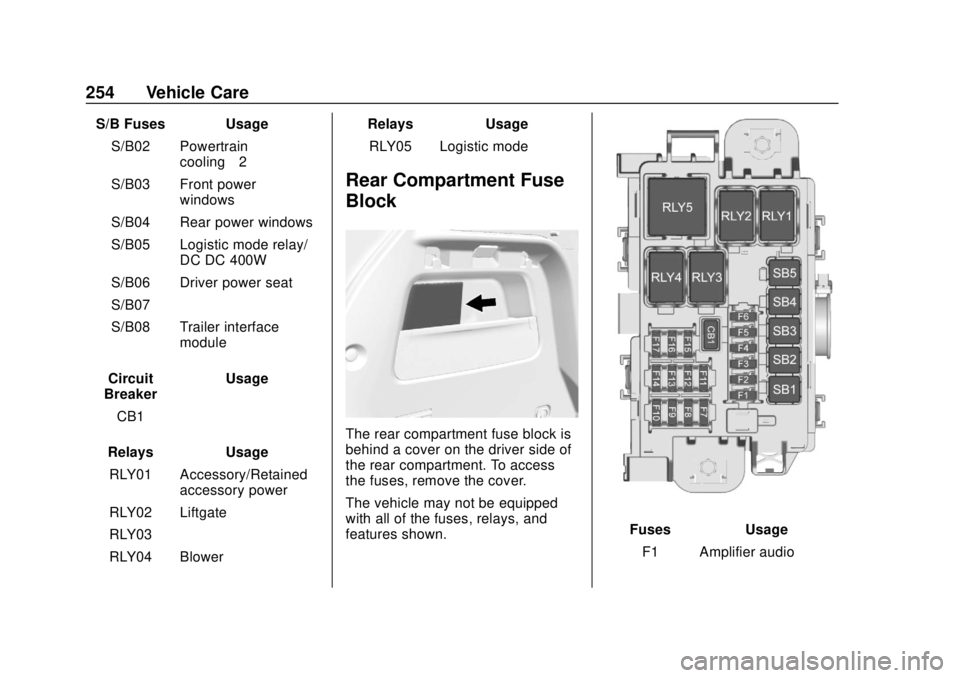
The rear compartment fuse block is
behind a cover on the driver side of
the rear compartment. To access
the fuses, remove the cover.
The vehicle may not be equipped
with all of the fuses, relays, and
features shown.
Fuses Usage
F1 Amplifier audio
Page 334 of 355
Chevrolet TRAX Owner Manual (GMNA-Localizing-U.S./Canada/Mexico-
13556235) - 2020 - CRC - 9/19/19
OnStar 333
Security
If equipped, OnStar provides these
services:
.With Stolen Vehicle Assistance,
OnStar Advisors can use GPS to
pinpoint the vehicle and help
authorities quickly recover it.
. With Remote Ignition Block,
if equipped, OnStar can block
the engine from being restarted.
. With Stolen Vehicle Slowdown,
if equipped, OnStar can work
with law enforcement to
gradually slow the vehicle down.
Theft Alarm Notification
If equipped, if the doors are locked
and the vehicle alarm sounds, a
notification by text, e-mail, or phone
call will be sent. If the vehicle is
stolen, an OnStar Advisor can work
with authorities to recover the
vehicle.
OnStar Additional
Information
In-Vehicle Audio Messages
Audio messages may play important
information at the following times:
.
Prior to vehicle purchase. Press
Qto set up an account.
. After change in ownership and
at 90 days.
Transferring Service
PressQto request account transfer
eligibility information. The Advisor
can cancel or change account
information.
Selling/Transferring the
Vehicle
Call 1-888-4ONSTAR
(1-888-466-7827) immediately to
terminate your OnStar or connected
services if the vehicle is disposed
of, sold, transferred, or if the
lease ends.
Reactivation for Subsequent
Owners
PressQand follow the prompts to
speak to an Advisor as soon as
possible. The Advisor will update
vehicle records and explain OnStar
or connected service options.
How OnStar Service Works
Automatic Crash Response,
Emergency Services, Crisis Assist,
Stolen Vehicle Assistance, Remote
Services, and Roadside Assistance
are available on most vehicles. Not
all OnStar services are available
everywhere or on all vehicles. For
more information, a full description
of OnStar services, system
limitations, and OnStar User Terms,
Privacy Statement, and Software
Terms:
. Call 1-888-4ONSTAR
(1-888-466-7827).
. See www.onstar.com (U.S.).
. See www.onstar.ca (Canada).
. Call TTY 1-877-248-2080.
Page 344 of 355

Chevrolet TRAX Owner Manual (GMNA-Localizing-U.S./Canada/Mexico-
13556235) - 2020 - CRC - 9/19/19
Index 343
Apple CarPlay andAndroid Auto . . . . . . . . . . . . . . . . . . 148
Armrest Front Seat . . . . . . . . . . . . . . . . . . . . . . 40
Rear Seat . . . . . . . . . . . . . . . . . . . . . . 46
Assistance Program, Roadside . . . . . . . . . . . . . . . . . . . . . . 321
Audio Bluetooth . . . . . . . . . . . . . . . . . . . . . 140
Automatic Door Locks . . . . . . . . . . . . . . . . . . . . . 23
Headlamp System . . . . . . . . . . . . 124
Transmission . . . . . . . . . . . . . . . . . 186
Transmission Fluid . . . . . . . . . . . 224
Automatic Transmission Manual Mode . . . . . . . . . . . . . . . . . 188
Shift Lock Control Function
Check . . . . . . . . . . . . . . . . . . . . . . . 237
Auxiliary Jack . . . . . . . . . . . . . . . . . . . 140
Avoiding Untrusted Media Devices . . . . . . . . . . . . . . . . . . . . . . . 137
B
Battery
Exterior Lighting BatterySaver . . . . . . . . . . . . . . . . . . . . . . . 128
Load Management . . . . . . . . . . . . 127 Battery (cont'd)
Power Protection . . . . . . . . . . . . . 128
Battery - North America . . . . 236, 282
Blade Replacement, Wiper . . . . . 238
Bluetooth Overview . . . . . . . . . . . . . . . . 143, 144
Bluetooth Audio . . . . . . . . . . . . . . . . 140
Brake
System Warning Light . . . . . . . . 105
Brakes . . . . . . . . . . . . . . . . . . . . . . . . . . 234 Antilock . . . . . . . . . . . . . . . . . . . . . . . 192
Assist . . . . . . . . . . . . . . . . . . . . . . . . . 193
Fluid . . . . . . . . . . . . . . . . . . . . . . . . . . 234
Parking . . . . . . . . . . . . . . . . . . . . . . . 192
Braking . . . . . . . . . . . . . . . . . . . . . . . . . 163
Break-In, New Vehicle . . . . . . . . . . 173
Bulb Replacement Halogen Bulbs . . . . . . . . . . . . . . . . 241
Headlamp Aiming . . . . . . . . . . . . . 241
Headlamps . . . . . . . . . . . . . . . . . . . 241
Headlamps, Front TurnSignal, and Parking
Lamps . . . . . . . . . . . . . . . . . . . . . . 242
License Plate Lamps . . . . . . . . . 247
Taillamps, Turn Signal, Sidemarker, Stoplamps,
and Backup Lamps . . . . . . . . . . 245
Buying New Tires . . . . . . . . . . . . . . . 270
C
Calibration . . . . . . . . . . . . . . . . . . . . . . . 95
California Perchlorate MaterialsRequirements . . . . . . . . . . . . . . . 215
California Proposition
65 Warning . . . . . . . . . .214, 236, 282, Back Cover
Camera
Rear Vision (RVC) . . . . . . . . . . . . 199
Canadian Vehicle Owners . . . . . . . . 2
Capacities and Specifications . . . . . . . . . . . . . . . . . 314
Carbon Monoxide Engine Exhaust . . . . . . . . . . . . . . . 185
Liftgate . . . . . . . . . . . . . . . . . . . . . . . . . 24
Winter Driving . . . . . . . . . . . . . . . . 168
Cargo
Cover . . . . . . . . . . . . . . . . . . . . . . . . . . . 88
Management System . . . . . . . . . . . 88
Caution, Danger, and Warning . . . . 3
Chains, Tire . . . . . . . . . . . . . . . . . . . . 274
Charging System Light . . . . . . . . . 102