service CHEVROLET TRAX 2020 Owner's Guide
[x] Cancel search | Manufacturer: CHEVROLET, Model Year: 2020, Model line: TRAX, Model: CHEVROLET TRAX 2020Pages: 355, PDF Size: 5.75 MB
Page 137 of 355
Chevrolet TRAX Owner Manual (GMNA-Localizing-U.S./Canada/Mexico-
13556235) - 2020 - CRC - 9/19/19
136 Infotainment System
channel as a favorite. Touch a
saved favorite to recall a favorite
station or channel.
Favorites can also be stored by
touching
Hin a station or channel
list. This will highlight indicating that
it is now stored as a favorite.
The number of favorites displayed is
automatically adjusted by default,
but can be manually adjusted in
Settings in the System tab under
Favorites and then Set Number of
Audio Favorites. It can also be
adjusted in Settings in the Apps tab
under Audio and then Set Number
of Audio Favorites.
Satellite Radio
If equipped, vehicles with a valid
SiriusXM satellite radio subscription
can receive SXM programming.
SiriusXM satellite radio has a wide
variety of programming and
commercial-free music, coast to
coast, and in digital-quality sound.
In the U.S., see www.siriusxm.com or call 1-888-601-6296. In Canada,
see www.siriusxm.ca or call
1-877-438-9677.
When SXM is active, the channel
name, number, song title, and artist
display on the screen.
Radio Reception
Unplug electronic devices from the
accessory power outlets if there is
interference or static in the radio.
FM
FM signals only reach about 16 to
65 km (10 to 40 mi). Although the
radio has a built-in electronic circuit
that automatically works to reduce
interference, some static can occur,
especially around tall buildings or
hills, causing the sound to fade in
and out.
AM
The range for most AM stations is
greater than for FM, especially at
night. The longer range can cause
station frequencies to interfere with
each other. Static can also occur
when things like storms and powerlines interfere with radio reception.
When this happens, try reducing the
treble on the radio.
SiriusXM Satellite Radio
Service
If equipped, SiriusXM Satellite
Radio Service provides digital radio
reception. Tall buildings or hills can
interfere with satellite radio signals,
causing the sound to fade in and
out. In addition, traveling or standing
under heavy foliage, bridges,
garages, or tunnels may cause loss
of the SiriusXM signal for a period
of time.
Cell Phone Usage
Cell phone usage, such as making
or receiving phone calls, charging,
or just having the phone on may
cause static interference in the
radio. Unplug the phone or turn it off
if this happens.
Multi-Band Antenna
The roof antenna is for OnStar,
SiriusXM Satellite Radio (U.S. and
Canada only), and GPS (Global
Page 142 of 355
Chevrolet TRAX Owner Manual (GMNA-Localizing-U.S./Canada/Mexico-
13556235) - 2020 - CRC - 9/19/19
Infotainment System 141
If Bluetooth is selected and no
volume is present, check the
volume setting on both your phone/
device and the infotainment system.
Music can be launched by touching
Bluetooth from the recent sources
list on the left of the screen or touch
More and select the Bluetooth
device.
To play music via Bluetooth:1. Power on the device, and pair to connect the device.
2. Once paired, touch Audio from the Home Page, and touch
Bluetooth.
Bluetooth Sound Menu
See “Infotainment System Sound
Menu” underAM-FM Radio 0134.
Manage Bluetooth Devices
From the Home Page: 1. Touch Audio.
2. Touch More.
3. Touch Bluetooth.
4. Touch Devices to add or delete devices. When selecting Bluetooth, the radio
may not be able to launch the audio
player on the connected device to
start playing. When the vehicle is
not moving, use the phone to begin
playback.
All devices launch audio differently.
When selecting Bluetooth as a
source, the radio may show as
paused on the screen. Press play
on the device or touch
pon the
screen to begin playback.
Browse functionality will be provided
where supported by the Bluetooth
device. This media content will not
be part of the MyMedia
source mode.
Some phones support sending
Bluetooth music information to
display on the radio. When the radio
receives this information, it will
check to see if any is available and
display it. For more information
about supported Bluetooth features,
see my.chevrolet.com/learn.
OnStar System
4G LTE
If equipped with 4G LTE, up to
seven devices, such as
smartphones, tablets, and laptops,
can be connected to high-speed
Internet through the vehicle’s built-in
Wi-Fi hotspot.
Call 1-888-4ONSTAR
(1-888-466-7827) to connect to an
OnStar Advisor for assistance. See
www.onstar.com for vehicle
availability, details, and system
limitations. Service and connectivity
may vary by make, model, year,
carrier, availability, and conditions.
4G LTE service is available in select
markets. 4G LTE performance is
based on industry averages and
vehicle systems design. Some
services require a data plan.
The OnStar App
If equipped, the infotainment system
has OnStar controls in the
embedded OnStar app on the Home
Page. All OnStar functions that can
be performed with the buttons can
Page 143 of 355

Chevrolet TRAX Owner Manual (GMNA-Localizing-U.S./Canada/Mexico-
13556235) - 2020 - CRC - 9/19/19
142 Infotainment System
be done using the app. To open the
app, select the OnStar icon on the
Home Page. Features vary by
region and model. Features are
subject to change. For more
information on this feature, see
my.chevrolet.com/learn.
Services
The Services tab displays the
default view for the app. Use this
page to launch the available OnStar
services. Select a service to open
its display. Touch Wi-Fi to launch
the connections manager.
Account
The Account tab displays a
snapshot of the account linked with
the vehicle. If there is no such
account, this tab will show all values
as——. The
#will be active even if
there is no active account.
Advisor Call
Selecting Advisor Call is the same
as pressing
Qor calling 1-888-
4ONSTAR (1-888-466-7827). The X option in the upper right corner of
the screen does not end the call, but
returns to the previous display.
Turn-by-Turn Directions
With a connected plan, an OnStar
Advisor can download a destination
to the vehicle or its embedded
navigation system, if equipped.
Touch Turn-by-Turn Directions from
the main page of the OnStar app
and follow the display prompts.
A destination transfer from OnStar
will show the detail view of the
destination when it is transferred
from OnStar to the Navigation
application. Touch OK to go back to
the previous menu. An ABS and
Guidance or Navigation Add-On
Plan is required. See
www.onstar.com for a coverage
map. Services vary by model. Map
coverage is available in the United
States, Puerto Rico, and Canada.
Wi-Fi Hotspot
Touch to display the Settings page,
which shows the configurations for
the vehicle hotspot and allows them
to be changed.
For more information, see
www.onstar.com.
Page 148 of 355

Chevrolet TRAX Owner Manual (GMNA-Localizing-U.S./Canada/Mexico-
13556235) - 2020 - CRC - 9/19/19
Infotainment System 147
Making a Call Using the
Keypad
To make a call by dialing the
numbers:1. Touch Phone on the Home Page.
2. Touch Keypad and enter a phone number.
3. Touch
#to start dialing the
number.
Searching Contacts Using the
Keypad
To search for contacts using the
keypad:
1. Touch Phone on the Home Page.
2. Touch Keypad and enter partial phone numbers or contact
names using the digits on the
keypad to search.
Results will show on the right
side of the screen. Touch one
to place a call.
Accepting or Declining a Call
When an incoming call is received,
the infotainment system mutes and
a ring tone is heard in the vehicle.
Accepting a Call
There are three ways to accept
a call:
.Press
gon the steering wheel
controls.
. Touch Answer on the
infotainment display.
. Select Answer on the instrument
cluster using the select control.
Declining a Call
There are three ways to decline
a call:
. Press
ion the steering wheel
controls.
. Touch Ignore on the infotainment
display.
. Select Ignore on the instrument
cluster using the select control.
Call Waiting
Call waiting must be supported on
the Bluetooth cell phone and
enabled by the wireless service
carrier to work.
Accepting a Call
There are three ways to accept a
call-waiting call:
.
Press
gon the steering wheel
controls.
. Touch Switch on the
infotainment display.
. Select Switch on the instrument
cluster using the select control.
Declining a Call
There are three ways to decline a
call-waiting call:
. Press
ion the steering wheel
controls.
. Touch Ignore on the infotainment
display.
. Select Ignore on the instrument
cluster using the select control.
Page 149 of 355
Chevrolet TRAX Owner Manual (GMNA-Localizing-U.S./Canada/Mexico-
13556235) - 2020 - CRC - 9/19/19
148 Infotainment System
Switching Between Calls (Call
Waiting Calls Only)
To switch between calls, press the
phone icon on the Home Page to
display the Call View. While in Call
View, touch the call information of
the call on hold to change calls.
Three-Way Calling
Three-way calling must be
supported on the Bluetooth phone
and enabled by the wireless service
carrier to work.
To start a three-way call while in a
current call:1. In the Call View, select Add Call to add another call.
2. Initiate the second call by selecting from Recents,
Contacts, or Keypad.
3. When the second call is active, press the merge icon to
conference the three-way call
together.
Ending a Call
.Pression the steering wheel
controls. .
Touch
bnext to a call to end
only that call.
. Select End on the instrument
cluster using the select control.
Dual Tone Multi-Frequency
(DTMF) Tones
The in-vehicle Bluetooth system can
send numbers during a call. This is
used when calling a menu-driven
phone system. Use the Keypad to
enter the number.
Apple CarPlay and
Android Auto
If equipped, Android Auto and/or
Apple CarPlay capability may be
available through a compatible
smartphone. If available, the
Android Auto and Apple CarPlay
icons will appear on the Home Page
of the infotainment display.
To use Android Auto and/or Apple
CarPlay: 1. Download the Android Auto
app to your smartphone from
the Google Play store. There is
no app required for Apple
CarPlay.
2. Connect your Android smartphone or Apple iPhone
by using the compatible phone
USB cable and plugging into a
USB data port. For best
performance, use the device’ s
factory-provided USB cable.
Aftermarket or third-party
cables may not work.
3. When the phone is first connected to activate Apple
CarPlay or Android Auto, the
message “Device Projection
Privacy Consent” will appear.
. Touch Continue to launch
Apple CarPlay or
Android Auto.
. Touch Disable to remove
Apple CarPlay and Android
Auto capability from the
vehicle Settings menu.
Other functions may
still work.
Page 151 of 355

Chevrolet TRAX Owner Manual (GMNA-Localizing-U.S./Canada/Mexico-
13556235) - 2020 - CRC - 9/19/19
150 Infotainment System
Time / Date
Use the following features to set the
clock:
.Automatic Time and Date: Touch
to have the time and date
automatically set. When this
feature is off, the time and date
can be manually set.
. Set Time: Touch to manually set
the time using the controls on
the infotainment display.
. Set Date: Touch to manually set
the date using the controls on
the infotainment display.
. Use 24-hour Format: Touch to
specify the clock format shown.
Touch Off or On.
Language
This will set the display language
used on the infotainment display.
Touch Language and select the
appropriate language. Phones
Touch to connect to a different cell
phone or mobile device source,
disconnect a cell phone or media
device, or delete a cell phone or
media device.
Wi-Fi Networks
This will show connected and
available Wi-Fi networks near or
brought into the vehicle.
If a 4G LTE data package is not
active on the vehicle, the
infotainment system can be
connected to an external protected
Wi-Fi network, such as a mobile
device or home hotspot, to utilize
connected services.
Wi-Fi Hotspot
Touch and the following may
display:
.
Wi-Fi Services: This allows
devices to use the vehicle
hotspot.
Touch the controls on the
infotainment display to disable or
enable. .
Wi-Fi Name: Touch to change
the vehicle Wi-Fi name.
. Wi-Fi Password: Touch to
change the vehicle Wi-Fi
password.
. Connected Devices: Touch to
show connected devices.
. Share Hotspot Data: Touch
Enable to allow devices to use
the vehicle hotspot and its data
or Touch Disable to allow
devices to only use the vehicle
hotspot.
Display
Touch and Turn Display Off
displays.
Touch to turn the display off. Touch
anywhere on the infotainment
display area or any control on the
center stack again to turn the
display on.
Sounds
Touch and the following may
display:
Page 154 of 355
Chevrolet TRAX Owner Manual (GMNA-Localizing-U.S./Canada/Mexico-
13556235) - 2020 - CRC - 9/19/19
Infotainment System 153
Trademarks and
License Agreements
FCC Information
SeeRadio Frequency Statement
0 327.
Bluetooth
The Bluetooth word mark and logos
are owned by the Bluetooth
®SIG,
Inc. and any use of such marks by
General Motors is under license.
Other trademarks and trade names
are those of their respective owners.
"Made for iPod," and "Made for
iPhone," mean that an electronic
accessory has been designed to
connect specifically to iPod or
iPhone, respectively, and has been
certified by the developer to meet
Apple performance standards. Apple is not responsible for the
operation of this device or its
compliance with safety and
regulatory standards. Please note
that the use of this accessory with
iPod or iPhone may affect wireless
performance. iPhone, iPod, iPod
classic, iPod nano, iPod shuffle, and
iPod touch are trademarks of Apple
Inc., registered in the U.S. and other
countries.
Fees and Taxes: Subscription fee,
taxes, one time activation fee, and
other fees may apply. Subscription
fee is consumer only. All fees and
programming subject to change.
Subscriptions subject to Customer
Agreement available at
www.siriusxm.com or
www.siriusxm.ca. SiriusXM service
only available in the 48 contiguous
United States and Canada.
In Canada: Some deterioration of
service may occur in extreme
northern latitudes. This is beyond
the control of SiriusXM Satellite
Radio.
Explicit Language Notice: Channels
with frequent explicit language are
indicated with an
“XL”preceding the
channel name. Channel blocking is
available for SiriusXM Satellite
Radio receivers by notifying
SiriusXM:
. USA Customers —See
www.siriusxm.com or call
1-888-601–6296.
. Canada Customers —See
www.siriusxm.ca or call
1-877-438-9677.
It is prohibited to copy, decompile,
disassemble, reverse engineer,
hack, manipulate, or otherwise
make available any technology or
software incorporated in receivers
compatible with the SiriusXM
Satellite Radio System or that
support the SiriusXM website, the
Online Service or any of its content.
Furthermore, the AMBER voice
compression software included in
Page 155 of 355

Chevrolet TRAX Owner Manual (GMNA-Localizing-U.S./Canada/Mexico-
13556235) - 2020 - CRC - 9/19/19
154 Infotainment System
this product is protected by
intellectual property rights including
patent rights, copyrights, and trade
secrets of Digital Voice
Systems, Inc.
General Requirements:1. A License Agreement from SiriusXM is required for any
product that incorporates
SiriusXM Technology and/or for
use of any of the SiriusXM
marks to be manufactured,
distributed, or marketed in the
SiriusXM Service Area.
2. For products to be distributed, marketed, and/or sold in
Canada, a separate agreement
is required with Canadian
Satellite Radio Inc. (operating
as SiriusXM Canada).
Page 156 of 355
Chevrolet TRAX Owner Manual (GMNA-Localizing-U.S./Canada/Mexico-
13556235) - 2020 - CRC - 9/19/19
Climate Controls 155
Climate Controls
Climate Control Systems
Climate Control Systems . . . . . 155
Air Vents
Air Vents . . . . . . . . . . . . . . . . . . . . . 157
Maintenance
Air Intake . . . . . . . . . . . . . . . . . . . . . 158
Passenger Compartment AirFilter . . . . . . . . . . . . . . . . . . . . . . . . 158
Service . . . . . . . . . . . . . . . . . . . . . . . 159
Climate Control
Systems
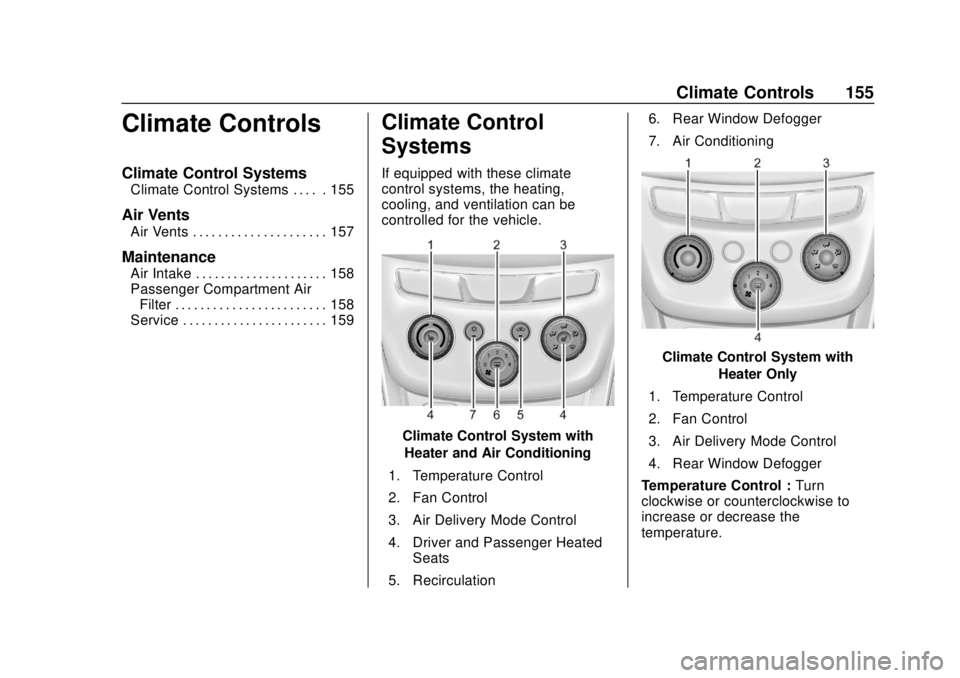
If equipped with these climate
control systems, the heating,
cooling, and ventilation can be
controlled for the vehicle.
Climate Control System with
Heater and Air Conditioning
1. Temperature Control
2. Fan Control
3. Air Delivery Mode Control
4. Driver and Passenger Heated Seats
5. Recirculation 6. Rear Window Defogger
7. Air Conditioning
Climate Control System with
Heater Only
1. Temperature Control
2. Fan Control
3. Air Delivery Mode Control
4. Rear Window Defogger
Temperature Control : Turn
clockwise or counterclockwise to
increase or decrease the
temperature.
Page 160 of 355
Chevrolet TRAX Owner Manual (GMNA-Localizing-U.S./Canada/Mexico-
13556235) - 2020 - CRC - 9/19/19
Climate Controls 159
3. Open the filter cover byreleasing tabs on both sides
and pulling up the cover.
4. Replace the air filter.
5. Close the air filter cover and reinstall the glove box.
See your dealer if additional
assistance is needed.
Service
All vehicles have a label underhood
that identifies the refrigerant used in
the vehicle. The refrigerant system
should only be serviced by trained
and certified technicians. The air
conditioning evaporator should
never be repaired or replaced by
one from a salvage vehicle.
It should only be replaced by a new
evaporator to ensure proper and
safe operation.
During service, all refrigerants
should be reclaimed with proper
equipment. Venting refrigerants
directly to the atmosphere is harmful
to the environment and may also create unsafe conditions based on
inhalation, combustion, frostbite,
or other health-based concerns.
The air conditioning system requires
periodic maintenance. See
Maintenance Schedule
0300.