DIC CHEVROLET TRAX 2020 Workshop Manual
[x] Cancel search | Manufacturer: CHEVROLET, Model Year: 2020, Model line: TRAX, Model: CHEVROLET TRAX 2020Pages: 355, PDF Size: 5.75 MB
Page 115 of 355
Chevrolet TRAX Owner Manual (GMNA-Localizing-U.S./Canada/Mexico-
13556235) - 2020 - CRC - 9/19/19
114 Instruments and Controls
show the amount of time that has
passed since the timer was last
reset, not including time the ignition
is off. Time will continue to be
counted as long as the ignition is
on, even if another display is being
shown on the DIC. The timer will
record up to 9 hours, 59 minutes,
and 59 seconds (9:59:59) after
which the display will return to zero.
To stop the timer, press SET/CLR
briefly while Timer is displayed. To
reset the timer to zero, press and
hold SET/CLR.
Trip/Fuel Menu Items
(Uplevel DIC)
Press MENU until the Trip/Fuel
menu is displayed. Use
w/xto
scroll through the menu items. Not
all items are available on every
vehicle. The following is a list of
possible menu items:
. Digital Speedometer
. Trip 1
. Trip 2
. Fuel Range
. Instantaneous Fuel Economy .
Average Fuel Economy
. Average Vehicle Speed
. Timer
Digital Speedometer
The digital speedometer, available
on some vehicles, shows how fast
the vehicle is moving in either
kilometers per hour (km/h) or miles
per hour (mph). The speedometer
cannot be reset.
Trip 1 and Trip 2
This display shows the current
distance traveled, in either
kilometers (km) or miles (mi), since
the last reset for the trip odometer.
The trip odometer can be reset to
zero by pressing SET/CLR while the
trip odometer display is showing.
Fuel Range
This display shows the approximate
distance the vehicle can be driven
without refueling. The fuel range
estimate is based on an average of
the vehicle's fuel economy over recent driving history and the
amount of fuel remaining in the fuel
tank. Fuel range cannot be reset.
Instantaneous Fuel Economy
The instantaneous fuel economy
display shows the current fuel
economy in liters per 100 kilometers
(L/100 km) or miles per
gallon (mpg). This number reflects
only the approximate fuel economy
that the vehicle has right now and
changes frequently as driving
conditions change. Unlike average
economy, this display cannot be
reset.
Average Fuel Economy
This display shows the approximate
average liters per 100 kilometers (L/
100 km) or miles per gallon (mpg).
This number is calculated based on
the number of L/100 km (mpg)
recorded since the last time this
menu item was reset. This number
reflects only the approximate
average fuel economy that the
vehicle has right now, and will
change as driving conditions
change. The fuel economy can be
Page 116 of 355

Chevrolet TRAX Owner Manual (GMNA-Localizing-U.S./Canada/Mexico-
13556235) - 2020 - CRC - 9/19/19
Instruments and Controls 115
reset by pressing SET/CLR while
the Average Fuel Economy display
is showing.
Average Vehicle Speed
This display shows the average
speed of the vehicle in kilometers
per hour (km/h) or miles per
hour (mph). This average is
calculated based on the various
vehicle speeds recorded since the
last reset of this value. The average
speed can be reset by pressing
SET/CLR while the Average Vehicle
Speed display is showing.
Timer
Available on some vehicles, this
display can be used as a timer. To
start the timer, press SET/CLR while
Timer is displayed. The display will
show the amount of time that has
passed since the timer was last
reset, not including time the ignition
is off. Time will continue to be
counted as long as the ignition is
on, even if another display is being
shown on the DIC. The timer will
record up to 99 hours, 59 minutes,
and 59 seconds (99:59:59) afterwhich the display will return to zero.
To stop the timer, press SET/CLR
briefly while Timer is displayed. To
reset the timer to zero, press and
hold SET/CLR.
Vehicle Information Menu
Items (Uplevel DIC)
Press MENU on the turn signal
lever until Vehicle Information menu
is displayed. Use
w/xto scroll
through the following possible menu
items:
. Display Units
. Tire Pressure
. Remaining Oil Life
Display Units
Move
w/xto switch between
metric or US when the Unit display
is active. Press SET/CLR to confirm
the setting. This will change the
displays on the cluster and DIC to
either metric or English (US)
measurements. Tire Pressure
The display will show a vehicle with
the approximate pressures of all
four tires. Tire pressure is displayed
in either kilopascal (kPa) or pounds
per square inch (psi). See
Tire
Pressure Monitor System 0263 and
Tire Pressure Monitor Operation
0 264.
Remaining Oil Life
This menu is not available while the
vehicle is moving. This display
shows an estimate of the oil's
remaining useful life. If REMAINING
OIL LIFE 99 % is displayed, that
means 99% of the current oil life
remains.
When the remaining oil life is low,
the CHANGE ENGINE OIL SOON
message will appear on the display.
The oil should changed as soon as
possible. See Engine Oil0221. In
addition to the engine oil life system
monitoring the oil life, additional
maintenance is recommended. See
Maintenance Schedule 0300.
Page 117 of 355
Chevrolet TRAX Owner Manual (GMNA-Localizing-U.S./Canada/Mexico-
13556235) - 2020 - CRC - 9/19/19
116 Instruments and Controls
Remember, the Oil Life display must
be reset after each oil change. It will
not reset itself. Also, be careful not
to reset the Oil Life display
accidentally at any time other than
when the oil has just been changed.
It cannot be reset accurately until
the next oil change. To reset the
engine oil life system, press SET/
CLR while the Oil Life display is
active. SeeEngine Oil Life System
0 223.Vehicle Messages
Vehicle Messages
(Uplevel)
Messages displayed on the DIC
indicate the status of the vehicle or
some action that may be needed to
correct a condition. Multiple
messages may appear one after
another.
The messages that do not require
immediate action can be
acknowledged and cleared by
pressing SET/CLR. The messages
that require immediate action cannot
be cleared until that action is
performed.
All messages should be taken
seriously; clearing the message
does not correct the problem.
If a SERVICE message appears,
see your dealer.
Follow the instructions given in the
messages. The system displays
messages regarding the following
topics:
.
Service Messages .
Fluid Levels
. Vehicle Security
. Brakes
. Ride Control Systems
. Driver Assistance Systems
. Cruise Control
. Lighting and Bulb Replacement
. Wiper/Washer Systems
. Doors and Windows
. Seat Belts
. Airbag Systems
. Engine and Transmission
. Tire Pressure
. Battery
Vehicle Messages (Base
Level)
DIC messages display when the
status of the vehicle has changed
and action may be needed to
correct the condition. Multiple
messages appear one after another.
All messages should be taken
seriously.
Page 118 of 355
Chevrolet TRAX Owner Manual (GMNA-Localizing-U.S./Canada/Mexico-
13556235) - 2020 - CRC - 9/19/19
Instruments and Controls 117
On the base level cluster, vehicle
messages appear as code numbers.
Some of these codes may appear
along with the service vehicle soon
light and the owner’s manual
symbol in the DIC display.
2 : No Remote Detected, Press
Clutch To Restart
4 : A/C Off Due to High
Engine Temp
5 : Steering Column Is Locked
7 : Turn Steering Wheel, Turn Key
Off, Then On
9 : Turn Steering Wheel, Start
Vehicle Again
10 : Brakes Overheated
15 : Check High Mounted
Brake Lamp
16 : Check Brake Lamps
17 : Headlamp Leveling Malfunction
— Contact Service
18 : Left Low Beam Failure
20 : Right Low Beam Failure
21 : Check Left Position Lamp
22 : Check Right Position Lamp 23 :
Reversing Lamp Failure
24 : License Plate Lamp Failure
25 : Left Front Turn Indicator Failure
26 : Left Rear Turn Indicator Failure
27 : Right Front Turn Indicator
Failure
28 : Right Rear Turn Indicator
Failure
35 : Replace Battery In Remote Key
49 : Lane Departure Warning
Unavailable
52 : Change Timing Belt –See
Owner ’s Manual
53 : Tighten Gas Cap
59 : Open, Then Close Driver
Window
65 : Theft Attempted
66 : Service Theft Alarm
67 : Service Steering Column Lock
68 : Service Power Steering, Drive
with Care
77 : Service Front Camera
79 : Engine Oil Low –Add Oil 81 :
Service Transmission
84 : Engine Power Is Reduced
88 : Use Transmitter Pocket to Start
89 : Service Vehicle Soon
91 : No Remote Detected
92 : No Remote Detected, Press
Brake To Restart
93 : Press Button Again To Turn
Engine Off
94 : Shift to Park
95 : Service Airbag
174 : Low Battery
258 : Park Assist Off
Engine Oil Messages
:% CHANGE
This message displays when the
engine oil needs to be changed.
When changing the engine oil, be
sure to reset the Oil Life System.
See Engine Oil Life System 0223,
Engine Oil 0221, and Maintenance
Schedule 0300.
Page 124 of 355
Chevrolet TRAX Owner Manual (GMNA-Localizing-U.S./Canada/Mexico-
13556235) - 2020 - CRC - 9/19/19
Lighting 123
;:Turns on the parking lamps
including all lamps, except the
headlamps.
5: Turns on the headlamps
together with the parking lamps and
instrument panel lights. A warning
chime sounds if the driver door is
opened when the ignition is off and
the headlamps are on.
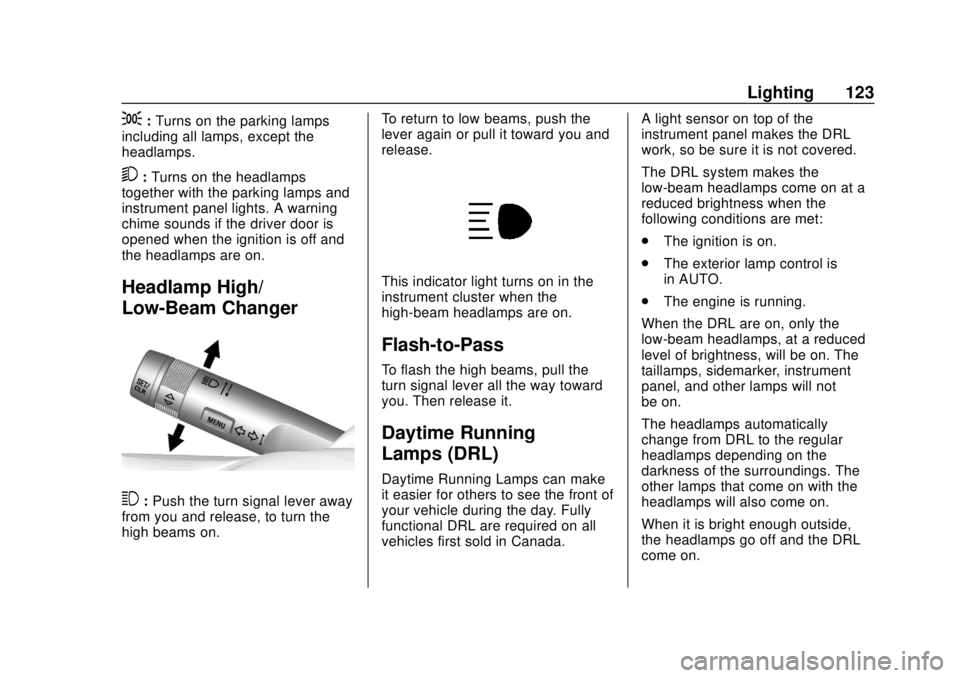
Headlamp High/
Low-Beam Changer
3: Push the turn signal lever away
from you and release, to turn the
high beams on. To return to low beams, push the
lever again or pull it toward you and
release.
This indicator light turns on in the
instrument cluster when the
high-beam headlamps are on.
Flash-to-Pass
To flash the high beams, pull the
turn signal lever all the way toward
you. Then release it.
Daytime Running
Lamps (DRL)
Daytime Running Lamps can make
it easier for others to see the front of
your vehicle during the day. Fully
functional DRL are required on all
vehicles first sold in Canada.A light sensor on top of the
instrument panel makes the DRL
work, so be sure it is not covered.
The DRL system makes the
low-beam headlamps come on at a
reduced brightness when the
following conditions are met:
.
The ignition is on.
. The exterior lamp control is
in AUTO.
. The engine is running.
When the DRL are on, only the
low-beam headlamps, at a reduced
level of brightness, will be on. The
taillamps, sidemarker, instrument
panel, and other lamps will not
be on.
The headlamps automatically
change from DRL to the regular
headlamps depending on the
darkness of the surroundings. The
other lamps that come on with the
headlamps will also come on.
When it is bright enough outside,
the headlamps go off and the DRL
come on.
Page 126 of 355
Chevrolet TRAX Owner Manual (GMNA-Localizing-U.S./Canada/Mexico-
13556235) - 2020 - CRC - 9/19/19
Lighting 125
Turn and Lane-Change
Signals
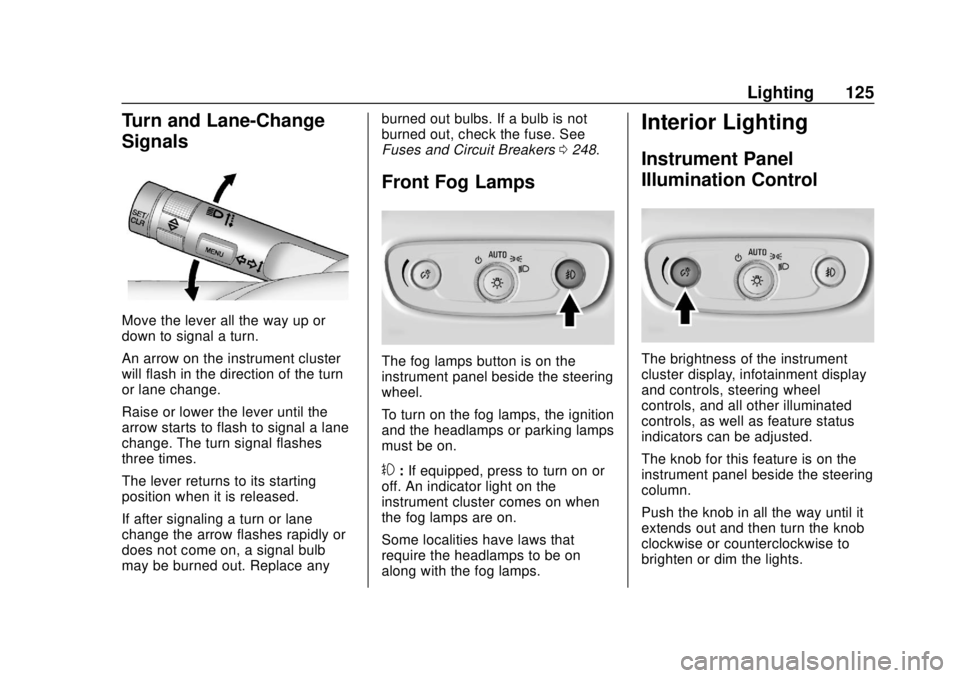
Move the lever all the way up or
down to signal a turn.
An arrow on the instrument cluster
will flash in the direction of the turn
or lane change.
Raise or lower the lever until the
arrow starts to flash to signal a lane
change. The turn signal flashes
three times.
The lever returns to its starting
position when it is released.
If after signaling a turn or lane
change the arrow flashes rapidly or
does not come on, a signal bulb
may be burned out. Replace anyburned out bulbs. If a bulb is not
burned out, check the fuse. See
Fuses and Circuit Breakers
0248.
Front Fog Lamps
The fog lamps button is on the
instrument panel beside the steering
wheel.
To turn on the fog lamps, the ignition
and the headlamps or parking lamps
must be on.
#:If equipped, press to turn on or
off. An indicator light on the
instrument cluster comes on when
the fog lamps are on.
Some localities have laws that
require the headlamps to be on
along with the fog lamps.
Interior Lighting
Instrument Panel
Illumination Control
The brightness of the instrument
cluster display, infotainment display
and controls, steering wheel
controls, and all other illuminated
controls, as well as feature status
indicators can be adjusted.
The knob for this feature is on the
instrument panel beside the steering
column.
Push the knob in all the way until it
extends out and then turn the knob
clockwise or counterclockwise to
brighten or dim the lights.
Page 128 of 355

Chevrolet TRAX Owner Manual (GMNA-Localizing-U.S./Canada/Mexico-
13556235) - 2020 - CRC - 9/19/19
Lighting 127
Lighting Features
Entry Lighting
Some exterior lamps and interior
lamps turn on briefly at night, or in
areas with limited lighting, when
K
is pressed on the Remote Keyless
Entry (RKE) transmitter. When a
door is opened, the interior lamps
come on. They stay on for about
20 seconds. When all of the doors
have been closed or the ignition is
turned on, they gradually fade out.
This feature can be changed. See
“Vehicle Locator Lights”under
Vehicle Personalization 0118.
Exit Lighting
Some exterior lamps and interior
lamps come on when the key is
removed from the ignition. The
exterior and interior lamps remain
on for a set amount of time, then
automatically turn off.
If equipped with Keyless Access,
the exterior lamps automatically turn
on when the driver door is opened after the ignition is turned off. The
interior lights turn on when the
ignition is turned off.
The exterior lamps turn off
immediately by turning the exterior
lamp control off.
This feature can be changed. See
Vehicle Personalization
0118.
Battery Load
Management
The vehicle has Electric Power
Management (EPM) that estimates
the battery's temperature and state
of charge. It then adjusts the voltage
for best performance and extended
life of the battery.
When the battery's state of charge
is low, the voltage is raised slightly
to quickly bring the charge back up.
When the state of charge is high,
the voltage is lowered slightly to
prevent overcharging. If the vehicle
has a voltmeter gauge or a voltage
display on the Driver Information
Center (DIC), you may see the voltage move up or down. This is
normal. If there is a problem, an
alert will be displayed.
The battery can be discharged at
idle if the electrical loads are very
high. This is true for all vehicles.
This is because the generator
(alternator) may not be spinning fast
enough at idle to produce all the
power needed for very high
electrical loads.
A high electrical load occurs when
several of the following are on, such
as: headlamps, high beams, fog
lamps, rear window defogger,
climate control fan at high speed,
heated seats, engine cooling fans,
trailer loads, and loads plugged into
accessory power outlets.
EPM works to prevent excessive
discharge of the battery. It does this
by balancing the generator's output
and the vehicle's electrical needs.
It can increase engine idle speed to
generate more power, whenever
needed. It can temporarily reduce
the power demands of some
accessories.
Page 135 of 355
Chevrolet TRAX Owner Manual (GMNA-Localizing-U.S./Canada/Mexico-
13556235) - 2020 - CRC - 9/19/19
134 Infotainment System
Fling or swipe is used to scroll
through a list, or change page
views. Do this by placing a finger on
the screen then moving it rapidly up
and down or right and left.
Cleaning High Gloss Surfaces
and Vehicle Information and
Radio Displays
For vehicles with high gloss
surfaces or vehicle displays, use a
microfiber cloth to wipe surfaces.
Before wiping the surface with the
microfiber cloth, use a soft bristle
brush to remove dirt that could
scratch the surface. Then use the
microfiber cloth by gently rubbing to
clean. Never use window cleaners
or solvents. Periodically hand wash
the microfiber cloth separately,
using mild soap. Do not use bleach
or fabric softener. Rinse thoroughly
and air dry before next use.
Radio
AM-FM Radio
Playing the Radio
From the Home Page, touch the
Audio icon to display the active
audio source page. Choose from a
list of the three most recently used
sources listed at the left side of the
screen. Choose More to display a
list of available resources.
Examples of available sources are
AM, FM, SXM, MyMedia, USB,
AUX, and Bluetooth.
Infotainment System
Sound Menu
From any of the audio source main
pages, touch Sound to display the
following:
Equalizer :Touch to adjust Bass,
Midrange, and Treble using the
controls on the infotainment display.
Fade/Balance : Touch to adjust
using the controls on the
infotainment display or by tapping/
dragging the crosshair.
Finding a Station
Seeking a Station
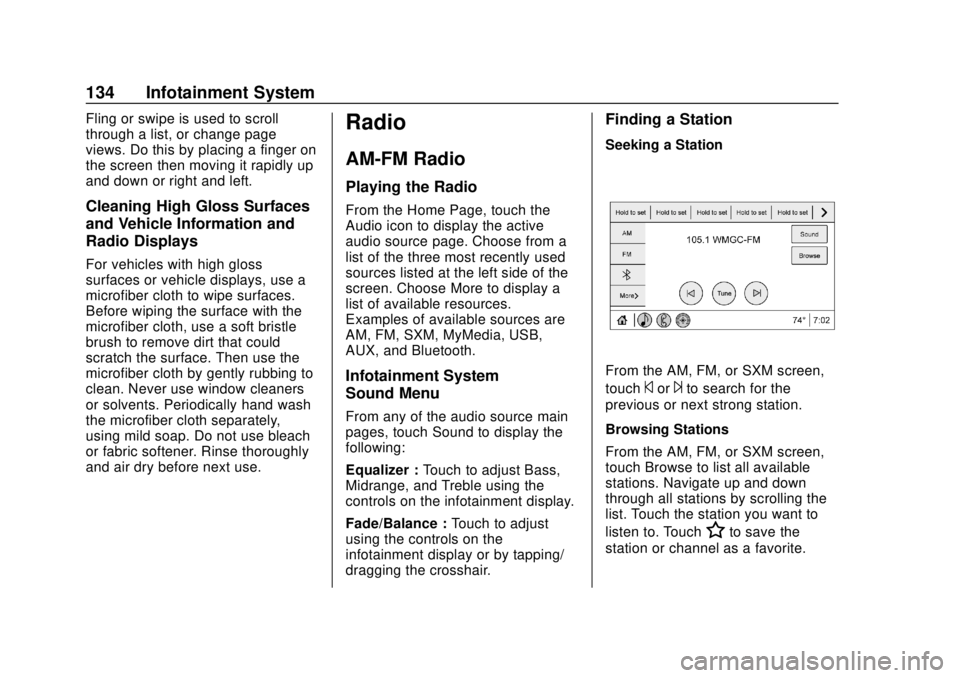
From the AM, FM, or SXM screen,
touch
©or¨to search for the
previous or next strong station.
Browsing Stations
From the AM, FM, or SXM screen,
touch Browse to list all available
stations. Navigate up and down
through all stations by scrolling the
list. Touch the station you want to
listen to. Touch
Hto save the
station or channel as a favorite.
Page 137 of 355
Chevrolet TRAX Owner Manual (GMNA-Localizing-U.S./Canada/Mexico-
13556235) - 2020 - CRC - 9/19/19
136 Infotainment System
channel as a favorite. Touch a
saved favorite to recall a favorite
station or channel.
Favorites can also be stored by
touching
Hin a station or channel
list. This will highlight indicating that
it is now stored as a favorite.
The number of favorites displayed is
automatically adjusted by default,
but can be manually adjusted in
Settings in the System tab under
Favorites and then Set Number of
Audio Favorites. It can also be
adjusted in Settings in the Apps tab
under Audio and then Set Number
of Audio Favorites.
Satellite Radio
If equipped, vehicles with a valid
SiriusXM satellite radio subscription
can receive SXM programming.
SiriusXM satellite radio has a wide
variety of programming and
commercial-free music, coast to
coast, and in digital-quality sound.
In the U.S., see www.siriusxm.com or call 1-888-601-6296. In Canada,
see www.siriusxm.ca or call
1-877-438-9677.
When SXM is active, the channel
name, number, song title, and artist
display on the screen.
Radio Reception
Unplug electronic devices from the
accessory power outlets if there is
interference or static in the radio.
FM
FM signals only reach about 16 to
65 km (10 to 40 mi). Although the
radio has a built-in electronic circuit
that automatically works to reduce
interference, some static can occur,
especially around tall buildings or
hills, causing the sound to fade in
and out.
AM
The range for most AM stations is
greater than for FM, especially at
night. The longer range can cause
station frequencies to interfere with
each other. Static can also occur
when things like storms and powerlines interfere with radio reception.
When this happens, try reducing the
treble on the radio.
SiriusXM Satellite Radio
Service
If equipped, SiriusXM Satellite
Radio Service provides digital radio
reception. Tall buildings or hills can
interfere with satellite radio signals,
causing the sound to fade in and
out. In addition, traveling or standing
under heavy foliage, bridges,
garages, or tunnels may cause loss
of the SiriusXM signal for a period
of time.
Cell Phone Usage
Cell phone usage, such as making
or receiving phone calls, charging,
or just having the phone on may
cause static interference in the
radio. Unplug the phone or turn it off
if this happens.
Multi-Band Antenna
The roof antenna is for OnStar,
SiriusXM Satellite Radio (U.S. and
Canada only), and GPS (Global
Page 154 of 355
Chevrolet TRAX Owner Manual (GMNA-Localizing-U.S./Canada/Mexico-
13556235) - 2020 - CRC - 9/19/19
Infotainment System 153
Trademarks and
License Agreements
FCC Information
SeeRadio Frequency Statement
0 327.
Bluetooth
The Bluetooth word mark and logos
are owned by the Bluetooth
®SIG,
Inc. and any use of such marks by
General Motors is under license.
Other trademarks and trade names
are those of their respective owners.
"Made for iPod," and "Made for
iPhone," mean that an electronic
accessory has been designed to
connect specifically to iPod or
iPhone, respectively, and has been
certified by the developer to meet
Apple performance standards. Apple is not responsible for the
operation of this device or its
compliance with safety and
regulatory standards. Please note
that the use of this accessory with
iPod or iPhone may affect wireless
performance. iPhone, iPod, iPod
classic, iPod nano, iPod shuffle, and
iPod touch are trademarks of Apple
Inc., registered in the U.S. and other
countries.
Fees and Taxes: Subscription fee,
taxes, one time activation fee, and
other fees may apply. Subscription
fee is consumer only. All fees and
programming subject to change.
Subscriptions subject to Customer
Agreement available at
www.siriusxm.com or
www.siriusxm.ca. SiriusXM service
only available in the 48 contiguous
United States and Canada.
In Canada: Some deterioration of
service may occur in extreme
northern latitudes. This is beyond
the control of SiriusXM Satellite
Radio.
Explicit Language Notice: Channels
with frequent explicit language are
indicated with an
“XL”preceding the
channel name. Channel blocking is
available for SiriusXM Satellite
Radio receivers by notifying
SiriusXM:
. USA Customers —See
www.siriusxm.com or call
1-888-601–6296.
. Canada Customers —See
www.siriusxm.ca or call
1-877-438-9677.
It is prohibited to copy, decompile,
disassemble, reverse engineer,
hack, manipulate, or otherwise
make available any technology or
software incorporated in receivers
compatible with the SiriusXM
Satellite Radio System or that
support the SiriusXM website, the
Online Service or any of its content.
Furthermore, the AMBER voice
compression software included in