lock CHEVROLET TRAX 2021 Service Manual
[x] Cancel search | Manufacturer: CHEVROLET, Model Year: 2021, Model line: TRAX, Model: CHEVROLET TRAX 2021Pages: 280, PDF Size: 8.76 MB
Page 78 of 280
Chevrolet TRAX Owner Manual (GMNA-Localizing-U.S./Canada-14609828) -
2021 - CRC - 8/21/20
Instruments and Controls 77
Steering Wheel Controls
The infotainment system can be operated
by using the steering wheel controls. See
Steering Wheel Controls0105.
Horn
Pressaon the steering wheel pad to
sound the horn.
Windshield Wiper/Washer
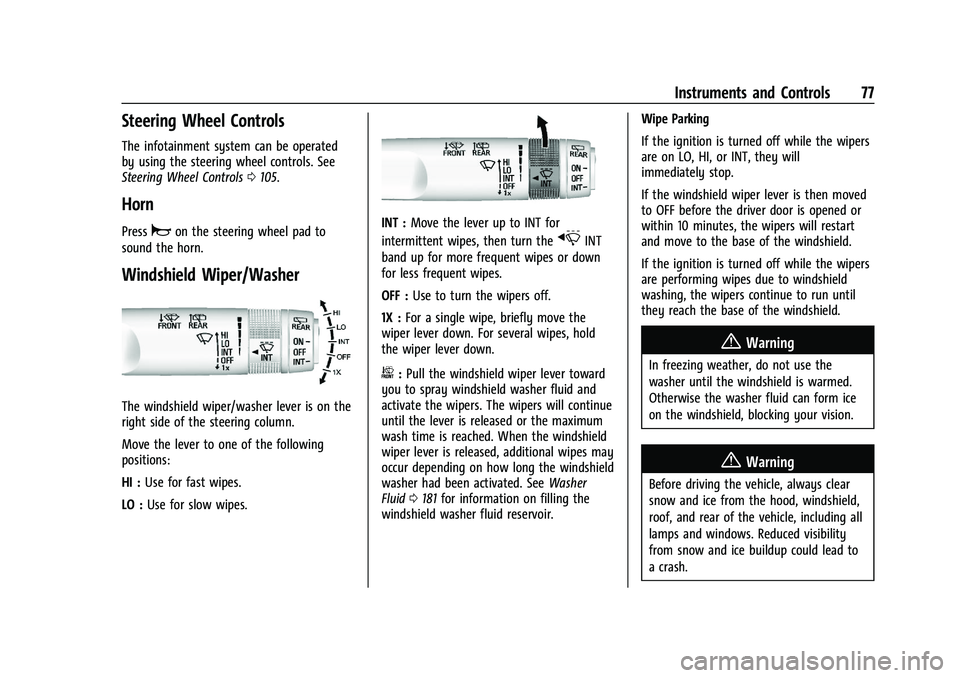
The windshield wiper/washer lever is on the
right side of the steering column.
Move the lever to one of the following
positions:
HI : Use for fast wipes.
LO : Use for slow wipes.
INT : Move the lever up to INT for
intermittent wipes, then turn the
xINT
band up for more frequent wipes or down
for less frequent wipes.
OFF : Use to turn the wipers off.
1X : For a single wipe, briefly move the
wiper lever down. For several wipes, hold
the wiper lever down.
b: Pull the windshield wiper lever toward
you to spray windshield washer fluid and
activate the wipers. The wipers will continue
until the lever is released or the maximum
wash time is reached. When the windshield
wiper lever is released, additional wipes may
occur depending on how long the windshield
washer had been activated. See Washer
Fluid 0181 for information on filling the
windshield washer fluid reservoir. Wipe Parking
If the ignition is turned off while the wipers
are on LO, HI, or INT, they will
immediately stop.
If the windshield wiper lever is then moved
to OFF before the driver door is opened or
within 10 minutes, the wipers will restart
and move to the base of the windshield.
If the ignition is turned off while the wipers
are performing wipes due to windshield
washing, the wipers continue to run until
they reach the base of the windshield.
{Warning
In freezing weather, do not use the
washer until the windshield is warmed.
Otherwise the washer fluid can form ice
on the windshield, blocking your vision.
{Warning
Before driving the vehicle, always clear
snow and ice from the hood, windshield,
roof, and rear of the vehicle, including all
lamps and windows. Reduced visibility
from snow and ice buildup could lead to
a crash.
Page 80 of 280
Chevrolet TRAX Owner Manual (GMNA-Localizing-U.S./Canada-14609828) -
2021 - CRC - 8/21/20
Instruments and Controls 79
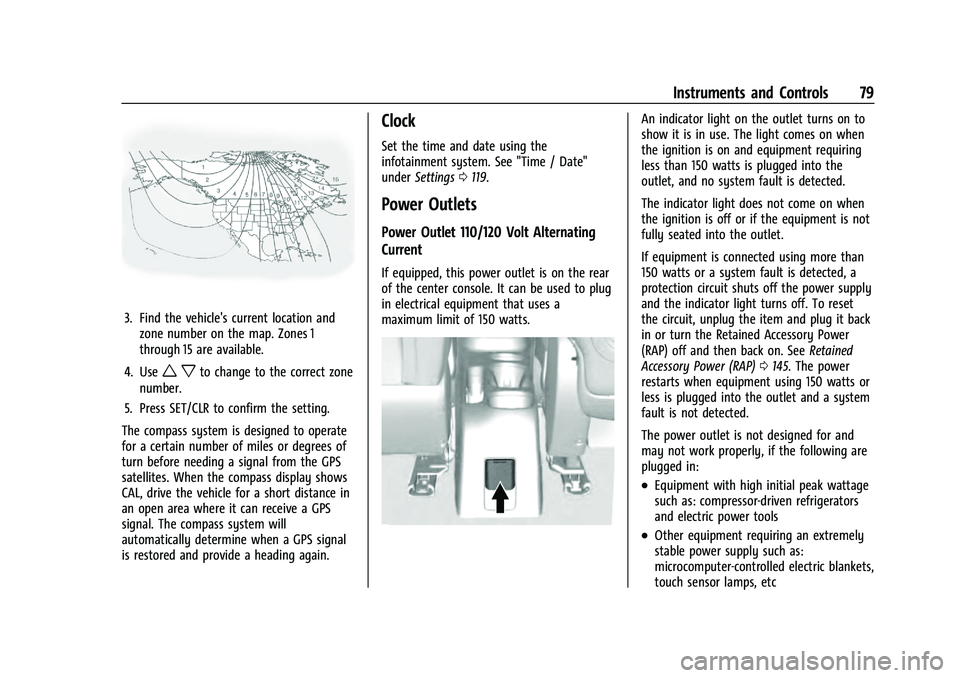
3. Find the vehicle's current location andzone number on the map. Zones 1
through 15 are available.
4. Use
w xto change to the correct zone
number.
5. Press SET/CLR to confirm the setting.
The compass system is designed to operate
for a certain number of miles or degrees of
turn before needing a signal from the GPS
satellites. When the compass display shows
CAL, drive the vehicle for a short distance in
an open area where it can receive a GPS
signal. The compass system will
automatically determine when a GPS signal
is restored and provide a heading again.
Clock
Set the time and date using the
infotainment system. See "Time / Date"
under Settings 0119.
Power Outlets
Power Outlet 110/120 Volt Alternating
Current
If equipped, this power outlet is on the rear
of the center console. It can be used to plug
in electrical equipment that uses a
maximum limit of 150 watts.
An indicator light on the outlet turns on to
show it is in use. The light comes on when
the ignition is on and equipment requiring
less than 150 watts is plugged into the
outlet, and no system fault is detected.
The indicator light does not come on when
the ignition is off or if the equipment is not
fully seated into the outlet.
If equipment is connected using more than
150 watts or a system fault is detected, a
protection circuit shuts off the power supply
and the indicator light turns off. To reset
the circuit, unplug the item and plug it back
in or turn the Retained Accessory Power
(RAP) off and then back on. See Retained
Accessory Power (RAP) 0145. The power
restarts when equipment using 150 watts or
less is plugged into the outlet and a system
fault is not detected.
The power outlet is not designed for and
may not work properly, if the following are
plugged in:
.Equipment with high initial peak wattage
such as: compressor-driven refrigerators
and electric power tools
.Other equipment requiring an extremely
stable power supply such as:
microcomputer-controlled electric blankets,
touch sensor lamps, etc
Page 87 of 280
Chevrolet TRAX Owner Manual (GMNA-Localizing-U.S./Canada-14609828) -
2021 - CRC - 8/21/20
86 Instruments and Controls
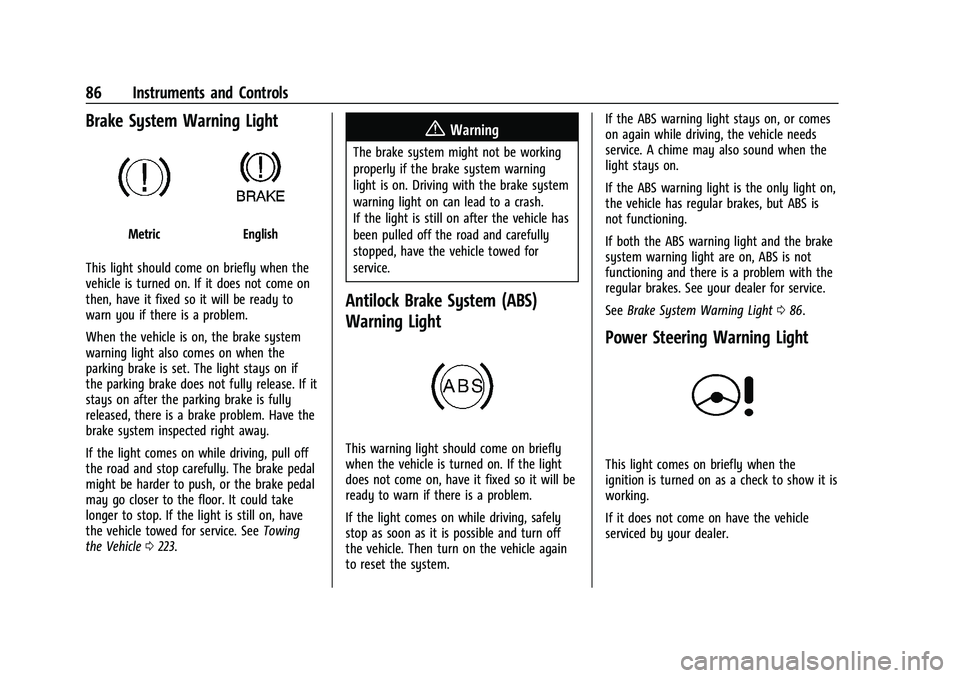
Brake System Warning Light
MetricEnglish
This light should come on briefly when the
vehicle is turned on. If it does not come on
then, have it fixed so it will be ready to
warn you if there is a problem.
When the vehicle is on, the brake system
warning light also comes on when the
parking brake is set. The light stays on if
the parking brake does not fully release. If it
stays on after the parking brake is fully
released, there is a brake problem. Have the
brake system inspected right away.
If the light comes on while driving, pull off
the road and stop carefully. The brake pedal
might be harder to push, or the brake pedal
may go closer to the floor. It could take
longer to stop. If the light is still on, have
the vehicle towed for service. See Towing
the Vehicle 0223.
{Warning
The brake system might not be working
properly if the brake system warning
light is on. Driving with the brake system
warning light on can lead to a crash.
If the light is still on after the vehicle has
been pulled off the road and carefully
stopped, have the vehicle towed for
service.
Antilock Brake System (ABS)
Warning Light
This warning light should come on briefly
when the vehicle is turned on. If the light
does not come on, have it fixed so it will be
ready to warn if there is a problem.
If the light comes on while driving, safely
stop as soon as it is possible and turn off
the vehicle. Then turn on the vehicle again
to reset the system. If the ABS warning light stays on, or comes
on again while driving, the vehicle needs
service. A chime may also sound when the
light stays on.
If the ABS warning light is the only light on,
the vehicle has regular brakes, but ABS is
not functioning.
If both the ABS warning light and the brake
system warning light are on, ABS is not
functioning and there is a problem with the
regular brakes. See your dealer for service.
See
Brake System Warning Light 086.
Power Steering Warning Light
This light comes on briefly when the
ignition is turned on as a check to show it is
working.
If it does not come on have the vehicle
serviced by your dealer.
Page 95 of 280

Chevrolet TRAX Owner Manual (GMNA-Localizing-U.S./Canada-14609828) -
2021 - CRC - 8/21/20
94 Instruments and Controls
Rear Camera Park Assist Symbols
This setting enables the Rear Camera Park
Assist Symbols. SeePark Assist0158.
Touch Off or On.
Rear Cross Traffic Alert
This allows the feature to be turned on or
off. See Rear Vision Camera (RVC) 0157.
Touch Off or On.
Side Blind Zone Alert
This allows the feature to be turned on or
off. See Side Blind Zone Alert (SBZA) 0159.
Touch Off or On.
Comfort and Convenience
Touch and the following may display:
.Chime Volume
.Auto Wipe in Reverse Gear
Chime Volume
This setting determines the chime volume
level.
Touch the controls to adjust the volume. Auto Wipe in Reverse Gear
This setting automatically turns on the rear
window wiper when the vehicle is in
R (Reverse) and the front wipers are on.
Touch Off or On.
Lighting
Touch and the following may display:
.Vehicle Locator Lights
.Exit Lighting
Vehicle Locator Lights
This setting flashes the headlamps when
you press
Kon the Remote Keyless Entry
(RKE) transmitter.
Touch Off or On.
Exit Lighting
This setting specifies how long the
headlamps stay on after you have turned
off and exited your vehicle.
Touch Off, 30 Seconds, 60 Seconds,
or 120 Seconds.
Power Door Locks
Touch and the following may display:
.Open Door Anti Lock Out
.Auto Door Unlock
.Delayed Door Lock
Open Door Anti Lock Out
This setting prevents the driver door from
locking when the door is open. If this
setting is on, the Delayed Door Lock menu
will not be available.
Touch Off or On.
Auto Door Unlock
This setting allows you to select which
doors will automatically unlock when the
vehicle is shifted into P (Park).
Touch Off, All Doors, or Driver Door.
Delayed Door Lock
This setting delays the locking of the
vehicle’s doors.
Touch Off or On.
Remote Lock, Unlock, and Start
Touch and the following may display:
.Remote Unlock Light Feedback
.Remote Lock Feedback
.Remote Door Unlock
.Remote Start Auto Heat Seats
.Passive Door Unlock
.Passive Door Lock
Page 96 of 280
Chevrolet TRAX Owner Manual (GMNA-Localizing-U.S./Canada-14609828) -
2021 - CRC - 8/21/20
Instruments and Controls 95
.Remote Left in Vehicle Alert
Remote Unlock Light Feedback
This setting flashes the exterior lamps when
you remotely unlock the vehicle.
Touch Off or Flash Lights.
Remote Lock Feedback
This setting specifies how the vehicle
responds when you remotely lock the
vehicle.
Touch Off, Lights and Horn, Lights Only,
or Horn Only.
Remote Door Unlock
This setting specifies whether all doors,
or just the driver door, unlock when pressing
Kon the RKE transmitter.
Touch All Doors or Driver Door.
Remote Start Auto Heat Seats
This setting automatically turns on the
heated seats when using the remote start
function on cold days. See Heated Front
Seats 033 and
Remote Vehicle Start 017.
Touch Off or On. Passive Door Unlock
This setting specifies which doors unlock
when using the button on the driver door
handle to unlock the vehicle.
Touch All Doors or Driver Door Only.
Passive Door Lock
This setting specifies whether the vehicle
will automatically lock, or lock and alert you
after all the doors are closed, and you walk
away from the vehicle with the RKE
transmitter. See
Remote Keyless Entry (RKE)
System Operation (Key Access) 09or
Remote Keyless Entry (RKE) System
Operation (Keyless Access) 012.
Touch Off, On with Horn Chirp, or On.
Remote Left in Vehicle Alert
This feature sounds an alert when the RKE
transmitter is left in the vehicle. This menu
also enables Remote No Longer in Vehicle
Alert.
Touch Off or On.
Valet Mode
This will lock the infotainment system and
steering wheel controls. It may also limit
access to vehicle storage locations,
if equipped. To enable valet mode:
1. Enter a four-digit code on the keypad.
2. Touch Enter to go to the confirmation screen.
3. Re-enter the four-digit code.
Touch Lock or Unlock to lock or unlock the
system. Touch Back to go back to the
previous menu.
Page 99 of 280
Chevrolet TRAX Owner Manual (GMNA-Localizing-U.S./Canada-14609828) -
2021 - CRC - 8/21/20
98 Lighting
operating, these lamps turn off. Move the
exterior lamp control to
Por;to
disable this feature.
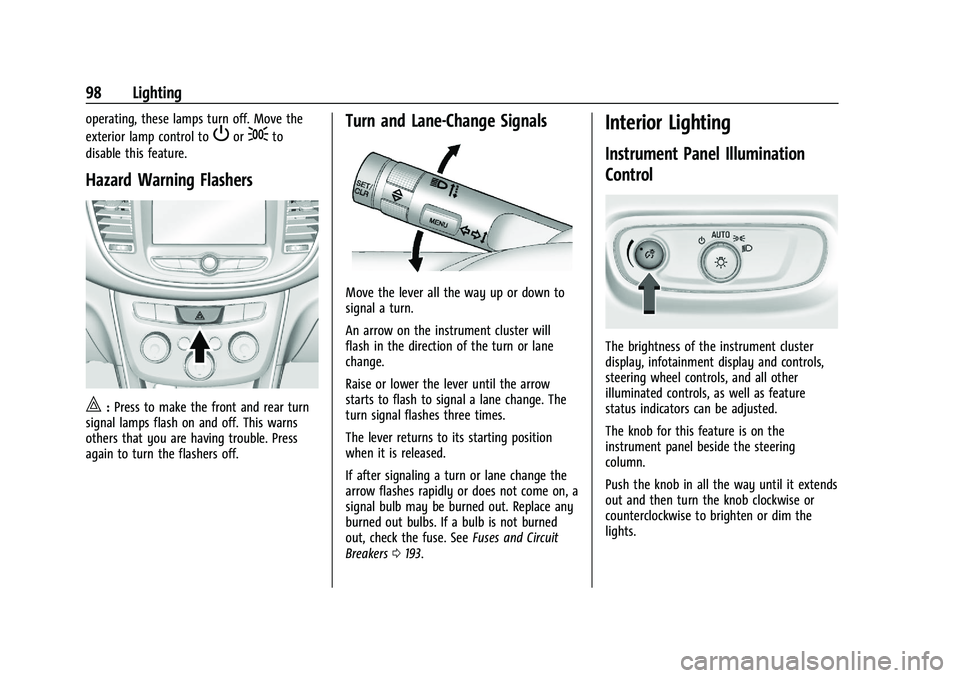
Hazard Warning Flashers
|: Press to make the front and rear turn
signal lamps flash on and off. This warns
others that you are having trouble. Press
again to turn the flashers off.
Turn and Lane-Change Signals
Move the lever all the way up or down to
signal a turn.
An arrow on the instrument cluster will
flash in the direction of the turn or lane
change.
Raise or lower the lever until the arrow
starts to flash to signal a lane change. The
turn signal flashes three times.
The lever returns to its starting position
when it is released.
If after signaling a turn or lane change the
arrow flashes rapidly or does not come on, a
signal bulb may be burned out. Replace any
burned out bulbs. If a bulb is not burned
out, check the fuse. See Fuses and Circuit
Breakers 0193.
Interior Lighting
Instrument Panel Illumination
Control
The brightness of the instrument cluster
display, infotainment display and controls,
steering wheel controls, and all other
illuminated controls, as well as feature
status indicators can be adjusted.
The knob for this feature is on the
instrument panel beside the steering
column.
Push the knob in all the way until it extends
out and then turn the knob clockwise or
counterclockwise to brighten or dim the
lights.
Page 120 of 280
Chevrolet TRAX Owner Manual (GMNA-Localizing-U.S./Canada-14609828) -
2021 - CRC - 8/21/20
Infotainment System 119
support see https://support.google.com/
androidauto. For Apple CarPlay support see
www.apple.com/ios/carplay/. Apple or
Google may change or suspend availability
at any time. Android Auto, Android, Google,
Google Play, and other marks are
trademarks of Google Inc.; Apple CarPlay is a
trademark of Apple Inc.
Press
{on the center stack to exit Android
Auto or Apple CarPlay. To enter back into
Android Auto or Apple CarPlay, press and
hold {on the center stack.
Apple CarPlay and Android Auto can be
disabled from the Infotainment system. To
do this, touch Home, Settings, and then
touch the Apps tab along the top of the
display. Use the On/Off toggled to turn off
Apple CarPlay or Android Auto.
Settings
The settings menu may be organized into
three categories. Select the desired category
by touching System, Apps, or Vehicle.
To access the menus:
1. Touch the Settings icon on the Home Page on the infotainment display. 2. Touch the desired category to display a
list of available options.
3. Touch to select the desired feature setting.
4. Touch
9orRto turn off or on a feature.
5. Touch
zto go to the top level of the
SETTINGS menu.
The menu may contain the following:
System
The menu may contain the following:
Time / Date
Use the following features to set the clock:
.Automatic Time and Date: Touch to have
the time and date automatically set.
When this feature is off, the time and
date can be manually set.
.Set Time: Touch to manually set the time
using the controls on the infotainment
display.
.Set Date: Touch to manually set the date
using the controls on the infotainment
display.
.Use 24-hour Format: Touch to specify the
clock format shown.
Touch Off or On. Language
This will set the display language used on
the infotainment display. Touch Language
and select the appropriate language.
Phones
Touch to connect to a different cell phone or
mobile device source, disconnect a cell
phone or media device, or delete a cell
phone or media device.
Wi-Fi Networks
This will show connected and available Wi-Fi
networks near or brought into the vehicle.
If a 4G LTE data package is not active on the
vehicle, the infotainment system can be
connected to an external protected Wi-Fi
network, such as a mobile device or home
hotspot, to utilize connected services.
Wi-Fi Hotspot
Touch and the following may display:
.Wi-Fi Services: This allows devices to use
the vehicle hotspot.
Touch the controls on the infotainment
display to disable or enable.
.Wi-Fi Name: Touch to change the vehicle
Wi-Fi name.
Page 123 of 280
Chevrolet TRAX Owner Manual (GMNA-Localizing-U.S./Canada-14609828) -
2021 - CRC - 8/21/20
122 Infotainment System
"Made for iPod," and "Made for iPhone,"
mean that an electronic accessory has been
designed to connect specifically to iPod or
iPhone, respectively, and has been certified
by the developer to meet Apple
performance standards. Apple is not
responsible for the operation of this device
or its compliance with safety and regulatory
standards. Please note that the use of this
accessory with iPod or iPhone may affect
wireless performance. iPhone, iPod, iPod
classic, iPod nano, iPod shuffle, and iPod
touch are trademarks of Apple Inc.,
registered in the U.S. and other countries.
Fees and Taxes: Subscription fee, taxes, one
time activation fee, and other fees may
apply. Subscription fee is consumer only. All
fees and programming subject to change.
Subscriptions subject to Customer
Agreement available at www.siriusxm.com
or www.siriusxm.ca. SiriusXM service only
available in the 48 contiguous United States
and Canada.In Canada: Some deterioration of service
may occur in extreme northern latitudes.
This is beyond the control of SiriusXM
Satellite Radio.
Explicit Language Notice: Channels with
frequent explicit language are indicated with
an
“XL” preceding the channel name.
Channel blocking is available for SiriusXM
Satellite Radio receivers by notifying
SiriusXM:
.USA Customers —See www.siriusxm.com
or call 1-888-601–6296.
.Canada Customers —See
www.siriusxm.ca or call 1-877-438-9677.
It is prohibited to copy, decompile,
disassemble, reverse engineer, hack,
manipulate, or otherwise make available any
technology or software incorporated in
receivers compatible with the SiriusXM
Satellite Radio System or that support the
SiriusXM website, the Online Service or any
of its content. Furthermore, the AMBER voice
compression software included in this
product is protected by intellectual property
rights including patent rights, copyrights,
and trade secrets of Digital Voice
Systems, Inc. General Requirements:
1. A License Agreement from SiriusXM is required for any product that
incorporates SiriusXM Technology and/or
for use of any of the SiriusXM marks to
be manufactured, distributed,
or marketed in the SiriusXM
Service Area.
2. For products to be distributed, marketed, and/or sold in Canada, a separate
agreement is required with Canadian
Satellite Radio Inc. (operating as SiriusXM
Canada).
Page 124 of 280
Chevrolet TRAX Owner Manual (GMNA-Localizing-U.S./Canada-14609828) -
2021 - CRC - 8/21/20
Climate Controls 123
Climate Controls
Climate Control Systems
Climate Control Systems . . . . . . . . . . . . . . . 123
Air Vents
Air Vents . . . . . . . . . . . . . . . . . . . . . . . . . . . . . . 125
Maintenance
Air Intake . . . . . . . . . . . . . . . . . . . . . . . . . . . . . . 125
Passenger Compartment Air Filter . . . . . 125
Service . . . . . . . . . . . . . . . . . . . . . . . . . . . . . . . . . 126
Climate Control Systems
If equipped with these climate control
systems, the heating, cooling, and
ventilation can be controlled for the vehicle.
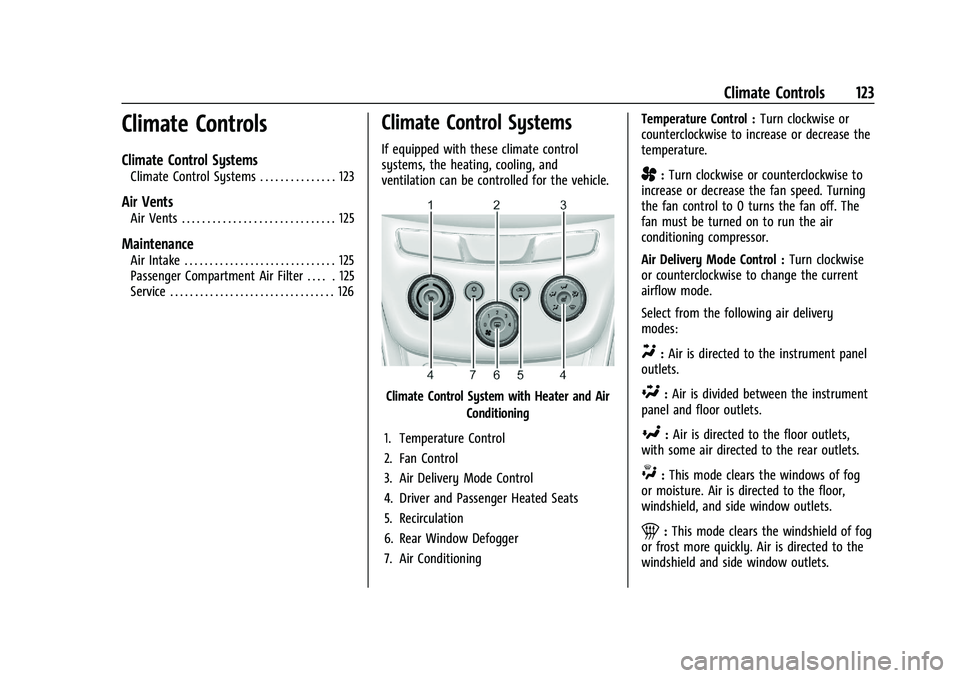
Climate Control System with Heater and AirConditioning
1. Temperature Control
2. Fan Control
3. Air Delivery Mode Control
4. Driver and Passenger Heated Seats
5. Recirculation
6. Rear Window Defogger
7. Air Conditioning Temperature Control :
Turn clockwise or
counterclockwise to increase or decrease the
temperature.
A: Turn clockwise or counterclockwise to
increase or decrease the fan speed. Turning
the fan control to 0 turns the fan off. The
fan must be turned on to run the air
conditioning compressor.
Air Delivery Mode Control : Turn clockwise
or counterclockwise to change the current
airflow mode.
Select from the following air delivery
modes:
Y: Air is directed to the instrument panel
outlets.
\: Air is divided between the instrument
panel and floor outlets.
[: Air is directed to the floor outlets,
with some air directed to the rear outlets.
W: This mode clears the windows of fog
or moisture. Air is directed to the floor,
windshield, and side window outlets.
1: This mode clears the windshield of fog
or frost more quickly. Air is directed to the
windshield and side window outlets.
Page 126 of 280
Chevrolet TRAX Owner Manual (GMNA-Localizing-U.S./Canada-14609828) -
2021 - CRC - 8/21/20
Climate Controls 125
Air Vents
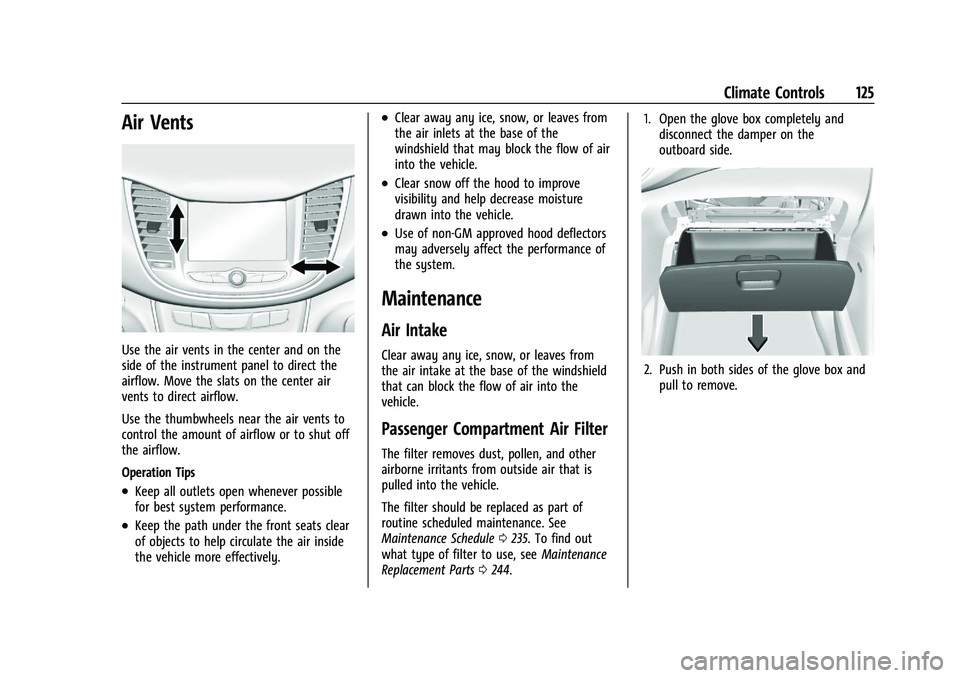
Use the air vents in the center and on the
side of the instrument panel to direct the
airflow. Move the slats on the center air
vents to direct airflow.
Use the thumbwheels near the air vents to
control the amount of airflow or to shut off
the airflow.
Operation Tips
.Keep all outlets open whenever possible
for best system performance.
.Keep the path under the front seats clear
of objects to help circulate the air inside
the vehicle more effectively.
.Clear away any ice, snow, or leaves from
the air inlets at the base of the
windshield that may block the flow of air
into the vehicle.
.Clear snow off the hood to improve
visibility and help decrease moisture
drawn into the vehicle.
.Use of non-GM approved hood deflectors
may adversely affect the performance of
the system.
Maintenance
Air Intake
Clear away any ice, snow, or leaves from
the air intake at the base of the windshield
that can block the flow of air into the
vehicle.
Passenger Compartment Air Filter
The filter removes dust, pollen, and other
airborne irritants from outside air that is
pulled into the vehicle.
The filter should be replaced as part of
routine scheduled maintenance. See
Maintenance Schedule0235. To find out
what type of filter to use, see Maintenance
Replacement Parts 0244. 1. Open the glove box completely and
disconnect the damper on the
outboard side.
2. Push in both sides of the glove box andpull to remove.