service CHEVROLET TRAX 2023 Owner's Manual
[x] Cancel search | Manufacturer: CHEVROLET, Model Year: 2023, Model line: TRAX, Model: CHEVROLET TRAX 2023Pages: 280, PDF Size: 12.13 MB
Page 90 of 280
Chevrolet TRAX Owner Manual (GMNA-Localizing-U.S./Canada-15498927) -
2022 - CRC - 5/27/21
Instruments and Controls 89
If the light stays on and the engine does
not start, there could be a problem with the
immobilizer system. SeeImmobilizer
Operation (Keyless Access) 024 or
Immobilizer Operation (Key Access) 024.
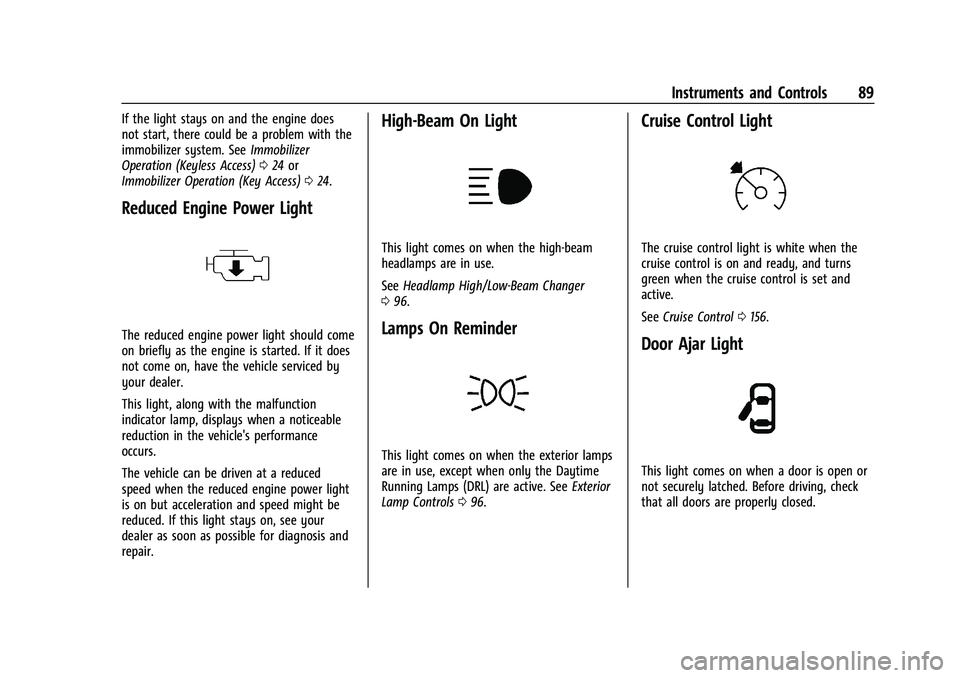
Reduced Engine Power Light
The reduced engine power light should come
on briefly as the engine is started. If it does
not come on, have the vehicle serviced by
your dealer.
This light, along with the malfunction
indicator lamp, displays when a noticeable
reduction in the vehicle's performance
occurs.
The vehicle can be driven at a reduced
speed when the reduced engine power light
is on but acceleration and speed might be
reduced. If this light stays on, see your
dealer as soon as possible for diagnosis and
repair.
High-Beam On Light
This light comes on when the high-beam
headlamps are in use.
See Headlamp High/Low-Beam Changer
0 96.
Lamps On Reminder
This light comes on when the exterior lamps
are in use, except when only the Daytime
Running Lamps (DRL) are active. See Exterior
Lamp Controls 096.
Cruise Control Light
The cruise control light is white when the
cruise control is on and ready, and turns
green when the cruise control is set and
active.
See Cruise Control 0156.
Door Ajar Light
This light comes on when a door is open or
not securely latched. Before driving, check
that all doors are properly closed.
Page 93 of 280
Chevrolet TRAX Owner Manual (GMNA-Localizing-U.S./Canada-15498927) -
2022 - CRC - 5/27/21
92 Instruments and Controls
It cannot be reset accurately until the next
oil change. To reset, seeEngine Oil Life
System 0174.
Vehicle Messages
Messages displayed on the DIC indicate the
status of the vehicle or some action that
may be needed to correct a condition.
Multiple messages may appear one after
another.
The messages that do not require
immediate action can be acknowledged and
cleared by pressing SET/CLR. The messages
that require immediate action cannot be
cleared until that action is performed.
All messages should be taken seriously;
clearing the message does not correct the
problem.
If a SERVICE message appears, see your
dealer.
Follow the instructions given in the
messages. The system displays messages
regarding the following topics:
.Service Messages
.Fluid Levels
.Vehicle Security
.Brakes
.Ride Control Systems
.Driver Assistance Systems
.Cruise Control
.Lighting and Bulb Replacement
.Wiper/Washer Systems
.Doors and Windows
.Seat Belts
.Airbag Systems
.Engine and Transmission
.Tire Pressure
.Battery
Engine Power Messages
ENGINE POWER IS REDUCED
This message displays when the vehicle's
propulsion power is reduced. A reduction in
propulsion power can affect the vehicle's
ability to accelerate. If this message is on,
but there is no observed reduction in
performance, proceed to your destination.
Under certain conditions the performance
may be reduced the next time the vehicle is
driven. The vehicle may be driven while this
message is on, but maximum acceleration
and speed may be reduced. Anytime this message stays on, or displays repeatedly,
the vehicle should be taken to your dealer
for service as soon as possible.
Under certain operating conditions,
propulsion will be disabled. Try restarting
after the ignition has been off for
30 seconds.
Vehicle Speed Messages
SPEED LIMITED TO XXX KM/H (MPH)
This message shows that the vehicle speed
has been limited to the speed displayed. The
limited speed is a protection for various
propulsion and vehicle systems, such as
lubrication, thermal, brakes, suspension,
Teen Driver if equipped, or tires.
Vehicle Personalization
The following are all possible vehicle
personalization features. Depending on the
vehicle, some may not be available.
For System and Apps features and functions,
see
Settings 0118.
To access the vehicle personalization menu: 1. Touch the Settings icon on the Home Page on the infotainment display.
Page 106 of 280
Chevrolet TRAX Owner Manual (GMNA-Localizing-U.S./Canada-15498927) -
2022 - CRC - 5/27/21
Infotainment System 105
_SRC^:Press to select an audio source.
Toggle up or down to select the next or
previous favorite radio station, CD/MP3
track, USB file, iPod/iPhone song,
or Bluetooth music.
Toggle and hold up or down to fast forward
or reverse the radio stations, CD/MP3 tracks,
USB files, iPod/iPhone songs, or Bluetooth
music.
+
x− :Press + or −to increase or decrease
the volume.
Using the System
Infotainment Display Icons
Infotainment display icons show on the
screen when available. When a function is
unavailable, the icon may gray out. When a
function is selected, the icon may highlight.
Audio
Touch the Audio icon to display the active
audio source page. Examples of available
sources are AM, FM, SXM, MyMedia, USB,
and AUX.
Phone
Touch the Phone icon to display the Phone
main page. See Bluetooth (Overview) 0113
or
Bluetooth (Pairing and Using the Phone)
0 113.
Settings
Touch the Settings icon to display the
Settings menu. See Settings0118.
Apple CarPlay
Touch the Apple CarPlay icon to activate
Apple CarPlay (if equipped) after a
supported device is connected. See Apple
CarPlay and Android Auto 0117.
Android Auto
Touch the Android Auto icon to activate
Android Auto (if equipped) after a supported
device is connected. See Apple CarPlay and
Android Auto 0117.
OnStar Services
If equipped, touch the OnStar Services icon
to display the OnStar Services and Account
pages. See OnStar Overview 0261.
Shortcut Tray
The shortcut tray is at the bottom of the
screen. It displays three applications.
Infotainment Gestures
Use the following finger gestures to control
the infotainment system.
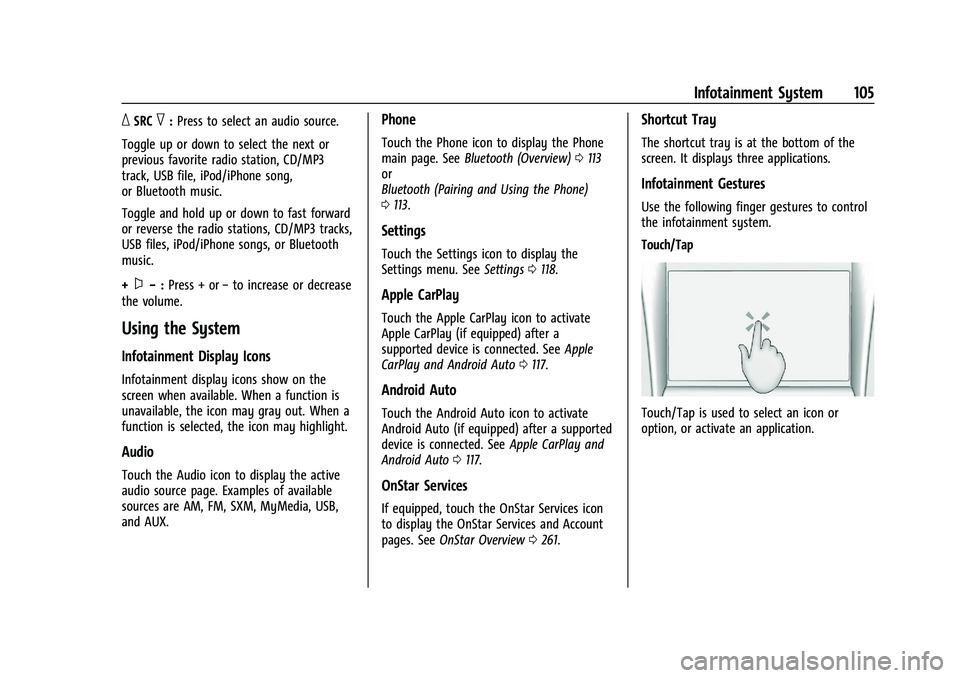
Touch/Tap
Touch/Tap is used to select an icon or
option, or activate an application.
Page 109 of 280
Chevrolet TRAX Owner Manual (GMNA-Localizing-U.S./Canada-15498927) -
2022 - CRC - 5/27/21
108 Infotainment System
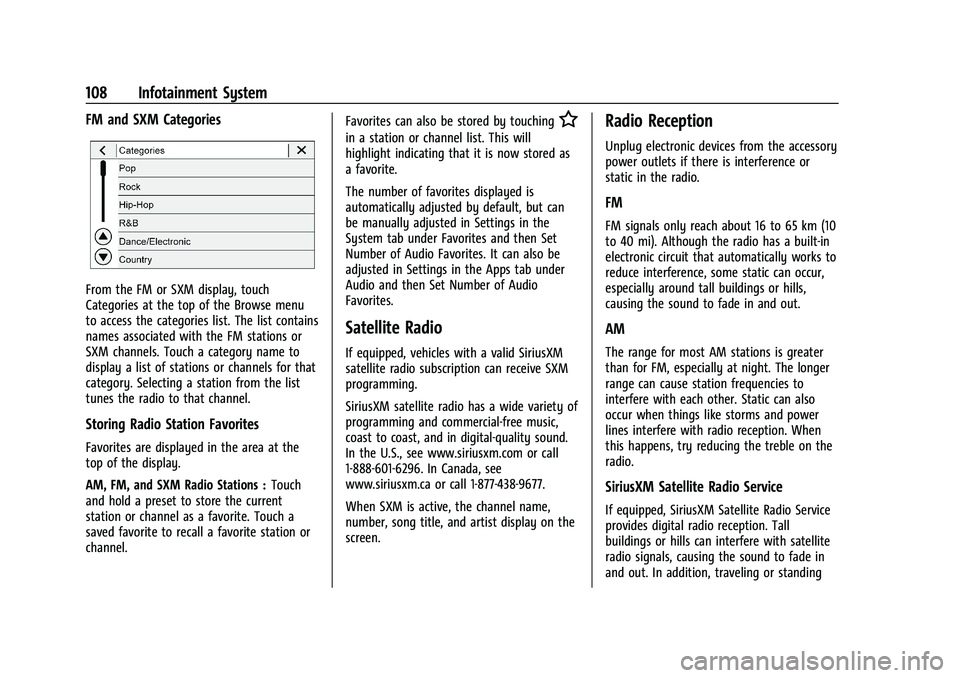
FM and SXM Categories
From the FM or SXM display, touch
Categories at the top of the Browse menu
to access the categories list. The list contains
names associated with the FM stations or
SXM channels. Touch a category name to
display a list of stations or channels for that
category. Selecting a station from the list
tunes the radio to that channel.
Storing Radio Station Favorites
Favorites are displayed in the area at the
top of the display.
AM, FM, and SXM Radio Stations :Touch
and hold a preset to store the current
station or channel as a favorite. Touch a
saved favorite to recall a favorite station or
channel. Favorites can also be stored by touching
H
in a station or channel list. This will
highlight indicating that it is now stored as
a favorite.
The number of favorites displayed is
automatically adjusted by default, but can
be manually adjusted in Settings in the
System tab under Favorites and then Set
Number of Audio Favorites. It can also be
adjusted in Settings in the Apps tab under
Audio and then Set Number of Audio
Favorites.
Satellite Radio
If equipped, vehicles with a valid SiriusXM
satellite radio subscription can receive SXM
programming.
SiriusXM satellite radio has a wide variety of
programming and commercial-free music,
coast to coast, and in digital-quality sound.
In the U.S., see www.siriusxm.com or call
1-888-601-6296. In Canada, see
www.siriusxm.ca or call 1-877-438-9677.
When SXM is active, the channel name,
number, song title, and artist display on the
screen.
Radio Reception
Unplug electronic devices from the accessory
power outlets if there is interference or
static in the radio.
FM
FM signals only reach about 16 to 65 km (10
to 40 mi). Although the radio has a built-in
electronic circuit that automatically works to
reduce interference, some static can occur,
especially around tall buildings or hills,
causing the sound to fade in and out.
AM
The range for most AM stations is greater
than for FM, especially at night. The longer
range can cause station frequencies to
interfere with each other. Static can also
occur when things like storms and power
lines interfere with radio reception. When
this happens, try reducing the treble on the
radio.
SiriusXM Satellite Radio Service
If equipped, SiriusXM Satellite Radio Service
provides digital radio reception. Tall
buildings or hills can interfere with satellite
radio signals, causing the sound to fade in
and out. In addition, traveling or standing
Page 117 of 280
Chevrolet TRAX Owner Manual (GMNA-Localizing-U.S./Canada-15498927) -
2022 - CRC - 5/27/21
116 Infotainment System
Making a Call Using the Keypad
To make a call by dialing the numbers:1. Touch Phone on the Home Page.
2. Touch Keypad and enter a phone number.
3. Touch
#to start dialing the number.
Searching Contacts Using the Keypad
To search for contacts using the keypad: 1. Touch Phone on the Home Page.
2. Touch Keypad and enter partial phone numbers or contact names using the
digits on the keypad to search.
Results will show on the right side of the
screen. Touch one to place a call.
Accepting or Declining a Call
When an incoming call is received, the
infotainment system mutes and a ring tone
is heard in the vehicle.
Accepting a Call
There are three ways to accept a call:
.Pressgon the steering wheel controls.
.Touch Answer on the infotainment
display.
.Select Answer on the instrument cluster
using the select control.
Declining a Call
There are three ways to decline a call:
.Pression the steering wheel controls.
.Touch Ignore on the infotainment display.
.Select Ignore on the instrument cluster
using the select control.
Call Waiting
Call waiting must be supported on the
Bluetooth cell phone and enabled by the
wireless service carrier to work.
Accepting a Call
There are three ways to accept a
call-waiting call:
.Pressgon the steering wheel controls.
.Touch Switch on the infotainment display.
.Select Switch on the instrument cluster
using the select control.
Declining a Call
There are three ways to decline a
call-waiting call:
.Pression the steering wheel controls.
.Touch Ignore on the infotainment display.
.Select Ignore on the instrument cluster
using the select control.
Switching Between Calls (Call Waiting
Calls Only)
To switch between calls, press the phone
icon on the Home Page to display the Call
View. While in Call View, touch the call
information of the call on hold to change
calls.
Three-Way Calling
Three-way calling must be supported on the
Bluetooth phone and enabled by the
wireless service carrier to work.
To start a three-way call while in a
current call: 1. In the Call View, select Add Call to add another call.
2. Initiate the second call by selecting from Recents, Contacts, or Keypad.
3. When the second call is active, press the merge icon to conference the three-way
call together.
Ending a Call
.Pression the steering wheel controls.
.Touchbnext to a call to end only
that call.
Page 119 of 280
Chevrolet TRAX Owner Manual (GMNA-Localizing-U.S./Canada-15498927) -
2022 - CRC - 5/27/21
118 Infotainment System
Settings
The settings menu may be organized into
three categories. Select the desired category
by touching System, Apps, or Vehicle.
To access the menus:1. Touch the Settings icon on the Home Page on the infotainment display.
2. Touch the desired category to display a list of available options.
3. Touch to select the desired feature setting.
4. Touch
9orRto turn off or on a feature.
5. Touch
zto go to the top level of the
SETTINGS menu.
The menu may contain the following:
System
The menu may contain the following:
Time / Date
Use the following features to set the clock:
.Automatic Time and Date: Touch to have
the time and date automatically set.
When this feature is off, the time and
date can be manually set.
.Set Time: Touch to manually set the time
using the controls on the infotainment
display.
.Set Date: Touch to manually set the date
using the controls on the infotainment
display.
.Use 24-hour Format: Touch to specify the
clock format shown.
Touch Off or On.
Language
This will set the display language used on
the infotainment display. Touch Language
and select the appropriate language.
Phones
Touch to connect to a different cell phone or
mobile device source, disconnect a cell
phone or media device, or delete a cell
phone or media device.
Wi-Fi Networks
This will show connected and available Wi-Fi
networks near or brought into the vehicle.
If a 4G LTE data package is not active on the
vehicle, the infotainment system can be
connected to an external protected Wi-Fi
network, such as a mobile device or home
hotspot, to utilize connected services. Wi-Fi Hotspot
Touch and the following may display:
.Wi-Fi Services: This allows devices to use
the vehicle hotspot.
Touch the controls on the infotainment
display to disable or enable.
.Wi-Fi Name: Touch to change the vehicle
Wi-Fi name.
.Wi-Fi Password: Touch to change the
vehicle Wi-Fi password.
.Connected Devices: Touch to show
connected devices.
.Share Hotspot Data: Touch Enable to
allow devices to use the vehicle hotspot
and its data or Touch Disable to allow
devices to only use the vehicle hotspot.
Display
Touch and Turn Display Off displays.
Touch to turn the display off. Touch
anywhere on the infotainment display area
or any control on the center stack again to
turn the display on.
Page 125 of 280
Chevrolet TRAX Owner Manual (GMNA-Localizing-U.S./Canada-15498927) -
2022 - CRC - 5/27/21
124 Infotainment System
Fees and Taxes: Subscription fee, taxes, one
time activation fee, and other fees may
apply. Subscription fee is consumer only. All
fees and programming subject to change.
Subscriptions subject to Customer
Agreement available at www.siriusxm.com
or www.siriusxm.ca. SiriusXM service only
available in the 48 contiguous United States
and Canada.
In Canada: Some deterioration of service
may occur in extreme northern latitudes.
This is beyond the control of SiriusXM
Satellite Radio.
Explicit Language Notice: Channels with
frequent explicit language are indicated with
an“XL” preceding the channel name.
Channel blocking is available for SiriusXM
Satellite Radio receivers by notifying
SiriusXM:
.USA Customers —See www.siriusxm.com
or call 1-888-601–6296.
.Canada Customers —See
www.siriusxm.ca or call 1-877-438-9677. It is prohibited to copy, decompile,
disassemble, reverse engineer, hack,
manipulate, or otherwise make available any
technology or software incorporated in
receivers compatible with the SiriusXM
Satellite Radio System or that support the
SiriusXM website, the Online Service or any
of its content. Furthermore, the AMBER voice
compression software included in this
product is protected by intellectual property
rights including patent rights, copyrights,
and trade secrets of Digital Voice
Systems, Inc.
General Requirements:
1. A License Agreement from SiriusXM is required for any product that
incorporates SiriusXM Technology and/or
for use of any of the SiriusXM marks to
be manufactured, distributed,
or marketed in the SiriusXM
Service Area.
2. For products to be distributed, marketed, and/or sold in Canada, a separate
agreement is required with Canadian
Satellite Radio Inc. (operating as SiriusXM
Canada).
Page 126 of 280
Chevrolet TRAX Owner Manual (GMNA-Localizing-U.S./Canada-15498927) -
2022 - CRC - 5/27/21
Climate Controls 125
Climate Controls
Climate Control Systems
Climate Control Systems . . . . . . . . . . . . . . . 125
Air Vents
Air Vents . . . . . . . . . . . . . . . . . . . . . . . . . . . . . . 127
Maintenance
Air Intake . . . . . . . . . . . . . . . . . . . . . . . . . . . . . . 127
Passenger Compartment Air Filter . . . . . 127
Service . . . . . . . . . . . . . . . . . . . . . . . . . . . . . . . . . 128
Climate Control Systems
If equipped with these climate control
systems, the heating, cooling, and
ventilation can be controlled for the vehicle.
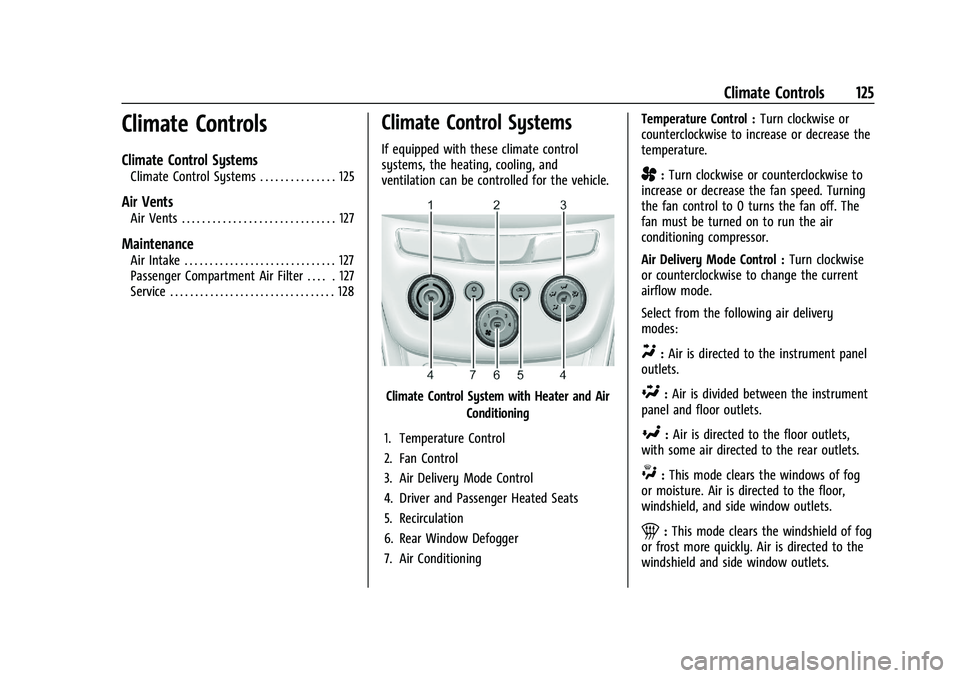
Climate Control System with Heater and AirConditioning
1. Temperature Control
2. Fan Control
3. Air Delivery Mode Control
4. Driver and Passenger Heated Seats
5. Recirculation
6. Rear Window Defogger
7. Air Conditioning Temperature Control :
Turn clockwise or
counterclockwise to increase or decrease the
temperature.
A: Turn clockwise or counterclockwise to
increase or decrease the fan speed. Turning
the fan control to 0 turns the fan off. The
fan must be turned on to run the air
conditioning compressor.
Air Delivery Mode Control : Turn clockwise
or counterclockwise to change the current
airflow mode.
Select from the following air delivery
modes:
Y: Air is directed to the instrument panel
outlets.
\: Air is divided between the instrument
panel and floor outlets.
[: Air is directed to the floor outlets,
with some air directed to the rear outlets.
W: This mode clears the windows of fog
or moisture. Air is directed to the floor,
windshield, and side window outlets.
1: This mode clears the windshield of fog
or frost more quickly. Air is directed to the
windshield and side window outlets.
Page 129 of 280
Chevrolet TRAX Owner Manual (GMNA-Localizing-U.S./Canada-15498927) -
2022 - CRC - 5/27/21
128 Climate Controls
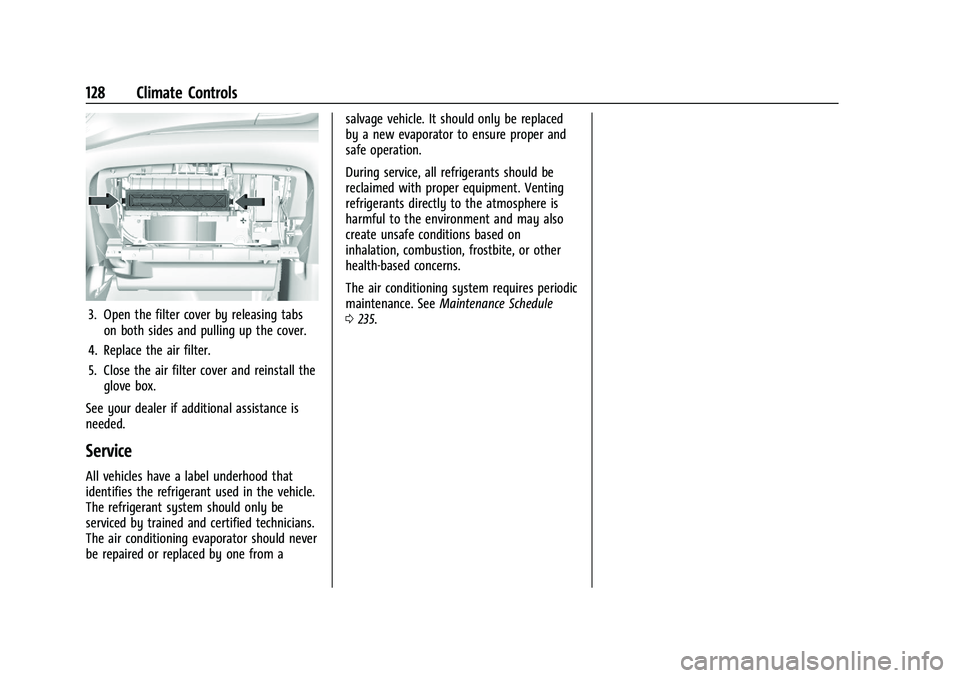
3. Open the filter cover by releasing tabson both sides and pulling up the cover.
4. Replace the air filter.
5. Close the air filter cover and reinstall the glove box.
See your dealer if additional assistance is
needed.
Service
All vehicles have a label underhood that
identifies the refrigerant used in the vehicle.
The refrigerant system should only be
serviced by trained and certified technicians.
The air conditioning evaporator should never
be repaired or replaced by one from a salvage vehicle. It should only be replaced
by a new evaporator to ensure proper and
safe operation.
During service, all refrigerants should be
reclaimed with proper equipment. Venting
refrigerants directly to the atmosphere is
harmful to the environment and may also
create unsafe conditions based on
inhalation, combustion, frostbite, or other
health-based concerns.
The air conditioning system requires periodic
maintenance. See
Maintenance Schedule
0 235.
Page 135 of 280
Chevrolet TRAX Owner Manual (GMNA-Localizing-U.S./Canada-15498927) -
2022 - CRC - 5/27/21
134 Driving and Operating
{Warning
Wet brakes can cause crashes. They
might not work as well in a quick stop
and could cause pulling to one side. You
could lose control of the vehicle.
After driving through a large puddle of
water or a car/vehicle wash, lightly apply
the brake pedal until the brakes work
normally.
Flowing or rushing water creates strong
forces. Driving through flowing water
could cause the vehicle to be carried
away. If this happens, you and other
vehicle occupants could drown. Do not
ignore police warnings and be very
cautious about trying to drive through
flowing water.
Hydroplaning
Hydroplaning is dangerous. Water can build
up under the vehicle's tires so they actually
ride on the water. This can happen if the
road is wet enough and you are going fast
enough. When the vehicle is hydroplaning, it
has little or no contact with the road.There is no hard and fast rule about
hydroplaning. The best advice is to slow
down when the road is wet.
Other Rainy Weather Tips
Besides slowing down, other wet weather
driving tips include:
.Allow extra following distance.
.Pass with caution.
.Keep windshield wiping equipment in
good shape.
.Keep the windshield washer fluid reservoir
filled.
.Have good tires with proper tread depth.
See
Tires 0199.
.Turn off cruise control.
Hill and Mountain Roads
Driving on steep hills or through mountains
is different than driving on flat or rolling
terrain. Tips include:
.Keep the vehicle serviced and in good
shape.
.Check brakes, tires, cooling system, and
all fluid levels.
.Shift to a lower gear when going down
steep or long hills.
{Warning
Using the brakes to slow the vehicle on a
long downhill slope can cause brake
overheating, can reduce brake
performance, and could result in a loss of
braking. Shift the transmission to a lower
gear to let the engine assist the brakes
on a steep downhill slope.
{Warning
Coasting downhill in N (Neutral) or with
the ignition off is dangerous. This can
cause overheating of the brakes and loss
of steering assist. Always have the engine
running and the vehicle in gear.
.Drive at speeds that keep the vehicle in
its own lane. Do not swing wide or cross
the center line.
.Be alert on top of hills; something could
be in your lane (e.g., stalled car, crash).
.Pay attention to special road signs (e.g.,
falling rocks area, winding roads, long
grades, passing or no-passing zones) and
take appropriate action.