vin CHEVROLET TRAX 2023 Service Manual
[x] Cancel search | Manufacturer: CHEVROLET, Model Year: 2023, Model line: TRAX, Model: CHEVROLET TRAX 2023Pages: 280, PDF Size: 12.13 MB
Page 104 of 280
Chevrolet TRAX Owner Manual (GMNA-Localizing-U.S./Canada-15498927) -
2022 - CRC - 5/27/21
Infotainment System 103
.Set up the audio by presetting favorite
stations, setting the tone, and adjusting
the speakers.
.Set up phone numbers in advance so they
can be called easily by pressing a single
control or by using a single voice
command.
See Distracted Driving 0130.
Active Noise Cancellation (ANC)
If equipped, ANC reduces engine noise in the
vehicle’s interior. ANC requires the
factory-installed audio system, radio,
speakers, amplifier (if equipped), induction
system, and exhaust system to work
properly. Deactivation is required by your
dealer if related aftermarket equipment is
installed.
Overview
Customer Assistance
Assistance is available to help with Bluetooth pairing, other mobile device interface, and
operation support of the infotainment system. See Customer Assistance Offices0251.
Infotainment System
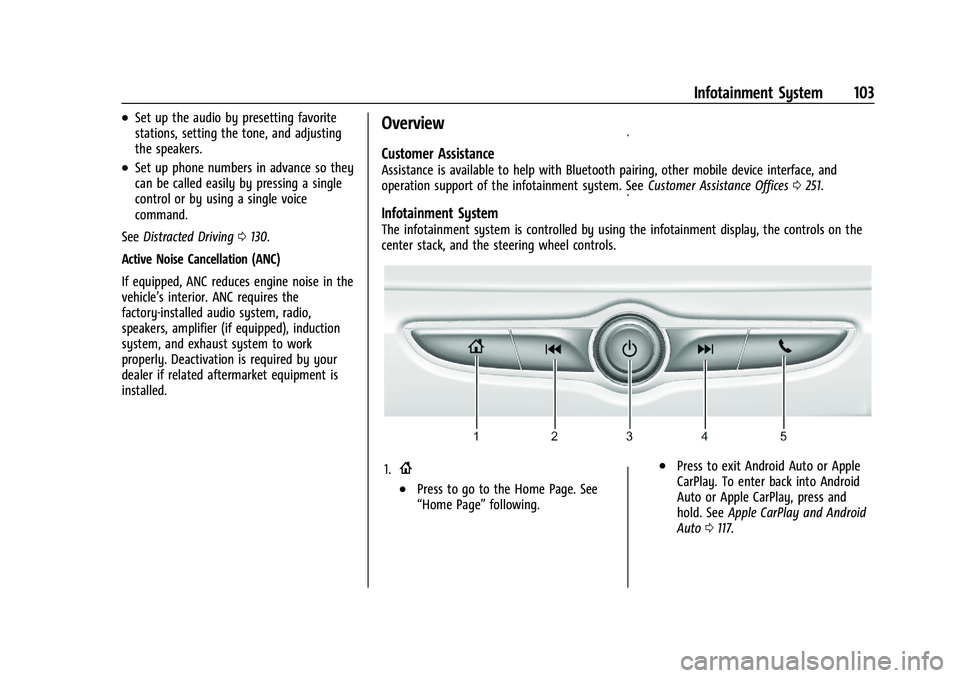
The infotainment system is controlled by using the infotainment display, the controls on the
center stack, and the steering wheel controls.
1.{
.Press to go to the Home Page. See
“Home Page” following.
.Press to exit Android Auto or Apple
CarPlay. To enter back into Android
Auto or Apple CarPlay, press and
hold. SeeApple CarPlay and Android
Auto 0117.
Page 105 of 280
Chevrolet TRAX Owner Manual (GMNA-Localizing-U.S./Canada-15498927) -
2022 - CRC - 5/27/21
104 Infotainment System
2.g
.Radio: Press and release to go to the
previous station or channel. Press and
hold to fast seek the previous
strongest station.
.USB/Music: Press to go to the
previous content. Press and hold to
fast rewind.
3.
O
.When off, pressOto turn the
system on. Press and hold to turn off.
.When on, pressOto mute the
system and display a status pane.
Press
Oagain to unmute the system.
.Turn to decrease or increase the
volume.
4.
d
.Radio: Press and release to go to the
next strongest station or channel.
Press and hold to fast seek the next
strongest station.
.USB/Music: Press to go to the next
content. Press and hold to fast
forward. 5.
5
.Press and release to access the phone
screen, answer an incoming call,
or access the device home screen.
Home Page
The Home Page is where application icons
are accessed. Some features are disabled
when the vehicle is moving.
Slide a finger left/right across the screen to
access the pages of icons.
Managing Home Page Icons
1. Touch and hold any of the Home Page icons to edit that icon.
2. Drag the icon to a new location on the Home Page.
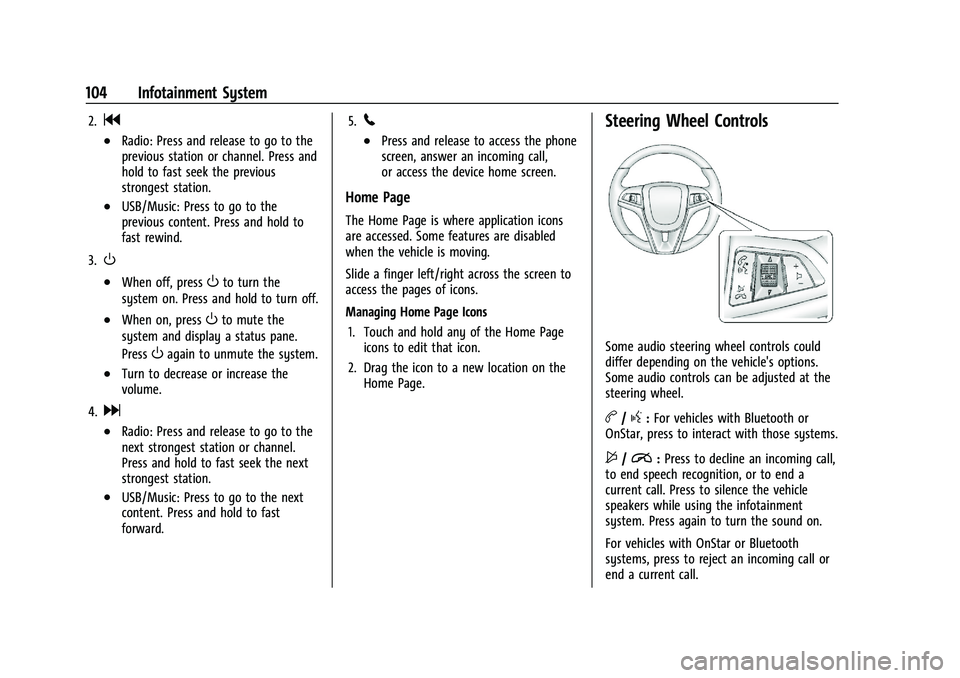
Steering Wheel Controls
Some audio steering wheel controls could
differ depending on the vehicle's options.
Some audio controls can be adjusted at the
steering wheel.
b/g:For vehicles with Bluetooth or
OnStar, press to interact with those systems.
$/i: Press to decline an incoming call,
to end speech recognition, or to end a
current call. Press to silence the vehicle
speakers while using the infotainment
system. Press again to turn the sound on.
For vehicles with OnStar or Bluetooth
systems, press to reject an incoming call or
end a current call.
Page 107 of 280
Chevrolet TRAX Owner Manual (GMNA-Localizing-U.S./Canada-15498927) -
2022 - CRC - 5/27/21
106 Infotainment System
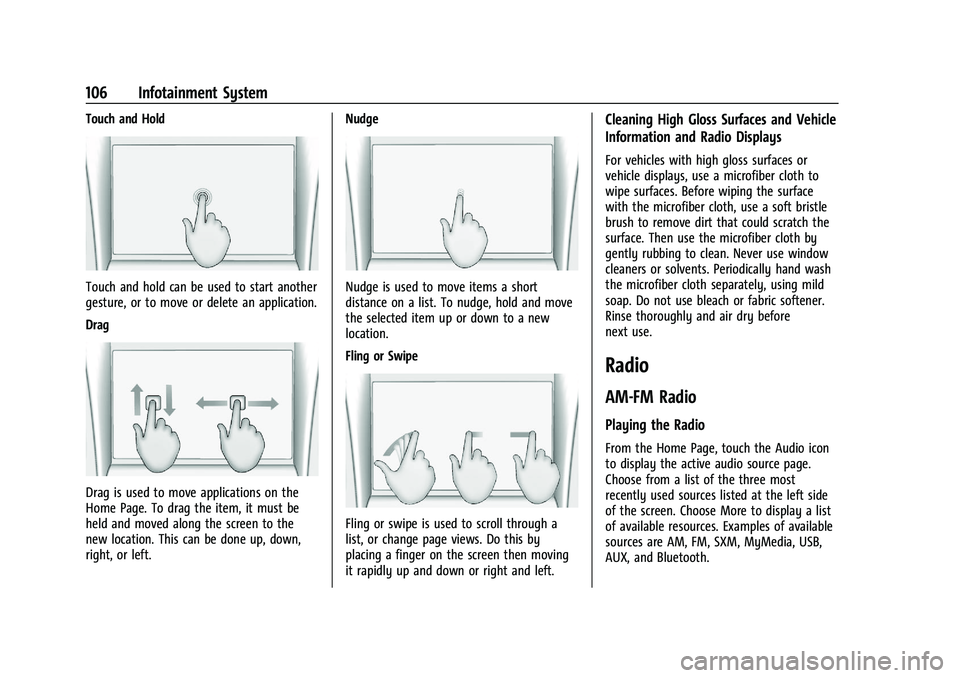
Touch and Hold
Touch and hold can be used to start another
gesture, or to move or delete an application.
Drag
Drag is used to move applications on the
Home Page. To drag the item, it must be
held and moved along the screen to the
new location. This can be done up, down,
right, or left.Nudge
Nudge is used to move items a short
distance on a list. To nudge, hold and move
the selected item up or down to a new
location.
Fling or Swipe
Fling or swipe is used to scroll through a
list, or change page views. Do this by
placing a finger on the screen then moving
it rapidly up and down or right and left.
Cleaning High Gloss Surfaces and Vehicle
Information and Radio Displays
For vehicles with high gloss surfaces or
vehicle displays, use a microfiber cloth to
wipe surfaces. Before wiping the surface
with the microfiber cloth, use a soft bristle
brush to remove dirt that could scratch the
surface. Then use the microfiber cloth by
gently rubbing to clean. Never use window
cleaners or solvents. Periodically hand wash
the microfiber cloth separately, using mild
soap. Do not use bleach or fabric softener.
Rinse thoroughly and air dry before
next use.
Radio
AM-FM Radio
Playing the Radio
From the Home Page, touch the Audio icon
to display the active audio source page.
Choose from a list of the three most
recently used sources listed at the left side
of the screen. Choose More to display a list
of available resources. Examples of available
sources are AM, FM, SXM, MyMedia, USB,
AUX, and Bluetooth.
Page 110 of 280
Chevrolet TRAX Owner Manual (GMNA-Localizing-U.S./Canada-15498927) -
2022 - CRC - 5/27/21
Infotainment System 109
under heavy foliage, bridges, garages,
or tunnels may cause loss of the SiriusXM
signal for a period of time.
Cell Phone Usage
Cell phone usage, such as making or
receiving phone calls, charging, or just
having the phone on may cause static
interference in the radio. Unplug the phone
or turn it off if this happens.
Multi-Band Antenna
The roof antenna is for AM, FM, SiriusXM
Satellite Radio, OnStar, and GPS (Global
Positioning System). Keep clear of
obstructions for clear reception. If the
vehicle has a sunroof, and it is open,
reception can also be affected.
Audio Players
Avoiding Untrusted Media Devices
When using media devices such as SD cards,
USB devices, and mobile devices, consider
the source. Untrusted media devices could
contain files that affect system operation or
performance. Avoid use if the content or
origin cannot be trusted.
USB Port
Audio stored on a USB device may be
listened to.
This vehicle has two USB ports in the center
stack. These ports are for data and charging.
Caution
To avoid vehicle damage, unplug all
accessories and disconnect all accessory
cables from the vehicle when not in use.
Accessory cables left plugged into the
vehicle, unconnected to a device, could be
damaged or cause an electrical short if
the unconnected end comes in contact
with liquids or another power source such
as the accessory power outlet.
Playing from a USB
A USB mass storage device can be connected
to the USB port.
Audio extensions supported by the USB may
include:
.MP3
.MP4
.AAC
.OGG
.WAV
.M4A
My Media Library
My Media is only available when more than
one indexed device is connected. It allows
access to content from all indexed media
sources. My Media will show as an available
source in the Source page.
USB MP3 Player and USB Drives
The USB MP3 players and USB drives
connected must comply with the USB Mass
Storage Class specification (USB MSC).
To play a USB device: 1. Connect the USB.
2. Touch Audio from the Home Page.
3. Touch More and select the USB device.
Use the following when playing an active
USB source:
p: Touch to play the current media source.
j: Touch to pause playback of the current
media source.
7:
.Touch to seek to the beginning of the
current or previous track.
Page 113 of 280
Chevrolet TRAX Owner Manual (GMNA-Localizing-U.S./Canada-15498927) -
2022 - CRC - 5/27/21
112 Infotainment System
Auxiliary Jack
This vehicle has an auxiliary input jack in
the center stack. Possible auxiliary audio
sources include:
.Laptop computer
.Audio music player
This jack is not an audio output. Do not
plug headphones into the auxiliary input
jack. Set up an auxiliary device while the
vehicle is parked.
Connect a 3.5 mm (1/8 in) cable from the
auxiliary device to the auxiliary input jack.
When a device is connected, the system can
play audio from the device over the vehicle
speakers.
If an auxiliary device has already been
connected, but a different source is currently
active, touch More and select AUX to make
the source active.
Shuffle and Browse are not available in the
AUX source menu.
Bluetooth Audio
Music may be played from a paired
Bluetooth device. See “Pairing”under
Bluetooth (Overview) 0113 or
Bluetooth (Pairing and Using the Phone)
0 113.
Volume and song selection may be
controlled by using the infotainment
controls or the phone/device. If Bluetooth is
selected and no volume is present, check the
volume setting on both your phone/device
and the infotainment system.
Music can be launched by touching
Bluetooth from the recent sources list on
the left of the screen or touch More and
select the Bluetooth device.
To play music via Bluetooth: 1. Power on the device, and pair to connect the device.
2. Once paired, touch Audio from the Home Page, and touch Bluetooth.
Bluetooth Sound Menu
See “Infotainment System Sound Menu”
under AM-FM Radio 0106. Manage Bluetooth Devices
From the Home Page:
1. Touch Audio.
2. Touch More.
3. Touch Bluetooth.
4. Touch Devices to add or delete devices.
When selecting Bluetooth, the radio may
not be able to launch the audio player on
the connected device to start playing. When
the vehicle is not moving, use the phone to
begin playback.
All devices launch audio differently. When
selecting Bluetooth as a source, the radio
may show as paused on the screen. Press
play on the device or touch
pon the
screen to begin playback.
Browse functionality will be provided where
supported by the Bluetooth device. This
media content will not be part of the
MyMedia source mode.
Some phones support sending Bluetooth
music information to display on the radio.
When the radio receives this information, it
will check to see if any is available and
display it. For more information about
supported Bluetooth features, see
my.chevrolet.com/learn.
Page 114 of 280
Chevrolet TRAX Owner Manual (GMNA-Localizing-U.S./Canada-15498927) -
2022 - CRC - 5/27/21
Infotainment System 113
Phone
Bluetooth (Overview)
The Bluetooth-capable system can interact
with many cell phones, allowing:
.Placement and receipt of calls in a
hands-free mode.
.Sharing of the cell phone’s address book
or contact list with the vehicle.
To minimize driver distraction, before
driving, and with the vehicle parked:
.Become familiar with the features of the
cell phone. Organize the phone book and
contact lists clearly and delete duplicate
or rarely used entries. If possible,
program speed dial or other shortcuts.
.Review the controls and operation of the
infotainment system.
.Pair cell phone(s) to the vehicle. The
system may not work with all cell
phones. See “Pairing”later in this section.
Vehicles with a Bluetooth system can use a
Bluetooth-capable cell phone with a
Hands-Free Profile to make and receive
phone calls. The infotainment system and
voice recognition are used to control the
system. The system can be used while the
ignition is on or in ACC/ACCESSORY. The range of the Bluetooth system can be up to
9.1 m (30 ft). Not all phones support all
functions and not all phones work with the
Bluetooth system. See
www.my.chevrolet.com for more information
about compatible phones.
Controls
Use the buttons on the infotainment system
and the steering wheel to operate the
Bluetooth system.
Steering Wheel Controls
See
Steering Wheel Controls 0104.
Infotainment System Controls
For information about how to navigate the
menu system using the infotainment
controls, see Overview0103.
PHONE : Touch the PHONE icon on the
Home Page to enter the phone main menu.
Audio System
When using the Bluetooth phone system,
sound comes through the vehicle's front
audio system speakers and overrides the
audio system. The volume level while on a
phone call can be adjusted by pressing the
steering wheel controls or touching the
volume control on the center stack. The adjusted volume level remains in memory
for later calls. The volume cannot be
lowered beyond a certain level.
Bluetooth (Pairing and Using the
Phone)
Pairing
A Bluetooth-enabled cell phone must be
paired to the Bluetooth system and then
connected to the vehicle before it can be
used. See the cell phone manufacturer's user
guide for Bluetooth functions before pairing
the cell phone.
Pairing Information
.A Bluetooth phone with music capability
can be paired to the vehicle as a phone
and a music player at the same time.
.Up to 10 devices can be paired to the
Bluetooth system.
.The pairing process is disabled when the
vehicle is moving.
.Pairing only needs to be completed once,
unless the pairing information on the cell
phone changes or the cell phone is
deleted from the system.
Page 121 of 280
Chevrolet TRAX Owner Manual (GMNA-Localizing-U.S./Canada-15498927) -
2022 - CRC - 5/27/21
120 Infotainment System
.Set Number of Audio Favorites: Touch to
select how many favorites pages can be
viewed from the audio application. The
auto setting will automatically adjust this
number based on the number of favorites
you have saved. Select Auto, 5, 10, 15, 20,
25, 30, 35, or 40.
.RDS: This allows RDS to be turned off
or on.
Touch Off or On
.Explicit Content Filter: This allows Explicit
Content Filter to be turned off or on.
Touch Off or On
.Manage Phones: Touch to connect to a
different phone source, disconnect a
phone, or delete a phone.
.Reset Music Index: This allows the music
index to be reset if you are having
difficulty accessing all of the media
content on your device.
Touch YES or NO.
Phone
Touch and the following may display:
.My Number: Displays the cell phone
number of the Bluetooth connected
device.
.Privacy: Only show call alerts in cluster. Touch Off or On.
.Sort Contacts: Touch to sort by first or
last name.
.Re-sync Device Contacts:
This allows the device contacts to re-sync
if you are having difficulty accessing all of
the contacts on your cell phone.
.Delete All Vehicle Contacts: Touch to
delete all vehicle stored contacts.
Vehicle
This menu allows adjustment of different
vehicle features. See
Vehicle Personalization
0 92.
Teen Driver
If equipped, this allows multiple keys to be
registered for beginner drivers to encourage
safe driving habits. When the vehicle is
started with a Teen Driver key, it will
automatically activate certain safety
systems, allow setting of some features, and
limit the use of others. The Report Card will
record vehicle data about driving behavior
that can be viewed later. When the vehicle
is started with a registered key, the Driver
Information Center (DIC) displays a message
that Teen Driver is active. To access:
1. Touch Settings on the Home Page, then touch Vehicle, and then Teen Driver.
2. Create a Personal Identification Number (PIN) by choosing a four-digit PIN.
Re-enter the PIN to confirm. To change
the PIN, touch Change PIN.
The PIN is required to:
.Register or unregister keys.
.Change Teen Driver settings.
.Change or clear the Teen Driver PIN.
.Access or delete Report Card data.
Register keys to activate Teen Driver and
assign restrictions to the key:
Any vehicle key can be registered, up to a
maximum of eight keys. Label the key to
tell it apart from the other keys.
For a pushbutton start system: 1. Start the engine.
2. For automatic transmissions, the vehicle must be in P (Park). For manual
transmissions, the vehicle must be
stopped with the parking brake set.
3. From the Settings menu, touch Vehicle and then Teen Driver.
4. Enter the PIN.
Page 130 of 280
Chevrolet TRAX Owner Manual (GMNA-Localizing-U.S./Canada-15498927) -
2022 - CRC - 5/27/21
Driving and Operating 129
Driving and Operating
Driving Information
Driver Behavior . . . . . . . . . . . . . . . . . . . . . . . . 130
Driving Environment . . . . . . . . . . . . . . . . . . . 130
Vehicle Design . . . . . . . . . . . . . . . . . . . . . . . . . 130
Driving for Better Fuel Economy . . . . . . . 130
Distracted Driving . . . . . . . . . . . . . . . . . . . . . 130
Defensive Driving . . . . . . . . . . . . . . . . . . . . . . 131
Impaired Driving . . . . . . . . . . . . . . . . . . . . . . . 131
Control of a Vehicle . . . . . . . . . . . . . . . . . . . . 131
Braking . . . . . . . . . . . . . . . . . . . . . . . . . . . . . . . . 132
Steering . . . . . . . . . . . . . . . . . . . . . . . . . . . . . . . 132
Off-Road Recovery . . . . . . . . . . . . . . . . . . . . . 133
Loss of Control . . . . . . . . . . . . . . . . . . . . . . . . . 133
Driving on Wet Roads . . . . . . . . . . . . . . . . . 133
Hill and Mountain Roads . . . . . . . . . . . . . . 134
Winter Driving . . . . . . . . . . . . . . . . . . . . . . . . . 135
If the Vehicle Is Stuck . . . . . . . . . . . . . . . . . 136
Vehicle Load Limits . . . . . . . . . . . . . . . . . . . . 136
Starting and Operating
New Vehicle Break-In . . . . . . . . . . . . . . . . . . 139
Ignition Positions (Key Access) . . . . . . . . 140
Ignition Positions (Keyless Access) . . . . . 142
Starting the Engine . . . . . . . . . . . . . . . . . . . . 143
Winter Cover . . . . . . . . . . . . . . . . . . . . . . . . . . 145
Engine Heater . . . . . . . . . . . . . . . . . . . . . . . . . 146
Retained Accessory Power (RAP) . . . . . . . 147
Shifting Into Park . . . . . . . . . . . . . . . . . . . . . . 147Shifting out of Park . . . . . . . . . . . . . . . . . . . 148
Parking over Things That Burn . . . . . . . . 149
Extended Parking (Keyless Access) . . . . . 149
Engine Exhaust
Engine Exhaust . . . . . . . . . . . . . . . . . . . . . . . . 149
Running the Vehicle While Parked . . . . . 150
Automatic Transmission
Automatic Transmission . . . . . . . . . . . . . . . 150
Manual Mode . . . . . . . . . . . . . . . . . . . . . . . . . . 152
Drive Systems
All-Wheel Drive . . . . . . . . . . . . . . . . . . . . . . . . 152
Brakes
Antilock Brake System (ABS) . . . . . . . . . . . 153
Parking Brake . . . . . . . . . . . . . . . . . . . . . . . . . . 153
Brake Assist . . . . . . . . . . . . . . . . . . . . . . . . . . . 154
Hill Start Assist (HSA) . . . . . . . . . . . . . . . . . . 154
Ride Control Systems
Traction Control/Electronic Stability
Control . . . . . . . . . . . . . . . . . . . . . . . . . . . . . . 154
Cruise Control
Cruise Control . . . . . . . . . . . . . . . . . . . . . . . . . 156
Driver Assistance Systems
Driver Assistance Systems . . . . . . . . . . . . . 158
Rear Vision Camera (RVC) . . . . . . . . . . . . . . 159
Park Assist . . . . . . . . . . . . . . . . . . . . . . . . . . . . 160 Side Blind Zone Alert (SBZA) . . . . . . . . . . . 161
Fuel
Top Tier Fuel . . . . . . . . . . . . . . . . . . . . . . . . . . 162
Recommended Fuel . . . . . . . . . . . . . . . . . . . . 163
Prohibited Fuels . . . . . . . . . . . . . . . . . . . . . . . 163
Fuels in Foreign Countries . . . . . . . . . . . . . 163
Fuel Additives . . . . . . . . . . . . . . . . . . . . . . . . . 163
Filling the Tank . . . . . . . . . . . . . . . . . . . . . . . . 164
Filling a Portable Fuel Container . . . . . . . 165
Trailer Towing
General Towing Information . . . . . . . . . . . 165
Conversions and Add-Ons
Add-On Electrical Equipment . . . . . . . . . . . 165
Page 131 of 280
Chevrolet TRAX Owner Manual (GMNA-Localizing-U.S./Canada-15498927) -
2022 - CRC - 5/27/21
130 Driving and Operating
Driving Information
Driver Behavior
Driving is an important responsibility. Driver
behavior, the driving environment, and the
vehicle's design all affect how well a vehicle
performs.
Being aware of these factors can help in
understanding how the vehicle handles and
what can be done to avoid many types of
crashes, including a rollover crash.
Most serious injuries and fatalities to
unbelted occupants can be reduced or
prevented by the use of seat belts. In a
rollover crash, an unbelted person is
significantly more likely to die than a
person wearing a seat belt. In addition,
avoiding excessive speed, sudden or abrupt
turns, and drunken or aggressive driving can
help make trips safer and avoid the
possibility of a crash.
Driving Environment
Be prepared for driving in inclement
weather, at night, or during other times
where visibility or traction may be limited,such as on curves, slippery roads, or hilly
terrain. Unfamiliar surroundings can also
have hidden hazards.
Vehicle Design
Utility vehicles have a significantly higher
rollover rate than other types of vehicles.
This is because they have a higher ground
clearance and a narrower track or shorter
wheelbase than passenger cars, which makes
them more capable for off-road driving.
While these design characteristics provide
the driver with a better view of the road,
these vehicles do have a higher center of
gravity than other types of vehicles.
A utility vehicle does not handle the same
as a vehicle with a lower center of gravity,
like a car, in similar situations.
Safe driver behavior and understanding of
the environment can help avoid a rollover
crash in any type of vehicle, including utility
vehicles.
Driving for Better Fuel Economy
Driving habits can affect fuel mileage. Here
are some driving tips to get the best fuel
economy possible:
.Set the climate controls to the desired
temperature after the engine is started,
or turn them off when not required.
.Avoid fast starts and accelerate smoothly.
.Brake gradually and avoid abrupt stops.
.Avoid idling the engine for long periods
of time.
.When road and weather conditions are
appropriate, use cruise control.
.Always follow posted speed limits or
drive more slowly when conditions
require.
.Keep vehicle tires properly inflated.
.Combine several trips into a single trip.
.Replace the vehicle's tires with the same
TPC Spec number molded into the tire's
sidewall near the size.
.Follow recommended scheduled
maintenance.
Distracted Driving
Distraction comes in many forms and can
take your focus from the task of driving.
Exercise good judgment and do not let other
activities divert your attention away from
the road. Many local governments have
Page 132 of 280
Chevrolet TRAX Owner Manual (GMNA-Localizing-U.S./Canada-15498927) -
2022 - CRC - 5/27/21
Driving and Operating 131
enacted laws regarding driver distraction.
Become familiar with the local laws in
your area.
To avoid distracted driving, keep your eyes
on the road, keep your hands on the
steering wheel, and focus your attention on
driving.
.Do not use a phone in demanding driving
situations. Use a hands-free method to
place or receive necessary phone calls.
.Watch the road. Do not read, take notes,
or look up information on phones or
other electronic devices.
.Designate a front seat passenger to
handle potential distractions.
.Become familiar with vehicle features
before driving, such as programming
favorite radio stations and adjusting
climate control and seat settings. Program
all trip information into any navigation
device prior to driving.
.Wait until the vehicle is parked to
retrieve items that have fallen to the
floor.
.Stop or park the vehicle to tend to
children.
.Keep pets in an appropriate carrier or
restraint.
.Avoid stressful conversations while
driving, whether with a passenger or on a
cell phone.
{Warning
Taking your eyes off the road too long or
too often could cause a crash resulting in
injury or death. Focus your attention on
driving.
Refer to the infotainment section for more
information on using that system and the
navigation system, if equipped, including
pairing and using a cell phone.
Defensive Driving
Defensive driving means “always expect the
unexpected.” The first step in driving
defensively is to wear the seat belt. See
Seat Belts 037.
.Assume that other road users
(pedestrians, bicyclists, and other drivers)
are going to be careless and make
mistakes. Anticipate what they may do
and be ready.
.Allow enough following distance between
you and the driver in front of you.
.Focus on the task of driving.
Impaired Driving
Death and injury associated with impaired
driving is a global tragedy.
{Warning
Drinking alcohol or taking drugs and then
driving is very dangerous. Your reflexes,
perceptions, attentiveness, and judgment
can be affected by even a small amount
of alcohol or drugs. You can have a
serious —or even fatal —collision if you
drive after drinking or taking drugs.
Do not drive while under the influence of
alcohol or drugs, or ride with a driver
who has been drinking or is impaired by
drugs. Find alternate transportation
home; or if you are with a group,
designate a driver who will remain sober.
Control of a Vehicle
Braking, steering, and accelerating are
important factors in helping to control a
vehicle while driving.