Port CHEVROLET TRAX 2024 Owner's Manual
[x] Cancel search | Manufacturer: CHEVROLET, Model Year: 2024, Model line: TRAX, Model: CHEVROLET TRAX 2024Pages: 328, PDF Size: 7.3 MB
Page 77 of 328
Chevrolet TRAX Owner Manual (GMNA-Localizing-U.S./Canada/Mexico-
17041293) - 2024 - CRC - 12/2/22
76 Storage
To install the cargo cover:1. Connect each end of cover to the pivot supports on the trim panel (2).
2. Reconnect both of the cords to the hooks at the top of the liftgate (1).
Cargo Management System
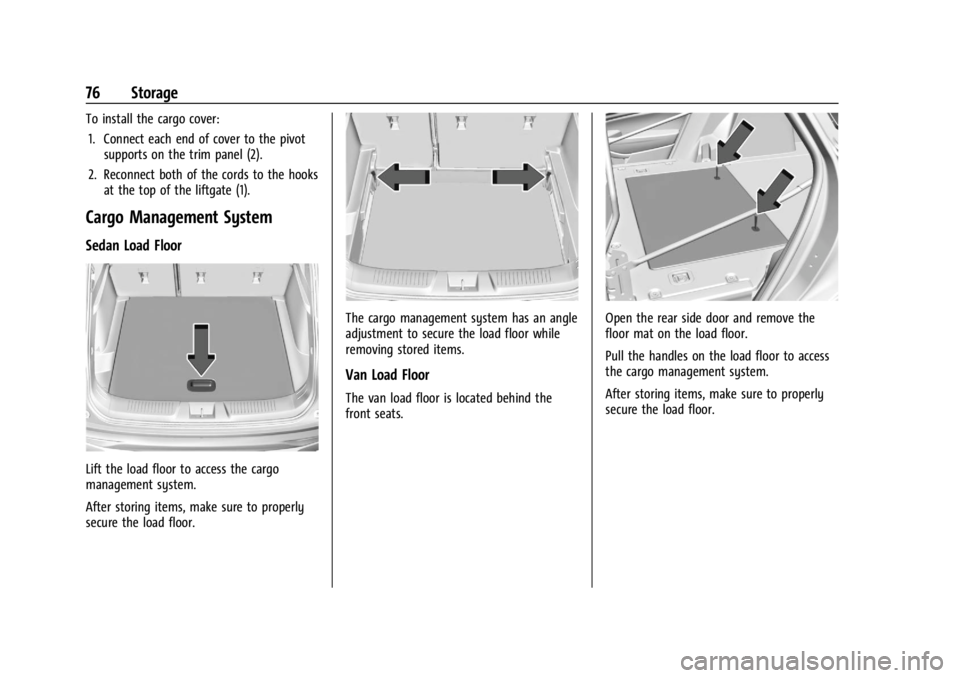
Sedan Load Floor
Lift the load floor to access the cargo
management system.
After storing items, make sure to properly
secure the load floor.
The cargo management system has an angle
adjustment to secure the load floor while
removing stored items.
Van Load Floor
The van load floor is located behind the
front seats.
Open the rear side door and remove the
floor mat on the load floor.
Pull the handles on the load floor to access
the cargo management system.
After storing items, make sure to properly
secure the load floor.
Page 83 of 328
Chevrolet TRAX Owner Manual (GMNA-Localizing-U.S./Canada/Mexico-
17041293) - 2024 - CRC - 12/2/22
82 Instruments and Controls
ON :Press the upper portion of the button
for continuous rear window wipes.
OFF : The rear wiper turns off when the
button is returned to the middle position.
INT : Press the lower portion of the button
for rear intermittent wipes.
m=REAR : Push the windshield wiper lever
forward to spray washer fluid on the rear
window. The lever returns to its starting
position when released.
Rear Wiper Arm Assembly Protection
When using an automatic car wash, move
the rear wiper control to OFF to disable the
rear wiper. In some vehicles, if the
transmission is in N (Neutral) and the
vehicle speed is very slow, the rear wiper
will automatically park under the rear
spoiler.
The wiper operations return to normal when
the transmission is no longer in N (Neutral)
or the vehicle speed has increased.
Reverse Gear Wipes
If the rear wiper control is off, the rear
wiper will automatically operate
continuously when the shift lever is in
R (Reverse), and the front windshield wiper
is performing low or high speed wipes. If the rear wiper control is off, the shift
lever is in R (Reverse), and the front
windshield wiper is performing interval
wipes, then the rear wiper automatically
performs interval wipes.
The windshield washer reservoir is used for
the windshield and the rear window. Check
the fluid level in the reservoir if either
washer is not working. See
Washer Fluid
0 228.
Compass
The vehicle may have a compass display on
the Driver Information Center (DIC). The
compass receives its heading and other
information from the Global Positioning
System (GPS) antenna, StabiliTrak/Electronic
Stability Control (ESC), and vehicle speed
information.
The compass system is designed to operate
for a certain number of miles or degrees of
turn before needing a signal from the GPS
satellites. When the compass display shows
CAL, drive the vehicle for a short distance in
an open area where it can receive a GPS
signal. The compass system will
automatically determine when a GPS signal
is restored and provide a heading again.
Clock
Set the time and date using the
infotainment system. See "Time/Date" under
Settings (11 inch screen radio) 0128.
Power Outlets
Power Outlets 12-Volt Direct Current
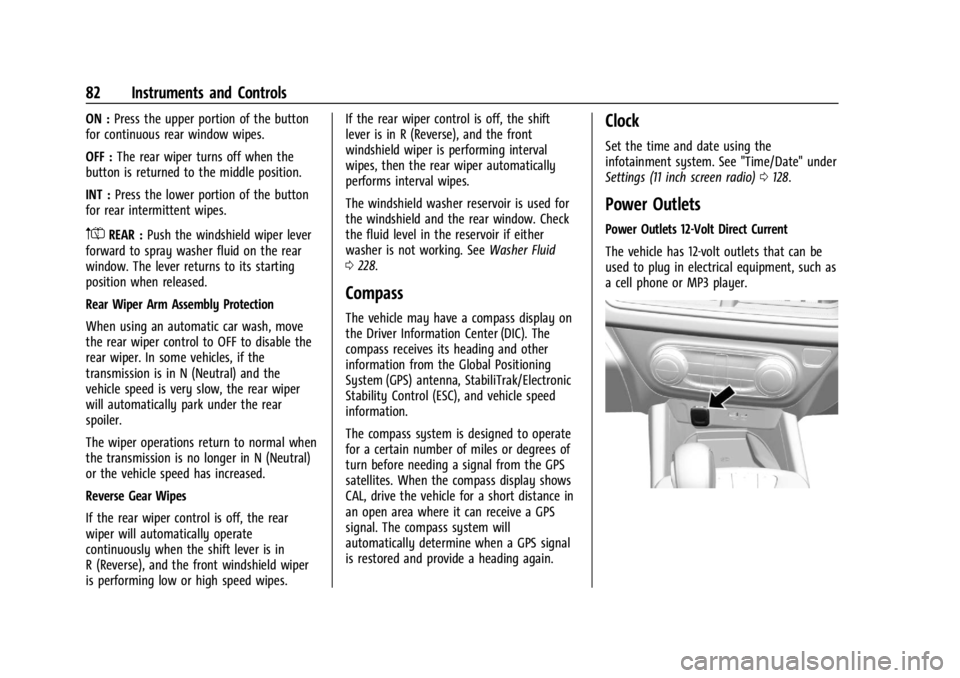
The vehicle has 12-volt outlets that can be
used to plug in electrical equipment, such as
a cell phone or MP3 player.
Page 93 of 328

Chevrolet TRAX Owner Manual (GMNA-Localizing-U.S./Canada/Mexico-
17041293) - 2024 - CRC - 12/2/22
92 Instruments and Controls
If there is a problem with the airbag
system, a Driver Information Center (DIC)
message may also come on.
Passenger Airbag Status Indicator
The vehicle has a passenger sensing system.
SeePassenger Sensing System 049 for
important safety information. The overhead
console has a passenger airbag status
indicator.
United States
Canada
When the vehicle is started, the passenger
airbag status indicator will light ON and OFF,
or the symbol for on and off, for several seconds as a system check. Then, after
several more seconds, the status indicator
will light either ON or OFF, or either the on
or off symbol, to let you know the status of
the front outboard passenger frontal airbag.
If the word ON, or the on symbol, is lit on
the passenger airbag status indicator, it
means that the front outboard passenger
frontal airbag is allowed to inflate.
If the word OFF, or the off symbol is lit, on
the airbag status indicator, it means that
the passenger sensing system has turned off
the front outboard passenger frontal airbag.
If, after several seconds, both status
indicator lights remain on, or if there are no
lights at all, there may be a problem with
the lights or the passenger sensing system.
See your dealer for service.
{Warning
If the airbag readiness light ever comes
on and stays on, it means that
something may be wrong with the airbag
system. To help avoid injury to yourself
or others, have the vehicle serviced right
(Continued)
Warning (Continued)
away. SeeAirbag Readiness Light 091 for
more information, including important
safety information.
Charging System Light
The charging system light comes on briefly
when the ignition is turned on, but the
engine is not running, as a check to show
the light is working. It should go out when
the engine is started.
If the light stays on, or comes on while
driving, there may be a problem with the
electrical charging system. Have it checked
by your dealer. Driving while this light is on
could drain the battery.
When this light comes on, or is flashing, the
Driver Information Center (DIC) also displays
a message.
Page 94 of 328
Chevrolet TRAX Owner Manual (GMNA-Localizing-U.S./Canada/Mexico-
17041293) - 2024 - CRC - 12/2/22
Instruments and Controls 93
If a short distance must be driven with the
light on, be sure to turn off all accessories,
such as the radio and air conditioner. Find a
safe place to stop the vehicle.
Malfunction Indicator Lamp
(Check Engine Light)
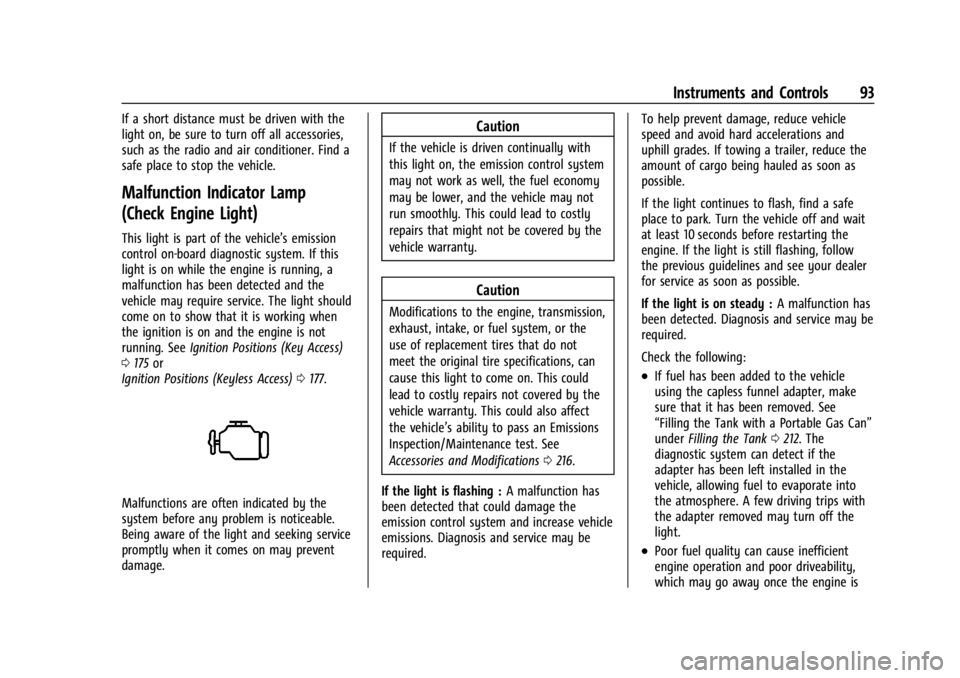
This light is part of the vehicle’s emission
control on-board diagnostic system. If this
light is on while the engine is running, a
malfunction has been detected and the
vehicle may require service. The light should
come on to show that it is working when
the ignition is on and the engine is not
running. SeeIgnition Positions (Key Access)
0 175 or
Ignition Positions (Keyless Access) 0177.
Malfunctions are often indicated by the
system before any problem is noticeable.
Being aware of the light and seeking service
promptly when it comes on may prevent
damage.
Caution
If the vehicle is driven continually with
this light on, the emission control system
may not work as well, the fuel economy
may be lower, and the vehicle may not
run smoothly. This could lead to costly
repairs that might not be covered by the
vehicle warranty.
Caution
Modifications to the engine, transmission,
exhaust, intake, or fuel system, or the
use of replacement tires that do not
meet the original tire specifications, can
cause this light to come on. This could
lead to costly repairs not covered by the
vehicle warranty. This could also affect
the vehicle’s ability to pass an Emissions
Inspection/Maintenance test. See
Accessories and Modifications 0216.
If the light is flashing : A malfunction has
been detected that could damage the
emission control system and increase vehicle
emissions. Diagnosis and service may be
required. To help prevent damage, reduce vehicle
speed and avoid hard accelerations and
uphill grades. If towing a trailer, reduce the
amount of cargo being hauled as soon as
possible.
If the light continues to flash, find a safe
place to park. Turn the vehicle off and wait
at least 10 seconds before restarting the
engine. If the light is still flashing, follow
the previous guidelines and see your dealer
for service as soon as possible.
If the light is on steady :
A malfunction has
been detected. Diagnosis and service may be
required.
Check the following:
.If fuel has been added to the vehicle
using the capless funnel adapter, make
sure that it has been removed. See
“Filling the Tank with a Portable Gas Can”
under Filling the Tank 0212. The
diagnostic system can detect if the
adapter has been left installed in the
vehicle, allowing fuel to evaporate into
the atmosphere. A few driving trips with
the adapter removed may turn off the
light.
.Poor fuel quality can cause inefficient
engine operation and poor driveability,
which may go away once the engine is
Page 95 of 328

Chevrolet TRAX Owner Manual (GMNA-Localizing-U.S./Canada/Mexico-
17041293) - 2024 - CRC - 12/2/22
94 Instruments and Controls
warmed up. If this occurs, change the fuel
brand. It may require at least one full
tank of the proper fuel to turn the light
off. SeeRecommended Fuel 0211.
If the light remains on, see your dealer.
Emissions Inspection and Maintenance
Programs
If the vehicle requires an Emissions
Inspection/Maintenance test, the test
equipment will likely connect to the
vehicle's Data Link Connector (DLC).
The DLC is under the instrument panel to
the left of the steering wheel. Connecting
devices that are not used to perform an
Emissions Inspection/Maintenance test or to
service the vehicle may affect vehicle
operation. See Add-On Electrical Equipment
0 214. See your dealer if assistance is
needed. The vehicle may not pass inspection if:
.The light is on when the engine is
running.
.The light does not come on when the
ignition is on while the engine is off.
.Critical emission control systems have not
been completely diagnosed. If this
happens, the vehicle would not be ready
for inspection and might require
several days of routine driving before the
system is ready for inspection. This can
happen if the 12-volt battery has recently
been replaced or run down, or if the
vehicle has been recently serviced.
See your dealer if the vehicle will not pass
or cannot be made ready for the test.
Brake System Warning Light
MetricEnglish This light comes on briefly when the vehicle
is turned on to show that the light is
working. If it does not come on then, have
it fixed so it will be ready to warn you if
there is a problem.
When the vehicle is on, the brake system
warning light also comes on when the
parking brake is set. The light stays on if
the parking brake does not fully release. If it
stays on after the parking brake is fully
released, there is a brake problem. Have the
brake system inspected right away. This
light may come on if the brake fluid is low.
See
Brake Fluid 0230.
If the light comes on while driving, pull off
the road and stop carefully. The brake pedal
might be harder to push, or the brake pedal
may go closer to the floor. It could take
longer to stop. If the light is still on, have
the vehicle towed for service. See
Transporting a Disabled Vehicle 0274.
{Warning
The brake system might not be working
properly if the brake system warning
light is on. Driving with the brake system
warning light on can lead to a crash.
If the light is still on after the vehicle has
(Continued)
Page 116 of 328
Chevrolet TRAX Owner Manual (GMNA-Localizing-U.S./Canada/Mexico-
17041293) - 2024 - CRC - 12/2/22
Infotainment System 115
Infotainment System
Introduction
Introduction (11 inch screen radio) . . . . . 116
Overview (11 inch screen radio) . . . . . . . . 116
Steering Wheel Controls (11 inch screenradio) . . . . . . . . . . . . . . . . . . . . . . . . . . . . . . . . 117
Using the System (11 inch screen radio) . . . . . . . . . . . . . . . . . . . . . . . . . . . . . . . . 118
Software Updates (11 inch screen radio) . . . . . . . . . . . . . . . . . . . . . . . . . . . . . . . . 119
Radio
AM-FM Radio (11 inch screen radio) . . . . 119
Satellite Radio (11 inch screen radio) . . . 121
Radio Reception (11 inch screenradio) . . . . . . . . . . . . . . . . . . . . . . . . . . . . . . . . 121
Multi-Band Antenna (11 inch screen radio) . . . . . . . . . . . . . . . . . . . . . . . . . . . . . . . . 121
Audio Players
Avoiding Untrusted Media Devices(11 inch screen radio) . . . . . . . . . . . . . . . . . 122
USB Port (11 inch screen radio) . . . . . . . . . 122
Bluetooth Audio (11 inch screen radio) . . . . . . . . . . . . . . . . . . . . . . . . . . . . . . . . 122
Phone
Bluetooth (Overview 11 inch screenradio) . . . . . . . . . . . . . . . . . . . . . . . . . . . . . . . . 122
Bluetooth (Pairing and Using a Phone 11 inch screen radio) . . . . . . . . . . . . . . . . . 123
Apple CarPlay and Android Auto (11 inch
screen radio) . . . . . . . . . . . . . . . . . . . . . . . . . 127
Settings
Settings (11 inch screen radio) . . . . . . . . . 128
Teen Driver (11 inch screen radio) . . . . . . 129
Trademarks and License Agreements
Trademarks and License Agreements(11 inch screen radio) . . . . . . . . . . . . . . . . . 133
Introduction
Introduction (8 inch screen radio) . . . . . . 135
Overview (8 inch screen radio) . . . . . . . . . 135
Steering Wheel Controls (8 inch screenradio) . . . . . . . . . . . . . . . . . . . . . . . . . . . . . . . . 136
Using the System (8 inch screen radio) . . . . . . . . . . . . . . . . . . . . . . . . . . . . . . . . 137
Radio
AM-FM Radio (8 inch screen radio) . . . . 138
Satellite Radio (8 inch screen radio) . . . 140
Radio Reception (8 inch screenradio) . . . . . . . . . . . . . . . . . . . . . . . . . . . . . . . . 140
Multi-Band Antenna (8 inch screen radio) . . . . . . . . . . . . . . . . . . . . . . . . . . . . . . . . 141
Audio Players
Avoiding Untrusted Media Devices(8 inch screen radio) . . . . . . . . . . . . . . . . . 141
USB Port (8 inch screen radio) . . . . . . . . . 141
Bluetooth Audio (8 inch screen radio) . . . . . . . . . . . . . . . . . . . . . . . . . . . . . . . . 144
Phone
Bluetooth (Overview 8 inch screen
radio) . . . . . . . . . . . . . . . . . . . . . . . . . . . . . . . . 145
Bluetooth (Pairing and Using a Phone 8 inch screen radio) . . . . . . . . . . . . . . . . . . 145
Apple CarPlay and Android Auto (8 inch screen radio) . . . . . . . . . . . . . . . . . . . . . . . . 149
Settings
Settings (8 inch screen radio) . . . . . . . . . . 150
Teen Driver (8 inch screen radio) . . . . . . 152
Trademarks and License Agreements
Trademarks and License Agreements(8 inch screen radio) . . . . . . . . . . . . . . . . . 155
Page 119 of 328
Chevrolet TRAX Owner Manual (GMNA-Localizing-U.S./Canada/Mexico-
17041293) - 2024 - CRC - 12/2/22
118 Infotainment System
Using the System (11 inch screen
radio)
Audio
Touch the Audio icon to display the active
audio source page. Examples of available
sources may include AM, FM, SXM (if
equipped), USB, AUX, and Bluetooth.
Phone
Touch the Phone icon to display the Phone
main page. SeeBluetooth (Pairing and Using
a Phone 11 inch screen radio) 0123 or
Bluetooth (Overview 11 inch screen radio)
0 122.
Settings
Touch the Settings icon to display the
Settings menu. See Settings (11 inch screen
radio) 0128.
Apple CarPlay
If equipped, touch the Apple CarPlay icon to
activate Apple CarPlay after a supported
device is connected. See Apple CarPlay and
Android Auto (11 inch screen radio) 0127.
Android Auto
If equipped, touch the Android Auto icon to
activate Android Auto after a supported
device is connected. See Apple CarPlay and
Android Auto (11 inch screen radio) 0127.
Cameras
If equipped, touch the Cameras icon to
access the camera application. See Rear
Vision Camera (RVC) 0201.
Shortcut Tray
The shortcut tray is left of the display.
It shows up to five applications.
Infotainment Display Features
Infotainment display features show on the
display when available. When a feature is
unavailable, it may gray out. When a
feature is touched, it may highlight.
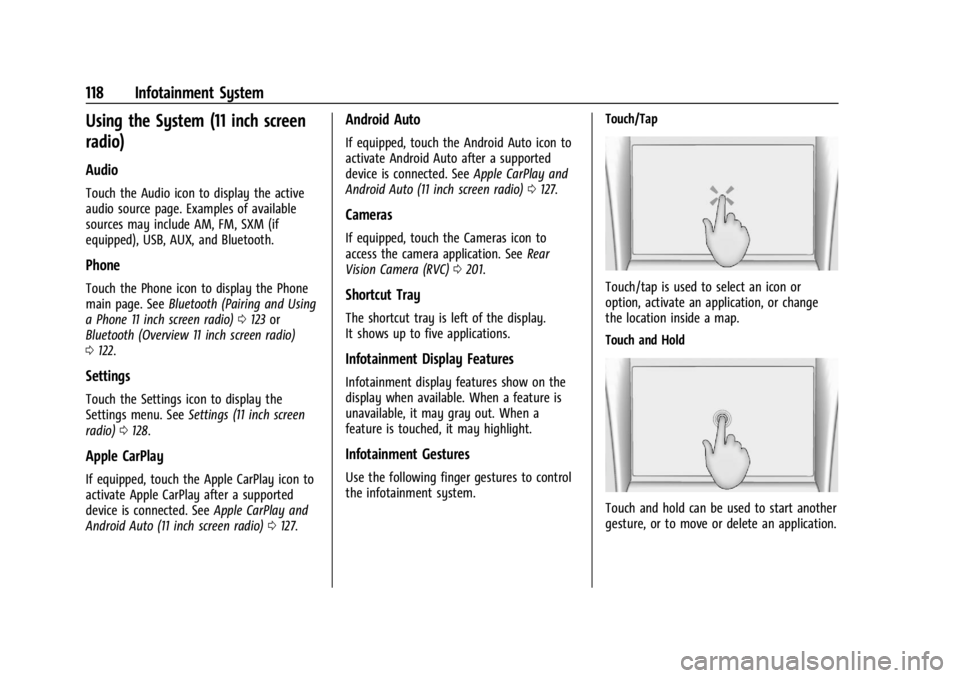
Infotainment Gestures
Use the following finger gestures to control
the infotainment system. Touch/Tap
Touch/tap is used to select an icon or
option, activate an application, or change
the location inside a map.
Touch and Hold
Touch and hold can be used to start another
gesture, or to move or delete an application.
Page 121 of 328
Chevrolet TRAX Owner Manual (GMNA-Localizing-U.S./Canada/Mexico-
17041293) - 2024 - CRC - 12/2/22
120 Infotainment System
Finding a Station
Seeking a Station
From the AM or FM screen, touch the back
or forward buttons to search for the
previous or next strong station.
Tune
Touch
Yon the infotainment display to
enter the Tune screen. Enter a frequency
using the keypad.
Touch the
Hto save the station as a
favorite.
Entering a valid AM or FM frequency will
automatically tune to the new station. After
a short delay, the Tune screen will close and
return to the now playing screen.
Touch the Go button or frequency in the list
to begin playing the station. The tune page
will close and return to the now playing
screen.
Storing Radio Station Favorites
Saved favorite stations will show at the
bottom of the now playing screen.
AM or FM favorites can be stored by
pressing and holding a favorite slot.
Audio Settings
Audio settings vary by region.
From the now playing screen, touch
*and
the following may display.
Sound
.Equalizer
.Fade/Balance
.Sound Mode (if equipped)
Bose AudioPilot
If equipped, adjusts the volume based on
the noise inside the vehicle and vehicle
speed.
Manage Radio Favorites
Displays a list of audio favorites that can be
moved or deleted.
Radio Text (RDS)
When on, radio station call letters and
messages from radio stations will be shown.
Radio Text Category
When on, category information about
current radio content will be shown.
Radio Data System (RDS)
RDS relies on receiving specific RDS
information from radio stations and only
works when the information is available.
It is possible that a radio station could
broadcast information that causes the radio
to work improperly.
In addition, RDS features are region and
country of sale specific. This means specific
RDS content may not be available in your
listening area or in the country you operate
the vehicle.
To turn RDS features on or off, see "Audio
Settings" previously.
The following RDS features may be
supported by radio broadcasters in your
listening area:
RDS features
.Display radio station call letters
.Display messages from radio stations
.Provide radio station category information
(when available)
Page 123 of 328
Chevrolet TRAX Owner Manual (GMNA-Localizing-U.S./Canada/Mexico-
17041293) - 2024 - CRC - 12/2/22
122 Infotainment System
Audio Players
Avoiding Untrusted Media Devices
(11 inch screen radio)
When using media devices such as USB and
mobile devices, consider the source.
Untrusted media devices could contain files
that affect system operation or performance
and should be avoided.
USB Port (11 inch screen radio)
The vehicle may be equipped with multiple
USB ports. Ports may also be used for
charging. Music may be played from a
connected USB device.
Caution
To avoid vehicle damage, unplug all
accessories and disconnect all accessory
cables from the vehicle when not in use.
Accessory cables left plugged into the
vehicle, unconnected to a device, could be
damaged or cause an electrical short if
the unconnected end comes in contact
with liquids or another power source such
as the accessory power outlet.
USB Audio
To play music via USB:1. On the audio now playing page, touch source and select USB.
2. If there is no device connected, follow the screen prompts to connect the
device.
3. Supported media content will appear on the display.
Bluetooth Audio (11 inch screen
radio)
Music may be played from a connected
Bluetooth device.
Volume and song selection may be
controlled by using the infotainment
controls. If Bluetooth is selected and no
volume is present, check the volume setting
on the infotainment system or the
connected phone.
To play music via Bluetooth:
1. On the audio now playing page, touch source and select the desired Bluetooth
device.
2. If there is no device connected, follow the screen prompts to pair the device. 3. Supported media content will appear on
the display.
Manage Bluetooth Devices
Managing Bluetooth devices allows you to
add, delete, or select another paired device.
Only one Bluetooth device can be active at
a time.
Some smartphones support sending
Bluetooth music information to display on
the radio. When the radio receives this
information, it will check to see if any is
available and display it. For more
information about supported Bluetooth
features, visit your brand website. See
Online Account 0299 for details.
See Radio Frequency Statement 0305.
Phone
Bluetooth (Overview 11 inch
screen radio)
The Bluetooth-capable system can interact
with many mobile devices to:
.Place and receive calls in a
hands-free mode.
.Share the device’s address book or
contact list with the vehicle.
Page 124 of 328
Chevrolet TRAX Owner Manual (GMNA-Localizing-U.S./Canada/Mexico-
17041293) - 2024 - CRC - 12/2/22
Infotainment System 123
.Stream audio (music, podcasts).
.Notify receipt of text messages for Apple
CarPlay and Android Auto connected
devices.
To minimize driver distraction, before
driving, and with the vehicle parked:
.Become familiar with the features of the
mobile device. Organize the phone book
and contact lists clearly and delete
duplicate or rarely used entries.
.Review the controls and operation of the
infotainment system.
.Pair mobile device(s) to the vehicle. The
system may not work with all mobile
devices. See “Pairing”later in this section.
Vehicles with a Bluetooth system can use a
Bluetooth-capable mobile device with a
Hands-Free Profile to make and receive
phone calls. The infotainment system and
voice recognition are used to control the
system. The system can be used while the
vehicle is on or in accessory mode. The
range of the Bluetooth system can be up to
9.1 m (30 ft). Not all mobile devices support
all functions and not all mobile devices work
with the Bluetooth system. See Online
Account 0299 for more information about
compatible mobile devices.
Controls
Use the controls on the infotainment display
and the steering wheel to operate the
Bluetooth system.
Steering Wheel Controls
g: Press and release to answer incoming
calls on your connected Bluetooth mobile
device. If there is no incoming call, press
and release for mobile device assistant.
c: Press to end a call, decline a call,
or cancel an operation. Press to mute or
unmute the infotainment system when not
on a call.
Infotainment System Controls
For information about how to navigate the
menu system using the infotainment
controls, see Using the System (11 inch
screen radio) 0118.
Audio System
When using the Bluetooth mobile device
system, sound comes through the vehicle's
front audio system speakers and overrides
the audio system. The volume level while on
a mobile device call can be adjusted by
pressing the steering wheel controls or the
volume controls for the infotainment system. The adjusted volume level remains
in memory for later calls. The volume
cannot be lowered beyond a certain level.
Bluetooth (Pairing and Using a
Phone 11 inch screen radio)
Pairing
A Bluetooth-enabled mobile device must be
paired to the Bluetooth system and then
connected to the vehicle before it can be
used. See the mobile device manufacturer's
user guide for Bluetooth functions before
pairing the device.
Pairing Information
.Touch the Phone icon on the home page
of the infotainment display.
.If no mobile device has been paired, a
message on the infotainment display will
show the Manage Phones option. Touch
this option and the Phones screen will
display. See
“Pairing a Phone” later in this
section.
.A Bluetooth smartphone with music
capability can be paired to the vehicle as
a smartphone and a music player at the
same time.
.Up to 10 devices can be paired to the
system.