steering CHEVROLET TRAX 2024 Owner's Manual
[x] Cancel search | Manufacturer: CHEVROLET, Model Year: 2024, Model line: TRAX, Model: CHEVROLET TRAX 2024Pages: 328, PDF Size: 7.3 MB
Page 128 of 328
Chevrolet TRAX Owner Manual (GMNA-Localizing-U.S./Canada/Mexico-
17041293) - 2024 - CRC - 12/2/22
Infotainment System 127
Ending a Call
.Presscon the steering wheel controls.
.Touch#on the infotainment display,
next to a call, to end only that call.
Dual Tone Multi-Frequency (DTMF) Tones
The in-vehicle Bluetooth system can send
numbers during a call. This is used when
calling a menu-driven phone system. Use the
Keypad to enter the number.
Apple CarPlay and Android Auto
(11 inch screen radio)
If equipped, Android Auto and/or Apple
CarPlay capability may be available through
a compatible smartphone. If available, the
Android Auto and Apple CarPlay icons will
change from gray to color on the Home
Page of the infotainment display.
To use Android Auto and/or Apple CarPlay:
For Wired Phone Projection
1. Download the Android Auto app to your smartphone from Google Play for phones
running Android 9 and below. There is
no app required for Apple CarPlay or
newer versions of Android. 2. Connect your Android phone or Apple
iPhone by using the factory-provided
phone USB cable and plugging into a
USB data port. For best performance, it is
highly recommended to use the device’s
factory-provided USB cable, which should
be replaced after significant wear to
maintain connection quality. Aftermarket
or third-party cables may not work.
3. When the phone is first connected to activate Apple CarPlay or Android Auto,
accept the terms and conditions on both
the infotainment system and the phone.
4. Follow the instructions on the phone.
The Android Auto and Apple CarPlay icons
on the Home Page will illuminate depending
on the smartphone. Android Auto and/or
Apple CarPlay may automatically launch the
next time the USB is connected. If not,
touch the Android Auto or Apple CarPlay
icon on the Home Page to launch.
Press
{on the center stack to return to the
Home Page.
For Wireless Phone Projection
Verify your phone is wireless compatible by
visiting the Android Auto or Apple CarPlay
support page. 1. Download the Android Auto app to your
smartphone from Google Play for phones
running Android 9 and below. There is
no app required for Apple CarPlay or
newer versions of Android.
2. For first time connection, there are two ways to set up wireless projection:
.Connect your Android phone or Apple
iPhone by using the factory-provided
phone USB cable and plugging into a
USB data port. For best performance,
it is highly recommended to use the
device’s factory-provided USB cable,
which should be replaced after
significant wear to maintain
connection quality. Aftermarket or
third-party cables may not work.
.Connecting the phone over Bluetooth.
See Bluetooth (Pairing and Using a
Phone 11 inch screen radio) 0123 or
Bluetooth (Overview 11 inch screen
radio) 0122.
3. Make sure Wi-Fi and Bluetooth is turned on the phone for wireless projection
to work.
Page 136 of 328

Chevrolet TRAX Owner Manual (GMNA-Localizing-U.S./Canada/Mexico-
17041293) - 2024 - CRC - 12/2/22
Infotainment System 135
MP3
MPEG Layer-3 audio coding technology
licensed from Fraunhofer IIS and Thomson.
WMV/WMA
This product includes technology owned by
Microsoft Corporation and under a license
from Microsoft Licensing, GP. Use or
distribution of such technology outside of
this product is prohibited without a license
from Microsoft Corporation and/or Microsoft
Licensing, GP as applicable.
Introduction
Introduction (8 inch screen radio)
Read the following pages to become familiar
with the features.
{Warning
Taking your eyes off the road for too
long or too often while using any
infotainment feature can cause a crash.
You or others could be injured or killed.
Do not give extended attention to
infotainment tasks while driving. Limit(Continued)
Warning (Continued)
your glances at the vehicle displays and
focus your attention on driving. Use voice
commands whenever possible.
The infotainment system has built-in
features intended to help avoid distraction
by disabling some features when driving.
These features may gray out when they are
unavailable. Many infotainment features are
also available through the instrument cluster
and steering wheel controls.
Before driving:
.Become familiar with the operation,
center stack controls, steering wheel
controls, and infotainment display.
.Set up the audio by presetting favorite
stations, setting the tone, and adjusting
the speakers.
.Set up phone numbers in advance so they
can be called easily by pressing a single
control or by using a single voice
command.
See Distracted Driving 0166. Active Noise Cancellation (ANC)
If equipped, ANC reduces engine noise in the
vehicle’s interior. ANC requires the
factory-installed audio system, radio,
speakers, amplifier (if equipped), induction
system, and exhaust system to work
properly. Deactivation is required by your
dealer if related aftermarket equipment is
installed.
Overview (8 inch screen radio)
Infotainment System
The infotainment system is controlled by
using the infotainment display, the controls
on the center stack, and the steering wheel
controls.
1.{
.Press to go to the Home Page. See
“Home Page”
following.
Page 137 of 328
Chevrolet TRAX Owner Manual (GMNA-Localizing-U.S./Canada/Mexico-
17041293) - 2024 - CRC - 12/2/22
136 Infotainment System
.Press to exit Android Auto or Apple
CarPlay. To enter back into Android
Auto or Apple CarPlay, press and
hold. SeeApple CarPlay and Android
Auto (11 inch screen radio) 0127.
2.
O
.When off, pressOto turn the
system on. Press and hold to turn off.
.When on, pressOto mute the
system and display a status pane.
Press
Oagain to unmute the system.
.Turn to decrease or increase the
volume.
Home Page
The Home Page is where application icons
are accessed. Some features are disabled
when the vehicle is moving.
Slide a finger left/right across the screen to
access the pages of icons.
Managing Home Page Icons
1. Touch and hold any of the Home Page icons to edit that icon.
2. Drag the icon to a new location on the Home Page.
Steering Wheel Controls (8 inch
screen radio)
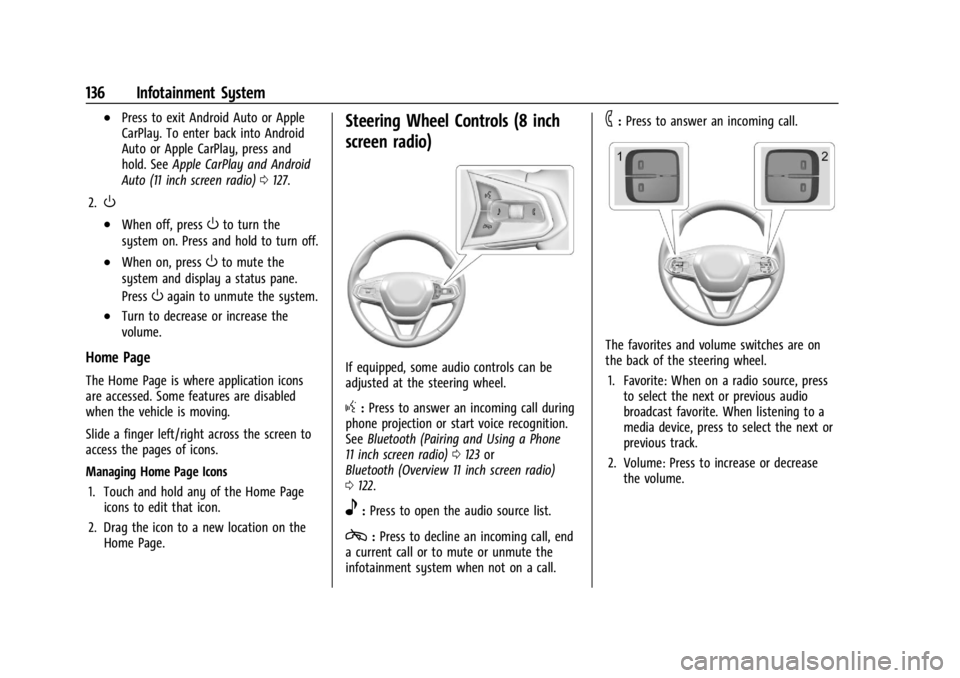
If equipped, some audio controls can be
adjusted at the steering wheel.
g:Press to answer an incoming call during
phone projection or start voice recognition.
See Bluetooth (Pairing and Using a Phone
11 inch screen radio) 0123 or
Bluetooth (Overview 11 inch screen radio)
0 122.
e:Press to open the audio source list.
c: Press to decline an incoming call, end
a current call or to mute or unmute the
infotainment system when not on a call.
6: Press to answer an incoming call.
The favorites and volume switches are on
the back of the steering wheel.
1. Favorite: When on a radio source, press to select the next or previous audio
broadcast favorite. When listening to a
media device, press to select the next or
previous track.
2. Volume: Press to increase or decrease the volume.
Page 145 of 328
Chevrolet TRAX Owner Manual (GMNA-Localizing-U.S./Canada/Mexico-
17041293) - 2024 - CRC - 12/2/22
144 Infotainment System
Genres :TouchHnext to any genre to
store the genre as a favorite. Touch a saved
favorite to recall a favorite genre. The first
song of the genre begins to play.
Podcasts : Touch
Hnext to any podcast to
store the podcast as a favorite. Touch a
saved favorite to recall a favorite podcast.
The podcast begins to play.
Audiobooks : Touch
Hnext to any
audiobook to store the audiobook as a
favorite. Touch a saved favorite to recall a
favorite audiobook. The first chapter in the
audiobook begins to play.
Media Playback and Mute
USB playback will be paused if the system is
muted. If the steering wheel mute control is
pressed again, playback will resume.
If the source is changed while in mute,
playback resumes and audio will unmute.
Bluetooth Audio (8 inch screen
radio)
Music may be played from a paired
Bluetooth device. See Bluetooth (Pairing and
Using a Phone 11 inch screen radio) 0123 or
Bluetooth (Overview 11 inch screen radio)
0 122 for help pairing a device.
Volume and song selection may be
controlled by using the infotainment
controls or the mobile device. If Bluetooth is
selected and no volume is present, check the
volume setting on the infotainment system.
Music can be launched by touching
Bluetooth from the recent sources list on
the left of the display or by touching the
More option and then touching the
Bluetooth device.
To play music via Bluetooth: 1. Power on the device, and pair to connect the device.
2. Once paired, touch Audio from the Home Page, then touch Bluetooth from the
recent sources list on the left of the
display. Bluetooth Sound Menu
See
“Infotainment System Sound Menu”
under AM-FM Radio (11 inch screen radio)
0 119.
Manage Bluetooth Devices
From the Home Page: 1. Touch Audio.
2. Touch Devices to add or delete devices.
When touching Bluetooth, the radio may
not be able to launch the audio player on
the connected device to start playing. When
the vehicle is not moving, use the mobile
device to begin playback.
All devices launch audio differently. When
selecting Bluetooth as a source, the radio
may show as paused on the display. Press
play on the device or touch
pon the
vehicle display to begin playback.
Browse functionality will be provided where
supported by the Bluetooth device. This
media content will not be part of the
MyMedia source mode.
Some smartphones support sending
Bluetooth music information to display on
the radio. When the radio receives this
information, it will check to see if any is
Page 146 of 328
Chevrolet TRAX Owner Manual (GMNA-Localizing-U.S./Canada/Mexico-
17041293) - 2024 - CRC - 12/2/22
Infotainment System 145
available and display it. For more
information about supported Bluetooth
features, visit your brand website. See
Online Account0299 for details.
See Radio Frequency Statement 0305.
Phone
Bluetooth (Overview 8 inch screen
radio)
The Bluetooth-capable system can be paired
with up to 10 Bluetooth devices and two
active Bluetooth devices, allowing:
.Placement and receipt of calls in a
hands-free mode.
.Sharing of the device’s address book or
contact list with the vehicle.
To minimize driver distraction, before
driving, and with the vehicle parked:
.Become familiar with the features of the
mobile device. Organize the phone book
and contact lists clearly and delete
duplicate or rarely used entries.
If possible, program speed dial or other
shortcuts.
.Review the controls and operation of the
infotainment system.
.Pair mobile device(s) to the vehicle. The
system may not work with all mobile
devices. See “Pairing”later in this section.
Vehicles with a Bluetooth system can use a
Bluetooth-capable mobile device with a
Hands-Free Profile to make and receive
phone calls. The infotainment system and
voice recognition are used to control the
system. The system can be used while the
ignition is on or in accessory mode. The
range of the Bluetooth system can be up to
9.1 m (30 ft). Not all mobile devices support
all functions and not all mobile devices work
with the Bluetooth system. Visit your brand
website for more information about
compatible mobile devices. See Online
Account 0299.
Controls
Use the controls on the center stack and the
steering wheel to operate the Bluetooth
system.
Steering Wheel Controls
g:Press to answer incoming calls and start
voice recognition on your connected
Bluetooth mobile device.
i: Press to end a call, decline a call,
or cancel an operation. Press to mute or
unmute the infotainment system when not
on a call.
Infotainment System Controls
For information about how to navigate the
menu system using the infotainment
controls, see Overview (11 inch screen radio)
0 116.
Audio System
When using the Bluetooth mobile device
system, sound comes through the vehicle's
front audio system speakers and overrides
the audio system. The volume level while on
a mobile device call can be adjusted by
pressing the steering wheel controls or the
volume control on the center stack. The
adjusted volume level remains in memory
for later calls. The volume cannot be
lowered beyond a certain level.
Bluetooth (Pairing and Using a
Phone 8 inch screen radio)
Pairing
A Bluetooth-enabled mobile device must be
paired to the Bluetooth system and then
connected to the vehicle before it can be
Page 149 of 328
Chevrolet TRAX Owner Manual (GMNA-Localizing-U.S./Canada/Mexico-
17041293) - 2024 - CRC - 12/2/22
148 Infotainment System
2. Touch Contacts.
3. The Contacts list can be searched byusing the first character. Touch A-Z on
the infotainment display to scroll
through the list of names.
Touch the name to call.
4. Touch the desired contact number to call.
To make a call using the Recents menu: 1. Touch Phone on the Home Page.
2. Touch Recents.
3. Touch the name or number to call.
Making a Call Using the Keypad
To make a call by dialing the numbers:1. Touch the Phone icon on the Home Page.
2. Touch Keypad and enter a phone number.
3. Touch
#on the infotainment display to
start dialing the number.
Searching Contacts Using the Keypad
To search for contacts using the keypad:
1. Touch the Phone icon on the Home Page.
2. Touch Keypad and enter partial phone numbers or contact names using the
digits on the keypad to search. Results will show on the right side of the
display. Touch one to place a call.
Accepting or Declining a Call
When an incoming call is received, the
infotainment system mutes and a ring tone
is heard in the vehicle.
Accepting a Call
There are two ways to accept a call:
.Pressgon the steering wheel controls.
.Touch Answer on the infotainment
display.
Declining a Call
There are two ways to decline a call:
.Pression the steering wheel controls.
.Touch Ignore on the infotainment display.
Call Waiting
Call waiting must be supported on the
Bluetooth cell phone and enabled by the
wireless service carrier to work.
Accepting a Call
Press
gto answer, then touch Switch on
the infotainment display. Declining a Call
Press
ito decline, then touch Ignore on
the infotainment display
Switching Between Calls (Call Waiting
Calls Only)
To switch between calls, touch Phone on the
Home Page to display Call View. While in
Call View, touch the call information of the
call on hold to change calls.
Three-Way Calling
Three-way calling must be supported on the
Bluetooth cell phone and enabled by the
wireless service carrier to work.
To start a three-way call while in a
current call:
1. In the Call View, touch Add Call to add another call.
2. Initiate the second call by selecting from Recents, Contacts, or Keypad.
3. When the second call is active, touch the merge icon to conference the three-way
call together.
Page 150 of 328
Chevrolet TRAX Owner Manual (GMNA-Localizing-U.S./Canada/Mexico-
17041293) - 2024 - CRC - 12/2/22
Infotainment System 149
Ending a Call
.Pression the steering wheel controls.
.Touch#on the infotainment display,
next to a call, to end only that call.
Dual Tone Multi-Frequency (DTMF) Tones
The in-vehicle Bluetooth system can send
numbers during a call. This is used when
calling a menu-driven phone system. Use the
Keypad to enter the number.
Apple CarPlay and Android Auto
(8 inch screen radio)
If equipped, Android Auto and/or Apple
CarPlay capability may be available through
a compatible smartphone. If available, the
Android Auto and Apple CarPlay icons will
change from gray to color on the Home
Page of the infotainment display.
To use Android Auto and/or Apple CarPlay:
For Wired Phone Projection
1. Download the Android Auto app to your smartphone from the Google Play store
for phones running Android 9 and below.
There is no app required for Apple
CarPlay. 2. Connect your Android phone or Apple
iPhone by using the factory-provided
phone USB cable and plugging into a
USB data port. For best performance, it is
highly recommended to use the device’s
factory-provided USB cable, which should
be replaced after significant wear to
maintain connection quality. Aftermarket
or third-party cables may not work.
3. When the phone is first connected to activate Apple CarPlay or Android Auto,
accept the terms and conditions on both
the infotainment system and the phone.
4. Follow the instructions on the phone.
The Android Auto and Apple CarPlay icons
on the Home Page will illuminate depending
on the smartphone. Android Auto and/or
Apple CarPlay may automatically launch
upon USB connection. If not, touch the
Android Auto or Apple CarPlay icon on the
Home Page to launch.
Press
{on the center stack to return to the
Home Page.
For Wireless Phone Projection
If equipped, verify your phone is wireless
compatible by visiting the Google Android
Auto or Apple CarPlay support page. 1. Download the Android Auto app to your
smartphone from the Google Play store
for phones running Android 9 and below.
There is no app required for Apple
CarPlay.
2. For first time connection, there are two ways to set up wireless projection:
.Connect your Android phone or Apple
iPhone by using the factory-provided
phone USB cable and plugging into a
USB data port. For best performance,
it is highly recommended to use the
device’s factory-provided USB cable,
which should be replaced after
significant wear to maintain
connection quality. Aftermarket or
third-party cables may not work.
.Connecting the phone over Bluetooth.
See Bluetooth (Pairing and Using a
Phone 11 inch screen radio) 0123 or
Bluetooth (Overview 11 inch screen
radio) 0122.
3. Make sure Wi-Fi and Bluetooth is turned on the phone for wireless projection
to work.
Page 165 of 328
Chevrolet TRAX Owner Manual (GMNA-Localizing-U.S./Canada/Mexico-
17041293) - 2024 - CRC - 12/6/22
164 Driving and Operating
Driving and Operating
Driving Information
Driver Behavior . . . . . . . . . . . . . . . . . . . . . . . . 165
Driving Environment . . . . . . . . . . . . . . . . . . . 165
Vehicle Design . . . . . . . . . . . . . . . . . . . . . . . . . 165
Driving for Better Fuel Economy . . . . . . . 165
Distracted Driving . . . . . . . . . . . . . . . . . . . . . 166
Defensive Driving . . . . . . . . . . . . . . . . . . . . . . 166
Impaired Driving . . . . . . . . . . . . . . . . . . . . . . 166
Control of a Vehicle . . . . . . . . . . . . . . . . . . . 167
Braking . . . . . . . . . . . . . . . . . . . . . . . . . . . . . . . . 167
Steering . . . . . . . . . . . . . . . . . . . . . . . . . . . . . . . 167
Off-Road Recovery . . . . . . . . . . . . . . . . . . . . . 168
Loss of Control . . . . . . . . . . . . . . . . . . . . . . . . 168
Driving on Wet Roads . . . . . . . . . . . . . . . . . 169
Hill and Mountain Roads . . . . . . . . . . . . . . 169
Winter Driving . . . . . . . . . . . . . . . . . . . . . . . . . 170
If the Vehicle Is Stuck . . . . . . . . . . . . . . . . . . 171
Vehicle Load Limits . . . . . . . . . . . . . . . . . . . . . 171
Starting and Operating
New Vehicle Break-In . . . . . . . . . . . . . . . . . . 175
Ignition Positions (Key Access) . . . . . . . . . 175
Ignition Positions (Keyless Access) . . . . . 177
Starting the Engine . . . . . . . . . . . . . . . . . . . . 178
Stop/Start System . . . . . . . . . . . . . . . . . . . . . 179
Engine Heater . . . . . . . . . . . . . . . . . . . . . . . . . 180
Retained Accessory Power (RAP) . . . . . . . 181
Shifting Into Park . . . . . . . . . . . . . . . . . . . . . . 181Shifting out of Park . . . . . . . . . . . . . . . . . . . . 182
Parking over Things That Burn . . . . . . . . . 183
Extended Parking . . . . . . . . . . . . . . . . . . . . . . 183
Engine Exhaust
Engine Exhaust . . . . . . . . . . . . . . . . . . . . . . . . 183
Running the Vehicle While Parked . . . . . 183
Automatic Transmission
Automatic Transmission . . . . . . . . . . . . . . . 184
Manual Mode . . . . . . . . . . . . . . . . . . . . . . . . . 185
Brakes
Electric Brake Boost . . . . . . . . . . . . . . . . . . . 186
Antilock Brake System (ABS) . . . . . . . . . . 186
Electric Parking Brake . . . . . . . . . . . . . . . . . . 187
Brake Assist . . . . . . . . . . . . . . . . . . . . . . . . . . . 188
Hill Start Assist (HSA) . . . . . . . . . . . . . . . . . 188
Ride Control Systems
Traction Control/Electronic Stability
Control . . . . . . . . . . . . . . . . . . . . . . . . . . . . . . 188
Cruise Control
Cruise Control . . . . . . . . . . . . . . . . . . . . . . . . . 190
Adaptive Cruise Control . . . . . . . . . . . . . . . . 192
Advanced Driver Assistance Systems
Advanced Driver AssistanceSystems . . . . . . . . . . . . . . . . . . . . . . . . . . . . . 200
Assistance Systems for Parking or Backing . . . . . . . . . . . . . . . . . . . . . . . . . . . . . . 201 Rear Vision Camera (RVC) . . . . . . . . . . . . . . 201
Park Assist . . . . . . . . . . . . . . . . . . . . . . . . . . . . 202
Rear Cross Traffic Alert (RCTA)
System . . . . . . . . . . . . . . . . . . . . . . . . . . . . . . 202
Assistance Systems for Driving . . . . . . . . 203
Forward Collision Alert (FCA)
System . . . . . . . . . . . . . . . . . . . . . . . . . . . . . . 203
Automatic Emergency Braking (AEB) . . . . . . . . . . . . . . . . . . . . . . . . 205
Front Pedestrian Braking (FPB) System . . . . . . . . . . . . . . . . . . . . . . . . . . . . . . 206
Side Blind Zone Alert (SBZA) . . . . . . . . . . 208
Lane Change Alert (LCA) . . . . . . . . . . . . . . . 208
Lane Keep Assist (LKA) . . . . . . . . . . . . . . . . 209
Fuel
Top Tier Fuel . . . . . . . . . . . . . . . . . . . . . . . . . . . 211
Recommended Fuel . . . . . . . . . . . . . . . . . . . . 211
Prohibited Fuels . . . . . . . . . . . . . . . . . . . . . . . . 211
Fuels in Foreign Countries . . . . . . . . . . . . . 212
Fuel Additives . . . . . . . . . . . . . . . . . . . . . . . . . . 212
Filling the Tank . . . . . . . . . . . . . . . . . . . . . . . . 212
Filling a Portable Fuel Container . . . . . . . 213
Trailer Towing
General Towing Information . . . . . . . . . . . 214
Conversions and Add-Ons
Add-On Electrical Equipment . . . . . . . . . . . 214
Page 167 of 328
Chevrolet TRAX Owner Manual (GMNA-Localizing-U.S./Canada/Mexico-
17041293) - 2024 - CRC - 12/6/22
166 Driving and Operating
Distracted Driving
Distraction comes in many forms and can
take your focus from the task of driving.
Exercise good judgment and do not let other
activities divert your attention away from
the road. Many local governments have
enacted laws regarding driver distraction.
Become familiar with the local laws in
your area.
To avoid distracted driving, keep your eyes
on the road, keep your hands on the
steering wheel, and focus your attention on
driving.
.Do not use a phone in demanding driving
situations. Use a hands-free method to
place or receive necessary phone calls.
.Watch the road. Do not read, take notes,
or look up information on phones or
other electronic devices.
.Designate a front seat passenger to
handle potential distractions.
.Become familiar with vehicle features
before driving, such as programming
favorite radio stations and adjusting
climate control and seat settings. Program
all trip information into any navigation
device prior to driving.
.Wait until the vehicle is parked to
retrieve items that have fallen to the
floor.
.Stop or park the vehicle to tend to
children.
.Keep pets in an appropriate carrier or
restraint.
.Avoid stressful conversations while
driving, whether with a passenger or on a
cell phone.
{Warning
Taking your eyes off the road too long or
too often could cause a crash resulting in
injury or death. Focus your attention on
driving.
Refer to the infotainment section for more
information on using that system and the
navigation system, if equipped, including
pairing and using a cell phone.
Defensive Driving
Defensive driving means “always expect the
unexpected.” The first step in driving
defensively is to wear the seat belt. See
Seat Belts 038.
.Assume that other road users
(pedestrians, bicyclists, and other drivers)
are going to be careless and make
mistakes. Anticipate what they may do
and be ready.
.Allow enough following distance between
you and the driver in front of you.
.Focus on the task of driving.
Impaired Driving
Death and injury associated with impaired
driving is a global tragedy.
{Warning
Drinking alcohol or taking drugs and then
driving is very dangerous. Your reflexes,
perceptions, attentiveness, and judgment
can be affected by even a small amount
of alcohol or drugs. You can have a
serious —or even fatal —collision if you
drive after drinking or taking drugs.
Do not drive while under the influence of
alcohol or drugs, or ride with a driver
who has been drinking or is impaired by
drugs. Find alternate transportation
home; or if you are with a group,
designate a driver who will remain sober.
Page 168 of 328
Chevrolet TRAX Owner Manual (GMNA-Localizing-U.S./Canada/Mexico-
17041293) - 2024 - CRC - 12/6/22
Driving and Operating 167
Control of a Vehicle
Braking, steering, and accelerating are
important factors in helping to control a
vehicle while driving.
Braking
Braking action involves perception time and
reaction time. Deciding to push the brake
pedal is perception time. Actually doing it is
reaction time.
Average driver reaction time is about
three-quarters of a second. In that time, a
vehicle moving at 100 km/h (60 mph) travels
20 m (66 ft), which could be a lot of
distance in an emergency.
Helpful braking tips to keep in mind include:
.Keep enough distance between you and
the vehicle in front of you.
.Avoid needless heavy braking.
.Keep pace with traffic.
If the engine ever stops while the vehicle is
being driven, brake normally but do not
pump the brakes. Doing so could make the
pedal harder to push down. If the engine
stops, there will be some power brake assist
but it will be used when the brake is applied. Once the power assist is used up, it
can take longer to stop and the brake pedal
will be harder to push.
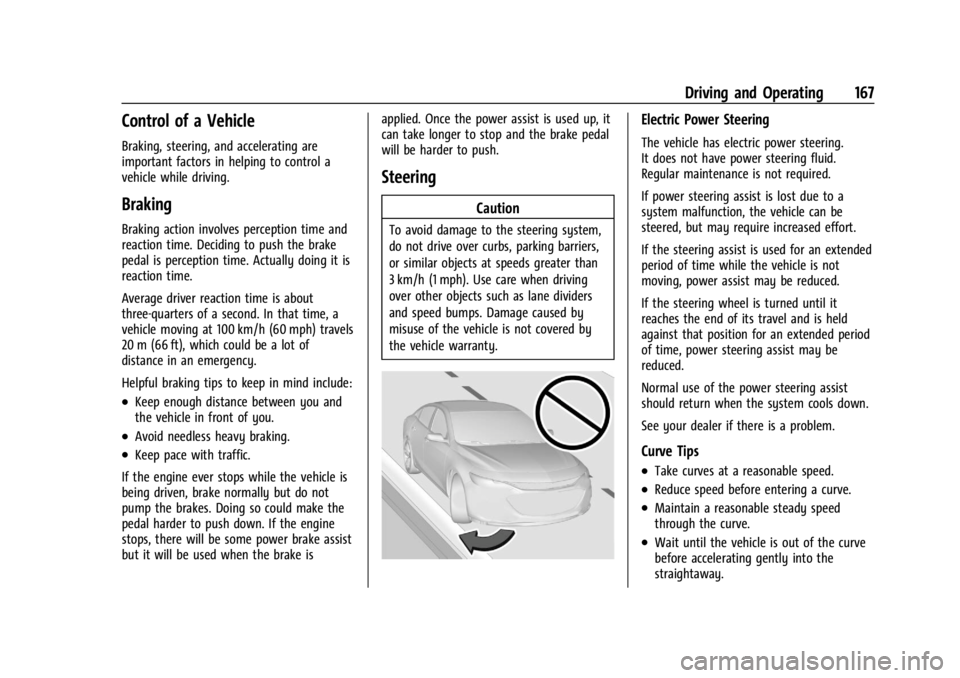
Steering
Caution
To avoid damage to the steering system,
do not drive over curbs, parking barriers,
or similar objects at speeds greater than
3 km/h (1 mph). Use care when driving
over other objects such as lane dividers
and speed bumps. Damage caused by
misuse of the vehicle is not covered by
the vehicle warranty.
Electric Power Steering
The vehicle has electric power steering.
It does not have power steering fluid.
Regular maintenance is not required.
If power steering assist is lost due to a
system malfunction, the vehicle can be
steered, but may require increased effort.
If the steering assist is used for an extended
period of time while the vehicle is not
moving, power assist may be reduced.
If the steering wheel is turned until it
reaches the end of its travel and is held
against that position for an extended period
of time, power steering assist may be
reduced.
Normal use of the power steering assist
should return when the system cools down.
See your dealer if there is a problem.
Curve Tips
.Take curves at a reasonable speed.
.Reduce speed before entering a curve.
.Maintain a reasonable steady speed
through the curve.
.Wait until the vehicle is out of the curve
before accelerating gently into the
straightaway.