change time CHEVROLET UPLANDER 2005 1.G User Guide
[x] Cancel search | Manufacturer: CHEVROLET, Model Year: 2005, Model line: UPLANDER, Model: CHEVROLET UPLANDER 2005 1.GPages: 460, PDF Size: 2.75 MB
Page 218 of 460
STABILITY CONTROL OFF
If your vehicle has StabiliTrak®, this message will
display any time the system turns off. When this
message has been displayed, StabiliTrak
®is no longer
available to assist you with directional control of the
vehicle. Adjust your driving accordingly. SeeStabiliTrak
®
System on page 4-10.
This message will display only while the ignition is
in RUN.
Any of the following conditions may cause the
StabiliTrak
®system to turn off:
The battery is low.
There is a StabiliTrak®system failure. See your
GM dealer for service.
STARTING DISABLED
This message will display if the starting of the engine is
disabled due to the electronic throttle control system
or vehicle theft-deterrent system. Have your vehicle
serviced by your GM dealer immediately.
This message will only appear while the ignition is in
RUN, and will not disappear until the problem is
resolved.
This message cannot be acknowledged.
TRACTION CONTROL ACTIVE
If your vehicle has the traction control system, this
message will display when the system is on. Slippery
road conditions may exist if this message is displayed,
so adjust your driving accordingly. SeeTraction
Control System (TCS) on page 4-9for more information.
This message only displays while the ignition is in
RUN and will not disappear until driving conditions
change and the traction control is no longer active.
This message cannot be acknowledged or cleared from
the screen.
TRACTION CONTROL OFF
If your vehicle has the traction control system, this
message will display when the traction control system
turns off. SeeTraction Control System (TCS) on
page 4-9for more information.
This message will only display while the ignition is in
RUN and will disappear after two seconds.
3-66
Page 228 of 460
Exiting the Personal Program Menu
The personal program menu will be exited when any of
the following occurs:
The vehicle is shifted out of PARK (P).
The vehicle is no longer in RUN.
The end of the personal program menu is reached.
Audio System(s)
Notice:Before adding any sound equipment to
your vehicle, such as an audio system, CD player,
CB radio, mobile telephone, or two-way radio, make
sure that it can be added by checking with your
dealer. Also, check federal rules covering mobile
radio and telephone units. If sound equipment can
be added, it is very important to do it properly.
Added sound equipment may interfere with
the operation of your vehicle’s engine, radio, or
other systems, and even damage them. Your
vehicle’s systems may interfere with the operation
of sound equipment that has been added.Figure out which audio system is in your vehicle, nd
out what your audio system can do, and how to operate
all of its controls.
Your vehicle has a feature called Retained Accessory
Power (RAP). With RAP, the audio system can be
played even after the ignition is turned off. SeeRetained
Accessory Power (RAP) on page 2-32for more
information.
Setting the Time
Press the H or the M button to enter clock mode. Press
and hold H until the correct hour appears on the
display. Press and hold M until the correct minute
appears on the display.
To change the time default setting from 12 hour to
24 hour, press either the H or the M button to enter the
clock mode, then press the tune knob to select
between the 12 or 24 hour display format. The clock
mode will automatically time out with the changed
display format set as the current default setting.
3-76
Page 249 of 460
See “Battery Replacement” later in this section for more
information. Switch the headphones to OFF when not
in use.
The headphones will shut off automatically to save the
battery power if the RSE system is shut off or if the
headphones are out of range of the transmitters for more
than three minutes. The transmitters are located next
to the DVD faceplate. If you move too far forward or step
out of the vehicle, the headphones will lose the audio
signal.
DVD and auxiliary audio will always be found on
channel (CHA or CH1) of the wireless headphones.
RSA audio is dedicated to CHB or CH2 of the wireless
headphones.
To adjust the volume on the wireless headphones, use
the volume control.Notice:Do not store the headphones in heat or
direct sunlight. This could damage the headphones
and repairs would not be covered by your warranty.
Keep the headphones stored in a cool, dry place.
If there is a decreased audio signal during CD, MP3, or
DVD play, there may be a low hissing noise through
the speakers and/or headphones. If the hissing sound in
the wireless headphones seems excessive, make
sure that the headphone batteries are fully charged.
Some amount of hissing is normal.
Battery Replacement
To change the batteries, do the following:
1. Loosen the screw on the battery compartment door
located on the left side of the headphone earpiece.
2. Replace the two AAA batteries in the compartment.
Make sure that they are installed correctly using the
diagram on the inside of the battery compartment.
3. Tighten the screw on the battery compartment door.
If the headphones are to be stored for a long period
of time, remove the batteries, and keep them in a cool,
dry place.
3-97
Page 257 of 460
RSE On-Screen Display (OSD) Menu
To use the RSE OSD menu when using a DVD or an
auxiliary device, do the following:
To access this menu, press the display button on the
remote control. Once the menu is on the screen, use the
directional arrows and the enter button to navigate the
screen. This menu will let you select default preferences
for video format, language preference, brightness,
color, contrast, and tint. Not all DVDs support all the
feature defaults in the setup menus. If a feature is not
supported, the defaults will be provided by the DVD
media. To exit this menu, press the display or the return
button on the remote control or wait for the menu to
time out.
The default language selection will apply to all
future DVDs.
To use the RSE OSD menu when using a CD or an
MP3, do the following:
Make sure that a CD or an MP3 is loaded in the RSE
system and that the system is not in auxiliary, then press
the display button on the remote control. Once the
menu is on the screen, use the directional arrows and
the enter button to navigate the screen.This menu will let you select default preferences for
language and playback settings. To exit this menu,
press the display or the return button on the remote
control or wait for the menu to time out.
Battery Replacement
To change the remote control batteries, do the following:
1. Slide the battery door, located on the back of the
remote control, down.
2. Replace the two AA batteries in the compartment.
Make sure that they are installed correctly, using
the diagram on the inside of the battery
compartment.
3. Close the battery door.
If the remote control is to be stored for a long period of
time, remove the batteries and keep them in a cool,
dry place.
3-105
Page 274 of 460
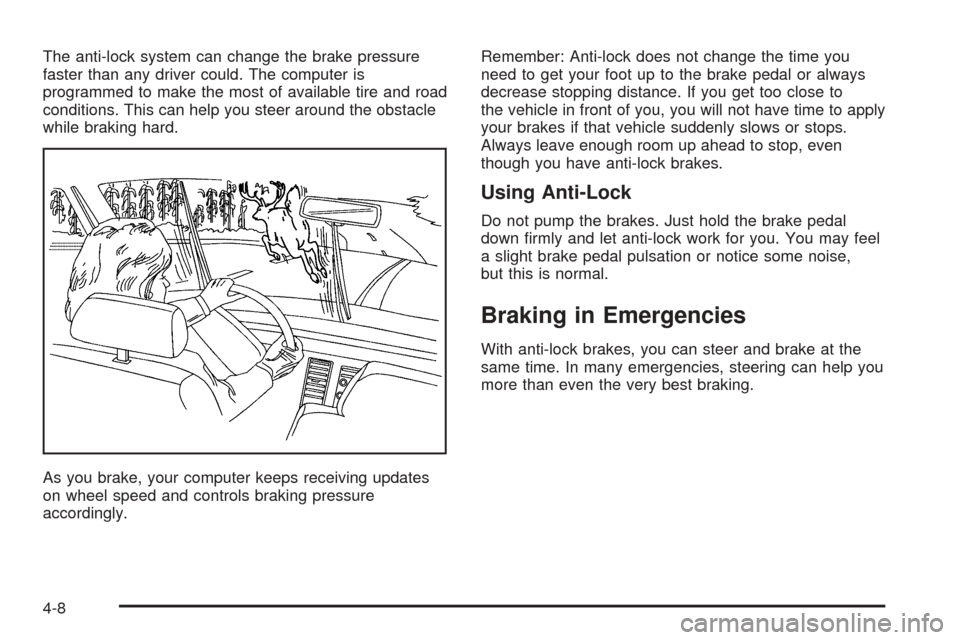
The anti-lock system can change the brake pressure
faster than any driver could. The computer is
programmed to make the most of available tire and road
conditions. This can help you steer around the obstacle
while braking hard.
As you brake, your computer keeps receiving updates
on wheel speed and controls braking pressure
accordingly.Remember: Anti-lock does not change the time you
need to get your foot up to the brake pedal or always
decrease stopping distance. If you get too close to
the vehicle in front of you, you will not have time to apply
your brakes if that vehicle suddenly slows or stops.
Always leave enough room up ahead to stop, even
though you have anti-lock brakes.
Using Anti-Lock
Do not pump the brakes. Just hold the brake pedal
down rmly and let anti-lock work for you. You may feel
a slight brake pedal pulsation or notice some noise,
but this is normal.
Braking in Emergencies
With anti-lock brakes, you can steer and brake at the
same time. In many emergencies, steering can help you
more than even the very best braking.
4-8
Page 282 of 460
Do not get too close to the vehicle you want to
pass while you are awaiting an opportunity. For
one thing, following too closely reduces your area
of vision, especially if you are following a larger
vehicle. Also, you will not have adequate space if
the vehicle ahead suddenly slows or stops.
Keep back a reasonable distance.
When it looks like a chance to pass is coming up,
start to accelerate but stay in the right lane and
do not get too close. Time your move so you will be
increasing speed as the time comes to move into
the other lane. If the way is clear to pass, you
will have a running start that more than makes up
for the distance you would lose by dropping
back. And if something happens to cause you to
cancel your pass, you need only slow down
and drop back again and wait for another
opportunity.
If other vehicles are lined up to pass a slow vehicle,
wait your turn. But take care that someone is not
trying to pass you as you pull out to pass the slow
vehicle. Remember to glance over your shoulder
and check the blind spot.
Check your mirrors, glance over your shoulder, and
start your left lane change signal before moving out
of the right lane to pass. When you are far
enough ahead of the passed vehicle to see its front
in your inside mirror, activate your right lane
change signal and move back into the right lane.
Remember that your right outside mirror is convex.
The vehicle you just passed may seem to be
farther away from you than it really is.
Try not to pass more than one vehicle at a time on
two-lane roads. Reconsider before passing the
next vehicle.
Do not overtake a slowly moving vehicle too rapidly.
Even though the brake lamps are not ashing, it
may be slowing down or starting to turn.
If you are being passed, make it easy for the
following driver to get ahead of you. Perhaps
you can ease a little to the right.
4-16
Page 306 of 460
Dinghy Towing
Your vehicle was not designed to be towed with all of its
wheels on the ground. If you have a two-wheel-drive
vehicle, it can be towed with the two rear wheels on the
ground. See “Dolly Towing” following. If you have an
all-wheel-drive vehicle, it cannot be towed with any of its
wheels on the ground. It can be towed with car carrier
equipment.
Notice:Towing an all-wheel-drive vehicle with all
four wheels on the ground, or even with only two of
its wheels on the ground, will damage drivetrain
components. Do not tow an all-wheel-drive vehicle if
any of its wheels will be on the ground.
Dolly Towing
If you have a two-wheel-drive vehicle, it can be towed
with its two rear wheels on the ground. To dolly tow your
vehicle, do the following:
1. Put the front wheels on a dolly.
2. Put the vehicle in PARK (P).
3. Set the parking brake and then remove the key.
4. Clamp the steering wheel in a straight-ahead
position with a clamping device designed for towing.
5. Release the parking brake.If you have an all-wheel-drive vehicle, it cannot be
towed with any of its wheels on the ground. It can be
towed with car carrier equipment.
Notice:Towing an all-wheel-drive vehicle with all
four wheels on the ground, or even with only two of
its wheels on the ground, will damage drivetrain
components. Do not tow an all-wheel-drive vehicle if
any of its wheels will be on the ground.
Level Control
On vehicles equipped with automatic level control, the
rear of the vehicle is automatically kept level as you load
or unload your vehicle. However, you should still not
exceed the GVWR or the GAWR. SeeLoading
Your Vehicle on page 4-33.
You may hear the compressor operating when you load
or unload your vehicle, and periodically as the system
self-adjusts. This is normal. The compressor should
operate for brief periods of time. If the sound continues
for an extended period of time, your vehicle needs
service.
Using heavier suspension components to get added
durability might not change your weight ratings. Ask your
dealer to help you load your vehicle the right way.
4-40
Page 307 of 460
Towing a Trailer
{CAUTION:
If you do not use the correct equipment and
drive properly, you can lose control when you
pull a trailer. For example, if the trailer is too
heavy, the brakes may not work well — or even
at all. You and your passengers could be
seriously injured. Pull a trailer only if you have
followed all the steps in this section. Ask your
dealer for advice and information about towing
a trailer with your vehicle.
Notice:Pulling a trailer improperly can damage
your vehicle and result in costly repairs that would
not be covered by your warranty. Always follow
the instructions in this section and check with your
dealer for more information about towing a trailer
with your vehicle.Your vehicle can tow a trailer. To identify what the
vehicle trailering capacity is for your vehicle, you should
read the information in “Weight of the Trailer” that
appears later in this section. But trailering is different
than just driving your vehicle by itself. Trailering means
changes in handling, acceleration, braking, durability,
and fuel economy. Successful, safe trailering takes
correct equipment, and it has to be used properly.
That is the reason for this section. In it are many
time-tested, important trailering tips and safety rules.
Many of these are important for your safety and that of
your passengers. So please read this section carefully
before you pull a trailer.
Load-pulling components such as the engine, transaxle,
wheel assemblies, and tires are forced to work harder
against the drag of the added weight. The engine
is required to operate at relatively higher speeds and
under greater loads, generating extra heat. The
trailer also adds considerably to wind resistance,
increasing the pulling requirements.
4-41
Page 332 of 460
Notice:Use only engine oil identied as meeting
GM Standard GM6094M and showing the American
Petroleum Institute Certied For Gasoline Engines
starburst symbol. Failure to use the recommended
oil can result in engine damage not covered by
your warranty.
GM Goodwrench
®oil meets all the requirements for
your vehicle.
If you are in an area of extreme cold, where the
temperature falls below−20°F (−29°C), it is
recommended that you use either an SAE 5W-30
synthetic oil or an SAE 0W-30 oil. Both will provide
easier cold starting and better protection for your engine
at extremely low temperatures.
Engine Oil Additives
Do not add anything to your oil. The recommended oils
with the starburst symbol meet GM Standard GM6094M
are all you will need for good performance and engine
protection.
Engine Oil Life System
When to Change Engine Oil
Your vehicle has a computer system that lets you know
when to change the engine oil and lter. This is based on
engine revolutions and engine temperature, and not on
mileage. Based on driving conditions, the mileage at
which an oil change will be indicated can vary
considerably. For the oil life system to work properly, you
must reset the system every time the oil is changed.
When the system has calculated that oil life has been
diminished, it will indicate that an oil change is
necessary. A CHANGE OIL SOON message will come
on. SeeDIC Warnings and Messages on page 3-51.
Change your oil as soon as possible within the next
600 miles (1 000 km). It is possible that, if you are
driving under the best conditions, the oil life system may
not indicate that an oil change is necessary for over a
year. However, your engine oil and lter must be
changed at least once a year and at this time the system
must be reset. Your dealer has GM-trained people
who will perform this work using genuine GM parts and
reset the system. It is also important to check your
oil regularly and keep it at the proper level.
If the system is ever reset accidentally, you must
change your oil at 3,000 miles (5 000 km) since your
last oil change. Remember to reset the oil life system
whenever the oil is changed.
5-16
Page 333 of 460
How to Reset the Engine Oil Life
System
The Engine Oil Life System calculates when to change
your engine oil and lter based on vehicle use.
Anytime your oil is changed, reset the system so it can
calculate when the next oil change is required. If a
situation occurs where you change your oil prior to a
CHANGE OIL SOON message being turned on,
reset the system.
1. With the ignition key in RUN but the engine off,
repeatedly push the set/reset button until OIL is
displayed on the Driver Information Center (DIC).
2. Once OIL is displayed, push and hold the set/reset
button for ve seconds. The number will disappear
and be replaced by 100 (indicating 100% oil life
remaining).
3. Turn the key to LOCK.
If the CHANGE OIL SOON message comes back on
when you start your vehicle, the engine oil life system
has not reset. Repeat the procedure.
What to Do with Used Oil
Used engine oil contains certain elements that may be
unhealthy for your skin and could even cause cancer.
Do not let used oil stay on your skin for very long. Clean
your skin and nails with soap and water, or a good
hand cleaner. Wash or properly dispose of clothing or
rags containing used engine oil. See the manufacturer’s
warnings about the use and disposal of oil products.
Used oil can be a threat to the environment. If you
change your own oil, be sure to drain all the oil from the
lter before disposal. Never dispose of oil by putting it
in the trash, pouring it on the ground, into sewers, or into
streams or bodies of water. Instead, recycle it by
taking it to a place that collects used oil. If you have a
problem properly disposing of your used oil, ask
your dealer, a service station, or a local recycling center
for help.
5-17