ignition CHEVROLET UPLANDER 2005 1.G Repair Manual
[x] Cancel search | Manufacturer: CHEVROLET, Model Year: 2005, Model line: UPLANDER, Model: CHEVROLET UPLANDER 2005 1.GPages: 460, PDF Size: 2.75 MB
Page 237 of 460
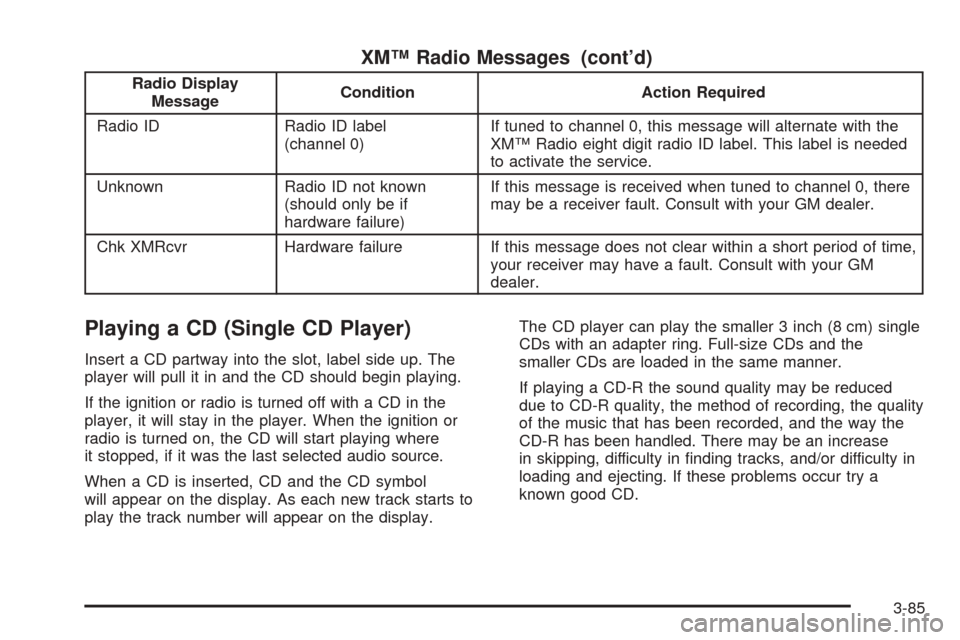
XM™ Radio Messages (cont’d)
Radio Display
MessageCondition Action Required
Radio ID Radio ID label
(channel 0)If tuned to channel 0, this message will alternate with the
XM™ Radio eight digit radio ID label. This label is needed
to activate the service.
Unknown Radio ID not known
(should only be if
hardware failure)If this message is received when tuned to channel 0, there
may be a receiver fault. Consult with your GM dealer.
Chk XMRcvr Hardware failure If this message does not clear within a short period of time,
your receiver may have a fault. Consult with your GM
dealer.
Playing a CD (Single CD Player)
Insert a CD partway into the slot, label side up. The
player will pull it in and the CD should begin playing.
If the ignition or radio is turned off with a CD in the
player, it will stay in the player. When the ignition or
radio is turned on, the CD will start playing where
it stopped, if it was the last selected audio source.
When a CD is inserted, CD and the CD symbol
will appear on the display. As each new track starts to
play the track number will appear on the display.The CD player can play the smaller 3 inch (8 cm) single
CDs with an adapter ring. Full-size CDs and the
smaller CDs are loaded in the same manner.
If playing a CD-R the sound quality may be reduced
due to CD-R quality, the method of recording, the quality
of the music that has been recorded, and the way the
CD-R has been handled. There may be an increase
in skipping, difficulty in nding tracks, and/or difficulty in
loading and ejecting. If these problems occur try a
known good CD.
3-85
Page 238 of 460
Do not add paper labels to CDs, they could get caught
in the CD player.
Notice:If you add paper labels to a CD, insert more
than one CD into the slot at a time, or attempt to play
scratched or damaged CDs, you could damage the
CD player. When using the CD player, use only CDs
in good condition without paper labels, load one CD
at a time, and keep the CD player and the loading slot
free of foreign materials, liquids, and debris.
If an error appears on the display, see “CD Messages”
later in this section.
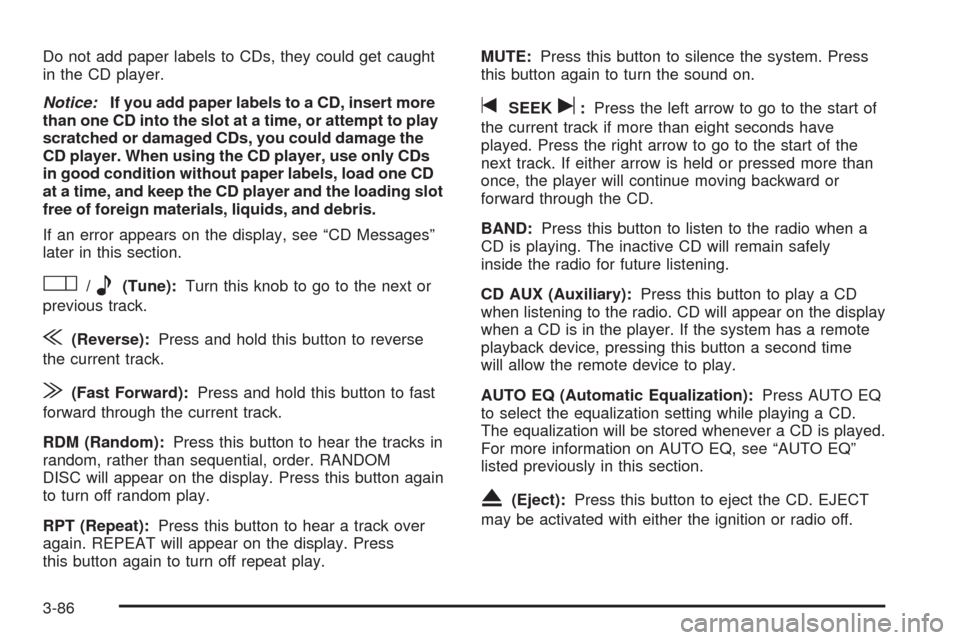
O/e(Tune):Turn this knob to go to the next or
previous track.
{(Reverse):Press and hold this button to reverse
the current track.
|(Fast Forward):Press and hold this button to fast
forward through the current track.
RDM (Random):Press this button to hear the tracks in
random, rather than sequential, order. RANDOM
DISC will appear on the display. Press this button again
to turn off random play.
RPT (Repeat):Press this button to hear a track over
again. REPEAT will appear on the display. Press
this button again to turn off repeat play.MUTE:Press this button to silence the system. Press
this button again to turn the sound on.
tSEEKu:Press the left arrow to go to the start of
the current track if more than eight seconds have
played. Press the right arrow to go to the start of the
next track. If either arrow is held or pressed more than
once, the player will continue moving backward or
forward through the CD.
BAND:Press this button to listen to the radio when a
CD is playing. The inactive CD will remain safely
inside the radio for future listening.
CD AUX (Auxiliary):Press this button to play a CD
when listening to the radio. CD will appear on the display
when a CD is in the player. If the system has a remote
playback device, pressing this button a second time
will allow the remote device to play.
AUTO EQ (Automatic Equalization):Press AUTO EQ
to select the equalization setting while playing a CD.
The equalization will be stored whenever a CD is played.
For more information on AUTO EQ, see “AUTO EQ”
listed previously in this section.
X(Eject):Press this button to eject the CD. EJECT
may be activated with either the ignition or radio off.
3-86
Page 239 of 460
Playing a CD(s) (Six-Disc CD Player)
If the ignition or radio is turned off, with a CD in
the player, it will stay in the player. When the ignition or
radio is turned on, the CD will start playing where it
stopped, if it was the last selected audio source.
When a CD is inserted, the CD symbol will appear on
the CD. As each new track starts to play, the track
number will appear on the display.
The CD player can play the smaller 3 inch (8 cm) single
CDs with an adapter ring. Full-size CDs and the
smaller CDs are loaded in the same manner.
If playing a CD-R the sound quality may be reduced
due to CD-R quality, the method of recording, the quality
of the music that has been recorded, and the way the
CD-R has been handled. There may be an increase
in skipping, difficulty in nding tracks, and/or difficulty in
loading and ejecting. If these problems occur try a
known good CD.
Do not add paper labels to CDs, they could get caught
in the CD player.
Notice:If you add paper labels to a CD, insert more
than one CD into the slot at a time, or attempt to play
scratched or damaged CDs, you could damage the
CD player. When using the CD player, use only CDs
in good condition without paper labels, load one CD
at a time, and keep the CD player and the loading slot
free of foreign materials, liquids, and debris.If an error appears on the display, see “CD Messages”
later in this section.
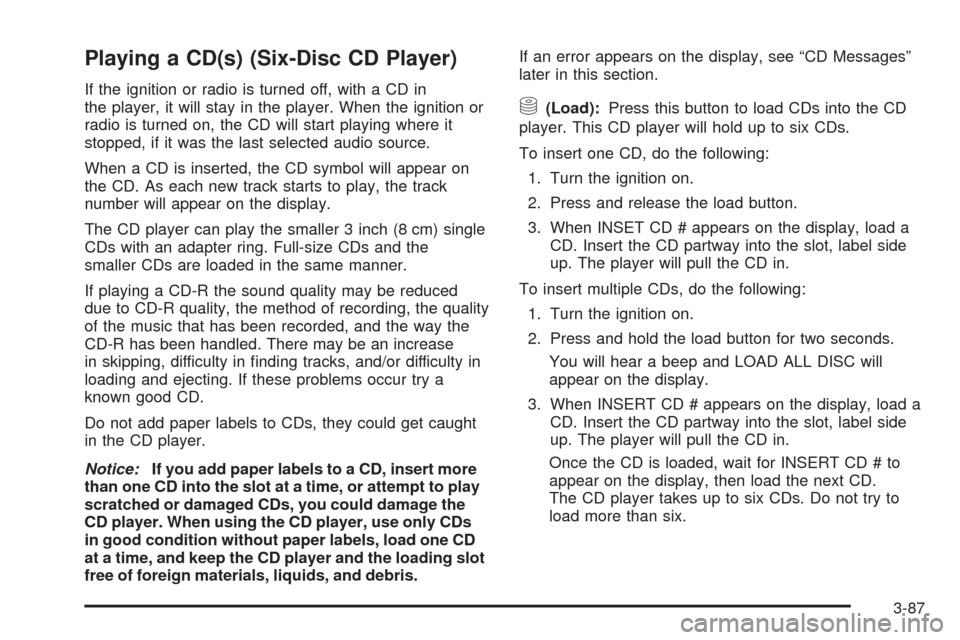
M(Load):Press this button to load CDs into the CD
player. This CD player will hold up to six CDs.
To insert one CD, do the following:
1. Turn the ignition on.
2. Press and release the load button.
3. When INSET CD # appears on the display, load a
CD. Insert the CD partway into the slot, label side
up. The player will pull the CD in.
To insert multiple CDs, do the following:
1. Turn the ignition on.
2. Press and hold the load button for two seconds.
You will hear a beep and LOAD ALL DISC will
appear on the display.
3. When INSERT CD # appears on the display, load a
CD. Insert the CD partway into the slot, label side
up. The player will pull the CD in.
Once the CD is loaded, wait for INSERT CD # to
appear on the display, then load the next CD.
The CD player takes up to six CDs. Do not try to
load more than six.
3-87
Page 244 of 460
Playing an MP3
Insert a CD partway into the slot, label side up. The
player will pull it in, and READING will appear on
the display. The CD should begin playing and the CD
symbol will appear on the display.
If the ignition or radio is turned off with a CD in the
player it will stay in the player. When the ignition or radio
is turned on, the CD will start to play where it stopped,
if it was the last selected audio source.
As each new track starts to play, the track number will
appear on the display.
The CD player can play the smaller 3 inch (8 cm) single
CDs with an adapter ring. Full-size CDs and the
smaller CDs are loaded in the same manner.
If playing a CD-R the sound quality may be reduced
due to CD-R quality, the method of recording, the quality
of the music that has been recorded, and the way the
CD-R has been handled. There may be an increase
in skipping, difficulty in nding tracks, and/or difficulty in
loading and ejecting. If these problems occur try a
known good CD.
Do not add paper labels to CDs, they could get caught
in the CD player.Notice:If you add paper labels to a CD, insert more
than one CD into the slot at a time, or attempt to play
scratched or damaged CDs, you could damage the
CD player. When using the CD player, use only CDs
in good condition without paper labels, load one CD
at a time, and keep the CD player and the loading slot
free of foreign materials, liquids, and debris.
If an error appears on the display, see “CD Messages”
later in this section.
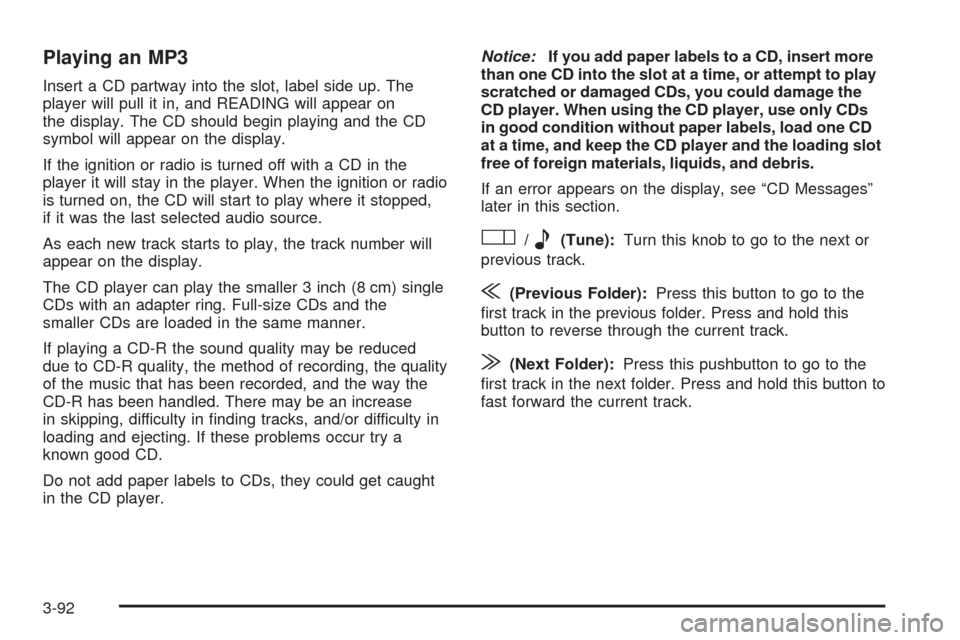
O/e(Tune):Turn this knob to go to the next or
previous track.
{(Previous Folder):Press this button to go to the
rst track in the previous folder. Press and hold this
button to reverse through the current track.
|(Next Folder):Press this pushbutton to go to the
rst track in the next folder. Press and hold this button to
fast forward the current track.
3-92
Page 245 of 460
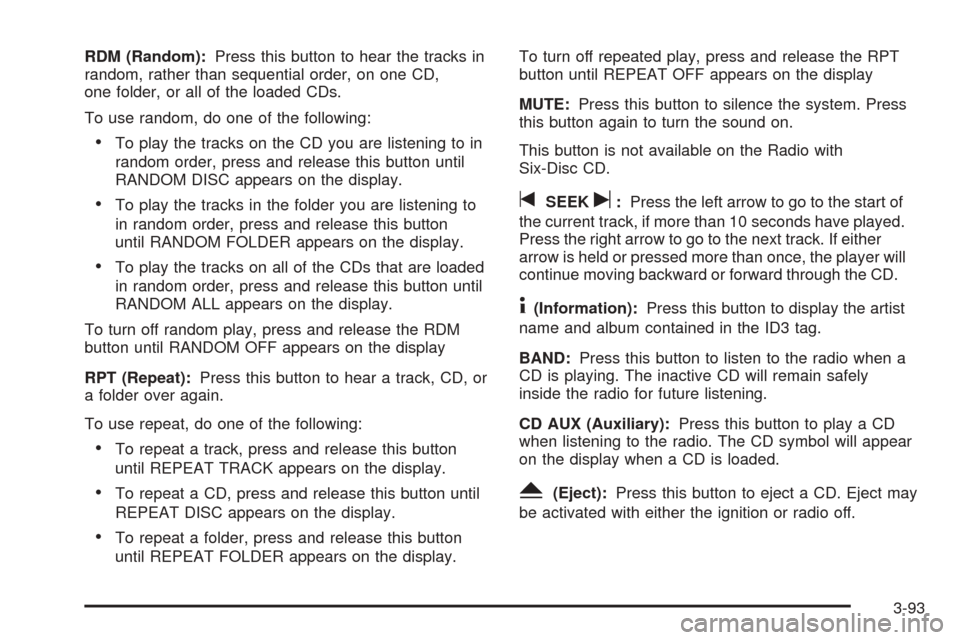
RDM (Random):Press this button to hear the tracks in
random, rather than sequential order, on one CD,
one folder, or all of the loaded CDs.
To use random, do one of the following:
To play the tracks on the CD you are listening to in
random order, press and release this button until
RANDOM DISC appears on the display.
To play the tracks in the folder you are listening to
in random order, press and release this button
until RANDOM FOLDER appears on the display.
To play the tracks on all of the CDs that are loaded
in random order, press and release this button until
RANDOM ALL appears on the display.
To turn off random play, press and release the RDM
button until RANDOM OFF appears on the display
RPT (Repeat):Press this button to hear a track, CD, or
a folder over again.
To use repeat, do one of the following:
To repeat a track, press and release this button
until REPEAT TRACK appears on the display.
To repeat a CD, press and release this button until
REPEAT DISC appears on the display.
To repeat a folder, press and release this button
until REPEAT FOLDER appears on the display.To turn off repeated play, press and release the RPT
button until REPEAT OFF appears on the display
MUTE:Press this button to silence the system. Press
this button again to turn the sound on.
This button is not available on the Radio with
Six-Disc CD.
tSEEKu:Press the left arrow to go to the start of
the current track, if more than 10 seconds have played.
Press the right arrow to go to the next track. If either
arrow is held or pressed more than once, the player will
continue moving backward or forward through the CD.
4(Information):Press this button to display the artist
name and album contained in the ID3 tag.
BAND:Press this button to listen to the radio when a
CD is playing. The inactive CD will remain safely
inside the radio for future listening.
CD AUX (Auxiliary):Press this button to play a CD
when listening to the radio. The CD symbol will appear
on the display when a CD is loaded.
Y(Eject):Press this button to eject a CD. Eject may
be activated with either the ignition or radio off.
3-93
Page 258 of 460
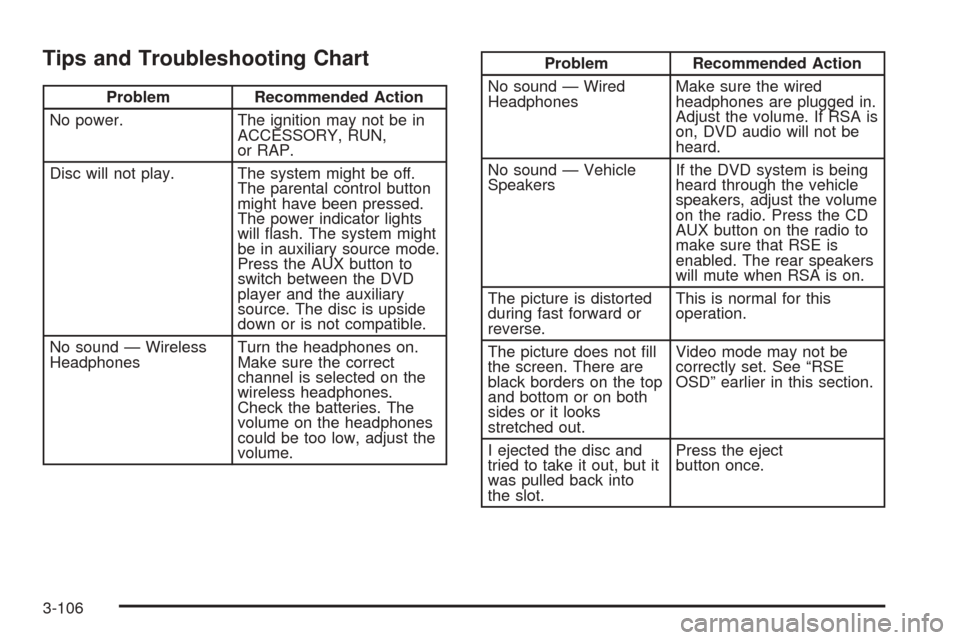
Tips and Troubleshooting Chart
Problem Recommended Action
No power. The ignition may not be in
ACCESSORY, RUN,
or RAP.
Disc will not play. The system might be off.
The parental control button
might have been pressed.
The power indicator lights
will ash. The system might
be in auxiliary source mode.
Press the AUX button to
switch between the DVD
player and the auxiliary
source. The disc is upside
down or is not compatible.
No sound — Wireless
HeadphonesTurn the headphones on.
Make sure the correct
channel is selected on the
wireless headphones.
Check the batteries. The
volume on the headphones
could be too low, adjust the
volume.
Problem Recommended Action
No sound — Wired
HeadphonesMake sure the wired
headphones are plugged in.
Adjust the volume. If RSA is
on, DVD audio will not be
heard.
No sound — Vehicle
SpeakersIf the DVD system is being
heard through the vehicle
speakers, adjust the volume
on the radio. Press the CD
AUX button on the radio to
make sure that RSE is
enabled. The rear speakers
will mute when RSA is on.
The picture is distorted
during fast forward or
reverse.This is normal for this
operation.
The picture does not ll
the screen. There are
black borders on the top
and bottom or on both
sides or it looks
stretched out.Video mode may not be
correctly set. See “RSE
OSD” earlier in this section.
I ejected the disc and
tried to take it out, but it
was pulled back into
the slot.Press the eject
button once.
3-106
Page 259 of 460
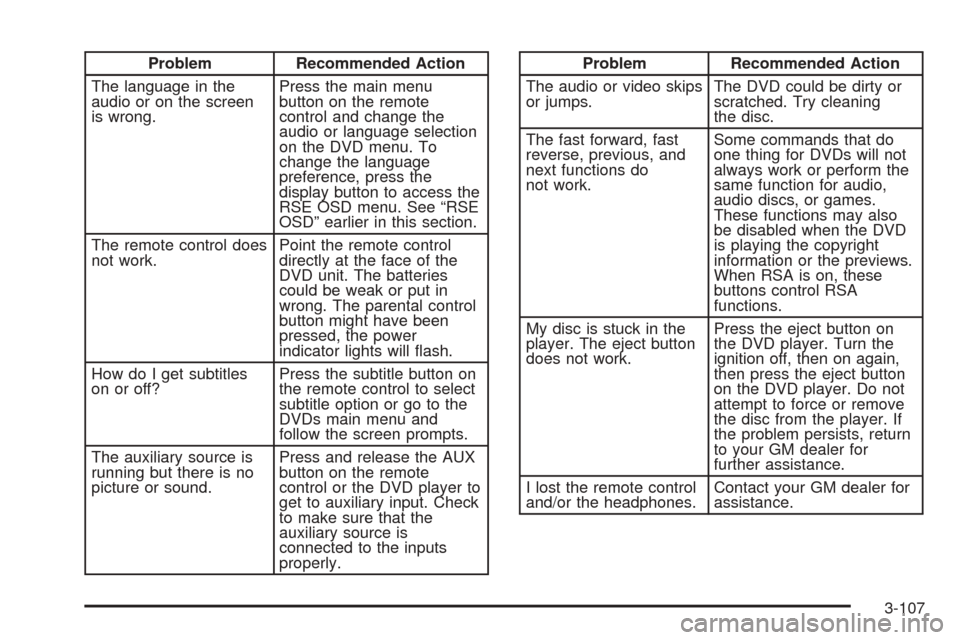
Problem Recommended Action
The language in the
audio or on the screen
is wrong.Press the main menu
button on the remote
control and change the
audio or language selection
on the DVD menu. To
change the language
preference, press the
display button to access the
RSE OSD menu. See “RSE
OSD” earlier in this section.
The remote control does
not work.Point the remote control
directly at the face of the
DVD unit. The batteries
could be weak or put in
wrong. The parental control
button might have been
pressed, the power
indicator lights will ash.
How do I get subtitles
on or off?Press the subtitle button on
the remote control to select
subtitle option or go to the
DVDs main menu and
follow the screen prompts.
The auxiliary source is
running but there is no
picture or sound.Press and release the AUX
button on the remote
control or the DVD player to
get to auxiliary input. Check
to make sure that the
auxiliary source is
connected to the inputs
properly.Problem Recommended Action
The audio or video skips
or jumps.The DVD could be dirty or
scratched. Try cleaning
the disc.
The fast forward, fast
reverse, previous, and
next functions do
not work.Some commands that do
one thing for DVDs will not
always work or perform the
same function for audio,
audio discs, or games.
These functions may also
be disabled when the DVD
is playing the copyright
information or the previews.
When RSA is on, these
buttons control RSA
functions.
My disc is stuck in the
player. The eject button
does not work.Press the eject button on
the DVD player. Turn the
ignition off, then on again,
then press the eject button
on the DVD player. Do not
attempt to force or remove
the disc from the player. If
the problem persists, return
to your GM dealer for
further assistance.
I lost the remote control
and/or the headphones.Contact your GM dealer for
assistance.
3-107
Page 266 of 460
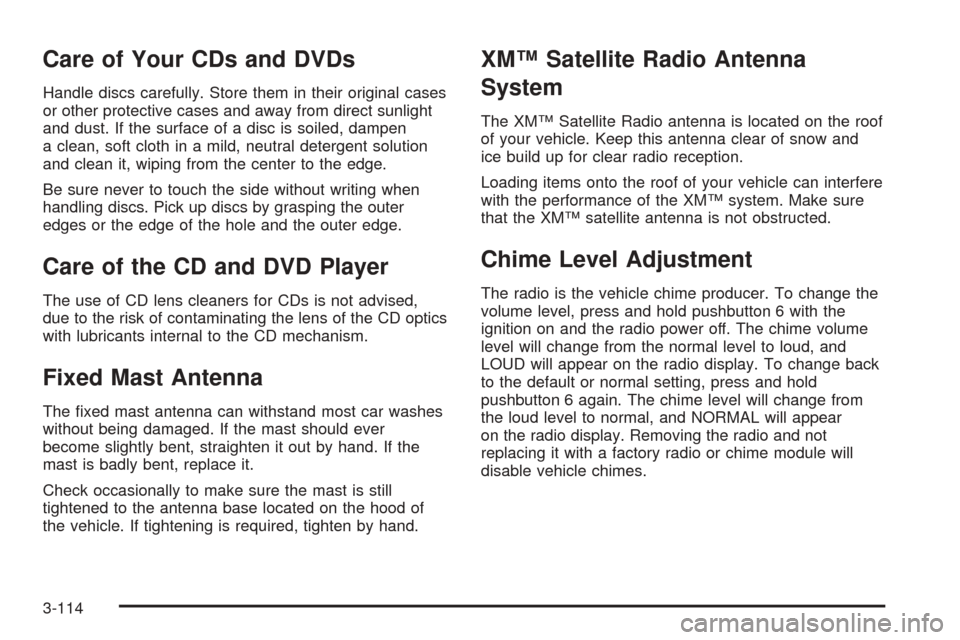
Care of Your CDs and DVDs
Handle discs carefully. Store them in their original cases
or other protective cases and away from direct sunlight
and dust. If the surface of a disc is soiled, dampen
a clean, soft cloth in a mild, neutral detergent solution
and clean it, wiping from the center to the edge.
Be sure never to touch the side without writing when
handling discs. Pick up discs by grasping the outer
edges or the edge of the hole and the outer edge.
Care of the CD and DVD Player
The use of CD lens cleaners for CDs is not advised,
due to the risk of contaminating the lens of the CD optics
with lubricants internal to the CD mechanism.
Fixed Mast Antenna
The xed mast antenna can withstand most car washes
without being damaged. If the mast should ever
become slightly bent, straighten it out by hand. If the
mast is badly bent, replace it.
Check occasionally to make sure the mast is still
tightened to the antenna base located on the hood of
the vehicle. If tightening is required, tighten by hand.
XM™ Satellite Radio Antenna
System
The XM™ Satellite Radio antenna is located on the roof
of your vehicle. Keep this antenna clear of snow and
ice build up for clear radio reception.
Loading items onto the roof of your vehicle can interfere
with the performance of the XM™ system. Make sure
that the XM™ satellite antenna is not obstructed.
Chime Level Adjustment
The radio is the vehicle chime producer. To change the
volume level, press and hold pushbutton 6 with the
ignition on and the radio power off. The chime volume
level will change from the normal level to loud, and
LOUD will appear on the radio display. To change back
to the default or normal setting, press and hold
pushbutton 6 again. The chime level will change from
the loud level to normal, and NORMAL will appear
on the radio display. Removing the radio and not
replacing it with a factory radio or chime module will
disable vehicle chimes.
3-114
Page 293 of 460
If you drive regularly in steep country, or if you are
planning to visit there, here are some tips that can make
your trips safer and more enjoyable.
Keep your vehicle in good shape. Check all uid
levels and also the brakes, tires, cooling system,
and transaxle. These parts can work hard on
mountain roads.
Know how to go down hills. The most important
thing to know is this: let your engine do some of
the slowing down. Shift to a lower gear when you go
down a steep or long hill.
{CAUTION:
If you do not shift down, your brakes could get
so hot that they would not work well. You
would then have poor braking or even none
going down a hill. You could crash. Shift down
to let your engine assist your brakes on a
steep downhill slope.
{CAUTION:
Coasting downhill in NEUTRAL (N) or with the
ignition off is dangerous. Your brakes will have
to do all the work of slowing down. They could
get so hot that they would not work well. You
would then have poor braking or even none
going down a hill. You could crash. Always
have your engine running and your vehicle in
gear when you go downhill.
Know how to go uphill. You may want to shift down to
a lower gear. The lower gears help cool your engine
and transaxle, and you can climb the hill better.
Stay in your own lane when driving on two-lane
roads in hills or mountains. Do not swing wide or cut
across the center of the road. Drive at speeds that let
you stay in your own lane.
As you go over the top of a hill, be alert. There could
be something in your lane, like a stalled car or an
accident.
You may see highway signs on mountains that warn
of special problems. Examples are long grades,
passing or no-passing zones, a falling rocks area, or
winding roads. Be alert to these and take
appropriate action.
4-27
Page 333 of 460
How to Reset the Engine Oil Life
System
The Engine Oil Life System calculates when to change
your engine oil and lter based on vehicle use.
Anytime your oil is changed, reset the system so it can
calculate when the next oil change is required. If a
situation occurs where you change your oil prior to a
CHANGE OIL SOON message being turned on,
reset the system.
1. With the ignition key in RUN but the engine off,
repeatedly push the set/reset button until OIL is
displayed on the Driver Information Center (DIC).
2. Once OIL is displayed, push and hold the set/reset
button for ve seconds. The number will disappear
and be replaced by 100 (indicating 100% oil life
remaining).
3. Turn the key to LOCK.
If the CHANGE OIL SOON message comes back on
when you start your vehicle, the engine oil life system
has not reset. Repeat the procedure.
What to Do with Used Oil
Used engine oil contains certain elements that may be
unhealthy for your skin and could even cause cancer.
Do not let used oil stay on your skin for very long. Clean
your skin and nails with soap and water, or a good
hand cleaner. Wash or properly dispose of clothing or
rags containing used engine oil. See the manufacturer’s
warnings about the use and disposal of oil products.
Used oil can be a threat to the environment. If you
change your own oil, be sure to drain all the oil from the
lter before disposal. Never dispose of oil by putting it
in the trash, pouring it on the ground, into sewers, or into
streams or bodies of water. Instead, recycle it by
taking it to a place that collects used oil. If you have a
problem properly disposing of your used oil, ask
your dealer, a service station, or a local recycling center
for help.
5-17