light CHEVROLET UPLANDER 2007 1.G Owners Manual
[x] Cancel search | Manufacturer: CHEVROLET, Model Year: 2007, Model line: UPLANDER, Model: CHEVROLET UPLANDER 2007 1.GPages: 592, PDF Size: 3.04 MB
Page 344 of 592
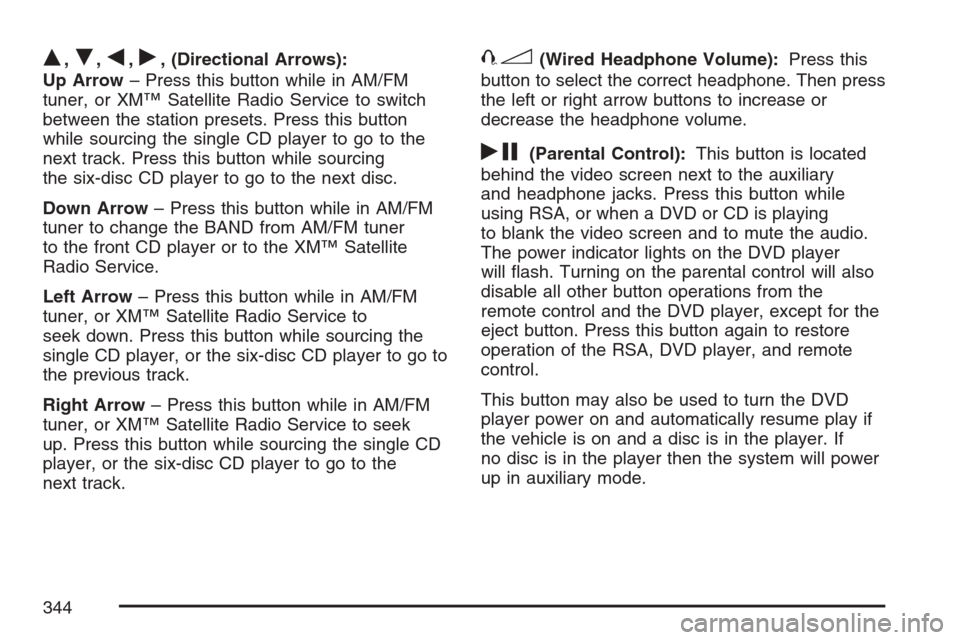
Q,R,q,r, (Directional Arrows):
Up Arrow– Press this button while in AM/FM
tuner, or XM™ Satellite Radio Service to switch
between the station presets. Press this button
while sourcing the single CD player to go to the
next track. Press this button while sourcing
the six-disc CD player to go to the next disc.
Down Arrow– Press this button while in AM/FM
tuner to change the BAND from AM/FM tuner
to the front CD player or to the XM™ Satellite
Radio Service.
Left Arrow– Press this button while in AM/FM
tuner, or XM™ Satellite Radio Service to
seek down. Press this button while sourcing the
single CD player, or the six-disc CD player to go to
the previous track.
Right Arrow– Press this button while in AM/FM
tuner, or XM™ Satellite Radio Service to seek
up. Press this button while sourcing the single CD
player, or the six-disc CD player to go to the
next track.43(Wired Headphone Volume):Press this
button to select the correct headphone. Then press
the left or right arrow buttons to increase or
decrease the headphone volume.
rj(Parental Control):This button is located
behind the video screen next to the auxiliary
and headphone jacks. Press this button while
using RSA, or when a DVD or CD is playing
to blank the video screen and to mute the audio.
The power indicator lights on the DVD player
will ash. Turning on the parental control will also
disable all other button operations from the
remote control and the DVD player, except for the
eject button. Press this button again to restore
operation of the RSA, DVD player, and remote
control.
This button may also be used to turn the DVD
player power on and automatically resume play if
the vehicle is on and a disc is in the player. If
no disc is in the player then the system will power
up in auxiliary mode.
344
Page 355 of 592
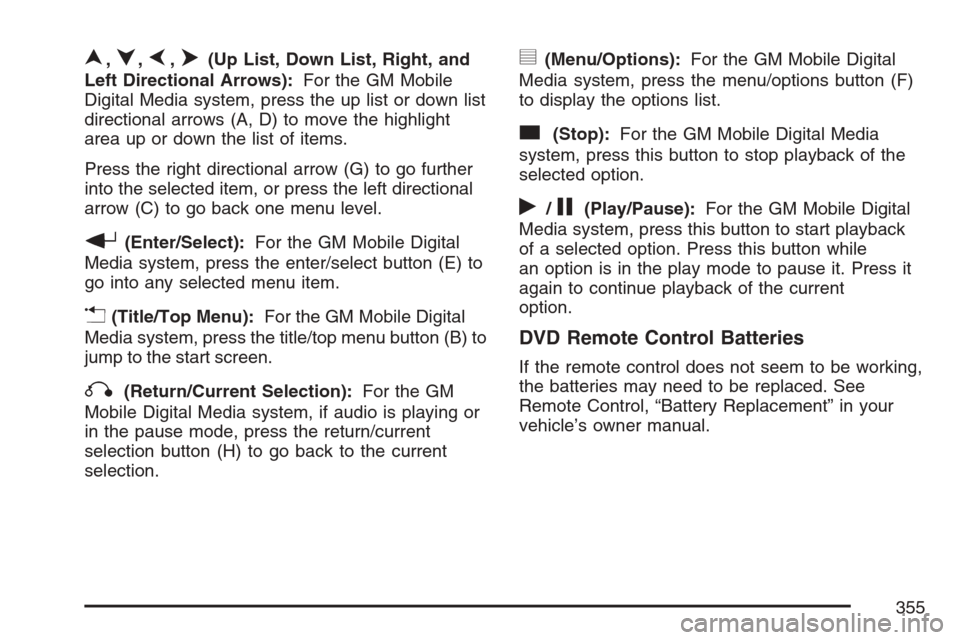
n,q,p,o(Up List, Down List, Right, and
Left Directional Arrows):For the GM Mobile
Digital Media system, press the up list or down list
directional arrows (A, D) to move the highlight
area up or down the list of items.
Press the right directional arrow (G) to go further
into the selected item, or press the left directional
arrow (C) to go back one menu level.
r(Enter/Select):For the GM Mobile Digital
Media system, press the enter/select button (E) to
go into any selected menu item.
v(Title/Top Menu):For the GM Mobile Digital
Media system, press the title/top menu button (B) to
jump to the start screen.
q(Return/Current Selection):For the GM
Mobile Digital Media system, if audio is playing or
in the pause mode, press the return/current
selection button (H) to go back to the current
selection.
y(Menu/Options):For the GM Mobile Digital
Media system, press the menu/options button (F)
to display the options list.
c(Stop):For the GM Mobile Digital Media
system, press this button to stop playback of the
selected option.
r/j(Play/Pause):For the GM Mobile Digital
Media system, press this button to start playback
of a selected option. Press this button while
an option is in the play mode to pause it. Press it
again to continue playback of the current
option.
DVD Remote Control Batteries
If the remote control does not seem to be working,
the batteries may need to be replaced. See
Remote Control, “Battery Replacement” in your
vehicle’s owner manual.
355
Page 361 of 592
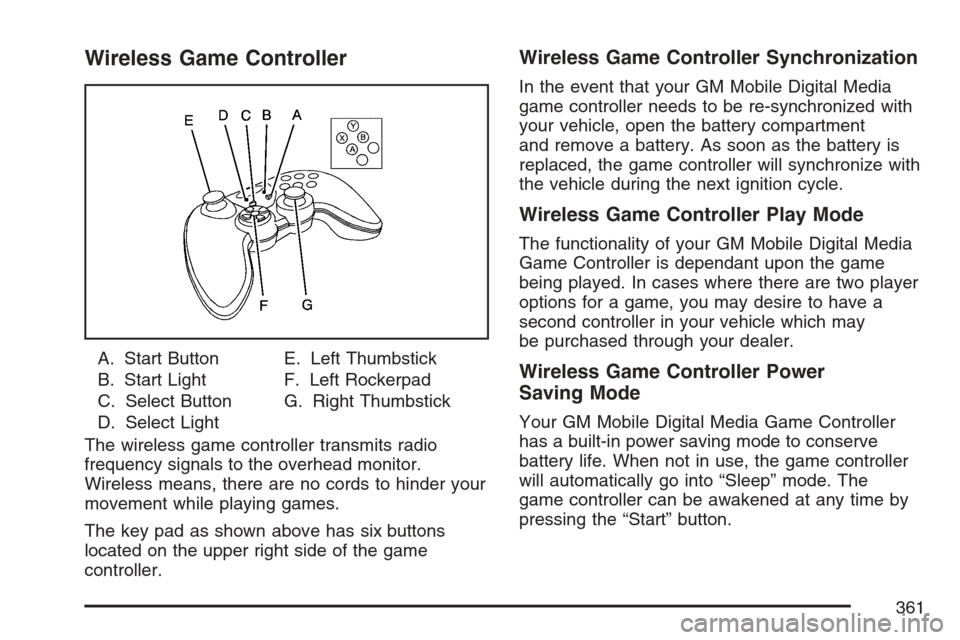
Wireless Game Controller
A. Start Button
B. Start Light
C. Select Button
D. Select LightE. Left Thumbstick
F. Left Rockerpad
G. Right Thumbstick
The wireless game controller transmits radio
frequency signals to the overhead monitor.
Wireless means, there are no cords to hinder your
movement while playing games.
The key pad as shown above has six buttons
located on the upper right side of the game
controller.
Wireless Game Controller Synchronization
In the event that your GM Mobile Digital Media
game controller needs to be re-synchronized with
your vehicle, open the battery compartment
and remove a battery. As soon as the battery is
replaced, the game controller will synchronize with
the vehicle during the next ignition cycle.
Wireless Game Controller Play Mode
The functionality of your GM Mobile Digital Media
Game Controller is dependant upon the game
being played. In cases where there are two player
options for a game, you may desire to have a
second controller in your vehicle which may
be purchased through your dealer.
Wireless Game Controller Power
Saving Mode
Your GM Mobile Digital Media Game Controller
has a built-in power saving mode to conserve
battery life. When not in use, the game controller
will automatically go into “Sleep” mode. The
game controller can be awakened at any time by
pressing the “Start” button.
361
Page 363 of 592
Digital Media Storage (DMS)
Cartridge Care
Do not leave the DMS cartridge in locations
with extremely high temperatures such as
on a car dashboard or in the rear window
where it will be subject to direct sunlight.
Do not drop the DMS cartridge or subject it to
a violent shock.
Do not spill liquid on the DMS cartridge or
submerge the DMS cartridge in liquid. The
only effective protection for data and
other material stored on the DMS cartridge is
the regular backing up of that data by you.
Mobile Digital Media Player Care
Never spray any type of liquid such as a
cleaning agent inside of an open cartridge
panel on the Digital Media player. Doing this
may damage the parts or inside mechanism
needed to help operate the unit.
Do not use any object to probe the opening of
the Mobile Digital Media player and do not put
any body parts or other foreign objects in
the opening of the product.
363
Page 364 of 592
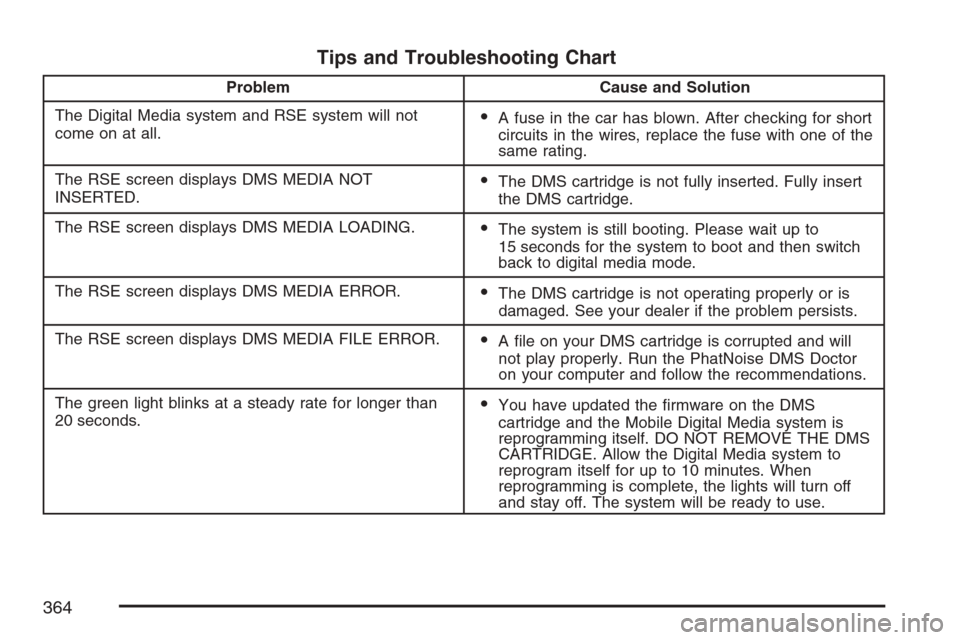
Tips and Troubleshooting Chart
Problem Cause and Solution
The Digital Media system and RSE system will not
come on at all.
A fuse in the car has blown. After checking for short
circuits in the wires, replace the fuse with one of the
same rating.
The RSE screen displays DMS MEDIA NOT
INSERTED.
The DMS cartridge is not fully inserted. Fully insert
the DMS cartridge.
The RSE screen displays DMS MEDIA LOADING.
The system is still booting. Please wait up to
15 seconds for the system to boot and then switch
back to digital media mode.
The RSE screen displays DMS MEDIA ERROR.
The DMS cartridge is not operating properly or is
damaged. See your dealer if the problem persists.
The RSE screen displays DMS MEDIA FILE ERROR.
A le on your DMS cartridge is corrupted and will
not play properly. Run the PhatNoise DMS Doctor
on your computer and follow the recommendations.
The green light blinks at a steady rate for longer than
20 seconds.
You have updated the rmware on the DMS
cartridge and the Mobile Digital Media system is
reprogramming itself. DO NOT REMOVE THE DMS
CARTRIDGE. Allow the Digital Media system to
reprogram itself for up to 10 minutes. When
reprogramming is complete, the lights will turn off
and stay off. The system will be ready to use.
364
Page 365 of 592
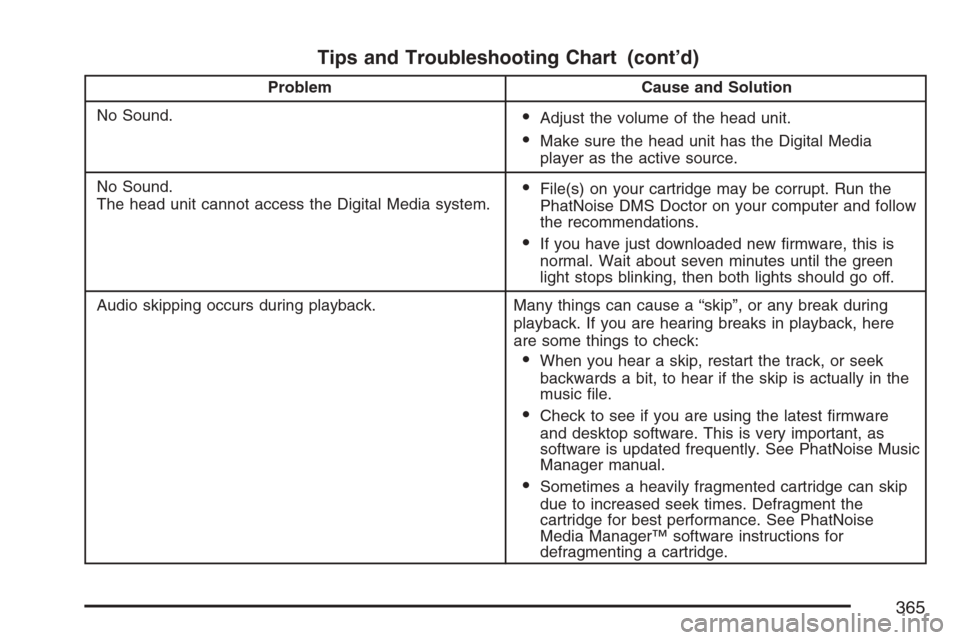
Tips and Troubleshooting Chart (cont’d)
Problem Cause and Solution
No Sound.
Adjust the volume of the head unit.
Make sure the head unit has the Digital Media
player as the active source.
No Sound.
The head unit cannot access the Digital Media system.
File(s) on your cartridge may be corrupt. Run the
PhatNoise DMS Doctor on your computer and follow
the recommendations.
If you have just downloaded new rmware, this is
normal. Wait about seven minutes until the green
light stops blinking, then both lights should go off.
Audio skipping occurs during playback. Many things can cause a “skip”, or any break during
playback. If you are hearing breaks in playback, here
are some things to check:
When you hear a skip, restart the track, or seek
backwards a bit, to hear if the skip is actually in the
music le.
Check to see if you are using the latest rmware
and desktop software. This is very important, as
software is updated frequently. See PhatNoise Music
Manager manual.
Sometimes a heavily fragmented cartridge can skip
due to increased seek times. Defragment the
cartridge for best performance. See PhatNoise
Media Manager™ software instructions for
defragmenting a cartridge.
365
Page 369 of 592
FM Stereo
FM stereo will give the best sound, but FM signals
will reach only about 10 to 40 miles (16 to 65 km).
Tall buildings or hills can interfere with FM
signals, causing the sound to fade in and out.
XM™ Satellite Radio Service
XM™ Satellite Radio Service gives digital radio
reception from coast-to-coast in the 48 contiguous
United States, and in Canada. Just as with FM,
tall buildings or hills can interfere with satellite
radio signals, causing the sound to fade in and out.
In addition, traveling or standing under heavy
foliage, bridges, garages, or tunnels may cause
loss of the XM™ signal for a period of time.
The radio may display NO SIGNAL to indicate
interference.
Care of Your CDs and DVDs
Handle CDs carefully. Store them in their original
cases or other protective cases and away from
direct sunlight and dust. The CD player scans the
bottom surface of the disc. If the surface of a
CD is damaged, such as cracked, broken,
or scratched, the CD will not play properly or not
at all. If the surface of a CD is soiled, take a
soft, lint free cloth or dampen a clean, soft cloth in
a mild, neutral detergent solution mixed with
water, and clean it. Make sure the wiping process
starts from the center to the edge.
Do not touch the bottom side of a CD while
handling it; this could damage the surface. Pick up
CDs by grasping the outer edges or the edge of
the hole and the outer edge.
Care of the CD and DVD Player
The use of CD lens cleaners for CDs is not
advised, due to the risk of contaminating the lens
of the CD optics with lubricants internal to the
CD mechanism.
369
Page 370 of 592
Fixed Mast Antenna
The xed mast antenna can withstand most car
washes without being damaged. If the mast should
ever become slightly bent, straighten it out by
hand. If the mast is badly bent, replace it.
Check occasionally to make sure the mast is still
tightened to the antenna base located on the
hood of the vehicle. If tightening is required, tighten
by hand.
XM™ Satellite Radio Antenna
System
The XM™ Satellite Radio antenna is located on
the roof of your vehicle. Keep this antenna clear of
snow and ice build up for clear radio reception.
Loading items onto the roof of your vehicle
can interfere with the performance of the XM™
system. Make sure that the XM™ satellite antenna
is not obstructed.
Chime Level Adjustment
The radio is used to adjust the vehicle’s chime
level. To change the volume level of the chime,
press and hold pushbutton 6 with the ignition
on and the radio power off. The volume level will
change from the normal level to loud, and
LOUD will appear on the radio display. To change
back to the default or normal setting, press and
hold pushbutton 6 again. The volume level
will change from the loud level to normal, and
NORMAL will appear on the radio display.
Removing the radio and not replacing it with a
factory radio or chime module will disable vehicle
chimes.
370
Page 376 of 592
Control of a Vehicle
You have three systems that make your vehicle
go where you want it to go. They are the brakes,
the steering, and the accelerator. All three
systems have to do their work at the places where
the tires meet the road.
Sometimes, as when you are driving on snow or
ice, it is easy to ask more of those control systems
than the tires and road can provide. That means
you can lose control of your vehicle. SeeTraction
Control System (TCS) on page 379and
StabiliTrak
®System on page 381.
Adding non-GM accessories can affect your
vehicle’s performance. SeeAccessories and
Modications on page 426.
Braking
SeeBrake System Warning Light on page 238.
Braking action involves perception time and
reaction time.
First, you have to decide to push on the brake
pedal. That is perception time. Then you have to
bring up your foot and do it. That is reaction time.
Average reaction time is about three-fourths of a
second. But that is only an average. It might
be less with one driver and as long as two or
three seconds or more with another. Age, physical
condition, alertness, coordination, and eyesight
all play a part. So do alcohol, drugs, and
frustration. But even in three-fourths of a second,
a vehicle moving at 60 mph (100 km/h) travels
66 feet (20 m). That could be a lot of distance in an
emergency, so keeping enough space between
your vehicle and others is important.
And, of course, actual stopping distances vary
greatly with the surface of the road, whether it is
pavement or gravel; the condition of the road,
whether it is wet, dry, or icy; tire tread; the
condition of the brakes; the weight of the vehicle;
and the amount of brake force applied.
376
Page 377 of 592
Avoid needless heavy braking. Some people drive
in spurts — heavy acceleration followed by
heavy braking — rather than keeping pace with
traffic. This is a mistake. The brakes may not have
time to cool between hard stops. The brakes
will wear out much faster if you do a lot of heavy
braking. If you keep pace with the traffic and
allow realistic following distances, you will
eliminate a lot of unnecessary braking. That means
better braking and longer brake life.
If your vehicle’s engine ever stops while you are
driving, brake normally but do not pump the
brakes. If you do, the pedal may get harder to
push down. If the engine stops, you will still have
some power brake assist. But you will use it
when you brake. Once the power assist is used
up, it may take longer to stop and the brake pedal
will be harder to push.
Adding non-GM accessories can affect your
vehicle’s performance. SeeAccessories and
Modications on page 426.Anti-Lock Brake System (ABS)
Your vehicle has the Anti-Lock Brake System
(ABS), an advanced electronic braking system that
will help prevent a braking skid.
When you start your engine and begin to drive
away, ABS will check itself. You may hear a
momentary motor or clicking noise while this test
is going on, and you may even notice that
your brake pedal moves or pulses a little. This is
normal.
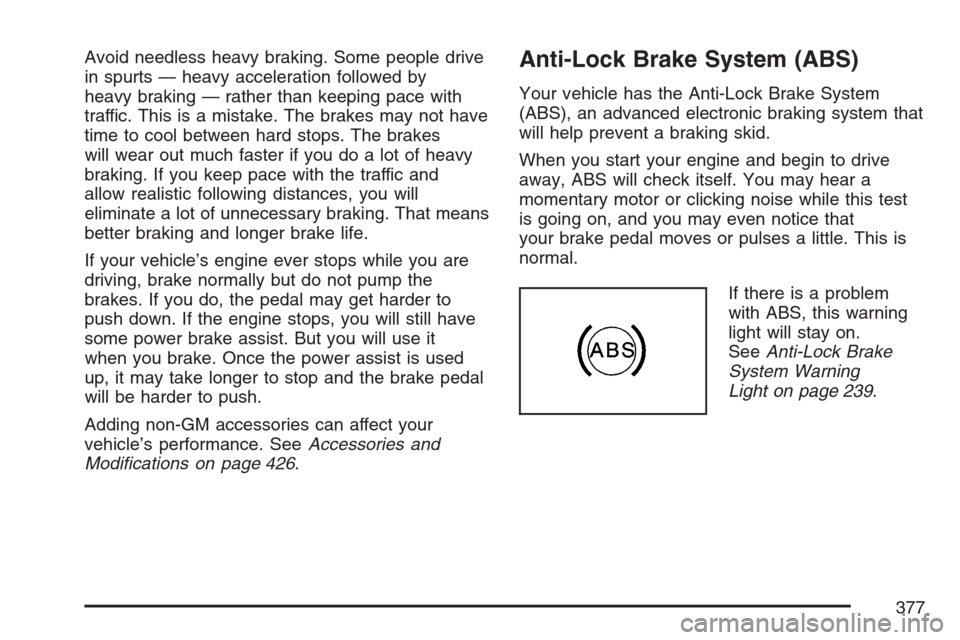
If there is a problem
with ABS, this warning
light will stay on.
SeeAnti-Lock Brake
System Warning
Light on page 239.
377