ESP CHEVROLET UPLANDER 2008 1.G User Guide
[x] Cancel search | Manufacturer: CHEVROLET, Model Year: 2008, Model line: UPLANDER, Model: CHEVROLET UPLANDER 2008 1.GPages: 476, PDF Size: 5.77 MB
Page 242 of 476
Personalization Menu Items
The following are personalization features that allow you
to program setting for up to two drivers:
PERSONALIZE KEY
If you are using a key that has already been
personalized to be recognized as key 1 or 2, this screen
will not display. This feature allows you to personalize
a key to be recognized as key 1 or 2. A personalized key
allows you to program personalization features to a
preferred setting to correspond to key 1 or 2.
Press the menu button until PERSONALIZE KEY
appears on the DIC display. Press the set/reset
button to scroll through the following choices:
NO (default):The key will not be personalized.
YES:The key will be personalized.
To select a setting and move on to the next feature,
press the menu button while the desired setting is
displayed on the DIC.
REPLACE KEY
This screen displays only if YES was selected for the
PERSONALIZE KEY feature, keys 1 and 2 have already
been personalized, and the current key being used is
not key 1 or 2. This feature allows you to program a key
to be recognized as key 1 or 2 in the event that the
previously programmed key needs to be replaced.
1:The key will be programmed to be recognized as
key 1.
2:The key will be programmed to be recognized as
key 2.
CANCEL (default):The key will not be programmed.
RADIO STATIONS PERSONALIZED
This screen displays only if YES was selected for the
PERSONALIZE KEY feature. This feature allows you
to set the radio station presets to be recognized for the
key, 1 or 2, that is being used. Once this message
displays, set the radio station presets. If the presets are
not set at this time, the presets will not be recognized for
key 1 or 2, however, the vehicle radio station presets will
be maintained.
3-82
Page 252 of 476
Playing a CD (Single CD Player)
Insert a CD partway into the slot, label side up. The
player pulls it in and the CD should begin playing.
If the ignition or radio is turned off with a CD in the
player, it stays in the player. When the ignition or radio
is turned on, the CD starts playing where it stopped,
if it was the last selected audio source.
When a CD is inserted, CD and the CD symbol displays.
As each new track starts to play the track number
displays.
The CD player can play the smaller 3 inch (8 cm) single
CDs with an adapter ring. Full-size CDs and the
smaller CDs are loaded in the same manner.
Playing a CD(s) (Six-Disc CD Player)
M
(Load):Press to load CDs into the CD player.
This CD player holds up to six CDs.
To insert one CD, do the following:
1. Turn the ignition on.
2. Press and release the load button.
3. When INSERT CD # displays, load a CD. Insert the
CD partway into the slot, label side up. The player
pulls the CD in.To insert multiple CDs, do the following:
1. Turn the ignition on.
2. Press and hold the load button for two seconds.
A beep sounds and LOAD ALL DISC displays.
3. When INSERT CD # displays, load a CD. Insert the
CD partway into the slot, label side up. The player
pulls the CD in.
Once the CD is loaded, wait for INSERT CD # to
display, then load the next CD. The CD player takes
up to six CDs. Do not try to load more than six.
To load more than one CD but less than six, complete
Steps 1 through 3. When nished loading CDs, press this
button to cancel the loading function. The radio begins to
play the last CD loaded.
If more than one CD has been loaded, a number for
each CD displays.
Playing a Specic Loaded CD
A number displays for every CD that is loaded into the
player. To play a specic CD press the numbered
pushbutton that corresponds to the CD.
3-92
Page 264 of 476
Wired Headphones
There is a right and left wired headphone jack.
To adjust the volume, do the following:
1. Plug the headphone into the corresponding jack,
located behind the video screen, next to the
auxiliary jacks.
2. Press the headphone volume control button until
Wired Headset Volume displays and the Left wired
headphone is highlighted for selection. Press the
volume control button again to select the Right
volume control.
Another way to select either the Left or Right
Wired Headset Volume is to press the up or
down arrows on the DVD faceplate.
3. Press the right and left arrow buttons on the DVD
faceplate to increase or to decrease the volume.
Press the headphone volume control button again or
wait for a few seconds until the screen disappears.
The wired headphones work as follows:
DVD on / RSA off: The wired headphones plays
RSE audio.
DVD off / RSA on: The wired headphones plays
RSA audio.
DVD on / RSA on: The wired headphones plays
RSA audio.
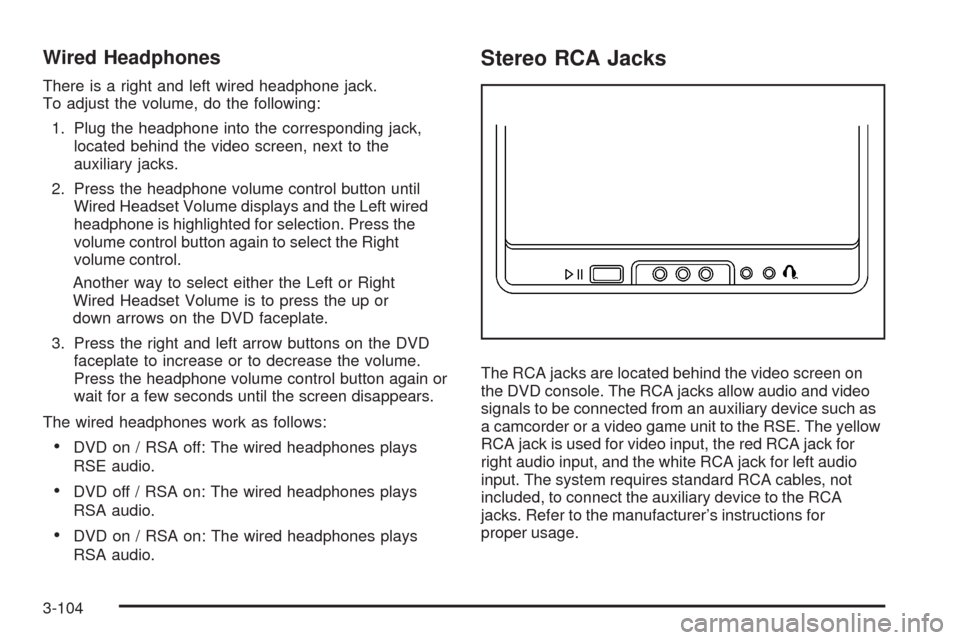
Stereo RCA Jacks
The RCA jacks are located behind the video screen on
the DVD console. The RCA jacks allow audio and video
signals to be connected from an auxiliary device such as
a camcorder or a video game unit to the RSE. The yellow
RCA jack is used for video input, the red RCA jack for
right audio input, and the white RCA jack for left audio
input. The system requires standard RCA cables, not
included, to connect the auxiliary device to the RCA
jacks. Refer to the manufacturer’s instructions for
proper usage.
3-104
Page 280 of 476
Radio Reception
Frequency interference and static during normal radio
reception can occur if items such as cellphone chargers,
vehicle convenience accessories, and external electronic
devices are plugged into the accessory power outlet.
If there is interference or static, unplug the item from the
accessory power outlet.
AM
The range for most AM stations is greater than for FM,
especially at night. The longer range can cause station
frequencies to interfere with each other. For better radio
reception, most AM radio stations boost the power levels
during the day, and then reduce these levels during the
night. Static can also occur when things like storms and
power lines interfere with radio reception. When this
happens, try reducing the treble on your radio.
FM Stereo
FM stereo gives the best sound, but FM signals reach
only about 10 to 40 miles (16 to 65 km). Tall buildings or
hills can interfere with FM signals, causing the sound
to fade in and out.
XM™ Satellite Radio Service
XM™ Satellite Radio Service gives digital radio
reception from coast-to-coast in the 48 contiguous
United States, and in Canada. Just as with FM,
tall buildings or hills can interfere with satellite radio
signals, causing the sound to fade in and out.
In addition, traveling or standing under heavy foliage,
bridges, garages, or tunnels may cause loss of the
XM™ signal for a period of time. The radio may display
NO SIGNAL to indicate interference.
3-120
Page 285 of 476
Drunk Driving
{CAUTION:
Drinking and then driving is very dangerous.
Your reexes, perceptions, attentiveness, and
judgment can be affected by even a small
amount of alcohol. You can have a serious — or
even fatal — collision if you drive after drinking.
Do not drink and drive or ride with a driver who
has been drinking. Ride home in a cab; or if you
are with a group, designate a driver who will not
drink.
Death and injury associated with drinking and driving is
a global tragedy.
Alcohol affects four things that anyone needs to drive a
vehicle: judgment, muscular coordination, vision, and
attentiveness.Police records show that almost 40 percent of all motor
vehicle-related deaths involve alcohol. In most cases,
these deaths are the result of someone who was
drinking and driving. In recent years, more than
17,000 annual motor vehicle-related deaths have been
associated with the use of alcohol, with about
250,000 people injured.
For persons under 21, it is against the law in every U.S.
state to drink alcohol. There are good medical,
psychological, and developmental reasons for these
laws.
The obvious way to eliminate the leading highway
safety problem is for people never to drink alcohol and
then drive.
Medical research shows that alcohol in a person’s
system can make crash injuries worse, especially
injuries to the brain, spinal cord, or heart. This means
that when anyone who has been drinking — driver
or passenger — is in a crash, that person’s chance of
being killed or permanently disabled is higher than if the
person had not been drinking.
4-3
Page 288 of 476
Braking in Emergencies
With ABS, you can steer and brake at the same time. In
many emergencies, steering can help you more than
even the very best braking.
Traction Control System (TCS)
Your vehicle may have a traction control system that
limits wheel spin. This is especially useful in slippery
road conditions. The system operates if it senses that
one or both of the front wheels are spinning or beginning
to lose traction. When this happens, the system
brakes the spinning wheel(s) and/or reduces engine
power to limit wheel spin.
The TRACTION CONTROL ACTIVE message will come
on in the Driver Information Center (DIC) when the
traction control system is limiting wheel spin. You may
feel or hear the system working, but this is normal.
If your vehicle is in cruise control when the traction
control system begins to limit wheel spin, the cruise
control will automatically disengage. When road
conditions allow you to safely use it again, you may
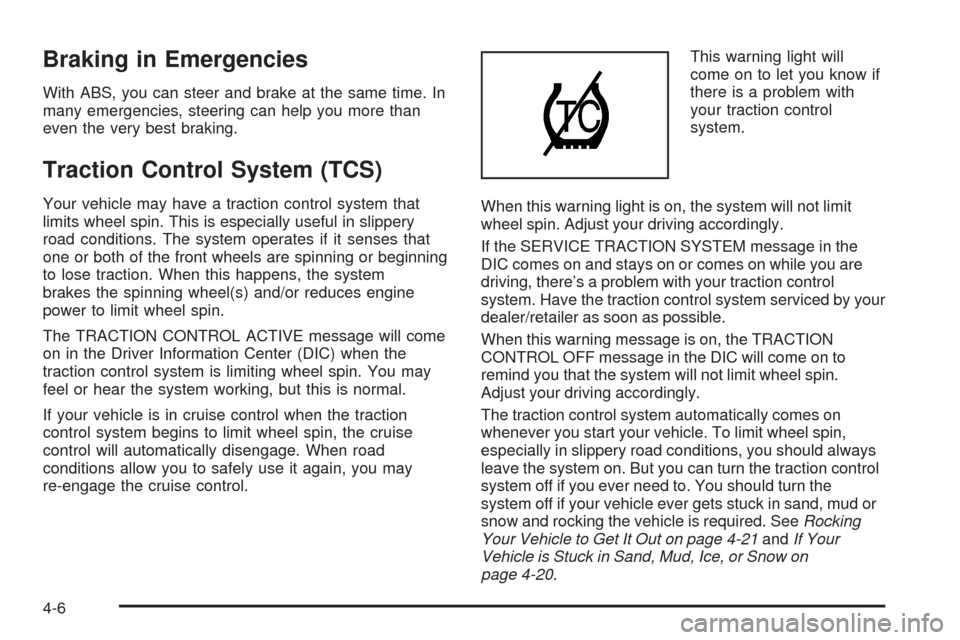
re-engage the cruise control.This warning light will
come on to let you know if
there is a problem with
your traction control
system.
When this warning light is on, the system will not limit
wheel spin. Adjust your driving accordingly.
If the SERVICE TRACTION SYSTEM message in the
DIC comes on and stays on or comes on while you are
driving, there’s a problem with your traction control
system. Have the traction control system serviced by your
dealer/retailer as soon as possible.
When this warning message is on, the TRACTION
CONTROL OFF message in the DIC will come on to
remind you that the system will not limit wheel spin.
Adjust your driving accordingly.
The traction control system automatically comes on
whenever you start your vehicle. To limit wheel spin,
especially in slippery road conditions, you should always
leave the system on. But you can turn the traction control
system off if you ever need to. You should turn the
system off if your vehicle ever gets stuck in sand, mud or
snow and rocking the vehicle is required. SeeRocking
Your Vehicle to Get It Out on page 4-21andIf Your
Vehicle is Stuck in Sand, Mud, Ice, or Snow on
page 4-20.
4-6
Page 294 of 476

Passing
Passing another vehicle on a two-lane road can be
dangerous. To reduce the risk of danger while passing,
we suggest the following tips:
Look down the road, to the sides, and to crossroads
for situations that might affect a successful pass. If
in doubt, wait.
Watch for traffic signs, pavement markings, and
lines that could indicate a turn or an intersection.
Never cross a solid or double-solid line on your side
of the lane.
Do not get too close to the vehicle you want to
pass. Doing so can reduce your visibility.
Wait your turn to pass a slow vehicle.
When you are being passed, ease to the right.
Loss of Control
Let us review what driving experts say about what
happens when the three control systems — brakes,
steering, and acceleration — do not have enough friction
where the tires meet the road to do what the driver has
asked.
In any emergency, do not give up. Keep trying to steer
and constantly seek an escape route or area of less
danger.
Skidding
In a skid, a driver can lose control of the vehicle.
Defensive drivers avoid most skids by taking reasonable
care suited to existing conditions, and by not overdriving
those conditions. But skids are always possible.
The three types of skids correspond to your vehicle’s
three control systems. In the braking skid, the wheels are
not rolling. In the steering or cornering skid, too much
speed or steering in a curve causes tires to slip and lose
cornering force. And in the acceleration skid, too much
throttle causes the driving wheels to spin.
A cornering skid is best handled by easing your foot off
the accelerator pedal.
Remember: Any traction control system helps avoid only
the acceleration skid. If your traction control system is
off, then an acceleration skid is also best handled
by easing your foot off the accelerator pedal.
If your vehicle starts to slide, ease your foot off the
accelerator pedal and quickly steer the way you want
the vehicle to go. If you start steering quickly enough,
your vehicle may straighten out. Always be ready
for a second skid if it occurs.
4-12
Page 295 of 476
Of course, traction is reduced when water, snow, ice,
gravel, or other material is on the road. For safety, you
will want to slow down and adjust your driving to
these conditions. It is important to slow down on slippery
surfaces because stopping distance will be longer and
vehicle control more limited.
While driving on a surface with reduced traction, try your
best to avoid sudden steering, acceleration, or braking,
including reducing vehicle speed by shifting to a lower
gear. Any sudden changes could cause the tires to
slide. You may not realize the surface is slippery until
your vehicle is skidding. Learn to recognize warning
clues — such as enough water, ice, or packed snow on
the road to make a mirrored surface — and slow down
when you have any doubt.
Remember: Any Antilock Brake System (ABS) helps
avoid only the braking skid.
Driving at Night
Night driving is more dangerous than day driving
because some drivers are likely to be impaired — by
alcohol or drugs, with night vision problems, or by
fatigue.
Night driving tips include:
Drive defensively.
Do not drink and drive.
Reduce headlamp glare by adjusting the inside
rearview mirror.
Slow down and keep more space between you and
other vehicles because your headlamps can only
light up so much road ahead.
Watch for animals.
When tired, pull off the road.
Do not wear sunglasses.
Avoid staring directly into approaching headlamps.
Keep the windshield and all glass on your vehicle
clean — inside and out.
Keep your eyes moving, especially during turns or
curves.
No one can see as well at night as in the daytime. But,
as we get older, these differences increase. A
50-year-old driver might need at least twice as much
light to see the same thing at night as a 20-year-old.
4-13
Page 301 of 476
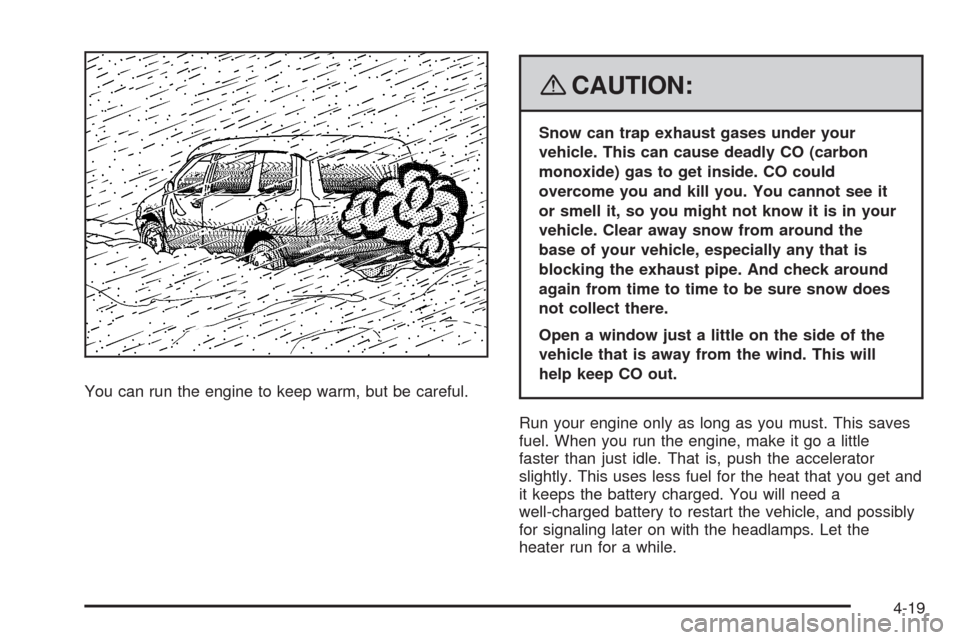
You can run the engine to keep warm, but be careful.
{CAUTION:
Snow can trap exhaust gases under your
vehicle. This can cause deadly CO (carbon
monoxide) gas to get inside. CO could
overcome you and kill you. You cannot see it
or smell it, so you might not know it is in your
vehicle. Clear away snow from around the
base of your vehicle, especially any that is
blocking the exhaust pipe. And check around
again from time to time to be sure snow does
not collect there.
Open a window just a little on the side of the
vehicle that is away from the wind. This will
help keep CO out.
Run your engine only as long as you must. This saves
fuel. When you run the engine, make it go a little
faster than just idle. That is, push the accelerator
slightly. This uses less fuel for the heat that you get and
it keeps the battery charged. You will need a
well-charged battery to restart the vehicle, and possibly
for signaling later on with the headlamps. Let the
heater run for a while.
4-19
Page 317 of 476
Towing a trailer requires a certain amount of experience.
Before setting out for the open road, you will want to
get to know your rig. Acquaint yourself with the feel of
handling and braking with the added weight of the trailer.
And always keep in mind that the vehicle you are
driving is now a good deal longer and not nearly as
responsive as your vehicle is by itself.
Before you start, check all trailer hitch parts and
attachments, safety chains, electrical connector, lamps,
tires, and mirror adjustment. If the trailer has electric
brakes, start your vehicle and trailer moving and
then apply the trailer brake controller by hand to be sure
the brakes are working. This lets you check your
electrical connection at the same time.
During your trip, check occasionally to be sure that the
load is secure, and that the lamps and any trailer
brakes are still working.
Following Distance
Stay at least twice as far behind the vehicle ahead as
you would when driving your vehicle without a trailer.
This can help you avoid situations that require
heavy braking and sudden turns.
Passing
You will need more passing distance up ahead when you
are towing a trailer. And, because you are a good deal
longer, you will need to go much farther beyond the
passed vehicle before you can return to your lane.
Backing Up
Hold the bottom of the steering wheel with one hand.
Then, to move the trailer to the left, just move that hand
to the left. To move the trailer to the right, move your
hand to the right. Always back up slowly and, if possible,
have someone guide you.
Making Turns
Notice:Making very sharp turns while trailering
could cause the trailer to come in contact with the
vehicle. Your vehicle could be damaged. Avoid
making very sharp turns while trailering.
When you are turning with a trailer, make wider turns
than normal. Do this so your trailer will not strike
soft shoulders, curbs, road signs, trees, or other objects.
Avoid jerky or sudden maneuvers. Signal well in
advance.
4-35