buttons CHEVROLET UPLANDER 2008 1.G Owner's Guide
[x] Cancel search | Manufacturer: CHEVROLET, Model Year: 2008, Model line: UPLANDER, Model: CHEVROLET UPLANDER 2008 1.GPages: 476, PDF Size: 5.77 MB
Page 233 of 476
SERVICE TRACTION SYSTEM
If your vehicle has the Traction Control System (TCS),
this message displays when the system is not functioning
properly. A warning light also appears on the instrument
panel cluster. SeeTraction Control System (TCS)
Warning Light on page 3-42. SeeTraction Control
System (TCS) on page 4-6for more information.
Have the TCS serviced by your dealer/retailer as
soon as possible.
This message displays only while the ignition is in
ON/RUN. Press any of the DIC buttons to acknowledge
this message and to clear it from the screen.
This message continues to display for two seconds
if it has not been acknowledged when the engine
is turned off. It also re-displays for two seconds if the
message has been acknowledged, but the condition
still exists when the engine is turned off.
If the condition still exists, the message re-appears
when the engine is turned on.
SERVICE VEHICLE SOON
This message displays when a non-emissions related
malfunction occurs. Have the vehicle serviced by
your dealer/retailer as soon as possible.This message displays only while the ignition is in
ON/RUN. Press any of the DIC buttons to acknowledge
this message and to clear it from the screen.
This message continues to display for two seconds
if it has not been acknowledged when the engine
is turned off. It also re-displays for two seconds if the
message has been acknowledged, but the condition
still exists when the engine is turned off.
If the condition still exists, the message re-appears
when the engine is turned on.
STABILITY CONTROL ACTIVE
If your vehicle has StabiliTrak®, this message displays
when StabiliTrak®is actively assisting you with directional
control of the vehicle. Slippery road conditions may exist
when this message is displayed, so adjust your driving
accordingly. SeeStabiliTrak
®System on page 4-7.
This message displays only while the ignition is in
ON/RUN. This message stays on until road conditions
change and StabiliTrak
®is not active.
This message cannot be acknowledged and cleared
from the screen.
3-73
Page 235 of 476
Any of the following conditions may cause the TCS to
turn off:
The TCS is turned off by pressing the traction
control button located on the center of the instrument
panel. SeeTraction Control System (TCS) on
page 4-6.
The battery is low.
There is a TCS failure. See your dealer/retailer for
service.
TRANSMISSION FLUID HOT
This message displays when the transmission uid in
your vehicle is too hot. Stop the vehicle and allow
it to idle until it cools down. If the warning message
continues to display, have the vehicle serviced by your
dealer/retailer as soon as possible.
This message displays and a chime sounds only
while the ignition is in ON/RUN. Press any of the DIC
buttons to acknowledge this message and to clear
it from the screen.This message continues to display for two seconds if it
has not been acknowledged when the engine is turned
off. It also re-displays for two seconds if the message has
been acknowledged, but the condition still exists when
the engine is turned off.
If the condition still exists, the message re-appears
when the engine is turned on.
TURN SIGNAL ON
This message displays as a reminder to turn off the turn
signal if you drive your vehicle for more than about
0.75 mile (1.2 km) with a turn signal on. SeeTurn
Signal/Multifunction Lever on page 3-7.
This message displays and a chime sounds only when
the ignition is in ON/RUN. This message clears from
the DIC if the turn signal is manually turned off, a turn
is completed, or the message is acknowledged.
3-75
Page 247 of 476
Playing the Radio
Top Knob (Power/Volume):Press to turn the system
on and off. Turn clockwise or counterclockwise to
increase or to decrease the volume.
4(Information):For RDS, press to change what
displays while using RDS. The display options are
station name, RDS station frequency, PTY (program
type), and the name of the program (if available).
For XM™ (if equipped), press while in XM™ mode to
retrieve four different categories of information related
to the current song or channel: Artist, Song Title,
Category or PTY, Channel Number/Channel Name.
To change the default on the display, press until the
desired display appears, then hold for two seconds.
The radio produces one beep and the selected display
becomes the default.
AUTO
n(Automatic Volume):Automatic volume
adjusts the audio system automatically to make up
for road and wind noise while driving, by increasing
the volume as the vehicle speed increases.
Set the volume at the desired level. Press this button to
select AUTO VOLUME MIN (minimum), AUTO VOLUME
MED (medium), or AUTO VOLUME MAX (maximum).
Each higher setting provides more volume compensation
at faster vehicle speeds. To turn automatic volume off,
press this button until AUTO VOLUME OFF displays.MUTE:Press to silence the system. Press again to turn
the sound on.
This button is not available on the Radio with
Six-Disc CD.
Finding a Station
BAND:Press to switch between FM1, FM2, AM, or
XM1 or XM2 (if equipped). The selection displays.
O/e(Tune):Turn to select radio stations.
tSEEKu:Press the arrows to go to the previous
or to the next station and stay there.
The radio seeks stations only with a strong signal that
are in the selected band.
tSCANu:Press and hold either arrow for
two seconds until FREQUENCY SCAN displays.
The radio goes to a station, plays for a few seconds,
then goes to the next station. Press either arrow again
to stop scanning.
To scan preset stations, press and hold either arrow for
four seconds until PRESET SCAN displays. The radio
goes to the next preset station, plays for a few seconds,
then goes to the next preset station. Press either arrow
again or one of the pushbuttons to stop scanning presets.
The radio scans stations only with a strong signal that are
in the selected band.
3-87
Page 248 of 476
Setting Preset Stations
Up to 30 stations (six FM1, six FM2, and six AM,
six XM1 and six XM2 (if equipped)), can be programmed
on the six numbered pushbuttons, by performing the
following steps:
1. Turn the radio on.
2. Press BAND to select FM1, FM2, AM, or XM1 or
XM2 (if equipped).
3. Tune in the desired station.
4. Press AUTO EQ to select the equalization.
5. Press and hold one of the six numbered
pushbuttons until a beep sounds. When that
numbered pushbutton is pressed, the station that
was set, returns and the equalization that was
selected is stored for that pushbutton.
6. Repeat the steps for each pushbutton.
Setting the Tone (Bass/Treble)
O
/e(Bass/Treble):Press to select BASS or
TREBLE. Turn to increase or to decrease. If a station is
weak or has static, decrease the treble.
To adjust the bass and treble to the middle position,
press and hold when the tone control is on the display.
The level changes to the middle position.
To adjust all tone and speaker controls to the middle
position, press and hold when no tone or speaker control
displays. AUDIO SETTINGS CENTERED displays.
AUTO EQ (Automatic Equalization):Press to select
customized equalization settings designed for country,
custom, classical, pop, rock, jazz, and talk. Selecting
CUSTOM or changing bass or treble, returns the EQ to
the manual bass and treble settings.
The radio saves separate AUTO EQ settings for each
preset and source.
3-88
Page 259 of 476
Empty Directory or Folder
If a root directory or a folder exists somewhere in the le
structure that contains only folders/subfolders and no
compressed les directly beneath them, the player
advances to the next folder in the le structure that
contains compressed audio les. The empty folder
does not display.
No Folder
When the CD contains only compressed les, the les
will be located under the root folder. The next and
previous folder functions do not function on a CD
that was recorded without folders or playlists.
When displaying the name of the folder the radio
displays ROOT.
When the CD contains only playlists and compressed
audio les, but no folders, all les are located under the
root folder. The folder down and the folder up buttons
search playlists (Px) rst and then go to the root folder.
When the radio displays the name of the folder the
radio displays ROOT.
Order of Play
Tracks are played in the following order:
Play begins from the rst track in the rst playlist
and continues sequentially through all tracks in
each playlist. When the last track of the last playlist
has played, play continues from the rst track of
the rst playlist.
If the CD does not contain any playlists, then play
begins from the rst track under the root directory.
When all tracks from the root directory have played,
play continues from les according to their numerical
listing. After playing the last track from the last folder,
play begins again at the rst track of the rst folder or
root directory.
When play enters a new folder, the display does
not automatically show the new folder name unless
the folder mode was chosen as the default display.
See the information button later in this section for
more information. The new track name displays.
3-99
Page 264 of 476
Wired Headphones
There is a right and left wired headphone jack.
To adjust the volume, do the following:
1. Plug the headphone into the corresponding jack,
located behind the video screen, next to the
auxiliary jacks.
2. Press the headphone volume control button until
Wired Headset Volume displays and the Left wired
headphone is highlighted for selection. Press the
volume control button again to select the Right
volume control.
Another way to select either the Left or Right
Wired Headset Volume is to press the up or
down arrows on the DVD faceplate.
3. Press the right and left arrow buttons on the DVD
faceplate to increase or to decrease the volume.
Press the headphone volume control button again or
wait for a few seconds until the screen disappears.
The wired headphones work as follows:
DVD on / RSA off: The wired headphones plays
RSE audio.
DVD off / RSA on: The wired headphones plays
RSA audio.
DVD on / RSA on: The wired headphones plays
RSA audio.
Stereo RCA Jacks
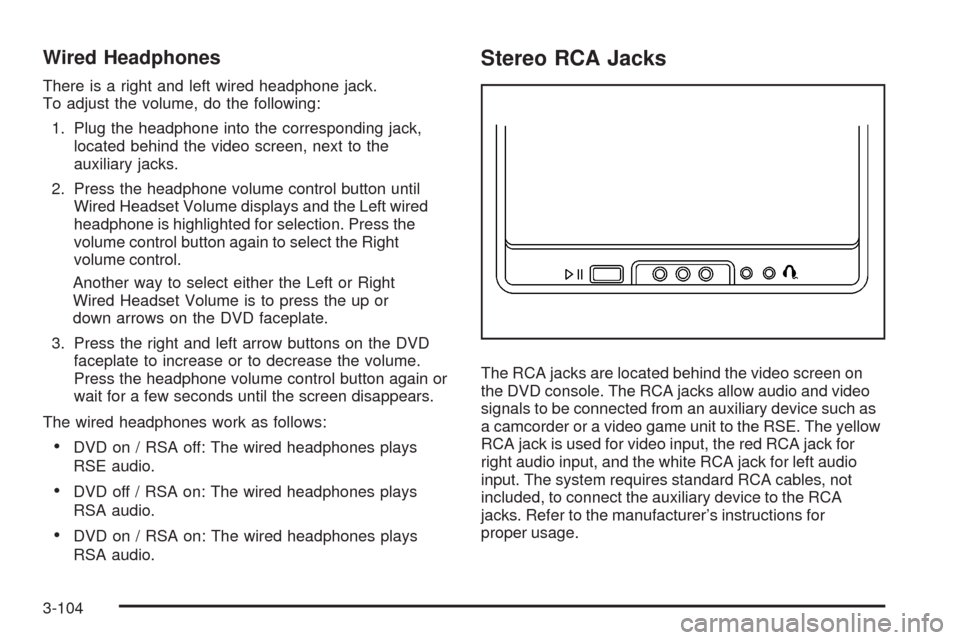
The RCA jacks are located behind the video screen on
the DVD console. The RCA jacks allow audio and video
signals to be connected from an auxiliary device such as
a camcorder or a video game unit to the RSE. The yellow
RCA jack is used for video input, the red RCA jack for
right audio input, and the white RCA jack for left audio
input. The system requires standard RCA cables, not
included, to connect the auxiliary device to the RCA
jacks. Refer to the manufacturer’s instructions for
proper usage.
3-104
Page 266 of 476
Video Screen
The video screen is located in the overhead console.
To use the video screen, do the following:
1. Push the release button located on the overhead
console.
2. Move the screen to the desired position.
When the video screen is not in use, push it up into its
locked position.
Notice:Avoid directly touching the video screen,
as damage may occur. See “Cleaning the Video
Screen” later in this section for more information.
DVD Player
The DVD player is located in the overhead console.
The DVD player can be controlled by the buttons on
the DVD player and/or by the buttons on the remote
control. See “Remote Control” later in this section
for more information.
The RSE system DVD player is only compatible with
DVDs of the appropriate region code for the country that
the vehicle was sold. The DVD region code is printed
on the jacket of most DVDs.
The player is capable of playing the following media
formats: DVD (single and dual player), DVD+R/RW,
DVD-R/RW, DVD-ROM with MP3, DVD-ROM with
WMA, CD-DA, CD-R/RW, CD-ROM with MP3, CD-ROM
with WMA, Enhanced CD, SACD (CD player only).
An error message could display if any other type
of media is inserted into the DVD player.
If an error message displays on the video screen,
see “DVD Messages” later in this section.
3-106
Page 267 of 476
DVD Player Buttons
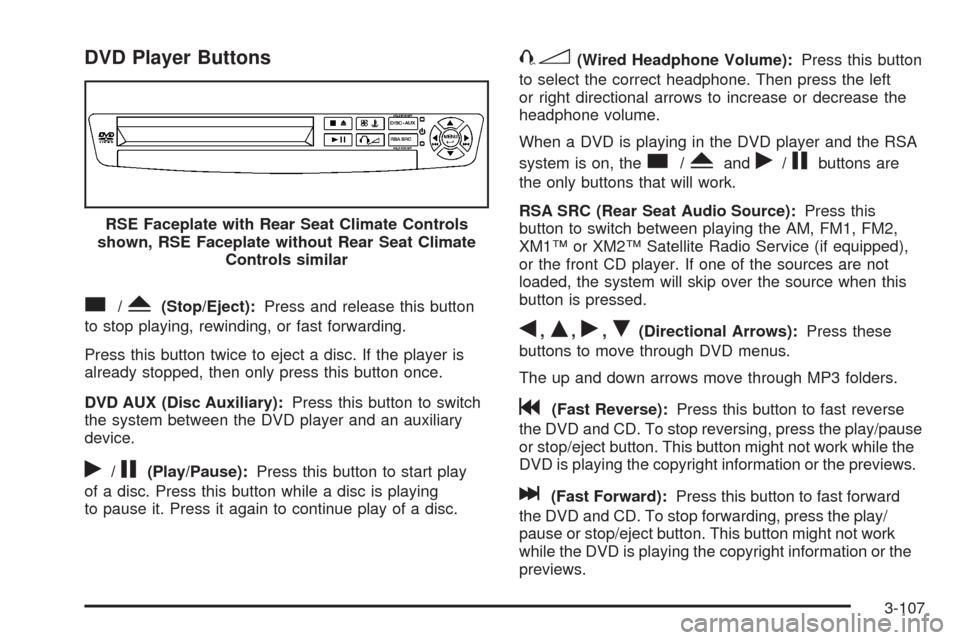
c/Y(Stop/Eject):Press and release this button
to stop playing, rewinding, or fast forwarding.
Press this button twice to eject a disc. If the player is
already stopped, then only press this button once.
DVD AUX (Disc Auxiliary):Press this button to switch
the system between the DVD player and an auxiliary
device.
r/j(Play/Pause):Press this button to start play
of a disc. Press this button while a disc is playing
to pause it. Press it again to continue play of a disc.
43(Wired Headphone Volume):Press this button
to select the correct headphone. Then press the left
or right directional arrows to increase or decrease the
headphone volume.
When a DVD is playing in the DVD player and the RSA
system is on, the
c/Yandr/jbuttons are
the only buttons that will work.
RSA SRC (Rear Seat Audio Source):Press this
button to switch between playing the AM, FM1, FM2,
XM1™ or XM2™ Satellite Radio Service (if equipped),
or the front CD player. If one of the sources are not
loaded, the system will skip over the source when this
button is pressed.
q,Q,r,R(Directional Arrows):Press these
buttons to move through DVD menus.
The up and down arrows move through MP3 folders.
g(Fast Reverse):Press this button to fast reverse
the DVD and CD. To stop reversing, press the play/pause
or stop/eject button. This button might not work while the
DVD is playing the copyright information or the previews.
l(Fast Forward):Press this button to fast forward
the DVD and CD. To stop forwarding, press the play/
pause or stop/eject button. This button might not work
while the DVD is playing the copyright information or the
previews. RSE Faceplate with Rear Seat Climate Controls
shown, RSE Faceplate without Rear Seat Climate
Controls similar
3-107
Page 268 of 476
MENU (Disc):Press this button to view the main DVD
menu. The menu is different on every disc. Use the up,
down, right, and left arrow buttons to move the cursor
around the menu. After making a selection, press the
enter button.
r(Enter/Select):Press this button to select the
choice that is highlighted in any menu.
z(Display Control Button):For vehicles without rear
seat climate control, this button can take the place of the
fan/temp button. For vehicles with rear seat climate
control, this button is also found on the remote control.
Press this button to open the RSE On-Screen Display
(OSD) menus to adjust the color, tint, brightness,
contrast, and display modes.
Playing a Disc
To play a disc, gently insert the disc, with the label side
up, into the loading slot. The DVD player continues
loading the disc and the player automatically starts if
the vehicle is in ACC/ACCESSORY, ON/RUN, or RAP.
If a disc is already in the player, make sure that the
DVD player is on, then press the
r/jbutton on
the player faceplate or on the remote control. Press
the DVD AUX button on the player faceplate, or the CD
AUX button on the radio faceplate until RSE displays,
to start playing a disc.Some DVDs do not allow fast forwarding or skipping
of the copyright information or previews. Some
DVDs begins playing after the previews have nished.
If the DVD does not begin playing at the main title, refer
to the on-screen instructions.
To stop playing a disc, press and release
the
c/Ybutton on the DVD player faceplate
or the remote control.
To resume playback, press the
r/jbutton on
the DVD player faceplate or the remote control.
The movie should resume play from where it was
last stopped if the disc has not been ejected.
If the disc has been ejected, the disc resumes play at
the beginning of the disc.
Ejecting a Disc
Press thec/Ybutton on the DVD player faceplate,
when the disc is stopped, to eject the disc. There is
no eject button on the remote control.
If a disc is ejected from the player, but not removed,
the DVD player reloads the disc after a short period
of time.
3-108
Page 269 of 476
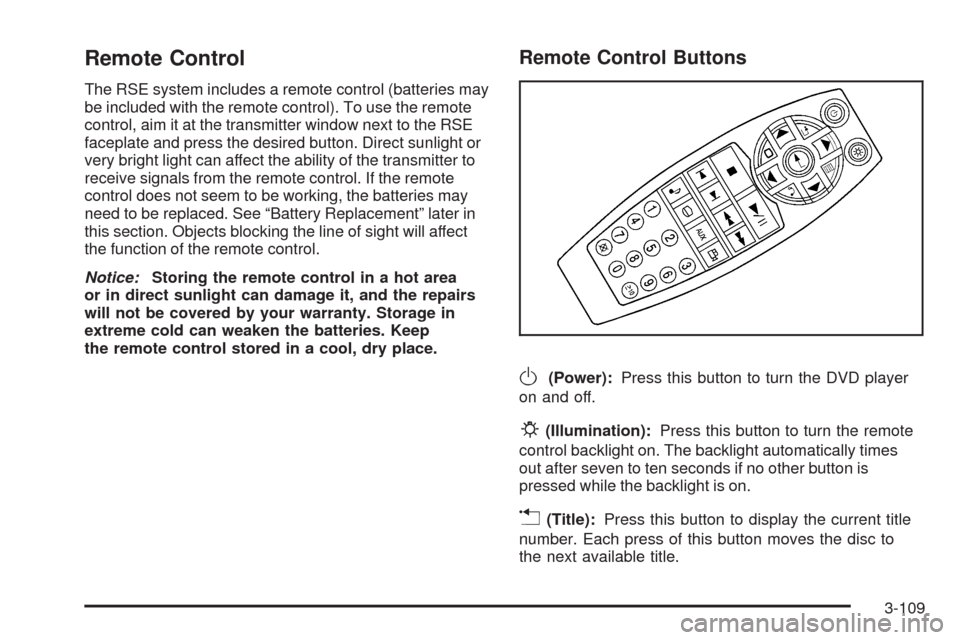
Remote Control
The RSE system includes a remote control (batteries may
be included with the remote control). To use the remote
control, aim it at the transmitter window next to the RSE
faceplate and press the desired button. Direct sunlight or
very bright light can affect the ability of the transmitter to
receive signals from the remote control. If the remote
control does not seem to be working, the batteries may
need to be replaced. See “Battery Replacement” later in
this section. Objects blocking the line of sight will affect
the function of the remote control.
Notice:Storing the remote control in a hot area
or in direct sunlight can damage it, and the repairs
will not be covered by your warranty. Storage in
extreme cold can weaken the batteries. Keep
the remote control stored in a cool, dry place.
Remote Control Buttons
O(Power):Press this button to turn the DVD player
on and off.
P(Illumination):Press this button to turn the remote
control backlight on. The backlight automatically times
out after seven to ten seconds if no other button is
pressed while the backlight is on.
v(Title):Press this button to display the current title
number. Each press of this button moves the disc to
the next available title.
3-109