reset CHEVROLET UPLANDER 2009 1.G Owner's Manual
[x] Cancel search | Manufacturer: CHEVROLET, Model Year: 2009, Model line: UPLANDER, Model: CHEVROLET UPLANDER 2009 1.GPages: 464, PDF Size: 2.59 MB
Page 233 of 464
REAR PARK CHIME
If your vehicle has the Ultrasonic Rear Parking Assist
(URPA) system, this feature allows the URPA system’s
chime to be turned OFF or ON. SeeUltrasonic Rear
Parking Assist (URPA) on page 2-44for more
information.
Press the option button until REAR PARK CHIME
appears on the DIC display. Press the set/reset button
to scroll through the following choices:
OFF:The URPA system’s chime will be disabled.
ON (default):The URPA system’s chime will be
enabled.
To select a setting and move on to the next feature,
press the menu button while the desired setting is
displayed on the DIC.
Personalization Menu Items
The following are personalization features that allow you
to program setting for up to two drivers:
PERSONALIZE KEY
If you are using a key that has already been
personalized to be recognized as key 1 or 2, this screen
will not display. This feature allows you to personalize
a key to be recognized as key 1 or 2. A personalized key
allows you to program personalization features to a
preferred setting to correspond to key 1 or 2.
Press the menu button until PERSONALIZE KEY
appears on the DIC display. Press the set/reset button
to scroll through the following choices:
NO (default):The key will not be personalized.
YES:The key will be personalized.
To select a setting and move on to the next feature,
press the menu button while the desired setting is
displayed on the DIC.
3-73
Page 234 of 464
REPLACE KEY
This screen displays only if YES was selected for the
PERSONALIZE KEY feature, keys 1 and 2 have already
been personalized, and the current key being used is
not key 1 or 2. This feature allows you to program a key
to be recognized as key 1 or 2 in the event that the
previously programmed key needs to be replaced.
1:The key will be programmed to be recognized
as key 1.
2:The key will be programmed to be recognized
as key 2.
CANCEL (default):The key will not be programmed.
RADIO STATIONS PERSONALIZED
This screen displays only if YES was selected for the
PERSONALIZE KEY feature. This feature allows you to
set the radio station presets to be recognized for the
key, 1 or 2, that is being used. Once this message
displays, set the radio station presets. If the presets are
not set at this time, the presets will not be recognized
for key 1 or 2, however, the vehicle radio station presets
will be maintained.
AUTO DOOR UNLOCK
This feature allows automatic door unlocking to be
turned off, used for the driver’s door only, or for all of
the doors.
Press the menu button until AUTO DOOR UNLOCK
appears on the DIC display. Press the set/reset button
to scroll through the following choices:
OFF:None of the doors will unlock when the vehicle is
shifted into P (Park) or the key is taken out of the ignition.
DRIVER:Only the driver’s door will unlock when the
vehicle is shifted into P (Park) or the key is taken out of
the ignition.
ALL (default):All of the doors will unlock when the
vehicle is shifted into P (Park) or the key is taken out of
the ignition.
To select a setting and move on to the next feature,
press the menu button while the desired setting is
displayed on the DIC.
AUTO UNLOCK ON
This feature displays only if DRIVER or ALL was
selected for the AUTO DOOR UNLOCK feature. This
feature allows the selection of when the vehicle’s doors
will unlock.
3-74
Page 235 of 464
Press the menu button until AUTO UNLOCK ON
appears on the DIC display. Press the set/reset button
to scroll through the following choices:
KEY-OUT:The door(s) will unlock when the key is
taken out of the ignition.
PARK (default):The door(s) will unlock when the
vehicle is shifted into P (Park).
To select a setting and move on to the next feature,
press the menu button while the desired setting is
displayed on the DIC.
FOB UNLOCK ON 1ST PRESS
This feature allows the selection of which doors will
unlock on the rst press of the unlock button on the RKE
transmitter. SeeRemote Keyless Entry (RKE) System
Operation on page 2-5for more information.
Press the menu button until FOB UNLOCK ON 1ST
PRESS appears on the DIC display. Press the set/reset
button to scroll through the following choices:
DRIVER (default):The driver’s door will unlock on the
rst press of the unlock button on the RKE transmitter.
ALL:All of the doors will unlock on the rst press of the
unlock button on the RKE transmitter.To select a setting, press the menu button while the
desired setting is displayed on the DIC. The DIC
will then display PRESS UNLOCK SWITCH ON KEY
FOB. Press the unlock button on the RKE transmitter
and your setting will be saved for that RKE transmitter.
After programming the last option, the message KEY
FOB NOW PERSONALIZED will appear on the
DIC display for a few seconds if you personalized the
key. Next, the message PERSONAL OPTIONS SAVED
will appear briey on the DIC display, then the display
will return to the PERSONAL PROGRAM main screen.
Exiting the Personal Program Menu
The personal program menu will be exited when any of
the following occurs:
The vehicle is shifted out of P (Park).
The vehicle is no longer in ON/RUN.
The end of the personal program menu is reached.
3-75
Page 236 of 464
Audio System(s)
Determine which radio the vehicle has and read the
following pages to become familiar with its features.
{CAUTION:
Taking your eyes off the road for extended periods
could cause a crash resulting in injury or death to
you or others. Do not give extended attention to
entertainment tasks while driving.
This system provides access to many audio and non
audio listings.
To minimize taking your eyes off the road while driving,
do the following while the vehicle is parked:
Become familiar with the operation and controls of
the audio system.
Set up the tone, speaker adjustments, and preset
radio stations.
For more information, seeDefensive Driving on
page 4-2.Notice:Contact your dealer/retailer before adding
any equipment.
Adding audio or communication equipment could
interfere with the operation of the vehicle’s engine,
radio, or other systems, and could damage them.
Follow federal rules covering mobile radio and
telephone equipment.
Notice:The chime signals related to safety belts,
parking brake, and other functions of your vehicle
operate through the radio/entertainment system.
If that equipment is replaced or additional equipment
is added to your vehicle, the chimes may not
work. Make sure that replacement or additional
equipment is compatible with your vehicle before
installing it. SeeAccessories and Modifications
on page 5-3.
The vehicle has Retained Accessory Power (RAP). With
RAP, the audio system can be played even after the
ignition is turned off. SeeRetained Accessory Power
(RAP) on page 2-32for more information.
3-76
Page 239 of 464
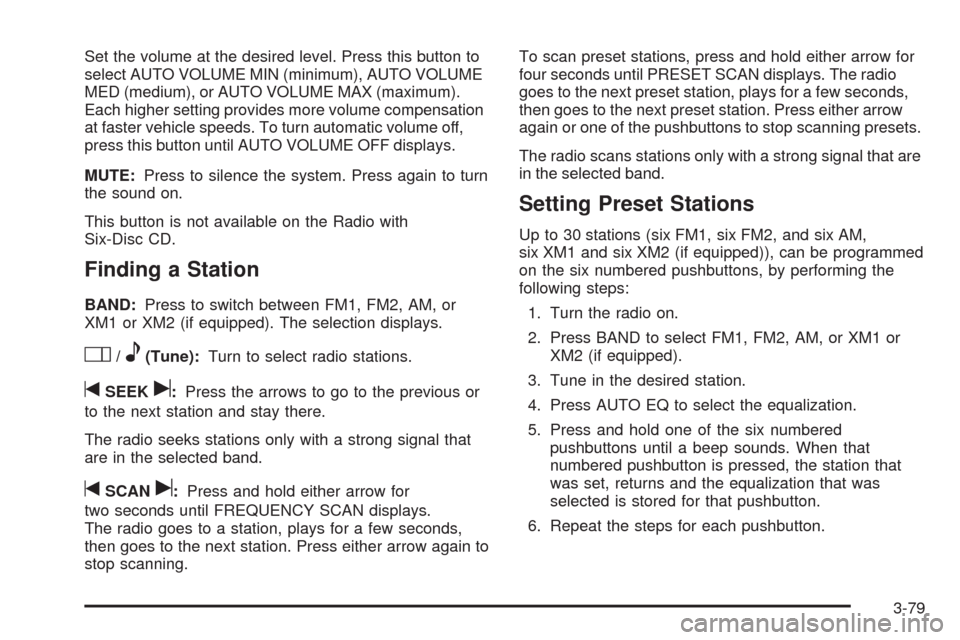
Set the volume at the desired level. Press this button to
select AUTO VOLUME MIN (minimum), AUTO VOLUME
MED (medium), or AUTO VOLUME MAX (maximum).
Each higher setting provides more volume compensation
at faster vehicle speeds. To turn automatic volume off,
press this button until AUTO VOLUME OFF displays.
MUTE:Press to silence the system. Press again to turn
the sound on.
This button is not available on the Radio with
Six-Disc CD.
Finding a Station
BAND:Press to switch between FM1, FM2, AM, or
XM1 or XM2 (if equipped). The selection displays.
O/e(Tune):Turn to select radio stations.
tSEEKu:Press the arrows to go to the previous or
to the next station and stay there.
The radio seeks stations only with a strong signal that
are in the selected band.
tSCANu:Press and hold either arrow for
two seconds until FREQUENCY SCAN displays.
The radio goes to a station, plays for a few seconds,
then goes to the next station. Press either arrow again to
stop scanning.To scan preset stations, press and hold either arrow for
four seconds until PRESET SCAN displays. The radio
goes to the next preset station, plays for a few seconds,
then goes to the next preset station. Press either arrow
again or one of the pushbuttons to stop scanning presets.
The radio scans stations only with a strong signal that are
in the selected band.
Setting Preset Stations
Up to 30 stations (six FM1, six FM2, and six AM,
six XM1 and six XM2 (if equipped)), can be programmed
on the six numbered pushbuttons, by performing the
following steps:
1. Turn the radio on.
2. Press BAND to select FM1, FM2, AM, or XM1 or
XM2 (if equipped).
3. Tune in the desired station.
4. Press AUTO EQ to select the equalization.
5. Press and hold one of the six numbered
pushbuttons until a beep sounds. When that
numbered pushbutton is pressed, the station that
was set, returns and the equalization that was
selected is stored for that pushbutton.
6. Repeat the steps for each pushbutton.
3-79
Page 240 of 464
Setting the Tone (Bass/Treble)
O
/e(Bass/Treble):Press to select BASS or
TREBLE. Turn to increase or to decrease. If a station is
weak or has static, decrease the treble.
To adjust the bass and treble to the middle position,
press and hold when the tone control is on the display.
The level changes to the middle position.
To adjust all tone and speaker controls to the middle
position, press and hold when no tone or speaker control
displays. AUDIO SETTINGS CENTERED displays.
AUTO EQ (Automatic Equalization):Press to select
customized equalization settings designed for country,
custom, classical, pop, rock, jazz, and talk. Selecting
CUSTOM or changing bass or treble, returns the EQ to
the manual bass and treble settings.
The radio saves separate AUTO EQ settings for each
preset and source.
Adjusting the Speakers (Balance/Fade)
O
/e(Balance/Fade):To adjust the balance
between the right and the left speakers, press until
BALANCE displays. Turn to move the sound toward the
right or the left speakers.
To adjust the fade between the front and the rear
speakers, press until FADE displays. Turn to move the
sound toward the front or the rear speakers.
To adjust the balance and fade to the middle position,
press and hold when the speaker control displays.
The level changes to the middle position.
To adjust all tone and speaker controls to the middle
position, press and hold when no tone or speaker control
displays. AUDIO SETTINGS CENTERED displays.
3-80
Page 245 of 464
If an error displays, see “CD Messages” later in this
section.
X(Eject):Press to eject CD(s). Eject can be activated
with either the ignition or radio off.
To eject the CD that is currently playing, press and
release.
To eject multiple CDs, do the following:
1. Press and hold eject for two seconds. A beep
sounds and EJECT ALL DISCS displays.
2. When REMOVE DISC displays, the CD ejects and
can be removed.
To stop ejecting the CDs, press the load or the
eject button.
If the CD is not removed, after 25 seconds, the CD
automatically pulls it back into the player. If CD
is pushed back into the player, before 25 seconds, the
player senses an error and tries to eject the CD
several times before stopping.
Do not repeatedly press the
Xbutton to eject a CD
after pushing it in manually because the eject timer resets
to 25 seconds after each press of the button. The CD will
eject only after an uninterrupted 25 seconds occurs.
O/e(Tune):Turn to go to the next or previous
track.
{(Fast Reverse):Press and hold to reverse within
the current track.
|(Fast Forward):Press and hold to fast forward
through the current track.
RDM (Random):Press to hear the tracks in random,
rather than sequential order, on one CD or all of
the loaded CDs.
To use random, do one of the following:
Press and release this button until RANDOM DISC
PLAY displays, to play the tracks on a CD in
random order.
Press and release this button until RANDOM ALL
DISCS displays, to play the tracks on all of the
CDs that are loaded in random order.
To turn off random play, press and release the RDM
button until RANDOM OFF displays.
3-85
Page 253 of 464
CH Unauth:This channel is blocked or cannot be
received with your XM Subscription package.
CH Unavail:This previously assigned channel is no
longer assigned. Tune to another station. If this station
was one of the presets, choose another station for
that preset button.
No Info:No artist, song title, category, or text
information is available at this time on this channel. The
system is working properly.
Not Found:There are no channels available for the
selected category. The system is working properly.
XM Locked:The XM receiver in the vehicle may have
previously been in another vehicle. For security
purposes, XM receivers cannot be swapped between
vehicles. If this message is received after having
the vehicle serviced, check with your dealer/retailer.
Radio ID:If tuned to channel 0, this message will
alternate with the XM Radio 8 digit radio ID label. This
label is needed to activate the service.Unknown:If this message is received when tuned to
channel 0, there may be a receiver fault. Consult
with your dealer/retailer.
Chk XMRcvr:If this message does not clear within a
short period of time, the receiver may have a fault.
Consult with your dealer/retailer.
Rear Seat Entertainment (RSE)
System
Vehicles with an RSE system have a video display
screen, auxiliary inputs, two sets of wireless
headphones, a DVD player, and a remote control.
Before Driving
The RSE is designed for rear seat passengers only.
The driver cannot safely view the video screen
while driving and should not try to do so.
Normal operation could be limited under extremely low
or high temperatures in order to protect the system
from damage. Operate the RSE system under normal or
comfortable cabin temperature ranges.
3-93
Page 269 of 464
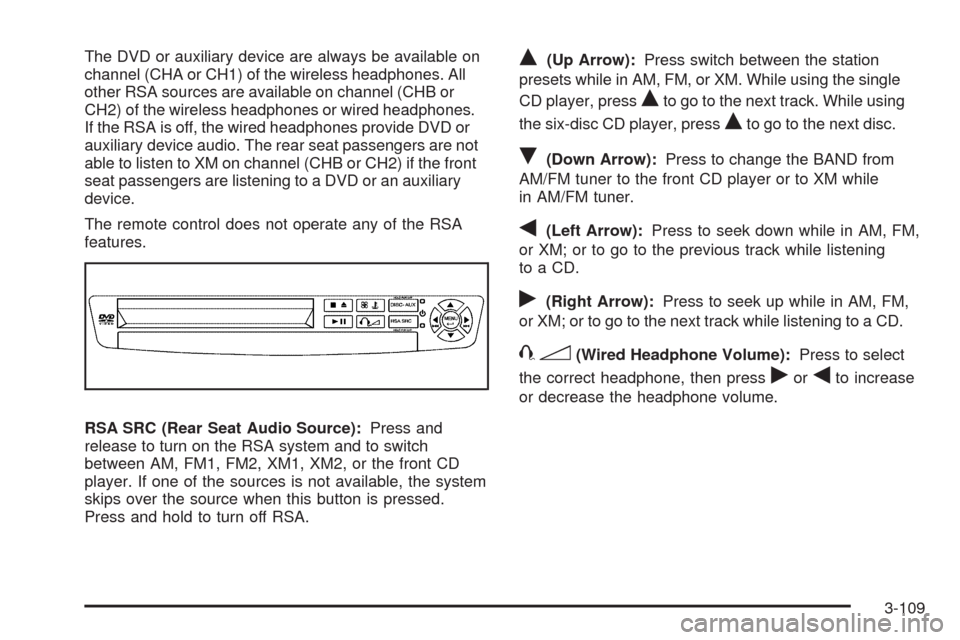
The DVD or auxiliary device are always be available on
channel (CHA or CH1) of the wireless headphones. All
other RSA sources are available on channel (CHB or
CH2) of the wireless headphones or wired headphones.
If the RSA is off, the wired headphones provide DVD or
auxiliary device audio. The rear seat passengers are not
able to listen to XM on channel (CHB or CH2) if the front
seat passengers are listening to a DVD or an auxiliary
device.
The remote control does not operate any of the RSA
features.
RSA SRC (Rear Seat Audio Source):Press and
release to turn on the RSA system and to switch
between AM, FM1, FM2, XM1, XM2, or the front CD
player. If one of the sources is not available, the system
skips over the source when this button is pressed.
Press and hold to turn off RSA.Q(Up Arrow):Press switch between the station
presets while in AM, FM, or XM. While using the single
CD player, press
Qto go to the next track. While using
the six-disc CD player, press
Qto go to the next disc.
R(Down Arrow):Press to change the BAND from
AM/FM tuner to the front CD player or to XM while
in AM/FM tuner.
q(Left Arrow):Press to seek down while in AM, FM,
or XM; or to go to the previous track while listening
to a CD.
r(Right Arrow):Press to seek up while in AM, FM,
or XM; or to go to the next track while listening to a CD.
43(Wired Headphone Volume):Press to select
the correct headphone, then press
rorqto increase
or decrease the headphone volume.
3-109
Page 271 of 464
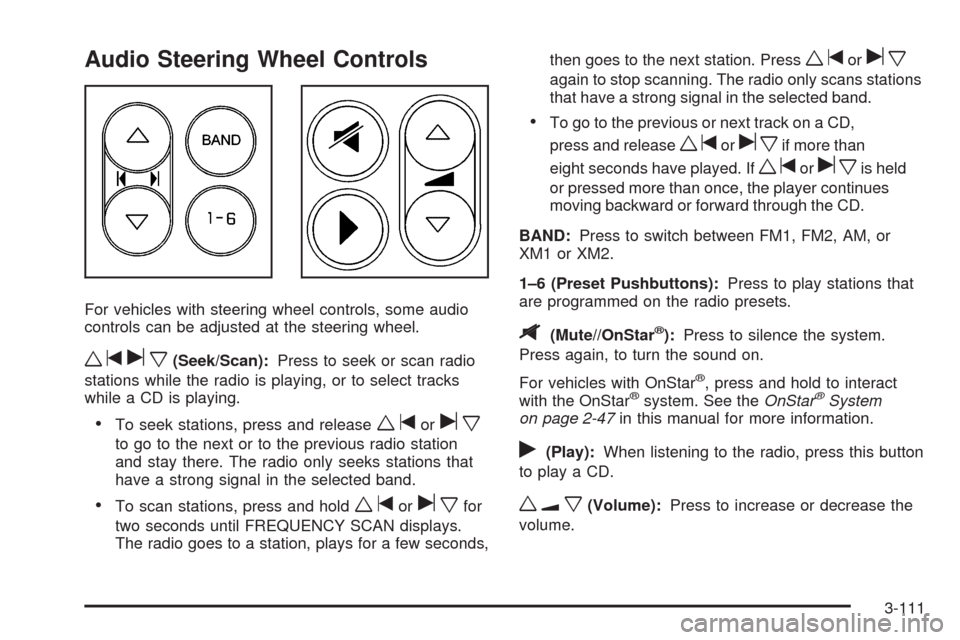
Audio Steering Wheel Controls
For vehicles with steering wheel controls, some audio
controls can be adjusted at the steering wheel.
wtux(Seek/Scan):Press to seek or scan radio
stations while the radio is playing, or to select tracks
while a CD is playing.
To seek stations, press and releasewtorux
to go to the next or to the previous radio station
and stay there. The radio only seeks stations that
have a strong signal in the selected band.
To scan stations, press and holdwtoruxfor
two seconds until FREQUENCY SCAN displays.
The radio goes to a station, plays for a few seconds,then goes to the next station. Press
wtorux
again to stop scanning. The radio only scans stations
that have a strong signal in the selected band.
To go to the previous or next track on a CD,
press and release
wtoruxif more than
eight seconds have played. If
wtoruxis held
or pressed more than once, the player continues
moving backward or forward through the CD.
BAND:Press to switch between FM1, FM2, AM, or
XM1orXM2.
1–6 (Preset Pushbuttons):Press to play stations that
are programmed on the radio presets.
$(Mute//OnStar®):Press to silence the system.
Press again, to turn the sound on.
For vehicles with OnStar
®, press and hold to interact
with the OnStar®system. See theOnStar®System
on page 2-47in this manual for more information.
r(Play):When listening to the radio, press this button
to play a CD.
wux(Volume):Press to increase or decrease the
volume.
3-111