audio CHEVROLET VENTURE 2000 1.G Owners Manual
[x] Cancel search | Manufacturer: CHEVROLET, Model Year: 2000, Model line: VENTURE, Model: CHEVROLET VENTURE 2000 1.GPages: 429, PDF Size: 3.04 MB
Page 5 of 429
Table of Contents (cont'd)
Defensive Driving
Drunken Driving
Control of a Vehicle
Braking
SteeringDriving Tips for Various Road Conditions
Recreational Vehicle Towing
Loading Your Vehicle
Towing a Trailer Heating and Air Conditioning
Setting the Radio ClockRadio/Cassette Player/CD Player
Radio Theft-Deterrent Feature (If Equipped)
Hazard Warning Flashers
Jump Starting
Towing Your VehicleEngine Overheating
Changing a Flat Tire
If You're Stuck
Problems on the Road
Section
3
Section
4
Section
5
Your Driving and the Road Comfort Controls and Audio Systems
iii
Page 143 of 429
2-39
NOTICE:
If your key seems stuck in LOCK and you can't
turn it, be sure you are using the correct key;
if so, is it all the way in? If it is, then turn the
steering wheel left and right while you turn the
key hard. But turn the key only with your hand.
Using a tool to force it could break the key or the
ignition switch. If none of this works, then your
vehicle needs service.
OFF (C): This position unlocks the steering wheel,
ignition and transaxle, but does not send electrical
power to any accessories. Use this position if your
vehicle must be pushed or towed, but never try to
push
-start your vehicle. A warning chime will sound if
you open the driver's door when the ignition is off and
the key is in the ignition.RUN (D): This is an on position to which the switch
returns after you start your engine and release the
switch. The switch stays in RUN when the engine is
running. But even when the engine is not running, you
can use RUN to operate your electrical power
accessories, and to display some instrument panel
warning lights.
START (E): This position starts the engine. When the
engine starts, release the key. The ignition switch will
return to RUN for normal driving.
If the engine is not running, ACCESSORY and RUN are
positions that allow you to operate your electrical
accessories, such as the radio.
Retained Accessory Power (RAP)
With RAP, the power windows (option), the power rear
quarter windows (if equipped), audio system and
electronic level control (ELC) will continue to work up
to 10 minutes after the ignition key is turned to OFF and
none of the doors are opened.
Page 189 of 429

2-85
The main components of the instrument panel are:
A. Side Vents
B. Front Vents
C. Turn Signal/Multifunction Lever
D. Hazard Warning Flashers Switch
E. Instrument Panel Cluster
F. Center Vents
G. Audio System
H. Side Vents
I. Lamp Switch
J. Hood Release
K. HornL. Ignition Switch
M. Climate Controls
N. Rear Fan Controls (Option)
O. Accessory Power Outlet
P. Storage Bin
Q. Instrument Panel Switchbank
R. Ashtray and Cigarette Lighter
S. Glove Box
T. Front Vents
U. Instrument Panel Fuse Block
Page 209 of 429
3-
3-1
Section 3 Comfort Controls and Audio Systems
In this section, you'll find out how to operate the comfort control and audio systems offered with your vehicle.
Be sure to read about the particular systems supplied with your vehicle.
3
-2 Comfort Controls
3
-3 Air Conditioning
3
-4 Heating
3
-4 Defogging and Defrosting
3
-5 Rear Window Defogger (If Equipped)
3
-5 Rear Climate Control (Option)
3
-8 Ventilation System
3
-9 Audio Systems
3
-9 Setting the Clock for Systems without
Automatic Tone Control
3
-9 Setting the Clock for Systems with Automatic
Tone Control
3
-10 AM-FM Stereo
3
-13 AM-FM Stereo with Cassette Tape Player
with Radio Data Systems (RDS) and
Automatic Tone Control (If Equipped)3
-20 AM-FM Stereo with Compact Disc Player
with Radio Data Systems (RDS) and
Automatic Tone Control (If Equipped)
3
-27 AM-FM Stereo with Cassette Tape and
Compact Disc Player with Radio Data
Systems (RDS) and Automatic Tone Control
(If Equipped)
3
-37 Rear Seat Audio (If Equipped)
3
-39 Theft-Deterrent Feature RDS Radios
3
-39 Understanding Radio Reception
3
-39 Tips About Your Audio System
3
-40 Care of Your Cassette Tape Player
3
-42 Care of Your Compact Discs
3
-42 Care of Your Compact Disc Player
3
-42 Integrated Windshield Antenna
Page 217 of 429
3-9
Audio Systems
Your audio system has been designed to operate easily
and give years of listening pleasure. You will get the
most enjoyment out of it if you acquaint yourself with it
first. Find out what your audio system can do and how
to operate all its controls, to be sure you're getting the
most out of the advanced engineering that went into it.
If you have power door locks, your vehicle has a feature
called Retained Accessory Power (RAP). With RAP,
you can play your audio system even after the ignition is
off. See ªRetained Accessory Powerº in the Index.
Setting the Clock for Systems without
Automatic Tone Control
Press and hold the HR or MIN arrow for two seconds.
Then press the HR arrow until the correct hour appears.
Press and hold the MIN arrow until the correct minute
appears. The clock may be set with the ignition on
or off.
Setting the Clock for Systems with
Automatic Tone Control
Press and hold HR or MN for two seconds. Then press
and hold HR until the correct hour appears. AM or PM
will appear on the display. Press and hold MN until the
correct minute appears. The clock may be set with the
ignition on or off. The clock symbol will appear on the
display in time
-set mode.
To set the clock to the time of a station broadcasting
Radio Data System (RDS) information, press and hold
HR and MN at the same time for two seconds until
UPDATED and the clock symbol appear on the display.
If the time is not available from the station, NO UPDAT
will appear on the display instead.
Page 219 of 429

3-11
PUSHBUTTONS: The six numbered pushbuttons let
you return to your favorite stations. You can set up to
18 stations (six AM, six FM1 and six FM2). Just:
1. Turn the radio on.
2. Press AM FM to select the band.
3. Tune in the desired station.
4. Press and hold one of the six numbered buttons until
you hear a beep. Whenever you press that numbered
button, the station you set will return.
5. Repeat the steps for each pushbutton.
Setting the Tone
BASS: Press and release AUDIO repeatedly until BAS
appears on the display. Then press and hold the up arrow
to increase bass. ªBº and a positive number will appear
on the display. Press and hold the down arrow to
decrease bass. B and a negative number will appear on
the display. B and a zero will appear on the display
when the bass level is set to the middle position.
Release the up or down arrow when you find the bass
level you want or when the maximum or minimum
level is reached.TREBLE: Press and release AUDIO until TRE appears
on the display. Then press and hold the up arrow to
increase treble. ªTº and a positive number will appear
on the display. Press and hold the down arrow to
decrease treble. T and a negative number will appear on
the display. T and a zero will appear on the display when
the treble level is set to the middle position. Release the
up or down arrow when you find the treble level you
want or when the maximum or minimum level is
reached. If a station is weak or noisy, you may want to
decrease the treble.
To set BASS or TREBLE to the middle position, select
the desired tone control. Then press and hold AUDIO
for more than two seconds until you hear a beep.
B and a zero or T and a zero will appear on the display.
To set all of the tone controls and speaker controls to the
middle position, end out of audio mode. Then press and
hold AUDIO for more than two seconds until you hear a
beep. CEN will appear on the display.
Page 220 of 429
3-12
Adjusting the Speakers
BALANCE: Press and release AUDIO until BAL
appears on the display. Then press and hold the up arrow
to move the sound to the right speakers or the down
arrow to move the sound to the left speakers. ªRº and a
number will appear on the display when the sound is
balanced toward the right speakers. ªLº and a number
will appear on the display when the sound is balanced
toward the left speakers. L and a zero will appear on the
display when the the sound is balanced between the
speakers. Release the up or down arrow when you find
the speaker balance you want or when the maximum or
minimum level is reached.
FADE: Press and release AUDIO until FAD appears on
the display. Then press and hold the up arrow to move
the sound to the front speakers or the down arrow to
move the sound to the rear speakers. ªFº and a number
will appear on the display when the sound is balanced
toward the front speakers. ªRº and a number will appear
on the display when the sound is balanced toward the
rear speakers. F and a zero will appear on the display
when the the sound is balanced between the speakers.
Release the up or down arrow when you find the speaker
balance you want or when the maximum or minimum
level is reached.To set BALANCE or FADE to the middle position,
select the desired speaker control. Then press and hold
AUDIO for more than two seconds until you hear a
beep. L and a zero or F and a zero will appear on the
display. To set all of the tone controls and speaker
controls to the middle position, end out of audio mode.
Then press and hold AUDIO for more than two seconds
until you hear a beep. CEN will appear on the display.
Radio Calibration
Your audio system has been calibrated for your vehicle
from the factory. If CAL appears on the display it means
that your radio has not been configured properly for
your vehicle and must be returned to the dealership
for service.
Page 221 of 429
3-13 AM-FM Stereo with Cassette Tape Player
with Radio Data System (RDS) and
Automatic Tone Control (If Equipped)
Playing the Radio
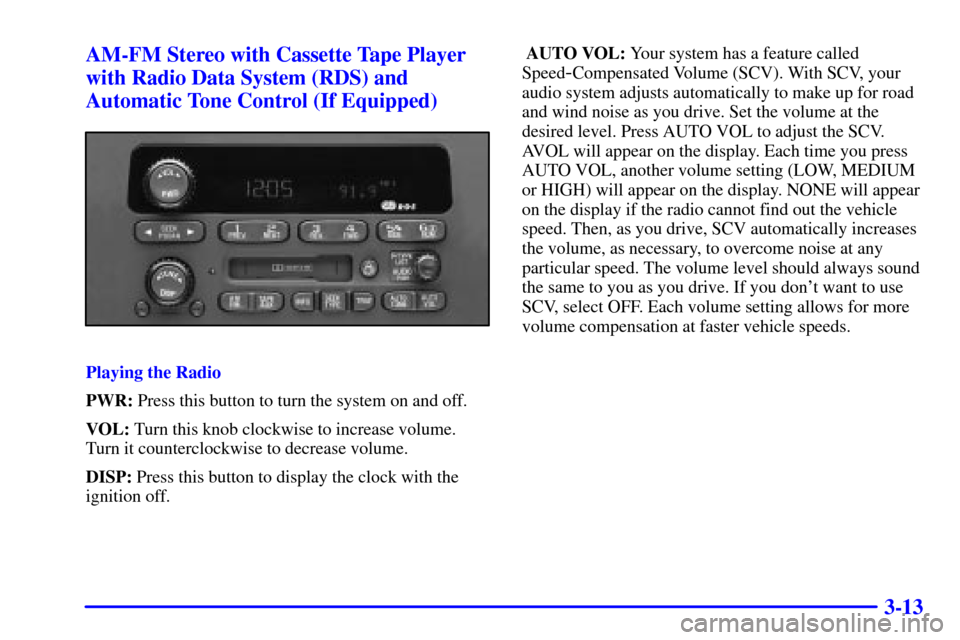
PWR: Press this button to turn the system on and off.
VOL: Turn this knob clockwise to increase volume.
Turn it counterclockwise to decrease volume.
DISP: Press this button to display the clock with the
ignition off. AUTO VOL: Your system has a feature called
Speed
-Compensated Volume (SCV). With SCV, your
audio system adjusts automatically to make up for road
and wind noise as you drive. Set the volume at the
desired level. Press AUTO VOL to adjust the SCV.
AVOL will appear on the display. Each time you press
AUTO VOL, another volume setting (LOW, MEDIUM
or HIGH) will appear on the display. NONE will appear
on the display if the radio cannot find out the vehicle
speed. Then, as you drive, SCV automatically increases
the volume, as necessary, to overcome noise at any
particular speed. The volume level should always sound
the same to you as you drive. If you don't want to use
SCV, select OFF. Each volume setting allows for more
volume compensation at faster vehicle speeds.
Page 222 of 429
3-14
Finding a Station
AM FM: Press this button to switch between AM, FM1
and FM2. The display shows your selection.
TUNE: Turn this knob to choose radio stations.
SEEK: Press the right arrow to tune to the next higher
station and the left arrow to tune to the next lower
station and stay there.
PUSHBUTTONS: The six numbered pushbuttons let
you return to your favorite stations. You can set up to
18 stations (six AM, six FM1 and six FM2). Just:
1. Turn the radio on.
2. Press AM FM to select the band.
3. Tune in the desired station.
4. Press AUTO TONE to select the equalization that
best suits the type of station selected.
5. Press and hold one of the six numbered buttons.
The radio will produce one beep. Whenever you
press that numbered button, the station you set will
return and the AUTO TONE equalization that you
selected will also be automatically selected for
that button.
6. Repeat the steps for each pushbutton.P SCAN: Press and hold one of the arrows for more
than two seconds. The radio will produce one beep.
Use P SCAN to listen to each of your favorite stations
stored on your pushbuttons for a few seconds. The radio
will scan through each of the stations stored on your
pushbuttons, except those stations with weak reception.
The AUTO TONE setting stored for that pushbutton will
be automatically chosen. Press P SCAN or one of the
pushbuttons again to stop scanning. SCAN will be
displayed whenever the tuner is in the P SCAN mode.
The channel number (P1
-P6) will appear with the
frequency. In FM mode, this function will scan through
the current band such as FM1 or FM2.
Setting the Tone
BASS: Press and release the P
-TYPE LIST/AUDIO
knob until BASS appears on the display. Then turn the
knob clockwise to increase bass and counterclockwise to
decrease bass. The display will show the bass level.
When you use this control, the radio's AUTO TONE
setting will switch to manual and the AUTO TONE
display will go blank. To set the tone and speaker
controls to the middle position, press and hold the
P
-TYPE LIST/AUDIO knob when no tone or
speaker control is active. The radio will produce one
beep and display ALL with the level display in the
middle position.
Page 223 of 429

3-15
TREB: Press and release the P-TYPE LIST/AUDIO
knob until TREB appears on the display. Turn the knob
clockwise to increase treble and counterclockwise to
decrease treble. The display will show the treble level.
When you use this control, the radio's AUTO TONE
setting will switch to manual and the AUTO TONE
display will go blank. If a station is weak or noisy,
you may want to decrease the treble.
AUTO TONE: This feature allows you to choose preset
bass and treble equalization settings designed for
ROCK, NEWS, POP, JAZZ, CLASSIC and COUNTRY
stations. TONE and the preset equalization setting will
appear on the display when you press AUTO TONE.
Each time you press it, another setting will appear on the
display. The manual setting allows tone control to return
to the BASS and TREB controls. Use PUSHBUTTONS
and AUTO TONE button to program AUTO TONE for
station presets.Adjusting the Speakers
BAL: Press and release the P
-TYPE LIST/AUDIO
knob until BAL appears on the display. Turn the knob
clockwise to move the sound to the right speakers and
counterclockwise to move the sound to the left speakers.
The middle position balances the sound between the
speakers. The display will show the speaker balance.
To set the control to the middle position, select the
control and press and hold the P
-TYPE LIST/AUDIO
button. The radio will produce one beep and set the
display level to the middle position.
FADE: Press and release the P
-TYPE LIST/AUDIO
knob until FADE appears on the display. Turn the knob
clockwise to move the sound to the front speakers and
counterclockwise to move the sound to the rear
speakers. The middle position balances the sound
between the speakers. The display will show the
speaker balance.