AUX CHEVROLET VENTURE 2004 1.G Owners Manual
[x] Cancel search | Manufacturer: CHEVROLET, Model Year: 2004, Model line: VENTURE, Model: CHEVROLET VENTURE 2004 1.GPages: 516, PDF Size: 3.33 MB
Page 257 of 516
4 FWD (Forward):Press and hold this pushbutton to
advance quickly within a track. Press and hold this
pushbutton for less than two seconds to advance at six
times the normal playing speed. Press and hold it for
more than two seconds to advance at 17 times the
normal playing speed. Release the pushbutton to play
the passage. ET and the elapsed time of the track
will appear on the dispay.
6 RDM (Random):Press this pushbutton to hear the
tracks in random, rather than sequential, order. RDM ON
will appear on the display. RDM T and the track
number will appear on the display when each track
starts to play. Press RDM again to turn off random play.
RDM OFF will appear on the display.
qSEEKr:Press the left arrow to go to the start of
the current or of the previous track. Press the right arrow
to go to the start of the next track. If you hold either arrow
or press it more than once, the player will continue
moving backward or forward through the CD.DISPL (Display):Press this knob to see how long the
current track has been playing. ET and the elapsed time
of the track will appear on the display. To change the
default on the display (track or elapsed time), press this
knob until you see the display you want, then hold the
knob for two seconds. The radio will produce one beep
and the selected display will now be the default.
BAND:Press this button to listen to the radio when a
CD is playing. The inactive CD will remain safely
inside the radio for future listening.
CD AUX (Auxiliary):Press this button to play a CD
when listening to the radio. The CD symbol will appear
on the display when a CD is loaded.ZEJT (Eject):Press this button to eject a CD. Eject
may be activated with either the ignition or radio off.
CDs may be loaded with the radio and ignition off if this
button is pressed rst.
3-75
Page 269 of 516
4 FWD (Forward):Press and hold this pushbutton to
advance quickly within a track. Press and hold this
pushbutton for less than two seconds to advance at six
times the normal playing speed. Press and hold it for
more than two seconds to advance at 17 times the
normal playing speed. Release the pushbutton to play
the passage. The display will show ET and the elapsed
time of the track.
6 RDM (Random):Press this pushbutton to hear the
tracks in random, rather than sequential, order. RDM ON
will appear on the display. RDM T and the track
number will appear on the display when each track
starts to play. Press RDM again to turn off random play.
RDM OFF will appear on the display.
oSEEKp:Press the left arrow to go to the start of
the current or the previous track. Press the right
arrow to go to the start of the next track. Pressing either
arrow for more than two seconds will search the
previous or next tracks at two tracks per second. When
you see the track number that you would like to play,
release the button to stop searching and to play
the track.TUNE:Turning the TUNE knob will fast track reverse or
advance through tracks. The track number will appear
on the display for each track.
DISPL (Display):Press this knob to see how long the
current track has been playing. ET and the elapsed
time of the track will appear on the display. To change
the default on the display (track or elapsed time),
press this knob until you see the display you want, then
hold the knob for two seconds. The radio will produce
one beep and the selected display will now be the
default.
BAND:Press this button to listen to the radio when a
CD is playing. The inactive CD will remain safely
inside the radio for future listening.
CD AUX (Auxiliary):Press this button to play a CD
when listening to the radio. The CD symbol will appear
on the display when a CD is loaded.
ZEJT (Eject):Press this button to eject a CD. Eject
may be activated with either the ignition or radio off.
CDs may be loaded with the ignition and radio off if this
button is pressed rst.
3-87
Page 274 of 516
Track mode will display the current track number and
the ID3 tag song name.
Folder/playlist mode will display the current folder or
playlist number and the folder/playlist name.
Time of day mode will display the time of day and the
ID3 tag song name.
To change the default on the display, press the DISPL
knob until you see the display you want, then hold
this knob for two seconds. The radio will produce one
beep and the selected display will now be the default.
INFO (Information):INFO will appear on the display
whenever a current track has ID3 tag information. Press
this button to display the artist name and album
contained in the tag. INFO will disappear from the
display when the information in the ID3 tag has nished.
BAND:Press this button to listen to the radio when a
CD is playing. The inactive CD will remain safely
inside the radio for future listening.
CD AUX (Auxiliary):Press this button to play a CD
when listening to the radio. The CD symbol will appear
on the display when a CD is loaded.
ZEJT (Eject):Press this button to eject a CD. Eject
may be activated with either the ignition or radio off.
CDs may be loaded with the ignition and radio off if this
button is pressed rst.
CD Messages
CHECK CD:If this message appears on the display
and the CD comes out, it could be for one of the
following reasons:
It is very hot. When the temperature returns to
normal, the CD should play.
You are driving on a very rough road. When the
road becomes smooth, the CD should play.
The CD is dirty, scratched, wet, or upside down.
The air is very humid. If so, wait about an hour and
try again.
The format of the CD may not be compatible. See
“MP3 Format” earlier in this section.
There may have been a problem while burning
the CD.
The label may be caught in the CD player.
If the CD is not playing correctly, for any other reason,
try a known good CD.
If any error occurs repeatedly or if an error cannot be
corrected, contact your dealer. If the radio displays
an error message, write it down and provide it to your
dealer when reporting the problem.
3-92
Page 286 of 516
To insert multiple CDs, do the following:
1. Turn the ignition on.
2. Press and hold the LOAD side of the LOAD CD
button for two seconds.
You will hear a beep and the light, located to the
right of the slot, will begin to ash.
3. Once the light stops ashing and turns green, load
a CD. Insert the CD partway into the slot, label side
up. The player will pull the CD in.
4. Once the CD is loaded, the light will begin ashing
again. Press the LOAD side of the LOAD CD button
again. Once the light turns green, load the next
CD. Repeat this procedure for each CD.
The CD player takes up to six CDs. Do not try to
load more than six.
To load more than one CD but less than six, complete
Steps 1 through 3. When you have nished loading
CDs, the radio will begin to play the last CD loaded.
When a CD is inserted, the CD symbol will be displayed.
If more than one CD has been loaded, a number for
each CD will be displayed. If you select an equalization
setting for your CD, it will be activated each time you
play a CD.
As each new track starts to play, the track number will
appear on the display.Playing a Specic Loaded CD
For every CD loaded, a number will appear on the
display. To play a specic CD, rst press the CD AUX
button, then press the numbered pushbutton that
corresponds to the CD you want to play. A small bar will
appear under the CD number that is playing, and the
track number will appear.
If an error appears on the display, see “CD Messages”
later in this section.
LOAD CD
Z(Eject):Press the CD eject side of this
button to eject a CD. You will hear a beep and the
light will ash to let you know when a CD is being
ejected.
REMOVE CD will be displayed. You can now remove
the CD. If the CD is not removed, after 25 seconds, the
CD will be automatically pulled back into the receiver.
If you try to push the CD back into the receiver,
before the 25 second time period is complete, the
receiver will sense an error and will try to eject the CD
several times before stopping.
Do not repeatedly press the CD eject button to eject a
CD after you have tried to push it in manually. The
receivers 25-second eject timer will reset at each press
of eject, which will cause the receiver to not eject
the CD until the 25-second time period has elapsed.
3-104
Page 288 of 516
sSCANt:To scan one CD, press and hold either
SCAN arrow for more than two seconds until SCAN
appears on the display and you hear a beep. Use this
feature to listen to 10 seconds of each track of the
currently selected CD. Press either SCAN arrow again,
to stop scanning.
To scan all loaded CDs, press and hold either SCAN
arrow for more than four seconds until CD SCAN
appears on the display and you hear a beep. Use this
feature to listen to 10 seconds of the rst tracks of each
CD loaded. Press either SCAN arrow again, to stop
scanning.
RCL (Recall):Press this knob to see how long the
current track has been playing. To change the default
on the display (track and elapsed time), press the knob
until you see the display you want, then hold the
knob until the display ashes. The selected display will
now be the default.
BAND:Press this button to play the radio when a
CD(s) is playing. The inactive CD will remain safely
inside the radio for future listening.
CD AUX (Auxiliary):Press this button to play a CD
when listening to the radio.Using Song List Mode
The six-CD CD changer has a feature called song list.
This feature is capable of saving 20 track selections.
To save tracks into the song list feature, perform
the following steps:
1. Turn the CD player on and load it with at least one
CD. See “LOAD CD” listed previously in this section
for more information.
2. Check to see that the CD changer is not in song list
mode. S-LIST should not appear in the display. If
S-LIST is present, press the SONG LIST button
to turn it off.
3. Select the desired CD by pressing the numbered
pushbutton and then use the SEEK SCAN right
arrow button to locate the track that you want
to save. The track will begin to play.
4. Press and hold the SONG LIST button to save the
track into memory. When SONG LIST is pressed a
beep will be heard immediately. After two seconds
of continuously pressing SONG LIST, two beeps will
sound to conrm that the track has been saved.
5. Repeat Steps 3 and 4 for saving other selections.
S-LIST FULL will appear on the display if you try to save
more than 20 selections.
3-106
Page 291 of 516
Headphones
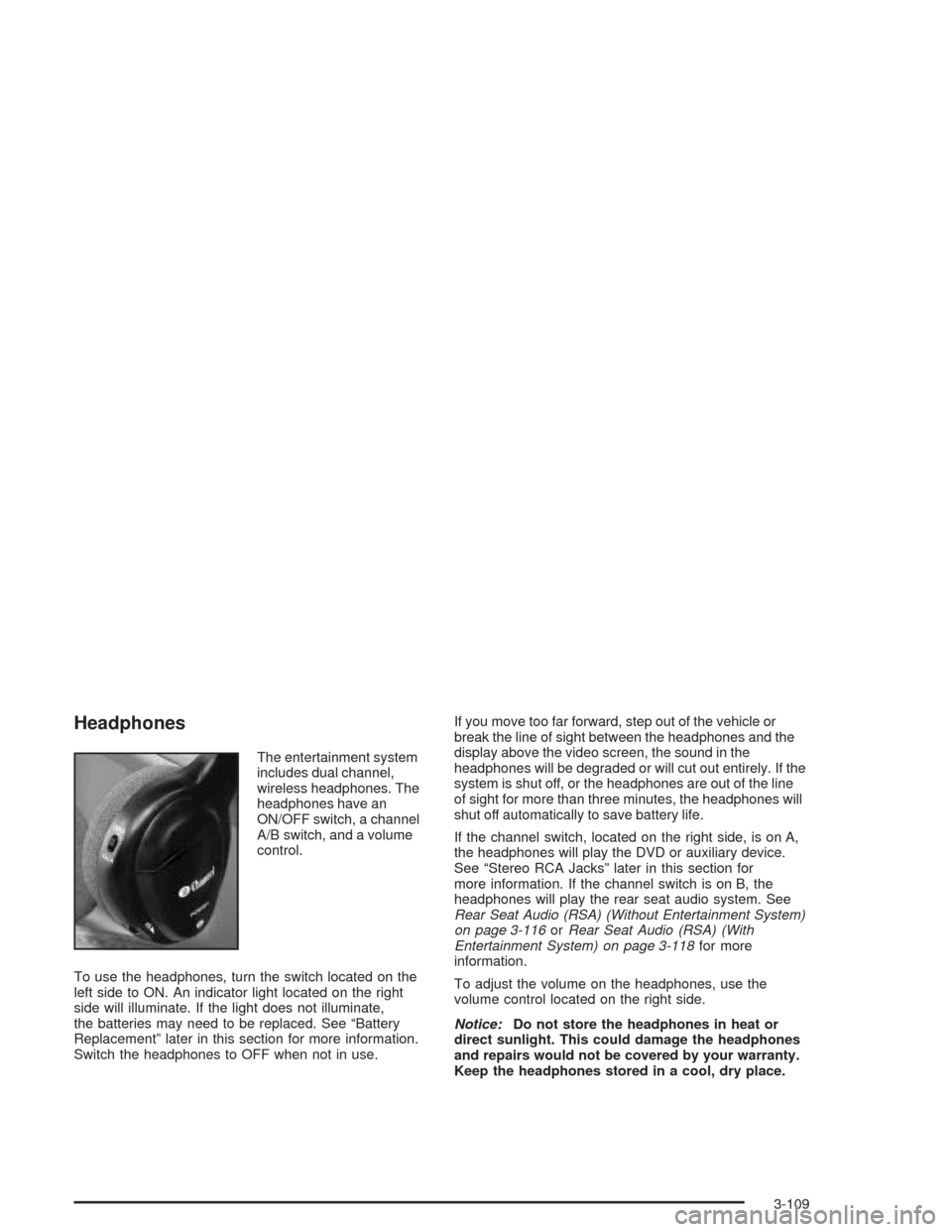
The entertainment system
includes dual channel,
wireless headphones. The
headphones have an
ON/OFF switch, a channel
A/B switch, and a volume
control.
To use the headphones, turn the switch located on the
left side to ON. An indicator light located on the right
side will illuminate. If the light does not illuminate,
the batteries may need to be replaced. See “Battery
Replacement” later in this section for more information.
Switch the headphones to OFF when not in use.If you move too far forward, step out of the vehicle or
break the line of sight between the headphones and the
display above the video screen, the sound in the
headphones will be degraded or will cut out entirely. If the
system is shut off, or the headphones are out of the line
of sight for more than three minutes, the headphones will
shut off automatically to save battery life.
If the channel switch, located on the right side, is on A,
the headphones will play the DVD or auxiliary device.
See “Stereo RCA Jacks” later in this section for
more information. If the channel switch is on B, the
headphones will play the rear seat audio system. See
Rear Seat Audio (RSA) (Without Entertainment System)
on page 3-116orRear Seat Audio (RSA) (With
Entertainment System) on page 3-118for more
information.
To adjust the volume on the headphones, use the
volume control located on the right side.
Notice:Do not store the headphones in heat or
direct sunlight. This could damage the headphones
and repairs would not be covered by your warranty.
Keep the headphones stored in a cool, dry place.
3-109
Page 292 of 516
Battery Replacement
To change the batteries, do the following:
1. Slide open the battery door located on the left side
of the headphones.
2. Replace the two AAA batteries in the compartment.
Make sure that they are installed correctly.
3. Slide the battery door shut.
If the headphones are to be stored for a long period of
time, remove the batteries and keep them in a cool,
dry place.
Stereo RCA Jacks
The RCA jacks are located on the DVD player faceplate.
They allow audio and video signals to be connected
from an auxiliary device such as a camcorder or a video
game unit. Adapter connectors or cables, not included,
may be required to connect the auxiliary device to
the RCA jacks. Refer to the manufacturer’s instructions
for proper usage.To use the auxiliary function, connect a camcorder or a
video game unit to the RCA jacks and turn on the
auxiliary device. If you want to view a DVD, insert the
DVD into the DVD player. The system will automatically
switch to DVD and start to play. To switch between
the auxiliary device and the DVD, press the SOURCE
button on the DVD player or on the remote control. See
“DVD Player” and “Remote Control” later in this
section for more information.
Audio Speakers
Only one audio source can be heard through the
speakers at one time.
Audio from the radio or CD player will be heard through
all speakers when the front audio system is being
used and the rear seat audio system is off.
Sound from the DVD player or an auxiliary device can
be heard through all speakers when the front audio
system and rear seat audio are off and a DVD or
auxiliary device is playing.
To hear the DVD, auxiliary device, or rear seat audio
system while the front audio system is on, use the
headphones. While the rear seat audio system is on,
the rear speakers will be muted.
3-110
Page 294 of 516
DVD Player
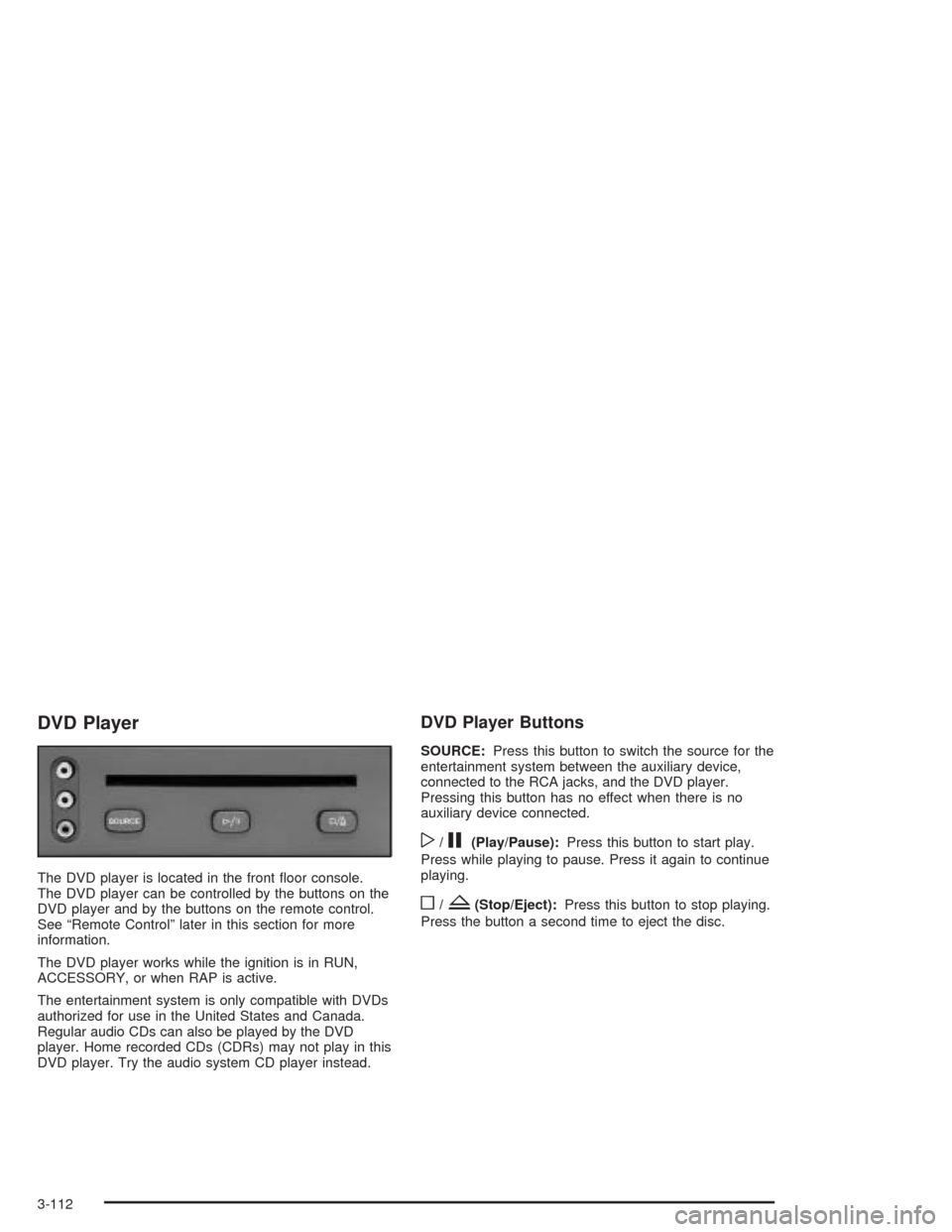
The DVD player is located in the front oor console.
The DVD player can be controlled by the buttons on the
DVD player and by the buttons on the remote control.
See “Remote Control” later in this section for more
information.
The DVD player works while the ignition is in RUN,
ACCESSORY, or when RAP is active.
The entertainment system is only compatible with DVDs
authorized for use in the United States and Canada.
Regular audio CDs can also be played by the DVD
player. Home recorded CDs (CDRs) may not play in this
DVD player. Try the audio system CD player instead.
DVD Player Buttons
SOURCE:Press this button to switch the source for the
entertainment system between the auxiliary device,
connected to the RCA jacks, and the DVD player.
Pressing this button has no effect when there is no
auxiliary device connected.
w/j(Play/Pause):Press this button to start play.
Press while playing to pause. Press it again to continue
playing.
o/Z(Stop/Eject):Press this button to stop playing.
Press the button a second time to eject the disc.
3-112
Page 296 of 516
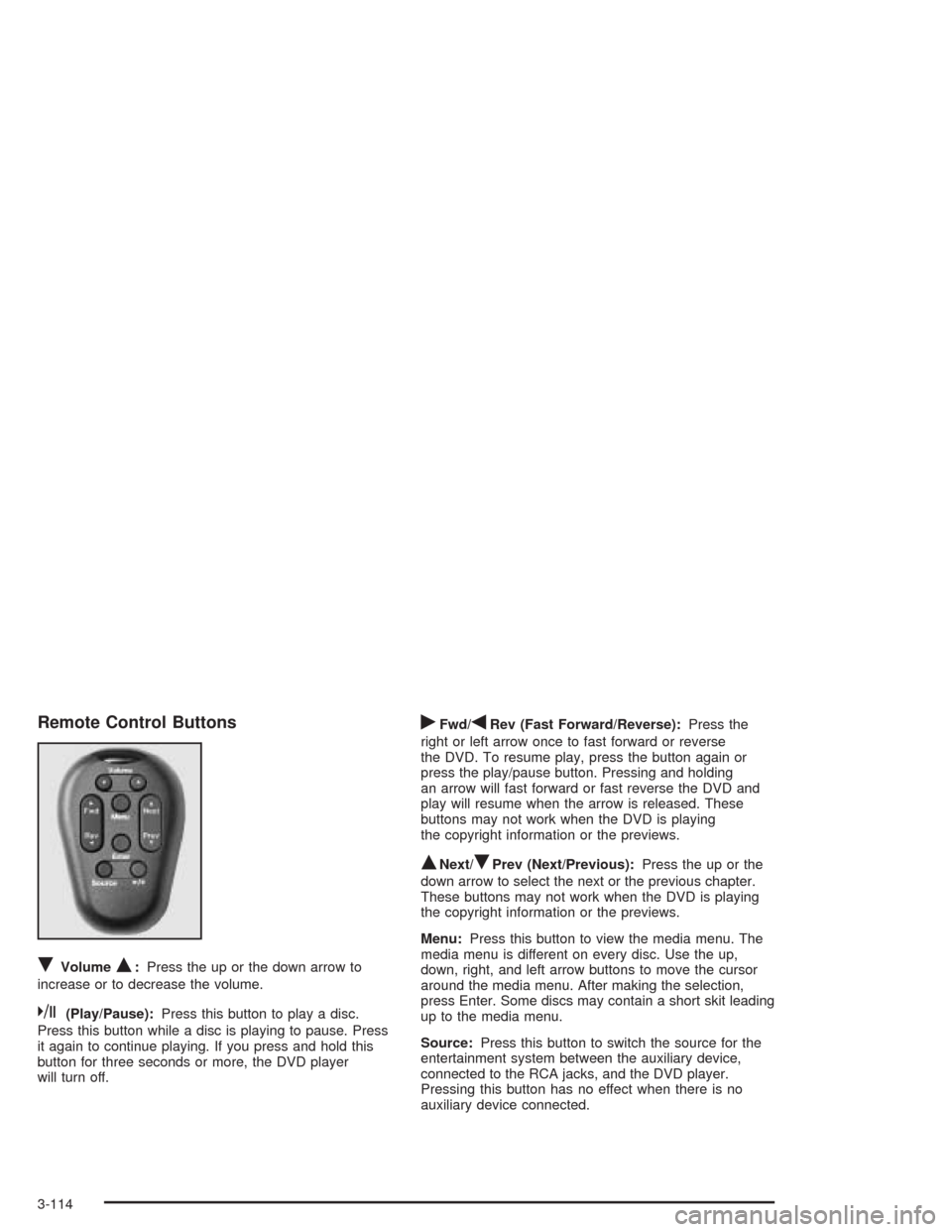
Remote Control Buttons
RVolumeQ:Press the up or the down arrow to
increase or to decrease the volume.
k(Play/Pause):Press this button to play a disc.
Press this button while a disc is playing to pause. Press
it again to continue playing. If you press and hold this
button for three seconds or more, the DVD player
will turn off.
rFwd/qRev (Fast Forward/Reverse):Press the
right or left arrow once to fast forward or reverse
the DVD. To resume play, press the button again or
press the play/pause button. Pressing and holding
an arrow will fast forward or fast reverse the DVD and
play will resume when the arrow is released. These
buttons may not work when the DVD is playing
the copyright information or the previews.
QNext/RPrev (Next/Previous):Press the up or the
down arrow to select the next or the previous chapter.
These buttons may not work when the DVD is playing
the copyright information or the previews.
Menu:Press this button to view the media menu. The
media menu is different on every disc. Use the up,
down, right, and left arrow buttons to move the cursor
around the media menu. After making the selection,
press Enter. Some discs may contain a short skit leading
up to the media menu.
Source:Press this button to switch the source for the
entertainment system between the auxiliary device,
connected to the RCA jacks, and the DVD player.
Pressing this button has no effect when there is no
auxiliary device connected.
3-114
Page 300 of 516
Rear Seat Audio (RSA)
(With Entertainment System)
This feature allows rear seat passengers to listen to and
control any of the sources: radio, CDs, DVD, and
auxiliary device. However, the rear seat passengers can
only control the sources that the front seat passengers
are not listening to. For example, rear seat passengers
may listen to and control a CD through headphones
while the driver listens to the radio through the
front speakers. The rear seat passengers have control
of the volume for each set of headphones.
The front seat audio controls always have priority over
the RSA controls. If the front seat passengers switch
the source for the main radio to a remote source,
the RSA will not be able to control the remote source.
You can operate the RSA when the main radio is off.
The DVD or auxiliary device will always be available on
channel A of the headphones. All other sources are
available on channel B. You will not be able to listen to
XM, on channel B, if you are listening to a DVD or
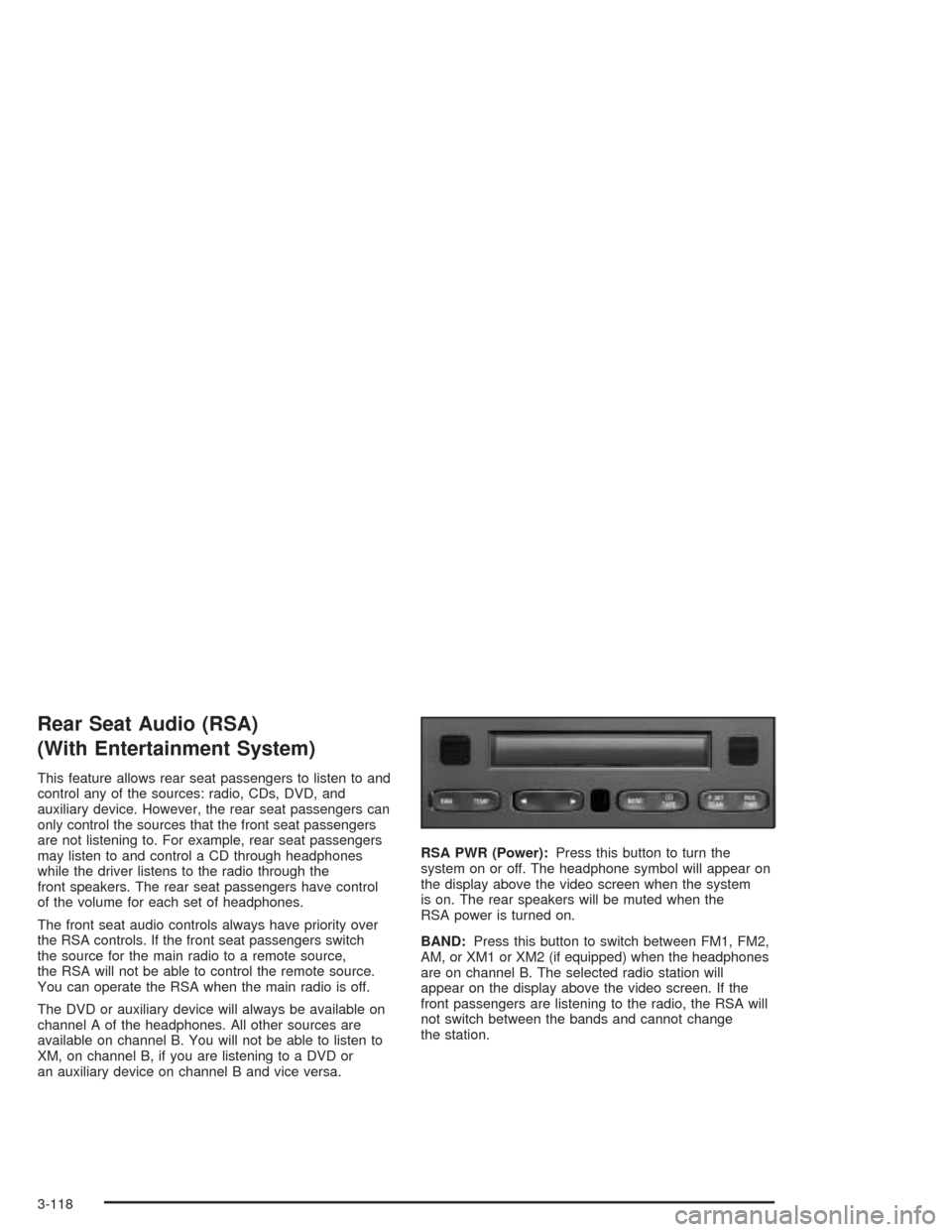
an auxiliary device on channel B and vice versa.RSA PWR (Power):Press this button to turn the
system on or off. The headphone symbol will appear on
the display above the video screen when the system
is on. The rear speakers will be muted when the
RSA power is turned on.
BAND:Press this button to switch between FM1, FM2,
AM, or XM1 or XM2 (if equipped) when the headphones
are on channel B. The selected radio station will
appear on the display above the video screen. If the
front passengers are listening to the radio, the RSA will
not switch between the bands and cannot change
the station.
3-118