stop start CHEVROLET VENTURE 2005 1.G User Guide
[x] Cancel search | Manufacturer: CHEVROLET, Model Year: 2005, Model line: VENTURE, Model: CHEVROLET VENTURE 2005 1.GPages: 470, PDF Size: 2.76 MB
Page 238 of 470
4 FWD (Forward):Press and hold this pushbutton to
advance quickly within a track. Press and hold this
pushbutton for less than two seconds to advance at
six times the normal playing speed. Press and hold it for
more than two seconds to advance at 17 times the
normal playing speed. Release this pushbutton to play
the passage. ET and the elapsed time of the track
will appear on the display.
6 RDM (Random):Press this pushbutton to hear the
tracks in random, rather than sequential, order. RDM ON
will appear on the display. RDM T and the track
number will appear on the display when each track
starts to play. Press RDM again to turn off random play.
RDM OFF will appear on the display.
oSEEKp:Press the left arrow to go to the start of
the current or the previous track. Press the right arrow to
go to the start of the next track. Pressing either arrow for
more than two seconds will search the previous or next
tracks at two tracks per second. Release the button to
stop searching and to play the track.
TUNE:Turning the TUNE knob will fast track reverse or
advance through tracks. The track number will appear
on the display for each track.DISPL (Display):Press this knob to see how long the
current track has been playing. ET and the elapsed time
of the track will appear on the display. To change the
default on the display, track or elapsed time, press this
knob until you see the display you want, then hold the
knob for two seconds. The radio will produce one beep
and the selected display will now be the default.
BAND:Press this button to listen to the radio when a
CD is playing. The inactive CD will remain safely
inside the radio for future listening.
CD AUX (Auxiliary):Press this button to play a CD
when listening to the radio. The CD symbol will appear
on the display when a CD is loaded.ZEJT (Eject):Press this button to eject a CD. Eject
may be activated with either the ignition or radio off.
CDs may be loaded with the ignition and radio off if this
button is pressed rst.
3-78
Page 241 of 470
If the ignition or radio is turned off with a CD in the
player it will stay in the player. When the ignition or radio
is turned on, the CD will start to play where it stopped,
if it was the last selected audio source.
As each new track starts to play, the track number will
appear on the display.
The CD player can play the smaller 3 inch (8 cm)
single CDs with an adapter ring. Full-size CDs and the
smaller CDs are loaded in the same manner.
If playing a CD-R the sound quality may be reduced
due to CD-R quality, the method of recording, the quality
of the music that has been recorded, and the way the
CD-R has been handled. There may be an increase
in skipping, difficulty in nding tracks, and/or difficulty in
loading and ejecting. If these problems occur try a
known good CD.
Do not add paper labels to CDs, they could get caught
in the CD player.
If an error appears on the display, see “CD Messages”
later in this section.1 FLDx(Previous Folder): Press this pushbutton to
go to the rst track in the previous folder. Pressing this
button while in folder random mode will take you to
the previous folder and random the tracks in that folder.
2 FLD
w(Next Folder):Press this pushbutton to go
to the rst track in the next folder. Pressing this
button while in folder random mode will take you to the
next folder and random the tracks in that folder.
3 REV (Reverse):Press and hold this pushbutton to
reverse quickly within a track. Press and hold this
pushbutton for less than two seconds to reverse at
10 times the normal playing speed. Press and hold it for
more than two seconds to reverse at 20 times the
normal playing speed. Release this pushbutton to play
the passage. REV and the elapsed time of the track
will appear on the display.
4 FWD (Forward):Press and hold this pushbutton to
advance quickly within a track. Press and hold this
pushbutton for less than two seconds to advance at
10 times the normal playing speed. Press and hold it for
more than two seconds to advance at 20 times the
normal playing speed. Release this pushbutton to play
the passage. FWD and the elapsed time of the track
will appear on the display.
3-81
Page 242 of 470
6 RDM (Random):To random the tracks in the current
folder or playlist, press and release this pushbutton.
FLDR RDM will appear on the display. Once all of the
tracks in the current folder or playlist have been
played the system will move on to the next folder or
playlist and play all of the tracks in random order.
To random all the tracks on the CD, press and hold this
pushbutton for two seconds. You will hear a beep
and CD RDM will appear on the display. This feature
will not work with playlists.
When in random, pressing and releasing either SEEK
arrow will take you to the next or previous random track.
Press and release this pushbutton again to turn off
random play. NO RDM will appear on the display.
oSEEKp:Press the left arrow to go to the start of
the previous track. Press the right arrow to go to the
start of the next track. Pressing either arrow for
more than two seconds will search the previous or next
tracks at two tracks per second. Release the button
to stop searching and to play the track.TUNE:Turning the TUNE knob will fast track reverse or
advance through the tracks in all folders or playlists.
The track number and le name will appear on the
display for each track. Turning this knob while in random
will fast track reverse or advance the tracks in
sequential order.
DISPL (Display):Press this knob to switch between
track mode, folder/playlist mode, and time of day mode.
The display will show only eight characters, but there
can be up to four pages of text. If there are more
than eight characters in the song, folder, or playlist
name, pressing this knob within two seconds will take
you to the next page of text. If there are no other pages
to be shown, pressing this knob within two seconds
will take you to the next display mode.Track mode will display the current track number
and the ID3 tag song name.
Folder/playlist mode will display the current folder or
playlist number and the folder/playlist name.
Time of day mode will display the time of day and
the ID3 tag song name.
To change the default on the display, press the DISPL
knob until you see the display you want, then hold
this knob for two seconds. The radio will produce
one beep and the selected display will now be the
default.
3-82
Page 252 of 470
Playing a CD
Insert a CD partway into the slot, label side up. The
player will pull it in, READING will appear on the display,
and the CD should begin playing. If you want to insert
a CD with the ignition off, rst press the EJT button
or the DISPL knob.
If the ignition or radio is turned off with the CD in the
player, it will stay in the player. When the ignition
or radio is turned on, the CD will start playing where it
stopped, if it was the last selected audio source.
When a CD is inserted, the CD symbol will appear on
the display. As each new track starts to play, the
track number will appear on the display.
The CD player can play the smaller 3 inch (8 cm)
single CDs with an adapter ring. Full-size CDs and the
smaller CDs are loaded in the same manner.
If playing a CD-R the sound quality may be reduced
due to CD-R quality, the method of recording, the quality
of the music that has been recorded, and the way the
CD-R has been handled. There may be an increase
in skipping, difficulty in nding tracks, and/or difficulty in
loading and ejecting. If these problems occur try a
known good CD.Do not add paper labels to CDs, they could get caught
in the CD player.
If an error appears on the display, see “CD Messages”
later in this section.
1 PREV (Previous):Press this pushbutton to go to the
start of the current track if more than eight seconds
have played. TRACK and the track number will appear
on the display. If this pushbutton is held or pressed
more than once, the player will continue moving
backward through the CD.
2 NEXT:Press this pushbutton to go to the next track.
TRACK and the track number will appear on the
display. If this pushbutton is held or pressed more than
once, the player will continue moving forward through
the CD.
3 REV (Reverse):Press and hold this pushbutton to
reverse quickly within a track. Press and hold this
pushbutton for less than two seconds to reverse at
six times the normal playing speed. Press and hold it for
more than two seconds to reverse at 17 times the
normal playing speed. Release this pushbutton to play
the passage. ET and the elapsed time of the track
will appear on the display.
3-92
Page 263 of 470
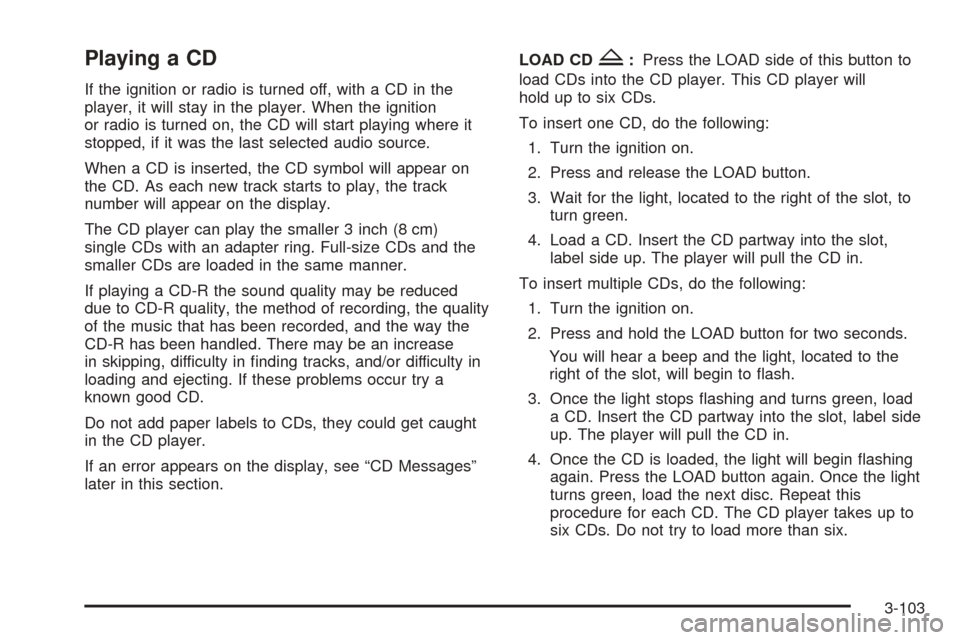
Playing a CD
If the ignition or radio is turned off, with a CD in the
player, it will stay in the player. When the ignition
or radio is turned on, the CD will start playing where it
stopped, if it was the last selected audio source.
When a CD is inserted, the CD symbol will appear on
the CD. As each new track starts to play, the track
number will appear on the display.
The CD player can play the smaller 3 inch (8 cm)
single CDs with an adapter ring. Full-size CDs and the
smaller CDs are loaded in the same manner.
If playing a CD-R the sound quality may be reduced
due to CD-R quality, the method of recording, the quality
of the music that has been recorded, and the way the
CD-R has been handled. There may be an increase
in skipping, difficulty in nding tracks, and/or difficulty in
loading and ejecting. If these problems occur try a
known good CD.
Do not add paper labels to CDs, they could get caught
in the CD player.
If an error appears on the display, see “CD Messages”
later in this section.LOAD CD
Z:Press the LOAD side of this button to
load CDs into the CD player. This CD player will
hold up to six CDs.
To insert one CD, do the following:
1. Turn the ignition on.
2. Press and release the LOAD button.
3. Wait for the light, located to the right of the slot, to
turn green.
4. Load a CD. Insert the CD partway into the slot,
label side up. The player will pull the CD in.
To insert multiple CDs, do the following:
1. Turn the ignition on.
2. Press and hold the LOAD button for two seconds.
You will hear a beep and the light, located to the
right of the slot, will begin to ash.
3. Once the light stops ashing and turns green, load
a CD. Insert the CD partway into the slot, label side
up. The player will pull the CD in.
4. Once the CD is loaded, the light will begin ashing
again. Press the LOAD button again. Once the light
turns green, load the next disc. Repeat this
procedure for each CD. The CD player takes up to
six CDs. Do not try to load more than six.
3-103
Page 265 of 470
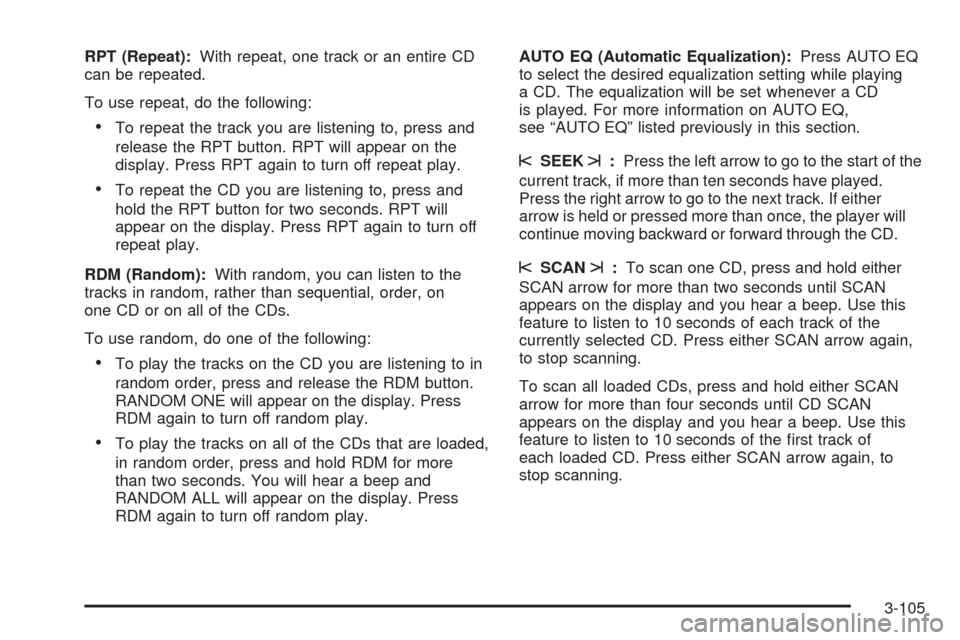
RPT (Repeat):With repeat, one track or an entire CD
can be repeated.
To use repeat, do the following:
To repeat the track you are listening to, press and
release the RPT button. RPT will appear on the
display. Press RPT again to turn off repeat play.
To repeat the CD you are listening to, press and
hold the RPT button for two seconds. RPT will
appear on the display. Press RPT again to turn off
repeat play.
RDM (Random):With random, you can listen to the
tracks in random, rather than sequential, order, on
one CD or on all of the CDs.
To use random, do one of the following:
To play the tracks on the CD you are listening to in
random order, press and release the RDM button.
RANDOM ONE will appear on the display. Press
RDM again to turn off random play.
To play the tracks on all of the CDs that are loaded,
in random order, press and hold RDM for more
than two seconds. You will hear a beep and
RANDOM ALL will appear on the display. Press
RDM again to turn off random play.AUTO EQ (Automatic Equalization):Press AUTO EQ
to select the desired equalization setting while playing
a CD. The equalization will be set whenever a CD
is played. For more information on AUTO EQ,
see “AUTO EQ” listed previously in this section.
sSEEKt:Press the left arrow to go to the start of the
current track, if more than ten seconds have played.
Press the right arrow to go to the next track. If either
arrow is held or pressed more than once, the player will
continue moving backward or forward through the CD.
sSCANt:To scan one CD, press and hold either
SCAN arrow for more than two seconds until SCAN
appears on the display and you hear a beep. Use this
feature to listen to 10 seconds of each track of the
currently selected CD. Press either SCAN arrow again,
to stop scanning.
To scan all loaded CDs, press and hold either SCAN
arrow for more than four seconds until CD SCAN
appears on the display and you hear a beep. Use this
feature to listen to 10 seconds of the rst track of
each loaded CD. Press either SCAN arrow again, to
stop scanning.
3-105
Page 271 of 470
If a DVD is playing and the screen is raised to its locked
position, the screen will shut off, but the DVD will
continue to play through the previously selected audio
source.
Notice:Directly touching the video screen may
damage it. Do not touch the screen. See “Cleaning
the Video Screen” later in this section for more
information.
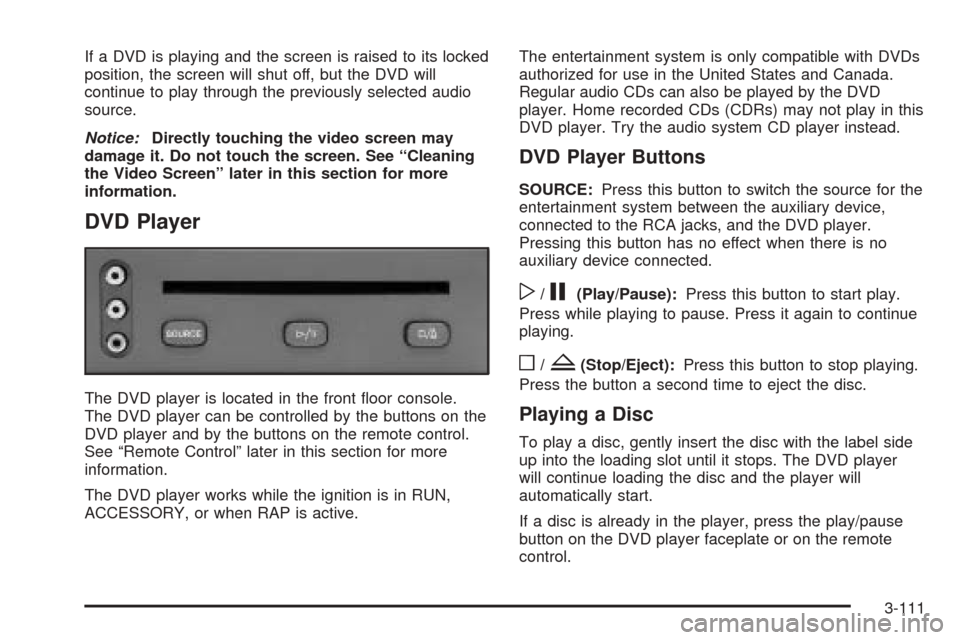
DVD Player
The DVD player is located in the front oor console.
The DVD player can be controlled by the buttons on the
DVD player and by the buttons on the remote control.
See “Remote Control” later in this section for more
information.
The DVD player works while the ignition is in RUN,
ACCESSORY, or when RAP is active.The entertainment system is only compatible with DVDs
authorized for use in the United States and Canada.
Regular audio CDs can also be played by the DVD
player. Home recorded CDs (CDRs) may not play in this
DVD player. Try the audio system CD player instead.
DVD Player Buttons
SOURCE:Press this button to switch the source for the
entertainment system between the auxiliary device,
connected to the RCA jacks, and the DVD player.
Pressing this button has no effect when there is no
auxiliary device connected.
w/j(Play/Pause):Press this button to start play.
Press while playing to pause. Press it again to continue
playing.
o/Z(Stop/Eject):Press this button to stop playing.
Press the button a second time to eject the disc.
Playing a Disc
To play a disc, gently insert the disc with the label side
up into the loading slot until it stops. The DVD player
will continue loading the disc and the player will
automatically start.
If a disc is already in the player, press the play/pause
button on the DVD player faceplate or on the remote
control.
3-111
Page 272 of 470
Some DVDs will not allow fast forwarding or skipping of
the copyright information or the previews. Some
DVDs will begin playing the movie automatically after
the previews have nished, there may be a delay of up
to 30 seconds. If the DVD does not begin playing
the movie automatically, press the play/pause button on
the DVD player faceplate or the remote control. If the
DVD still does not play, refer to the on-screen
instructions.
Stopping and Resuming Playback
To stop playing a disc, press the stop/eject button on
the DVD player.
To resume playback, press the play/pause button. The
movie will start playing from where it was last stopped
if the disc has not been ejected. If the disc has
been ejected, the player will start playing at the
beginning.
Ejecting a Disc
Press the stop/eject button on the DVD player once to
stop and a second time to eject the disc.
If a disc is ejected from the player, but not removed,
the DVD player will reload the disc after a short
period of time.
Remote Control
To use the remote control, aim it at the display above
the video screen and press the desired button.
Direct sunlight or very bright light may affect the ability
of the entertainment system to receive signals from
the remote control. Be sure the remote’s batteries are
not discharged, as this will also affect the function of the
remote control. Objects blocking the line of sight may
also affect the function of the remote control.
Notice:Storing the remote control in a hot area or
in direct sunlight may damage it, and the repairs
would not be covered by your warranty. Keep
the remote control stored in a cool, dry place.
3-112
Page 275 of 470
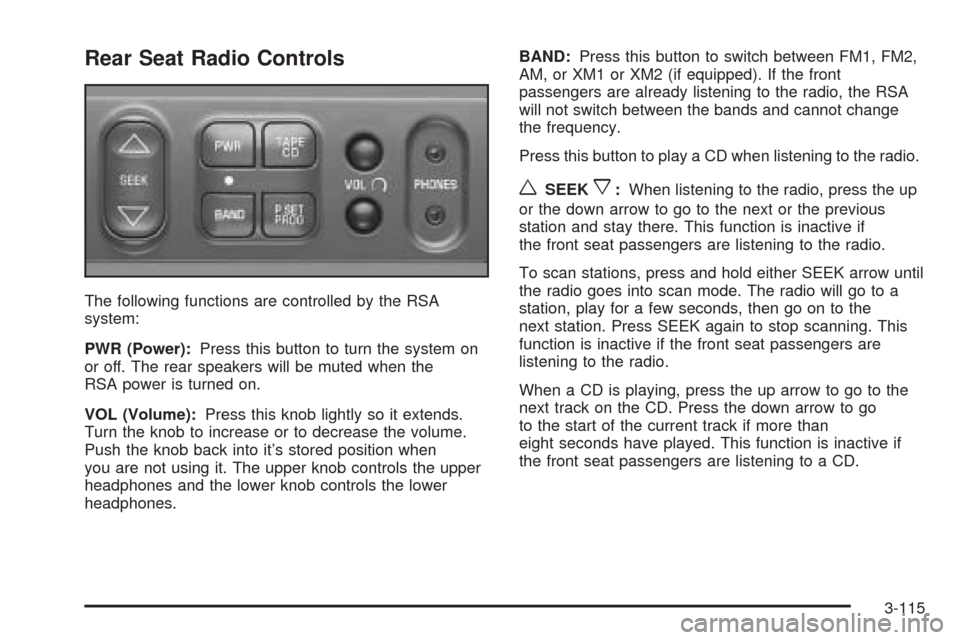
Rear Seat Radio Controls
The following functions are controlled by the RSA
system:
PWR (Power):Press this button to turn the system on
or off. The rear speakers will be muted when the
RSA power is turned on.
VOL (Volume):Press this knob lightly so it extends.
Turn the knob to increase or to decrease the volume.
Push the knob back into it’s stored position when
you are not using it. The upper knob controls the upper
headphones and the lower knob controls the lower
headphones.BAND:Press this button to switch between FM1, FM2,
AM, or XM1 or XM2 (if equipped). If the front
passengers are already listening to the radio, the RSA
will not switch between the bands and cannot change
the frequency.
Press this button to play a CD when listening to the radio.
wSEEKx:When listening to the radio, press the up
or the down arrow to go to the next or the previous
station and stay there. This function is inactive if
the front seat passengers are listening to the radio.
To scan stations, press and hold either SEEK arrow until
the radio goes into scan mode. The radio will go to a
station, play for a few seconds, then go on to the
next station. Press SEEK again to stop scanning. This
function is inactive if the front seat passengers are
listening to the radio.
When a CD is playing, press the up arrow to go to the
next track on the CD. Press the down arrow to go
to the start of the current track if more than
eight seconds have played. This function is inactive if
the front seat passengers are listening to a CD.
3-115
Page 277 of 470
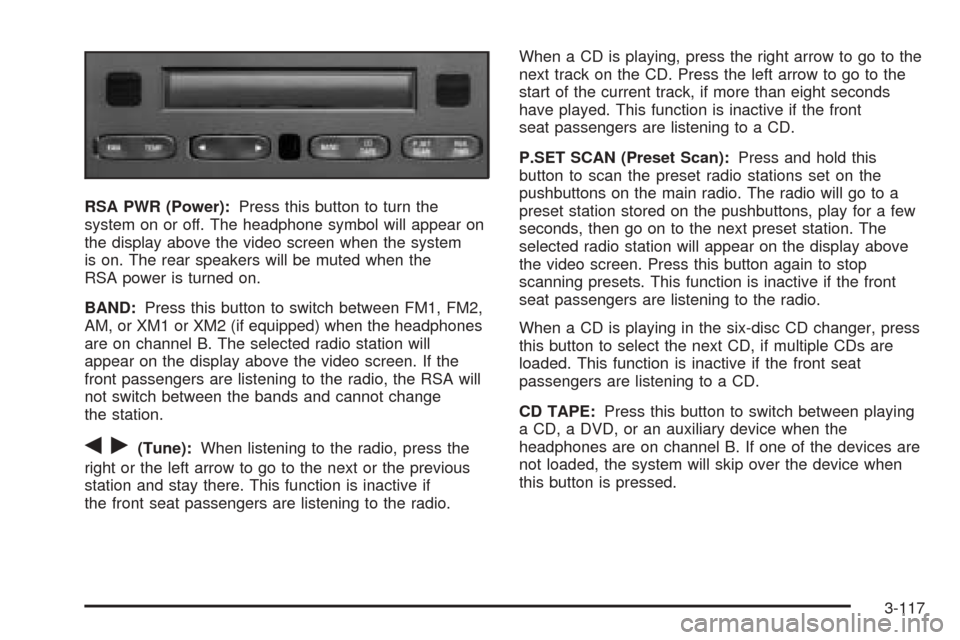
RSA PWR (Power):Press this button to turn the
system on or off. The headphone symbol will appear on
the display above the video screen when the system
is on. The rear speakers will be muted when the
RSA power is turned on.
BAND:Press this button to switch between FM1, FM2,
AM, or XM1 or XM2 (if equipped) when the headphones
are on channel B. The selected radio station will
appear on the display above the video screen. If the
front passengers are listening to the radio, the RSA will
not switch between the bands and cannot change
the station.
qr(Tune):When listening to the radio, press the
right or the left arrow to go to the next or the previous
station and stay there. This function is inactive if
the front seat passengers are listening to the radio.When a CD is playing, press the right arrow to go to the
next track on the CD. Press the left arrow to go to the
start of the current track, if more than eight seconds
have played. This function is inactive if the front
seat passengers are listening to a CD.
P.SET SCAN (Preset Scan):Press and hold this
button to scan the preset radio stations set on the
pushbuttons on the main radio. The radio will go to a
preset station stored on the pushbuttons, play for a few
seconds, then go on to the next preset station. The
selected radio station will appear on the display above
the video screen. Press this button again to stop
scanning presets. This function is inactive if the front
seat passengers are listening to the radio.
When a CD is playing in the six-disc CD changer, press
this button to select the next CD, if multiple CDs are
loaded. This function is inactive if the front seat
passengers are listening to a CD.
CD TAPE:Press this button to switch between playing
a CD, a DVD, or an auxiliary device when the
headphones are on channel B. If one of the devices are
not loaded, the system will skip over the device when
this button is pressed.
3-117