reset CHEVROLET VOLT 2011 Owner's Guide
[x] Cancel search | Manufacturer: CHEVROLET, Model Year: 2011, Model line: VOLT, Model: CHEVROLET VOLT 2011Pages: 516, PDF Size: 6.61 MB
Page 242 of 516
Black plate (52,1)Chevrolet Volt Owner Manual - 2011
7-52 Infotainment System
Cross Street Name:Enter a street
name that intersects with the
selected street.
A checkmark displays on the
right side when the field has been
selected and the destination can
be entered. After an entry step is
completed, the checkmark moves
to the next item.
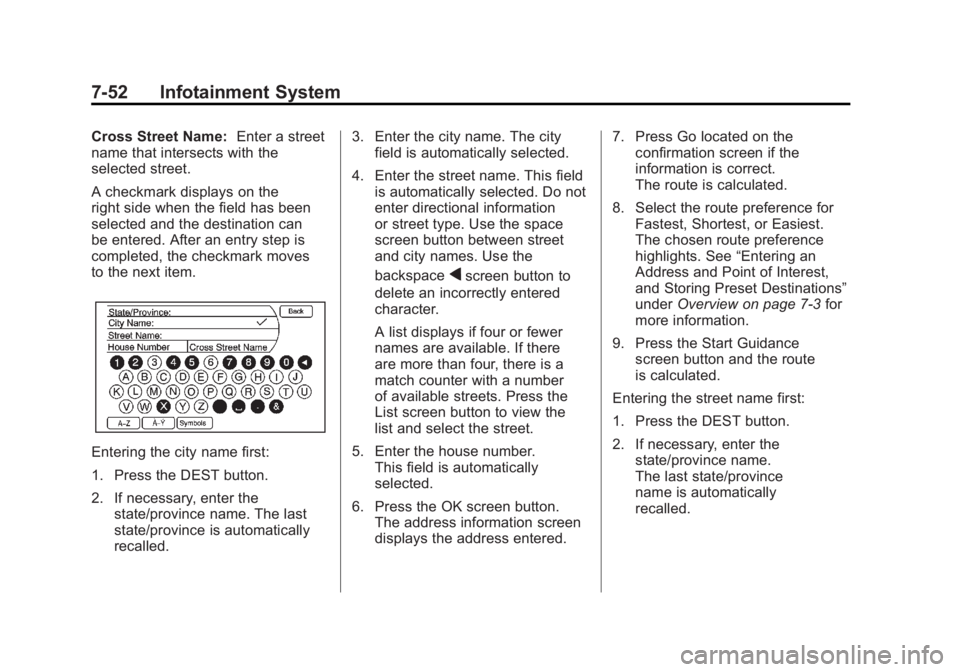
Entering the city name first:
1. Press the DEST button.
2. If necessary, enter the
state/province name. The last
state/province is automatically
recalled. 3. Enter the city name. The city
field is automatically selected.
4. Enter the street name. This field is automatically selected. Do not
enter directional information
or street type. Use the space
screen button between street
and city names. Use the
backspace
qscreen button to
delete an incorrectly entered
character.
A list displays if four or fewer
names are available. If there
are more than four, there is a
match counter with a number
of available streets. Press the
List screen button to view the
list and select the street.
5. Enter the house number. This field is automatically
selected.
6. Press the OK screen button. The address information screen
displays the address entered. 7. Press Go located on the
confirmation screen if the
information is correct.
The route is calculated.
8. Select the route preference for Fastest, Shortest, or Easiest.
The chosen route preference
highlights. See “Entering an
Address and Point of Interest,
and Storing Preset Destinations”
under Overview on page 7‑3 for
more information.
9. Press the Start Guidance screen button and the route
is calculated.
Entering the street name first:
1. Press the DEST button.
2. If necessary, enter the state/province name.
The last state/province
name is automatically
recalled.
Page 243 of 516
Black plate (53,1)Chevrolet Volt Owner Manual - 2011
Infotainment System 7-53
3. Select the street name field.Enter the street name. Do not
enter directional information
or street type. Use the space
screen button between street
and city names. Use the
backspace
qscreen button to
delete an incorrect character.
A list displays if four or fewer
names are available. If there
are more than four, there is a
match counter with a number
of available streets. Press the
List screen button to view the
list and select the street.
4. Select the city from the list or enter the city name.
5. Enter the house number. This field is automatically
selected.
6. Press the OK screen button. 7. Press Go located on the
confirmation screen if the
information is correct.
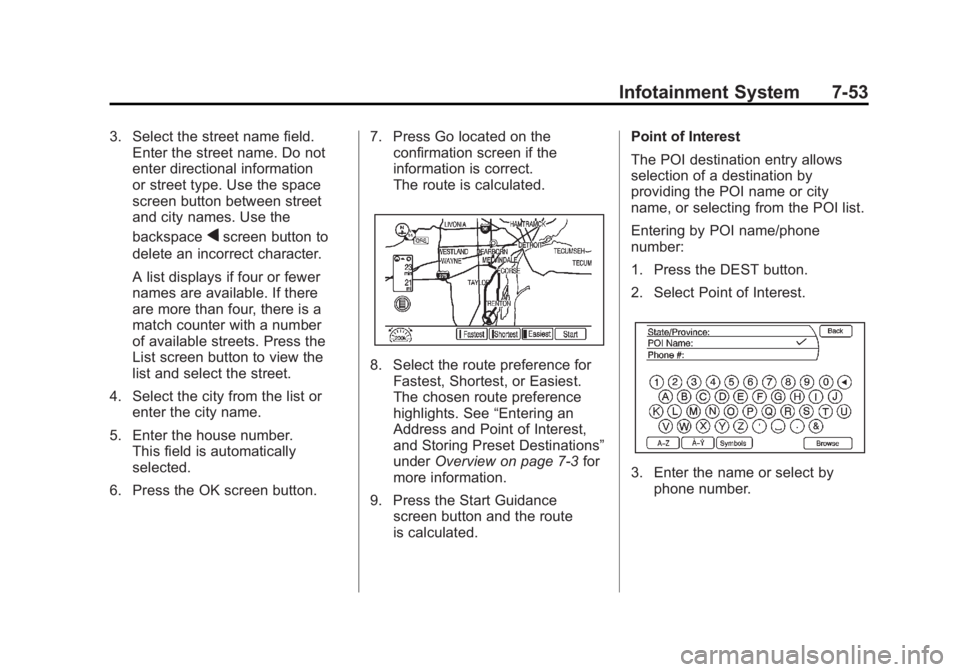
The route is calculated.
8. Select the route preference for
Fastest, Shortest, or Easiest.
The chosen route preference
highlights. See “Entering an
Address and Point of Interest,
and Storing Preset Destinations”
under Overview on page 7‑3 for
more information.
9. Press the Start Guidance screen button and the route
is calculated. Point of Interest
The POI destination entry allows
selection of a destination by
providing the POI name or city
name, or selecting from the POI list.
Entering by POI name/phone
number:
1. Press the DEST button.
2. Select Point of Interest.
3. Enter the name or select by
phone number.
Page 245 of 516
Black plate (55,1)Chevrolet Volt Owner Manual - 2011
Infotainment System 7-55
Previous Destination
Select a destination from a list
of previous destinations. Up to
15 points that have been previously
entered can be recalled. If the list
is full, the oldest destinations are
automatically deleted once the
newest destinations are added.
1. Press the DEST button.
2. Press Previous Destination.A list displays the previous
destinations.
3. Select the destination. 4. Press Go located on the
confirmation screen if the
information is correct.
The route is calculated.
5. Select the route preference for Fastest, Shortest, or Easiest.
See “Entering an Address and
Point of Interest, and Storing
Preset Destinations” under
Overview on page 7‑3 for
more information.
6. Press the Start Guidance screen button and start the route.
Address Book
Choose a destination by selecting
an address that has been stored in
the address book.
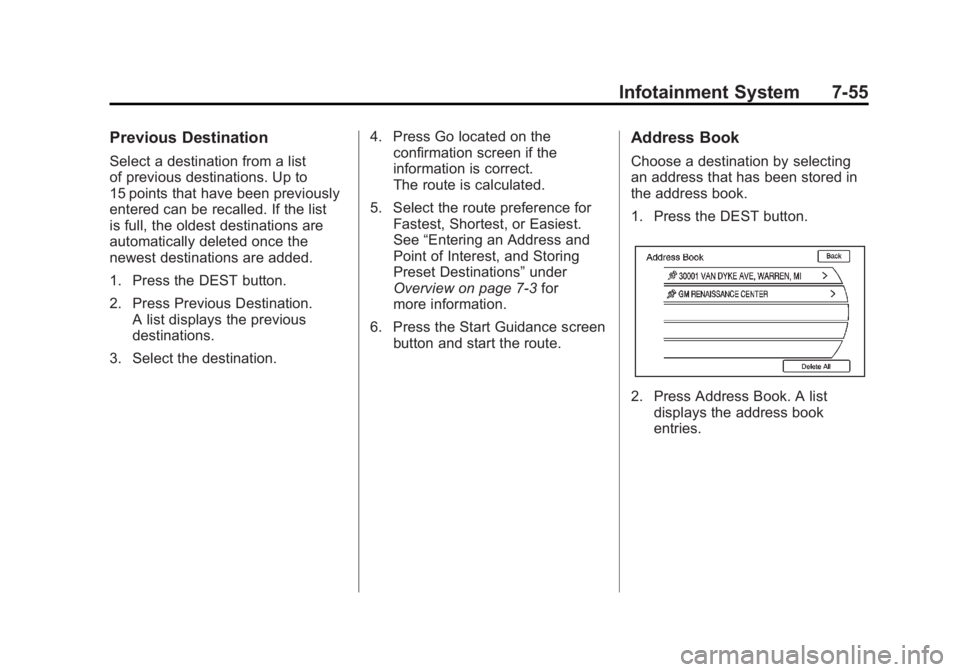
1. Press the DEST button.
2. Press Address Book. A list
displays the address book
entries.
Page 246 of 516
Black plate (56,1)Chevrolet Volt Owner Manual - 2011
7-56 Infotainment System
3. Select the destination fromthe list.
4. Press Go on the confirmation screen if the information is
correct. The route calculates.
5. Select the route preference for Fastest, Shortest, or Easiest.
See “Entering an Address and
Point of Interest, and Storing
Preset Destinations” under
Overview on page 7‑3 for
more information.
6. Press the Start Guidance screen button and start the route.
Pick From Map
Select a destination by scrolling on
the map.
1. Press the DEST button.
2. Press the Pick From Map screenbutton. A map screen with a
scroll symbol displays. 3. Press the Zoom in/out arrow
key on the screen and press the
map to locate the destination to
select. Press and hold a finger
on the map to activate fast
scrolling.
4. Press Go on the confirmation screen if the information is
correct. The route calculates.
5. Select the route preference for Fastest, Shortest, or Easiest.
See “Entering an Address and
Point of Interest, and Storing
Preset Destinations” under
Overview on page 7‑3 for
more information.
6. Press the Start Guidance screen button and start the route.
Lat/Long Coordinates
Choose a destination based
on latitudinal and longitudinal
coordinates.
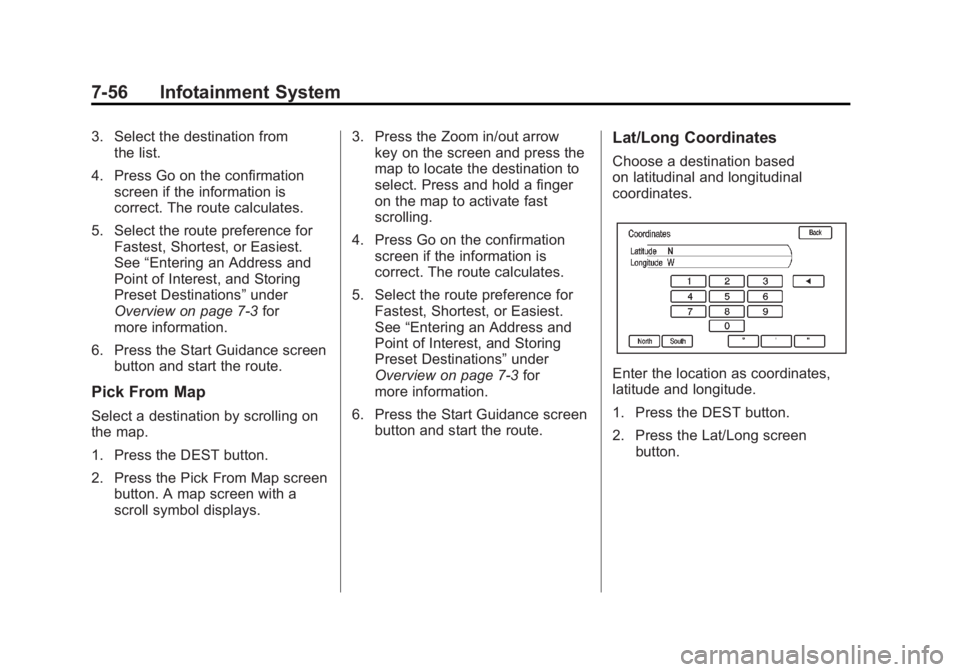
Enter the location as coordinates,
latitude and longitude.
1. Press the DEST button.
2. Press the Lat/Long screenbutton.
Page 247 of 516
Black plate (57,1)Chevrolet Volt Owner Manual - 2011
Infotainment System 7-57
3. Enter the coordinates for thedestination in degrees, minutes,
and seconds.
4. Press Go on the confirmation screen if the information is
correct. The route calculates.
5. Select the route preference for Fastest, Shortest, or Easiest.
See “Entering an Address and
Point of Interest, and Storing
Preset Destinations” under
Overview on page 7‑3 for
more information.
6. Press the Start Guidance screen button and start the route.
Preset Destinations
Set a destination by selecting
from one of six previously stored
destinations. If a destination is not
set for one of the screen buttons,
the button dims and is not available to use. See
“Entering an Address
and Point of Interest, and Storing
Preset Destinations” under
Overview on page 7‑3 for
more information.
1. Press the DEST button.
2. Select one of the available preset destination screen
buttons. The screen buttons
were stored with the name
selected. The route is
calculated.
3. Select the route preference for Fastest, Shortest, or Easiest.
See “Entering an Address and
Point of Interest, and Storing
Preset Destinations” under
Overview on page 7‑3 for
more information.
4. Press the Start Guidance screen button and start the route.
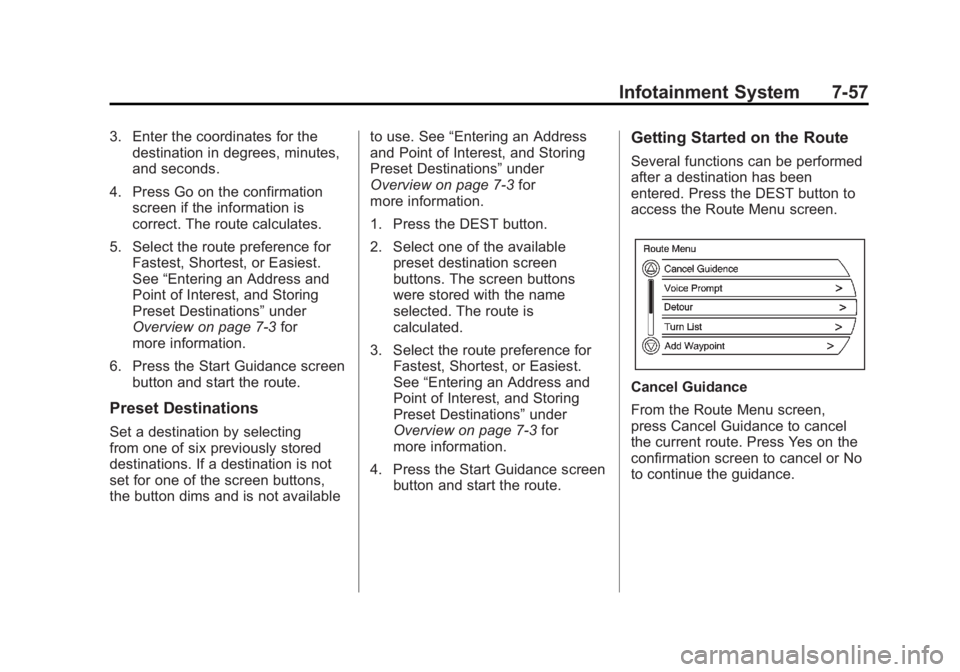
Getting Started on the Route
Several functions can be performed
after a destination has been
entered. Press the DEST button to
access the Route Menu screen.
Cancel Guidance
From the Route Menu screen,
press Cancel Guidance to cancel
the current route. Press Yes on the
confirmation screen to cancel or No
to continue the guidance.
Page 252 of 516
Black plate (62,1)Chevrolet Volt Owner Manual - 2011
7-62 Infotainment System
3. Select the address book entry tobe deleted.
4. Press the Delete Entry screen button. A confirmation message
displays.
To add a preset destination from the
address book:
1. Press the DEST button.
2. Press the Address Book screen button.
3. Select the address book entry to add as a preset. The Address
Book Information screen
displays.
4. Press Edit, located on the bottom of the screen.
5. Press and hold one of the six screen buttons at the bottom
of the screen until the text within
the button changes.
6. The name appears in that preset destination screen button and
can be selected from the Select
Destination screen.Favorite Route
1. After the route has beenplanned, press the NAV button
until the full map screen is
shown.
2. Press the TUNE/MENU knob. A menu displays.
3. Scroll down and select Whole Route. The whole route map
screen displays.
4. Press the Add Route screen button. The route is stored as
a favorite.
To change the route name, add a
voice tag, or delete a favorite route:
1. Press the DEST button.
2. Press the Fav Route screen button.
3. Select the route.
4. Press Edit, located on the bottom of the screen.
5. Select from: Change Route Name, Add Voice Tag, or Delete
Favorite Route. To change the route name:
1. Select Change Route Name.
2. Using the keypad, enter
the name.
3. Select the Favorite Route entry to be edited.
4. Press the OK screen button. The new name will be in the
Favorite Route Menu.
To add a voice tag:
1. Press the Add Voice Tag screen button.
2. Speak the name after the beep within four seconds. The name is
repeated back.
To delete a favorite route:
1. Press Delete Favorite Route. The confirmation screen
displays.
2. Press the Yes screen button to delete the route or press No to
cancel from deleting the route.
Page 256 of 516

Black plate (66,1)Chevrolet Volt Owner Manual - 2011
7-66 Infotainment System
Previous Destinations
Previously downloaded OnStar
destinations are saved under
Previous Destinations in the
navigation system where they
can be accessed or saved to
the address book.
Map Destination Screen Functions
Destination Map Screen
If the map screen is used to show
destination, it has map screen
capabilities such as Go, Save,
Zoom, Scroll, etc. The address is
shown at the top of the screen.
Configure Menu
Adjust features and preferences
through the Configure Menu.
The last selected menu screen
displays. Adjust features for Sound,
Radio, Nav (navigation), Display,
or Time.
Radio
Press the CONFIG button to
enter the Menu options. Turn the
TUNE/MENU knob to scroll through
the available menu options. Press
the TUNE/MENU knob or press
Radio to display the radio settings.
Press this feature to make changes
for radio information displayed,
preset pages, Auto Volume, Audio
Cue Options, and XM Categories
Restore. See Satellite Radio on
page 7‑16 for more information.
Nav (Navigation)
Press the CONFIG button to
enter the Menu options. Turn the
TUNE/MENU knob to scroll through
the available menu options. Press
the TUNE/MENU knob or press the
Nav screen button.
XM NavTraffic®(if equipped)
The navigation system might
have an XM NavTraffic receiver.
It is a subscription service provided
through XM Satellite Radio.
A service fee is required to
receive the XM NavTraffic service.
Real-time traffic information is
provided to fully integrate the
navigation system to display
current traffic conditions for
the chosen route.
A screen displays to indicate if the
XM NavTraffic subscription is not
activated.
Page 272 of 516
Black plate (82,1)Chevrolet Volt Owner Manual - 2011
7-82 Infotainment System
Destination and Guidance
Commands
Navigation (go to) preset
destination (number) (one, two,
three, four, five, or six):These
commands instruct the system to
set one of the preset destinations
one through six as the new
destination.
Navigation delete: This command
instructs the system to delete the
destination, route, or next waypoint.
The system requests a confirmation
of which item should be deleted
(destination, route, or next
waypoint).
Destination (available for English
language only): This command
instructs the system that the
user wants to enter a destination
using voice recognition. After this
command is stated, the system
displays a state abbreviation
(such as NY for New York). If the destination to be entered is in
the displayed state, then say the
desired city name. Otherwise, say
“Change State”
and say the state
name the search should take place
in. Then, say the desired city name
when prompted, and say the desired
street name and house number
when prompted.
To set a destination using voice
recognition:
1. Press and release the
b g
steering wheel control.
The audio system mutes,
and a beep is heard.
2. Say the command “Destination.”
The system replies with “Please
say city name or change state,”
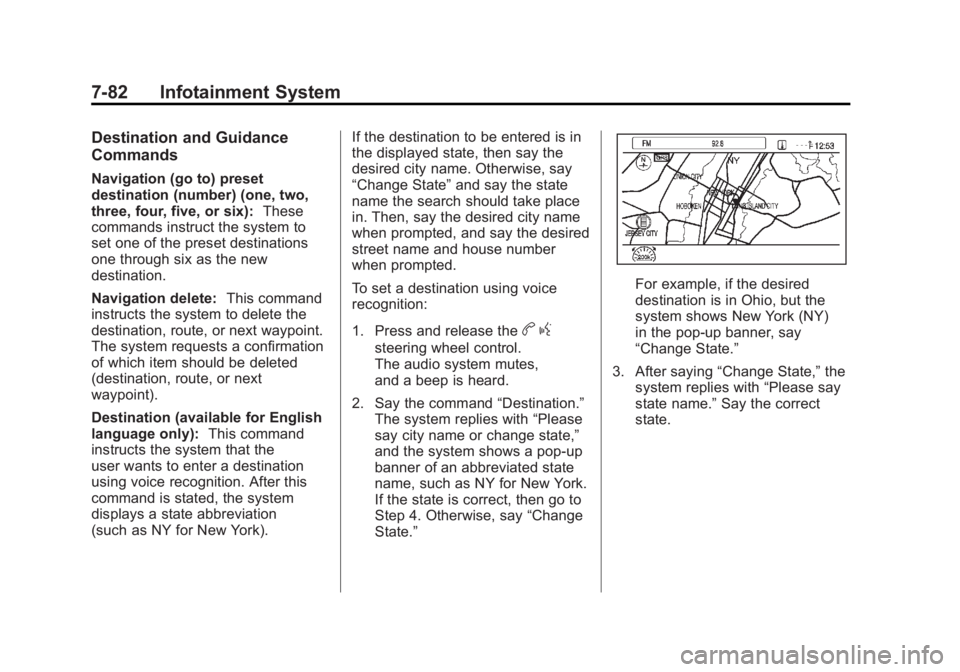
and the system shows a pop-up
banner of an abbreviated state
name, such as NY for New York.
If the state is correct, then go to
Step 4. Otherwise, say “Change
State.”
For example, if the desired
destination is in Ohio, but the
system shows New York (NY)
in the pop-up banner, say
“Change State.”
3. After saying “Change State,” the
system replies with “Please say
state name.” Say the correct
state.
Page 274 of 516
Black plate (84,1)Chevrolet Volt Owner Manual - 2011
7-84 Infotainment System
OnStar (if equipped) Command
Hands Free:This command
instructs the system to enter the
OnStar voice recognition system.
See “Hands-Free Calling” in the
OnStar Owner's Guide for more
information.
Help Commands Help
Radio (help)
CD (help), DVD (help),
Disc (help)
Display (help)
Navigation (help)
Display Commands Display (set/select) day (mode)
Display (set/select) night (mode)
Display (set/select) auto (mode)
Radio Commands (radio/radio band) AM
(radio/radio band) FM
(radio/radio band) XM
Radio select
Radio select
Radio select
Radio (CD/DVD/Disc)
Radio (CD/DVD/Disc) select
Page 340 of 516
Black plate (38,1)Chevrolet Volt Owner Manual - 2011
9-38 Driving and Operating
When the vehicle is started
and begins to move, the system
performs several diagnostic checks
to ensure there are no problems.
The system may be heard or
felt while it is working. This is
normal and does not mean there
is a problem with the vehicle.
The system should initialize
before the vehicle reaches 32 km/h
(20 mph). In some cases, it may
take approximately 3.2 km (2 mi) of
driving before the system initializes.
The Traction Control System may
activate on dry or rough roads or
under conditions such as heavy
acceleration while turning or abrupt
changes in output from the electric
drive unit. When this happens,
a reduction in acceleration may
be noticed, or a noise or vibration
may be heard. This is normal.
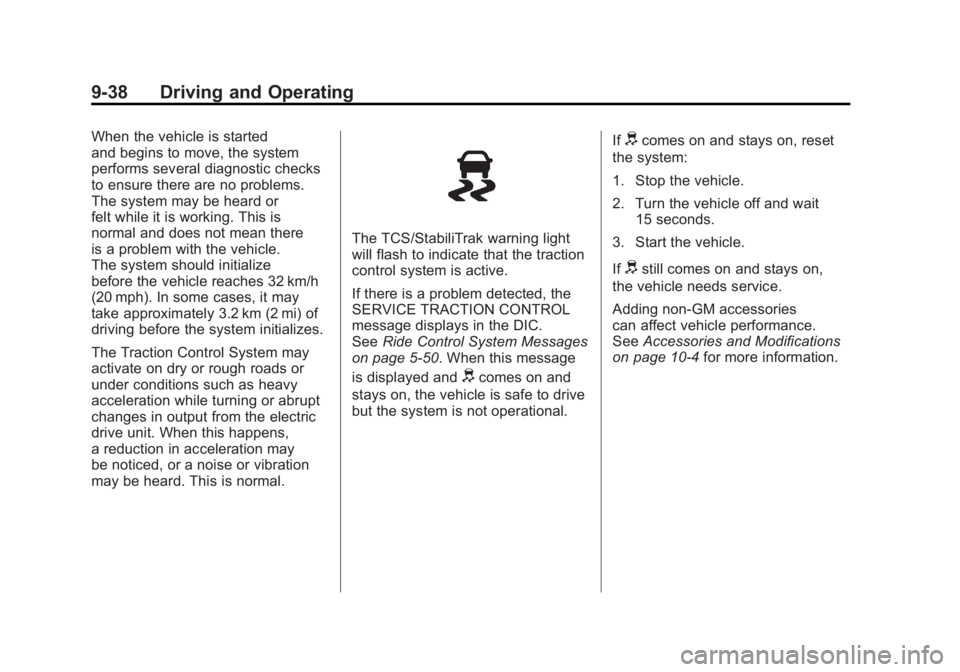
The TCS/StabiliTrak warning light
will flash to indicate that the traction
control system is active.
If there is a problem detected, the
SERVICE TRACTION CONTROL
message displays in the DIC.
SeeRide Control System Messages
on page 5‑50. When this message
is displayed and
dcomes on and
stays on, the vehicle is safe to drive
but the system is not operational. If
dcomes on and stays on, reset
the system:
1. Stop the vehicle.
2. Turn the vehicle off and wait 15 seconds.
3. Start the vehicle.
If
dstill comes on and stays on,
the vehicle needs service.
Adding non‐GM accessories
can affect vehicle performance.
See Accessories and Modifications
on page 10‑4 for more information.