audio CHEVROLET VOLT 2013 1.G Infotainment Manual
[x] Cancel search | Manufacturer: CHEVROLET, Model Year: 2013, Model line: VOLT, Model: CHEVROLET VOLT 2013 1.GPages: 92, PDF Size: 0.97 MB
Page 18 of 92
Black plate (18,1)Chevrolet Volt Infotainment System - 2013 - CRC - 5/16/12
18 Infotainment System
.Receive announcements
concerning local and national
emergencies.
.Display messages from radio
stations.
This system relies on receiving
specific information from these
stations and only works when the
information is available. It is
possible that a radio station could
broadcast incorrect information that
causes the radio features to work
improperly. If this happens, contact
the radio station.
When information is broadcast from
the current FM station, the station
name or call letters display on the
audio screen. RDS can provide a
program type (PTY) for current
programming and the name of the
program being broadcasted.
Satellite Radio
SiriusXM® Satellite Radio
Vehicles with a valid SiriusXM
satellite radio subscription can
receive SiriusXM programming.
SiriusXM satellite radio has a wide
variety of programming and
commercial-free music, coast to
coast, and in digital-quality sound.
See www.siriusxm.com or call
1-866-635-2349 (U.S.) and
www.xmradio.ca or call
1-877-209-0079 (Canada). When SiriusXM is active, the station
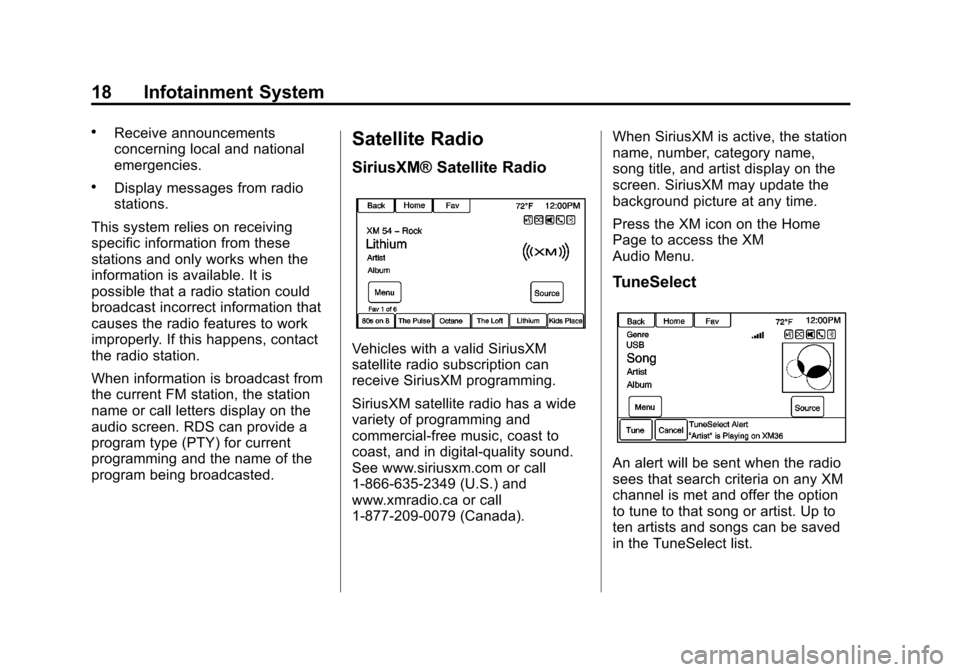
name, number, category name,
song title, and artist display on the
screen. SiriusXM may update the
background picture at any time.
Press the XM icon on the Home
Page to access the XM
Audio Menu.
TuneSelect
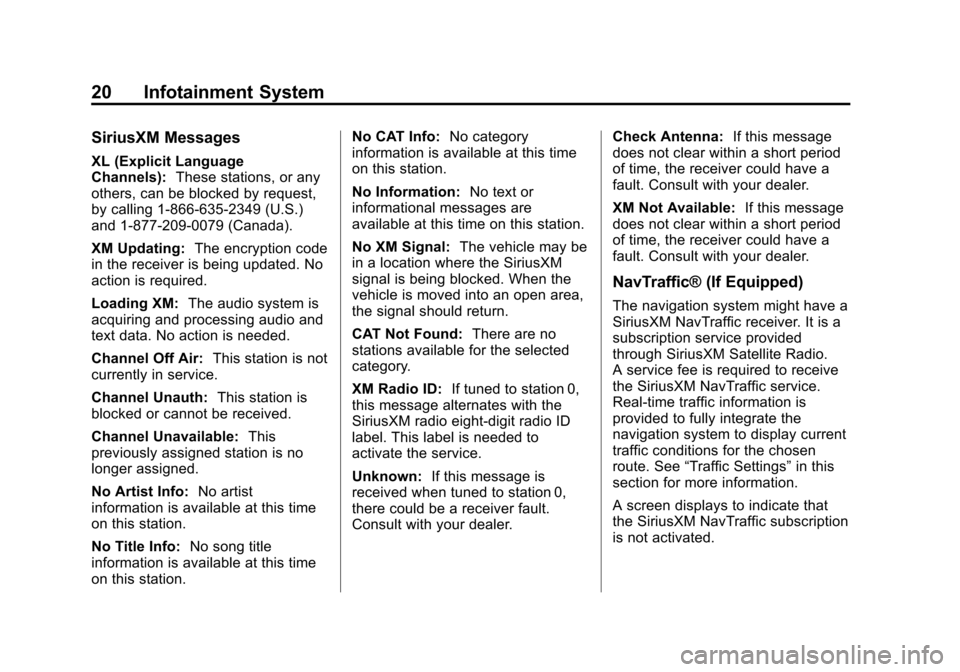
An alert will be sent when the radio
sees that search criteria on any XM
channel is met and offer the option
to tune to that song or artist. Up to
ten artists and songs can be saved
in the TuneSelect list.
Page 20 of 92
Black plate (20,1)Chevrolet Volt Infotainment System - 2013 - CRC - 5/16/12
20 Infotainment System
SiriusXM Messages
XL (Explicit Language
Channels):These stations, or any
others, can be blocked by request,
by calling 1-866-635-2349 (U.S.)
and 1-877-209-0079 (Canada).
XM Updating: The encryption code
in the receiver is being updated. No
action is required.
Loading XM: The audio system is
acquiring and processing audio and
text data. No action is needed.
Channel Off Air: This station is not
currently in service.
Channel Unauth: This station is
blocked or cannot be received.
Channel Unavailable: This
previously assigned station is no
longer assigned.
No Artist Info: No artist
information is available at this time
on this station.
No Title Info: No song title
information is available at this time
on this station. No CAT Info:
No category
information is available at this time
on this station.
No Information: No text or
informational messages are
available at this time on this station.
No XM Signal: The vehicle may be
in a location where the SiriusXM
signal is being blocked. When the
vehicle is moved into an open area,
the signal should return.
CAT Not Found: There are no
stations available for the selected
category.
XM Radio ID: If tuned to station 0,
this message alternates with the
SiriusXM radio eight-digit radio ID
label. This label is needed to
activate the service.
Unknown: If this message is
received when tuned to station 0,
there could be a receiver fault.
Consult with your dealer. Check Antenna:
If this message
does not clear within a short period
of time, the receiver could have a
fault. Consult with your dealer.
XM Not Available: If this message
does not clear within a short period
of time, the receiver could have a
fault. Consult with your dealer.
NavTraffic® (If Equipped)
The navigation system might have a
SiriusXM NavTraffic receiver. It is a
subscription service provided
through SiriusXM Satellite Radio.
A service fee is required to receive
the SiriusXM NavTraffic service.
Real-time traffic information is
provided to fully integrate the
navigation system to display current
traffic conditions for the chosen
route. See “Traffic Settings” in this
section for more information.
A screen displays to indicate that
the SiriusXM NavTraffic subscription
is not activated.
Page 25 of 92
Black plate (25,1)Chevrolet Volt Infotainment System - 2013 - CRC - 5/16/12
Infotainment System 25
especially around tall buildings or
hills, causing the sound to fade in
and out.
AM
The range for most AM stations is
greater than for FM, especially at
night. The longer range can cause
station frequencies to interfere with
each other. Static can occur when
things like storms and power lines
interfere with radio reception. When
this happens, try reducing the treble
on the radio.
SiriusXM® Satellite Radio
Service
SiriusXM Satellite Radio Service
gives digital radio reception from
coast to coast in the 48 contiguous
United States, and in Canada. Just
as with FM, tall buildings or hills can
interfere with satellite radio signals,
causing the sound to fade in and
out. In addition, traveling or standing
under heavy foliage, bridges,garages, or tunnels may cause loss
of the SiriusXM signal for a period
of time.
Cellular Phone Usage
Cellular phone usage can cause
interference with the vehicle's radio.
Quick Info
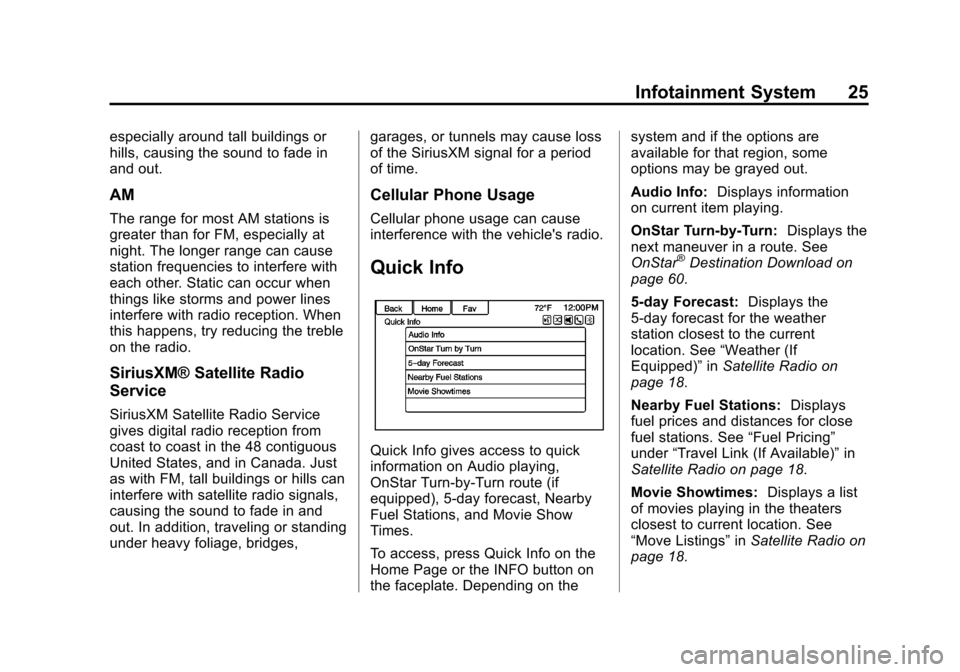
Quick Info gives access to quick
information on Audio playing,
OnStar Turn-by-Turn route (if
equipped), 5-day forecast, Nearby
Fuel Stations, and Movie Show
Times.
To access, press Quick Info on the
Home Page or the INFO button on
the faceplate. Depending on thesystem and if the options are
available for that region, some
options may be grayed out.
Audio Info:
Displays information
on current item playing.
OnStar Turn-by-Turn: Displays the
next maneuver in a route. See
OnStar
®Destination Download on
page 60.
5-day Forecast: Displays the
5-day forecast for the weather
station closest to the current
location. See “Weather (If
Equipped)” inSatellite Radio on
page 18.
Nearby Fuel Stations: Displays
fuel prices and distances for close
fuel stations. See “Fuel Pricing”
under “Travel Link (If Available)” in
Satellite Radio on page 18.
Movie Showtimes: Displays a list
of movies playing in the theaters
closest to current location. See
“Move Listings” inSatellite Radio on
page 18.
Page 27 of 92
Black plate (27,1)Chevrolet Volt Infotainment System - 2013 - CRC - 5/16/12
Infotainment System 27
Pandora will always be highlighted
on the Home Page when an iPhone,
iPad, or iPod touch is connected
using the USB port. To use, log into
your account.
If the“Please See Device” message
is shown, the login screen may
display on the device.
If the “Please unlock your phone or
restart the app” message is shown,
then your phone may be locked.
Unlock the phone, close the app,
then restart the app make sure the
Home Page is visible on the phone.
If the vehicle is shutoff while tuned
to Pandora and the iPhone, iPad,
or iPod touch is left connected to
the USB port before the next ignition
cycle, the radio will start playing
Pandora when the vehicle is started.
If Pandora is shut down on the cell
phone or another audio app is used,
Pandora may not start on the next
ignition cycle. If iPod source is
selected, it may show iPod and then
switch to Pandora. Using an Android Phone
1. Pair the Android phone using
Bluetooth.
2. Use one of the following to launch:
.Launch the application on
the device.
.Press Pandora on the
Home Page.
.Pressb/gand say
“Pandora” or“Tune
Pandora.”
After Pandora has been launched,
press SOURCE or SRC on the
steering wheel controls to access
Pandora features.
If nothing happens when the
available Pandora screen button is
pressed, download the latest
Pandora application and retry.
If the “Please See Device” message
is shown, the login screen may
display on the device. If the
“Please unlock your phone or
restart the app” message is shown
then your phone may be locked.
Unlock the phone, close the app,
and then restart the app to ensure
proper communication..
Using a BlackBerry Phone
The phone must be unlocked. To
launch Pandora service:
1. Pair the BlackBerry phone using Bluetooth.
2. Use one of the following to launch:
.Launch the application on
the device.
.Press Pandora on the
Home Page.
.Pressb/gand say
“Pandora” or“Tune
Pandora.”
After Pandora has been launched,
press SOURCE or SRC on the
steering wheel controls to access
Pandora features.
Page 30 of 92
Black plate (30,1)Chevrolet Volt Infotainment System - 2013 - CRC - 5/16/12
30 Infotainment System
Loss of Audio
Loss of Pandora audio can happen
in different ways:
.Weak or lost data connection.
.Device needs to be charged.
.Application needs to be
relaunched.
.Connection between phone and
radio lost.
.If any iPhone, iPod touch,
or iPad is connected to
Bluetooth and the dock
connector, go to the Airplay icon
on the device and select dock
connector or disconnect and
reconnect the dock connector on
the device.
.The volume is too low. Turn up
the volume on the device.
.The battery saver and task
manager applications on the
phone can cause Pandora to
function incorrectly. Removethose apps from the phone or
remove Pandora and Bluetooth
from the task lists.
If the connection is lost between the
application and device, a message
“Please unlock your phone or restart
the phone app and try again” will
display. Press OK to retry.
If pressing OK does not clear the
issue on the phone, see "Please
Unlock Your Phone or Restart
Phone App and Try Again” under
"Common Pandora Messages"
following.
Common Pandora Messages
Please See Device: When not
logged in or when authentication
failed, see the device. Press OK to
continue.
Paused or Audio Paused:
Playback is paused on the radio or
on the device. Press
kor play on
the device.
No Stations Found: Logged in but
no stations have been created.
Press OK to continue. Please Unlock Your Phone or
Restart Phone App and Try
Again:
Communication failure
between the radio and the phone
application or the device is locked.
Devices that allow multitasking may
require an extra step to quit the
Pandora application. Close Pandora
on the device and launch again.
Unlock the phone and check that
Home Page is shown on the phone/
device.
See the cell phone manufacturer's
user guide.
See www.pandora.com/help for
more information. If the service will
not work, see your dealer for
assistance.
Stitcher Internet Radio
Stitcher SmartRadio™ is an Internet
radio service that streams news,
sports, and entertainment shows
through the audio system. Create
personalized, on-demand stations or
discover new shows through
Page 34 of 92
Black plate (34,1)Chevrolet Volt Infotainment System - 2013 - CRC - 5/16/12
34 Infotainment System
.Close Stitcher on the device and
launch again. Devices that allow
multitasking may require an
extra step to quit the Stitcher
application. See the cell phone
manufacturer's user guide.
Loss of Audio
Loss of Stitcher audio can happen
due to:
.Weak or lost data connection.
.Device needs to be charged.
.Application needs to be
relaunched.
.Connection between phone and
radio is lost.
.If any iPhone, iPod touch,
or iPad is connected to
Bluetooth and the dock
connector, go to the Airplay icon
on the device and select dock
connector or disconnect and
reconnect the dock connector on
the device.
.The volume is too low. Turn up
the volume on the device. If the connection is lost between the
application and device, a message
“Please unlock your phone or restart
the phone app and try again”
will
display. Press OK to retry.
If pressing OK does not clear the
issue, see “Please unlock your
phone or restart phone app and try
again” under“Common Stitcher
Messages” following.
Common Stitcher Messages
Please Try Again Later: A general
error has occurred. A data
connection may be unavailable due
to a weak or lost signal or the
Stitcher service being temporarily
down. Press OK to continue.
Paused or Audio Paused:
Playback is paused on the radio or
on the device. Press
kor play on
the device.
Please See Device: When user is
not logged in or when authentication
failed, see device. Press OK to
continue. Disconnect the phone from the radio and follow the
Stitcher account login process on
the phone.
No Stations Found:
Logged in but
no stations have been created.
Press OK to continue.
Please Choose a New Station:
The end of the station has been
reached and there is no more
content to play. Select a new station
through the Stitcher menu.
Please Unlock Your Phone or
Restart Phone App and Try
Again: Communication failure
between the radio and the phone
application or the device is locked.
See www.stitcher.com/help for more
information. If the service will not
work, send an e-mail to
[email protected] or see your
dealer for assistance.
Page 36 of 92
Black plate (36,1)Chevrolet Volt Infotainment System - 2013 - CRC - 5/16/12
36 Infotainment System
Audio Players
CD Player
The CD player is capable of playing:
.Most audio CDs
.CD-R
.CD-RW
.MP3, unprotected WMA, and
AAC formats
When playing any compatible
recordable disc, the sound quality
may be reduced due to the disc, the
method of recording, the quality of
the music recorded, or how the disc
has been handled.
There may be increased skipping,
difficulty reading recorded tracks,
finding tracks, and/or loading and
ejecting. If these problems occur,
check the disc for damage or try a
known good disc. To avoid damage to the CD player:
.Do not use scratched or
damaged discs.
.Do not apply labels to discs. The
labels could get caught in the
player.
.Insert only one disc at a time.
.Keep the loading slot free of
foreign materials, liquids, and
debris.
.Use a marking pen to label the
top of the disc.
Loading and Ejecting Discs
To load a disc:
1. Turn the vehicle on.
2. Insert a disc into the slot, right
side up. The player pulls it in the
rest of the way. If the disc is
damaged or improperly loaded,
there is an error and the disc
ejects.
The disc automatically plays once
loaded. Press
Xto eject a disc from the
CD player. If the disc is not removed
within a short period of time, it is
automatically pulled back into the
player.
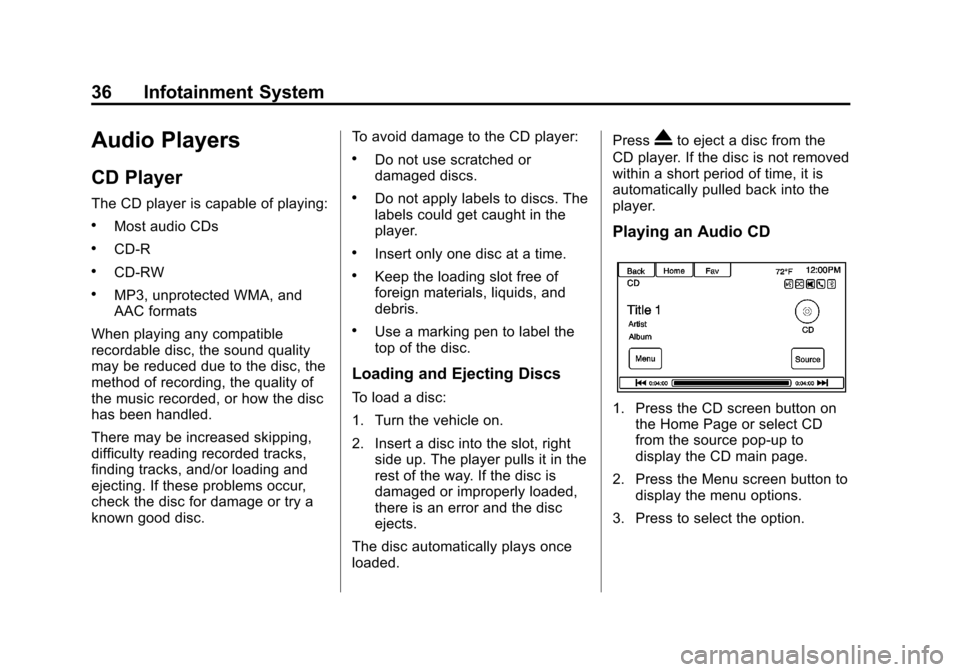
Playing an Audio CD
1. Press the CD screen button on the Home Page or select CD
from the source pop-up to
display the CD main page.
2. Press the Menu screen button to display the menu options.
3. Press to select the option.
Page 39 of 92
Black plate (39,1)Chevrolet Volt Infotainment System - 2013 - CRC - 5/16/12
Infotainment System 39
cover art is found Gracenote will
use generic Genre graphics or
images of artists.
More Like This
The Gracenote database contains
attributes for Music, such as genre,
era of music, region, artist type,
mood, etc. Use this to create a
playlist of up to 30 songs "more like"
currently listened to song. This
playlist will be stored in the Playlist
Menu when the device is
reconnected. If songs are removed
from the device, the system will
simply skip over those songs and
play the next available song.
Use the touch screen or voice
recognition to create a More Like
This Playlist. See“Voice
Recognition Commands” inVoice
Recognition on page 68.
Gracenote Indexing
While Gracenote is indexing,
infotainment features are available
including selecting music from the
menu. Voice recognition music will not be available until the radio has
completed indexing the device.
Devices with more music may take
longer to index. The device will
index when plugged into the radio
for the first time. When Indexing is
removed from the screen, the radio
is ready to support music search.
On the next connection or ignition
cycle, Indexing will show briefly on
the screen. The radio is searching
for changes to the device and
preparing the music list. If there are
no changes, the voice recognition
music search will be available. The
radio will index and store two
devices with up to 10,000 songs on
each device.
USB MP3 Player and USB Drives
.The USB MP3 players and USB
drives connected must comply
with the USB Mass Storage
Class specification (USB MSC).
.Hard disk drives are not
supported.
.The radio will not be able to play
back write-protected music.
.File systems supported: FAT32,
NTFS, Linux, and HFS+.
.The following restrictions apply
for the data stored on a USB
MP3 player or USB device:
‐
Maximum folder structure
depth: 8 levels.
‐ Maximum number of MP3/
WMA files that can be
displayed: 10,000.
‐ Playlist entries must be in the
form of relative paths.
‐ The system attribute for
folders/files that contain audio
data must not be set.
To play a USB device, do one of the
following:
.Connect the USB and it begins
to play.
.Press the Now Playing screen
button on the Home Page.
.Press SOURCE to scroll until
the USB source screen is
available.
Page 42 of 92
Black plate (42,1)Chevrolet Volt Infotainment System - 2013 - CRC - 5/16/12
42 Infotainment System
There may be problems with the
operation and function in the
following situations:
.When connecting an iPod on
which a more recent version of
the firmware is installed than is
supported by the infotainment
system.
.When connecting an iPod on
which firmware from other
providers is installed.
To connect an iPod:
1. Connect one end of the standard iPod USB cable to the iPod's
dock connector.
2. Connect the other end to the USB port in the center console.
iPod music information displays on
the radio’s display and begins
playing through the vehicle’s audio
system.
The iPod battery recharges
automatically while the vehicle is on.
The iPod shuts off and stops
charging when the vehicle is
shut off. If the iPod is an unsupported model,
it can still be listened to in the
vehicle by connecting to the
auxiliary input jack using a standard
3.5 mm (1/8 in) stereo cable.
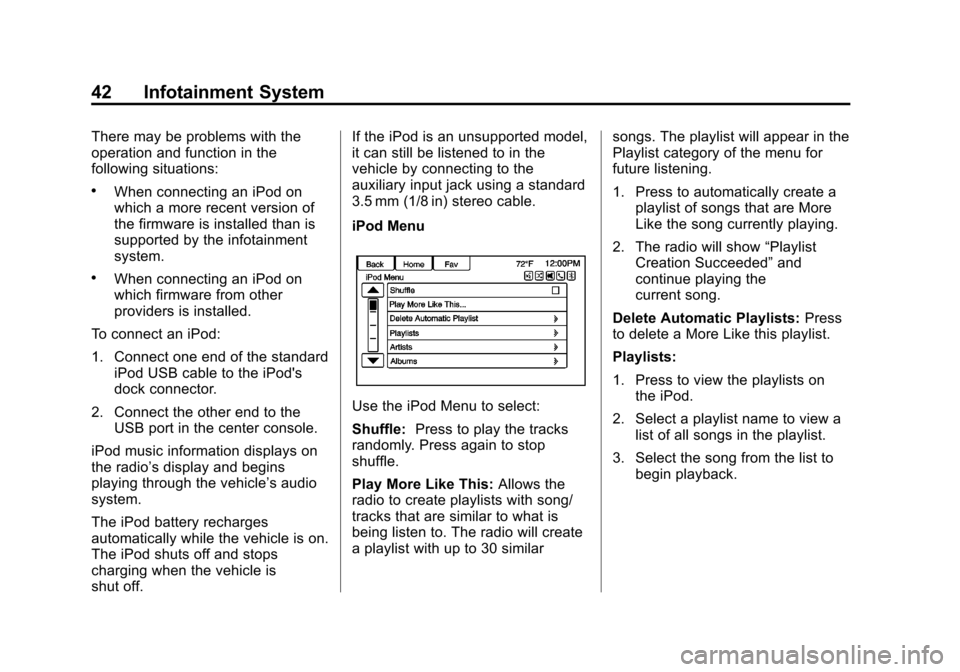
iPod Menu
Use the iPod Menu to select:
Shuffle:
Press to play the tracks
randomly. Press again to stop
shuffle.
Play More Like This: Allows the
radio to create playlists with song/
tracks that are similar to what is
being listen to. The radio will create
a playlist with up to 30 similar songs. The playlist will appear in the
Playlist category of the menu for
future listening.
1. Press to automatically create a
playlist of songs that are More
Like the song currently playing.
2. The radio will show “Playlist
Creation Succeeded” and
continue playing the
current song.
Delete Automatic Playlists: Press
to delete a More Like this playlist.
Playlists:
1. Press to view the playlists on the iPod.
2. Select a playlist name to view a list of all songs in the playlist.
3. Select the song from the list to begin playback.
Page 43 of 92
Black plate (43,1)Chevrolet Volt Infotainment System - 2013 - CRC - 5/16/12
Infotainment System 43
Artists:
1. Press to view the artists onthe iPod.
2. Select an artist name to view a list of all albums with songs by
the artist.
3. Select an album.
4. Select the song from the list to begin playback.
Albums:
1. Press to view the albums on the iPod.
2. Select an album name to view a list of all songs on the album or
select All Songs to view all
songs on the iPod.
3. Select the song from the list to begin playback.
Genres:
1. Press to view the genres on the iPod.
2. Select a genre name to view a list of artists of that genre. 3. Select an artist to view albums
or All Albums to view all albums
of that genre.
4. Select Artist to view albums.
5. Select Album to view songs.
6. Select the song from the list to begin playback.
Songs:
1. Press to view a list of all songs on the iPod.
2. Select the song from the list to begin playback.
Podcasts:
1. Press to view the podcasts on the iPod.
2. Select a podcast name to begin playback.
Composers:
1. Press to view the composers on the iPod.
2. Select the composer to view a list of songs by that composer. 3. Select a song from the list to
begin playback.
Audiobooks:
1. Press to view the audiobooks on the iPod.
2. Select the audiobook from the list to begin playback.
Playing from an iPhone
or iPad®
This feature supports iPhone 3G,
iPhone 3GS, iPhone 4 and 4S,
and iPad.
Follow the same instructions as
stated earlier for using an iPod. To
use voice recognition to play music,
say “Play USB,” “Play Artist,” “Play
Album,” “Play Song,” or“Play
Genre.” SeeVoice Recognition on
page 68.
iPhone, iPod Touch and iPad
Troubleshooting
When an iPhone, iPod touch,
or iPad are connected through USB
and Bluetooth, the audio may not be
heard when the iPod source on the