service CHEVROLET VOLT 2013 1.G Infotainment Manual
[x] Cancel search | Manufacturer: CHEVROLET, Model Year: 2013, Model line: VOLT, Model: CHEVROLET VOLT 2013 1.GPages: 92, PDF Size: 0.97 MB
Page 32 of 92
Black plate (32,1)Chevrolet Volt Infotainment System - 2013 - CRC - 5/16/12
32 Infotainment System
Using an Android Phone
1. Pair the Android phone usingBluetooth.
2. Use one of the following to launch:
.Press the application on the
device.
.Press Stitcher on the
Home Page.
.Pressb/gand say
“Stitcher” or“Tune Stitcher.”
3. If Stitcher does not begin playing, select a category and
then a station.
After Stitcher has been launched,
press SOURCE or SRC on the
steering wheel controls to access
Stitcher features.
If nothing happens when the
available Stitcher screen button is
pressed, download the latest
Stitcher application and retry. If the
“Please See Device” message
is shown, the login screen may
display on the device.
If the “Please unlock your phone or
restart the app” message is shown,
then your phone may be locked.
Unlock the phone, close the app,
then restart the app to ensure
proper communication.
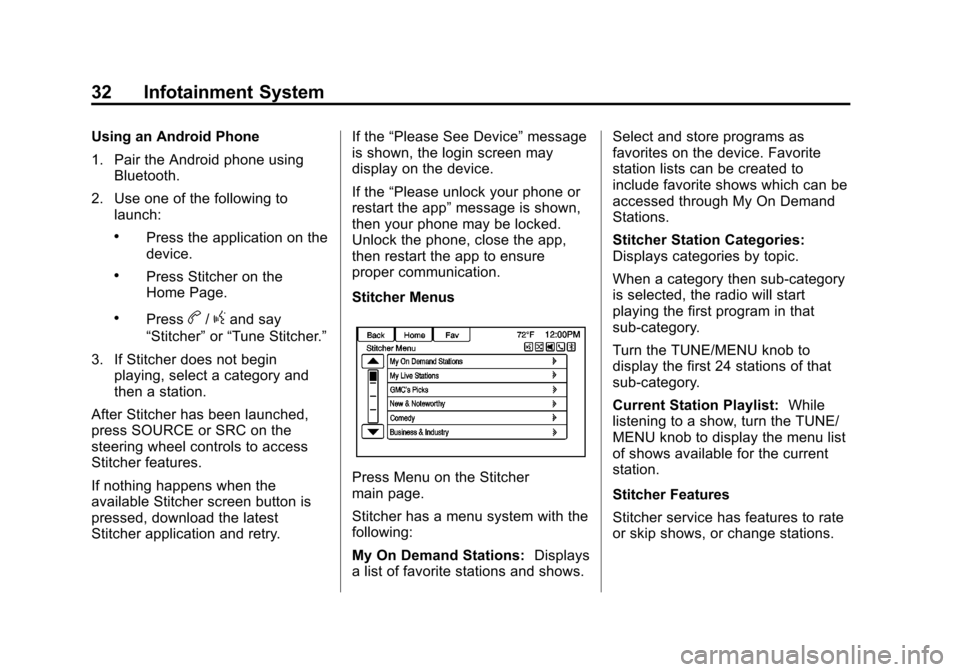
Stitcher Menus
Press Menu on the Stitcher
main page.
Stitcher has a menu system with the
following:
My On Demand Stations: Displays
a list of favorite stations and shows. Select and store programs as
favorites on the device. Favorite
station lists can be created to
include favorite shows which can be
accessed through My On Demand
Stations.
Stitcher Station Categories:
Displays categories by topic.
When a category then sub-category
is selected, the radio will start
playing the first program in that
sub-category.
Turn the TUNE/MENU knob to
display the first 24 stations of that
sub-category.
Current Station Playlist:
While
listening to a show, turn the TUNE/
MENU knob to display the menu list
of shows available for the current
station.
Stitcher Features
Stitcher service has features to rate
or skip shows, or change stations.
Page 34 of 92
Black plate (34,1)Chevrolet Volt Infotainment System - 2013 - CRC - 5/16/12
34 Infotainment System
.Close Stitcher on the device and
launch again. Devices that allow
multitasking may require an
extra step to quit the Stitcher
application. See the cell phone
manufacturer's user guide.
Loss of Audio
Loss of Stitcher audio can happen
due to:
.Weak or lost data connection.
.Device needs to be charged.
.Application needs to be
relaunched.
.Connection between phone and
radio is lost.
.If any iPhone, iPod touch,
or iPad is connected to
Bluetooth and the dock
connector, go to the Airplay icon
on the device and select dock
connector or disconnect and
reconnect the dock connector on
the device.
.The volume is too low. Turn up
the volume on the device. If the connection is lost between the
application and device, a message
“Please unlock your phone or restart
the phone app and try again”
will
display. Press OK to retry.
If pressing OK does not clear the
issue, see “Please unlock your
phone or restart phone app and try
again” under“Common Stitcher
Messages” following.
Common Stitcher Messages
Please Try Again Later: A general
error has occurred. A data
connection may be unavailable due
to a weak or lost signal or the
Stitcher service being temporarily
down. Press OK to continue.
Paused or Audio Paused:
Playback is paused on the radio or
on the device. Press
kor play on
the device.
Please See Device: When user is
not logged in or when authentication
failed, see device. Press OK to
continue. Disconnect the phone from the radio and follow the
Stitcher account login process on
the phone.
No Stations Found:
Logged in but
no stations have been created.
Press OK to continue.
Please Choose a New Station:
The end of the station has been
reached and there is no more
content to play. Select a new station
through the Stitcher menu.
Please Unlock Your Phone or
Restart Phone App and Try
Again: Communication failure
between the radio and the phone
application or the device is locked.
See www.stitcher.com/help for more
information. If the service will not
work, send an e-mail to
[email protected] or see your
dealer for assistance.
Page 49 of 92
Black plate (49,1)Chevrolet Volt Infotainment System - 2013 - CRC - 5/16/12
Infotainment System 49
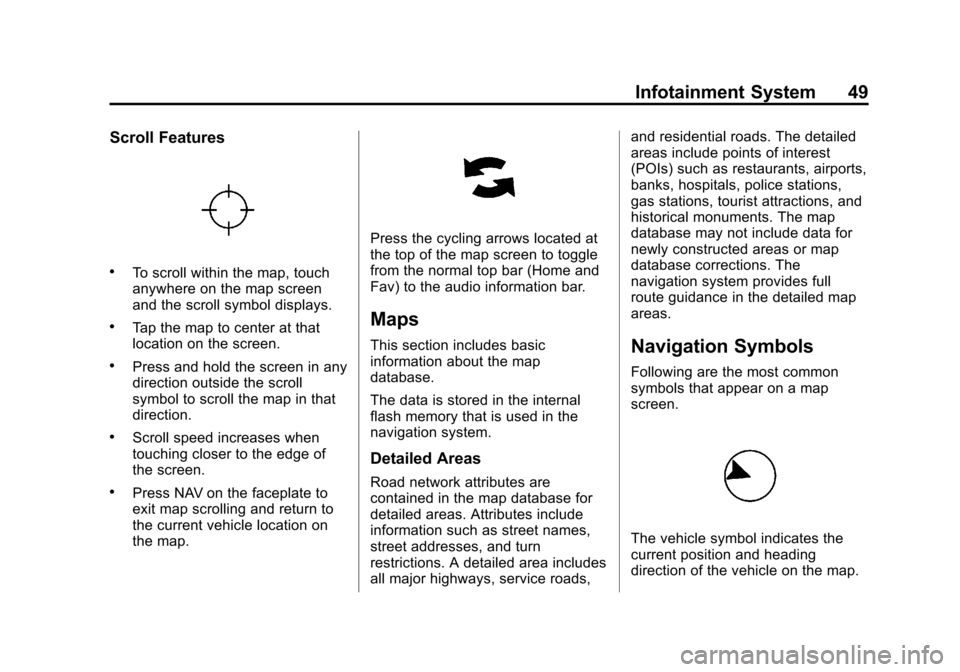
Scroll Features
.To scroll within the map, touch
anywhere on the map screen
and the scroll symbol displays.
.Tap the map to center at that
location on the screen.
.Press and hold the screen in any
direction outside the scroll
symbol to scroll the map in that
direction.
.Scroll speed increases when
touching closer to the edge of
the screen.
.Press NAV on the faceplate to
exit map scrolling and return to
the current vehicle location on
the map.
Press the cycling arrows located at
the top of the map screen to toggle
from the normal top bar (Home and
Fav) to the audio information bar.
Maps
This section includes basic
information about the map
database.
The data is stored in the internal
flash memory that is used in the
navigation system.
Detailed Areas
Road network attributes are
contained in the map database for
detailed areas. Attributes include
information such as street names,
street addresses, and turn
restrictions. A detailed area includes
all major highways, service roads,and residential roads. The detailed
areas include points of interest
(POIs) such as restaurants, airports,
banks, hospitals, police stations,
gas stations, tourist attractions, and
historical monuments. The map
database may not include data for
newly constructed areas or map
database corrections. The
navigation system provides full
route guidance in the detailed map
areas.
Navigation Symbols
Following are the most common
symbols that appear on a map
screen.
The vehicle symbol indicates the
current position and heading
direction of the vehicle on the map.
Page 66 of 92
Black plate (66,1)Chevrolet Volt Infotainment System - 2013 - CRC - 5/16/12
66 Infotainment System
Map Settings:Press to enter the
submenu to change Automatic
Zoom, enable Speed Limit display
on map, and change Map Display
settings.
Map Display: Press to change the
screen background.
.The Automatic setting adjusts
the screen background
automatically depending on the
exterior lighting conditions.
.The Day setting brightens the
map background.
.The Night setting darkens the
map background.
To change the overall brightness
setting for the display, use the
vehicle interior lighting instrument
panel illumination control.
Global Positioning
System (GPS)
The position of the vehicle is
determined by using satellite
signals, various vehicle signals, and
map data.
At times, other interference such as
the satellite condition, road
configuration, condition of the
vehicle, and/or other circumstances
can affect the navigation system's
ability to determine the accurate
position of the vehicle.
The GPS shows the current position
of the vehicle using signals sent by
the GPS Satellites. When the
vehicle is not receiving signals from
the satellites, a symbol appears on
the map screen. See Navigation
Symbols on page 49.
This system might not be available
or interference can occur if any of
the following are true:
.Signals are obstructed by tall
buildings, trees, large trucks,
or a tunnel.
.Satellites are being repaired or
improved.
For more information if the GPS is
not functioning properly, see
Problems with Route Guidance on
page 67 andIf the System Needs
Service on page 68.
Vehicle Positioning
At times, the position of the vehicle
on the map could be inaccurate due
to one or more of the following
reasons:
.The road system has changed.
.The vehicle is driving on slippery
road surfaces such as sand,
gravel, or snow.
.The vehicle is traveling on
winding roads or long straight
roads.
.The vehicle is approaching a tall
building or a large vehicle.
.The surface streets run parallel
to a freeway.
Page 68 of 92
Black plate (68,1)Chevrolet Volt Infotainment System - 2013 - CRC - 5/16/12
68 Infotainment System
If the System Needs
Service
If the navigation system needs
service and the steps listed here
have been followed but there are
still problems, see your dealer for
assistance.
Map Data Updates
The map data in the vehicle is the
most up-to-date information
available when the vehicle was
produced. The map data is updated
periodically, provided that the map
information has changed.
For questions about the operation of
the navigation system or the update
process, contact the GM Nav Disc
Center toll-free phone number,
1-877-NAV-DISC (1-877-628-3472)
or go to the center’s website,
www.gmnavdisc.com. If updates are
needed, call the GM Nav Disc
Center or order a new Map Update
online. To order map data, have the
vehicle’s Vehicle Identification Number (VIN) available. See
“Vehicle Identification Number
(VIN)”
in the owner manual.
After receiving the updated map
data, see Maps on page 49.
Database Coverage
Explanations
Coverage areas vary with respect to
the level of map detail available for
any given area. Some areas feature
greater levels of detail than others.
If this happens, it does not mean
there is a problem with the system.
As the map data is updated, more
detail can become available for
areas that previously had limited
detail. See Map Data Updates on
page 68.
Voice Recognition
Voice recognition allows for
hands-free operation of the
infotainment system features.
Voice recognition can be used when
the radio is on or when Retained
Accessory Power (RAP) is active.
See “Retained Accessory Power
(RAP)” in the owner manual. The
system maintains a minimum
volume level.
Using Voice Recognition
1. Pressb/gon the steering
wheel. The audio system mutes.
A voice prompt states, “Please
say a command.” Wait until the
tone is heard before speaking.
If there is no tone, make sure
that the volume is turned up.
While voice recognition is active,
the system displays a
gsymbol
in the top right of the screen.
Page 79 of 92
Black plate (79,1)Chevrolet Volt Infotainment System - 2013 - CRC - 5/16/12
Infotainment System 79
3. Select the letter group of thephone book entry to scroll
through the list of names/
numbers.
4. Select the name.
5. Select the number to call.
To make a call using the Call
Lists menu:
1. Press
Vonce on the radio or
the Phone screen button.
2. Select Call Lists.
3. Select the Incoming Calls, Outgoing Calls, or Missed
Calls list.
4. Select the name or number to call.
Making a Call Using the
Infotainment Controls
To make a call:
1. Press
Vonce on the radio or
the Phone screen button.
2. Press Enter Number. 3. Enter the phone number.
4. Select OK to start dialing the
number.
5. Select Call to place the call.
To make a call using voice
recognition, see “Making a Call”
under Hands-Free Phone on
page 81.
Accepting or Declining a Call
When an incoming call is received,
the infotainment system mutes and
a ring tone is heard in the vehicle.
Using the Infotainment Controls
Turn the TUNE/MENU knob to
“Answer” or“Decline” and press the
TUNE/MENU knob or press Accept
or Decline on the screen.
Using Steering Wheel Controls
Press
Vto answer or$/ito
decline the call.
Call Waiting Using the
Infotainment Controls
Call waiting must be supported on
the Bluetooth phone and enabled by
the wireless service carrier to work.
Switching Between Calls (Call
Waiting Calls Only)
To switch between calls turn and
press the TUNE/MENU knob and
select Switch Call or select Switch
Call on the screen.
Call Waiting Using Steering
Wheel Controls
Call waiting must be supported on
the cell phone and enabled by the
wireless service carrier.
.PressVto answer an incoming
call when another call is active.
The original call is placed
on hold.
.PressVagain to return to the
original call.
Page 80 of 92
Black plate (80,1)Chevrolet Volt Infotainment System - 2013 - CRC - 5/16/12
80 Infotainment System
.To decline answering the
incoming call, press Decline on
the screen or take no action.
.Press$/ito disconnect the
current call and switch to the call
on hold.
Conference Calling Using the
Infotainment Controls
Conference calling and three-way
calling must be supported on the
Bluetooth phone and enabled by the
wireless service carrier to work. This
feature is only supported when the
vehicle is not moving.
To start a conference while in a
current call:
1. Turn and press the TUNE/MENU knob and select Enter Number.
2. Enter the phone number and select OK.
3. After the call has been placed, turn the TUNE/MENU knob and
choose Merge Calls. 4. To add more callers to the
conference call, repeat Steps 1
−3. The number of callers that
can be added is limited by your
wireless service carrier.
Ending a Call
Using the Infotainment Controls
Turn and press the TUNE/MENU
knob and select Hang Up or press
Hang Up on the screen.
Using Steering Wheel Controls
Press
$/i.
Muting a Call
During a call, all sounds from inside
the vehicle can be muted so that the
person on the other end of the call
cannot hear them.
Using the Infotainment Controls
Turn and press the TUNE/MENU
knob and select Mute Call. Press
again to cancel mute.
Transferring a Call
Audio can be transferred between
the Bluetooth system and the cell
phone.
The cell phone must be paired and
connected with the Bluetooth
system before a call can be
transferred.
To Transfer Audio from the
Bluetooth System to a Cell Phone
During a call with the audio in the
vehicle, press the Transfer Call
button on the screen or press and
hold the
b/gbutton on the
steering wheel.
To Transfer Audio to the Bluetooth
System from a Cell Phone
Use the audio transfer feature on
the cell phone. See your cell phone
manufacturer's user guide for more
information. Press the Transfer call
button on the screen or press and
hold the
b/gbutton on the
steering wheel.
Page 82 of 92
Black plate (82,1)Chevrolet Volt Infotainment System - 2013 - CRC - 5/16/12
82 Infotainment System
If an unwanted number is repeated
back, say“Clear”to clear the last
number.
Once connected, the person called
will be heard through the audio
speakers.
Using the “Re-dial”Command
1. Press
V. The system responds
“Please Say a Command,”
followed by a tone.
2. After the tone, say “Re-dial.”The
system dials the last number
called from the connected cell
phone.
Once connected, the person called
will be heard through the audio
speakers.
Clearing the System
Unless information is deleted out of
the vehicle Bluetooth system, it will
be retained. This includes phone
pairing information. For directions
on how to delete this information,
see “Deleting a Paired Phone/
Device.”
Trademarks and
License Agreements
FCC Information
See “Radio Frequency Statement”
in the owner manual for information
regarding Part 15 of the Federal
Communications Commission (FCC)
rules and with Industry Canada
Standards RSS-GEN/210/220/310.
“Made for iPod” and“Made for
iPhone” mean that an electronic
accessory has been designed to
connect specifically to iPod or
iPhone and has been certified by
the developer to meet Apple
performance standards. iPod and iPhone are trademarks of
Apple Computer, Inc., registered in
the U.S. and other countries.
Fees and Taxes: Subscription fee,
taxes, one time activation fee, and
other fees may apply. Subscription
fee is consumer only. All fees and
programming subject to change.
Subscriptions subject to Customer
Agreement available at
www.siriusxm.com. SiriusXM®
service only available in the
48 contiguous United States and
Canada.
In Canada: Some deterioration of
service may occur in extreme
northern latitudes. This is beyond
the control of SiriusXM® Satellite
Radio.
Page 83 of 92
Black plate (83,1)Chevrolet Volt Infotainment System - 2013 - CRC - 5/16/12
Infotainment System 83
Explicit Language Notice: Channels
with frequent explicit language are
indicated with an“XL”preceding the
channel name. Channel blocking is
available for SiriusXM Satellite
Radio receivers by notifying
SiriusXM:
.USA: 866-635-2349 or see
www.siriusxm.com.
.Canada: 877-209-0079 or see
www.xmradio.ca.
It is prohibited to copy, decompile,
disassemble, reverse engineer,
hack, manipulate, or otherwise
make available any technology or
software incorporated in receivers
compatible with the SiriusXM
Satellite Radio System or that
support the SiriusXM website, the
Online Service or any of its content.
Furthermore, the AMBER voice
compression software included in
this product is protected by
intellectual property rights including
patent rights, copyrights, and trade
secrets of Digital Voice
Systems, Inc. General Requirements:
1. A License Agreement from
SiriusXM is required for any
product that incorporates
SiriusXM Technology and/or for
use of any of the SiriusXM
marks to be manufactured,
distributed, or marketed in the
SiriusXM Service Area.
2. For products to be distributed, marketed, and/or sold in
Canada, a separate agreement
is required with Canadian
Satellite Radio Inc. (operating as
XM Canada).
Gracenote
Gracenote®, Gracenote logo and
logotype, and the "Powered by
Gracenote" logo are either a
registered trademark or a trademark
of Gracenote, Inc. in the United
States and/or other countries.
Bluetooth
The Bluetooth® word mark and
logos are owned by the Bluetooth®
SIG, Inc. and any use of such marks
by General Motors is under license.
Other trademarks and trade names
are those of their respective owners.
Pandora
Pandora is a registered trademark
of Pandora Media, Inc., used under
license.
Map End User License
Agreement (Optional
Equipment Applies Where
Equipped)
END USER TERMS
The Map Data (“Data”) is provided
for your personal, internal use only
and not for resale. It is protected by
copyright, and is subject to the
following terms (this “End User
License Agreement”) and conditions
which are agreed to by you, on the
one hand, and NAVTEQ North
Page 84 of 92
Black plate (84,1)Chevrolet Volt Infotainment System - 2013 - CRC - 5/16/12
84 Infotainment System
America, LLC (“NT”) and its
licensors (including their licensors
and suppliers) on the other hand.
The Data for areas of Canada
includes information taken with
permission from Canadian
authorities, including: © Her Majesty
the Queen in Right of Canada, ©
Queen's Printer for Ontario, ©
Canada Post Corporation,
GeoBase®.
NT holds a nonexclusive license
from the United States Postal
Service® to publish and sell ZIP+4®
information.
© United States Postal Service®
2011. Prices are not established,
controlled, or approved by the
United States Postal Service®. The
following trademarks and
registrations are owned by the
USPS: United States Postal
Service, USPS, and ZIP+4.TERMS AND CONDITIONS
Personal Use Only: You agree to
use this Data for the solely
personal, noncommercial purposes
for which you were licensed, and
not for service bureau, timesharing
or other similar purposes. Except as
otherwise set forth herein, you
agree not to otherwise reproduce,
copy, modify, decompile,
disassemble or reverse engineer
any portion of this Data, and may
not transfer or distribute it in any
form, for any purpose, except to the
extent permitted by mandatory laws.
You may transfer the Data and all
accompanying materials on a
permanent basis if you retain no
copies and the recipient agrees to
the terms of this End User License
Agreement. Multi-disc sets may only
be transferred or sold as a complete
set as provided to you and not as a
subset thereof.Restrictions
Except where you have been
specifically licensed to do so by NT
and without limiting the preceding
paragraph, you may not (a) use this
Data with any products, systems,
or applications installed or otherwise
connected to or in communication
with vehicles capable of vehicle
navigation, positioning, dispatch,
real time route guidance, fleet
management or similar applications;
or (b) with, or in communication
with, including without limitation,
cellular phones, palmtop and
handheld computers, pagers, and
personal digital assistants or PDAs.
Warning
This Data may contain inaccurate or
incomplete information due to the
passage of time, changing
circumstances, sources used, and
the nature of collecting
comprehensive geographic data,
any of which may lead to incorrect
results.