display CHEVROLET VOLT 2015 2.G Repair Manual
[x] Cancel search | Manufacturer: CHEVROLET, Model Year: 2015, Model line: VOLT, Model: CHEVROLET VOLT 2015 2.GPages: 387, PDF Size: 12.83 MB
Page 218 of 387
Black plate (33,1)Chevrolet VOLT Owner Manual (GMNA-Localizing-U.S./Canada-7695131) -
2015 - crc - 4/25/14
Driving and Operating 9-33
Ride Control Systems
Traction Control/
Electronic Stability
Control
The vehicle has a Traction Control
System (TCS) and an Electronic
Stability Control system called
StabiliTrak. These systems help
limit wheel slip and assist the driver
in maintaining control, especially on
slippery road conditions.
TCS activates if it senses that any
of the drive wheels are slipping or
beginning to lose traction. When this
happens, TCS applies the brakes to
the spinning wheels and reduces
engine power to limit wheel spin.
StabiliTrak activates when the
vehicle senses a difference between
the intended path and the direction
the vehicle is actually traveling.
StabiliTrak selectively applies
braking pressure to any of thevehicle wheel brakes to help assist
the driver in keeping the vehicle on
the intended path.
If cruise control is being used and
traction control or StabiliTrak begins
to limit wheel spin, cruise control will
disengage. Cruise control may be
turned back on when road
conditions allow.
Both systems come on
automatically when the vehicle is
started and begins to move. The
systems may be heard or felt while
they are operating or while
performing diagnostic checks. This
is normal and does not mean there
is a problem with the vehicle.
It is recommended to leave both
systems on for normal driving
conditions, but it may be necessary
to turn TCS off if the vehicle gets
stuck in sand, mud, ice, or snow.
See
If the Vehicle Is Stuck on
page 9-11 and“Turning the Systems
Off and On” later in this section.The indicator light for both systems
is in the instrument cluster. This
light will:
.Flash when TCS is limiting
wheel spin.
.Flash when StabiliTrak is
activated.
.Turn on and stay on when either
system is not working.
If either system fails to turn on or to
activate, a message displays in the
Driver Information Center (DIC), and
dcomes on and stays on to
indicate that the system is inactive
and is not assisting the driver in
maintaining control. The vehicle is
safe to drive, but driving should be
adjusted accordingly.
Page 219 of 387
Black plate (34,1)Chevrolet VOLT Owner Manual (GMNA-Localizing-U.S./Canada-7695131) -
2015 - crc - 4/25/14
9-34 Driving and Operating
Ifdcomes on and stays on:
1. Stop the vehicle.
2. Turn the engine off and wait 15 seconds.
3. Start the engine.
Drive the vehicle. If
dcomes on
and stays on, the vehicle may need
more time to diagnose the problem.
If the condition persists, see your
dealer.
Turning the Systems Off
and On
The button for TCS and StabiliTrak
is on the overhead console.
{Caution
Do not repeatedly brake or
accelerate heavily when TCS is
off. The vehicle driveline could be
damaged.
To turn off only TCS, press and
release the
gbutton. The Traction
Off Light
idisplays in the
instrument cluster. The appropriate
DIC message is displayed. See
Ride Control System Messages on
page 5-47. To turn TCS on again,
press and release the
gbutton. The
Traction Off Light
idisplayed in the
instrument cluster will turn off.
If TCS is limiting wheel spin when
the
gbutton is pressed, the system
will not turn off until the wheels stop
spinning. To turn off both TCS and StabiliTrak,
press and hold the
gbutton until
the Traction Off Light
iand
StabiliTrak Off Light
gcome on and
stay on in the instrument cluster.
The appropriate DIC message is
displayed. See Ride Control System
Messages on page 5-47. To turn
TCS and StabiliTrak on again, press
and release the
gbutton. The
Traction Off Light
iand StabiliTrak
Off Light
gin the instrument cluster
turn off.
Adding accessories can affect the
vehicle performance. See
Accessories and Modifications on
page 10-2.
Page 221 of 387
Black plate (36,1)Chevrolet VOLT Owner Manual (GMNA-Localizing-U.S./Canada-7695131) -
2015 - crc - 4/25/14
9-36 Driving and Operating
To set a speed:
1. Press
1to turn the cruise
system on.
2. Get up to the desired speed.
3. Move the thumbwheel toward SET/− and release it. The
desired set speed briefly
appears in the instrument
cluster.
4. Remove foot from the accelerator pedal.
The cruise control indicator on the
instrument cluster turns green after
cruise control has been set to the
desired speed. See Instrument
Cluster on page 5-8.
Resuming a Set Speed
If the cruise control is set at a
desired speed and then the brakes
are applied, the cruise control is
disengaged without erasing the set
speed from memory. Once the
vehicle speed is about 40 km/h
(25 mph) or greater, move the thumbwheel up toward RES/+
briefly. The vehicle returns to the
previously set speed.
Increasing Speed While Using
Cruise Control
If the cruise control system is
already activated:
.Move the thumbwheel up toward
RES/+ and hold it until the
vehicle accelerates to the
desired speed, then release it.
.To increase the speed in small
increments, move the
thumbwheel up toward RES/+
briefly. For each press, the
vehicle goes about 1 km/h
(1 mph) faster.
The speedometer reading can be
displayed in either English or metric
units. See Driver Information Center
(DIC) on page 5-39. The increment
value used depends on the units
displayed. Reducing Speed While Using
Cruise Control
If the cruise control system is
already activated:
.Move the thumbwheel toward
SET/−
and hold until the desired
lower speed is reached, then
release it.
.To slow down in small
increments, move the
thumbwheel toward SET/−
briefly. For each press, the
vehicle goes about 1 km/h
(1 mph) slower.
The speedometer reading can be
displayed in either English or metric
units. See Driver Information Center
(DIC) on page 5-39. The increment
value used depends on the units
displayed.
Passing Another Vehicle While
Using Cruise Control
Use the accelerator pedal to
increase the vehicle speed. When
you take your foot off the pedal, the
vehicle slows down to the previously
Page 223 of 387
Black plate (38,1)Chevrolet VOLT Owner Manual (GMNA-Localizing-U.S./Canada-7695131) -
2015 - crc - 4/25/14
9-38 Driving and Operating
Warning (Continued)
or when following a vehicle too
closely, FCA may not provide a
warning with enough time to help
avoid a crash. FCA does not warn
of pedestrians, animals, signs,
guardrails, bridges, construction
barrels, or other objects. Be ready
to take action and apply the
brakes. For more information, see
Defensive Driving on page 9-5.
FCA can be disabled with the FCA
steering wheel control.
Detecting the Vehicle Ahead
FCA warnings will not occur unless
the FCA system detects a vehicle
ahead. When a vehicle is detected, the vehicle-ahead indicator will
display green. Vehicles may not be
detected on curves, highway exit
ramps, or hills; or due to poor
visibility. FCA will not detect another
vehicle ahead until it is completely
in the driving lane.
{Warning
FCA does not provide a warning
to help avoid a crash, unless it
detects a vehicle. FCA may not
detect a vehicle ahead if the FCA
sensor is blocked by dirt, snow,
or ice, or if the windshield is
damaged. It may also not detect a
vehicle on winding or hilly roads,
or in conditions that can limit
visibility such as fog, rain,
or snow, or if the headlamps or
windshield are not cleaned or in
proper condition. Keep the
windshield, headlamps, and FCA
sensors clean and in good repair.
Collision Alert
When your vehicle approaches
another detected vehicle too rapidly,
the red FCA display will be lit and
several beeps will sound from the
front. When this Collision Alert
occurs, the brake system may
prepare for driver braking to occur
more rapidly which can cause a
brief, mild deceleration. Continue to
apply the brake pedal as needed.
Cruise control may be disengaged
when the Collision Alert occurs.
Page 224 of 387
Black plate (39,1)Chevrolet VOLT Owner Manual (GMNA-Localizing-U.S./Canada-7695131) -
2015 - crc - 4/25/14
Driving and Operating 9-39
Tailgating Alert
The vehicle ahead indicator will
display amber when you are
following a detected vehicle ahead
much too closely.
Selecting the Alert Timing
The Collision Alert control is on the
steering wheel. Press
[
COLLISION ALERT to set the FCA
timing to far, medium, near, or off.
The first button press shows the
current control setting on the DIC.
Additional button presses will
change this setting. The chosen
setting will remain until it is changed
and will affect the timing of both the
Collision Alert and the Tailgating
Alert features. The timing of both
alerts will vary based on vehicle
speed. The faster the vehicle speed,the farther away the alert will occur.
Consider traffic and weather
conditions when selecting the alert
timing. The range of selectable alert
timing may not be appropriate for all
drivers and driving conditions.
Following Distance Indication
The following distance to a moving
vehicle you are following is
indicated in following time in
seconds on the Driver Information
Center (DIC). See
Driver
Information Center (DIC) on
page 5-39. The minimum following
time is 0.5 seconds away. If there is
no vehicle detected ahead, or the
vehicle ahead is out of sensor
range, dashes will be displayed.
Unnecessary Alerts
FCA may provide unnecessary
alerts for turning vehicles, vehicles
in other lanes, objects that are not
vehicles, or shadows. These alerts
are normal operation and the
vehicle does not need service.
Cleaning the System
If the FCA system does not seem to
operate properly, cleaning the
outside of the windshield in front of
the camera sensor on the back of
the rearview mirror may correct the
issue.
Parking Assist
If available, the Front and Rear
Parking Assist (FRPA) or Rear
Parking Assist (RPA) system assists
the driver with parking and avoiding
objects. At speeds less than 8 km/h
(5 mph), the system detects objects
up to 2.5 m (8 ft) behind the vehicle,
and at least 25 cm (10 in) off the
ground. If the vehicle has the FRPA
system, it detects objects up to
1.2 m (4 ft) in front of the vehicle,
and at least 25 cm (10 in) off the
ground. This distance may be less
during warmer or humid weather.
Page 226 of 387
Black plate (41,1)Chevrolet VOLT Owner Manual (GMNA-Localizing-U.S./Canada-7695131) -
2015 - crc - 4/25/14
Driving and Operating 9-41
The indicator light next to the park
assist button lights up when the
system is active.
When the system is turned off or
when there is a temporary condition
causing the system to be disabled,
PARK ASSIST OFF displays on the
Driver Information Center (DIC). The
message disappears after a short
period of time.
The system defaults to the on
setting each time the vehicle is
started.
When the System Does Not
Seem to Work Properly
The following messages may be
displayed on the DIC:
SERVICE PARKING ASSIST:If
this message occurs, check the
following conditions:
.The sensors are not clean. Keep
the vehicle's bumpers free of
mud, dirt, snow, ice, and slush.
For cleaning instructions, see
Exterior Care on page 10-79.
.The park assist sensors are
covered by frost or ice. Frost or
ice can form around and behind
the sensors and may not always
be seen; this can occur after
washing the vehicle in cold
weather. The message may not
clear until the frost or ice has
melted.
If the above conditions do not exist,
take the vehicle to your dealer to
repair the system. PARK ASSIST OFF:
If the system
does not activate due to a
temporary condition, the message
displays on the DIC. This can occur
under the following conditions:
.The driver has disabled the
system.
.An object was hanging out of the
hatch during the last drive cycle.
Once the object is removed, the
system will return to normal
operation.
.An object or cover is attached to
the front of the vehicle.
.The bumper is damaged. Take
the vehicle to your dealer to
repair the system.
.Other conditions, such as
vibrations from a jackhammer or
the compression of air brakes on
a very large truck, are affecting
system performance.
Page 227 of 387
Black plate (42,1)Chevrolet VOLT Owner Manual (GMNA-Localizing-U.S./Canada-7695131) -
2015 - crc - 4/25/14
9-42 Driving and Operating
Rear Vision
Camera (RVC)
If equipped, the RVC system can
assist the driver when backing up by
displaying a view of the area behind
the vehicle.
{Warning
The RVC system does not display
children, pedestrians, bicyclists,
crossing traffic, animals, or any
other object located outside the
camera's field of view, below the
bumper, or under the vehicle.
Perceived distances may be
different from actual distances.
Do not back the vehicle using
only the RVC screen. Failure to
use proper care before backing
may result in injury, death,
or vehicle damage. Always check
behind and around the vehicle
before backing.
How the System Works
When the vehicle is shifted into
R (Reverse), the image of the area
behind the vehicle appears in the
infotainment display. The previous
screen displays when the vehicle is
shifted out of R (Reverse) after
approximately 10 seconds.
To see the previous screen sooner,
do one of the following:
.Press a button on the
infotainment system.
.Shift into P (Park).
.Reach a vehicle speed of
8 km/h (5 mph).
Symbols and Guidelines
The vehicle may have a feature that
lets the driver view symbols on the
infotainment screen while using the
RVC. The Front and Rear Parking
Assist (FRPA) or Rear Parking
Assist (RPA) system must not be
disabled to use the caution symbols.
The error message REAR PARKING
ASSIST SYMBOLS UNAVAILABLE may display if parking assist has
been disabled and the symbols
have been turned on. See
Parking
Assist on page 9-39.
The symbols appear and may cover
an object when viewing the
infotainment screen when an object
is detected by the parking assist
system.
The RVC system may also have a
guideline overlay that can help the
driver align the vehicle when
backing into a parking spot.
To turn the symbols or guidelines on
or off:
1. Shift into P (Park).
2. Press the CONFIG button on the center stack.
3. Select Display Settings and then Rear Camera Options.
4. Select Symbols or Guidelines. The feature is on when a check
mark appears next to it.
Page 228 of 387
Black plate (43,1)Chevrolet VOLT Owner Manual (GMNA-Localizing-U.S./Canada-7695131) -
2015 - crc - 4/25/14
Driving and Operating 9-43
Rear Vision Camera Error
Messages
SERVICE REAR VISION CAMERA
SYSTEM:If this message appears
in the infotainment display, the
system may need service.
If any other problem occurs or if a
problem persists, see your dealer.
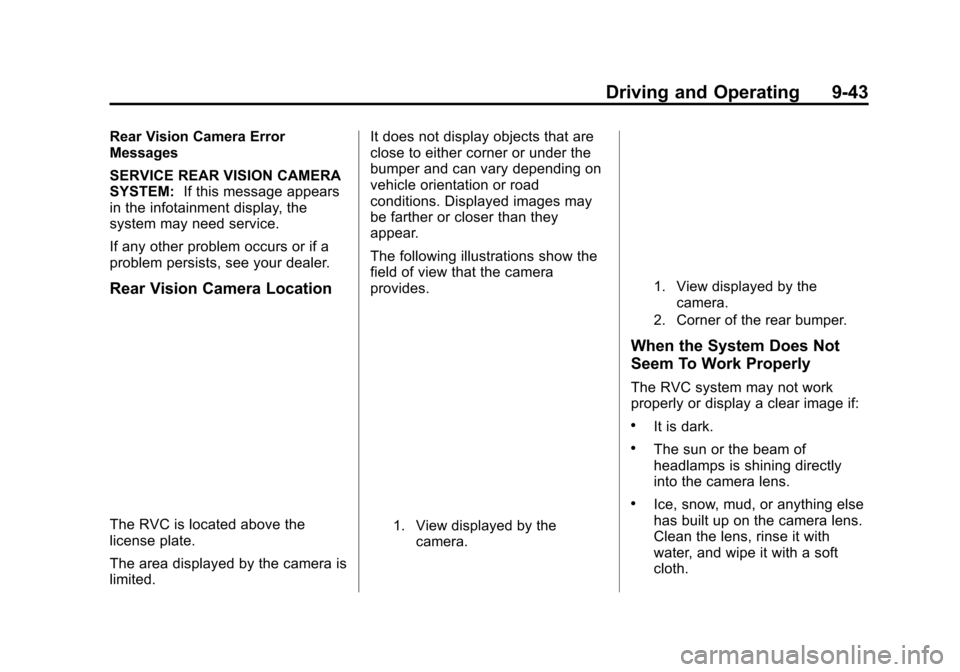
Rear Vision Camera Location
The RVC is located above the
license plate.
The area displayed by the camera is
limited. It does not display objects that are
close to either corner or under the
bumper and can vary depending on
vehicle orientation or road
conditions. Displayed images may
be farther or closer than they
appear.
The following illustrations show the
field of view that the camera
provides.1. View displayed by the
camera.
1. View displayed by the
camera.
2. Corner of the rear bumper.
When the System Does Not
Seem To Work Properly
The RVC system may not work
properly or display a clear image if:
.It is dark.
.The sun or the beam of
headlamps is shining directly
into the camera lens.
.Ice, snow, mud, or anything else
has built up on the camera lens.
Clean the lens, rinse it with
water, and wipe it with a soft
cloth.
Page 237 of 387
Black plate (52,1)Chevrolet VOLT Owner Manual (GMNA-Localizing-U.S./Canada-7695131) -
2015 - crc - 4/25/14
9-52 Driving and Operating
{Warning
Using a charge level that exceeds
the electrical circuit or electrical
outlet capacity may start a fire or
damage the electrical circuit. Use
the lowest charge level until a
qualified electrician inspects your
electrical circuit capacity. Use the
lowest charge level if the
electrical circuit or electrical outlet
capacity is not known.
Utility Interruption of
Charging
For participating customers using
AC charging, this vehicle will
respond to remote requests via
OnStar to limit or completely block
electrical power grid usage for brief
time periods. A utility interruption of
charging may increase AC vehicle
charge times, but will not affect DC
charge times.When electrical grid power is
completely blocked, the vehicle will
delay charging until the utility
interruption has expired. The vehicle
should be left plugged in so that,
when the utility interruption expires,
the vehicle can automatically begin
charging.
Changing the charge mode to
Immediate or performing a delayed
charging override will not disable a
utility interruption.
A pop-up will appear in the center
stack display during the key cycle
following any utility interruption. See
“Charging Override/Interruption
Pop-up”
underProgrammable
Charging on page 5-28.
Text will be displayed on the
instrument cluster indicating that a
utility interruption has occurred. See
Instrument Cluster on page 5-8.
Electrical Requirements
for Battery Charging
This vehicle is capable of being
charged with most standard vehicle
charging equipment complying to
one or more of the following:
.SAE J1772
.SAE J2847-2
.IEC 61851-1
.IEC 61851-22
.IEC 61851-23
.IEC 61851-24
.IEC 62196-1
.IEC 62196-2
.IEC 62196-3
.ISO 15118
The following are the minimum
requirements for circuits used to
charge this vehicle:
.120 volts/15 amps
.240 volts/20 amps
Page 240 of 387
Black plate (55,1)Chevrolet VOLT Owner Manual (GMNA-Localizing-U.S./Canada-7695131) -
2015 - crc - 4/25/14
Driving and Operating 9-55
gasoline additive recommended by
General Motors. It is available at
your dealer.
Filling the Tank
{Warning
Fuel vapors and fuel fires burn
violently and can cause injury or
death.
.To help avoid injuries to you
and others, read and follow
all the instructions on the fuel
pump island.
.Turn off the engine when
refueling.
.Keep sparks, flames, and
smoking materials away
from fuel.
.Do not leave the fuel pump
unattended.
.Do not reenter the vehicle
while pumping fuel.(Continued)
Warning (Continued)
.Keep children away from the
fuel pump and never let
children pump fuel.
.Fuel can spray out if the fuel
cap is opened too quickly.
This spray can happen if the
tank is nearly full, and is
more likely in hot weather.
Open the fuel cap slowly and
wait for any hiss noise to stop
then unscrew the cap all
the way. The fuel system on this vehicle
requires a refueling process to
control evaporative emissions. To
refuel the vehicle:
1. Press the fuel door button on the
driver door for one second.
A WAIT TO REFUEL message
displays on the Driver
Information Center.