display CHEVROLET VOLT 2018 User Guide
[x] Cancel search | Manufacturer: CHEVROLET, Model Year: 2018, Model line: VOLT, Model: CHEVROLET VOLT 2018Pages: 379, PDF Size: 5.65 MB
Page 36 of 379
Chevrolet VOLT Owner Manual (GMNA-Localizing-U.S./Canada/Mexico-
11349113) - 2018 - crc - 10/12/17
Keys, Doors, and Windows 35
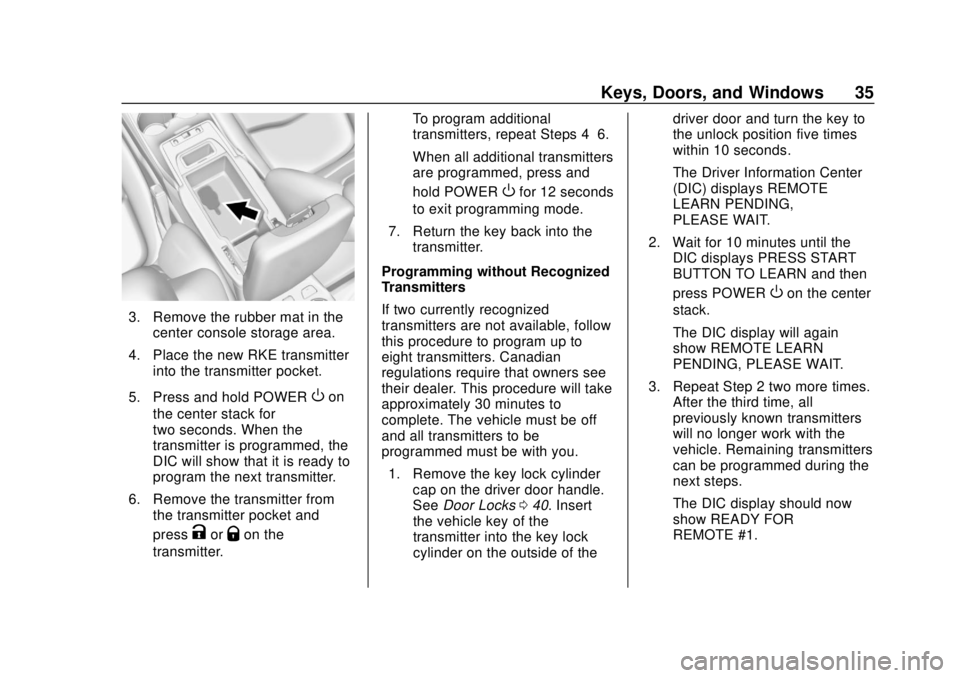
3. Remove the rubber mat in thecenter console storage area.
4. Place the new RKE transmitter into the transmitter pocket.
5. Press and hold POWER
Oon
the center stack for
two seconds. When the
transmitter is programmed, the
DIC will show that it is ready to
program the next transmitter.
6. Remove the transmitter from the transmitter pocket and
press
KorQon the
transmitter. To program additional
transmitters, repeat Steps 4–6.
When all additional transmitters
are programmed, press and
hold POWER
Ofor 12 seconds
to exit programming mode.
7. Return the key back into the transmitter.
Programming without Recognized
Transmitters
If two currently recognized
transmitters are not available, follow
this procedure to program up to
eight transmitters. Canadian
regulations require that owners see
their dealer. This procedure will take
approximately 30 minutes to
complete. The vehicle must be off
and all transmitters to be
programmed must be with you. 1. Remove the key lock cylinder cap on the driver door handle.
See Door Locks 040. Insert
the vehicle key of the
transmitter into the key lock
cylinder on the outside of the driver door and turn the key to
the unlock position five times
within 10 seconds.
The Driver Information Center
(DIC) displays REMOTE
LEARN PENDING,
PLEASE WAIT.
2. Wait for 10 minutes until the DIC displays PRESS START
BUTTON TO LEARN and then
press POWER
Oon the center
stack.
The DIC display will again
show REMOTE LEARN
PENDING, PLEASE WAIT.
3. Repeat Step 2 two more times. After the third time, all
previously known transmitters
will no longer work with the
vehicle. Remaining transmitters
can be programmed during the
next steps.
The DIC display should now
show READY FOR
REMOTE #1.
Page 37 of 379
Chevrolet VOLT Owner Manual (GMNA-Localizing-U.S./Canada/Mexico-
11349113) - 2018 - crc - 10/12/17
36 Keys, Doors, and Windows
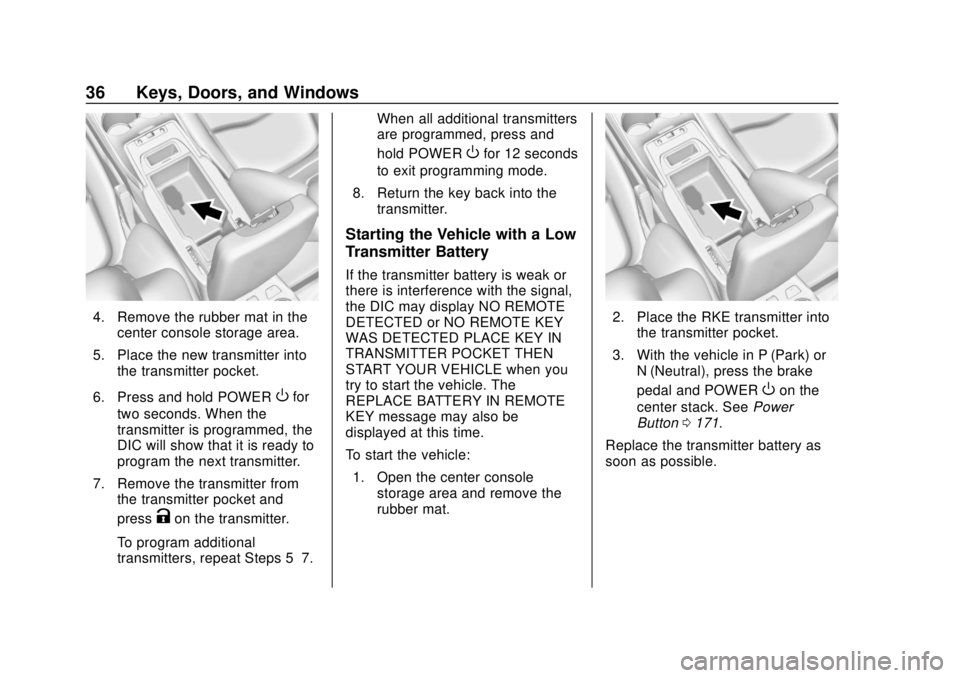
4. Remove the rubber mat in thecenter console storage area.
5. Place the new transmitter into the transmitter pocket.
6. Press and hold POWER
Ofor
two seconds. When the
transmitter is programmed, the
DIC will show that it is ready to
program the next transmitter.
7. Remove the transmitter from the transmitter pocket and
press
Kon the transmitter.
To program additional
transmitters, repeat Steps 5–7. When all additional transmitters
are programmed, press and
hold POWER
Ofor 12 seconds
to exit programming mode.
8. Return the key back into the transmitter.
Starting the Vehicle with a Low
Transmitter Battery
If the transmitter battery is weak or
there is interference with the signal,
the DIC may display NO REMOTE
DETECTED or NO REMOTE KEY
WAS DETECTED PLACE KEY IN
TRANSMITTER POCKET THEN
START YOUR VEHICLE when you
try to start the vehicle. The
REPLACE BATTERY IN REMOTE
KEY message may also be
displayed at this time.
To start the vehicle:
1. Open the center console storage area and remove the
rubber mat.
2. Place the RKE transmitter intothe transmitter pocket.
3. With the vehicle in P (Park) or N (Neutral), press the brake
pedal and POWER
Oon the
center stack. See Power
Button 0171.
Replace the transmitter battery as
soon as possible.
Page 100 of 379
Chevrolet VOLT Owner Manual (GMNA-Localizing-U.S./Canada/Mexico-
11349113) - 2018 - crc - 10/12/17
Instruments and Controls 99
Instruments and
Controls
Controls
Steering Wheel Adjustment . . . 100
Steering Wheel Controls . . . . . . 100
Heated Steering Wheel . . . . . . . 100
Horn . . . . . . . . . . . . . . . . . . . . . . . . . . 100
Pedestrian Safety Signal . . . . . 100
Windshield Wiper/Washer . . . . 101
Compass . . . . . . . . . . . . . . . . . . . . . 102
Clock . . . . . . . . . . . . . . . . . . . . . . . . . 102
Power Outlets . . . . . . . . . . . . . . . . 103
Wireless Charging . . . . . . . . . . . . 103
Warning Lights, Gauges, and
Indicators
Warning Lights, Gauges, andIndicators . . . . . . . . . . . . . . . . . . . 106
Instrument Cluster . . . . . . . . . . . . 106
Speedometer . . . . . . . . . . . . . . . . . 110
Odometer . . . . . . . . . . . . . . . . . . . . . 110
Trip Odometer . . . . . . . . . . . . . . . . 110
Battery Gauge (High Voltage) . . . . . . . . . . . . . . . . . . . . . 110
Fuel Gauge . . . . . . . . . . . . . . . . . . . 110
Driver Efficiency Gauge . . . . . . . 111
Power Indicator Gauge . . . . . . . 112 Seat Belt Reminders . . . . . . . . . . 112
Airbag Readiness Light . . . . . . . 113
Passenger Airbag Status
Indicator . . . . . . . . . . . . . . . . . . . . . 113
Charging System Light (12-Volt
Battery) . . . . . . . . . . . . . . . . . . . . . 114
Malfunction Indicator Lamp (Check Engine Light) . . . . . . . . 114
Brake System Warning Light . . . . . . . . . . . . . . . . . . . . . . . . 116
Electric Parking Brake Light . . . . . . . . . . . . . . . . . . . . . . . . 117
Service Electric Parking Brake Light . . . . . . . . . . . . . . . . . . . . . . . . 117
Antilock Brake System (ABS) Warning Light . . . . . . . . . . . . . . . 117
Sport Mode Light . . . . . . . . . . . . . 118
Mountain Mode Light . . . . . . . . . 118
Hold Mode Light . . . . . . . . . . . . . . 118
Lane Keep Assist (LKA) Light . . . . . . . . . . . . . . . . . . . . . . . . 118
Vehicle Ahead Indicator . . . . . . . 119
Traction Off Light . . . . . . . . . . . . . 119
StabiliTrak OFF Light . . . . . . . . . 119
Traction Control System (TCS)/ StabiliTrak Light . . . . . . . . . . . . . 119
Engine Coolant Temperature Warning Light . . . . . . . . . . . . . . . 120
Tire Pressure Light . . . . . . . . . . . 120
Engine Oil Pressure Light . . . . 120 Low Fuel Warning Light . . . . . . 121
Security Light . . . . . . . . . . . . . . . . . 121
Vehicle Ready Light . . . . . . . . . . 121
High-Beam On Light . . . . . . . . . . 122
Lamps On Reminder . . . . . . . . . 122
Cruise Control Light . . . . . . . . . . 122
Door Ajar Light . . . . . . . . . . . . . . . 122
Information Displays
Power Flows . . . . . . . . . . . . . . . . . 123
Programmable Charging . . . . . . 123
Energy Information . . . . . . . . . . . 132
Driver Information
Center (DIC) . . . . . . . . . . . . . . . . 133
Vehicle Messages
Vehicle Messages . . . . . . . . . . . . 136
Propulsion PowerMessages . . . . . . . . . . . . . . . . . . . 136
Vehicle Speed Messages . . . . . 137
Vehicle Personalization
Vehicle Personalization . . . . . . . 137
Page 101 of 379
Chevrolet VOLT Owner Manual (GMNA-Localizing-U.S./Canada/Mexico-
11349113) - 2018 - crc - 10/12/17
100 Instruments and Controls
Controls
Steering Wheel
Adjustment
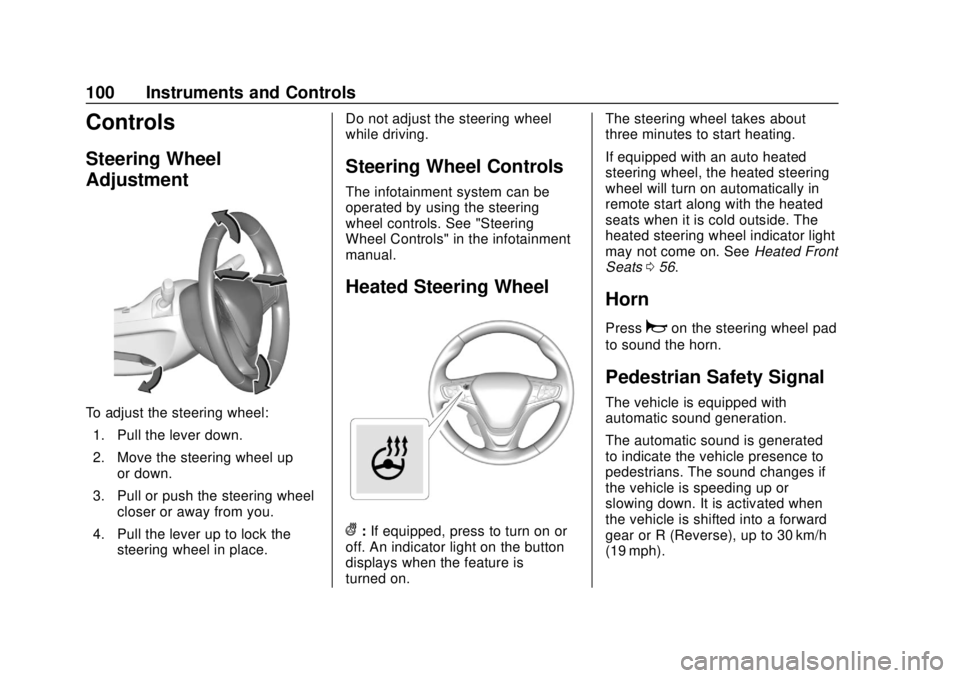
To adjust the steering wheel:1. Pull the lever down.
2. Move the steering wheel up or down.
3. Pull or push the steering wheel closer or away from you.
4. Pull the lever up to lock the steering wheel in place. Do not adjust the steering wheel
while driving.
Steering Wheel Controls
The infotainment system can be
operated by using the steering
wheel controls. See "Steering
Wheel Controls" in the infotainment
manual.
Heated Steering Wheel
(:
If equipped, press to turn on or
off. An indicator light on the button
displays when the feature is
turned on. The steering wheel takes about
three minutes to start heating.
If equipped with an auto heated
steering wheel, the heated steering
wheel will turn on automatically in
remote start along with the heated
seats when it is cold outside. The
heated steering wheel indicator light
may not come on. See
Heated Front
Seats 056.
Horn
Pressaon the steering wheel pad
to sound the horn.
Pedestrian Safety Signal
The vehicle is equipped with
automatic sound generation.
The automatic sound is generated
to indicate the vehicle presence to
pedestrians. The sound changes if
the vehicle is speeding up or
slowing down. It is activated when
the vehicle is shifted into a forward
gear or R (Reverse), up to 30 km/h
(19 mph).
Page 103 of 379
Chevrolet VOLT Owner Manual (GMNA-Localizing-U.S./Canada/Mexico-
11349113) - 2018 - crc - 10/12/17
102 Instruments and Controls
the windshield washer had been
activated. SeeWasher Fluid0250
for information on filling the
windshield washer fluid reservoir.
{Warning
In freezing weather, do not use
the washer until the windshield is
warmed. Otherwise the washer
fluid can form ice on the
windshield, blocking your vision.
Compass
The vehicle may have a compass
display on the Driver Information
Center (DIC). The compass receives
its heading and other information
from the Global Positioning
System (GPS) antenna, StabiliTrak,
and vehicle speed information.
The compass system is designed to
operate for a certain number of
miles or degrees of turn before
needing a signal from the GPS
satellites. When the compass
display shows CAL, drive the
vehicle for a short distance in an open area where it can receive a
GPS signal. The compass system
will automatically determine when a
GPS signal is restored and provide
a heading again.
Clock
Setting the Time and Date
To set the time:
1. Touch SETTINGS on the Home Page, then touch Time
and Date.
2. Touch Set Time, then touch
«
orªto increase or decrease
hours, minutes, and AM or PM.
Touch 12–24 Hr for 12 or
24 hour clock.
3. Touch
Sto go back to the
previous menu.
Autoset requires an active OnStar
service plan.
If auto timing is set, the time
displayed on the clock may not
update immediately when driving
into a new time zone. To set the date:
1. Touch SETTINGS on the Home Page, then touch Time
and Date.
2. Touch Set Date, then touch
«
orªto increase or decrease
month, day, or year.
3. Touch
Sto go back to the
previous menu.
To set the clock display:
1. Touch SETTINGS on the Home Page, then touch Time
and Date.
2. Touch Clock Display, then touch Off or On to turn the
clock display off or on.
3. Touch
Sto go back to the
previous menu.
Page 105 of 379
Chevrolet VOLT Owner Manual (GMNA-Localizing-U.S./Canada/Mexico-
11349113) - 2018 - crc - 10/12/17
104 Instruments and Controls
The operating temperature is−20 °C
(−4 °F) to 60 °C (140 °F) for the
charging system and 0 °C (32 °F) to
35 °C (95 °F) for the phone.
{Warning
Remove all objects from the
charging pocket before charging
your mobile phone. Objects, such
as coins, keys, rings, paper clips,
or cards, between the mobile
phone and the charger will
become very hot. On the rare
occasion that the charging system
does not detect an object, and the
object gets wedged between the
mobile phone and the charger,
remove the mobile phone and
allow the object to cool before
removing it from the charging
pocket, to prevent burns.
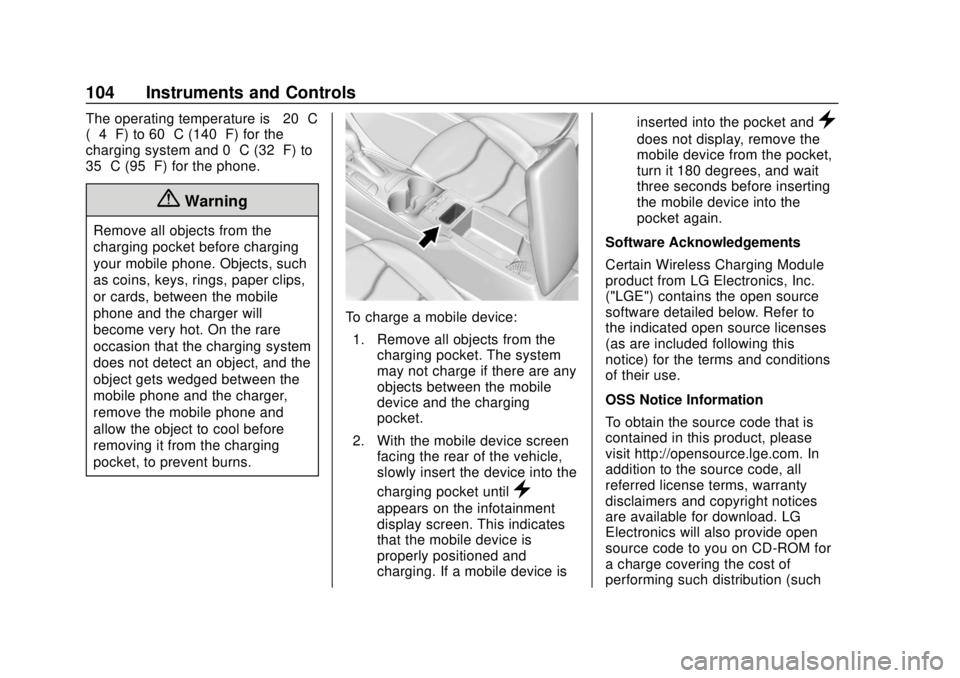
To charge a mobile device:
1. Remove all objects from the charging pocket. The system
may not charge if there are any
objects between the mobile
device and the charging
pocket.
2. With the mobile device screen facing the rear of the vehicle,
slowly insert the device into the
charging pocket until
}
appears on the infotainment
display screen. This indicates
that the mobile device is
properly positioned and
charging. If a mobile device is inserted into the pocket and
}
does not display, remove the
mobile device from the pocket,
turn it 180 degrees, and wait
three seconds before inserting
the mobile device into the
pocket again.
Software Acknowledgements
Certain Wireless Charging Module
product from LG Electronics, Inc.
("LGE") contains the open source
software detailed below. Refer to
the indicated open source licenses
(as are included following this
notice) for the terms and conditions
of their use.
OSS Notice Information
To obtain the source code that is
contained in this product, please
visit http://opensource.lge.com. In
addition to the source code, all
referred license terms, warranty
disclaimers and copyright notices
are available for download. LG
Electronics will also provide open
source code to you on CD-ROM for
a charge covering the cost of
performing such distribution (such
Page 107 of 379
Chevrolet VOLT Owner Manual (GMNA-Localizing-U.S./Canada/Mexico-
11349113) - 2018 - crc - 10/12/17
106 Instruments and Controls
Warning Lights,
Gauges, and
Indicators
Warning lights and gauges can
signal that something is wrong
before it becomes serious enough
to cause an expensive repair or
replacement. Paying attention to the
warning lights and gauges could
prevent injury.
Some warning lights come on briefly
when the propulsion system is
started to indicate they are working.
When one of the warning lights
comes on and stays on while
driving, or when one of the gauges
shows there may be a problem,
check the section that explains what
to do. Waiting to do repairs can be
costly and even dangerous.
Instrument Cluster
The instrument cluster displays a
preview of information that includes
electric range, charging, odometer,and battery status. This happens
upon entry when the driver door is
opened before starting the vehicle.
The CHARGING OVERRIDE/
INTERRUPTION OCCURRED
message may display to indicate
that a charging override or
interruption has occurred due to one
or more of the following events:
.
Override of the charge settings
by the owner using OnStar.
. Unintended interruption of AC
power at the vehicle's
charge port.
. Interruption of charging by the
utility company using OnStar as
authorized by the vehicle owner.
Page 109 of 379
Chevrolet VOLT Owner Manual (GMNA-Localizing-U.S./Canada/Mexico-
11349113) - 2018 - crc - 10/12/17
108 Instruments and Controls
Reconfigurable Instrument
Cluster
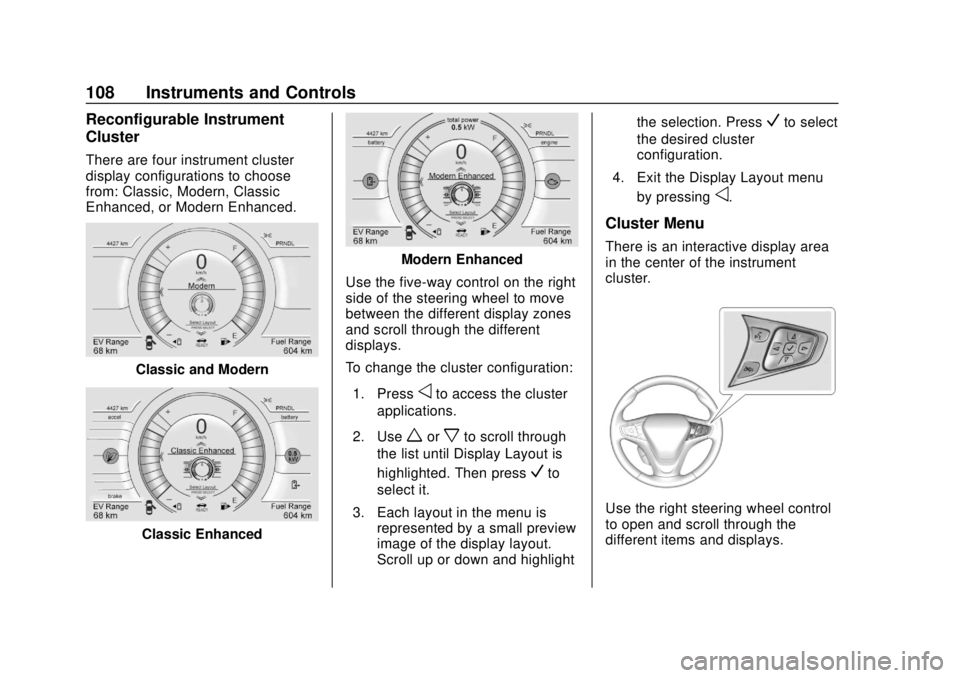
There are four instrument cluster
display configurations to choose
from: Classic, Modern, Classic
Enhanced, or Modern Enhanced.
Classic and Modern
Classic Enhanced
Modern Enhanced
Use the five-way control on the right
side of the steering wheel to move
between the different display zones
and scroll through the different
displays.
To change the cluster configuration:
1. Press
oto access the cluster
applications.
2. Use
worxto scroll through
the list until Display Layout is
highlighted. Then press
Vto
select it.
3. Each layout in the menu is represented by a small preview
image of the display layout.
Scroll up or down and highlight the selection. Press
Vto select
the desired cluster
configuration.
4. Exit the Display Layout menu by pressing
o.
Cluster Menu
There is an interactive display area
in the center of the instrument
cluster.
Use the right steering wheel control
to open and scroll through the
different items and displays.
Page 110 of 379
Chevrolet VOLT Owner Manual (GMNA-Localizing-U.S./Canada/Mexico-
11349113) - 2018 - crc - 10/12/17
Instruments and Controls 109
Pressoto access the cluster
applications. Use
worxto scroll
through the list of applications.
. Info. View the Driver Information
Center (DIC) displays. See
Driver Information Center (DIC)
0133.
. Audio
. Phone
. Navigation
. Display Layout. See
“Reconfigurable Instrument
Cluster” earlier in this section.
. Options
Audio
While the Audio application page is
displayed, press
pto enter the
Audio menu. In the Audio menu,
search for music or change the
audio source. Phone
While the Phone application page is
displayed, press
pto enter the
Phone menu. In the Phone menu,
if there is no active phone call, view
recent calls or scroll through
contacts. If there is an active call,
mute the phone or switch to handset
operation.
Navigation
If there is no active route, a
compass will be displayed. If there
is an active route, press
pto end
route guidance or turn the voice
prompts on or off.
Options
Press
pto enter the Options menu.
Use
worxto scroll through the
items in the Options menu
Units : Press
Vwhile Units is
highlighted to enter the Unit menu.
Choose US, Metric, or Imperial units
by pressing
Vwhile the desired item is highlighted. A checkmark will
be displayed next to the
selected item.
Speed Warning :
The Speed
Warning display allows the driver to
set a speed that they do not want to
exceed. To set the Speed Warning,
press
Vwhen Speed Warning is
displayed. Press
worxto adjust
the value. Press
Vto set the speed.
Once the speed is set, this feature
can be turned off by pressing
V
while viewing this page. If the
selected speed limit is exceeded, a
pop-up warning is displayed with a
chime.
Tutorial : Press
Vwhile Tutorial is
highlighted to view the tutorials that
explain some of the features of the
instrument cluster. The tutorials are
only available when the vehicle is in
P (Park).
Open Source Software : Press
V
while Open Source Software is
highlighted to display open source
software information.
Page 112 of 379
Chevrolet VOLT Owner Manual (GMNA-Localizing-U.S./Canada/Mexico-
11349113) - 2018 - crc - 10/12/17
Instruments and Controls 111
Here are some things that owners
ask about. None of these show a
problem with the fuel gauge:
.At the service station, the fuel
pump shuts off before the gauge
reads full.
. It takes a little more or less fuel
to fill up than the gauge
indicated. For example, the
gauge may have indicated the
tank was half full, but it actually
took a little more or less than
half the tank's capacity to fill
the tank.
. The gauge takes a few seconds
to stabilize after the vehicle is
turned on, and goes back to
empty when the vehicle is
turned off.Driver Efficiency Gauge
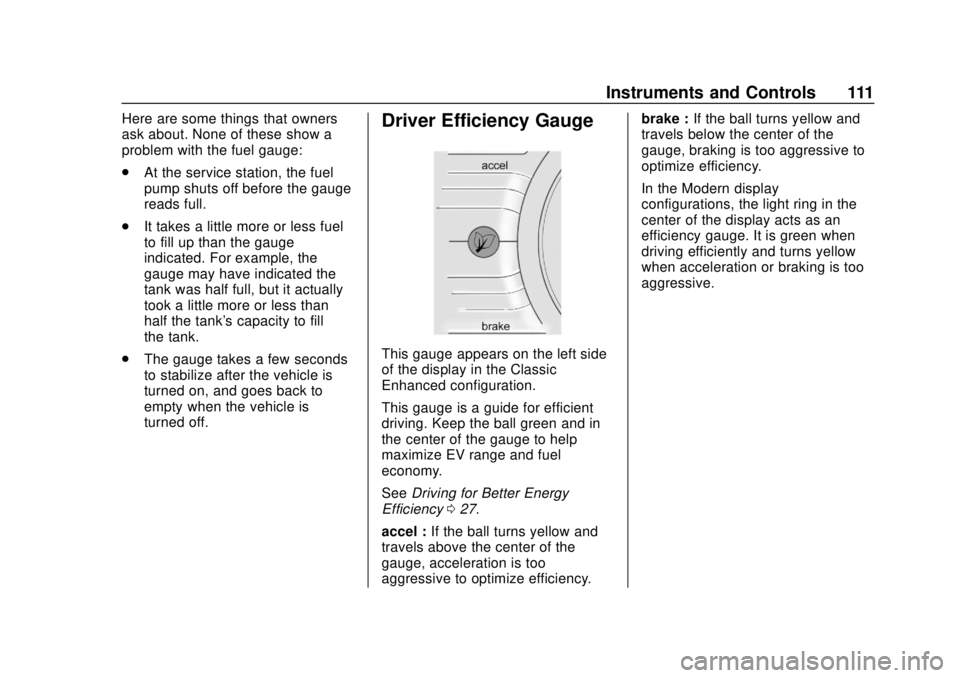
This gauge appears on the left side
of the display in the Classic
Enhanced configuration.
This gauge is a guide for efficient
driving. Keep the ball green and in
the center of the gauge to help
maximize EV range and fuel
economy.
See Driving for Better Energy
Efficiency 027.
accel : If the ball turns yellow and
travels above the center of the
gauge, acceleration is too
aggressive to optimize efficiency. brake :
If the ball turns yellow and
travels below the center of the
gauge, braking is too aggressive to
optimize efficiency.
In the Modern display
configurations, the light ring in the
center of the display acts as an
efficiency gauge. It is green when
driving efficiently and turns yellow
when acceleration or braking is too
aggressive.