manual radio set CHEVROLET VOLT 2019 Owner's Manual
[x] Cancel search | Manufacturer: CHEVROLET, Model Year: 2019, Model line: VOLT, Model: CHEVROLET VOLT 2019Pages: 373, PDF Size: 5.66 MB
Page 19 of 373
Chevrolet VOLT Owner Manual (GMNA-Localizing-U.S./Canada/Mexico-
12163007) - 2019 - CRC - 11/5/18
18 In Brief
Vehicle Features
Infotainment System
See the infotainment manual for
information on the radio, audio
players, phone, and voice or speech
recognition. It also includes
information on settings.
Steering Wheel Controls
The infotainment system can be
operated by using the steering
wheel controls. See“Steering Wheel
Controls” in the infotainment
manual.
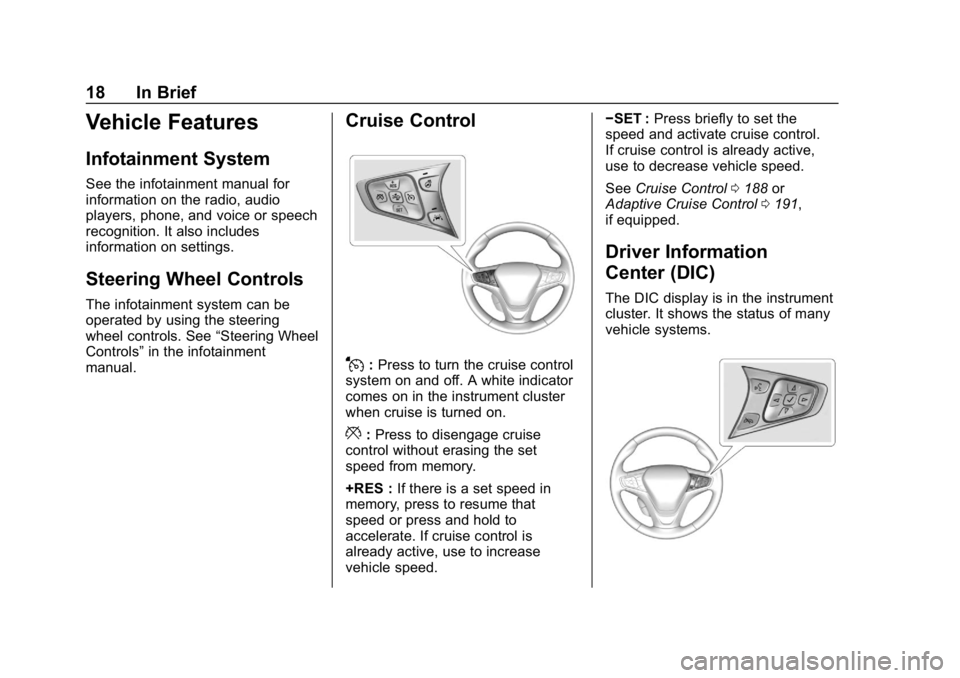
Cruise Control
J: Press to turn the cruise control
system on and off. A white indicator
comes on in the instrument cluster
when cruise is turned on.
*: Press to disengage cruise
control without erasing the set
speed from memory.
+RES : If there is a set speed in
memory, press to resume that
speed or press and hold to
accelerate. If cruise control is
already active, use to increase
vehicle speed. −SET :
Press briefly to set the
speed and activate cruise control.
If cruise control is already active,
use to decrease vehicle speed.
See Cruise Control 0188 or
Adaptive Cruise Control 0191,
if equipped.
Driver Information
Center (DIC)
The DIC display is in the instrument
cluster. It shows the status of many
vehicle systems.
Page 48 of 373
Chevrolet VOLT Owner Manual (GMNA-Localizing-U.S./Canada/Mexico-
12163007) - 2019 - CRC - 11/5/18
Keys, Doors, and Windows 47
The charge cord theft alert feature
may be disabled through the vehicle
personalization. See“Charge Cord
Theft Alert” underVehicle
Personalization 0137.
Disarming the Alarm System
To disarm the alarm system, or turn
off the alarm if it has been activated,
do one of the following:
.
Press
Kon the RKE transmitter.
. Unlock the vehicle using the
Keyless Access system.
. Start the vehicle.
To avoid setting off the alarm by
accident:
. Lock the vehicle after all
occupants have exited.
. Always unlock a door with the
RKE transmitter or use the
Keyless Access system.
Unlocking the driver door with the
key will not disarm the system or
turn off the alarm.
How to Detect a Tamper
Condition
IfKis pressed on the transmitter
and the horn chirps and the lights
flash three times, a previous alarm
occurred while the system was
armed.
If the alarm has been activated, a
message will appear on the Driver
Information Center (DIC).
Immobilizer
See Radio Frequency Statement
0 345.
Immobilizer Operation
This vehicle has a passive
theft-deterrent system. The system
does not have to be manually
armed or disarmed.
The vehicle is automatically
immobilized when the vehicle is
turned off. The system is automatically
disarmed when the vehicle is
started with a valid RKE transmitter
in the vehicle. The RKE transmitter
uses electronic coding that matches
an immobilizer control unit in the
vehicle and automatically disarms
the system. Only a correct
transmitter can be used to turn the
vehicle on.
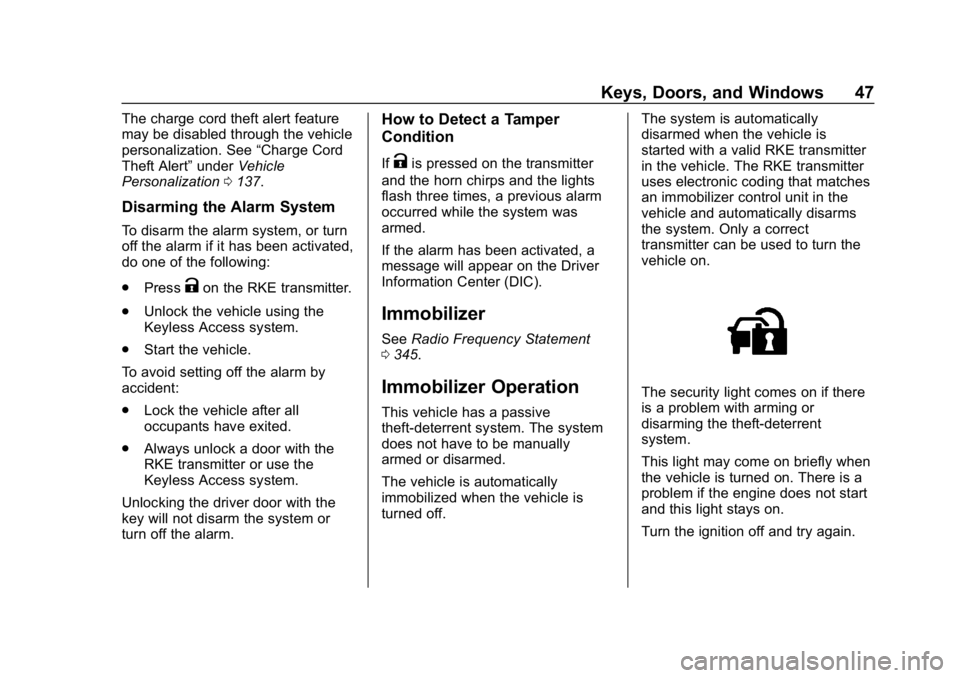
The security light comes on if there
is a problem with arming or
disarming the theft-deterrent
system.
This light may come on briefly when
the vehicle is turned on. There is a
problem if the engine does not start
and this light stays on.
Turn the ignition off and try again.
Page 110 of 373
Chevrolet VOLT Owner Manual (GMNA-Localizing-U.S./Canada/Mexico-
12163007) - 2019 - CRC - 11/5/18
Instruments and Controls 109
Cluster Menu
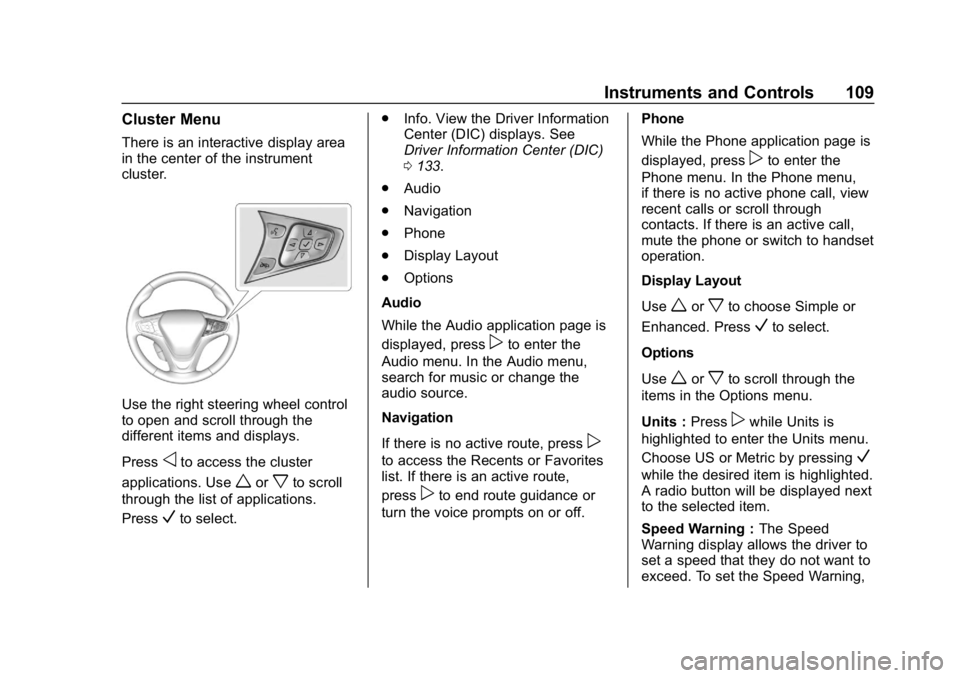
There is an interactive display area
in the center of the instrument
cluster.
Use the right steering wheel control
to open and scroll through the
different items and displays.
Press
oto access the cluster
applications. Use
worxto scroll
through the list of applications.
Press
Vto select. .
Info. View the Driver Information
Center (DIC) displays. See
Driver Information Center (DIC)
0133.
. Audio
. Navigation
. Phone
. Display Layout
. Options
Audio
While the Audio application page is
displayed, press
pto enter the
Audio menu. In the Audio menu,
search for music or change the
audio source.
Navigation
If there is no active route, press
p
to access the Recents or Favorites
list. If there is an active route,
press
pto end route guidance or
turn the voice prompts on or off. Phone
While the Phone application page is
displayed, press
pto enter the
Phone menu. In the Phone menu,
if there is no active phone call, view
recent calls or scroll through
contacts. If there is an active call,
mute the phone or switch to handset
operation.
Display Layout
Use
worxto choose Simple or
Enhanced. Press
Vto select.
Options
Use
worxto scroll through the
items in the Options menu.
Units : Press
pwhile Units is
highlighted to enter the Units menu.
Choose US or Metric by pressing
V
while the desired item is highlighted.
A radio button will be displayed next
to the selected item.
Speed Warning : The Speed
Warning display allows the driver to
set a speed that they do not want to
exceed. To set the Speed Warning,
Page 150 of 373
Chevrolet VOLT Owner Manual (GMNA-Localizing-U.S./Canada/Mexico-
12163007) - 2019 - CRC - 11/5/18
Infotainment System 149
Infotainment
System
Introduction
Infotainment . . . . . . . . . . . . . . . . . . 149
Introduction
Infotainment
See the infotainment manual for
information on the radio, audio
players, phone, navigation system,
and voice or speech recognition.
It also includes information on
settings.
Active Noise Cancellation (ANC)
If equipped, ANC reduces engine
noise in the vehicle’s interior. ANC
requires the factory-installed audio
system, radio, speakers, amplifier
(if equipped), induction system, and
exhaust system to work properly.
Deactivation is required by your
dealer if related aftermarket
equipment is installed.
Page 159 of 373
Chevrolet VOLT Owner Manual (GMNA-Localizing-U.S./Canada/Mexico-
12163007) - 2019 - CRC - 11/5/18
158 Driving and Operating
Utility Interruption ofCharging . . . . . . . . . . . . . . . . . . . . 227
Electrical Requirements for Battery Charging . . . . . . . . . . . . 228
Fuel
Top Tier Fuel . . . . . . . . . . . . . . . . . 229
Recommended Fuel . . . . . . . . . . 229
Prohibited Fuels . . . . . . . . . . . . . . 229
Fuels in Foreign Countries . . . 230
Fuel Additives . . . . . . . . . . . . . . . . 230
Filling the Tank . . . . . . . . . . . . . . . 230
Filling a Portable FuelContainer . . . . . . . . . . . . . . . . . . . 232
Trailer Towing
General TowingInformation . . . . . . . . . . . . . . . . . . 233
Conversions and Add-Ons
Add-On ElectricalEquipment . . . . . . . . . . . . . . . . . . 233
Driving Information
Distracted Driving
Distraction comes in many forms
and can take your focus from the
task of driving. Exercise good
judgment and do not let other
activities divert your attention away
from the road. Many local
governments have enacted laws
regarding driver distraction. Become
familiar with the local laws in
your area.
To avoid distracted driving, keep
your eyes on the road, keep your
hands on the steering wheel, and
focus your attention on driving.
. Do not use a phone in
demanding driving situations.
Use a hands-free method to
place or receive necessary
phone calls.
. Watch the road. Do not read,
take notes, or look up
information on phones or other
electronic devices. .
Designate a front seat
passenger to handle potential
distractions.
. Become familiar with vehicle
features before driving, such as
programming favorite radio
stations and adjusting climate
control and seat settings.
Program all trip information into
any navigation device prior to
driving.
. Wait until the vehicle is parked
to retrieve items that have fallen
to the floor.
. Stop or park the vehicle to tend
to children.
. Keep pets in an appropriate
carrier or restraint.
. Avoid stressful conversations
while driving, whether with a
passenger or on a cell phone.
Page 192 of 373
Chevrolet VOLT Owner Manual (GMNA-Localizing-U.S./Canada/Mexico-
12163007) - 2019 - CRC - 11/5/18
Driving and Operating 191
Ending Cruise Control
There are five ways to end cruise
control:
.Step lightly on the brake pedal.
. Press
*.
. Shift the electric drive unit to
N (Neutral).
. Press
5to turn the cruise
control system off completely.
. Press the Regen on Demand
paddle.
Erasing Speed Memory
The cruise control set speed is
erased from memory if
5is pressed
or if the vehicle is turned off.
Adaptive Cruise Control
If equipped, Adaptive Cruise Control
(ACC) allows the cruise control set
speed and following gap to be
selected. Read this entire section
before using this system. The
following gap is the following time
between your vehicle and a vehicle
detected directly ahead in your path, moving in the same direction. If no
vehicle is detected in your path,
ACC works like regular cruise
control. ACC uses camera and
radar sensors. See
Radio
Frequency Statement 0345.
If a vehicle is detected in your path,
ACC can apply acceleration or
limited, moderate braking to
maintain the selected following gap.
To disengage ACC, apply the brake.
If ACC is controlling your vehicle
speed when the traction control
system (TCS) or StabiliTrak/
Electronic Stability Control (ESC)
system activates, ACC may
automatically disengage. See
Traction Control/Electronic Stability
Control 0186. When road
conditions allow ACC to be safely
used, the ACC can be turned back
on. Disabling the TCS or StabiliTrak/
ESC system will disengage and
prevent engagement of ACC.
ACC will not engage if the TCS or
StabiliTrak/ESC system is disabled. ACC can reduce the need for you to
frequently brake and accelerate,
especially when used on
expressways, freeways, and
interstate highways. When used on
other roads, you may need to take
over the control of braking or
acceleration more often.
{Warning
ACC has limited braking ability
and may not have time to slow
the vehicle down enough to avoid
a collision with another vehicle
you are following. This can occur
when vehicles suddenly slow or
stop ahead, or enter your lane.
Also see
“Alerting the Driver” in
this section. Complete attention is
always required while driving and
you should be ready to take
action and apply the brakes. See
Defensive Driving 0159.
Page 302 of 373
Chevrolet VOLT Owner Manual (GMNA-Localizing-U.S./Canada/Mexico-
12163007) - 2019 - CRC - 11/5/18
Vehicle Care 301
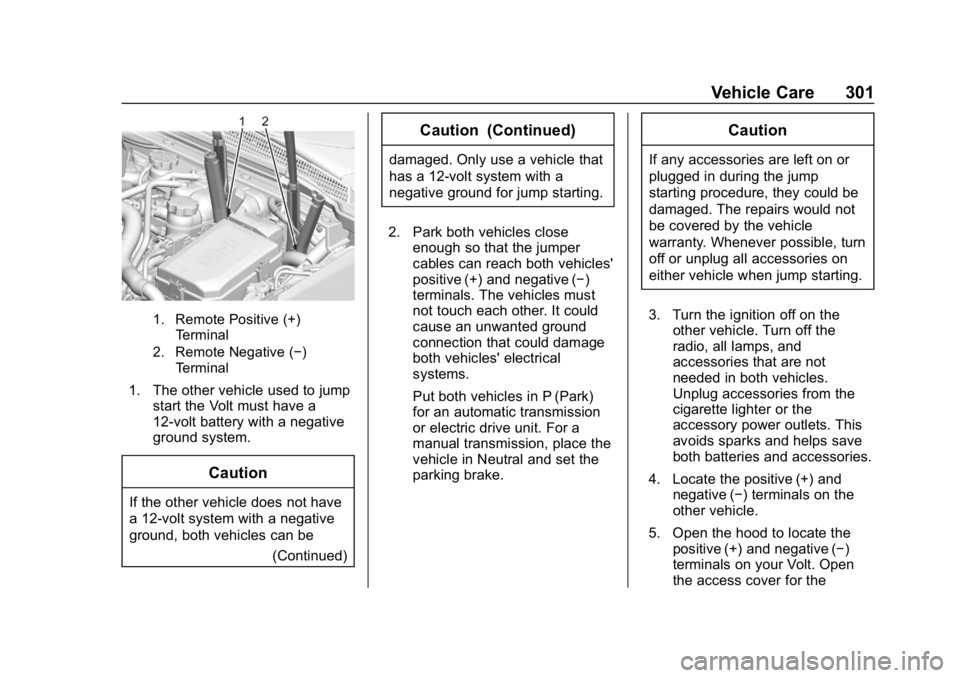
1. Remote Positive (+)Terminal
2. Remote Negative (−) Terminal
1. The other vehicle used to jump start the Volt must have a
12-volt battery with a negative
ground system.
Caution
If the other vehicle does not have
a 12-volt system with a negative
ground, both vehicles can be
(Continued)
Caution (Continued)
damaged. Only use a vehicle that
has a 12-volt system with a
negative ground for jump starting.
2. Park both vehicles close enough so that the jumper
cables can reach both vehicles'
positive (+) and negative (−)
terminals. The vehicles must
not touch each other. It could
cause an unwanted ground
connection that could damage
both vehicles' electrical
systems.
Put both vehicles in P (Park)
for an automatic transmission
or electric drive unit. For a
manual transmission, place the
vehicle in Neutral and set the
parking brake.
Caution
If any accessories are left on or
plugged in during the jump
starting procedure, they could be
damaged. The repairs would not
be covered by the vehicle
warranty. Whenever possible, turn
off or unplug all accessories on
either vehicle when jump starting.
3. Turn the ignition off on the other vehicle. Turn off the
radio, all lamps, and
accessories that are not
needed in both vehicles.
Unplug accessories from the
cigarette lighter or the
accessory power outlets. This
avoids sparks and helps save
both batteries and accessories.
4. Locate the positive (+) and negative (−) terminals on the
other vehicle.
5. Open the hood to locate the positive (+) and negative (−)
terminals on your Volt. Open
the access cover for the
Page 348 of 373
Chevrolet VOLT Owner Manual (GMNA-Localizing-U.S./Canada/Mexico-
12163007) - 2019 - CRC - 11/5/18
Customer Information 347
Reporting Safety Defects
to General Motors
In addition to notifying NHTSA (or
Transport Canada) in a situation like
this, notify General Motors.
In the U.S., call 1-800-222-1020,
or write:
Chevrolet Motor Division
Chevrolet Customer Assistance
Center
P.O. Box 33170
Detroit, MI 48232-5170
In Canada, call 1-800-263-3777
(English) or 1-800-263-7854
(French), or write:
General Motors of Canada
Company
Customer Care Centre,
Mail Code: CA1-163-005
1908 Colonel Sam Drive
Oshawa, Ontario L1H 8P7
In Mexico, call 01-800-466-0811.
In other Central America and
Caribbean Countries, call
52-722-236-0680.
Vehicle Data
Recording and
Privacy
The vehicle has a number of
computers that record information
about the vehicle’s performance and
how it is driven. For example, the
vehicle uses computer modules to
monitor and control engine and
electric drive unit performance, to
monitor the conditions for airbag
deployment and to deploy them in a
crash, and, if equipped, to provide
antilock braking to help the driver
control the vehicle. These modules
may store data to help the dealer
technician service the vehicle.
Some modules may also store data
about how the vehicle is operated,
such as rate of fuel consumption or
average speed. These modules may
retain personal preferences, such as
radio presets, seat positions, and
temperature settings.
Event Data Recorders
This vehicle is equipped with an
event data recorder (EDR). The
main purpose of an EDR is to
record, in certain crash or near
crash-like situations, such as an air
bag deployment or hitting a road
obstacle, data that will assist in
understanding how a vehicle’s
systems performed. The EDR is
designed to record data related to
vehicle dynamics and safety
systems for a short period of time,
typically 30 seconds or less. The
EDR in this vehicle is designed to
record such data as:
.How various systems in your
vehicle were operating;
. Whether or not the driver and
passenger safety belts were
buckled/fastened;
. How far (if at all) the driver was
depressing the accelerator and/
or brake pedal; and,
. How fast the vehicle was
traveling.
Page 353 of 373
Chevrolet VOLT Owner Manual (GMNA-Localizing-U.S./Canada/Mexico-
12163007) - 2019 - CRC - 11/5/18
352 OnStar
.PressQto speak with an
Advisor.
OnStar or connected services
cannot work unless the vehicle is in
a place where OnStar has an
agreement with a wireless service
provider for service in that area. The
wireless service provider must also
have coverage, network capacity,
reception, and technology
compatible with OnStar or
connected services. Service
involving location information about
the vehicle cannot work unless GPS
signals are available, unobstructed,
and compatible with the OnStar
hardware. OnStar or connected
services may not work if the OnStar
equipment is not properly installed
or it has not been properly
maintained. If equipment or software
is added, connected, or modified,
OnStar or connected services may
not work. Other problems beyond
the control of OnStar —such as
hills, tall buildings, tunnels, weather,
electrical system design and
architecture of the vehicle, damage to the vehicle in a crash, or wireless
phone network congestion or
jamming
—may prevent service.
See Radio Frequency Statement
0 345.
Services for People with
Disabilities
Advisors provide services to help
with physical disabilities and
medical conditions.
Press
Qto help:
. Locate a gas station with an
attendant to pump gas.
. Find a hotel, restaurant, etc.,
that meets accessibility needs.
. Provide directions to the closest
hospital or pharmacy in urgent
situations.
TTY Users
OnStar has the ability to
communicate to deaf,
hard-of-hearing, or speech-impaired
customers while in the vehicle. The
available dealer-installed TTY
system can provide in-vehicle access to all OnStar services,
except Virtual Advisor and OnStar
Turn-by-Turn Navigation.
If equipped, TTY mode can be
turned on or off by touching
Settings, then Apps, and then
Phone. When TTY mode is on,
phone calls can be made or
received with OnStar using the
infotainment display.
OnStar Personal Identification
Number (PIN)
A PIN is needed to access some
OnStar services. The PIN will need
to be changed the first time when
speaking with an Advisor. To
change the OnStar PIN, contact an
OnStar Advisor by pressing
Qor
calling 1-888-4ONSTAR.
Warranty
OnStar equipment may be
warranted as part of the vehicle
warranty.
Page 355 of 373
Chevrolet VOLT Owner Manual (GMNA-Localizing-U.S./Canada/Mexico-
12163007) - 2019 - CRC - 11/5/18
354 OnStar
security, or the operation of the
vehicle or the vehicle systems.
Software updates or changes may
affect or erase data or settings that
are stored in the vehicle, such as
OnStar Hands-Free Calling name
tags, saved navigation destinations,
or pre-set radio stations. Neither
OnStar nor GM is responsible for
any affected or erased data or
settings. These updates or changes
may also collect personal
information. Such collection is
described in the OnStar privacy
statement or separately disclosed at
the time of installation. These
updates or changes may also cause
a system to automatically
communicate with GM servers to
collect information about vehicle
system status, identify whether
updates or changes are available,
or deliver updates or changes. An
active OnStar agreement constitutes
consent to these software updates
or changes and agreement that
either OnStar or GM may remotely
deliver them to the vehicle.Privacy
The complete OnStar Privacy
Statement may be found at
www.onstar.com (U.S.),
or www.onstar.ca (Canada). We
recommend that you review it. If you
have any questions, call
1-888-4ONSTAR (1-888-466-7827)
or press
Qto speak with an
Advisor. Users of wireless
communications are cautioned that
the privacy of any information sent
via wireless cellular communications
cannot be assured. Third parties
may unlawfully intercept or access
transmissions and private
communications without consent.
OnStar - Software
Acknowledgements
Certain OnStar components include
libcurl and unzip software and other
third party software. Below are the
notices and licenses associated
with libcurl and unzip and for other
third party software please see
http://opensource.lge.com/index
www.onstar.com/us/en/ libcurl:
COPYRIGHT AND PERMISSION
NOTICE
Copyright (c) 1996 - 2010, Daniel
Stenberg,
All rights reserved.
Permission to use, copy, modify,
and distribute this software for any
purpose with or without fee is
hereby granted, provided that the
above copyright notice and this
permission notice appear in all
copies.
THE SOFTWARE IS PROVIDED
“AS IS,”
WITHOUT WARRANTY OF
ANY KIND, EXPRESS OR
IMPLIED, INCLUDING BUT NOT
LIMITED TO THE WARRANTIES
OF MERCHANTABILITY, FITNESS
FOR A PARTICULAR PURPOSE
AND NONINFRINGEMENT OF
THIRD PARTY RIGHTS. IN NO
EVENT SHALL THE AUTHORS OR
COPYRIGHT HOLDERS BE
LIABLE FOR ANY CLAIM,
DAMAGES OR OTHER LIABILITY,
WHETHER IN AN ACTION OF
CONTRACT, TORT OR