manual radio set CHEVROLET VOLT 2020 User Guide
[x] Cancel search | Manufacturer: CHEVROLET, Model Year: 2020, Model line: VOLT, Model: CHEVROLET VOLT 2020Pages: 347, PDF Size: 5.71 MB
Page 142 of 347
Chevrolet BOLT EV Owner Manual (GMNA-Localizing-U.S./Canada/Mexico-
13556250) - 2020 - CRC - 2/11/20
Infotainment System 141
Update AM or FM Stations1. Touch Browse Audio.
2. Touch Update AM Stations or Update FM Stations.
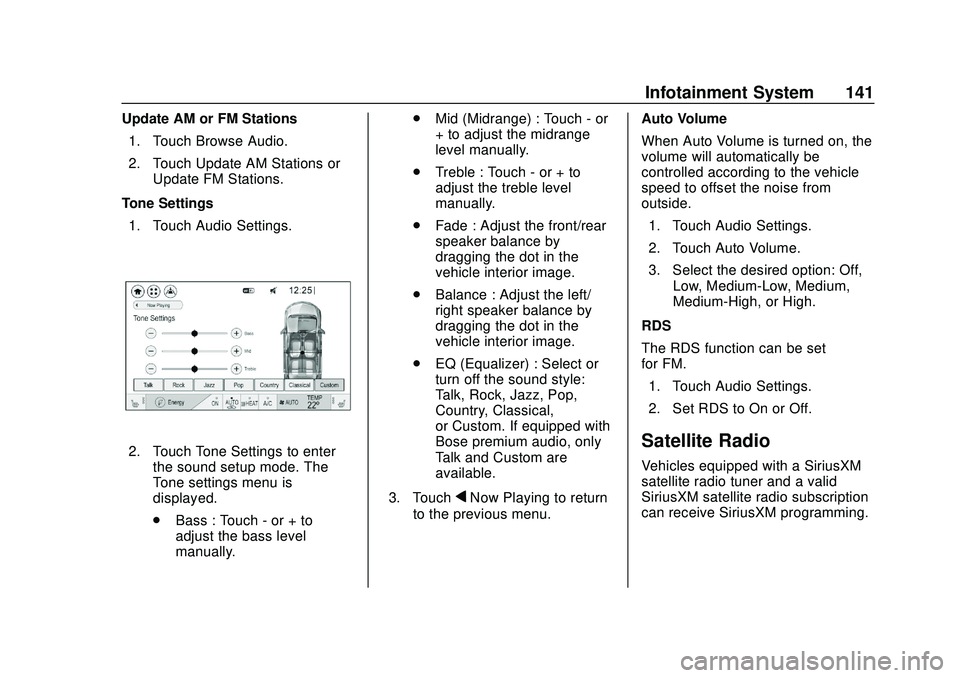
Tone Settings 1. Touch Audio Settings.
2. Touch Tone Settings to enter the sound setup mode. The
Tone settings menu is
displayed.
.Bass : Touch - or + to
adjust the bass level
manually. .
Mid (Midrange) : Touch - or
+ to adjust the midrange
level manually.
. Treble : Touch - or + to
adjust the treble level
manually.
. Fade : Adjust the front/rear
speaker balance by
dragging the dot in the
vehicle interior image.
. Balance : Adjust the left/
right speaker balance by
dragging the dot in the
vehicle interior image.
. EQ (Equalizer) : Select or
turn off the sound style:
Talk, Rock, Jazz, Pop,
Country, Classical,
or Custom. If equipped with
Bose premium audio, only
Talk and Custom are
available.
3. Touch
qNow Playing to return
to the previous menu. Auto Volume
When Auto Volume is turned on, the
volume will automatically be
controlled according to the vehicle
speed to offset the noise from
outside.
1. Touch Audio Settings.
2. Touch Auto Volume.
3. Select the desired option: Off, Low, Medium-Low, Medium,
Medium-High, or High.
RDS
The RDS function can be set
for FM. 1. Touch Audio Settings.
2. Set RDS to On or Off.
Satellite Radio
Vehicles equipped with a SiriusXM
satellite radio tuner and a valid
SiriusXM satellite radio subscription
can receive SiriusXM programming.
Page 144 of 347
Chevrolet BOLT EV Owner Manual (GMNA-Localizing-U.S./Canada/Mexico-
13556250) - 2020 - CRC - 2/11/20
Infotainment System 143
Audio Settings
.Tone Settings
Set up sound features from the
Tone Settings menu. See “Tone
Settings” under“AM-FM Radio”
previously in this section.
. Auto Volume
Volume will be automatically
controlled. See “Auto Volume”
under “AM-FM Radio” previously
in this section.
. Explicit Content Filter
Choose this menu item to turn
On or Off the filtering of explicit
channels from SXM. A list item
can be set to On or Off. From
the SXM Settings, touch Audio
Settings. Set Explicit Content
Filter feature to On or Off to
allow for a filtered list of
channels.
Multi-Band Antenna
If equipped, the roof antenna is for
AM, FM, and GPS (Global
Positioning System). Keep clear of
obstructions for clear reception.
Mobile Phone Usage
Mobile phone usage can cause
interference with the vehicle's radio.
Unplug the mobile phone or turn it
off if this occurs.
AM
The range for most AM stations is
greater than for FM, especially at
night. The longer range can cause
station frequencies to interfere with
each other. Static can occur when
things like storms and power lines
interfere with radio reception. When
this happens, try reducing the treble
on the radio.
FM
FM signals only reach about 16 to
65 km (10 to 40 mi). Although the
radio has a built-in electronic circuit
that automatically works to reduce
interference, some static can occur,
especially around tall buildings or
hills, causing the sound to fade in
and out.
Audio Players
USB Port
The USB ports are in the center
console and are for data and
charging. If equipped, there are two
USB charge ports in the rear of the
center console. The infotainment
system can play the music files
contained in the USB storage
device or a device that supports
MTP or iPod/iPhone devices.
Caution
To avoid vehicle damage, unplug
all accessories and disconnect all
accessory cables from the vehicle
when not in use. Accessory
cables left plugged into the
vehicle, unconnected to a device,
could be damaged or cause an
electrical short if the unconnected
end comes in contact with liquids
or another power source such as
the accessory power outlet.
Page 148 of 347
Chevrolet BOLT EV Owner Manual (GMNA-Localizing-U.S./Canada/Mexico-
13556250) - 2020 - CRC - 2/11/20
Infotainment System 147
Searching for a File by Using the
Favorites
Saving Favorites1. Select the desired file.
2. Touch
q, or touch and hold the
favorite in the list to overwrite.
3. To delete it from the Favorites list, touch
q, or swipe the file
from the list on the right.
Up to 15 media files can be
saved in the Favorites list.
Listening to Favorites Directly 1. Touch the Favorites menu to see the Favorites list.
2. Touch the desired favorite to listen.
Browse Music 1. Touch Browse Music.
2. Touch the desired item: Playlists, Folders, Artists,
Songs, Albums, Genres, and
Composers.
3. Touch the desired music to listen. The Infotainment Module will
recognize playlist files by the
extensions .asx, m3u, pls, wpl,
b4s, and .xspf.
Tone Settings
Set up sound features from the
Tone Settings menu. See “Tone
Settings” under“AM-FM Radio”
previously in this section.
Auto Volume
See “Auto Volume” under“AM-FM
Radio” previously in this section.
MTP (Media Transfer Protocol)
Player
Playing Music from a Supported
MTP Device
Connect the supported MTP device
containing music files to the
USB port.
.
Once the infotainment system
finishes reading the information
on the device that supports MTP
(Media Transfer Protocol), it will
be automatically played. If USB Auto Launch is set to Off in
Settings, it will not be
automatically played.
. If a non-readable device that
supports MTP is connected, then
an error message will appear
and the infotainment system will
automatically switch to the
previous audio function.
. Depending on the connected
device, some files may not play.
. File loading may take a few
minutes depending on the type
of MTP device or the number of
files/folders stored in the MTP
device.
. When connecting the MTP
device, the infotainment system
scans audio files first, and then
picture files. While scanning
picture files, these files may not
be available until the loading
indicator on the audio screen
disappears even if the audio file
in the MTP device is playing.
. If connecting an MTP device that
has external memory, it may be
recognized as USB1/USB2.
Page 149 of 347
Chevrolet BOLT EV Owner Manual (GMNA-Localizing-U.S./Canada/Mexico-
13556250) - 2020 - CRC - 2/11/20
148 Infotainment System
.Other operations are the same
as the USB player. See “USB
Player” under“USB Port”
previously in this section.
. The USB connection setting on
the device may need to be
changed to MTP.
iPod/iPhone Player
This is limited to devices supporting
the iPod/iPhone connection.
Playing iPod/iPhone Music Files
Use an Apple certified cord to
connect the iPod/iPhone containing
the music files to the USB port.
.
Once the infotainment system
finishes reading the information
on the iPod/iPhone, it will be
automatically played from the
previously played point. If Auto
Launch in Settings is set to Off,
it will not be automatically
played.
If the iPod/iPhone is already
connected, touch
T, Audio, Source,
then iPod to play the iPod/iPhone. Ending iPod/iPhone Playback
1. Touch Source.
2. Select another function by touching AM, FM, AUX,
or Bluetooth, or unplug the
iPod/iPhone.
To remove the iPod/iPhone, select
another function, and then remove
the iPod/iPhone.
Pause Touch
jduring playback.
Touch
rto resume playback.
Playing the Next Song Touch
dto play the next song.
Playing the Previous Song Touch
gwithin two seconds of
playback time to play the
previous song.
Returning to the Beginning of the
Current Song Touch
gafter two seconds of
playback time. Scanning Forward or Backward
Hold
gordduring playback
to rewind or fast forward.
Release
gordto resume
playback at normal speed.
Playing Files Randomly Touch
Zduring playback.
Touch
Zagain to return to
normal playback.
Browse Music 1. Touch Browse Music.
2. Touch the desired music.
Tone Settings
Set up sound features from the
Tone Settings menu. See “Tone
Settings” under“AM-FM Radio”
previously in this section.
Auto Volume
Volume will be automatically
controlled. See “Auto Volume”under
“AM-FM Radio” previously in this
section.
Page 151 of 347
Chevrolet BOLT EV Owner Manual (GMNA-Localizing-U.S./Canada/Mexico-
13556250) - 2020 - CRC - 2/11/20
150 Infotainment System
.If the auxiliary device is already
connected, touch
T, Audio,
Source, then AUX to play music
from the auxiliary device.
. Use an AUX cable with a
3.5 mm (1/8 in) type connector.
Tone Settings
From the AUX screen, touch Tone.
See “Tone Settings” under“AM-FM
Radio” previously in this section.
Bluetooth Audio
Bluetooth Music
If equipped, music may be played
from a paired Bluetooth device.
Refer to the Phone section for help
pairing a device.
Before Playing Bluetooth Music
.
The paired bluetooth device
must support Bluetooth profiles:
A2DP or AVRCP.
. Bluetooth music may not be
supported depending on the
mobile phone or Bluetooth
device. .
From the mobile phone or
Bluetooth device, find the
Bluetooth device type to set/
connect the item.
. A♪will appear on the screen to
indicate a successful Audio
Bluetooth connection.
. The sound played by the
Bluetooth device is delivered
through the infotainment system.
. Bluetooth music can be played
only when a Bluetooth device
has been connected. To play
Bluetooth music, connect the
Bluetooth phone to the
infotainment system.
. If the Bluetooth device is
disconnected while playing
music, the music is
discontinued. The audio
streaming function may not be
supported in some Bluetooth
phones. Only one function can
be used at a time between the
Bluetooth hands-free phone
function or the Phone music
function. For example,
if switching to Bluetooth
hands-free phone mode while playing Phone music, the music
streaming function will be
discontinued.
. For Bluetooth music to play, the
music must be played at least
once from the music player
mode of the mobile phone or
Bluetooth device after
connecting as a stereo headset.
After being played at least once,
the music player will be
automatically played upon
entering play mode, and it will be
automatically stopped when the
music player mode ends. If the
mobile phone or Bluetooth
device is not in the waiting
screen mode, some devices may
not automatically play in
Bluetooth music play mode.
Playing Bluetooth Music
1. Touch
T.
2. Touch Audio, then Source on the screen.
3. Touch Bluetooth to select the connected Bluetooth device
music play mode.
Page 152 of 347
Chevrolet BOLT EV Owner Manual (GMNA-Localizing-U.S./Canada/Mexico-
13556250) - 2020 - CRC - 2/11/20
Infotainment System 151
PauseTouch
jduring playback.
Touch
ragain to resume
playback.
Playing the Next Music Touch
dto play the next music.
Playing the Previous Music Touch
gwithin two seconds of
playback time to play the
previous music.
Returning to the Beginning of the
Current Music Touch
gafter two seconds of
playback time.
Scanning Forward or Backward Hold
gordduring playback
to rewind or fast forward.
Release
gordto resume
playback at normal speed.
Playing Files Randomly Touch
Zduring playback.
Touch
Zagain to return to
normal playback. Playing Files Repeatedly
1. Touch
"during playback.
2. Touch the desired option. .Repeat All: Plays all files
repeatedly.
. Repeat Song: Plays a
current file repeatedly.
. Repeat Off: Cancels repeat
function.
Browse Music
This function may not be supported
depending on the mobile phone. 1. Touch Browse Music.
2. Touch the desired item. The number of relevant songs is
displayed.
3. Touch the desired music to listen.
Tone Settings
From the Bluetooth music menu,
sound features can be set up. See
“Tone Settings” under“AM-FM
Radio” previously in this section. Auto Volume
Volume will be automatically
controlled. See
“Auto Volume”under
“AM-FM Radio” previously in this
section.
Manage Bluetooth Devices
1. Touch Audio Settings.
2. Touch Manage Bluetooth Devices.
3. Select the desired device and then connect/disconnect or
delete.
Playing Bluetooth Music
. Do not change the track too
quickly when playing Bluetooth
music.
. It takes some time to transmit
data from the mobile phone or
Bluetooth device to the
infotainment system. The
infotainment system outputs the
audio from the mobile phone or
Bluetooth device as it is
transmitted.
Page 158 of 347
Chevrolet BOLT EV Owner Manual (GMNA-Localizing-U.S./Canada/Mexico-
13556250) - 2020 - CRC - 2/11/20
Infotainment System 157
Voice Mail
The default voice mail number is the
phone number of the currently
connected mobile phone. The voice
mail number can be changed in
Bluetooth settings.
To dial a voice mail number:1. Touch
T.
2. Touch Phone, then Voice Mail.
Settings
Operation of the Settings Menu
The infotainment system can be
customized to make it easier to use.
1. Touch
T.
2. Touch Settings.
3. Touch the desired menu to select the item or to display the
item’s detailed menu.
4. Touch
0to return to the
previous menu.
Settings menus and functions may
vary depending on vehicle options.
Radio Settings
1. TouchT.
2. Touch Settings, then touch Radio Settings.
.Auto Volume: Volume will
be automatically controlled.
See “Auto Volume” under
“AM-FM Radio” previously
in this section. .
Maximum Start-Up Volume:
Set the Maximum Start-Up
Volume from 13 to 37.
. Audio Cues: Set the Audio
Cues feature to On or Off.
. Audio Cues Volume: Set
the Audio Cues Volume
from 10 to 63.
. Audio Volume Setting: Set
all Audio Volume features.
Audio Cues Volume is only available
when Audio Cues is set to On.
Devices
1. TouchT.
2. Touch Settings, then touch Devices.
3. Select the desired device and connect/disconnect or delete.
To add a new Bluetooth device,
touch Add Device.
Bluetooth Phone
1. TouchT.
Page 160 of 347
Chevrolet BOLT EV Owner Manual (GMNA-Localizing-U.S./Canada/Mexico-
13556250) - 2020 - CRC - 2/11/20
Infotainment System 159
The PIN is required to:
.Register or unregister keys.
. Change Teen Driver settings.
. Change or clear the Teen
Driver PIN.
. Access or delete Report
Card data.
Register keys to activate:
Any vehicle key can be registered,
up to a maximum of eight keys.
Label the key to tell it apart from the
other keys. 1. Start the vehicle.
2. The vehicle must be in P (Park).
3. From the Settings menu, select Teen Driver.
4. Enter the PIN.
5. Place the Remote Keyless Entry (RKE) transmitter key in
the transmitter pocket. See
Remote Keyless Entry (RKE)
System Operation 08for the
transmitter pocket location. 6. From the Teen Driver Menu,
select Key Registration.
.If the transmitter key is in
the transmitter pocket, it will
identify whether the
transmitter key is registered
or unregistered.
. If the transmitter key is not
registered, the option to
register displays. Select
Register and a confirmation
message displays.
. If the transmitter key is
already registered, the
option to unregister
displays. If Unregister is
selected, the transmitter
key is no longer registered
and a confirmation
message displays.
If a Teen Driver transmitter key and
a non-Teen Driver transmitter key
are both present at start up, the
vehicle will recognize the non-Teen
Driver transmitter key to start the
vehicle. The Teen Driver settings
will not be active. Manage Settings
Use the PIN to change the following
settings:
Audio Volume Limit :
Allows a
maximum radio volume to be set.
Turn the audio volume limit On or
Off, and if equipped, choose the
maximum level for the audio
volume.
Teen Driver Speed Warning :
Allows for setting a visual and
audible warning when a certain
speed is exceeded. The speed
warning is selectable from 64 km/h
(40 mph) to 120 km/h (75 mph). The
speed warning does not limit the
speed of the vehicle.
Teen Driver Speed Limiter (If
Equipped) : Allows the maximum
speed of the vehicle to be limited to
137 km/h (85 mph). When the speed
limiter is turned On and the vehicle
is started with a Teen Driver key, the
DIC displays a message that the top
speed is limited to 137 km/h
(85 mph).
Page 161 of 347
Chevrolet BOLT EV Owner Manual (GMNA-Localizing-U.S./Canada/Mexico-
13556250) - 2020 - CRC - 2/11/20
160 Infotainment System
When Teen Driver is Active:
.The radio will mute when the
driver seat belt is not fastened,
and in some vehicles, when the
right front passenger seat belt is
not fastened. The audio from
any device paired to the vehicle
will also be muted.
. Certain electronic devices
placed on the front passenger
seat could cause the passenger
sensing system to falsely sense
an unbuckled front passenger
and mute the radio. See
Passenger Sensing System
053.
. Some safety systems, such as
Automatic Emergency Braking,
if equipped and supported,
cannot be turned off.
. The gap setting for the Forward
Collision Alert, if equipped,
cannot be changed. Report Card
The vehicle owner must secure the
driver
’s consent to record certain
vehicle data when the vehicle is
driven with a registered Teen Driver
key. There is one Report Card per
vehicle. Data is not recorded when
Teen Driver is not active.
The Report Card data is collected
from the time Teen Driver is
activated or the last time the Report
Card was reset. The following items
may be recorded:
. Distance Driven –the total
distance driven.
. Maximum Speed –the maximum
vehicle speed recorded.
. Overspeed Warnings –the
number of times the speed
warning setting was exceeded.
. Forward Collision Alerts –the
number of times the driver was
notified when approaching a
vehicle ahead too quickly and at
potential risk for a crash. .
Forward Collision Avoidance
Braking –the number of times
the vehicle detected that a
forward collision was imminent
and applied the brakes. Also
referred to as Automatic
Emergency Braking.
. Stability Control –the number of
events which required the use of
electronic stability control.
. ABS Active –the number of
Antilock Brake System
activations.
. Tailgating Alerts –the number of
times the driver was alerted for
following the vehicle ahead too
closely.
. Traction Control –the number of
times the Traction Control
System activated to reduce
wheel spin or loss of traction.
. Wide Open Throttle –the
number of times the accelerator
pedal was pressed nearly all the
way down.
Page 162 of 347
Chevrolet BOLT EV Owner Manual (GMNA-Localizing-U.S./Canada/Mexico-
13556250) - 2020 - CRC - 2/11/20
Infotainment System 161
Delete Report Card Data
Data is saved for all trips until the
data is deleted using the PIN or until
the maximum count is exceeded.
Each item will report a maximum of
1,000 counts. The distance driven
will report a maximum of 64,374 km
(40,000 mi).
To delete Report Card data, do one
of the following:
.From the Report Card display,
select Reset.
. Select Clear All Teen Keys/PIN
from the Teen Driver menu. This
will also unregister any Teen
Driver keys and delete the PIN.
Forgotten PIN
See your dealer to reset the PIN.Trademarks and
License Agreements
FCC Information
See Radio Frequency Statement
0 322.
Bluetooth
®
The Bluetooth word mark and logos
are owned by the Bluetooth®SIG,
Inc. and any use of such marks by
General Motors is under license.
Other trademarks and trade names
are those of their respective owners.
“Made for iPod” and“Made for
iPhone” mean that an electronic
accessory has been designed to
connect specifically to iPod or
iPhone and has been certified by
the developer to meet Apple
performance standards. iPod and iPhone are trademarks of
Apple Computer, Inc., registered in
the U.S. and other countries.
Fees and Taxes: Subscription fee,
taxes, one time activation fee, and
other fees may apply. Subscription
fee is consumer only. All fees and
programming subject to change.
Subscriptions subject to Customer
Agreement available at
www.siriusxm.com or
www.siriusxm.ca. SiriusXM
®service
only available in the 48 contiguous
United States and Canada.
In Canada: Some deterioration of
service may occur in extreme
northern latitudes. This is beyond
the control of SiriusXM
®Satellite
Radio.
It is prohibited to copy, decompile,
disassemble, reverse engineer,
hack, manipulate, or otherwise