steering wheel CHEVROLET VOLT 2020 User Guide
[x] Cancel search | Manufacturer: CHEVROLET, Model Year: 2020, Model line: VOLT, Model: CHEVROLET VOLT 2020Pages: 347, PDF Size: 5.71 MB
Page 105 of 347
Chevrolet BOLT EV Owner Manual (GMNA-Localizing-U.S./Canada/Mexico-
13556250) - 2020 - CRC - 2/11/20
104 Instruments and Controls
After the vehicle is started, this light
turns off and stays off if LKA has not
been turned on or is unavailable.
If equipped, this light is white if LKA
is turned on, but not ready to assist.
This light is green if LKA is turned
on and is ready to assist.
LKA may assist by gently turning
the steering wheel if the vehicle
approaches a detected lane
marking. The LKA light is amber
when assisting.
This light flashes amber as a Lane
Departure Warning (LDW) alert, to
indicate that the lane marking has
been crossed.
LKA will not assist or alert if the turn
signal is active in the direction of
lane departure, or if LKA detects
that you are accelerating, braking,
or actively steering.
SeeLane Keep Assist (LKA) 0211.Vehicle Ahead Indicator
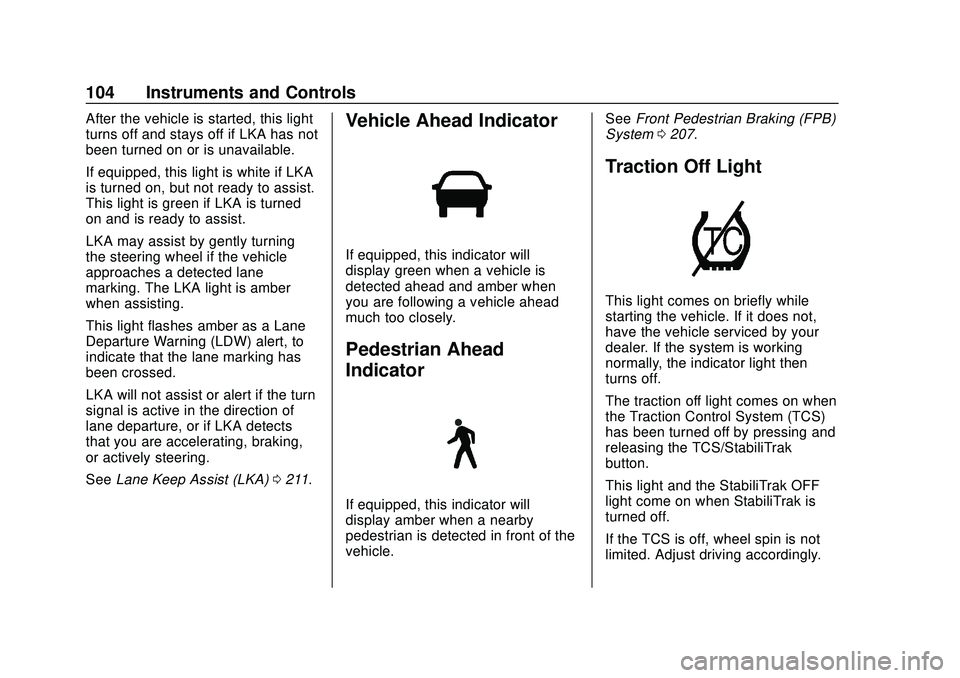
If equipped, this indicator will
display green when a vehicle is
detected ahead and amber when
you are following a vehicle ahead
much too closely.
Pedestrian Ahead
Indicator
If equipped, this indicator will
display amber when a nearby
pedestrian is detected in front of the
vehicle. See
Front Pedestrian Braking (FPB)
System 0207.
Traction Off Light
This light comes on briefly while
starting the vehicle. If it does not,
have the vehicle serviced by your
dealer. If the system is working
normally, the indicator light then
turns off.
The traction off light comes on when
the Traction Control System (TCS)
has been turned off by pressing and
releasing the TCS/StabiliTrak
button.
This light and the StabiliTrak OFF
light come on when StabiliTrak is
turned off.
If the TCS is off, wheel spin is not
limited. Adjust driving accordingly.
Page 119 of 347
Chevrolet BOLT EV Owner Manual (GMNA-Localizing-U.S./Canada/Mexico-
13556250) - 2020 - CRC - 2/11/20
118 Instruments and Controls
for the current day of the week.
See“Electric Rate Schedule” in
Programmable Charging 0107.
. Energy Summary Pop-Up :
Allows the feature to be set to
On or Off.
. Charge Status Feedback :
Allows the feature to be set to
Horn Chirps or Off.
. Charge Cord Theft Alert :
Allows an alert to sound when
the vehicle is locked and the
charge cord is unplugged. Set
the charge cord theft alert.
. Charge Power Loss Alert :
Allows an alert to sound when
the vehicle is charging and loses
power at the electrical outlet. Set
the feature to On or Off.
. Radio Power Down : Allows
automatic conservation of high
voltage battery power based on
the level of battery charge.
Select Off, 2%, 4%, 6%, 8%,
or 10%. When the selected high
voltage battery power level is
reached, a message on the infotainment display will ask if
the radio should enter Low
Power Mode. Touch Yes or No.
Low Power Mode
To enter Low Power Mode manually:
1. Press and hold
O. A message
will show on the infotainment
display asking if the radio
should enter Low Power Mode.
2. Touch Yes. The screen will turn off.
3. Press
Oagain to turn the
radio on.
Driver Information
Center (DIC)
The DIC is displayed in the
instrument cluster. It shows the
status of many vehicle systems. The
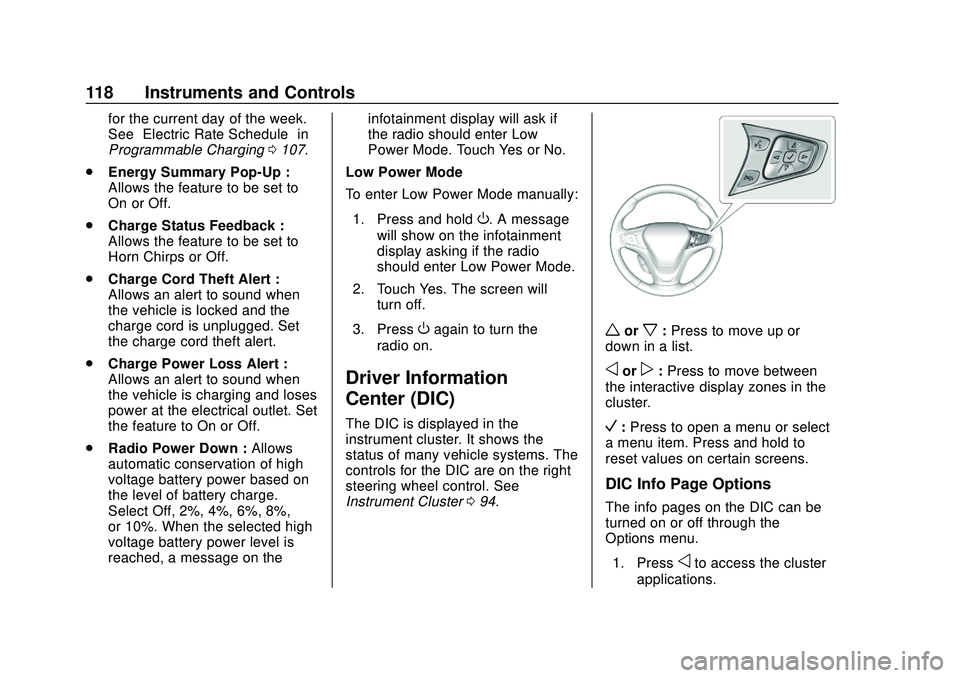
controls for the DIC are on the right
steering wheel control. See
Instrument Cluster 094.
worx:Press to move up or
down in a list.
oorp: Press to move between
the interactive display zones in the
cluster.
V: Press to open a menu or select
a menu item. Press and hold to
reset values on certain screens.
DIC Info Page Options
The info pages on the DIC can be
turned on or off through the
Options menu.
1. Press
oto access the cluster
applications.
Page 123 of 347

Chevrolet BOLT EV Owner Manual (GMNA-Localizing-U.S./Canada/Mexico-
13556250) - 2020 - CRC - 2/11/20
122 Instruments and Controls
.Software Information
Each menu is detailed in the
following information.
Time and Date
Manually set the time and date. See
Clock 090.
Rear Seat Reminder
This message displays under
certain conditions indicating there
may be an item or passenger in the
rear seat. Check before exiting the
vehicle.
This feature allows for a chime and
a message when the rear door has
been opened before or during
operation of the vehicle.
Select Off or On.
Language (Language)
Select Language, then select from
the available language(s).
Teen Driver
See Teen Driver 0158.
Radio Settings
To manage the radio features, see
“Radio Settings” underSettings
0 157.
Vehicle
Select and the following may
display:
.
Climate and Air Quality
. Comfort and Convenience
. Collision / Detection Systems
. Lighting
. Power Door Locks
. Remote Lock / Unlock / Start
Climate and Air Quality
Select and the following may
display:
. Auto Fan Speed
. Auto Heated Seats
. Auto Defog
Auto Fan Speed
This feature will set the maximum
auto fan speed. Select Low, Medium, or High.
Auto Heated Seats
When set to On and it is cold
outside, both the heated seats and
the heated steering wheel will
automatically turn on when the
vehicle is started. See
Automatic
Climate Control System 0163.
Select Off or On.
Auto Defog
When set to On, the front defog will
automatically come on when the
vehicle is started. See Automatic
Climate Control System 0163.
Select Off or On.
Comfort and Convenience
Select and the following may
display:
. Chime Volume
. Auto Wipe in Reverse Gear
Chime Volume
This allows the selection of the
chime volume level.
Select + or −to adjust the volume.
Page 125 of 347
Chevrolet BOLT EV Owner Manual (GMNA-Localizing-U.S./Canada/Mexico-
13556250) - 2020 - CRC - 2/11/20
124 Instruments and Controls
Unlocked Door Anti Lock Out
When on, this feature will keep the
driver door from locking when the
door is open. If Off is selected, the
Delayed Door Lock menu will be
available.
Select Off or On.
Auto Door Unlock
This allows selection of which of the
doors will automatically unlock when
the vehicle is shifted into P (Park).
Select Off, All Doors, or Driver Door.
Delayed Door Lock
When on, this feature will delay the
locking of the doors. To override the
delay, press the power door lock
switch on the door.
Select Off or On.
Remote Lock / Unlock / Start
Select and the following may
display:
.Remote Unlock Light Feedback
. Remote Lock Feedback
. Remote Door Unlock .
Remote Start Auto Heat Seats
. Passive Door Unlock
. Passive Door Lock
. Remote Left in Vehicle Alert
Remote Unlock Light Feedback
When on, the exterior lamps will
flash when unlocking the vehicle
with the RKE transmitter.
Select Off or Flash Lights.
Remote Lock Feedback
This allows selection of what type of
feedback is given when locking the
vehicle with the RKE transmitter.
Select Off, Lights and Horn, Lights
Only, or Horn Only.
Remote Door Unlock
This allows selection of which doors
will unlock when pressing
Kon the
RKE transmitter.
Select All Doors or Driver Door. Remote Start Auto Heat Seats
If equipped and turned on, this
feature will turn the heated seats on
when using remote start on
cold days.
If equipped with auto heated
steering wheel, this feature will turn
on when the remote start auto
heated seats turn on.
Select Off or On.
Passive Door Unlock
This allows the selection of what
doors will unlock when using the
button on the outside driver door
handle to unlock the vehicle.
Select All Doors or Driver
Door Only.
Passive Door Lock
This allows passive locking to be
turned on or off and selects
feedback.
Select Off, On with Horn
Chirp, or On.
Page 133 of 347
Chevrolet BOLT EV Owner Manual (GMNA-Localizing-U.S./Canada/Mexico-
13556250) - 2020 - CRC - 2/11/20
132 Lighting
The hazard warning flasher button
is on the center stack.
|:Press to make the front and
rear turn signal lamps flash on and
off. This warns others that you are
having trouble. Press the button
again to turn the flashers off.
When the hazard warning flashers
are on, the turn signals will
not work.
Turn and Lane-Change
Signals
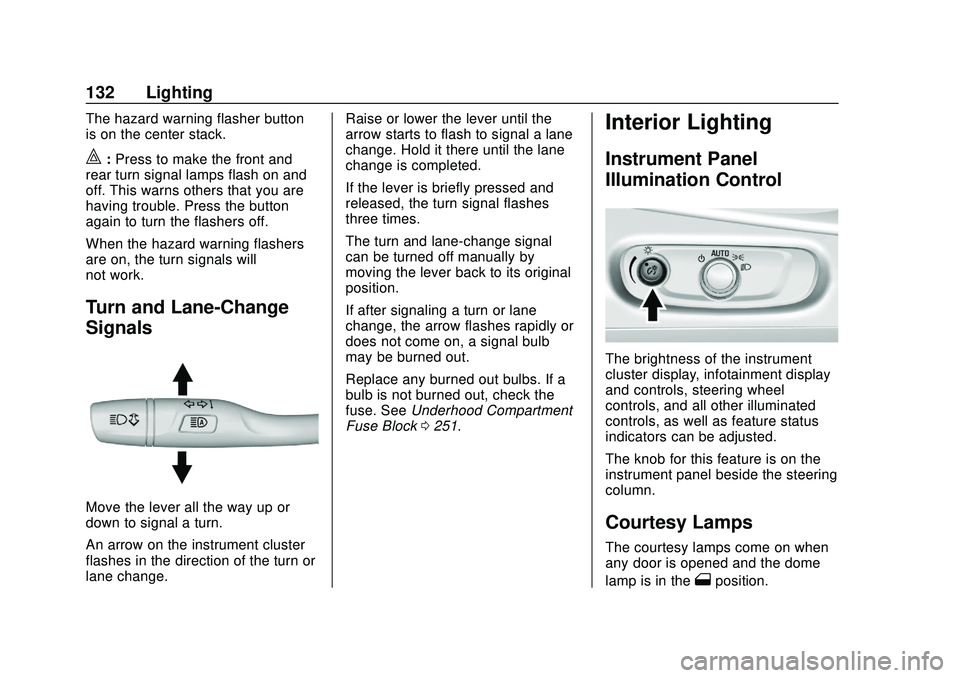
Move the lever all the way up or
down to signal a turn.
An arrow on the instrument cluster
flashes in the direction of the turn or
lane change. Raise or lower the lever until the
arrow starts to flash to signal a lane
change. Hold it there until the lane
change is completed.
If the lever is briefly pressed and
released, the turn signal flashes
three times.
The turn and lane-change signal
can be turned off manually by
moving the lever back to its original
position.
If after signaling a turn or lane
change, the arrow flashes rapidly or
does not come on, a signal bulb
may be burned out.
Replace any burned out bulbs. If a
bulb is not burned out, check the
fuse. See
Underhood Compartment
Fuse Block 0251.
Interior Lighting
Instrument Panel
Illumination Control
The brightness of the instrument
cluster display, infotainment display
and controls, steering wheel
controls, and all other illuminated
controls, as well as feature status
indicators can be adjusted.
The knob for this feature is on the
instrument panel beside the steering
column.
Courtesy Lamps
The courtesy lamps come on when
any door is opened and the dome
lamp is in the
1position.
Page 136 of 347
Chevrolet BOLT EV Owner Manual (GMNA-Localizing-U.S./Canada/Mexico-
13556250) - 2020 - CRC - 2/11/20
Infotainment System 135
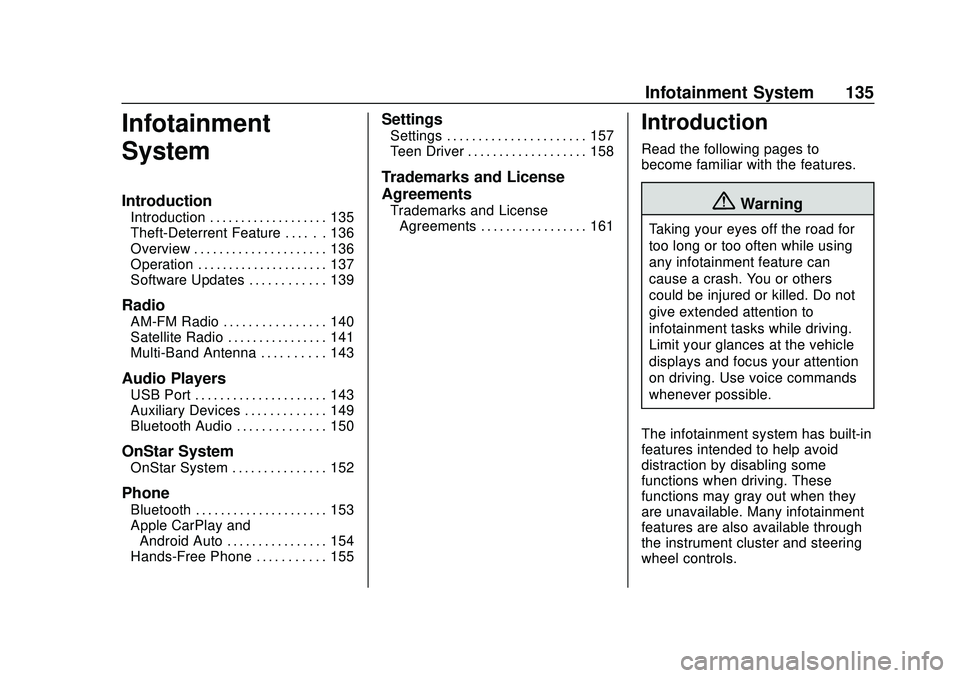
Infotainment
System
Introduction
Introduction . . . . . . . . . . . . . . . . . . . 135
Theft-Deterrent Feature . . . . . . 136
Overview . . . . . . . . . . . . . . . . . . . . . 136
Operation . . . . . . . . . . . . . . . . . . . . . 137
Software Updates . . . . . . . . . . . . 139
Radio
AM-FM Radio . . . . . . . . . . . . . . . . 140
Satellite Radio . . . . . . . . . . . . . . . . 141
Multi-Band Antenna . . . . . . . . . . 143
Audio Players
USB Port . . . . . . . . . . . . . . . . . . . . . 143
Auxiliary Devices . . . . . . . . . . . . . 149
Bluetooth Audio . . . . . . . . . . . . . . 150
OnStar System
OnStar System . . . . . . . . . . . . . . . 152
Phone
Bluetooth . . . . . . . . . . . . . . . . . . . . . 153
Apple CarPlay andAndroid Auto . . . . . . . . . . . . . . . . 154
Hands-Free Phone . . . . . . . . . . . 155
Settings
Settings . . . . . . . . . . . . . . . . . . . . . . 157
Teen Driver . . . . . . . . . . . . . . . . . . . 158
Trademarks and License
Agreements
Trademarks and License Agreements . . . . . . . . . . . . . . . . . 161
Introduction
Read the following pages to
become familiar with the features.
{Warning
Taking your eyes off the road for
too long or too often while using
any infotainment feature can
cause a crash. You or others
could be injured or killed. Do not
give extended attention to
infotainment tasks while driving.
Limit your glances at the vehicle
displays and focus your attention
on driving. Use voice commands
whenever possible.
The infotainment system has built-in
features intended to help avoid
distraction by disabling some
functions when driving. These
functions may gray out when they
are unavailable. Many infotainment
features are also available through
the instrument cluster and steering
wheel controls.
Page 138 of 347

Chevrolet BOLT EV Owner Manual (GMNA-Localizing-U.S./Canada/Mexico-
13556250) - 2020 - CRC - 2/11/20
Infotainment System 137
5.gord:
. Radio: Press to seek the
previous or next strongest
station or channel.
. USB/Music/Pictures: Press
to go to the previous or next
content. Press and hold to
fast rewind or fast forward.
Operation
Turning On/Off Automatically
When the vehicle is on, the
infotainment system turns on
automatically.
When the vehicle is off and the
driver door of the vehicle is opened,
the infotainment system turns off
automatically.
If
Ois pressed and held when the
vehicle is off, the infotainment
system will turn on. The system will
turn off automatically after
approximately 10 minutes.
Full Screen Clock
. Touch the time display on the
screen to display a full screen of
the clock.
. Touch
0to return to the
previous screen.
Volume Control
Turn the volume knob to adjust the
volume. The current volume is
indicated.
. If equipped, use the volume
switches on the back of the
steering wheel to adjust the
volume. See Steering Wheel
Controls 085.
. Turning on the infotainment
system power will set the
volume level to its previous
selection if it is lower than the
maximum starting volume level.
. If the volume level is louder than
the maximum starting volume
level when the infotainment
system is turned on, the
infotainment system is adjusted
automatically to the maximum
starting volume level.
Edit Home Page Layout
1. When the vehicle is stationary,
touch
{Edit on the
Home Page.
2. Select the desired layout: Standard, Family, Eco,
or Custom.
If Custom is selected, the
display will switch to custom
layout editing. This allows the
changing of location and
content of information
displayed on the Home Page.
Page 140 of 347
Chevrolet BOLT EV Owner Manual (GMNA-Localizing-U.S./Canada/Mexico-
13556250) - 2020 - CRC - 2/11/20
Infotainment System 139
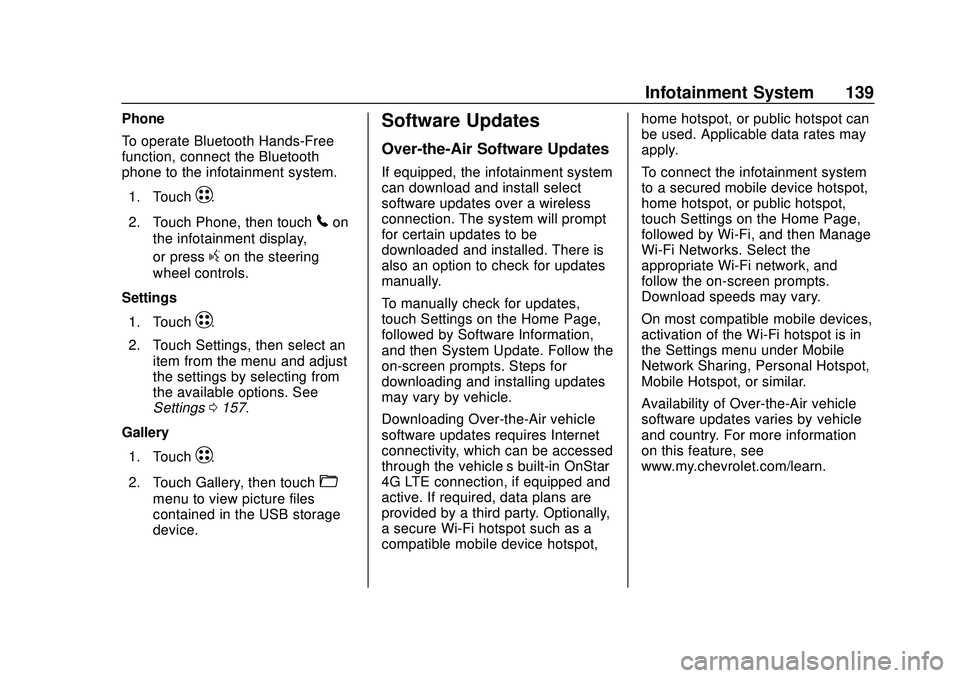
Phone
To operate Bluetooth Hands-Free
function, connect the Bluetooth
phone to the infotainment system.1. Touch
T.
2. Touch Phone, then touch
5on
the infotainment display,
or press
gon the steering
wheel controls.
Settings
1. Touch
T.
2. Touch Settings, then select an item from the menu and adjust
the settings by selecting from
the available options. See
Settings 0157.
Gallery
1. Touch
T.
2. Touch Gallery, then touch
'
menu to view picture files
contained in the USB storage
device.
Software Updates
Over-the-Air Software Updates
If equipped, the infotainment system
can download and install select
software updates over a wireless
connection. The system will prompt
for certain updates to be
downloaded and installed. There is
also an option to check for updates
manually.
To manually check for updates,
touch Settings on the Home Page,
followed by Software Information,
and then System Update. Follow the
on-screen prompts. Steps for
downloading and installing updates
may vary by vehicle.
Downloading Over-the-Air vehicle
software updates requires Internet
connectivity, which can be accessed
through the vehicle’ s built-in OnStar
4G LTE connection, if equipped and
active. If required, data plans are
provided by a third party. Optionally,
a secure Wi-Fi hotspot such as a
compatible mobile device hotspot, home hotspot, or public hotspot can
be used. Applicable data rates may
apply.
To connect the infotainment system
to a secured mobile device hotspot,
home hotspot, or public hotspot,
touch Settings on the Home Page,
followed by Wi-Fi, and then Manage
Wi-Fi Networks. Select the
appropriate Wi-Fi network, and
follow the on-screen prompts.
Download speeds may vary.
On most compatible mobile devices,
activation of the Wi-Fi hotspot is in
the Settings menu under Mobile
Network Sharing, Personal Hotspot,
Mobile Hotspot, or similar.
Availability of Over-the-Air vehicle
software updates varies by vehicle
and country. For more information
on this feature, see
www.my.chevrolet.com/learn.
Page 141 of 347
Chevrolet BOLT EV Owner Manual (GMNA-Localizing-U.S./Canada/Mexico-
13556250) - 2020 - CRC - 2/11/20
140 Infotainment System
Radio
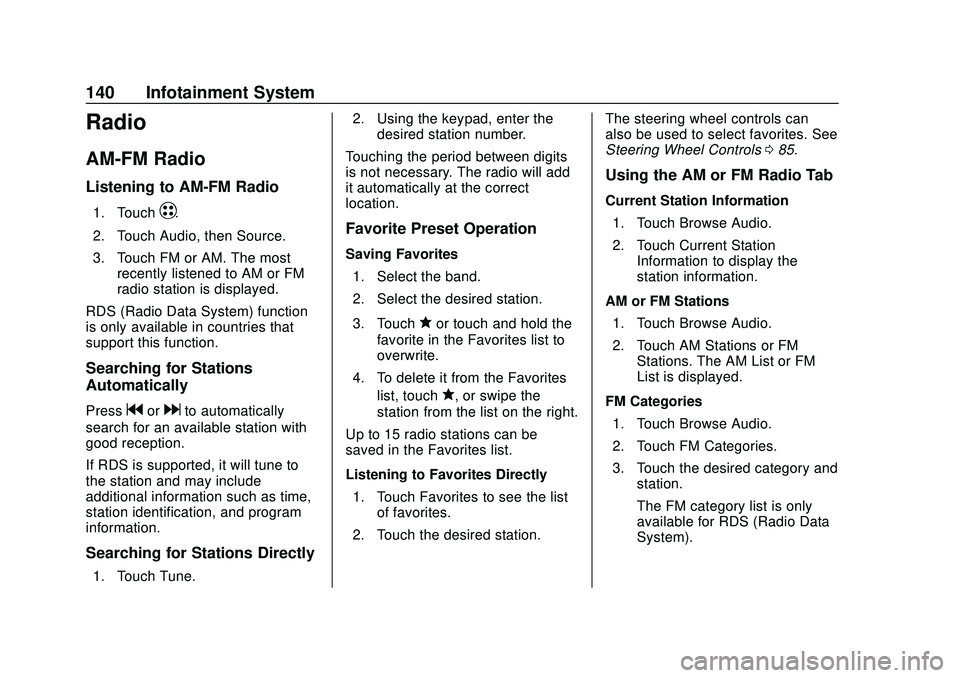
AM-FM Radio
Listening to AM-FM Radio
1. TouchT.
2. Touch Audio, then Source.
3. Touch FM or AM. The most recently listened to AM or FM
radio station is displayed.
RDS (Radio Data System) function
is only available in countries that
support this function.
Searching for Stations
Automatically
Pressgordto automatically
search for an available station with
good reception.
If RDS is supported, it will tune to
the station and may include
additional information such as time,
station identification, and program
information.
Searching for Stations Directly
1. Touch Tune. 2. Using the keypad, enter the
desired station number.
Touching the period between digits
is not necessary. The radio will add
it automatically at the correct
location.
Favorite Preset Operation
Saving Favorites 1. Select the band.
2. Select the desired station.
3. Touch
qor touch and hold the
favorite in the Favorites list to
overwrite.
4. To delete it from the Favorites list, touch
q, or swipe the
station from the list on the right.
Up to 15 radio stations can be
saved in the Favorites list.
Listening to Favorites Directly 1. Touch Favorites to see the list of favorites.
2. Touch the desired station. The steering wheel controls can
also be used to select favorites. See
Steering Wheel Controls
085.
Using the AM or FM Radio Tab
Current Station Information
1. Touch Browse Audio.
2. Touch Current Station Information to display the
station information.
AM or FM Stations 1. Touch Browse Audio.
2. Touch AM Stations or FM Stations. The AM List or FM
List is displayed.
FM Categories 1. Touch Browse Audio.
2. Touch FM Categories.
3. Touch the desired category and station.
The FM category list is only
available for RDS (Radio Data
System).
Page 157 of 347
Chevrolet BOLT EV Owner Manual (GMNA-Localizing-U.S./Canada/Mexico-
13556250) - 2020 - CRC - 2/11/20
156 Infotainment System
2. To switch the call back to theBluetooth hands-free, touch
0
again.
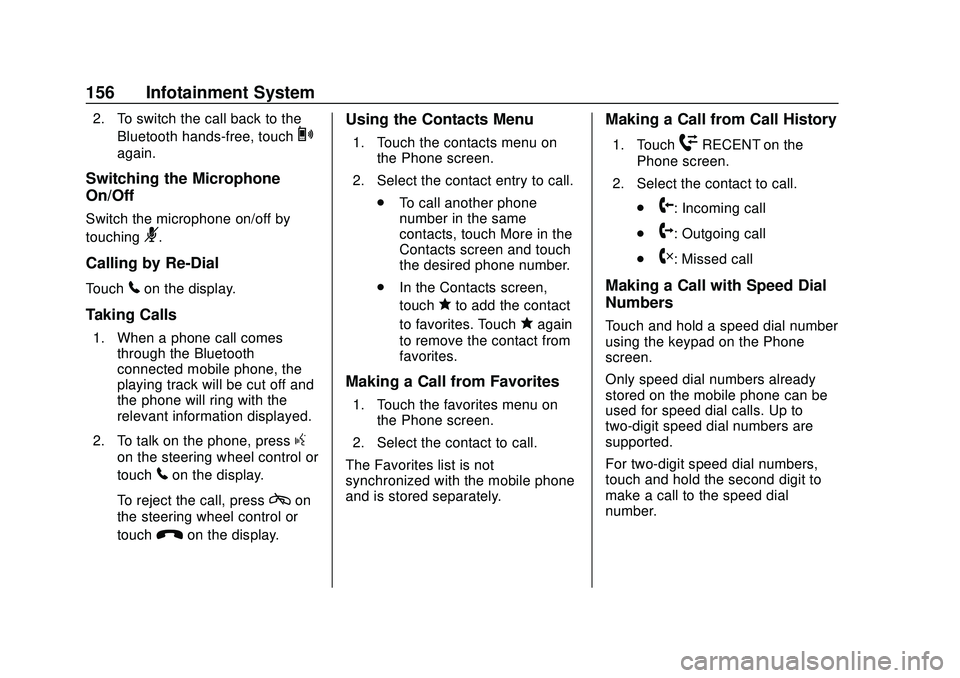
Switching the Microphone
On/Off
Switch the microphone on/off by
touching
3.
Calling by Re-Dial
Touch5on the display.
Taking Calls
1. When a phone call comesthrough the Bluetooth
connected mobile phone, the
playing track will be cut off and
the phone will ring with the
relevant information displayed.
2. To talk on the phone, press
g
on the steering wheel control or
touch
5on the display.
To reject the call, press
con
the steering wheel control or
touch
Kon the display.
Using the Contacts Menu
1. Touch the contacts menu on the Phone screen.
2. Select the contact entry to call. .To call another phone
number in the same
contacts, touch More in the
Contacts screen and touch
the desired phone number.
. In the Contacts screen,
touch
qto add the contact
to favorites. Touch
qagain
to remove the contact from
favorites.
Making a Call from Favorites
1. Touch the favorites menu on the Phone screen.
2. Select the contact to call.
The Favorites list is not
synchronized with the mobile phone
and is stored separately.
Making a Call from Call History
1. TouchWRECENT on the
Phone screen.
2. Select the contact to call.
.
9: Incoming call
.
2: Outgoing call
.
4: Missed call
Making a Call with Speed Dial
Numbers
Touch and hold a speed dial number
using the keypad on the Phone
screen.
Only speed dial numbers already
stored on the mobile phone can be
used for speed dial calls. Up to
two-digit speed dial numbers are
supported.
For two-digit speed dial numbers,
touch and hold the second digit to
make a call to the speed dial
number.