warning CHRYSLER 200 2015 2.G Owners Manual
[x] Cancel search | Manufacturer: CHRYSLER, Model Year: 2015, Model line: 200, Model: CHRYSLER 200 2015 2.GPages: 698, PDF Size: 5.12 MB
Page 203 of 698
obstructions, such as mud, dirt, or ice on windshield and
fog on the inside of glass. In these cases, the EVIC/DID
will display “ACC/FCW Limited Functionality Clean
Front Windshield” and the system will have degraded
performance.
The “ACC/FCW Limited Functionality Clean Front
Windshield” message can sometimes be displayed while
driving in adverse weather conditions. The ACC/FCW
system will recover after the vehicle has left these areas.
Under rare conditions, when the camera is not tracking
any vehicles or objects in its path this warning may
temporarily occur.
If weather conditions are not a factor, the driver should
examine the windshield and the camera located on the
back side of the inside rear view mirror. They may
require cleaning or removal of an obstruction.When the condition that created limited functionality is
no longer present, the system will return to full function-
ality.
NOTE:
If the “ACC/FCW Limited Functionality Clean
Front Windshield” message occurs frequently (e.g. more
than once on every trip) without any snow, rain, mud, or
other obstruction, have the windshield and forward
facing camera inspected at your authorized dealer.
Service ACC/FCW Warning
If the system turns off, and the EVIC/DID displays
“ACC/FCW Unavailable Service Required”or “Cruise/
FCW Unavailable Service Required”, there may be an
internal system fault or a temporary malfunction that
limits ACC functionality. Although the vehicle is still
drivable under normal conditions, ACC will be tempo-
rarily unavailable. If this occurs, try activating ACC again
later, following a key cycle. If the problem persists, see
your authorized dealer.
3
UNDERSTANDING THE FEATURES OF YOUR VEHICLE 201
Page 209 of 698
WARNING!
In the normal Cruise Control mode, the system will
not react to vehicles ahead. In addition, the proximity
warning does not activate and no alarm will sound
even if you are too close to the vehicle ahead since
neither the presence of the vehicle ahead nor the
vehicle-to vehicle distance is detected. Be sure to
maintain a safe distance between your vehicle and
the vehicle ahead. Always be aware which mode is
selected.
To Set A Desired Speed
Turn the Normal (Fixed Speed) Electronic
Speed Control ON. When the vehicle has
reached the desired speed, press the SET (+) or
SET (-) button and release. Release the accel-
erator and the vehicle will operate at the selected speed. Once a speed has been set a message (CRUISE CON-
TROL SET TO MPH/KM) will appear indicating what
speed was set. This light will turn on when the electronic
speed control is SET.
To Vary The Speed Setting
To Increase Speed
When the Normal (Fixed Speed) Electronic Speed Con-
trol is set, you can increase speed by pressing the SET
+
button.
The speed increment shown is dependant on the speed of
U.S. (mph) or Metric (km/h) units:
U.S. Speed (mph)
• Pressing the SET +button once will result ina1mph
increase in set speed. Each subsequent tap of the
button results in an increase of 1 mph.3
UNDERSTANDING THE FEATURES OF YOUR VEHICLE 207
Page 211 of 698
•The vehicle parking brake is applied.
• The braking temperature exceeds normal range (over-
heated).
• The shift lever/gear selector is removed from the
Drive position.
To Resume Speed
To resume a previously set speed, push the RES button
and release. Resume can be used at any speed above
20 mph (32 km/h).
To Turn Off
The system will turn off and erase the set speed in
memory if:
• The Normal (Fixed Speed) Electronic Speed Control
ON/OFF button is pressed. •
The ignition is turned off.
• The Adaptive Cruise Control (ACC) On/Off button is
pressed.
FORWARD COLLISION WARNING (FCW) WITH
MITIGATION — IF EQUIPPED
Forward Collision Warning (FCW) With Mitigation
Operation
The Forward Collision Warning (FCW) system with
mitigation provides the driver with audible warnings,
visual warnings (within the EVIC/DID), and may apply
a brake jerk to warn the driver when it detects a potential
frontal collision. The warnings and limited braking are
intended to provide the driver with enough time to react,
avoid or mitigate the potential collision.
3
UNDERSTANDING THE FEATURES OF YOUR VEHICLE 209
Page 212 of 698
NOTE:FCW monitors the information from the forward
looking sensors as well as the Electronic Brake Controller
(EBC), to calculate the probability of a forward collision.
When the system determines that a forward collision is
probable, the driver will be provided with audible and
visual warnings and may provide a brake jerk warning.
If the driver does not take action based upon these
progressive warnings, then the system will provide a
limited level of active braking to help slow the vehicle
and mitigate the potential forward collision. If the driver
reacts to the warnings by braking and the system deter-
mines that the driver intends to avoid the collision by
braking but has not applied sufficient brake force, the
system will compensate and provide additional brake
force as required.
If a Forward Collision Warning with Mitigation event
begins at a speed below 20 mph (32 km/h), the system
may provide the maximum braking possible to mitigate the potential forward collision. If the Forward Collision
Warning with Mitigation event stops the vehicle com-
pletely, the system will hold the vehicle at standstill for
two seconds and then release the brakes.
FCW Message
210 UNDERSTANDING THE FEATURES OF YOUR VEHICLE
Page 213 of 698
When the system determines a collision with the vehicle
in front of you is no longer probable, the warning
message will be deactivated.
NOTE:
•The minimum speed for FCW activation is 1 mph
(2 km/h).
• The FCW alerts may be triggered on objects other than
vehicles such as guard rails or sign posts based on the
course prediction. This is expected and is a part of
normal FCW activation and functionality.
• It is unsafe to test the FCW system. To prevent such
misuse of the system, after four Active Braking events
within a key cycle, the Active Braking portion of FCW
will be deactivated until the next key cycle.
• The FCW system is intended for on-road use only. If
the vehicle is taken off-road, the FCW system should be deactivated to prevent unnecessary warnings to the
surroundings.
WARNING!
Forward Collision Warning (FCW) is not intended to
avoid a collision on its own, nor can FCW detect
every type of potential collision. The driver has the
responsibility to avoid a collision by controlling the
vehicle via braking and steering. Failure to follow
this warning could lead to serious injury or death.
Turning FCW ON Or OFF
NOTE:
The default status of FCW is “On”, this allows
the system to warn you of a possible collision with the
vehicle in front of you.
The forward collision button is located on the switch
panel below the Uconnect® display.
3
UNDERSTANDING THE FEATURES OF YOUR VEHICLE 211
Page 214 of 698
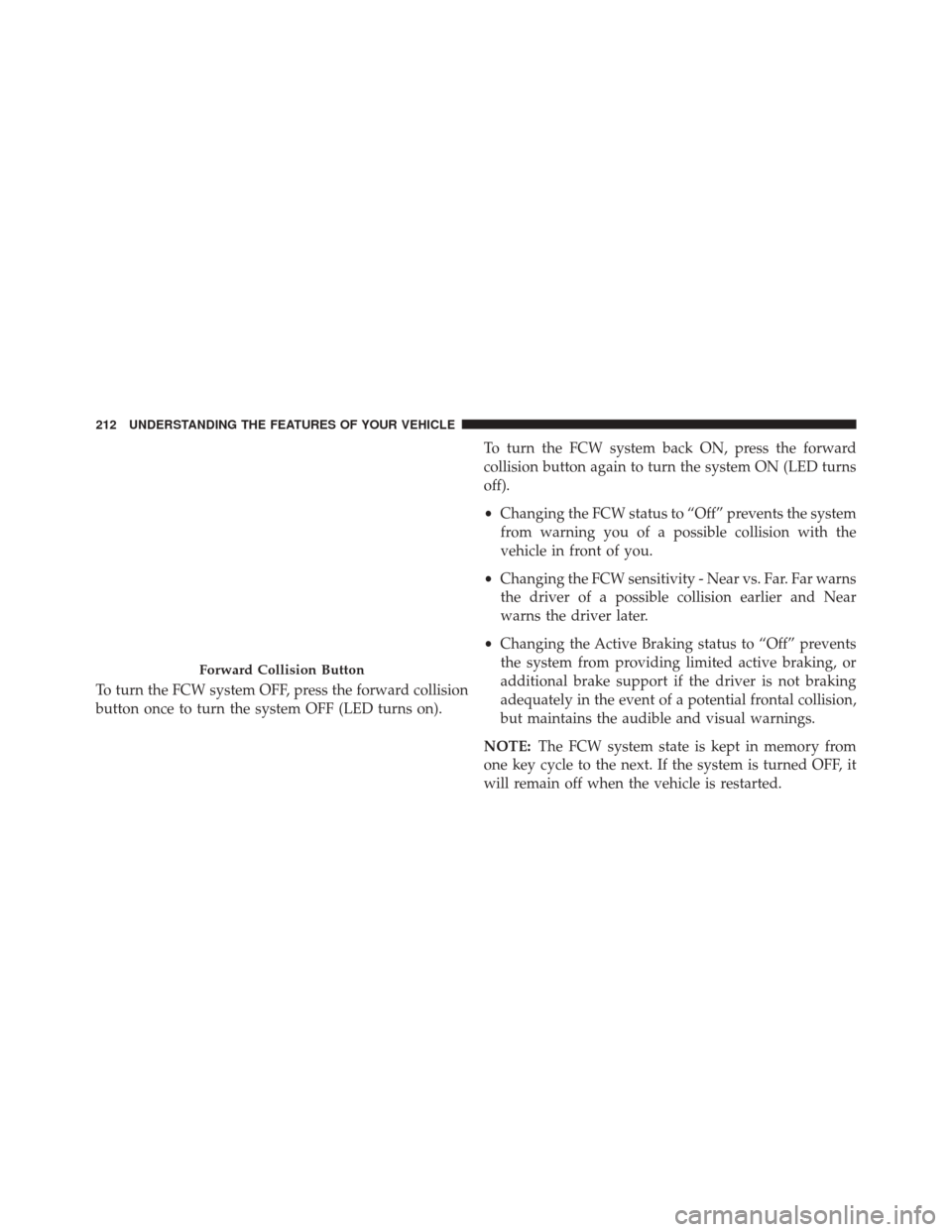
To turn the FCW system OFF, press the forward collision
button once to turn the system OFF (LED turns on).To turn the FCW system back ON, press the forward
collision button again to turn the system ON (LED turns
off).
•
Changing the FCW status to “Off” prevents the system
from warning you of a possible collision with the
vehicle in front of you.
• Changing the FCW sensitivity - Near vs. Far. Far warns
the driver of a possible collision earlier and Near
warns the driver later.
• Changing the Active Braking status to “Off” prevents
the system from providing limited active braking, or
additional brake support if the driver is not braking
adequately in the event of a potential frontal collision,
but maintains the audible and visual warnings.
NOTE: The FCW system state is kept in memory from
one key cycle to the next. If the system is turned OFF, it
will remain off when the vehicle is restarted.
Forward Collision Button
212 UNDERSTANDING THE FEATURES OF YOUR VEHICLE
Page 215 of 698
Changing FCW And Active Braking Status
The FCW Sensitivity And Active Braking Settings are
programmable through the Uconnect® System. Refer to
“Uconnect® Settings” in “Understanding Your Instru-
ment Panel” for further information.
The default status of FCW is the “Far” setting and the
Active Braking is the “On” setting, this allows the system
to warn you of a possible collision with the vehicle in
front of you when you are farther away and it applies
limited braking. This gives you the most reaction time to
avoid a possible collision.
Changing the FCW status to the “Near” setting, allows
the system to warn you of a possible collision with the
vehicle in front of you when you are much closer. This
setting provides less reaction time than the “Far” setting,
which allows for a more dynamic driving experience.NOTE:
•
The system will retain the last setting selected by the
driver after ignition shut down.
• FCW may not react to irrelevant objects such as
overhead objects, ground reflections, objects not in the
path of the car, stationary objects that are far away,
oncoming traffic, or leading vehicles with the same or
higher rate of speed.
• FCW will be disabled like ACC, with the unavailable
screens.
FCW Limited Warning
If the system turns off, and the EVIC/DID displays
“ACC/FCW Limited Functionality” or “ACC/FCW Lim-
ited Functionality Clean Front Windshield” momentarily,
there may be a condition that limits FCW functionality.
Although the vehicle is still drivable under normal
conditions, the active braking may not be fully available.
3
UNDERSTANDING THE FEATURES OF YOUR VEHICLE 213
Page 216 of 698
Once the condition that limited the system performance
is no longer present, the system will return to its full
performance state. If the problem persists, see your
authorized dealer.
Service FCW Warning
If the system turns off, and the EVIC/DID displays:
•ACC/FCW Unavailable Service Required
• Cruise/FCW Unavailable Service Required
This indicates there is an internal system fault. Although
the vehicle is still drivable under normal conditions, have
the system checked by an authorized dealer.
LANESENSE — IF EQUIPPED
LaneSense Operation
The LaneSense system is operational at speeds above
37 mph (60 km/h) and below 112 mph (180 km/h). The LaneSense system uses a forward looking camera to
detect lane markings and measure vehicle position
within the lane boundaries.
When both lane markings are detected and the driver
unintentionally drifts out of the lane (no turn signal
applied), the LaneSense system provides a haptic warn-
ing in the form of torque applied to the steering wheel to
prompt the driver to remain within the lane boundaries.
If the driver continues to unintentionally drift out of the
lane, the LaneSense system provides a visual warning
through the EVIC/DID to prompt the driver to remain
within the lane boundaries.
The driver may manually override the haptic warning by
applying torque into the steering wheel at any time.
When only a single lane marking is detected and the
driver unintentionally drifts across the lane marking (no
turn signal applied), the LaneSense system provides a
visual warning through the EVIC/DID to prompt the
214 UNDERSTANDING THE FEATURES OF YOUR VEHICLE
Page 217 of 698
driver to remain within the lane. When only a single lane
marking is detected, a haptic (torque) warning will not be
provided.
NOTE:When operating conditions have been met, the
LaneSense system will monitor if the driver ’s hands are
on the steering wheel and provides an audible warning
to the driver when the driver ’s hands are not detected on
the steering wheel. The system will cancel if the driver
does not return their hands to the wheel.
Turning LaneSense ON Or OFF
The default status of LaneSense is “OFF”.
The LaneSense button is located on the switch panel
below the Uconnect® display. To turn the LaneSense system ON, press the LaneSense
button (LED turns off). A “Lane Sense On” message is
shown in the Driver Information Display (DID).LaneSense Warning Button
3
UNDERSTANDING THE FEATURES OF YOUR VEHICLE 215
Page 218 of 698
To turn the LaneSense system OFF, press the LaneSense
button once to turn the system OFF (LED turns on).
NOTE:The LaneSense system will retain the last system
state ON or OFF from the last ignition cycle when the
ignition is changed to the ON/RUN position.
LaneSense Warning Message
The LaneSense system will indicate the current lane drift
condition through the Driver Information Display (DID).
7.0 Driver Information Display (DID) Screen — If
Equipped
When the LaneSense system is ON; the lane lines are gray
when both of the lane boundaries have not been detected
and the LaneSense indicator is solid white.
Lane Sense On Message
216 UNDERSTANDING THE FEATURES OF YOUR VEHICLE