headlights CHRYSLER 200 2015 2.G User Guide
[x] Cancel search | Manufacturer: CHRYSLER, Model Year: 2015, Model line: 200, Model: CHRYSLER 200 2015 2.GPages: 698, PDF Size: 5.12 MB
Page 171 of 698
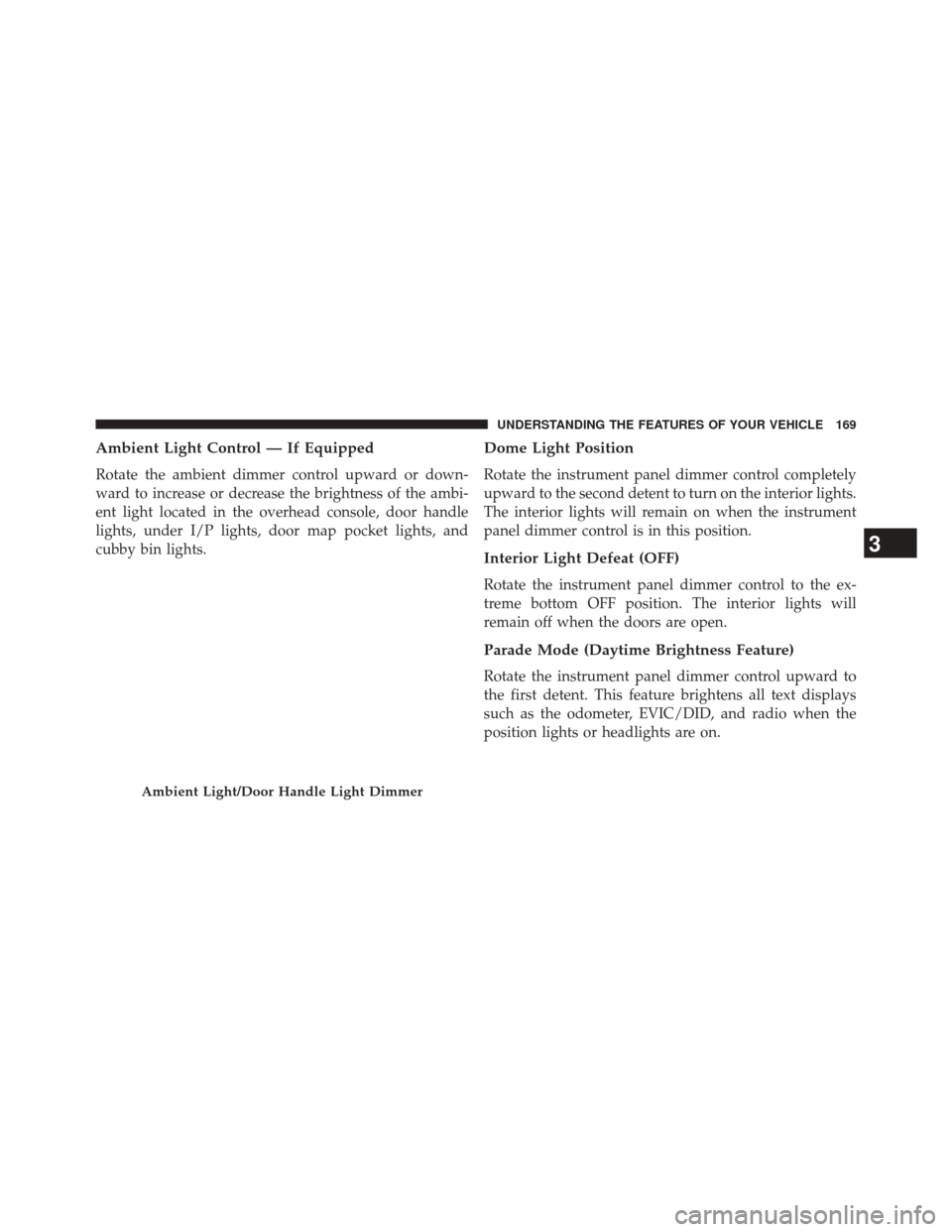
Ambient Light Control — If Equipped
Rotate the ambient dimmer control upward or down-
ward to increase or decrease the brightness of the ambi-
ent light located in the overhead console, door handle
lights, under I/P lights, door map pocket lights, and
cubby bin lights.
Dome Light Position
Rotate the instrument panel dimmer control completely
upward to the second detent to turn on the interior lights.
The interior lights will remain on when the instrument
panel dimmer control is in this position.
Interior Light Defeat (OFF)
Rotate the instrument panel dimmer control to the ex-
treme bottom OFF position. The interior lights will
remain off when the doors are open.
Parade Mode (Daytime Brightness Feature)
Rotate the instrument panel dimmer control upward to
the first detent. This feature brightens all text displays
such as the odometer, EVIC/DID, and radio when the
position lights or headlights are on.
Ambient Light/Door Handle Light Dimmer
3
UNDERSTANDING THE FEATURES OF YOUR VEHICLE 169
Page 331 of 698
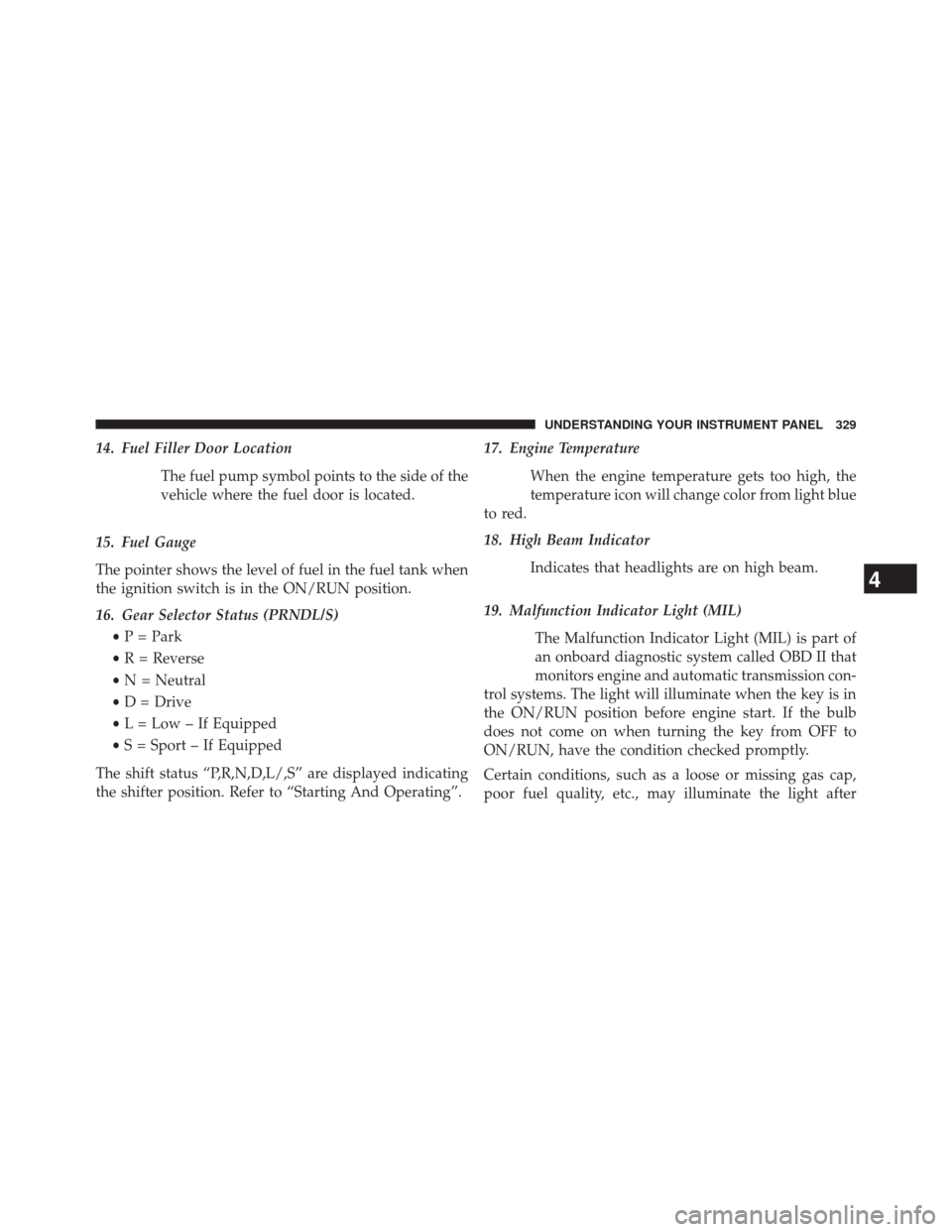
14. Fuel Filler Door LocationThe fuel pump symbol points to the side of the
vehicle where the fuel door is located.
15. Fuel Gauge
The pointer shows the level of fuel in the fuel tank when
the ignition switch is in the ON/RUN position.
16. Gear Selector Status (PRNDL/S) •P = Park
• R = Reverse
• N = Neutral
• D = Drive
• L = Low – If Equipped
• S = Sport – If Equipped
The shift status “P,R,N,D,L/,S” are displayed indicating
the shifter position. Refer to “Starting And Operating”. 17. Engine Temperature
When the engine temperature gets too high, the
temperature icon will change color from light blue
to red.
18. High Beam Indicator
Indicates that headlights are on high beam.
19. Malfunction Indicator Light (MIL) The Malfunction Indicator Light (MIL) is part of
an onboard diagnostic system called OBD II that
monitors engine and automatic transmission con-
trol systems. The light will illuminate when the key is in
the ON/RUN position before engine start. If the bulb
does not come on when turning the key from OFF to
ON/RUN, have the condition checked promptly.
Certain conditions, such as a loose or missing gas cap,
poor fuel quality, etc., may illuminate the light after
4
UNDERSTANDING YOUR INSTRUMENT PANEL 329
Page 333 of 698
22. Vehicle Security AlarmThis light will flash rapidly for approximately
15 seconds when the vehicle theft alarm is
arming. The light will flash at a slower speed
continuously after the alarm is set. The security
light will also come on for about three seconds when the
ignition is first turned on.
23. Tachometer
Indicates the engine speed in revolutions per minute
(RPM x 1000).
24. Park/Headlight ON Indicator — If Equipped
This indicator will illuminate when the park
lights or headlights are turned on.
25. EVIC White Telltales — If Equipped 26. Temperature Gauge
The temperature gauge shows engine coolant tempera-
ture. Any reading within the normal range indicates that
the engine cooling system is operating satisfactorily.
The gauge pointer will likely indicate a higher tempera-
ture when driving in hot weather, up mountain grades,
or when towing a trailer. It should not be allowed to
exceed the upper limits of the normal operating range.
CAUTION!
Driving with a hot engine cooling system could
damage your vehicle. If the temperature gauge reads
“H” pull over and stop the vehicle. Idle the vehicle
with the air conditioner turned off until the pointer
drops back into the normal range. If the pointer
remains on the “H” and you hear continuous chimes,
turn the engine off immediately and call an autho-
rized dealer for service.
4
UNDERSTANDING YOUR INSTRUMENT PANEL 331
Page 355 of 698
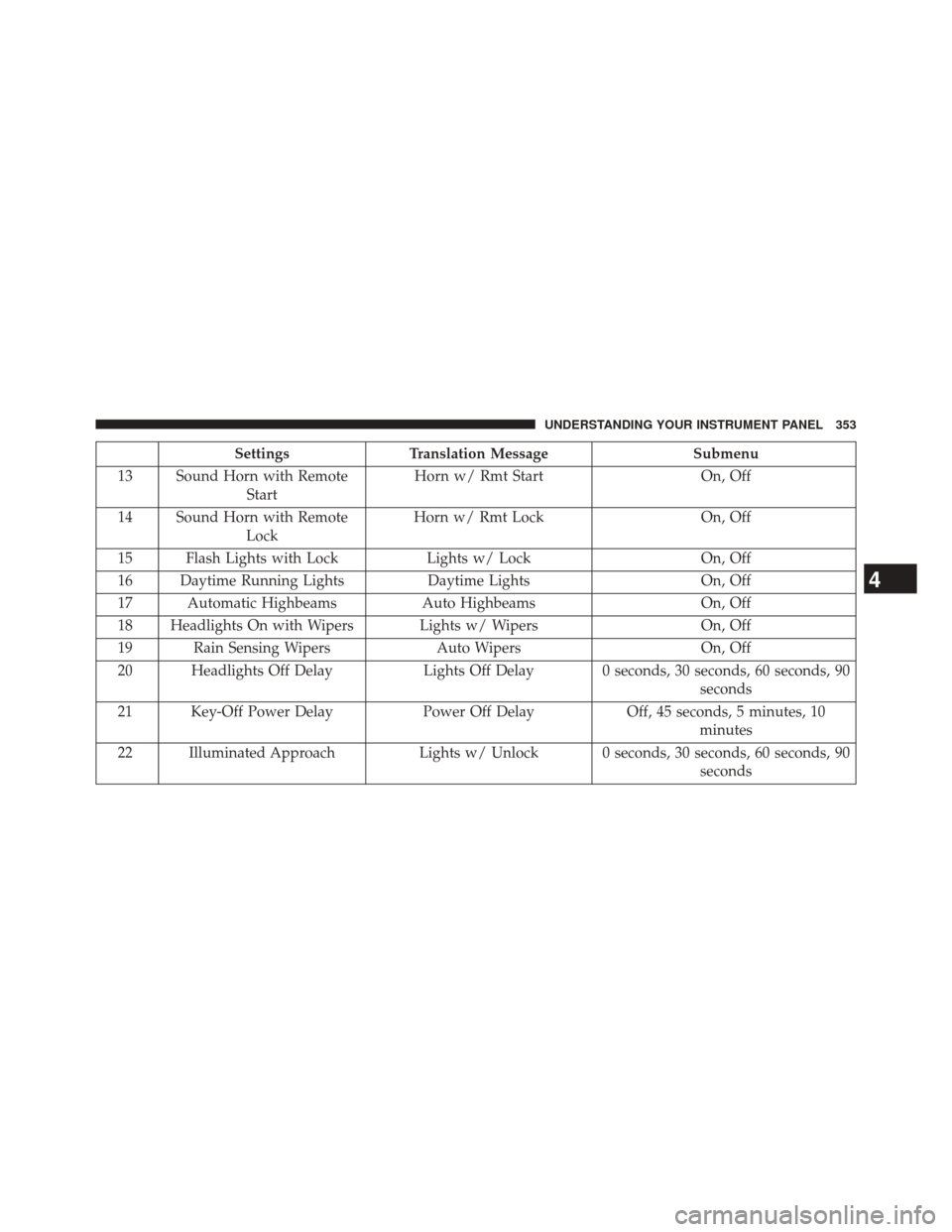
SettingsTranslation Message Submenu
13 Sound Horn with Remote Start Horn w/ Rmt Start
On, Off
14 Sound Horn with Remote Lock Horn w/ Rmt Lock
On, Off
15 Flash Lights with Lock Lights w/ LockOn, Off
16 Daytime Running Lights Daytime LightsOn, Off
17 Automatic Highbeams Auto HighbeamsOn, Off
18 Headlights On with Wipers Lights w/ Wipers On, Off
19 Rain Sensing Wipers Auto WipersOn, Off
20 Headlights Off Delay Lights Off Delay 0 seconds, 30 seconds, 60 seconds, 90
seconds
21 Key-Off Power Delay Power Off DelayOff, 45 seconds, 5 minutes, 10
minutes
22 Illuminated Approach Lights w/ Unlock 0 seconds, 30 seconds, 60 seconds, 90
seconds
4
UNDERSTANDING YOUR INSTRUMENT PANEL 353
Page 382 of 698
equipped), Engine Off Options, Audio, Phone/
Bluetooth®, SiriusXM Setup, Restore Settings, Clear Per-
sonal Data (if equipped).
NOTE:Only one category may be selected at a time.
To adjust the setting of a programmable feature, press the
desired setting option. Once in the desired setting option,
press and release the preferred setting until a check-mark
appears next to the setting, showing that the setting has
been selected. Once the setting is complete, either press
the back arrow button on the touchscreen or the Back
button on the faceplate to return to the previous menu or
press the “X” button on the touchscreen to close out of
the settings screen. Pressing the Up or Down Arrow
buttons on the right side of the screen will allow you to
toggle up or down through the list of available settings.Display
After pressing the “Display” button on the touchscreen
the following settings will be available:
• Display Mode
This feature allows you to select one of the auto display
settings. To change Mode status, press and release the
Auto or Manual button on the touchscreen. Then press
the back arrow button on the touchscreen or push the
back button on the faceplate.
• Display Brightness With Headlights On
This feature allows you to select the display brightness
when the headlights are on. Adjust the brightness with
the + and – setting buttons on the touchscreen. Then
press the back arrow button on the touchscreen, or push
the back button on the faceplate.
380 UNDERSTANDING YOUR INSTRUMENT PANEL
Page 383 of 698
•Display Brightness With the Headlights Off
This feature allows you to select the display brightness
when the headlights are off. Adjust the brightness with
the + and – setting buttons on the touchscreen. Then
press the back arrow button on the touchscreen, or push
the back button on the faceplate.
• Set Language
This feature allows you to select one of the languages for
all display nomenclature, including the trip functions
and the navigation system (if equipped). Press the “Set
Language” button on the touchscreen and then press the
desired language button on the touchscreen until a
check-mark appears next to the language, showing that
setting has been selected. Press the back arrow button on
the touchscreen to return to the previous menu, or push
the back button on the faceplate. •
Units
This feature allows you to select US or Metric units of
measure in the EVIC/DID, odometer, and navigation
system (if equipped). Press “US” or “Metric” until a
check-mark appears next to the setting, showing that
setting has been selected. Press the back arrow button on
the touchscreen to return to the previous menu, or push
the back button on the faceplate.
• Touchscreen Beep
This feature allows you to turn on or shut off the sound
heard when a touchscreen button is pressed. Press the
“Touchscreen Beep” button on the touchscreen until a
check-mark appears next to the setting, showing that
setting has been selected. Press the back arrow button on
the touchscreen to return to the previous menu, or push
the back button on the faceplate.
4
UNDERSTANDING YOUR INSTRUMENT PANEL 381
Page 390 of 698
For further information, refer to “Electric Parking Brake
(EPD)” in “Starting and Operating.”
•Auto Park Brake
Auto Park Brake will set the park brake once the vehicle
is set in park (or at key off for a manual transmission)
• Hill Start Assist
This setting will hold the brake if the driver is on a hill
and takes their foot off the brake to accelerate.
Lights
After pressing the “Lights” button on the touchscreen the
following settings will be available.
• Headlights Off Delay
When this feature is selected, it allows the adjustment of
the amount of time the headlights remain on after the
engine is shut off. To change the Headlights Off Delay
setting, press the “Headlights Off Delay” button on the touchscreen, and choose either 0 sec, 30 sec, 60 sec or 90
seconds. A check-mark appears next to setting indicating
that the setting has been selected. Press the back arrow
button on the touchscreen to return to the previous
menu, or push the back button on the faceplate.
•
Headlight Illumination On Approach
When this feature is selected, the headlights will activate
and remain on for 0, 30, 60, or 90 seconds when the doors
are unlocked with the Remote Keyless Entry (RKE)
transmitter. To change the Illuminated Approach status,
press the + or - button on the touchscreen to select your
desired time interval. Press the back arrow button on the
touchscreen to return to the previous menu, or push the
back button on the faceplate.
• Headlights With Wipers — If Equipped
When this feature is selected, and the headlight switch is
in the AUTO position, the headlights will turn on ap-
proximately 10 seconds after the wipers are turned on.
388 UNDERSTANDING YOUR INSTRUMENT PANEL
Page 391 of 698
The headlights will also turn off when the wipers are
turned off if they were turned on by this feature. To make
your selection, press the “Headlights With Wipers” button
on the touchscreen, until a check-mark appears next to
setting, indicating that the setting has been selected. Press
the back arrow button on the touchscreen to return to the
previous menu, or push the back button on the faceplate.
•Auto Dim High Beams — If Equipped
When this feature is selected, the high beam headlights
will activate/deactivate automatically under certain con-
ditions. To make your selection, press the “Auto High
Beams” button on the touchscreen, until a check-mark
appears next to setting, indicating that the setting has
been selected. Press the back arrow button on the touch-
screen to return to the previous menu, or push the back
button on the faceplate. Refer to “Lights — If Equipped”
in “Understanding The Features Of Your Vehicle” for
further information. •
Daytime Running Lights — If Equipped
When this feature is selected, the headlights will turn on
whenever the engine is running. To make your selection,
press the Daytime Running Lights button on the touch-
screen, until a check-mark appears next to setting, indi-
cating that the setting has been selected. Press the back
arrow button on the touchscreen to return to the previous
menu, or push the back button on the faceplate.
• Flash Lights With Lock
When this feature is selected, the hazard lights will flash
when the doors are locked or unlocked with the Remote
Keyless Entry (RKE) transmitter, or when using the passive
entry feature. This feature may be selected with or without
the sound horn on lock feature selected. To make your
selection, press the “Flash Lights with Lock” button on the
touchscreen, until a check-mark appears next to setting,
indicating that the setting has been selected. Press the back
4
UNDERSTANDING YOUR INSTRUMENT PANEL 389
Page 395 of 698
when temperatures are below 40° F (4.4° C). When tem-
peratures are above 80° F (26.7° C) the driver vented seat
will turn on. To make your selection, press “Off,” “Remote
Start Only,” OR “All Starts” checkbox until a check-mark
appears next to the setting option. Select “Off,” “Remote
Start Only” OR “All Starts” to determine when the feature
is activated. Press the back arrow button on the touch-
screen to return to the previous menu.
Engine Off Options
After pressing the “Engine Off Options” button on the
touchscreen the following settings will be available:
•Easy Exit Seat
This feature provides automatic driver seat positioning to
enhance driver mobility when entering and exiting the
vehicle. To make your selection, press the “Easy Exit
Seats” button on the touchscreen, until a check-mark appears next to setting, showing that setting has been
selected. Press the back arrow button on the touchscreen
to return to the previous menu.
•
Engine Off Power Delay
When this feature is selected, the power window
switches, radio, Uconnect® Phone system (if equipped),
DVD video system (if equipped), power sunroof (if
equipped), and power outlets will remain active for up to
10 minutes after the ignition is cycled to OFF. Opening
either front door will cancel this feature. To change the
Engine Off Power Delay status, press the “0 seconds,”
“45 seconds,” “5 minutes” or “10 minutes” button on the
touchscreen. Then press the back arrow button on the
touchscreen.
• Headlight Off Delay
When this feature is selected, it allows the adjustment of
the amount of time the headlights remain on after the
engine is shut off. To change the Headlights Off Delay
4
UNDERSTANDING YOUR INSTRUMENT PANEL 393
Page 396 of 698
setting, press the “Headlights Off Delay” button on the
touchscreen, and choose either 0 sec, 30 sec, 60 sec or 90
seconds. A check-mark appears next to setting indicating
that the setting has been selected. Press the back arrow
button on the touchscreen to return to the previous
menu, or push the back button on the faceplate.
Audio
After pressing the “Audio” button on the touchscreen the
following settings will be available.
•Balance/Fade
This feature allows you to adjust the Balance and Fade
settings. Press and drag the ’C’ icon, use the arrows to
adjust, or tap the ‘C’ icon to readjust to the center.
• Equalizer
This feature allows you to adjust the Bass, Mid and Treble
settings. Adjust the settings with the + and – setting
buttons on the touchscreen or by selecting any point on the scale between the “+” and “–” buttons on the
touchscreen. Then press the back arrow button on the
touchscreen.
NOTE:
Bass/Mid/Treble allow you to simply slide your
finger up or down to change the setting as well as press
directly on the desired setting.
• Speed Adjusted Volume
This feature increases or decreases volume relative to
vehicle speed. To change the Speed Adjusted Volume
press the “Off,” “1,” “2” or “3” button on the touchscreen.
Then press the back arrow button on the touchscreen.
• Surround Sound — If Equipped
This feature provides simulated surround sound mode.
To make your selection, press the “Surround Sound”
button on the touchscreen, select “On” or “Off” followed
by pressing the back arrow button on the touchscreen.
394 UNDERSTANDING YOUR INSTRUMENT PANEL