display CHRYSLER 300 2010 1.G Workshop Manual
[x] Cancel search | Manufacturer: CHRYSLER, Model Year: 2010, Model line: 300, Model: CHRYSLER 300 2010 1.GPages: 538, PDF Size: 10.25 MB
Page 240 of 538
•Trip A
Shows the total distance traveled for Trip A since the last
reset.
•Trip B
Shows the total distance traveled for Trip B since the last
reset.
•Elapsed Time
Shows the total elapsed time of travel since the last reset
when the ignition switch is in the ACC position. Elapsed
time will increment when the ignition switch is in the
RUN or START position.
•Display Units of Measure in
To make your selection, press and release the FUNC-
TION SELECT button until “ENGLISH” or “METRIC”
appears.
To Reset The Display
Reset will only occur while a resettable function is being
displayed. Press and release the FUNCTION SELECT
button once to clear the resettable function being dis-
played. To reset all resettable functions, press and release
the FUNCTION SELECT button a second time within
three seconds of resetting the currently-displayed func-
tion. (Reset ALL will display during this three-second
window).
4
UNDERSTANDING YOUR INSTRUMENT PANEL 239
Page 241 of 538
Keyless Go Display — If Equipped
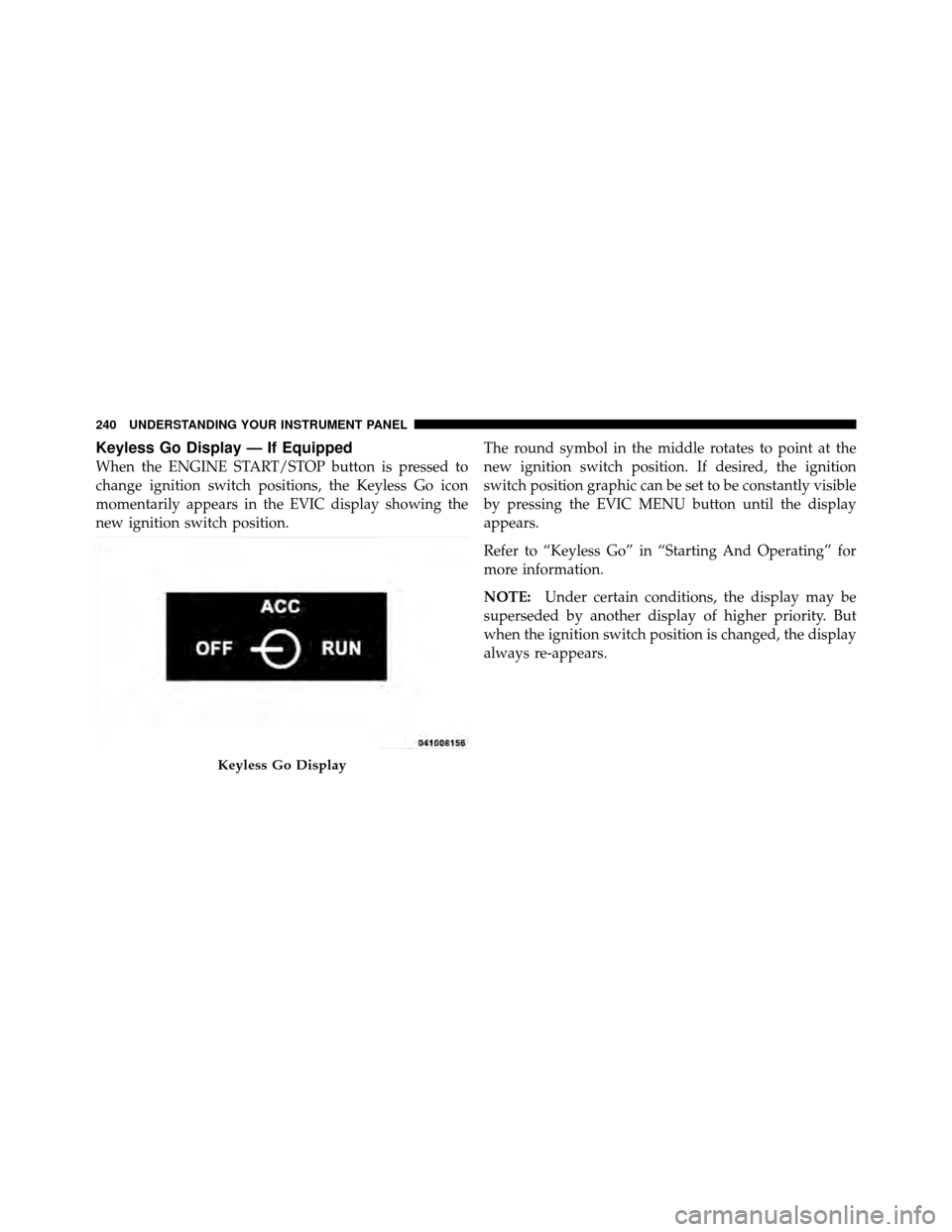
When the ENGINE START/STOP button is pressed to
change ignition switch positions, the Keyless Go icon
momentarily appears in the EVIC display showing the
new ignition switch position.The round symbol in the middle rotates to point at the
new ignition switch position. If desired, the ignition
switch position graphic can be set to be constantly visible
by pressing the EVIC MENU button until the display
appears.
Refer to “Keyless Go” in “Starting And Operating” for
more information.
NOTE:
Under certain conditions, the display may be
superseded by another display of higher priority. But
when the ignition switch position is changed, the display
always re-appears.
Keyless Go Display
240 UNDERSTANDING YOUR INSTRUMENT PANEL
Page 242 of 538
Automatic All Wheel Drive (AWD) Displays — If
Equipped
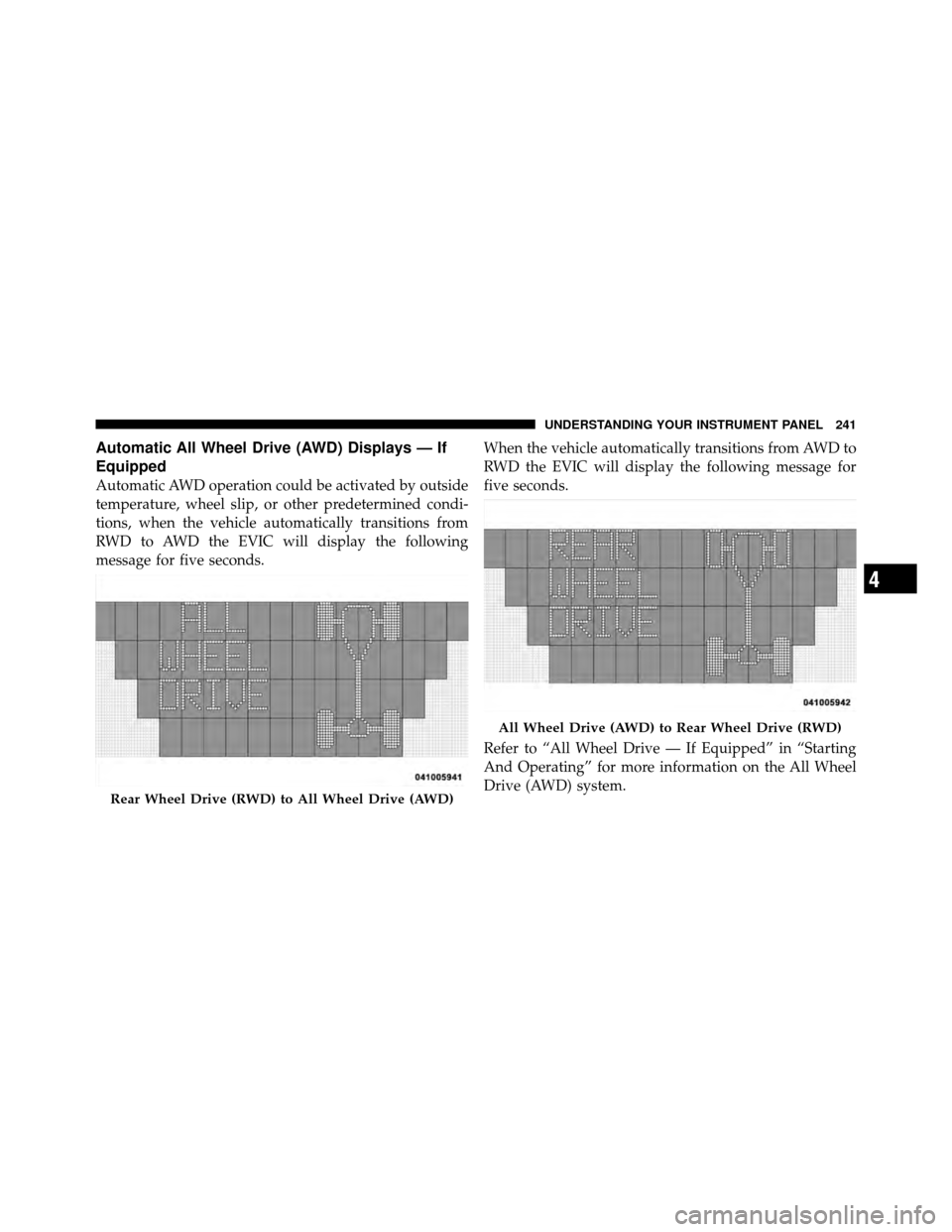
Automatic AWD operation could be activated by outside
temperature, wheel slip, or other predetermined condi-
tions, when the vehicle automatically transitions from
RWD to AWD the EVIC will display the following
message for five seconds.When the vehicle automatically transitions from AWD to
RWD the EVIC will display the following message for
five seconds.
Refer to “All Wheel Drive — If Equipped” in “Starting
And Operating” for more information on the All Wheel
Drive (AWD) system.
Rear Wheel Drive (RWD) to All Wheel Drive (AWD)
All Wheel Drive (AWD) to Rear Wheel Drive (RWD)
4
UNDERSTANDING YOUR INSTRUMENT PANEL 241
Page 243 of 538
Driver-Selectable Surround Sound (DSS) – If
Equipped
Press and release the MENU button until “Surround
Sound” displays in the EVIC. The EVIC provides infor-
mation on the current surround mode.
•Stereo
•Video Surround
•Audio Surround
While in the Surround Sound menu, press the FUNC-
TION SELECT button to change surround modes. The
Video Surround Mode will only be available for video
media sources (DVDs, Video CDs, or other video media
supported by the radio).
Compass Display
The compass readings indicate the direction
the vehicle is facing. Press and release the
HOME button to display one of eight compass
readings and the outside temperature.
NOTE: The system will display the last known outside
temperature when starting the vehicle and may need to
be driven several minutes before the updated tempera-
ture is displayed. Engine temperature can also affect the
displayed temperature, therefore temperature readings
are not updated when the vehicle is not moving.
Automatic Compass Calibration
This compass is self-calibrating, which eliminates the
need to set the compass manually. When the vehicle is
new, the compass may appear erratic and the EVIC will
display “CAL” until the compass is calibrated. You may
also calibrate the compass by completing one or more 360
HOME
Button
242 UNDERSTANDING YOUR INSTRUMENT PANEL
Page 244 of 538
degree turns (in an area free from large metal or metallic
objects) until the “CAL” message displayed in the EVIC
turns off. The compass will now function normally.
Manual Compass Calibration
If the compass appears erratic and the “CAL” message
does not appear in the EVIC display, you must put the
compass into the Calibration Mode manually as follows:
1. Place the ignition switch in the RUN position.
2. Press and hold the HOME button for approximately
two seconds.
3. Press the SCROLL button until “Calibrate Compass”
displays in the EVIC.
4. Press and release the FUNCTION SELECT button to
start the calibration. The message “CAL” will display in
the EVIC.5. Complete one or more 360 degree turns (in an area free
from large metal or metallic objects) until the “CAL”
message turns off. The compass will now function
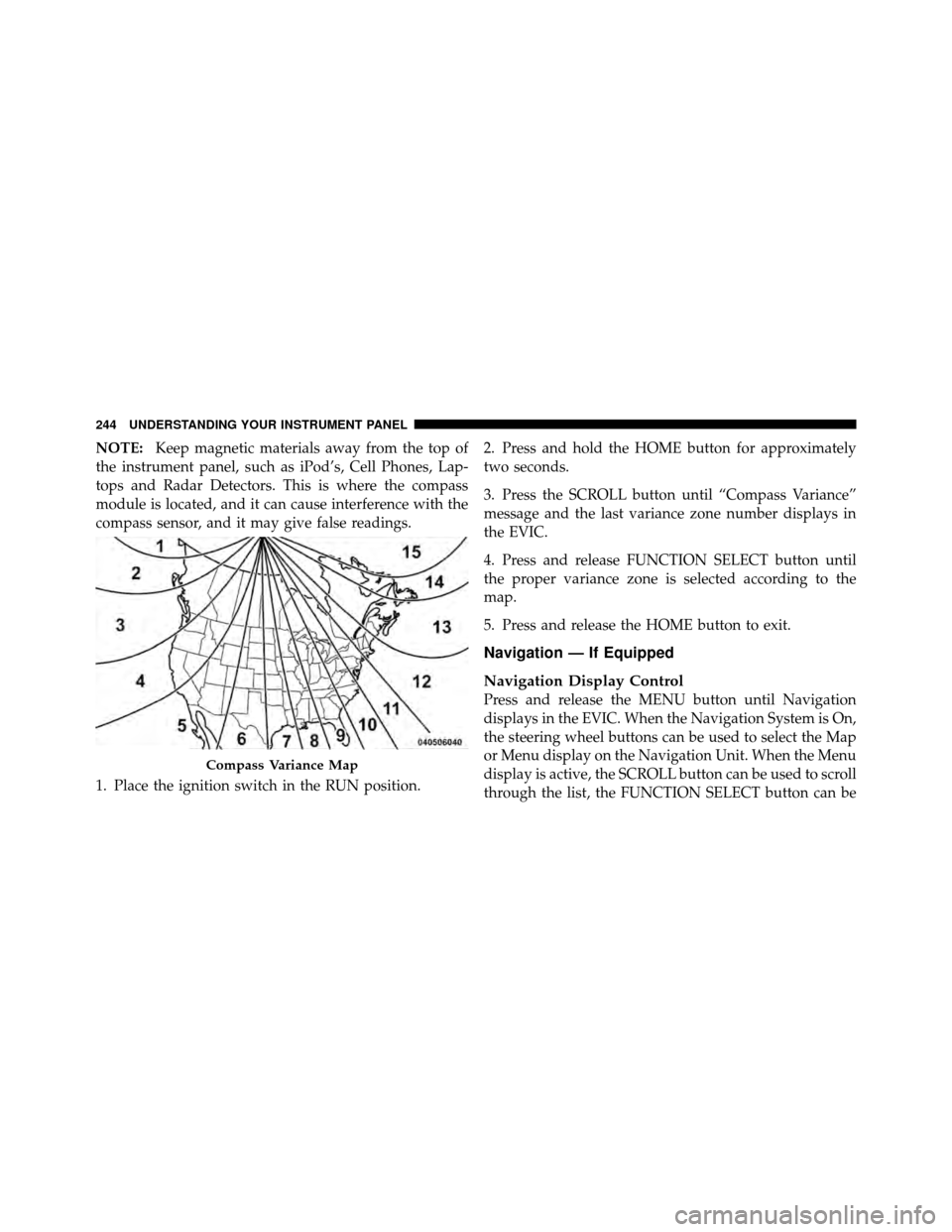
normally.Compass Variance
Compass Variance is the difference between Magnetic
North and Geographic North. To compensate for the
differences, the variance should be set for the zone where
the vehicle is driven, per the zone map. Once properly
set, the compass will automatically compensate for the
differences and provide the most accurate compass head-
ing.
4
UNDERSTANDING YOUR INSTRUMENT PANEL 243
Page 245 of 538
NOTE:Keep magnetic materials away from the top of
the instrument panel, such as iPod’s, Cell Phones, Lap-
tops and Radar Detectors. This is where the compass
module is located, and it can cause interference with the
compass sensor, and it may give false readings.
1. Place the ignition switch in the RUN position. 2. Press and hold the HOME button for approximately
two seconds.
3. Press the SCROLL button until “Compass Variance”
message and the last variance zone number displays in
the EVIC.
4. Press and release FUNCTION SELECT button until
the proper variance zone is selected according to the
map.
5. Press and release the HOME button to exit.
Navigation — If Equipped
Navigation Display Control
Press and release the MENU button until Navigation
displays in the EVIC. When the Navigation System is On,
the steering wheel buttons can be used to select the Map
or Menu display on the Navigation Unit. When the Menu
display is active, the SCROLL button can be used to scroll
through the list, the FUNCTION SELECT button can be
Compass Variance Map
244 UNDERSTANDING YOUR INSTRUMENT PANEL
Page 246 of 538
used to select an item, and the AUDIO MODE button can
be used to return to the previous menu. When the Map
display is active, pressing the FUNCTION SELECT but-
ton will change the Navigation Unit Display to the Menu.
Turn-by-Turn Directions
The EVIC displays turn-by-turn directions to a pro-
grammed destination when Turn-by-Turn Navigation is
enabled through Personal Settings. When enabled, the
EVIC displays the name of the approaching road at the
top of the screen, followed by an arrow to indicate the
direction to turn the vehicle, and a count down to
indicate the distance to the turn.
NOTE:Refer to your “Navigation User’s Manual” for
detailed operating instructions.
Personal Settings (Customer-Programmable
Features)
Personal Settings allows the driver to set and recall
features when the transmission is in PARK. Press and release the MENU button until Personal Set-
tings displays in the EVIC.
Use the SCROLL button to display one of the following
choices.
“Language”
When in this display you may select one of five lan-
guages for all display nomenclature, including the trip
functions and the navigation system (if equipped). Press
the FUNCTION SELECT button while in this display to
select English, Espanol, Deutsch, Italiano, or Francais.
Then, as you continue, the information will display in the
selected language.
NOTE:
The EVIC will not change the Uconnect™ lan-
guage selection.
4
UNDERSTANDING YOUR INSTRUMENT PANEL 245
Page 250 of 538
position when the transmission is shifted out of RE-
VERSE. To make your selection, press and release the
FUNCTION SELECT button until “ON” or “OFF”
appears.
“Turn Headlights On with Remote Key Unlock”
When this feature is selected, the headlights will activate
and remain on for up to 90 seconds when the doors are
unlocked with the RKE transmitter. To make your selec-
tion, press and release the FUNCTION SELECT button
until “OFF,” “30 sec.,” “60 sec.,” or “90 sec.” appears.
“Delay Power Off to Accessories Until Exit”
When this feature is selected, the power WINDOW
switches, radio, hands-free system (if equipped), DVD
video system (if equipped), power sunroof (if equipped),
and power outlets will remain active for up to 60 minutes
after the ignition switch is placed in the OFF position.
Opening a vehicle door will cancel this feature. To makeyour selection, press and release the FUNCTION SE-
LECT button until “Off,” “45 sec.,” “5 min.,” “10 min.,”
“30 min.,” or “60 min.” appears.
“AWD System Displays”
When in this display you may select “ON” or “OFF”.
When ON is selected, the EVIC displays the current
mode of the transfer-case. A five second display appears
any time the transfer-case changes from All Wheel Drive
(AWD) to Rear Wheel Drive (RWD) or from RWD to
AWD. The EVIC also displays the current mode of the
transfer-case when you shift into drive or reverse. To
make your selection, press and release the FUNCTION
SELECT button until “ON” or “OFF” appears.
4
UNDERSTANDING YOUR INSTRUMENT PANEL 249
Page 251 of 538
“Confirmation of Voice Commands” — If
Equipped
When ON is selected, all voice commands from the
Uconnect™ system are confirmed. To make your selec-
tion, press and release the FUNCTION SELECT button
until “ON” or “OFF” appears.
“Park Assist System” — If Equipped
When ON is selected, the system will scan for objects
behind the vehicle when the transmission is in the
REVERSE or NEUTRAL position. To make your selec-
tion, press and release the FUNCTION SELECT button
until “ON” or “OFF” appears.
“Turn-by-Turn Navigation” — If Equipped
When ON is selected, the turn-by-turn directions will
appear in the display as the vehicle approaches a desig-
nated turn within a programmed route. To make your
selection, press and release the FUNCTION SELECT
button until “ON” or “OFF” appears.
“Display ECO” — If Equipped
The “ECO” message is located in the Compass/
Temperature display, this message can be turned on or
off. To make your selection, press and release the FUNC-
TION SELECT button until “ON” or “OFF” appears.
“Display Units of Measure in”
The EVIC, odometer, and navigation system (if
equipped) can be changed between English and Metric
units of measure. To make your selection, press and
release the FUNCTION SELECT button until “EN-
GLISH” or “METRIC” appears.
“Automatic High Beams” — If Equipped
When this feature is selected, the high beam headlights
will deactivate automatically under certain conditions. To
make your selection, press and release the FUNCTION
SELECT button until “ON” or “OFF” appears. Refer to
“SmartBeam™” in “Understanding The Features Of Your
Vehicle” for further information.
250 UNDERSTANDING YOUR INSTRUMENT PANEL
Page 253 of 538
MEDIA CENTER 730N/430 (RER/REN/RBZ) —
AM/FM STEREO RADIO AND CD/DVD/HDD/NAV —
IF EQUIPPED
NOTE:The sales code is located on the lower right side
of the unit’s faceplate.
The REN, RER and RBZ radios contain a CD/DVD
player, USB port, and a 30-gigabyte hard drive (HDD).
Sirius Satellite Radio is optional. The 6.5 in (16.5 cm)
touch screen allows for easy menu selection.
The RER radio also contains a Global Positioning System
(GPS)-based Navigation system.
Refer to your Uconnect™ Multimedia REN, RER or RBZ
user’s manual for detailed operating instructions.
Operating Instructions — Voice Command
System — If Equipped
For the radio, refer to “Voice Command” in “Understand-
ing The Features Of Your Vehicle”.
Operating Instructions — Uconnect™ Phone —
If Equipped
Refer to “Uconnect™ Phone” in “Understanding The
Features Of Your Vehicle”.
Clock Setting Procedure — RBZ Radio
To Manually Set the Clock
1. Turn on the radio.
2. Touch the screen where the time is displayed, the clock
setting menu will appear on the screen.
3. To move the hour forward, touch the screen where the
word “Hour” with the arrow pointing upward is dis-
played. To move the hour backward, touch the screen
where the word “Hour” with the arrow pointing down-
ward is displayed.
4. To move the minute forward, touch the screen where
the word “Min” with the arrow pointing upward is
252 UNDERSTANDING YOUR INSTRUMENT PANEL