ad blue CHRYSLER 300 2012 2.G User Guide
[x] Cancel search | Manufacturer: CHRYSLER, Model Year: 2012, Model line: 300, Model: CHRYSLER 300 2012 2.GPages: 124, PDF Size: 3.67 MB
Page 3 of 124
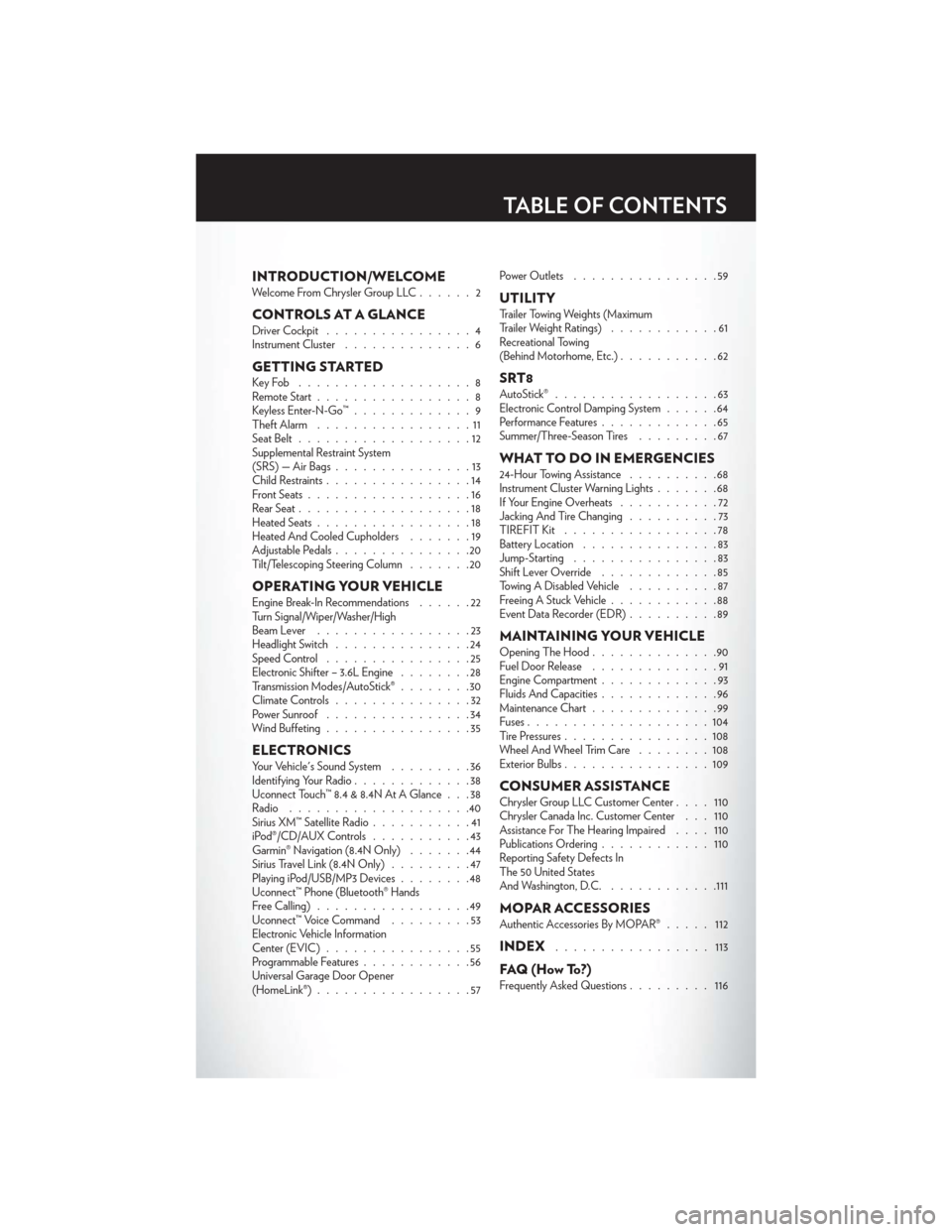
INTRODUCTION/WELCOMEWelcome From Chrysler Group LLC......2
CONTROLS AT A GLANCEDriver Cockpit................4
Instrument Cluster ..............6
GETTING STARTEDKeyFob ...................8
Remote Start.................8
Keyless Enter-N-Go™ .............9
Theft Alarm .................11
Seat Belt ...................12
Supplemental Restraint System
(SRS) — Air Bags ...............13
Child Restraints ................14
Front Seats ..................16
Rear Seat ...................18
Heated Seats .................18
Heated And Cooled Cupholders .......19
Adjustable Pedals ...............20
Tilt/Telescoping Steering Column .......20
OPERATING YOUR VEHICLEEngine Break-In Recommendations ......22
Turn Signal/Wiper/Washer/High
Beam Lever .................23
Headlight Switch ...............24
Speed Control ................25
Electronic Shifter – 3.6L Engine ........28
Transmission Modes/AutoStick® ........30
Climate Controls ...............32
Power Sunroof ................34
Wind Buffeting ................35
ELECTRONICSYour Vehicle's Sound System .........36
Identifying Your Radio .............38
Uconnect Touch™ 8.4 & 8.4N At A Glance . . . 38
Radio ....................40
Sirius XM™ Satellite Radio ...........41
iPod®/CD/AUX Controls ...........43
Garmin® Navigation (8.4N Only) .......44
Sirius Travel Link (8.4N Only) .........47
Playing iPod/USB/MP3 Devices ........48
Uconnect™ Phone (Bluetooth® Hands
Free Calling) .................49
Uconnect™ Voice Command .........53
Electronic Vehicle Information
Center (EVIC) ................55
Programmable Features ............56
Universal Garage Door Opener
(HomeLink®) .................57 Power Outlets
................59
UTILITYTrailer Towing Weights (Maximum
Trailer Weight Ratings) ............61
Recreational Towing
(Behind Motorhome, Etc.) ...........62
SRT8AutoStick®..................63
Electronic Control Damping System ......64
Performance Features .............65
Summer/Three-Season Tires .........67
WHAT TO DO IN EMERGENCIES24-Hour Towing Assistance..........68
Instrument Cluster Warning Lights .......68
If Your Engine Overheats ...........72
Jacking And Tire Changing ..........73
TIREFIT Kit .................78
Battery Location ...............83
Jump-Starting ................83
Shift Lever Override .............85
Towing A Disabled Vehicle ..........87
Freeing A Stuck Vehicle ............88
Event Data Recorder (EDR) ..........89
MAINTAINING YOUR VEHICLEOpening The Hood..............90
Fuel Door Release ..............91
Engine Compartment .............93
Fluids And Capacities .............96
Maintenance Chart ..............99
Fuses ....................104
Tire Pressures ................108
Wheel And Wheel Trim Care ........108
Exterior Bulbs ................109
CONSUMER ASSISTANCEChrysler Group LLC Customer Center ....110
Chrysler Canada Inc. Customer Center . . . 110
Assistance For The Hearing Impaired ....110
Publications Ordering ............110
Reporting Safety Defects In
The 50 United States
And Washington, D.C. ............111
MOPAR ACCESSORIESAuthentic Accessories By MOPAR® ..... 112
INDEX................. 113
FAQ(HowTo?)Frequently Asked Questions......... 116
TABLE OF CONTENTS
Page 41 of 124
Setting the Time
• Model 8.4N synchronizes time automatically via GPS, so should not require any timeadjustment. If you do need to set the time manually, follow the instructions below for
Model 8.4.
• For Model 8.4, turn the unit on, then touch the time display at the top of the screen. Touch Yes.
• If the time is not displayed at the top of the screen, touch More soft-key and then Settings soft-key. In the Settings screen, touch the Clock soft-key, then check or uncheck
this option.
• Touch + or – next to Set Time Hours and Set Time Minutes to adjust the time.
• If these features are not available, uncheck the Sync with GPS box.
• Touch X to save your settings and exit out of the Clock Setting screen.
Audio Settings
• Touch of the Audio soft-key to activate the Audio settings screen to adjust Balance\Fade, Equalizer, and Speed Adjusted Volume.
• You can return to the Radio screen by touching the X located at the top right.
Balance/Fade
• Touch the Balance/Fade soft-key to Balance audio between the front speakers or fade the audio between the rear and front speakers.
• Touching the Front, Rear, Left, or Right soft-keys or touch and drag the blue Speaker Icon to adjust the Balance/Fade.
Equalizer
• Touch the Equalizer soft-key to activate the Equalizer screen.
• Touch the + or - soft-keys, or by touching and dragging over the level bar for each of theequalizer bands. The level value, which spans between plus or minus 9, is displayed at the
bottom of each of the Bands.
Speed Adjusted Volume
• Touch the Speed Adjusted Volume soft-key to activate the Speed Adjusted Volumescreen. The Speed Adjusted Volume is adjusted by touching the + and - buttons or by
touching and dragging over the level bar. This alters the automatic adjustment of the
audio volume with variation to vehicle speed.
ELECTRONICS
39
Page 45 of 124
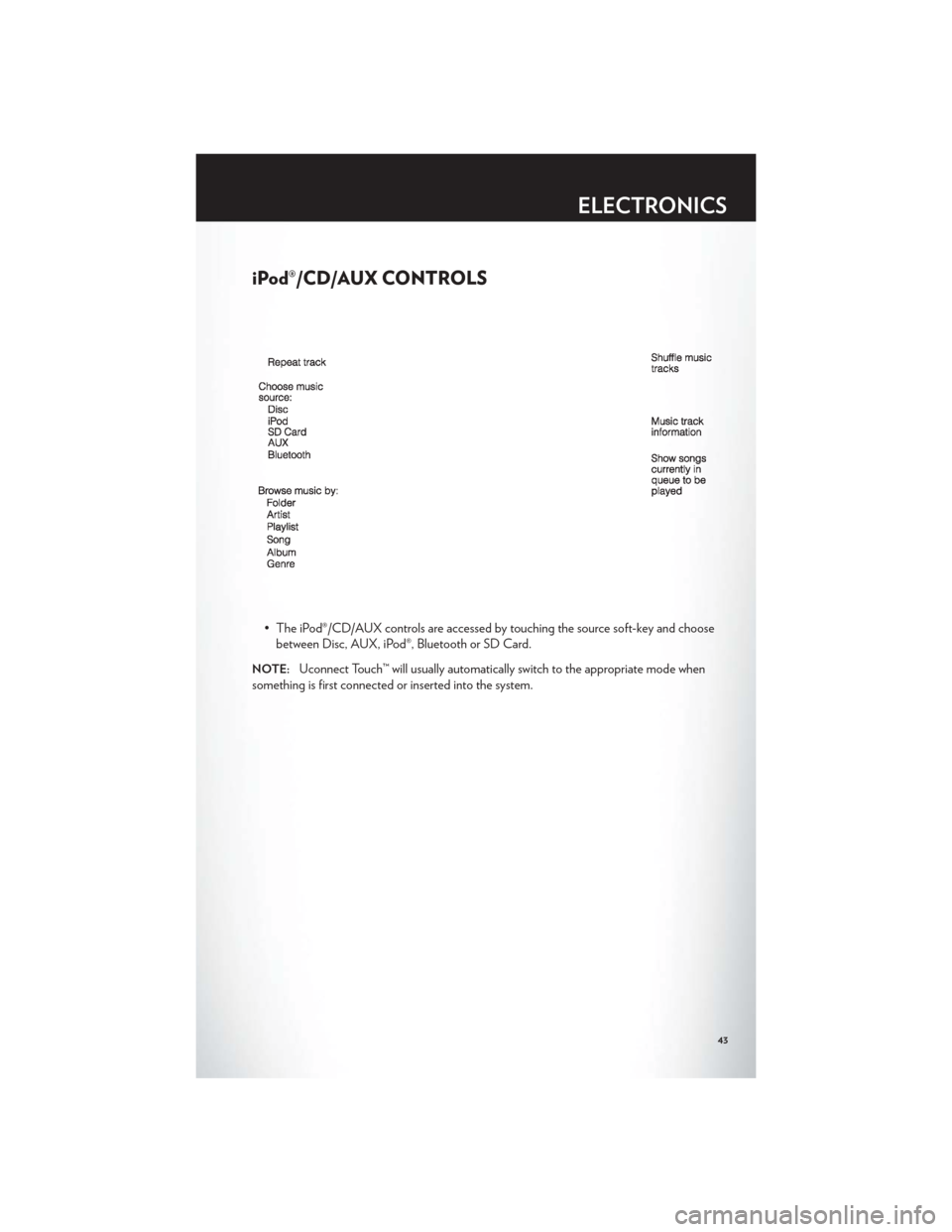
iPod®/CD/AUX CONTROLS
• The iPod®/CD/AUX controls are accessed by touching the source soft-key and choosebetween Disc, AUX, iPod®, Bluetooth or SD Card.
NOTE:Uconnect Touch™ will usually automatically switch to the appropriate mode when
something is first connected or inserted into the system.
ELECTRONICS
43
Page 51 of 124
• The iPod® battery charges when plugged into the USB port (if supported by the specificdevice).
• To route the USB/iPod® cable out of the center console, use the access cut out in the front of the console.
NOTE:
• When connecting your iPod® device for the first time, the system may take several minutesto read your music, depending on the number of files. For example, the system will take
approximately 5 minutes for every 1000 songs loaded on the device. Also during the
reading process, the Shuffle and Browse functions will be disabled. This process is needed to
ensure the full use of your iPod® features and only happens the first time it is connected.
After the first time, the reading process of your iPod® will take considerably less time unless
changes are made or new songs are added to the playlist.
• The USB port supports certain Mini, Classic, Nano, Touch, and iPhone® devices. The USB port also supports playing music from compatible external USB Mass Storage Class
memory devices. Some iPod® software versions may not fully support the USB port features.
Please visit Apple’s website for iPod® software updates.
3. SD Card
• Play songs stored on an SD card inserted into the SD card slot.
• Song playback can be controlled using the radio or Steering Wheel Audio Controls toplay, skip to the next or previous track, browse, and list the contents.
4. Bluetooth® Streaming Audio
• If equipped with Uconnect™ Voice Command, your Bluetooth-equipped iPod® devices,cell phones or other media players, may also be able to stream music to your vehicle's
sound system. Your connected device must be Bluetooth-compatible, and paired with
your Uconnect Touch® system (see Uconnect™ Phone for pairing instructions). You can
access the music from your connected Bluetooth® device by touching the Source soft-key
while in Player mode.
Uconnect™ Phone (Bluetooth® HANDS FREE CALLING)
• If the Uconnect™ PhoneButton exists on your steering wheel, then you have the
Uconnect™ Phone features.
• The Uconnect™ Phone is a voice-activated, hands-free, in-vehicle communications system with Voice Command Capability (see Voice Command section).
• The Uconnect™ Phone allows you to dial a phone number with your mobile phone using simple voice commands or using screen soft-keys.
• Refer to the Understand The Features Of Your Vehicle section of your vehicle's Owner's Manual on the DVD for further details.
NOTE:The Uconnect™ Phone requires a mobile phone equipped with the Bluetooth®
Hands-Free Profile, Version 1.0 or higher. For Uconnect™ customer support, call
1–877–855–8400 or visit www.UconnectPhone.com.
ELECTRONICS
49
Page 52 of 124
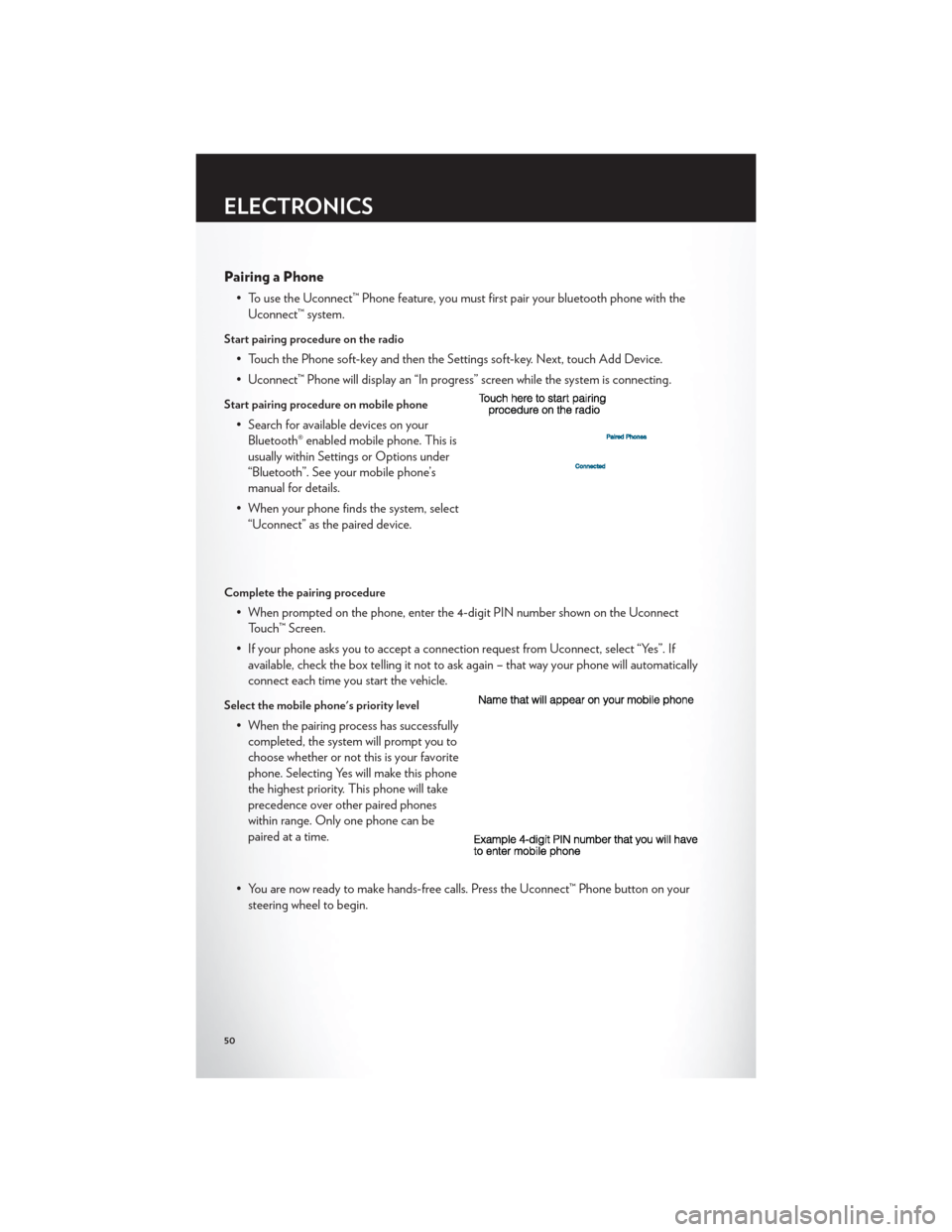
Pairing a Phone
• To use the Uconnect™ Phone feature, you must first pair your bluetooth phone with theUconnect™ system.
Start pairing procedure on the radio
• Touch the Phone soft-key and then the Settings soft-key. Next, touch Add Device.
• Uconnect™ Phone will display an “In progress” screen while the system is connecting.
Start pairing procedure on mobile phone
• Search for available devices on yourBluetooth® enabled mobile phone. This is
usually within Settings or Options under
“Bluetooth”. See your mobile phone’s
manual for details.
• When your phone finds the system, select “Uconnect” as the paired device.
Complete the pairing procedure
• When prompted on the phone, enter the 4-digit PIN number shown on the UconnectTouch™ Screen.
• If your phone asks you to accept a connection request from Uconnect, select “Yes”. If available, check the box telling it not to ask again – that way your phone will automatically
connect each time you start the vehicle.
Select the mobile phone's priority level
• When the pairing process has successfullycompleted, the system will prompt you to
choose whether or not this is your favorite
phone. Selecting Yes will make this phone
the highest priority. This phone will take
precedence over other paired phones
within range. Only one phone can be
paired at a time.
• You are now ready to make hands-free calls. Press the Uconnect™ Phone button on your steering wheel to begin.
ELECTRONICS
50
Page 54 of 124
Common Phone Commands
Common Phone Commands (Examples)
“Call John Smith”
“Call John Smith mobile”
“Dial 1 248 555 1212”
“Call Emergency”
“Call Towing Assistance”
“Redial”
Phonebook
• Uconnect Touch™ radios will automatically download your phonebook from your pairedphone, if this feature is supported by your phone. Entries are updated each time that the
phone is paired. If your phone book entries do not appear, check the settings on your
phone. Some phones require you to enable this feature manually.
• Your phonebook can be browsed on your radio screen, but editing can only be done on your phone. To browse, touch the Phone soft-key, then the Phonebook soft-key.
• Favorite phonebook entries can be saved as Favorites for quicker access. Favorites are shown at the top of your main phone screen.
Voice Recognition Tips
• Use longer names that are less easily mistaken for others. For examples, say “Call JohnDoe” instead of “Call John”.
• You can “chain” commands together for faster results. Say “Call John Doe, mobile”, for example.
• You can “barge in” while the system is talking to you, enabling you to enter your response without waiting. Just press the Voice Command button on the steering wheel to barge in.
Changing The Volume
• Start a dialogue by pressing the Phone button, then say a command for example -
"Help".
• Use the radio ON/OFF VOLUME rotary knob to adjust the volume to a comfortable level while the Uconnect™ system is speaking. Please note the volume setting for
Uconnect™ is different than the audio system.
NOTE:To access help, press the Uconnect™ Phonebutton on the steering wheel and
say "help." Touch the display or push either
orbutton and say "cancel" to cancel
the help session.
SMS (Text Messaging)
• Uconnect™ Phone can read or send new text messages on your mobile phone.
• Your mobile phone must support SMS over Bluetooth® in order to use this feature. If the Uconnect™ Phone determines your phone is not compatible with SMS messaging over
Bluetooth® the “Messaging” button will be greyed out and the feature will not be available
for use.
ELECTRONICS
52
Page 58 of 124
Compass Calibration
• This compass is self-calibrating, which eliminates the need to set the compass manually.When the vehicle is new, the compass may appear erratic and the EVIC will display “CAL”
until the compass is calibrated.
• You may also calibrate the compass by completing one or more 360 degree turns (in an area free from large metal or metallic objects) until the “CAL” message displayed in the
EVIC turns off. The compass will now function normally.
ECO
• The ECO message will appear in your EVIC display whenever you are driving in a fuelefficient manner.
• This feature allows you to monitor when you are driving in a fuel efficient manner, and it can be used to modify driving habits in order to increase fuel economy.
PROGRAMMABLE FEATURES
Electronic Vehicle Information Center (EVIC)
• The EVIC can be used to view or change the following settings. Press the UPor
DOWN
button until System Setup displays, then press the SELECTbutton.
Scroll through the settings using the UP or DOWN buttons. Press the SELECT
button to change the setting. Press the BACK button to scroll back to a previous menu or
sub menu.
• Fuel Economy • Vehicle Info (Customer Information
Features)
• Vehicle Speed • Messages
• Trip Info • Turn Menu Off
• Units
Uconnect Touch™ Customer Programmable Features
• The Uconnect Touch™ 8.4 system allows you to access Customer Programmable feature settings such as Display, Clock, Safety/Assistance, Lights, Doors & Locks, Heated Seats,
Engine Off Operation, Compass Settings, Audio, Phone/ Bluetooth and SIRIUS Setup
through soft-keys.
• Touch the More soft-key to on the bottom of the screen, then touch the Settings soft-key to access the Settings screen. When making a selection, scroll up or down until the
preferred setting is highlighted, then press and release the preferred setting until a
check-mark appears next to the setting, showing that setting has been selected. The
following feature settings are available:
• Display • Clock
• Safety / Assistance • Doors & Locks
• Auto-On Comfort & Remote Start • Engine Off Options
• Compass Settings • Audio
• Phone / Bluetooth • SIRIUS Setup
ELECTRONICS
56
Page 106 of 124

FUSES
Integrated Power Module
• The Integrated Power Module (fuses) is located in the engine compartment on the righthand side near the Washer Fluid Reservoir. This module contains fuses and relays.
Cavity Cartridge Fuse Mini-Fuse Description
2 40 Amp Green — Radiator Fan #13 50 Amp Red — Power Steering #1
4 30 Amp Pink — Starter 5 40 Amp Green — Anti-Lock Brakes
9 — 20 Amp Yellow All-Wheel Drive Module – If Equipped
10 — 10 Amp Red Security 11 — 20 Amp Yellow Horns
12 — 10 Amp Red Air Conditioning Clutch
14 — 25 Amp Neutral Anti-Lock Brakes 15 — 25 Amp Neutral Transmission
18 50 Amp Red — Radiator Fan #2 19 50 Amp Red — Power Steering #2
20 30 Amp Pink — Wiper Motor
21 30 Amp Pink — Headlamp Washers
28 — 25 Amp Neutral Fuel Pump
29 — 15 Amp Blue Transmission Shifter
31 — 25 Amp Neutral Engine Module
MAINTAINING YOUR VEHICLE
104
Page 109 of 124

Cavity Cartridge Fuse Mini-Fuse Description2 60 Amp Yellow — Front PDC Feed #1
4 60 Amp Yellow — Front PDC Feed #2 5 30 Amp Pink — Sunroof
6 40 Amp Green — Exterior Lighting #1 7 40 Amp Green — Exterior Lighting #2
8 30 Amp Pink — Interior Lighting/Washer Pump 9 30 Amp Pink — Power Locks
10 30 Amp Pink — Driver Door 11 30 Amp Pink — Passenger Door
12 — 20 Amp Yellow Cigar Lighters (Selectable)
15 40 Amp Green — HVAC Blower
23 — 10 Amp Red Fuel Door/Diagnostic Port
24 — 15 Amp Blue Radio Screen 25 — 10 Amp Red Tire Pressure Monitor 27 — 25 Amp Neutral Amplifier 31 — 25 Amp Neutral Power Seats
32 — 15 Amp Blue HVAC Module/Cluster 33 — 15 Amp Blue Ignition Switch/Wireless Module
34 — 10 Amp Red Steering Column Module/Clock 35 — 10 Amp Red Battery Sensor 37 — 15 Amp Blue Radio
38 — 20 Amp Yellow Power Outlet
42 30 Amp Pink — Rear Defrost 43 — 25 Amp Neutral Rear Heated Seats/Steering Wheel
44 — 10 Amp Red Park Assist/Blind Spot/Camera 45 — 15 Amp Blue Cluster/Rearview Mirror/Compass
46 — 10 Amp Red Adaptive Cruise Control 47 — 10 Amp Red Adaptive Front Lighting
48 — 20 Amp Yellow Active Suspension 51 — 20 Amp Yellow Front Heated Seats
52 — 10 Amp Red Heated Cupholders/Rear Heated Seat Switches 53 — 10 Amp Red HVAC Module/In Car Temperature Sensor
58 — 10 Amp Red Airbag Module
64 — 25 Amp Neutral Rear Windows 65 — 10 Amp Red Airbag Module 67 — 15 Amp Blue Run Sense
68 — 15 Amp Blue Power Outlet Illumination/Rear Sunshade
MAINTAINING YOUR VEHICLE
107
Page 116 of 124
Indicators.................7
Instrument Cluster Warning Lights ....6,68
Intermittent Wipers (Delay Wipers) ....23
Introduction .................2
iPod®/USB/MP3 Control .........48
Bluetooth Streaming Audio .......49
Jack Location ...............73
Jack Operation ..............75
Jacking Instructions ............75
Jump Starting ...............83
KeyFob...................8
Keyless Enter-N-Go™ ............9
Lock/Unlock ...............9
Starting/Stopping ............10
Lane Change Assist ............23
LATCH (Lower Anchors and Tether for
CHildren) .................14
Lights Turn Signal ...............23
Warning (Instrument Cluster
Description) ...............6
Maintenance Record .........101,103
Maintenance Schedule ........99,102
MemorySeat ...............16
Mirrors Heated .................33
MOPAR® Accessories ...........112
Navigation .................44
Navigation Voice Commands .......54
New Vehicle Break-In Period ........22
Oil Change Indicator ............71
Oil, Engine Capacity ................96
Outlet Power ..................59
Overheating, Engine ............72
Panic Alarm .................8
Pedals, Adjustable .............20 Phone (Pairing)
..............50
Phone (Uconnect) .............49
Placard, Tire and Loading Information . . 108
Power Glass Sunroof ..............34
Outlet (Auxiliary Electrical Outlet) . . . 59
Seats ..................16
Steering .................96
Tilt/Telescoping Steering Column ....21
Preparation for Jacking ..........74
Programmable Electronic Features . . . 56,65
Radio Operation .............40
Rain Sensitive Wiper System ........23
Rear Heated Seats .............19
Rear Seat, Folding .............18
Recreational Towing ............62
Remote Starting System ..........8
Replacement Bulbs ............109
Reporting Safety Defects .........111
Restraints, Child ..............14
Seat Belts .................
12
Seats ....................16
Adjustment ...............17
Heated .................18
Lumbar Support .............16
Memory.................16
Power ..................16
Rear Folding ..............18
Setting the Clock .............39
Shift Lever Override ............85
Short Message Service (SMS) .......52
Signals, Turn ................23
SIRIUS Travel Link .............47
SmartBeams ................24
SpareTire .................73
Spark Plugs ................96
Speed Control (Cruise Control) ......25
Starting Remote .................8
Steering TiltColumn ...............20
Store Radio Presets ............40
SunRoof .................34
Supplemental Restraint System - Airbag . . 13
INDEX
114