display CHRYSLER 300 2013 2.G User Guide
[x] Cancel search | Manufacturer: CHRYSLER, Model Year: 2013, Model line: 300, Model: CHRYSLER 300 2013 2.GPages: 592, PDF Size: 4.48 MB
Page 134 of 592
•The options pop-up will be displayed,
• Touch the “Delete Device” soft-key,
• Touch the X to exit out of the Settings screen.
Making A Phone Or Audio Device A Favorite
•Touch the “Settings” soft-key,
• Touch the “Phone/Bluetooth®” soft-key,
• Touch the + soft-key located to the right of the device
name,
• The options pop-up will be displayed,
• Touch the “Make Favorite” soft-key; you will see the
chosen device move to the top of the list,
• Touch the X to exit out of the Settings screen.
Phonebook Download — Automatic Phonebook
Transfer From Mobile Phone – If Equipped
If equipped and specifically supported by your phone,
Uconnect® Phone automatically downloads names (text
names) and number entries from the mobile phone’s
phonebook. Specific Bluetooth® Phones with Phone
Book Access Profile may support this feature. See
Uconnect® website, www.UconnectPhone.com, for sup-
ported phones.
•To call a name from a downloaded mobile phone book,
follow the procedure in the Voice Recognition Quick
Reference section.
• Automatic download and update of a phone book, if
supported, begins as soon as the Bluetooth® wireless
phone connection is made to the Uconnect® Phone, for
example, after you start the vehicle.
132 UNDERSTANDING THE FEATURES OF YOUR VEHICLE
Page 135 of 592
•A maximum of 1000 entries per phone will be down-
loaded and updated every time a phone is connected
to the Uconnect® Phone.
• Depending on the maximum number of entries down-
loaded, there may be a short delay before the latest
downloaded names can be used. Until then, if avail-
able, the previously downloaded phonebook is avail-
able for use.
• Only the phonebook of the currently connected mobile
phone is accessible.
• This downloaded phonebook cannot be edited or
deleted on the Uconnect® Phone. These can only be
edited on the mobile phone. The changes are trans-
ferred and updated to Uconnect® Phone on the next
phone connection.Managing Your Favorite Phonebook
There are three ways you can add an entry to your
Favorite Phonebook.
1. During an active call of a number to make a favorite, touch and hold a favorite button on the top of the
phone main screen.
2. After loading the mobile phonebook, select phone- book from the Phone main screen, then select the
appropriate number. Touch the + next to the selected
number to display the options pop-up. In the pop-up
select “Add to Favorites”.
3
UNDERSTANDING THE FEATURES OF YOUR VEHICLE 133
Page 137 of 592
To Remove A Favorite
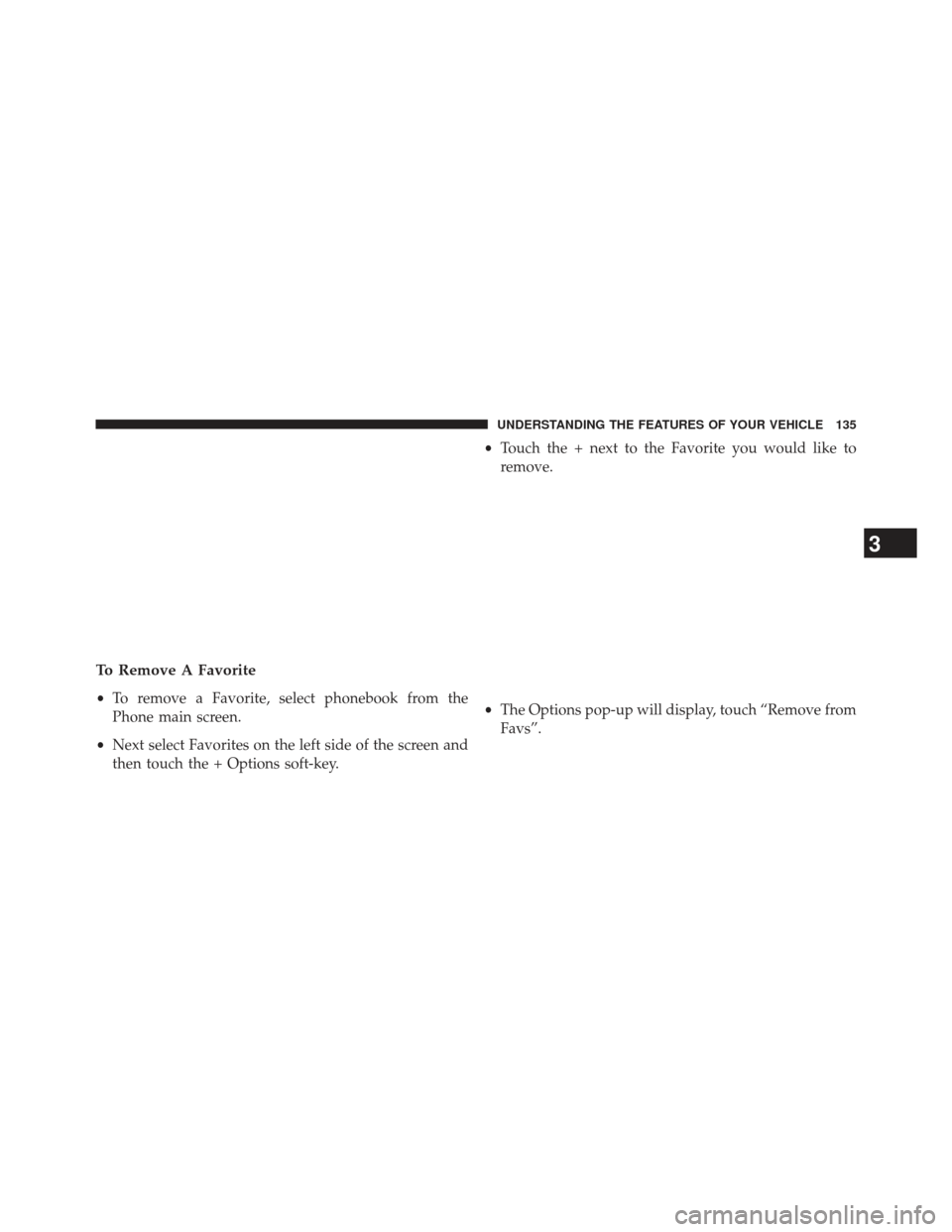
•To remove a Favorite, select phonebook from the
Phone main screen.
• Next select Favorites on the left side of the screen and
then touch the + Options soft-key. •
Touch the + next to the Favorite you would like to
remove.
• The Options pop-up will display, touch “Remove from
Favs”.
3
UNDERSTANDING THE FEATURES OF YOUR VEHICLE 135
Page 140 of 592
Call Controls
The touch-screen allows you to control the following call
features:
•Answer
• End
• Ignore
• Hold/unhold
• Mute/unmute
• Transfer the call to/from the phone
• Swap two active calls
• Join two active calls together
Touch-Tone Number Entry
•Touch the “Phone” soft-key,
• Touch the “Dial” soft-key,
• The Touch-Tone screen will be displayed,
• Use the numbered soft-keys to enter the number and
touch “Call”.
To send a touch tone using Voice Recognition (VR), press
the
button while in a call and say “Send 1234#” or
you can say “Send Voicemail Password” if Voicemail
password is stored in your mobile phonebook.
138 UNDERSTANDING THE FEATURES OF YOUR VEHICLE
Page 141 of 592
Recent Calls
You may browse up to 34 of the most recent of each of the
following call types:
•Incoming Calls
• Outgoing Calls
• Missed Calls •
All Calls
These can be accessed by touching the “recent calls”
soft-key on the Phone main screen.
You can also press the
button and say “Show my
incoming calls” from any screen and the Incoming calls
will be displayed.
You can also press the
button and say “Show my
recent calls” from any screen and the All calls screen will
be displayed.
NOTE: Incoming can also be replaced with “Outgoing”,
“Recent” or “Missed”.
Answer Or Ignore An Incoming Call — No Call
Currently In Progress
When you receive a call on your mobile phone, the
Uconnect® Phone will interrupt the vehicle audio sys-
tem, if on, and will ask if you would like to answer the
3
UNDERSTANDING THE FEATURES OF YOUR VEHICLE 139
Page 147 of 592
For example, if a prompt is asking “There are two
numbers with the name John. Say the full name” you
could press the
button and say, “John Smith” to
select that option without having to listen to the rest of
the voice prompt.
Voice Response Length
It is possible for you to choose between Brief and
Detailed Voice Response Length.
• Touch the “More” soft-key (where available), then
touch the “Settings” soft-key,
• Touch the “Display” soft-key, then scroll down to Voice
Response Length,
• Select either “Brief” or “Detailed” by touching the box
next to the selection. A check-mark will appear to
show your selection.
Phone And Network Status Indicators
Uconnect® Phone will provide notification to inform you
of your phone and network status when you are attempt-
ing to make a phone call using Uconnect® Phone. The
status is given for network signal strength and phone
battery strength.
Dialing Using The Mobile Phone Keypad
WARNING!
Your new vehicle has many features for the comfort
and convenience of you and your passengers. Only
use such features when it is safe to do so. Failure to
follow this Warning may result in an accident involv-
ing serious injury or death.
You can dial a phone number with your mobile phone
keypad and still use the Uconnect® Phone (while dialing
via the mobile phone keypad, the user must exercise
3
UNDERSTANDING THE FEATURES OF YOUR VEHICLE 145
Page 167 of 592
If no command is spoken the system will say one of two
responses:
•I didn’t understand
• I didn’t get that, etc.,
If a command is not spoken a second time, the system
will respond with an error and give some direction as
what can be said based on the context you are in. After
three consecutive failures of a spoken command the VR
session will end.
Pressing the Uconnect® Voice Command
button
while the system is speaking is known as “barging in.”
The system will be interrupted, and after the beep, you
can say a command. This will become helpful once you
start to learn the options. NOTE:
At any time, you can say the words “Cancel” or
“Help”.
These commands are universal and can be used from any
menu. All other commands can be used depending upon
the active application.
When using this system, you should speak clearly and at
a normal speaking volume.
The system will best recognize your speech if the win-
dows are closed, and the heater/air conditioning fan is
set to low.
At any point, if the system does not recognize one of your
commands, you will be prompted to repeat it.
To hear available commands, press the Uconnect® Voice
Command
button and say “Help”. You will hear
available commands for the screen displayed.
3
UNDERSTANDING THE FEATURES OF YOUR VEHICLE 165
Page 184 of 592
The front driver and passenger heated seats are operated
using the Uconnect® System.
WARNING!
•Persons who are unable to feel pain to the skin
because of advanced age, chronic illness, diabetes,
spinal cord injury, medication, alcohol use, exhaus-
tion or other physical condition must exercise care
when using the seat heater. It may cause burns
even at low temperatures, especially if used for
long periods of time.
• Do not place anything on the seat or seatback that
insulates against heat, such as a blanket or cushion.
This may cause the seat heater to overheat. Sitting
in a seat that has been overheated could cause
serious burns due to the increased surface tempera-
ture of the seat.
Front Heated Seat Operations — Uconnect® 8.4
and 8.4 Nav:
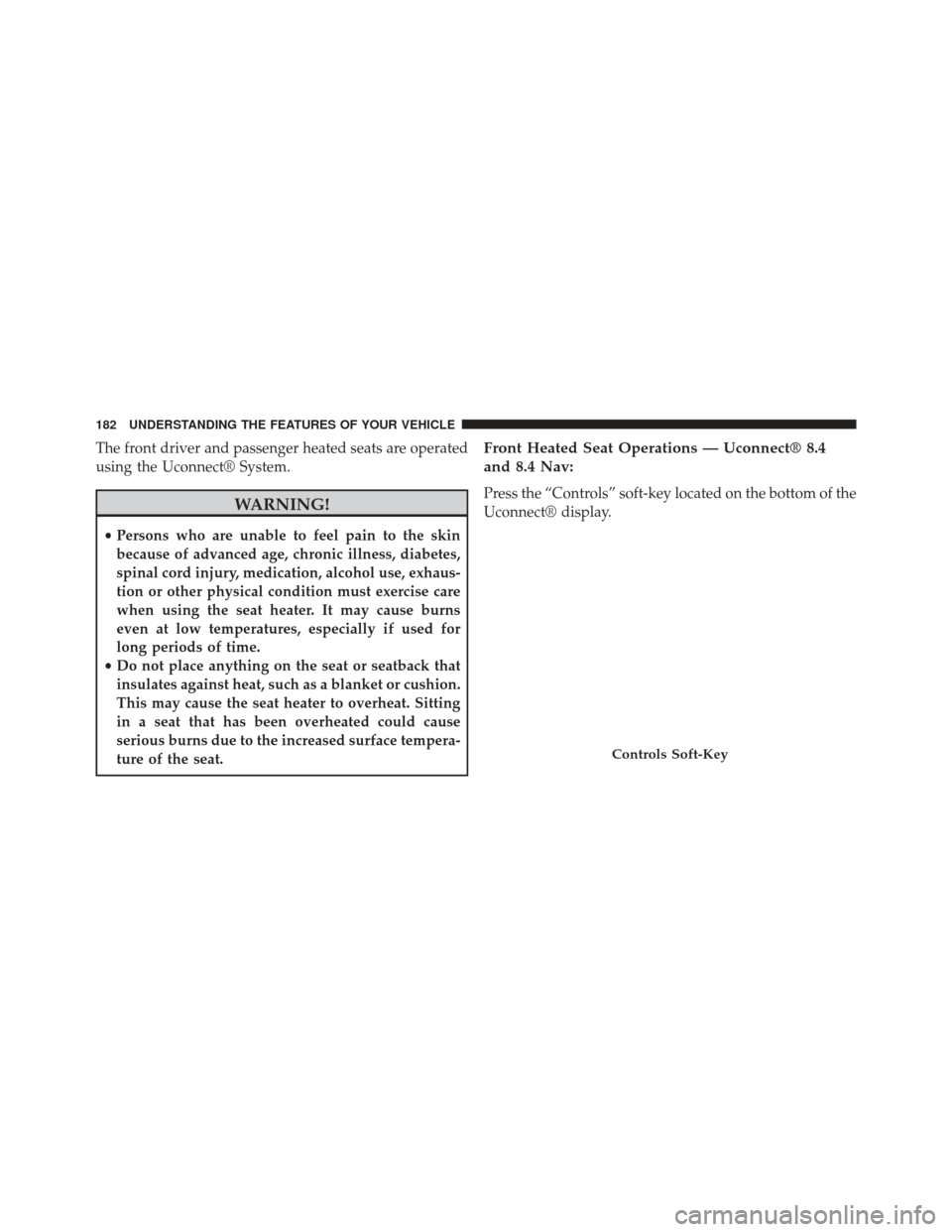
Press the “Controls” soft-key located on the bottom of the
Uconnect® display.
Controls Soft-Key
182 UNDERSTANDING THE FEATURES OF YOUR VEHICLE
Page 185 of 592
Press the “Driver” or “Passenger” seat soft-key
once to select HI-level heating. Press the soft-
key a second time to select LO-level heating.
Press the soft-key a third time to shut the
heating elements OFF. NOTE:
Once a heat setting is selected, heat will be felt
within two to five minutes.
When the HI-level setting is selected, the heater will
provide a boosted heat level during the first four minutes
of operation. Then, the heat output will drop to the
normal HI-level. If the HI-level setting is selected, the
system will automatically switch to LO-level after ap-
proximately 60 minutes of continuous operation. At that
time, the display will change from HI to LO, indicating
the change. The LO-level setting will turn OFF automati-
cally after approximately 45 minutes.
Heated Seats Soft-Keys
3
UNDERSTANDING THE FEATURES OF YOUR VEHICLE 183
Page 187 of 592
system will automatically switch to LO-level after ap-
proximately 60 minutes of continuous operation. At that
time, the number of illuminated LEDs changes from two
to one, indicating the change. The LO-level setting will
turn OFF automatically after approximately 45 minutes.
Ventilated Seats — If Equipped
On some models, both the driver and passenger seats are
ventilated. Located in the seat cushion and seatback are
small fans that draw air from the seat surface through
fine perforations in the seat cover to help keep the driver
and front passenger cooler in higher ambient tempera-
tures.
The ventilated seats can be operated using the Uconnect®
System.
Front Ventilated Seat Operation — Uconnect®
8.4/8.4 Nav:
Press the “Controls” soft-key located on the bottom of the
Uconnect® display.
Controls Soft-Key
3
UNDERSTANDING THE FEATURES OF YOUR VEHICLE 185