display CHRYSLER 300 2013 2.G Repair Manual
[x] Cancel search | Manufacturer: CHRYSLER, Model Year: 2013, Model line: 300, Model: CHRYSLER 300 2013 2.GPages: 592, PDF Size: 4.48 MB
Page 328 of 592
•Oil Temperature
Displays the actual oil temperature.
• Oil Pressure
Displays the actual oil pressure.
• Trans Temperature
Displays the actual transmission temperature.
• Engine Hours
Displays the number of hours of engine operation.
Messages #
Select from Main Menu using the UP or DOWN buttons.
This feature shows the number of stored warning mes-
sages (in the # place holder). Pressing the SELECT button
will allow you to see what the stored messages are.
Pressing the BACK button takes you back to the Main
Menu.
Turn Menu OFF
Select from Main Menu using the DOWN button. Press-
ing the SELECT button blanks the menu display. Pressing
any one of the four steering wheel buttons brings the
menu back.
Uconnect® SETTINGS
The Uconnect® system uses a combination of soft and
hard keys located on the center of the instrument panel
that allows you to access and change the customer
programmable features.
Hard-Keys
Hard-Keys are located below the Uconnect® system in
the center of the instrument panel. In addition, there is a
Scroll/Enter control knob located on the right side of the
Climate Controls in the center of the instrument panel.
Turn the control knob to scroll through menus and
326 UNDERSTANDING YOUR INSTRUMENT PANEL
Page 329 of 592
change settings (i.e., 30, 60, 90), press the center of the
control knob one or more times to select or change a
setting (i.e., ON, OFF).
Soft-Keys
Soft-Keys are accessible on the Uconnect® Touch-Screen.
Customer Programmable Features — Uconnect®
8.4 Settings
Press the More soft-key, then press the Settings soft-key
to display the menu setting screen. In this mode the
Uconnect® system allows you to access programmable
features that may be equipped such as Display, Clock,
Safety/Assistance, Lights, Doors & Locks, Auto-On
Comfort & Remote Start, Engine Off Operation, Compass
Settings, Audio, Phone/Bluetooth® and SIRIUS Setup.
NOTE:Only one touchscreen area may be selected at a
time. When making a selection, press the soft-key to enter the
desired mode. Once in the desired mode press and
release the preferred setting until a check-mark appears
next to the setting, showing that setting has been se-
lected.
Once the setting is complete press the Back Arrow
soft-key to return to the previous menu or press the X
soft-key to close out of the settings screen. Pressing the
Up or Down Arrow soft-keys on the right side of the
screen will allow you to toggle up or down through the
available settings.
4
UNDERSTANDING YOUR INSTRUMENT PANEL 327
Page 330 of 592
Display
After pressing the Display soft-key the following settings
will be available.
•Display Mode
When in this display you may select one of the auto
display settings. To change Mode status, touch and
release the Day, Night or Auto soft-key. Then touch the
arrow back soft-key.
• Display Brightness With Headlights ON
When in this display, you may select the brightness with
the headlights on. Adjust the brightness with the + and –
setting soft-keys or by selecting any point on the scale
between the + and – soft-keys. Then touch the arrow back
soft-key. •
Display Brightness With Headlights OFF
When in this display, you may select the brightness with
the headlights off. Adjust the brightness with the + and –
setting soft-keys or by selecting any point on the scale
between the + and – soft-keys. Then touch the arrow back
soft-key.
• Set Language
When in this display, you may select one of three
languages for all display nomenclature, including the trip
functions and the navigation system (if equipped). Touch
the Set Language soft-key and then touch the desired
language soft-key until a check-mark appears next to the
language, showing that setting has been selected. Touch
the back arrow soft-key to return to the previous menu.
328 UNDERSTANDING YOUR INSTRUMENT PANEL
Page 331 of 592
•Units
When in this display, you may select to have the EVIC,
odometer, and navigation system (if equipped) changed
between US and Metric units of measure. Touch US or
Metric until a check-mark appears next to the setting,
showing that setting has been selected. Touch the back
arrow soft-key to return to the previous menu.
• Voice Response Length
When in this display, you may change the Voice Re-
sponse Length settings. To change the Voice Response
Length, touch the Brief or Detailed soft-key until a
check-mark appears next to the setting, showing that
setting has been selected. Touch the back arrow soft-key
to return to the previous menu.
• Touchscreen Beep
When in this display, you may turn on or shut off the
sound heard when a touch screen button (soft-key) is pressed. Touch the Touchscreen Beep soft-key until a
check-mark appears next to the setting, showing that
setting has been selected. Touch the back arrow soft-key
to return to the previous menu.
•
Navigation Turn-By-Turn In Cluster
When this feature is selected, the turn-by-turn directions
will appear in the display as the vehicle approaches a
designated turn within a programmed route. To make
your selection, touch the Navigation Turn-By-Turn In
Cluster soft-key, until a check-mark appears next to the
setting, showing that setting has been selected. Touch the
back arrow soft-key to return to the previous menu.
• Fuel Saver Display In Cluster
The “ECO” message is located in the instrument cluster
display, this message can be turned on or off. To make
your selection, touch the Fuel Saver Display soft-key,
4
UNDERSTANDING YOUR INSTRUMENT PANEL 329
Page 332 of 592
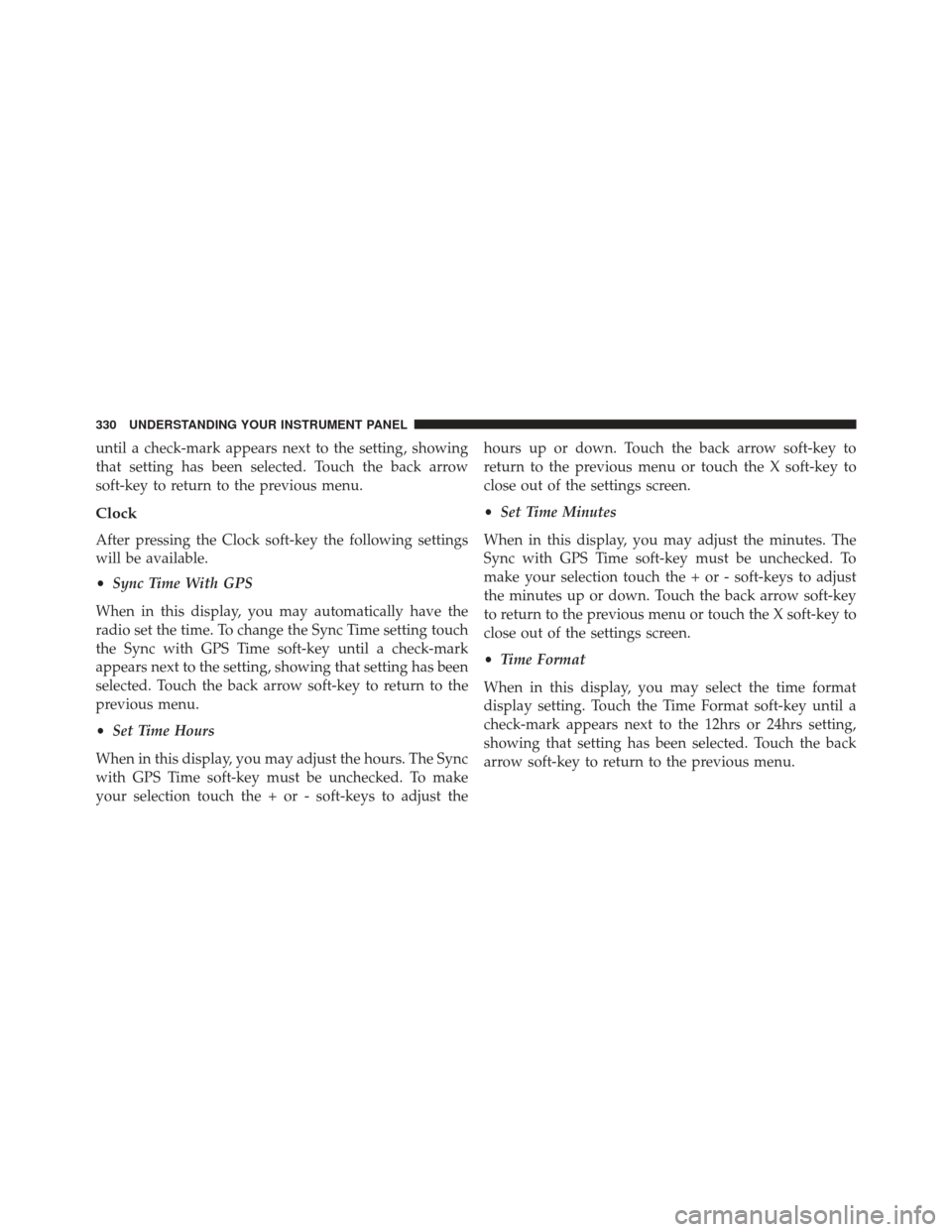
until a check-mark appears next to the setting, showing
that setting has been selected. Touch the back arrow
soft-key to return to the previous menu.
Clock
After pressing the Clock soft-key the following settings
will be available.
•Sync Time With GPS
When in this display, you may automatically have the
radio set the time. To change the Sync Time setting touch
the Sync with GPS Time soft-key until a check-mark
appears next to the setting, showing that setting has been
selected. Touch the back arrow soft-key to return to the
previous menu.
• Set Time Hours
When in this display, you may adjust the hours. The Sync
with GPS Time soft-key must be unchecked. To make
your selection touch the + or - soft-keys to adjust the hours up or down. Touch the back arrow soft-key to
return to the previous menu or touch the X soft-key to
close out of the settings screen.
•
Set Time Minutes
When in this display, you may adjust the minutes. The
Sync with GPS Time soft-key must be unchecked. To
make your selection touch the + or - soft-keys to adjust
the minutes up or down. Touch the back arrow soft-key
to return to the previous menu or touch the X soft-key to
close out of the settings screen.
• Time Format
When in this display, you may select the time format
display setting. Touch the Time Format soft-key until a
check-mark appears next to the 12hrs or 24hrs setting,
showing that setting has been selected. Touch the back
arrow soft-key to return to the previous menu.
330 UNDERSTANDING YOUR INSTRUMENT PANEL
Page 333 of 592
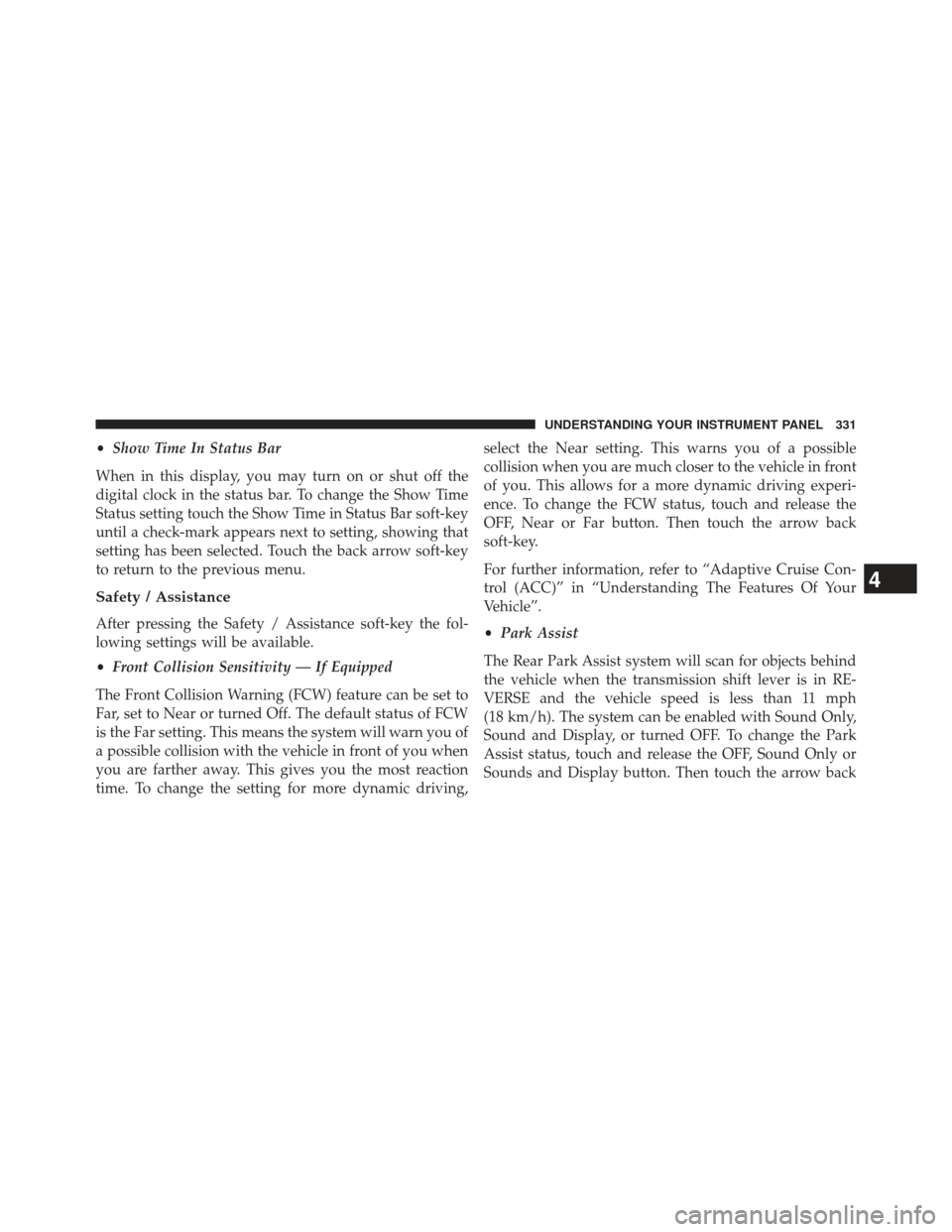
•Show Time In Status Bar
When in this display, you may turn on or shut off the
digital clock in the status bar. To change the Show Time
Status setting touch the Show Time in Status Bar soft-key
until a check-mark appears next to setting, showing that
setting has been selected. Touch the back arrow soft-key
to return to the previous menu.
Safety / Assistance
After pressing the Safety / Assistance soft-key the fol-
lowing settings will be available.
• Front Collision Sensitivity — If Equipped
The Front Collision Warning (FCW) feature can be set to
Far, set to Near or turned Off. The default status of FCW
is the Far setting. This means the system will warn you of
a possible collision with the vehicle in front of you when
you are farther away. This gives you the most reaction
time. To change the setting for more dynamic driving, select the Near setting. This warns you of a possible
collision when you are much closer to the vehicle in front
of you. This allows for a more dynamic driving experi-
ence. To change the FCW status, touch and release the
OFF, Near or Far button. Then touch the arrow back
soft-key.
For further information, refer to “Adaptive Cruise Con-
trol (ACC)” in “Understanding The Features Of Your
Vehicle”.
•
Park Assist
The Rear Park Assist system will scan for objects behind
the vehicle when the transmission shift lever is in RE-
VERSE and the vehicle speed is less than 11 mph
(18 km/h). The system can be enabled with Sound Only,
Sound and Display, or turned OFF. To change the Park
Assist status, touch and release the OFF, Sound Only or
Sounds and Display button. Then touch the arrow back
4
UNDERSTANDING YOUR INSTRUMENT PANEL 331
Page 335 of 592
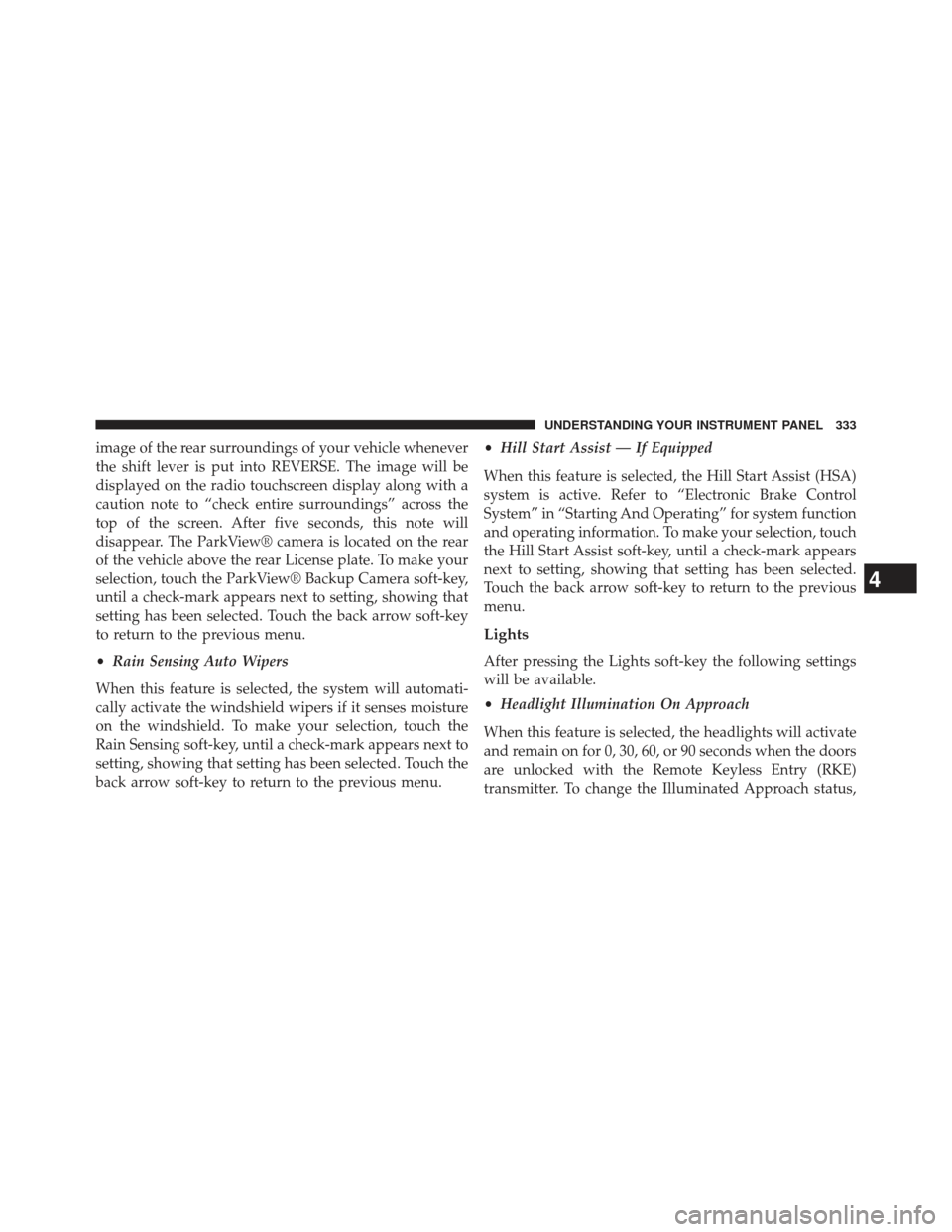
image of the rear surroundings of your vehicle whenever
the shift lever is put into REVERSE. The image will be
displayed on the radio touchscreen display along with a
caution note to “check entire surroundings” across the
top of the screen. After five seconds, this note will
disappear. The ParkView® camera is located on the rear
of the vehicle above the rear License plate. To make your
selection, touch the ParkView® Backup Camera soft-key,
until a check-mark appears next to setting, showing that
setting has been selected. Touch the back arrow soft-key
to return to the previous menu.
•Rain Sensing Auto Wipers
When this feature is selected, the system will automati-
cally activate the windshield wipers if it senses moisture
on the windshield. To make your selection, touch the
Rain Sensing soft-key, until a check-mark appears next to
setting, showing that setting has been selected. Touch the
back arrow soft-key to return to the previous menu. •
Hill Start Assist — If Equipped
When this feature is selected, the Hill Start Assist (HSA)
system is active. Refer to “Electronic Brake Control
System” in “Starting And Operating” for system function
and operating information. To make your selection, touch
the Hill Start Assist soft-key, until a check-mark appears
next to setting, showing that setting has been selected.
Touch the back arrow soft-key to return to the previous
menu.
Lights
After pressing the Lights soft-key the following settings
will be available.
• Headlight Illumination On Approach
When this feature is selected, the headlights will activate
and remain on for 0, 30, 60, or 90 seconds when the doors
are unlocked with the Remote Keyless Entry (RKE)
transmitter. To change the Illuminated Approach status,
4
UNDERSTANDING YOUR INSTRUMENT PANEL 333
Page 342 of 592
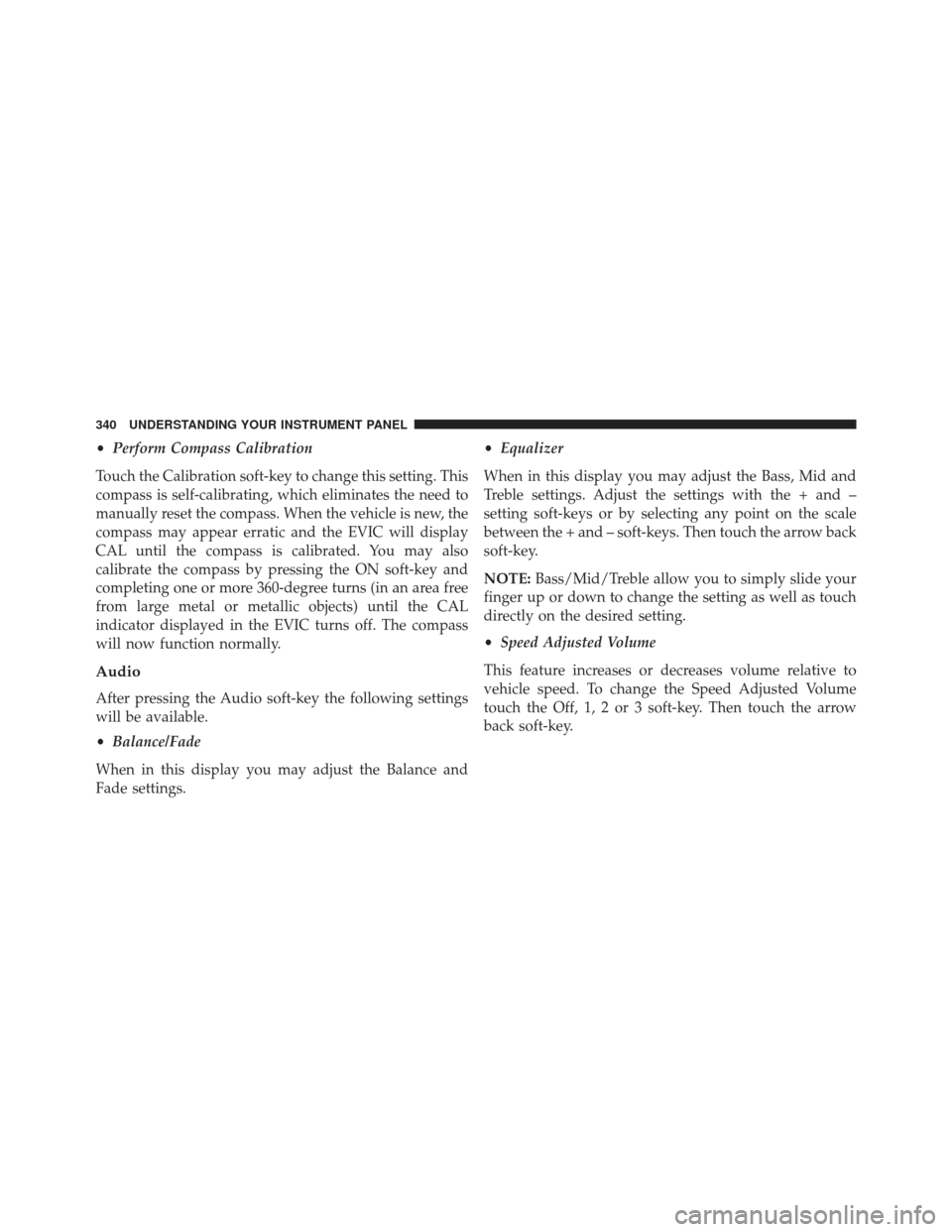
•Perform Compass Calibration
Touch the Calibration soft-key to change this setting. This
compass is self-calibrating, which eliminates the need to
manually reset the compass. When the vehicle is new, the
compass may appear erratic and the EVIC will display
CAL until the compass is calibrated. You may also
calibrate the compass by pressing the ON soft-key and
completing one or more 360-degree turns (in an area free
from large metal or metallic objects) until the CAL
indicator displayed in the EVIC turns off. The compass
will now function normally.
Audio
After pressing the Audio soft-key the following settings
will be available.
• Balance/Fade
When in this display you may adjust the Balance and
Fade settings. •
Equalizer
When in this display you may adjust the Bass, Mid and
Treble settings. Adjust the settings with the + and –
setting soft-keys or by selecting any point on the scale
between the + and – soft-keys. Then touch the arrow back
soft-key.
NOTE: Bass/Mid/Treble allow you to simply slide your
finger up or down to change the setting as well as touch
directly on the desired setting.
• Speed Adjusted Volume
This feature increases or decreases volume relative to
vehicle speed. To change the Speed Adjusted Volume
touch the Off, 1, 2 or 3 soft-key. Then touch the arrow
back soft-key.
340 UNDERSTANDING YOUR INSTRUMENT PANEL
Page 349 of 592
CLIMATE CONTROLS
The air conditioning and heating system is designed to
make you comfortable in all types of weather. This
system can be operated through either the Automatic
Climate Controls on the instrument panel or through the
Uconnect® system display.
When the Uconnect® system is in different modes (Ra-
dio, Player, Settings, More, etc.) the driver and passenger
temperature settings will be indicated at the top of the
display.
General Overview
Hard-Keys
The hard-keys located below the Uconnect® screen.
Automatic Climate Controls — Hard-keys
4
UNDERSTANDING YOUR INSTRUMENT PANEL 347
Page 357 of 592
14, 15). Once the desired temperature is displayed, the
system will achieve and automatically maintain that
comfort level.
3. When the system is set up for your comfort level, it is not necessary to change the settings. You will experi-
ence the greatest efficiency by simply allowing the
system to function automatically.
NOTE:
• It is not necessary to move the temperature settings for
cold or hot vehicles. The system automatically adjusts
the temperature, mode, and blower speed to provide
comfort as quickly as possible.
• The temperature can be displayed in U.S. or Metric
units by selecting the US/M customer-programmable
feature. Refer to the “Uconnect® System Settings” in
this section of the manual. To provide you with maximum comfort in the Automatic
mode, during cold start-ups the blower fan will remain
on low until the engine warms up. The blower will
increase in speed and transition into Auto mode.
Manual Operation
The system allows for manual selection of blower speed,
air distribution mode, A/C status and recirculation con-
trol.
The blower fan speed can be set to any fixed speed by
adjusting the blower control. The fan will now operate at
a fixed speed until additional speeds are selected. This
allows the front occupants to control the volume of air
circulated in the vehicle and cancel the Auto mode.
The operator can also select the direction of the airflow
by selecting one of the available mode settings. A/C
operation and Recirculation control can also be manually
selected in Manual operation.
4
UNDERSTANDING YOUR INSTRUMENT PANEL 355