radio CHRYSLER 300 2015 2.G User Guide
[x] Cancel search | Manufacturer: CHRYSLER, Model Year: 2015, Model line: 300, Model: CHRYSLER 300 2015 2.GPages: 574, PDF Size: 14.59 MB
Page 143 of 574
Programming The Memory Feature
To create a new memory profile, perform the following:
1. Place the ignition into the RUN position.
2. Adjust all memory profile settings to desired prefer-
ences (i.e., seat, side mirror, adjustable pedals [if
equipped], power tilt and telescopic steering column
[if equipped], and radio station presets).
3. Push and release the S (Set) button on the memory
switch.
4. Within five seconds, push and release either of the
memory buttons (1) or (2). The Driver Information
Display (DID) will display which memory position
has been set.
NOTE:Memory profiles can be set without the vehicle
in PARK, but the vehicle must be in PARK to recall a
memory profile.
Linking And Unlinking The Remote Keyless Entry
Transmitter To Memory
Your RKE transmitters can be programmed to recall one
of two pre-programmed memory profiles by pushing the
UNLOCK button on the RKE transmitter.
NOTE:Before programming your RKE transmitters you
must select the “Memory To FOB” feature through the
Uconnect® system screen. Refer to “Uconnect® Settings”
in “Understanding Your Instrument Panel” for further
information.
To program your RKE transmitters, perform the follow-
ing:
1. Cycle the vehicles ignition to the Off position.
2. Select desired memory profile (1) or (2). The system
will recall any stored settings for this profile. Wait for
the system to complete the memory recall before
continuing to Step 3.
3
UNDERSTANDING THE FEATURES OF YOUR VEHICLE 141
Page 159 of 574

Dome Light Position
Rotate the left dimmer control completely upward to the
second detent to turn on the interior lights. The interior
lights will remain on when the dimmer control is in this
position.
Interior Light Defeat (OFF)
Rotate the left dimmer control to the extreme bottom
“OFF” position. The interior lights will remain off when
the doors are open.
Parade Mode (Daytime Brightness Feature)
Rotate the instrument panel dimmer control upward to
the first detent. This feature brightens all text displays
such as the odometer, Driver Information Display (DID),
and radio when the position lights or headlights are on.
WINDSHIELD WIPERS AND WASHERS
The multifunction lever operates the windshield wipers
and washer when the ignition is placed in the ON/RUN
or ACC position. The multifunction lever is located on
the left side of the steering column.
Windshield Wiper/Washer Control
3
UNDERSTANDING THE FEATURES OF YOUR VEHICLE 157
Page 197 of 574
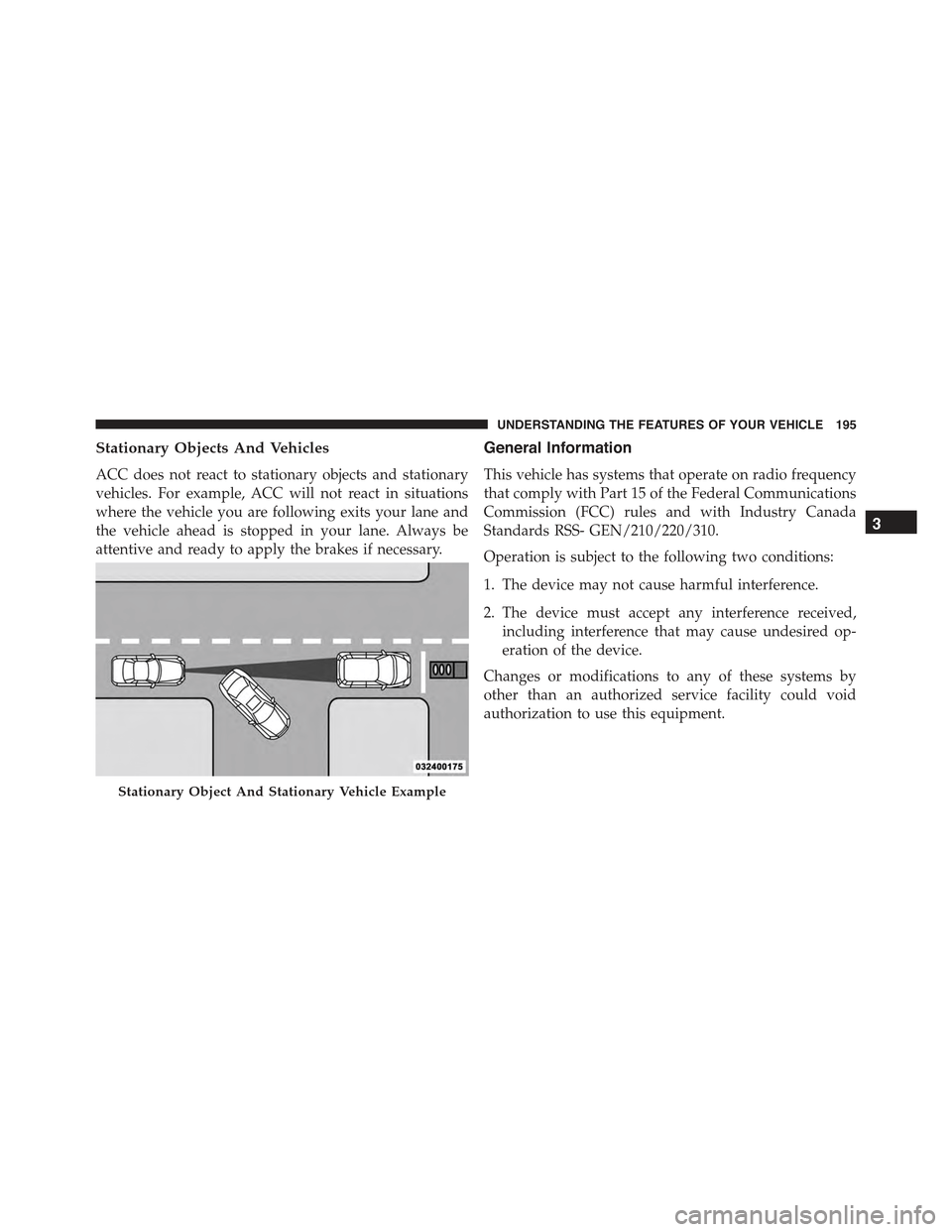
Stationary Objects And Vehicles
ACC does not react to stationary objects and stationary
vehicles. For example, ACC will not react in situations
where the vehicle you are following exits your lane and
the vehicle ahead is stopped in your lane. Always be
attentive and ready to apply the brakes if necessary.
General Information
This vehicle has systems that operate on radio frequency
that comply with Part 15 of the Federal Communications
Commission (FCC) rules and with Industry Canada
Standards RSS- GEN/210/220/310.
Operation is subject to the following two conditions:
1. The device may not cause harmful interference.
2. The device must accept any interference received,
including interference that may cause undesired op-
eration of the device.
Changes or modifications to any of these systems by
other than an authorized service facility could void
authorization to use this equipment.
Stationary Object And Stationary Vehicle Example
3
UNDERSTANDING THE FEATURES OF YOUR VEHICLE 195
Page 217 of 574
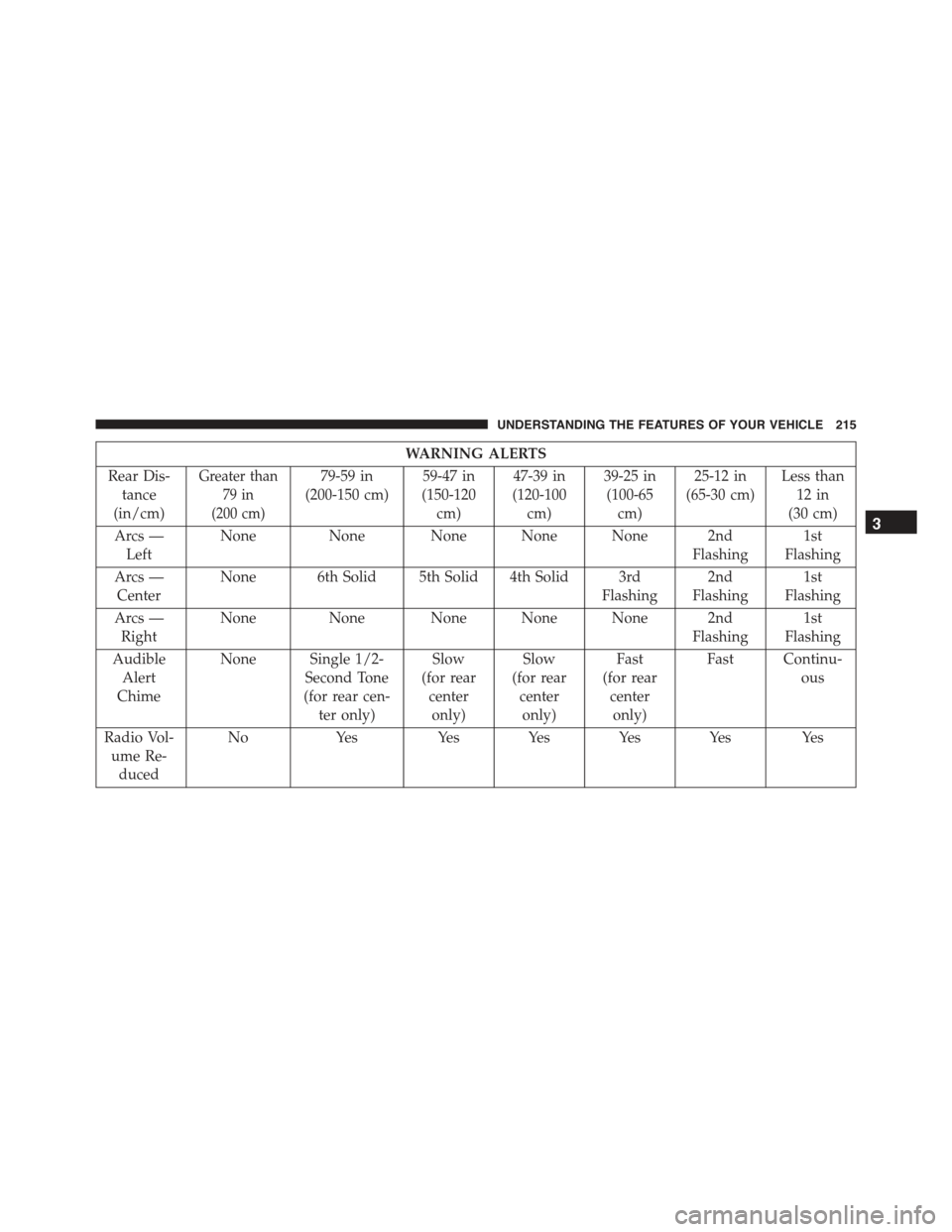
WARNING ALERTS
Rear Dis-
tance
(in/cm)
Greater than
79 in
(200 cm)
79-59 in
(200-150 cm)
59-47 in
(150-120
cm)
47-39 in
(120-100
cm)
39-25 in
(100-65
cm)
25-12 in
(65-30 cm)
Less than
12 in
(30 cm)
Arcs —
Left
None None None None None 2nd
Flashing
1st
Flashing
Arcs —
Center
None 6th Solid 5th Solid 4th Solid 3rd
Flashing
2nd
Flashing
1st
Flashing
Arcs —
Right
None None None None None 2nd
Flashing
1st
Flashing
Audible
Alert
Chime
None Single 1/2-
Second Tone
(for rear cen-
ter only)
Slow
(for rear
center
only)
Slow
(for rear
center
only)
Fast
(for rear
center
only)
Fast Continu-
ous
Radio Vol-
ume Re-
duced
No Yes Yes Yes Yes Yes Yes
3
UNDERSTANDING THE FEATURES OF YOUR VEHICLE 215
Page 218 of 574
NOTE:ParkSense® will reduce the volume of the radio,
if on, when the system is sounding an audio tone.
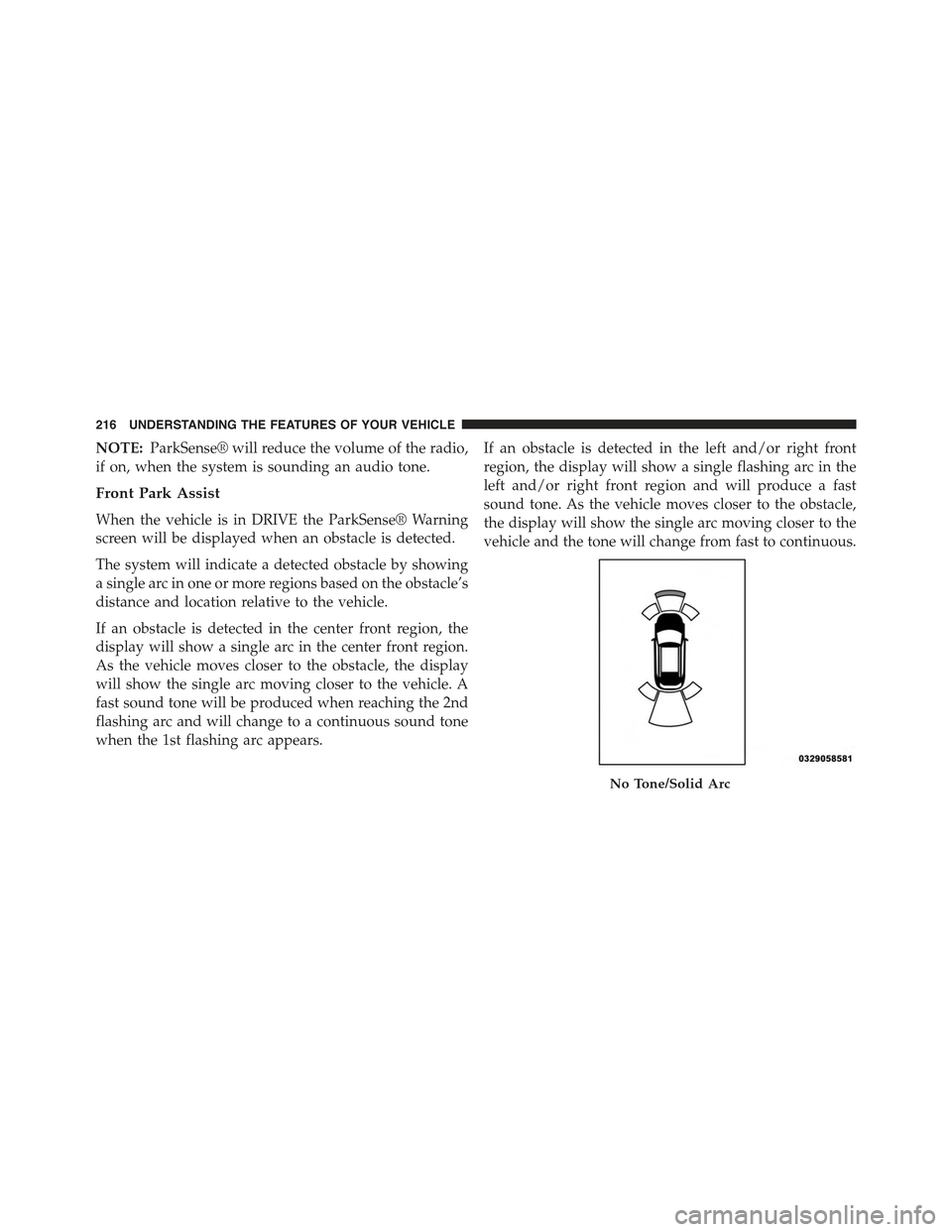
Front Park Assist
When the vehicle is in DRIVE the ParkSense® Warning
screen will be displayed when an obstacle is detected.
The system will indicate a detected obstacle by showing
a single arc in one or more regions based on the obstacle’s
distance and location relative to the vehicle.
If an obstacle is detected in the center front region, the
display will show a single arc in the center front region.
As the vehicle moves closer to the obstacle, the display
will show the single arc moving closer to the vehicle. A
fast sound tone will be produced when reaching the 2nd
flashing arc and will change to a continuous sound tone
when the 1st flashing arc appears.
If an obstacle is detected in the left and/or right front
region, the display will show a single flashing arc in the
left and/or right front region and will produce a fast
sound tone. As the vehicle moves closer to the obstacle,
the display will show the single arc moving closer to the
vehicle and the tone will change from fast to continuous.
No Tone/Solid Arc
216 UNDERSTANDING THE FEATURES OF YOUR VEHICLE
Page 220 of 574
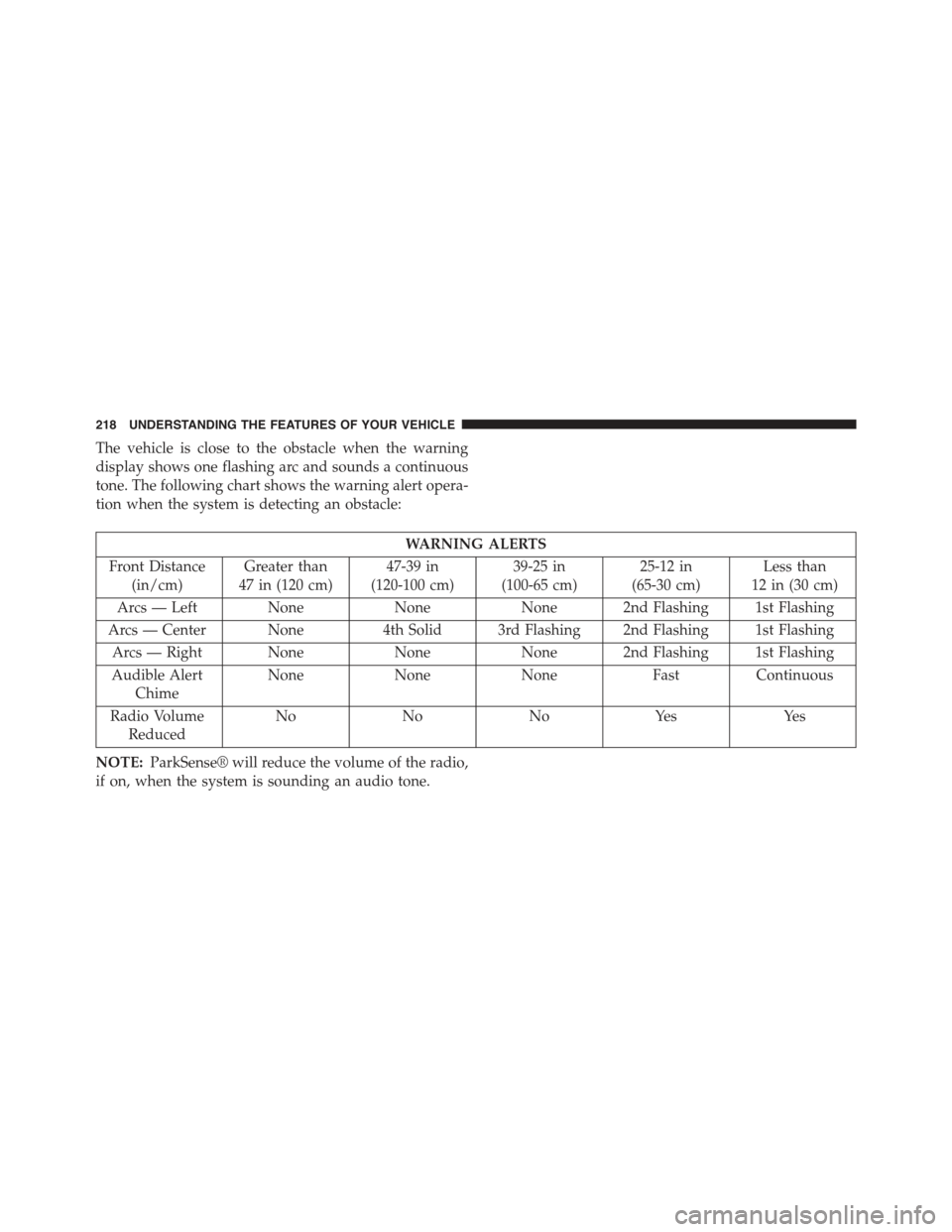
The vehicle is close to the obstacle when the warning
display shows one flashing arc and sounds a continuous
tone. The following chart shows the warning alert opera-
tion when the system is detecting an obstacle:
WARNING ALERTS
Front Distance
(in/cm)
Greater than
47 in (120 cm)
47-39 in
(120-100 cm)
39-25 in
(100-65 cm)
25-12 in
(65-30 cm)
Less than
12 in (30 cm)
Arcs — Left NoneNoneNone 2nd Flashing 1st Flashing
Arcs — Center None4th Solid 3rd Flashing 2nd Flashing 1st Flashing
Arcs — Right NoneNoneNone 2nd Flashing 1st Flashing
Audible Alert
Chime
NoneNoneNoneFastContinuous
Radio Volume
Reduced
NoNoNoYesYes
NOTE:ParkSense® will reduce the volume of the radio,
if on, when the system is sounding an audio tone.
218 UNDERSTANDING THE FEATURES OF YOUR VEHICLE
Page 223 of 574
Cleaning The ParkSense® System
Clean the ParkSense® sensors with water, car wash soap
and a soft cloth. Do not use rough or hard cloths. Do not
scratch or poke the sensors. Otherwise, you could dam-
age the sensors.
ParkSense® System Usage Precautions
NOTE:
•Ensure that the front and rear bumper are free of snow,
ice, mud, dirt and debris to keep the ParkSense®
system operating properly.
•Construction equipment, large trucks, and other vibra-
tions could affect the performance of ParkSense®.
•When you turn ParkSense® off, the instrument cluster
will display “PARKSENSE OFF.” Furthermore, once
you turn ParkSense® off, it remains off until you turn
it on again, even if you cycle the ignition key.
•When you move the gear selector to the REVERSE
position and ParkSense® is turned off, the instrument
cluster will display “PARKSENSE OFF” for as long as
the vehicle is in REVERSE.
•ParkSense®, when on, will reduce the volume of the
radio when it is sounding a tone.
•Clean the ParkSense® sensors regularly, taking care
not to scratch or damage them. The sensors must not
be covered with ice, snow, slush, mud, dirt or debris.
Failure to do so can result in the system not working
properly. The ParkSense® system might not detect an
obstacle behind or in front of the fascia/bumper, or it
could provide a false indication that an obstacle is
behind or in front of the fascia/bumper.
•Use the ParkSense® switch to turn the ParkSense®
system off if objects such as bicycle carriers, trailer
hitches, etc. are placed within 12 in (30 cm) from the
rear fascia/bumper. Failure to do so can result in the
3
UNDERSTANDING THE FEATURES OF YOUR VEHICLE 221
Page 231 of 574
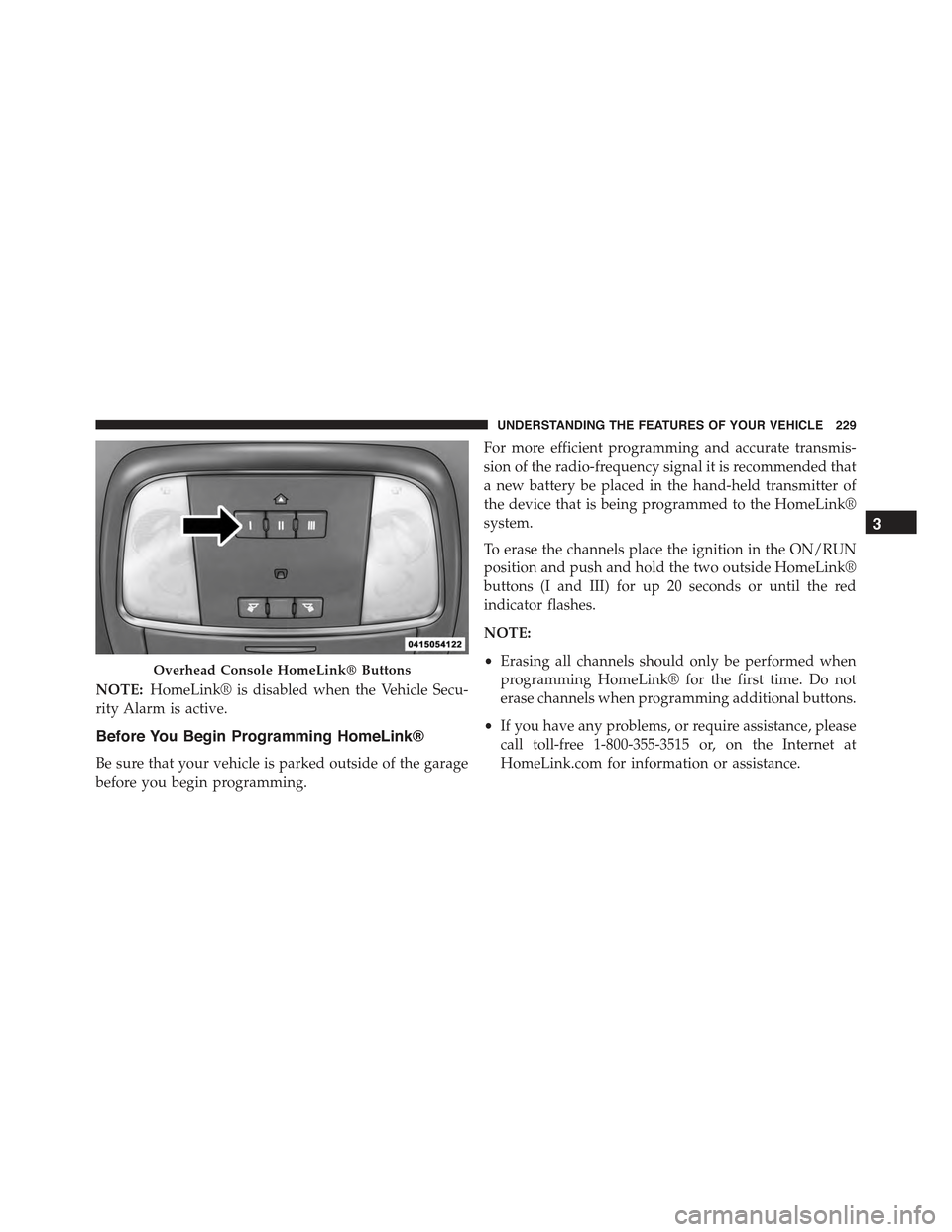
NOTE:HomeLink® is disabled when the Vehicle Secu-
rity Alarm is active.
Before You Begin Programming HomeLink®
Be sure that your vehicle is parked outside of the garage
before you begin programming.
For more efficient programming and accurate transmis-
sion of the radio-frequency signal it is recommended that
a new battery be placed in the hand-held transmitter of
the device that is being programmed to the HomeLink®
system.
To erase the channels place the ignition in the ON/RUN
position and push and hold the two outside HomeLink®
buttons (I and III) for up 20 seconds or until the red
indicator flashes.
NOTE:
•Erasing all channels should only be performed when
programming HomeLink® for the first time. Do not
erase channels when programming additional buttons.
•If you have any problems, or require assistance, please
call toll-free 1-800-355-3515 or, on the Internet at
HomeLink.com for information or assistance.
Overhead Console HomeLink® Buttons
3
UNDERSTANDING THE FEATURES OF YOUR VEHICLE 229
Page 235 of 574
•To program the two remaining HomeLink® buttons,
repeat each step for each remaining button. DO NOT
erase the channels.
Reprogramming A Single HomeLink® Button
(Non-Rolling Code)
To reprogram a channel that has been previously trained,
follow these steps:
1. Cycle the ignition to the ON/RUN position.
2. Push and hold the desired HomeLink® button until
the indicator light begins to flash after 20 seconds.Do
not release the button.
3.Without releasing the buttonproceed with “Program-
ming A Non-Rolling Code” step 2 and follow all
remaining steps.
Canadian/Gate Operator Programming
For programming transmitters in Canada/United States
that require the transmitter signals to “time-out” after
several seconds of transmission.
Canadian radio frequency laws require transmitter sig-
nals to time-out (or quit) after several seconds of trans-
mission – which may not be long enough for HomeLink®
to pick up the signal during programming. Similar to this
Canadian law, some U.S. gate operators are designed to
time-out in the same manner.
It may be helpful to unplug the device during the cycling
process to prevent possible overheating of the garage
door or gate motor.
1. Cycle the ignition to the ON/RUN position.
3
UNDERSTANDING THE FEATURES OF YOUR VEHICLE 233
Page 261 of 574
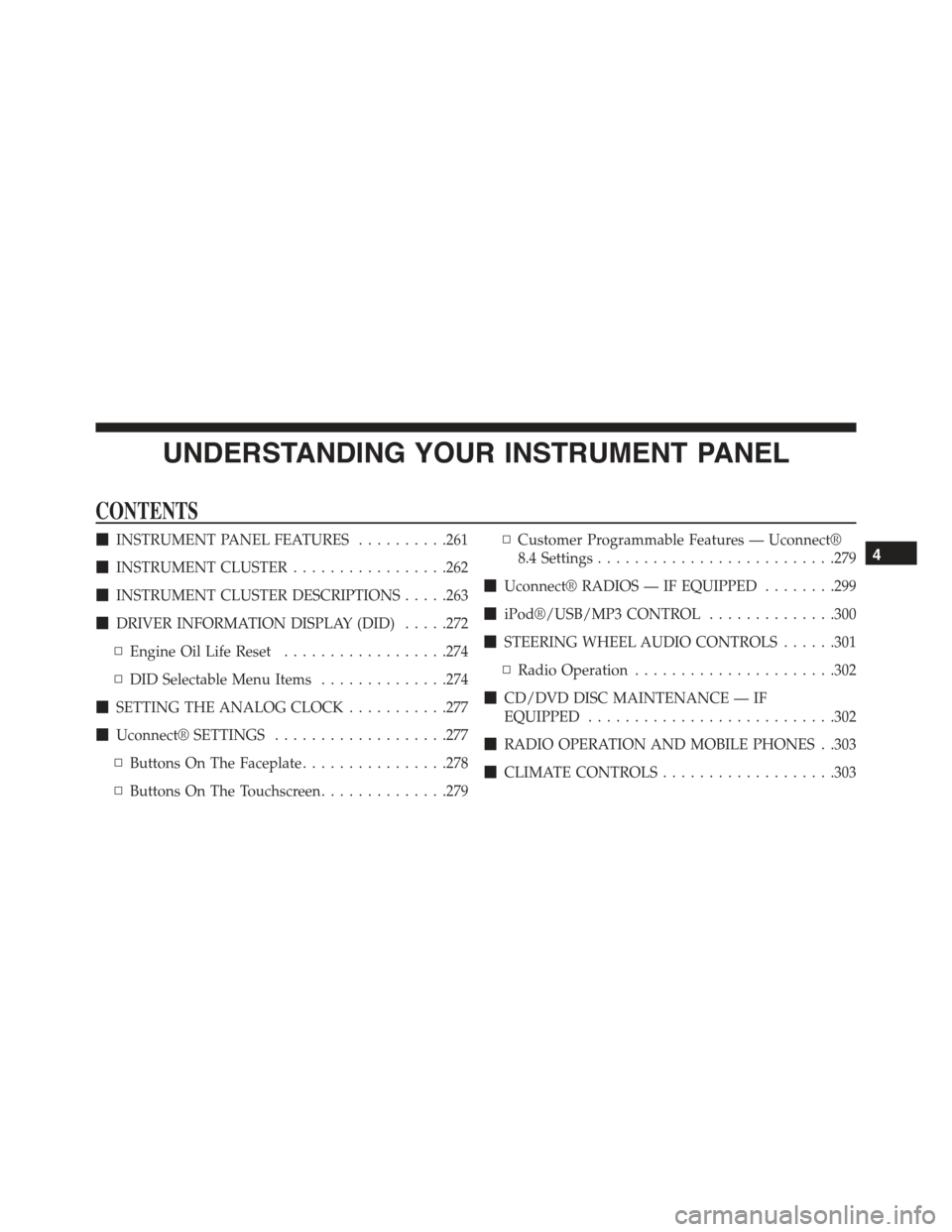
UNDERSTANDING YOUR INSTRUMENT PANEL
CONTENTS
!INSTRUMENT PANEL FEATURES..........261
!INSTRUMENT CLUSTER.................262
!INSTRUMENT CLUSTER DESCRIPTIONS.....263
!DRIVER INFORMATION DISPLAY (DID).....272
▫Engine Oil Life Reset..................274
▫DID Selectable Menu Items..............274
!SETTING THE ANALOG CLOCK...........277
!Uconnect® SETTINGS...................277
▫Buttons On The Faceplate................278
▫Buttons On The Touchscreen..............279
▫Customer Programmable Features — Uconnect®
8.4 Settings..........................279
!Uconnect® RADIOS — IF EQUIPPED........299
!iPod®/USB/MP3 CONTROL..............300
!STEERING WHEEL AUDIO CONTROLS......301
▫Radio Operation......................302
!CD/DVD DISC MAINTENANCE — IF
EQUIPPED...........................302
!RADIO OPERATION AND MOBILE PHONES . .303
!CLIMATE CONTROLS...................303
4