brakes CHRYSLER 300 2017 2.G Owners Manual
[x] Cancel search | Manufacturer: CHRYSLER, Model Year: 2017, Model line: 300, Model: CHRYSLER 300 2017 2.GPages: 488, PDF Size: 4.3 MB
Page 138 of 488
WARNING!
•Adaptive Cruise Control (ACC) is a convenience
system. It is not a substitute for active driving
involvement. It is always the driver ’s responsibility
to be attentive of road, traffic, and weather condi-
tions, vehicle speed, distance to the vehicle ahead;
and, most importantly, brake operation to ensure safe
operation of the vehicle under all road conditions.
Your complete attention is always required while
driving to maintain safe control of your vehicle.
Failure to follow these warnings can result in a
collision and death or serious personal injury.
• The ACC system:
• Does not react to pedestrians, oncoming vehicles,
and stationary objects (e.g., a stopped vehicle in a
traffic jam or a disabled vehicle).
• Cannot take street, traffic, and weather conditions
into account, and may be limited upon adverse
sight distance conditions.
• Does not always fully recognize complex driving
conditions, which can result in wrong or missing
distance warnings.
(Continued)
WARNING! (Continued)
•Will bring the vehicle to a complete stop while
following a target vehicle and hold the vehicle for
two seconds in the stop position. If the target
vehicle does not start moving within two seconds
the ACC system will display a message that the
system will release the brakes and that the brakes
must be applied manually. An audible chime will
sound when the brakes are released.
You should switch off the ACC system:
• When driving in fog, heavy rain, heavy snow, sleet,
heavy traffic, and complex driving situations (i.e., in
highway construction zones).
• When entering a turn lane or highway off ramp;
when driving on roads that are winding, icy, snow-
covered, slippery, or have steep uphill or downhill
slopes.
• When towing a trailer up or down steep slopes.
• When circumstances do not allow safe driving at a
constant speed.
136 UNDERSTANDING THE FEATURES OF YOUR VEHICLE
Page 139 of 488
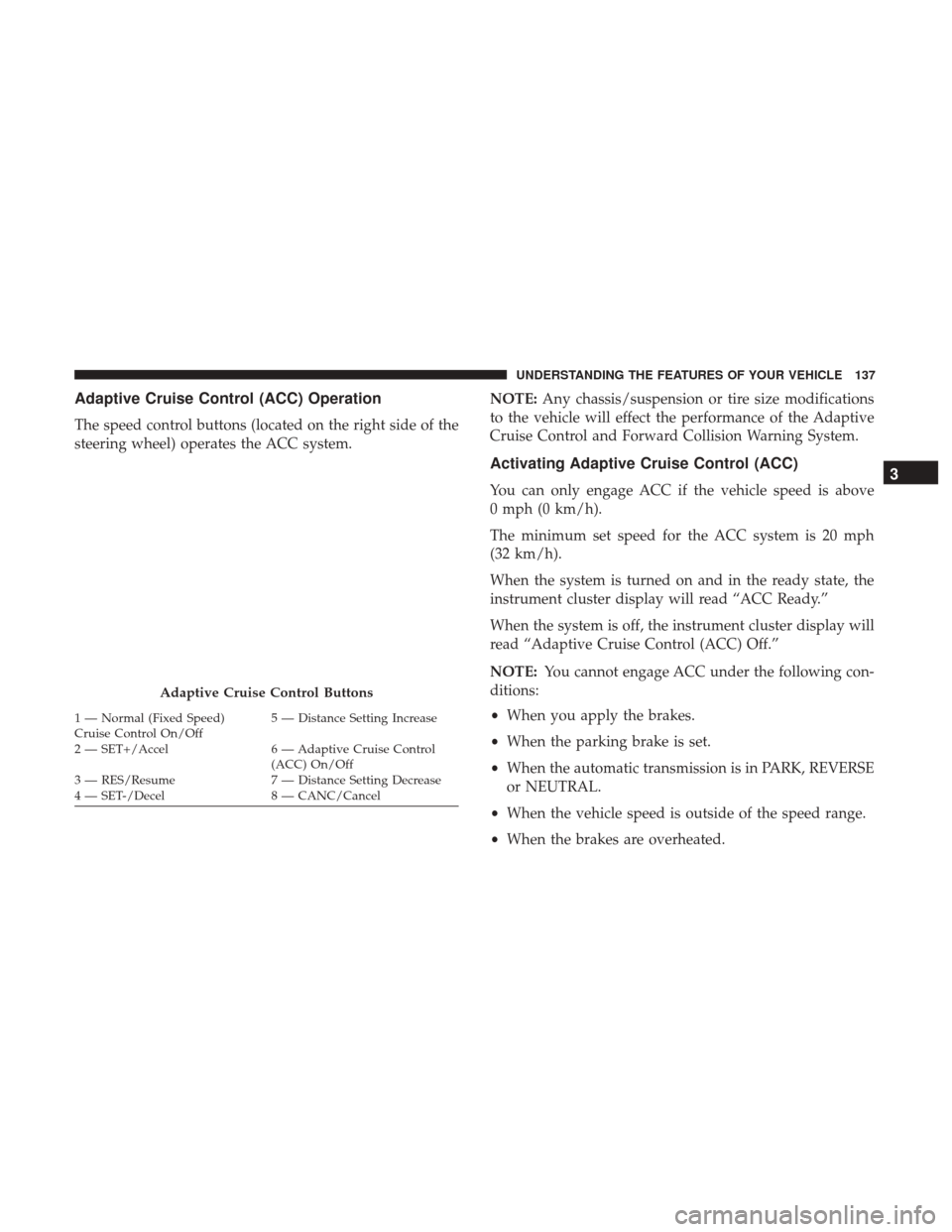
Adaptive Cruise Control (ACC) Operation
The speed control buttons (located on the right side of the
steering wheel) operates the ACC system.NOTE:
Any chassis/suspension or tire size modifications
to the vehicle will effect the performance of the Adaptive
Cruise Control and Forward Collision Warning System.
Activating Adaptive Cruise Control (ACC)
You can only engage ACC if the vehicle speed is above
0 mph (0 km/h).
The minimum set speed for the ACC system is 20 mph
(32 km/h).
When the system is turned on and in the ready state, the
instrument cluster display will read “ACC Ready.”
When the system is off, the instrument cluster display will
read “Adaptive Cruise Control (ACC) Off.”
NOTE: You cannot engage ACC under the following con-
ditions:
• When you apply the brakes.
• When the parking brake is set.
• When the automatic transmission is in PARK, REVERSE
or NEUTRAL.
• When the vehicle speed is outside of the speed range.
• When the brakes are overheated.
Adaptive Cruise Control Buttons
1 — Normal (Fixed Speed)
Cruise Control On/Off 5 — Distance Setting Increase
2 — SET+/Accel 6 — Adaptive Cruise Control (ACC) On/Off
3 — RES/Resume 7 — Distance Setting Decrease
4 — SET-/Decel 8 — CANC/Cancel
3
UNDERSTANDING THE FEATURES OF YOUR VEHICLE 137
Page 141 of 488
If the system is set when the vehicle speed is below 20 mph
(32 km/h), the set speed shall be defaulted to 20 mph
(32 km/h). If the system is set when the vehicle speed is
above 20 mph (32 km/h), the set speed shall be the current
speed of the vehicle.
NOTE:ACC cannot be set if there is a stationary vehicle in
front of your vehicle in close proximity.
Remove your foot from the accelerator pedal. If you do not,
the vehicle may continue to accelerate beyond the set
speed. If this occurs:
• The message “DRIVER OVERRIDE” will appear in the
instrument cluster display.
• The system will not be controlling the distance between
your vehicle and the vehicle ahead. The vehicle speed
will only be determined by the position of the accelera-
tor pedal.
To Cancel
The following conditions cancel the system:
•The brake pedal is applied.
• The CANC button is pushed.
• An Anti-Lock Brake System (ABS) event occurs. •
The gear selector is removed from the DRIVE position.
• The braking temperature exceeds normal range (over-
heated).
• The Electronic Stability Control/Traction Control Sys-
tem (ESC/TCS) activates.
• The vehicle parking brake is applied.
• Driver seatbelt is unbuckled at low speeds.
• Driver door is opened at low speeds.
NOTE: If your vehicle stays at standstill for longer than
two seconds, then the system will cancel and the brake
force will be ramped-out. The driver will have to apply the
brakes to keep the vehicle at a standstill.
To Turn Off
The system will turn off and erase the set speed in memory
if:
• The Normal (Fixed Speed) Cruise Control on/off button
is pushed.
• The ignition is turned OFF.
• The Adaptive Cruise Control (ACC) on/off button is
pushed.
3
UNDERSTANDING THE FEATURES OF YOUR VEHICLE 139
Page 144 of 488
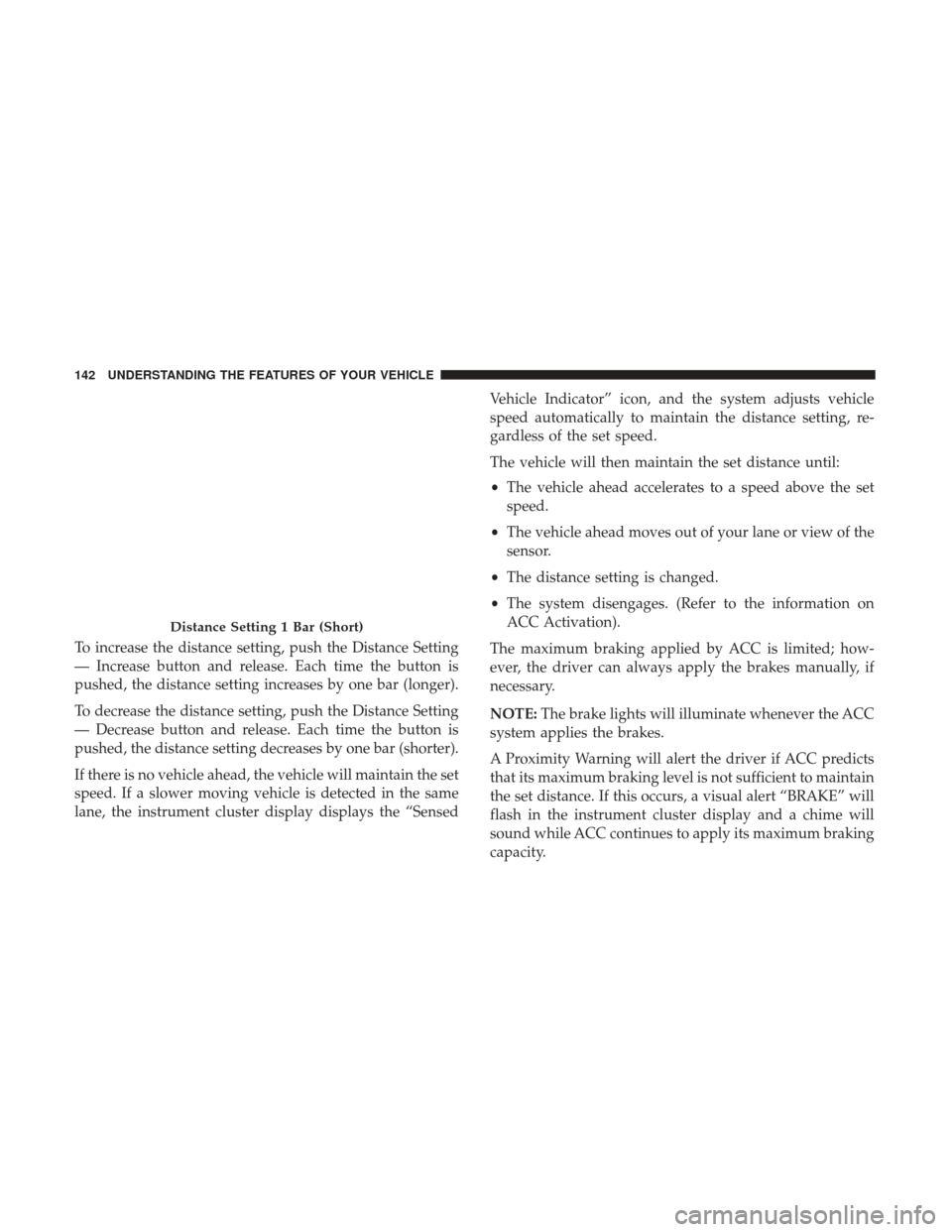
To increase the distance setting, push the Distance Setting
— Increase button and release. Each time the button is
pushed, the distance setting increases by one bar (longer).
To decrease the distance setting, push the Distance Setting
— Decrease button and release. Each time the button is
pushed, the distance setting decreases by one bar (shorter).
If there is no vehicle ahead, the vehicle will maintain the set
speed. If a slower moving vehicle is detected in the same
lane, the instrument cluster display displays the “SensedVehicle Indicator” icon, and the system adjusts vehicle
speed automatically to maintain the distance setting, re-
gardless of the set speed.
The vehicle will then maintain the set distance until:
•
The vehicle ahead accelerates to a speed above the set
speed.
• The vehicle ahead moves out of your lane or view of the
sensor.
• The distance setting is changed.
• The system disengages. (Refer to the information on
ACC Activation).
The maximum braking applied by ACC is limited; how-
ever, the driver can always apply the brakes manually, if
necessary.
NOTE: The brake lights will illuminate whenever the ACC
system applies the brakes.
A Proximity Warning will alert the driver if ACC predicts
that its maximum braking level is not sufficient to maintain
the set distance. If this occurs, a visual alert “BRAKE” will
flash in the instrument cluster display and a chime will
sound while ACC continues to apply its maximum braking
capacity.
Distance Setting 1 Bar (Short)
142 UNDERSTANDING THE FEATURES OF YOUR VEHICLE
Page 145 of 488
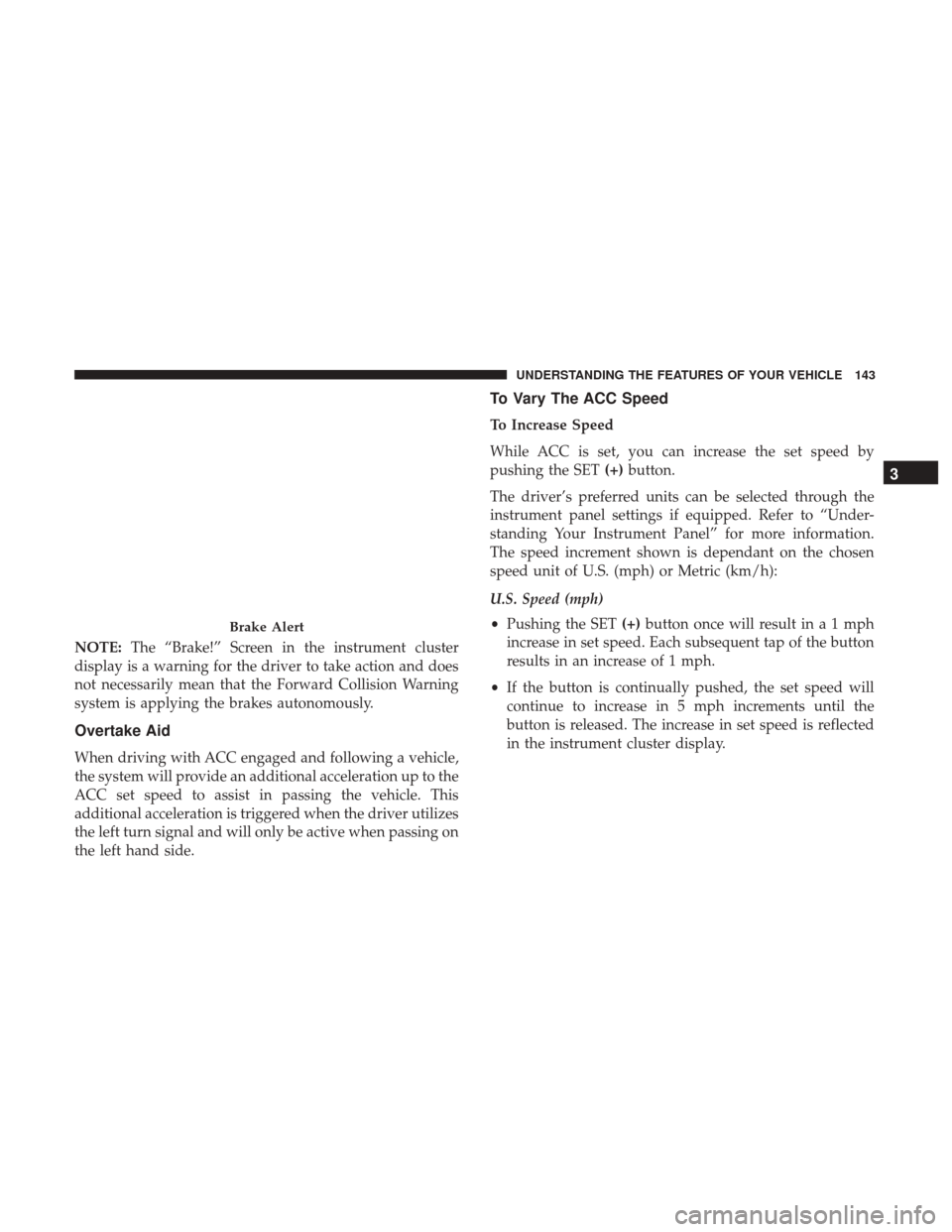
NOTE:The “Brake!” Screen in the instrument cluster
display is a warning for the driver to take action and does
not necessarily mean that the Forward Collision Warning
system is applying the brakes autonomously.
Overtake Aid
When driving with ACC engaged and following a vehicle,
the system will provide an additional acceleration up to the
ACC set speed to assist in passing the vehicle. This
additional acceleration is triggered when the driver utilizes
the left turn signal and will only be active when passing on
the left hand side.
To Vary The ACC Speed
To Increase Speed
While ACC is set, you can increase the set speed by
pushing the SET (+)button.
The driver’s preferred units can be selected through the
instrument panel settings if equipped. Refer to “Under-
standing Your Instrument Panel” for more information.
The speed increment shown is dependant on the chosen
speed unit of U.S. (mph) or Metric (km/h):
U.S. Speed (mph)
• Pushing the SET (+)button once will result ina1mph
increase in set speed. Each subsequent tap of the button
results in an increase of 1 mph.
• If the button is continually pushed, the set speed will
continue to increase in 5 mph increments until the
button is released. The increase in set speed is reflected
in the instrument cluster display.
Brake Alert
3
UNDERSTANDING THE FEATURES OF YOUR VEHICLE 143
Page 147 of 488
the driver will either have to push the RES (resume)
button, or apply the accelerator pedal to reengage the
ACC to the existing set speed.
• The ACC will bring the vehicle to a complete stop while
following a target vehicle and hold the vehicle for two
seconds in the stop position. If the target vehicle does
not start moving within two seconds, the ACC system
will display a message that the system will release the
brakes and that the brakes must be applied manually. An
audible chime will sound when the brakes are released.
• The ACC system maintains set speed when driving up
hill and down hill. However, a slight speed change on
moderate hills is normal. In addition, downshifting may
occur while climbing uphill or descending downhill.
This is normal operation and necessary to maintain set
speed. When driving up hill and down hill, the ACC
system will cancel if the braking temperature exceeds
normal range (overheated).
ACC Operation At Stop
If the ACC system brings your vehicle to a standstill while
following a target vehicle, if the target vehicle starts
moving within two seconds of your vehicle coming to a
standstill, your vehicle will resume motion without the
need for any driver action. If the target vehicle does not start moving within two
seconds of your vehicle coming to a standstill, the ACC
With Stop system will cancel and the brakes will release. A
cancel message will display on the instrument cluster
display and produce a warning chime. Driver intervention
will be required at this moment.
While ACC With Stop is holding your vehicle at a stand-
still, if the driver seatbelt is unbuckled or the driver door is
opened, the ACC With Stop system will cancel and the
brakes will release. A cancel message will display on the
instrument cluster display and produce a warning chime.
Driver intervention will be required at this moment.
WARNING!
When the ACC system is resumed, the driver must
ensure that there are no pedestrians, vehicles or objects
in the path of the vehicle. Failure to follow these
warnings can result in a collision and death or serious
personal injury.
3
UNDERSTANDING THE FEATURES OF YOUR VEHICLE 145
Page 152 of 488
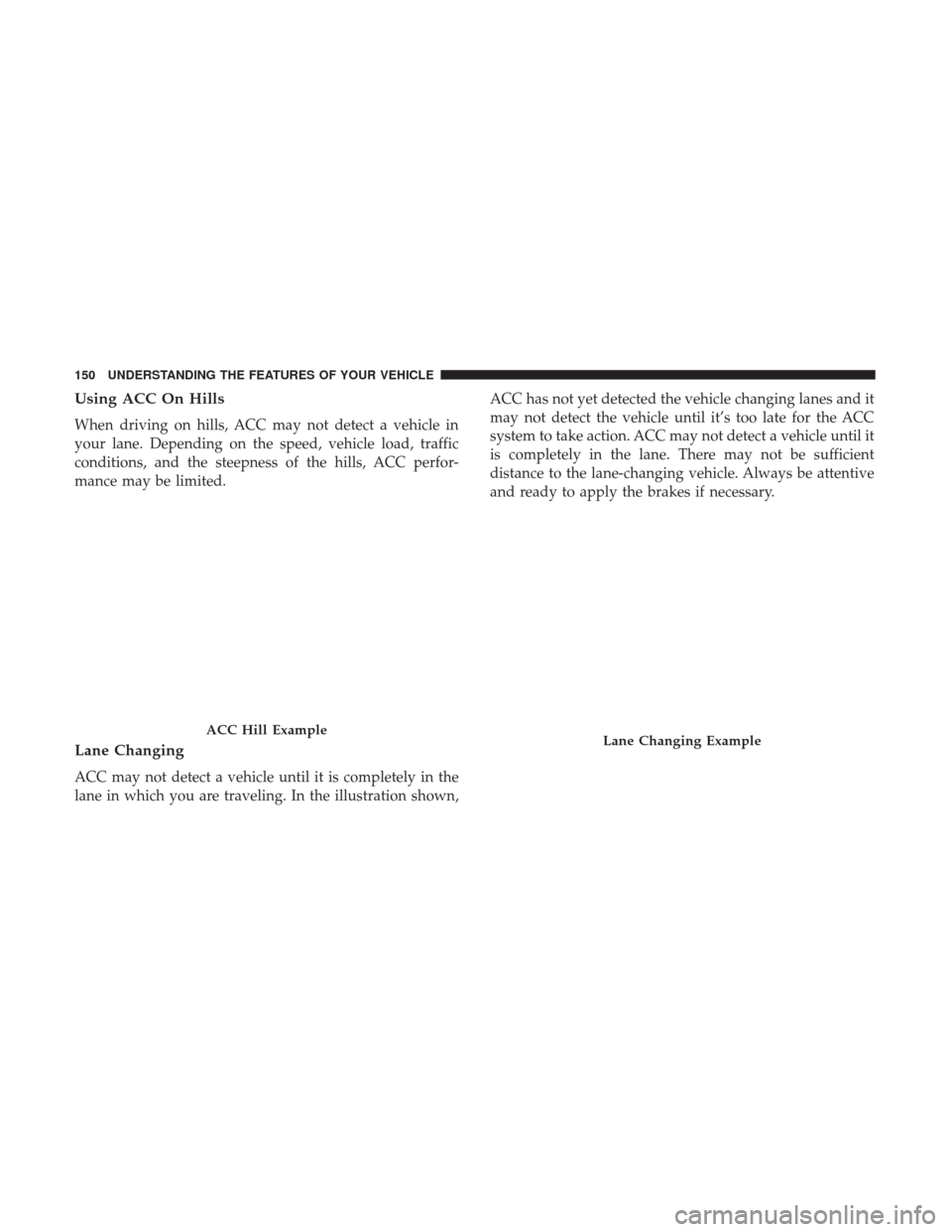
Using ACC On Hills
When driving on hills, ACC may not detect a vehicle in
your lane. Depending on the speed, vehicle load, traffic
conditions, and the steepness of the hills, ACC perfor-
mance may be limited.
Lane Changing
ACC may not detect a vehicle until it is completely in the
lane in which you are traveling. In the illustration shown,ACC has not yet detected the vehicle changing lanes and it
may not detect the vehicle until it’s too late for the ACC
system to take action. ACC may not detect a vehicle until it
is completely in the lane. There may not be sufficient
distance to the lane-changing vehicle. Always be attentive
and ready to apply the brakes if necessary.
ACC Hill ExampleLane Changing Example
150 UNDERSTANDING THE FEATURES OF YOUR VEHICLE
Page 153 of 488
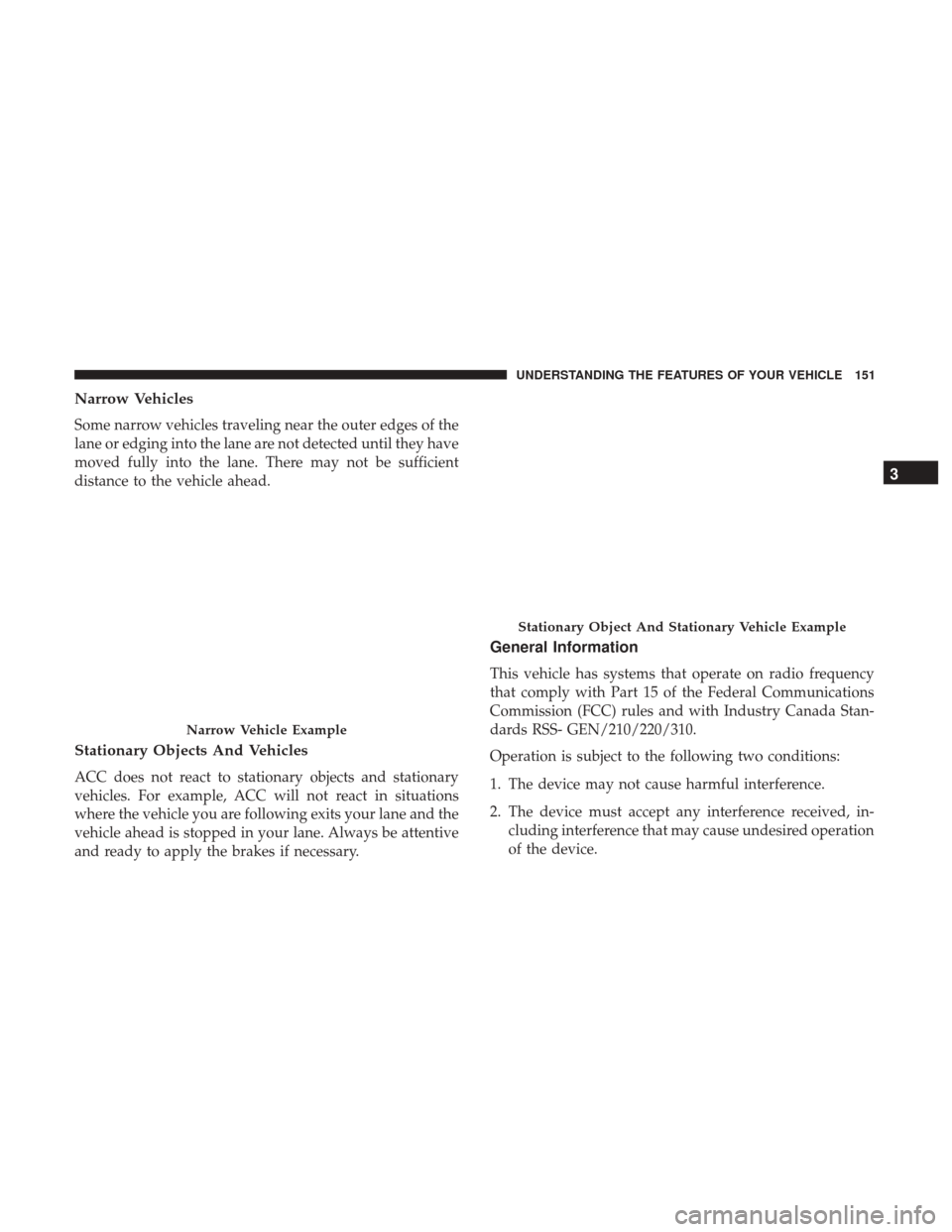
Narrow Vehicles
Some narrow vehicles traveling near the outer edges of the
lane or edging into the lane are not detected until they have
moved fully into the lane. There may not be sufficient
distance to the vehicle ahead.
Stationary Objects And Vehicles
ACC does not react to stationary objects and stationary
vehicles. For example, ACC will not react in situations
where the vehicle you are following exits your lane and the
vehicle ahead is stopped in your lane. Always be attentive
and ready to apply the brakes if necessary.
General Information
This vehicle has systems that operate on radio frequency
that comply with Part 15 of the Federal Communications
Commission (FCC) rules and with Industry Canada Stan-
dards RSS- GEN/210/220/310.
Operation is subject to the following two conditions:
1. The device may not cause harmful interference.
2. The device must accept any interference received, in-cluding interference that may cause undesired operation
of the device.
Narrow Vehicle Example
Stationary Object And Stationary Vehicle Example
3
UNDERSTANDING THE FEATURES OF YOUR VEHICLE 151
Page 157 of 488
potential frontal collision. The warnings and limited brak-
ing are intended to provide the driver with enough time to
react, avoid or mitigate the potential collision.
NOTE:FCW monitors the information from the forward
looking sensors, as well as the Electronic Brake Controller
(EBC), to calculate the probability of a forward collision.
When the system determines that a forward collision is
probable, the driver will be provided with audible and
visual warnings and may provide a brake jerk warning. If
the driver does not take action based upon these progres-
sive warnings, then the system will provide a limited level
of active braking to help slow the vehicle and mitigate the
potential forward collision. If the driver reacts to the
warnings by braking and the system determines that the
driver intends to avoid the collision by braking but has not
applied sufficient brake force, the system will compensate
and provide additional brake force as required. If a For-
ward Collision Warning with Mitigation event begins at a
speed below 20 mph (32 km/h), the system may provide
the maximum or partial braking to mitigate the potential
forward collision. If the Forward Collision Warning with
Mitigation event stops the vehicle completely, the system
will hold the vehicle at standstill for two seconds and then
release the brakes. When the system determines a collision with the vehicle in
front of you is no longer probable, the warning message
will be deactivated.
NOTE:
•
The minimum speed for FCW activation is 1 mph
(2 km/h).
• The FCW alerts may be triggered on objects other than
vehicles such as guard rails or sign posts based on the
course prediction. This is expected and is a part of
normal FCW activation and functionality.
FCW Message
3
UNDERSTANDING THE FEATURES OF YOUR VEHICLE 155
Page 163 of 488
•For example, if approaching the left side of the lane the
steering wheel will turn to the right.
NOTE: The LaneSense system operates with the similar
behavior for a right lane departure.
Changing LaneSense Status
The LaneSense system settings can be configured through
the Uconnect system screen. Follow these steps to change the LaneSense settings:
1. Press the “Controls” button located on the bottom of the
Uconnect touchscreen display.
2. Press the “Settings” button.
3. Press the “Safety & Driving Assistance” button.
When in the Safety & Driving Assistance screen, you can
configure the intensity of the torque warning and the
warning zone sensitivity (early/late) through the person-
alization settings.
NOTE:
• When enabled the system operates above 37 mph
(60 km/h) and below 112 mph (180 km/h).
• Use of the turn signal suppresses the warnings.
• The system will not apply torque to the steering wheel
whenever a safety system engages. (anti-lock brakes,
traction control system, electronic stability control, for-
ward collision warning, etc.)
Lane Approached (Flashing Yellow Thick Line, Solid
Yellow Thin Line/Flashing Yellow Telltale)
3
UNDERSTANDING THE FEATURES OF YOUR VEHICLE 161