steering CHRYSLER 300 2018 Service Manual
[x] Cancel search | Manufacturer: CHRYSLER, Model Year: 2018, Model line: 300, Model: CHRYSLER 300 2018Pages: 492, PDF Size: 6.67 MB
Page 237 of 492
all set to their SPORT settings. Sport Mode will provide
improved throttle response and modified shifting for an
enhanced driving experience, as well the greatest amount
of steering feel. This mode may be activated and deacti-
vated by pushing the Sport button on the instrument panel
switch bank.
FUEL SAVER TECHNOLOGY 5.7L ONLY — IF
EQUIPPED
This feature offers improved fuel economy by shutting off
four of the engine’s eight cylinders during light load and
cruise conditions. The system is automatic with no driver
inputs or additional driving skills required.
NOTE:This system may take some time to return to full
functionality after a battery disconnect.
POWER STEERING
The electric power steering system will give you good
vehicle response and increased ease of maneuverability in
tight spaces. The system will vary its assist to provide light
efforts while parking and good feel while driving. If the
electric steering system experiences a fault that prevents it
from providing assist, you will still have the ability to steer
the vehicle manually.
WARNING!
Continued operation with reduced assist could pose a
safety risk to yourself and others. Service should be
obtained as soon as possible.
Alternate electric power steering efforts can be selected
through the Uconnect System. Refer to ”Customer Pro-
grammable Features” within “Uconnect Settings” in “Mul-
timedia” for further information. If the Electric Power Steering warning icon is
displayed and the “SERVICE POWER STEER-
ING” or the “POWER STEERING ASSIST OFF –
SERVICE SYSTEM” message is displayed within
the instrument cluster display, this indicates the vehicle
needs to be taken to the dealer for service. Refer to
“Warning Lights And Messages” in “Getting To Know
Your Instrument Panel” for further information.
6
STARTING AND OPERATING 235
Page 238 of 492
NOTE:
•Even if the power steering assistance is no longer
operational, it is still possible to steer the vehicle. Under
these conditions there will be a substantial increase in
steering effort, especially at low speeds and during
parking maneuvers.
• If the condition persists, see your authorized dealer for
service.
If the Steering icon is displayed and the “POWER STEER-
ING SYSTEM OVER TEMP” message is displayed on the
instrument cluster screen, they indicate that extreme steer-
ing maneuvers may have occurred which caused an over
temperature condition in the power steering system. Once
driving conditions are safe, pull over and let the vehicle
idle for a few moments until the icon and message turn off.
SPEED CONTROL — IF EQUIPPED
When engaged, the Speed Control takes over accelerator
operations at speeds greater than 25 mph (40 km/h).
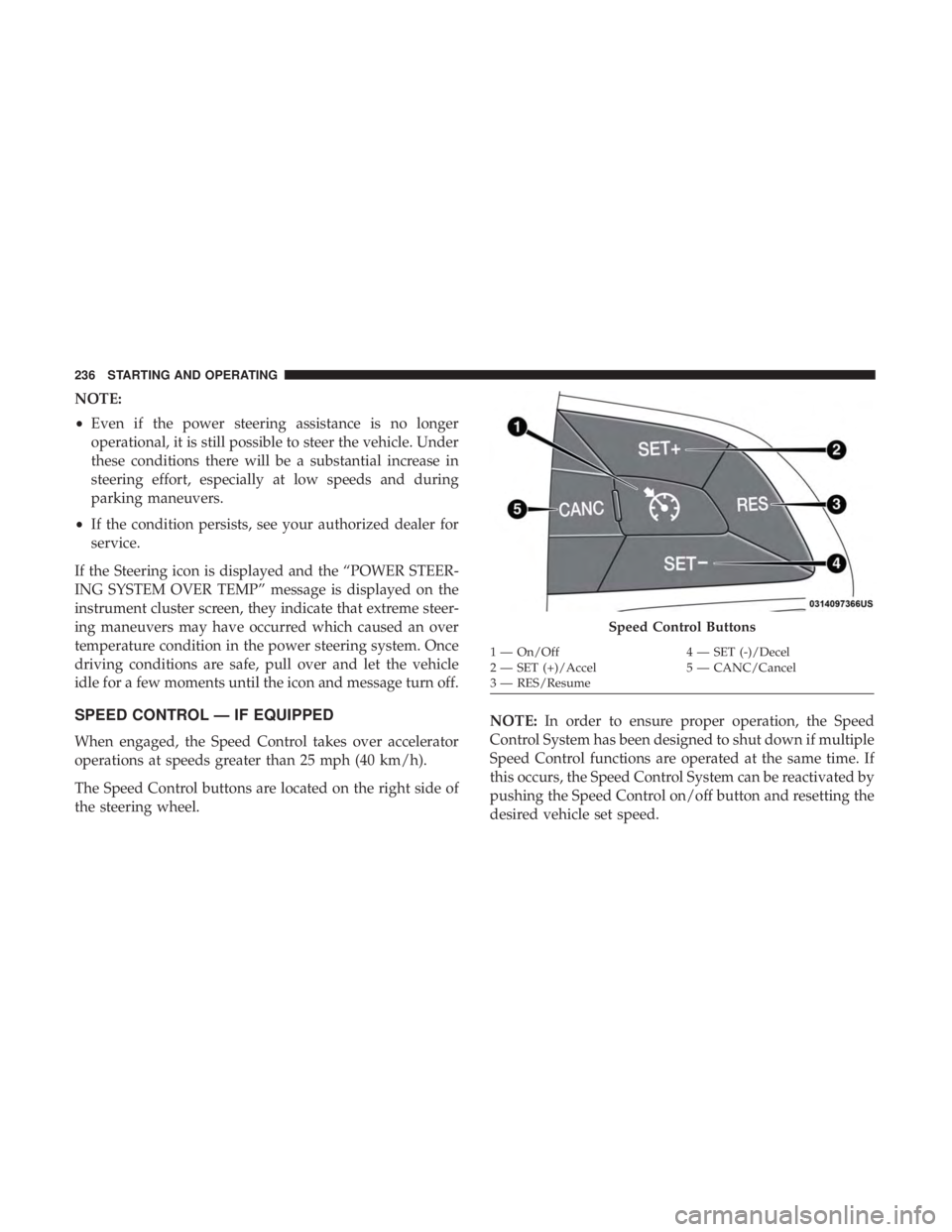
The Speed Control buttons are located on the right side of
the steering wheel. NOTE:
In order to ensure proper operation, the Speed
Control System has been designed to shut down if multiple
Speed Control functions are operated at the same time. If
this occurs, the Speed Control System can be reactivated by
pushing the Speed Control on/off button and resetting the
desired vehicle set speed.
Speed Control Buttons
1 — On/Off 4 — SET (-)/Decel
2 — SET (+)/Accel 5 — CANC/Cancel
3 — RES/Resume
236 STARTING AND OPERATING
Page 243 of 492
WARNING!(Continued)
release the brakes and that the brakes must be
applied manually. An audible chime will sound
when the brakes are released.
You should switch off the ACC system:
• When driving in fog, heavy rain, heavy snow, sleet,
heavy traffic, and complex driving situations (i.e., in
highway construction zones).
• When entering a turn lane or highway off ramp;
when driving on roads that are winding, icy, snow-
covered, slippery, or have steep uphill or downhill
slopes.
• When towing a trailer up or down steep slopes.
• When circumstances do not allow safe driving at a
constant speed.
Adaptive Cruise Control (ACC) Operation
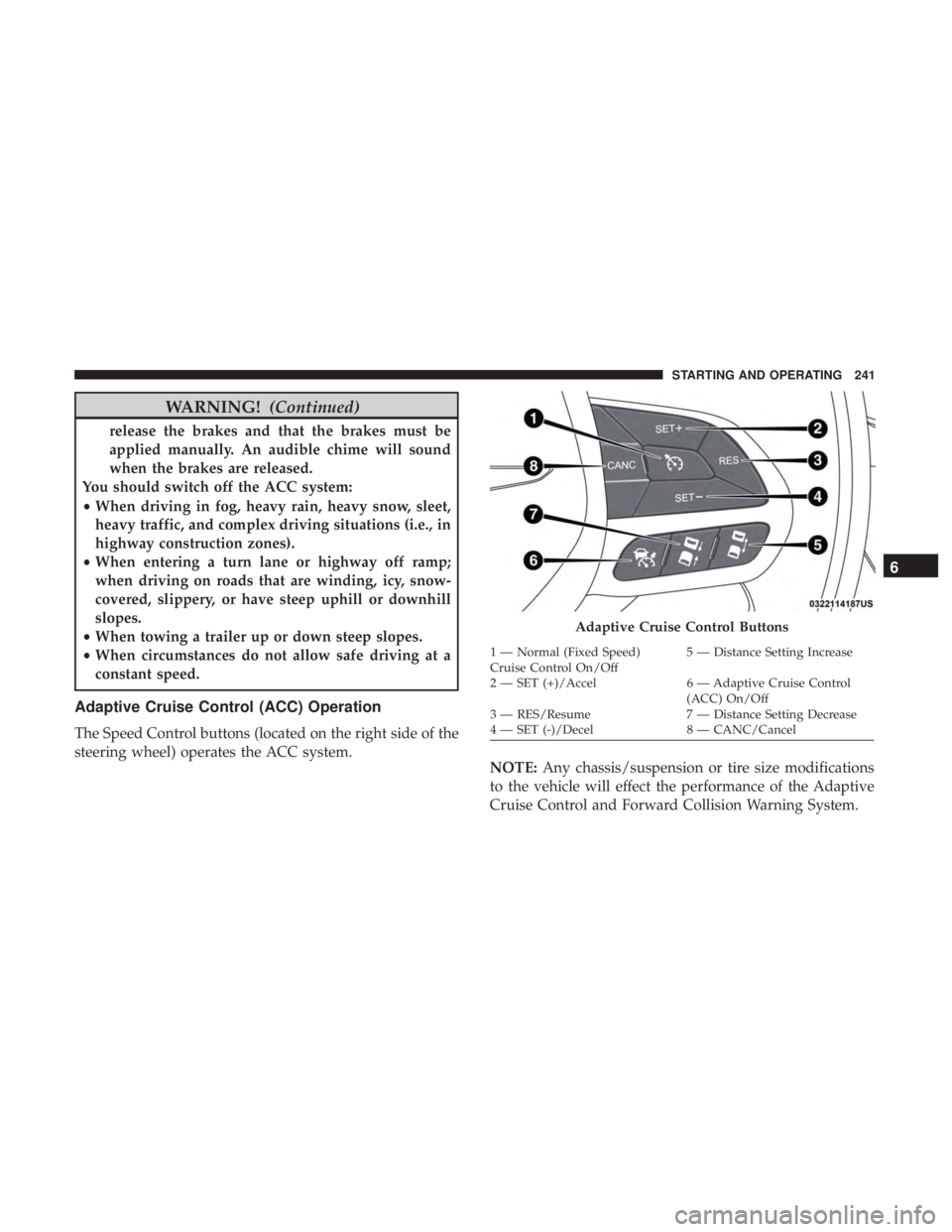
The Speed Control buttons (located on the right side of the
steering wheel) operates the ACC system. NOTE:Any chassis/suspension or tire size modifications
to the vehicle will effect the performance of the Adaptive
Cruise Control and Forward Collision Warning System.
Adaptive Cruise Control Buttons
1 — Normal (Fixed Speed)
Cruise Control On/Off 5 — Distance Setting Increase
2 — SET (+)/Accel 6 — Adaptive Cruise Control (ACC) On/Off
3 — RES/Resume 7 — Distance Setting Decrease
4 — SET (-)/Decel 8 — CANC/Cancel
6
STARTING AND OPERATING 241
Page 252 of 492
ACC Operation At Stop
If the ACC system brings your vehicle to a standstill while
following a target vehicle, if the target vehicle starts
moving within two seconds of your vehicle coming to a
standstill, your vehicle will resume motion without the
need for any driver action.
If the target vehicle does not start moving within two
seconds of your vehicle coming to a standstill, the ACC
with Stop system will cancel and the brakes will release. A
cancel message will display on the instrument cluster
display and produce a warning chime. Driver intervention
will be required at this moment.
While ACC with Stop is holding your vehicle at a stand-
still, if the driver seatbelt is unbuckled or the driver door is
opened, the ACC with Stop system will cancel and the
brakes will release. A cancel message will display on the
instrument cluster display and produce a warning chime.
Driver intervention will be required at this moment.
WARNING!
When the ACC system is resumed, the driver must
ensure that there are no pedestrians, vehicles or objects
(Continued)
WARNING!(Continued)
in the path of the vehicle. Failure to follow these
warnings can result in a collision and death or serious
personal injury.
Adaptive Cruise Control (ACC) Menu
The instrument cluster display will show the current ACC
system settings. The instrument cluster display is located
in the center of the instrument cluster. The information it
displays depends on ACC system status.
Push the Adaptive Cruise Control (ACC) on/off button
(located on the steering wheel) until one of the following
appears in the instrument cluster display:
Adaptive Cruise Control Off
When ACC is deactivated, the display will read “Adaptive
Cruise Control Off.”
Adaptive Cruise Control Ready
When ACC is activated, but the vehicle speed setting has
not been selected, the display will read “Adaptive Cruise
Control Ready.”
250 STARTING AND OPERATING
Page 253 of 492
Adaptive Cruise Control Set
When the SET (+) or the SET (-) button (located on the
steering wheel) is pushed, the display will read “ACC
SET.”
When ACC is set, the set speed will show in the instrument
cluster display.
The ACC screen may display once again if any ACC
activity occurs, which may include any of the following:
•System Cancel
• Driver Override
• System Off
• ACC Proximity Warning
• ACC Unavailable Warning
• The instrument cluster display will return to the last
display selected after five seconds of no ACC display
activityDisplay Warnings And Maintenance
“Wipe Front Radar Sensor In Front Of Vehicle”
Warning
The “ACC/FCW Unavailable Wipe Front Radar Sensor”
warning will display and also a chime will indicate when
conditions temporarily limit system performance.
This most often occurs at times of poor visibility, such as in
snow or heavy rain. The ACC system may also become
temporarily blinded due to obstructions, such as mud, dirt
or ice. In these cases, the instrument cluster display will
display “ACC/FCW Unavailable Wipe Front Radar Sen-
sor” and the system will deactivate.
The “ACC/FCW Unavailable Wipe Front Radar Sensor”
message can sometimes be displayed while driving in
highly reflective areas (i.e. tunnels with reflective tiles, or
ice and snow). The ACC system will recover after the
vehicle has left these areas. Under rare conditions, when
the radar is not tracking any vehicles or objects in its path
this warning may temporarily occur.
6
STARTING AND OPERATING 251
Page 274 of 492
WARNING!(Continued)
disconnected from the vehicle when the vehicle is
not used for towing. Failure to do so can result in
injury or damage to vehicles or obstacles because the
hitch ball will be much closer to the obstacle than the
rear fascia when the loudspeaker sounds the con-
tinuous tone. Also, the sensors could detect the ball
mount and hitch ball assembly, depending on its size
and shape, giving a false indication that an obstacle
is behind the vehicle.
CAUTION!
•ParkSense is only a parking aid and it is unable to
recognize every obstacle, including small obstacles.
Parking curbs might be temporarily detected or not
detected at all. Obstacles located above or below the
sensors will not be detected when they are in close
proximity.
• The vehicle must be driven slowly when using
ParkSense in order to be able to stop in time when an
obstacle is detected. It is recommended that the
driver looks over his/her shoulder when using
ParkSense.
LANESENSE — IF EQUIPPED
LaneSense Operation
The LaneSense system is operational at speeds above
37 mph (60 km/h) and below 112 mph (180 km/h). The
LaneSense system uses a forward looking camera to detect
lane markings and measure vehicle position within the
lane boundaries.
When both lane markings are detected and the driver
unintentionally drifts out of the lane (no turn signal
applied), the LaneSense system provides a haptic warning
in the form of torque applied to the steering wheel to
prompt the driver to remain within the lane boundaries. If
the driver continues to unintentionally drift out of the lane,
the LaneSense system provides a visual warning through
the instrument cluster display to prompt the driver to
remain within the lane boundaries.
The driver may manually override the haptic warning by
applying torque into the steering wheel at any time.
When only a single lane marking is detected and the driver
unintentionally drifts across the lane marking (no turn
signal applied), the LaneSense system provides visual and
haptic warnings through the instrument cluster display to
272 STARTING AND OPERATING
Page 275 of 492
prompt the driver to remain within the lane. When only a
single lane marking is detected, a haptic (torque) warning
will not be provided.
NOTE:When operating conditions have been met, the
LaneSense system will monitor if the driver ’s hands are on
the steering wheel and provides an audible warning to the
driver when the driver ’s hands are not detected on the
steering wheel. The system will cancel if the driver does
not return their hands to the wheel.
Turning LaneSense On Or Off
The default status of LaneSense is off.
The LaneSense button is located on the center stack below
the Uconnect display.
To turn the LaneSense system on, push the Lane-
Sense button (LED turns off). A “LaneSense On”
message is shown in the instrument cluster display.
To turn the LaneSense system off, push the LaneSense
button once (LED turns on).
NOTE: The LaneSense system will retain the last system
state, on or off, from the last ignition cycle when the
ignition is changed to the ON/RUN position.
LaneSense Warning Message
The LaneSense system will indicate the current lane drift
condition through the instrument cluster display.
Premium Instrument Cluster Display Screen — If
Equipped
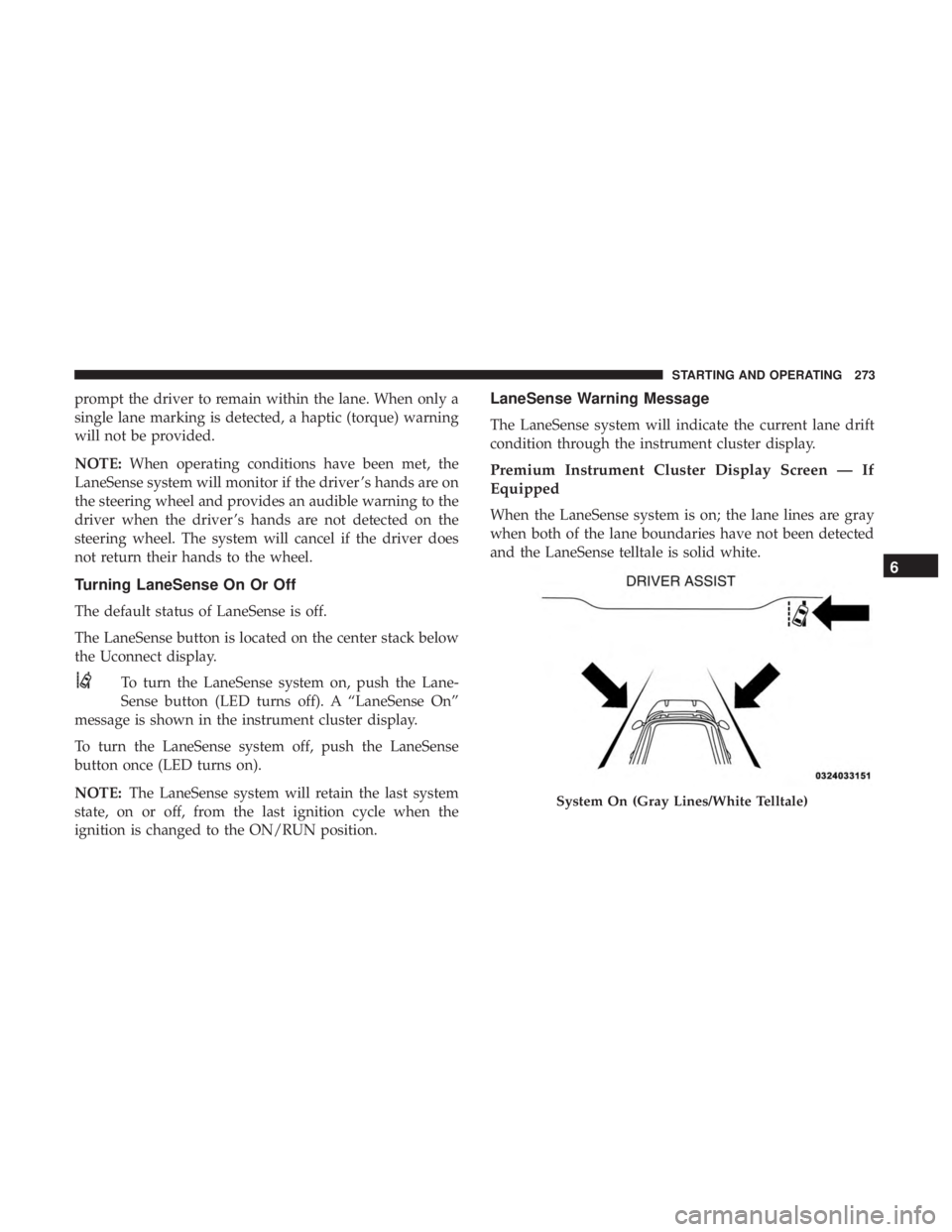
When the LaneSense system is on; the lane lines are gray
when both of the lane boundaries have not been detected
and the LaneSense telltale is solid white.
System On (Gray Lines/White Telltale)
6
STARTING AND OPERATING 273
Page 277 of 492
Left Lane Departure — Both Lanes Detected
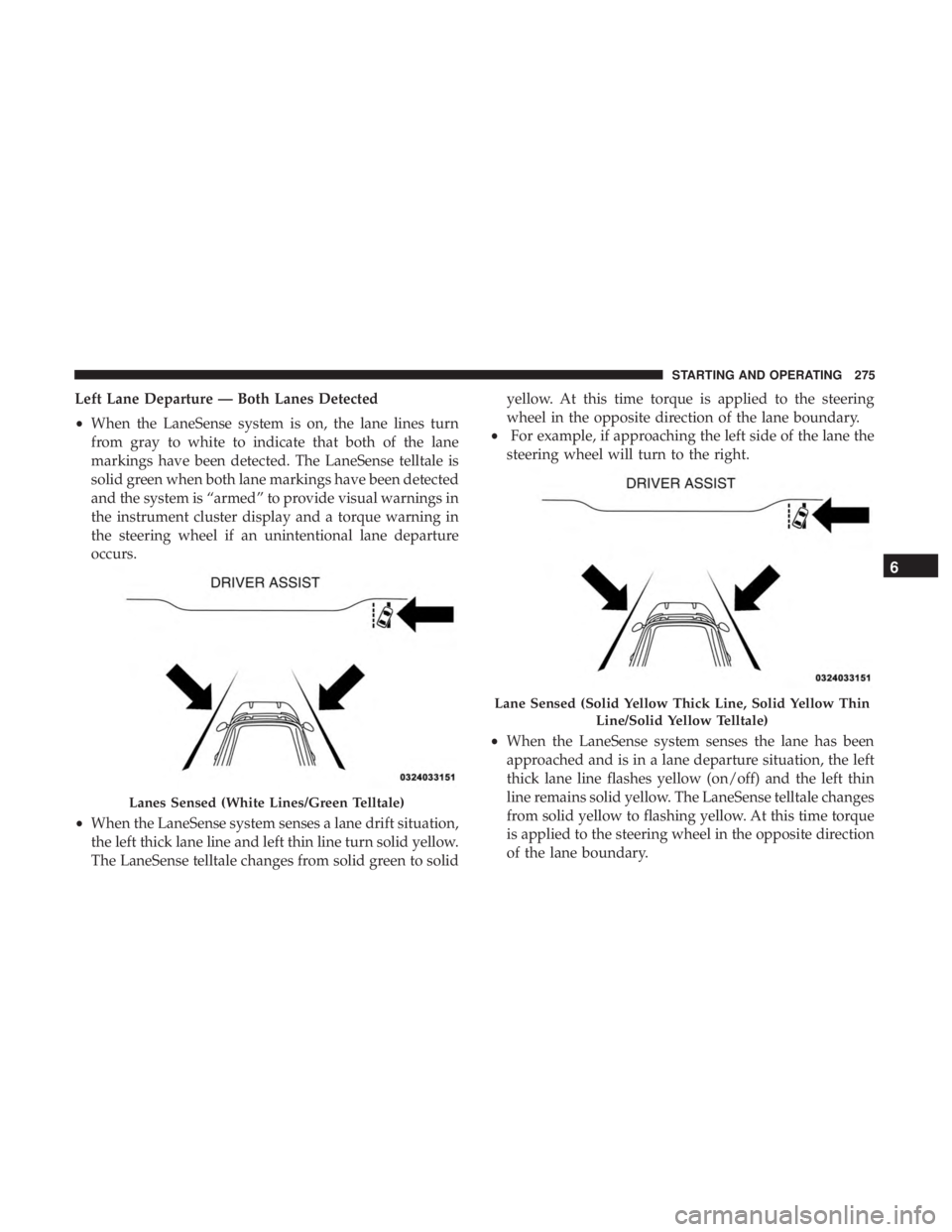
•When the LaneSense system is on, the lane lines turn
from gray to white to indicate that both of the lane
markings have been detected. The LaneSense telltale is
solid green when both lane markings have been detected
and the system is “armed” to provide visual warnings in
the instrument cluster display and a torque warning in
the steering wheel if an unintentional lane departure
occurs.
• When the LaneSense system senses a lane drift situation,
the left thick lane line and left thin line turn solid yellow.
The LaneSense telltale changes from solid green to solid yellow. At this time torque is applied to the steering
wheel in the opposite direction of the lane boundary.
• For example, if approaching the left side of the lane the
steering wheel will turn to the right.
• When the LaneSense system senses the lane has been
approached and is in a lane departure situation, the left
thick lane line flashes yellow (on/off) and the left thin
line remains solid yellow. The LaneSense telltale changes
from solid yellow to flashing yellow. At this time torque
is applied to the steering wheel in the opposite direction
of the lane boundary.
Lanes Sensed (White Lines/Green Telltale)
Lane Sensed (Solid Yellow Thick Line, Solid Yellow Thin
Line/Solid Yellow Telltale)
6
STARTING AND OPERATING 275
Page 278 of 492
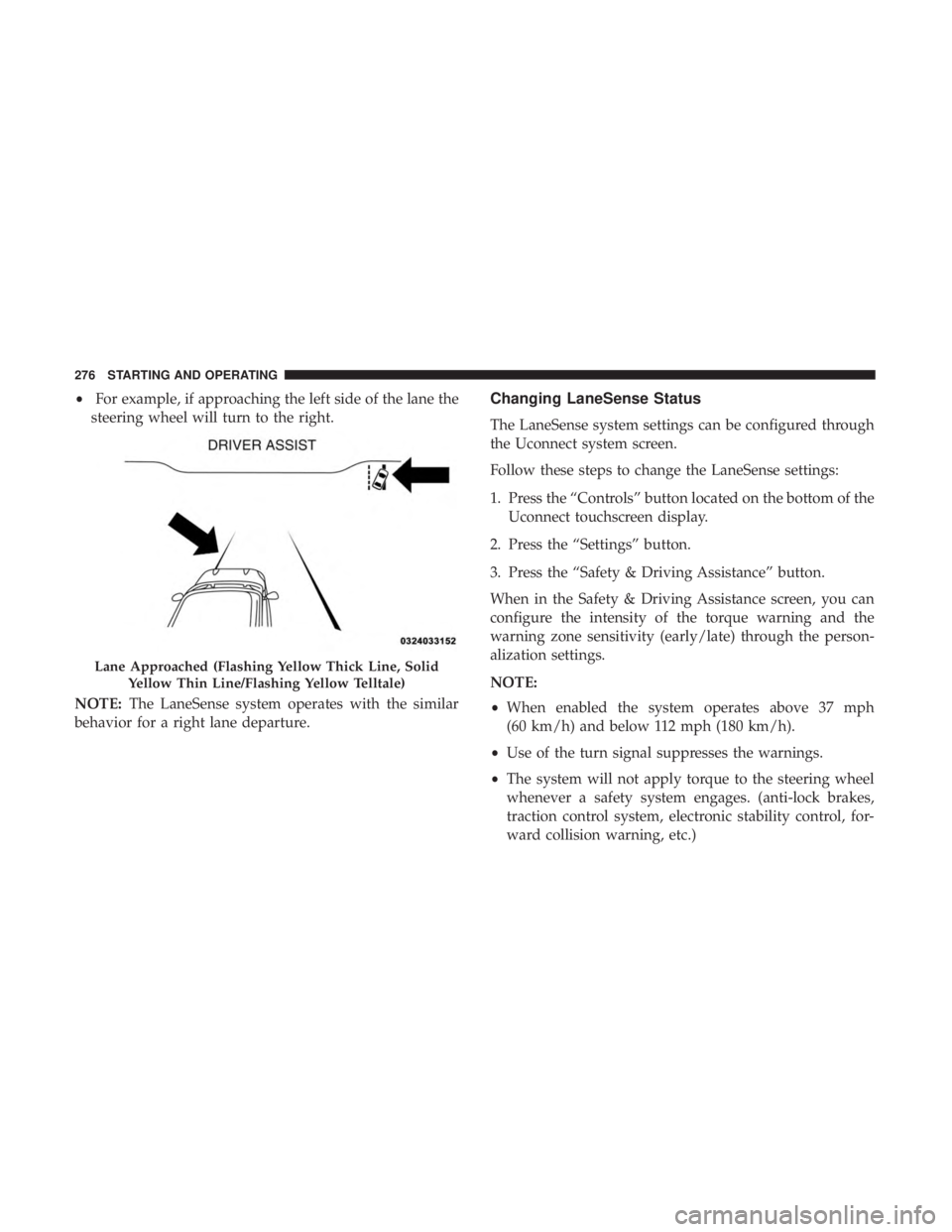
•For example, if approaching the left side of the lane the
steering wheel will turn to the right.
NOTE: The LaneSense system operates with the similar
behavior for a right lane departure.Changing LaneSense Status
The LaneSense system settings can be configured through
the Uconnect system screen.
Follow these steps to change the LaneSense settings:
1. Press the “Controls” button located on the bottom of the Uconnect touchscreen display.
2. Press the “Settings” button.
3. Press the “Safety & Driving Assistance” button.
When in the Safety & Driving Assistance screen, you can
configure the intensity of the torque warning and the
warning zone sensitivity (early/late) through the person-
alization settings.
NOTE:
• When enabled the system operates above 37 mph
(60 km/h) and below 112 mph (180 km/h).
• Use of the turn signal suppresses the warnings.
• The system will not apply torque to the steering wheel
whenever a safety system engages. (anti-lock brakes,
traction control system, electronic stability control, for-
ward collision warning, etc.)
Lane Approached (Flashing Yellow Thick Line, Solid
Yellow Thin Line/Flashing Yellow Telltale)
276 STARTING AND OPERATING
Page 279 of 492
PARKVIEW REAR BACK UP CAMERA
Your vehicle is equipped with the ParkView Rear Back Up
Camera that allows you to see an on-screen image of the
rear surroundings of your vehicle whenever the gear
selector is put into REVERSE. The ParkView camera is
located on the rear of the vehicle above the rear license
plate. The image will be displayed in the touchscreen
display along with a caution note to “check entire sur-
roundings” across the top of the screen. After five seconds,
this note will disappear.
NOTE:The ParkView Rear Back Up Camera has program-
mable modes of operation that may be selected through the
Uconnect System. Refer to “Uconnect Settings” in “Multi-
media” for further information.
If your vehicle is equipped with the Camera Delay feature
and it is turned on, the rear camera image will be displayed
for up to 10 seconds when the vehicle is shifted out of
REVERSE. However, this feature is canceled if the forward vehicle speed exceeds 8 mph (13 km/h), the transmission is
shifted into PARK, the vehicle’s ignition is cycled to OFF, or
by pressing the image defeat [X] button.
When the vehicle is shifted out of REVERSE (with Camera
Delay turned off), the rear camera mode is exited and the
last touchscreen appears again.
When enabled, active guide lines are overlaid on the image
to illustrate the width of the vehicle and its projected
backup path based on the steering wheel position. The
active guide lines will show separate zones that will help
indicate the distance to the rear of the vehicle.
Different colored zones indicate the distance to the rear of
the vehicle.
The following table shows the approximate distances for
each zone:
Zone
Distance To The Rear Of The Vehicle
Red 0 - 1 ft (0 - 30 cm)
Yellow 1 ft - 6.5 ft (30 cm - 2 m)
Green 6.5 ft or greater (2 m or greater)
6
STARTING AND OPERATING 277