brake CHRYSLER 300 2018 Workshop Manual
[x] Cancel search | Manufacturer: CHRYSLER, Model Year: 2018, Model line: 300, Model: CHRYSLER 300 2018Pages: 492, PDF Size: 6.67 MB
Page 255 of 492
display “ACC/FCW Limited Functionality Clean Front
Windshield” and the system will have degraded perfor-
mance.
The “ACC/FCW Limited Functionality Clean Front Wind-
shield” message can sometimes be displayed while driving
in adverse weather conditions. The ACC/FCW system will
recover after the vehicle has left these areas. Under rare
conditions, when the camera is not tracking any vehicles or
objects in its path this warning may temporarily occur.
If weather conditions are not a factor, the driver should
examine the windshield and the camera located on the
back side of the inside rear view mirror. They may require
cleaning or removal of an obstruction.
When the condition that created limited functionality is no
longer present, the system will return to full functionality.
NOTE:If the “ACC/FCW Limited Functionality Clean
Front Windshield” message occurs frequently (e.g. more
than once on every trip) without any snow, rain, mud, or
other obstruction, have the windshield and forward facing
camera inspected at your authorized dealer.Service ACC/FCW Warning
If the system turns off, and the instrument cluster displays
“ACC/FCW Unavailable Service Required” or “Cruise/
FCW Unavailable Service Required”, there may be an
internal system fault or a temporary malfunction that
limits ACC functionality. Although the vehicle is still
drivable under normal conditions, ACC will be temporar-
ily unavailable. If this occurs, try activating ACC again
later, following an ignition cycle. If the problem persists,
see your authorized dealer.
Precautions While Driving With ACC
In certain driving situations, ACC may have detection
issues. In these cases, ACC may brake late or unexpectedly.
The driver needs to stay alert and may need to intervene.
Towing A Trailer
Towing a trailer is not advised when using ACC.
6
STARTING AND OPERATING 253
Page 256 of 492
Offset Driving
ACC may not detect a vehicle in the same lane that is offset
from your direct line of travel, or a vehicle merging in from
a side lane. There may not be sufficient distance to the
vehicle ahead. The offset vehicle may move in and out of
the line of travel, which can cause your vehicle to brake or
accelerate unexpectedly.
Turns And Bends
When driving on a curve with ACC engaged, the system
may decrease the vehicle speed and acceleration for stabil-
ity reasons, with no target vehicle detected. Once the
vehicle is out of the curve the system will resume your
original set speed. This is a part of normal ACC system
functionality.
NOTE:On tight turns ACC performance may be limited.
Offset Driving Condition Example
Turn Or Bend Example
254 STARTING AND OPERATING
Page 257 of 492
Using ACC On Hills
When driving on hills, ACC may not detect a vehicle in
your lane. Depending on the speed, vehicle load, traffic
conditions, and the steepness of the hills, ACC perfor-
mance may be limited.
Lane Changing
ACC may not detect a vehicle until it is completely in the
lane in which you are traveling. In the illustration shown,
ACC has not yet detected the vehicle changing lanes and it
may not detect the vehicle until it’s too late for the ACC
system to take action. ACC may not detect a vehicle until it
is completely in the lane. There may not be sufficient
distance to the lane-changing vehicle. Always be attentive
and ready to apply the brakes if necessary.
ACC Hill Example
Lane Changing Example
6
STARTING AND OPERATING 255
Page 258 of 492
Narrow Vehicles
Some narrow vehicles traveling near the outer edges of the
lane or edging into the lane are not detected until they have
moved fully into the lane. There may not be sufficient
distance to the vehicle ahead.
Stationary Objects And Vehicles
ACC does not react to stationary objects and stationary
vehicles. For example, ACC will not react in situations
where the vehicle you are following exits your lane and the
vehicle ahead is stopped in your lane. Always be attentive
and ready to apply the brakes if necessary.
Narrow Vehicle Example
Stationary Object And Stationary Vehicle Example
256 STARTING AND OPERATING
Page 261 of 492
To Decrease Speed
When the Normal (Fixed Speed) Cruise Control is set, you
can decrease speed by pushing the SET(-)button.
The driver’s preferred units can be selected through the
instrument cluster display. Refer to “Getting To Know Your
Instrument Panel” for more information. The speed decre-
ment shown is dependant on the speed of U.S. (mph) or
Metric (km/h) units:
U.S. Speed (mph)
• Pushing the SET (-)button once will result in a 1 mph
decrease in set speed. Each subsequent tap of the button
results in a decrease of 1 mph.
• If the button is continually pushed, the set speed will
continue to decrease in 5 mph decrements until the
button is released. The decrease in set speed is reflected
in the instrument cluster display. Metric Speed (km/h)
•
Pushing the SET (-)button once will result in a 1 km/h
decrease in set speed. Each subsequent tap of the button
results in a decrease of 1 km/h.
• If the button is continually pushed, the set speed will
continue to decrease in 10 km/h decrements until the
button is released. The decrease in set speed is reflected
in the instrument cluster display.
To Cancel
The following conditions will cancel the Normal (Fixed
Speed) Cruise Control without clearing the memory:
• The brake pedal is applied.
• The CANC button is pushed.
• The Electronic Stability Control/Traction Control Sys-
tem (ESC/TCS) activates.
• The vehicle parking brake is applied.
• The braking temperature exceeds normal range (over-
heated).
• The gear selector is removed from the DRIVE position.
6
STARTING AND OPERATING 259
Page 271 of 492
Front Park Assist Audible Alerts
ParkSense will turn off the Front Park Assist audible alert
(chime) after approximately three seconds when an ob-
stacle has been detected, the vehicle is stationary, and brake
pedal is applied.
Adjustable Chime Volume Settings
Front and Rear chime volume settings can be selected from
the Customer-Programmable Features section of the
Uconnect System, refer to “Uconnect Settings” in “Multi-
media” for further information.
If the Uconnect System is equipped, chime volume settings
will not be accessible from the instrument cluster display.
The chime volume settings include low, medium, and high.
The factory default volume setting is medium.
ParkSense will retain its last known configuration state
through ignition cycles.Enabling And Disabling ParkSense
ParkSense can be enabled and disabled with the ParkSense
switch, located on the switch panel below the Uconnect
display.When the ParkSense switch is pushed to disable
the system, the instrument cluster will display
the “PARKSENSE OFF” message for approxi-
mately five seconds. Refer to “Instrument Clus-
ter Display” in “Getting To Know Your Instrument Panel”
for further information. When the gear selector is moved to
REVERSE and the system is disabled, the instrument
cluster display will show the “PARKSENSE OFF” message
for as long as the vehicle is in REVERSE.
The ParkSense switch LED will be on when ParkSense is
disabled or requires service. The ParkSense switch LED
will be off when the system is enabled. If the ParkSense
switch is pushed, and requires service, the ParkSense
switch LED will blink momentarily, and then the LED will
be on.
6
STARTING AND OPERATING 269
Page 278 of 492
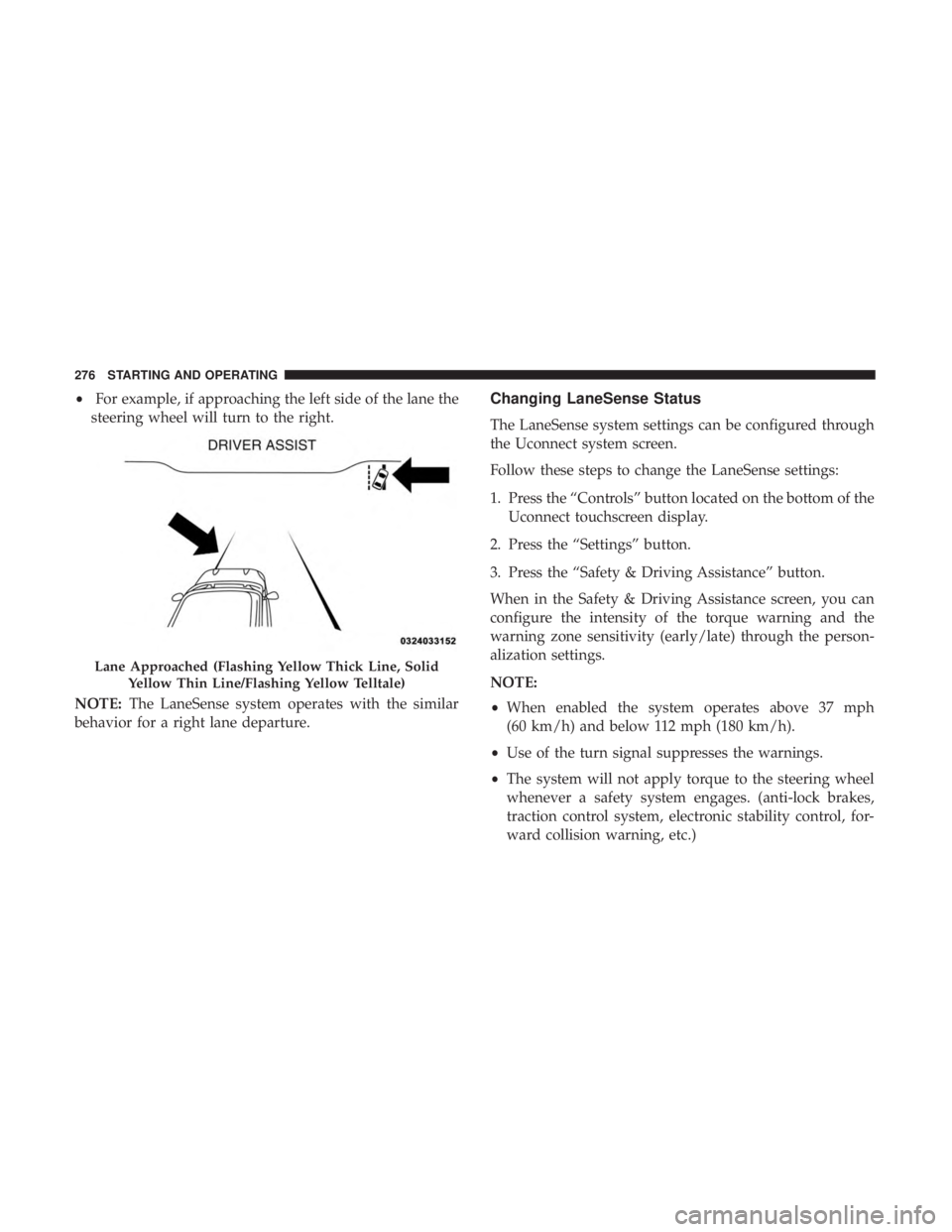
•For example, if approaching the left side of the lane the
steering wheel will turn to the right.
NOTE: The LaneSense system operates with the similar
behavior for a right lane departure.Changing LaneSense Status
The LaneSense system settings can be configured through
the Uconnect system screen.
Follow these steps to change the LaneSense settings:
1. Press the “Controls” button located on the bottom of the Uconnect touchscreen display.
2. Press the “Settings” button.
3. Press the “Safety & Driving Assistance” button.
When in the Safety & Driving Assistance screen, you can
configure the intensity of the torque warning and the
warning zone sensitivity (early/late) through the person-
alization settings.
NOTE:
• When enabled the system operates above 37 mph
(60 km/h) and below 112 mph (180 km/h).
• Use of the turn signal suppresses the warnings.
• The system will not apply torque to the steering wheel
whenever a safety system engages. (anti-lock brakes,
traction control system, electronic stability control, for-
ward collision warning, etc.)
Lane Approached (Flashing Yellow Thick Line, Solid
Yellow Thin Line/Flashing Yellow Telltale)
276 STARTING AND OPERATING
Page 284 of 492
WARNING!
Because the front wheels steer the vehicle, it is impor-
tant that you do not exceed the maximum front or rear
GAWR. A dangerous driving condition can result if
either rating is exceeded. You could lose control of the
vehicle and have a collision.
Overloading
The load carrying components (axle, springs, tires, wheels,
etc.) of your vehicle will provide satisfactory service as
long as you do not exceed the GVWR and the front and
rear GAWR.
The best way to figure out the total weight of your vehicle
is to weigh it when it is fully loaded and ready for
operation. Weigh it on a commercial scale to ensure that it
is not over the GVWR.
Figure out the weight on the front and rear of the vehicle
separately. It is important that you distribute the load
evenly over the front and rear axles.
Overloading can cause potential safety hazards and
shorten useful service life. Heavier axles or suspension
components do not necessarily increase the vehicle’s
GVWR.
Loading
To load your vehicle properly, first figure out its empty
weight, axle-by-axle and side-by-side. Store heavier items
down low and be sure you distribute their weight as
evenly as possible. Stow all loose items securely before
driving. If weighing the loaded vehicle shows that you
have exceeded either GAWR, but the total load is within
the specified GVWR, you must redistribute the weight.
Improper weight distribution can have an adverse effect on
the way your vehicle steers and handles and the way the
brakes operate.
NOTE:
•Refer to the “Vehicle Certification Label” affixed to the
rear of the driver’s door for your vehicle’s GVWR and
GAWRs.
• Refer to the “Tire Placard” for your vehicle’s proper tire
pressure.
TRAILER TOWING
In this section you will find safety tips and information on
limits to the type of towing you can reasonably do with
your vehicle. Before towing a trailer, carefully review this
information to tow your load as efficiently and safely as
possible.
282 STARTING AND OPERATING
Page 286 of 492
Trailer Frontal Area
The frontal area is the maximum height multiplied by the
maximum width of the front of a trailer.
Trailer Sway Control
The trailer sway control can be a mechanical telescoping
link that can be installed between the hitch receiver and the
trailer tongue that typically provides adjustable friction
associated with the telescoping motion to dampen any
unwanted trailer swaying motions while traveling.
If equipped, the electronic Trailer Sway Control (TSC)
recognizes a swaying trailer and automatically applies
individual wheel brakes and/or reduces engine power to
attempt to eliminate the trailer sway.
Weight-Carrying Hitch
A weight-carrying hitch supports the trailer tongue weight,
just as if it were luggage located at a hitch ball or some
other connecting point of the vehicle. These kinds of
hitches are the most popular on the market today and they
are commonly used to tow small and medium sized
trailers.
Weight-Distributing Hitch
A weight-distributing system works by applying leverage
through spring (load) bars. They are typically used for
heavier loads to distribute trailer tongue weight to the tow
vehicle’s front axle and the trailer axle(s). When used in
accordance with the manufacturer’s directions, it provides
for a more level ride, offering more consistent steering and
brake control thereby enhancing towing safety. The addi-
tion of a friction/hydraulic sway control also dampens
sway caused by traffic and crosswinds and contributes
positively to tow vehicle and trailer stability. Trailer sway
control and a weight distributing (load equalizing) hitch
are recommended for heavier Tongue Weights (TW) and
may be required depending on vehicle and trailer
configuration/loading to comply with Gross Axle Weight
Rating (GAWR) requirements.
284 STARTING AND OPERATING
Page 287 of 492
WARNING!
•An improperly adjusted Weight Distributing Hitch
system may reduce handling, stability, braking per-
formance, and could result in a collision.
• Weight Distributing Systems may not be compatible
with Surge Brake Couplers. Consult with your hitch
and trailer manufacturer or a reputable Recreational
Vehicle dealer for additional information.
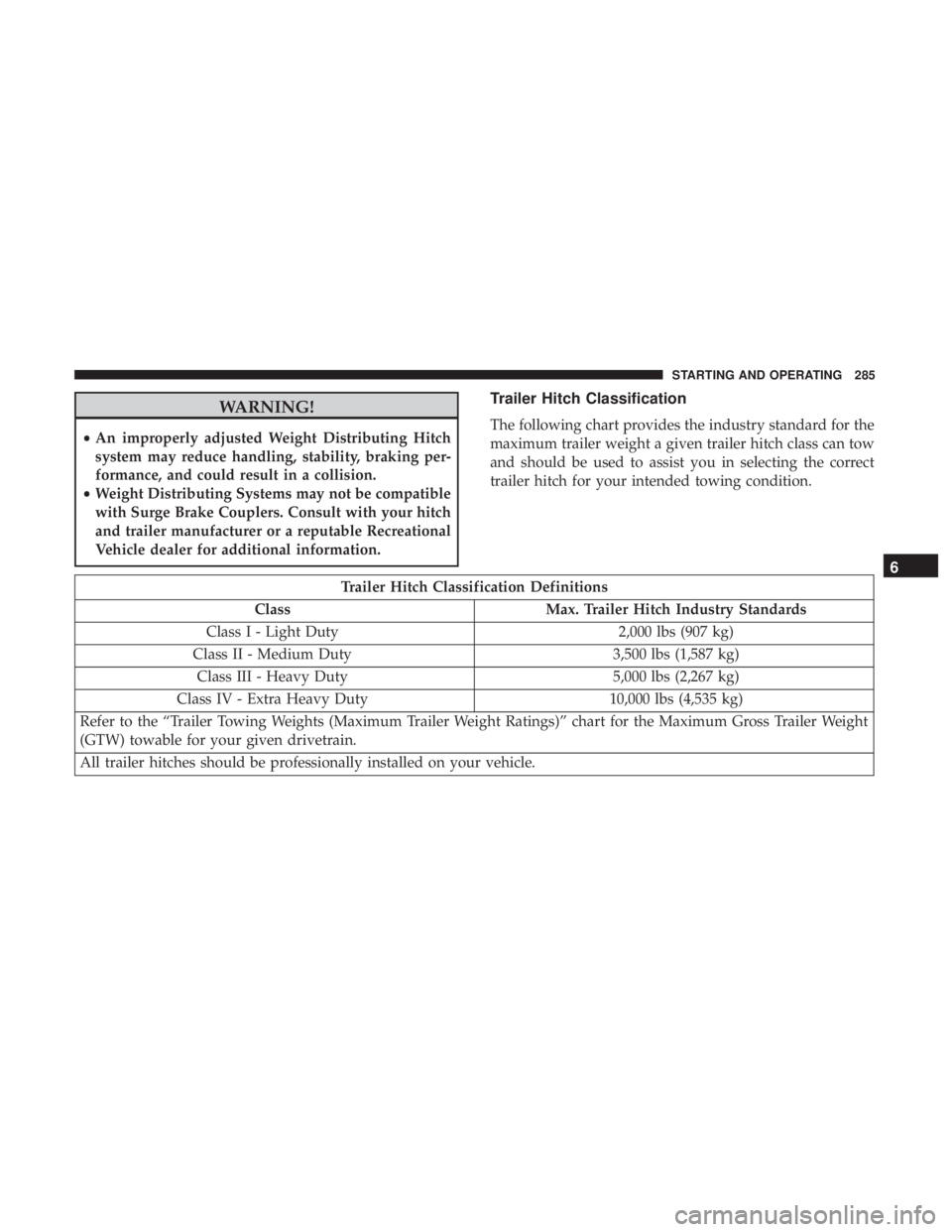
Trailer Hitch Classification
The following chart provides the industry standard for the
maximum trailer weight a given trailer hitch class can tow
and should be used to assist you in selecting the correct
trailer hitch for your intended towing condition.
Trailer Hitch Classification Definitions
Class Max. Trailer Hitch Industry Standards
Class I - Light Duty 2,000 lbs (907 kg)
Class II - Medium Duty 3,500 lbs (1,587 kg)
Class III - Heavy Duty 5,000 lbs (2,267 kg)
Class IV - Extra Heavy Duty 10,000 lbs (4,535 kg)
Refer to the “Trailer Towing Weights (Maximum Trailer Weight Ratings)” chart for the Maximum Gross Trailer Weight
(GTW) towable for your given drivetrain.
All trailer hitches should be professionally installed on your vehicle.
6
STARTING AND OPERATING 285