buttons CHRYSLER 300 C 2008 1.G User Guide
[x] Cancel search | Manufacturer: CHRYSLER, Model Year: 2008, Model line: 300 C, Model: CHRYSLER 300 C 2008 1.GPages: 520, PDF Size: 5.43 MB
Page 183 of 520
Then proceed with Step 4 under “Programming
HomeLink.” earlier in this section.
Using HomeLink\5
To operate, simply press and release the programmed
HomeLink\2button. Activation will now occur for the
trained device (i.e. garage door opener, gate operator,
security system, entry door lock, home/office lighting,
etc. The hand-held transmitter of the device may also be
used at any time.
Reprogramming a Single HomeLink\5Button
To re-program a channel that has been previously
trained, follow these steps:
1. Turn the ignition switch to the ON/RUN position.
2. Press and hold the desired HomeLink\2button for 20
seconds until the EVIC display states “CHANNEL #
TRAINING.”Do not release the button.3.Without releasing the button,proceed with PRO-
GRAMMING HOMELINK Step #2 and follow all remain-
ing steps.
Security
It is advised to erase all channels before you sell or turn
in your vehicle.
To do this, press and hold the two outside buttons for 20
seconds until the EVIC message states “CHANNELS
CLEARED.” Note that all channels will be erased. Indi-
vidual channels cannot be erased.
The HomeLink\2Universal Transceiver is disabled when
the Vehicle Security Alarm is active.
182 UNDERSTANDING THE FEATURES OF YOUR VEHICLE
Page 198 of 520

\1Sales Code RES — AM/FM Stereo Radio With
CD Player (MP3 AUX Jack)................256
\3Operating Instructions - Radio Mode.......256
\3Operation Instructions - CD Mode For CD And
MP3 Audio Play......................262
\3Notes On Playing MP3 Files.............264
\3List Button (CD Mode For MP3 Play).......267
\3Info Button (CD Mode For MP3 Play).......267
\1Satellite Radio (RSC) — If Equipped
(REQ And RES Radios Only)...............268
\3System Activation.....................268
\3Electronic Serial Number/Sirius Identification
Number (ENS/SID)....................269
\3Selecting Satellite Mode.................269\3Satellite Antenna......................269
\3Reception Quality.....................270
\3Operating Instructions - Satellite Mode......270
\3Operating Instructions - Hands Free Phone
(If Equipped)........................272
\3Operating Instructions - Video Entertainment
System (VES\2) (If Equipped).............272
\1Video Entertainment System — If Equipped....272
\1Universal Consumer Interface (UCI) —
If Equipped...........................275
\3Connecting The iPod\2..................275
\3Controlling The iPod\2Using Radio Buttons . . . 275
\3Play Mode..........................276
\3List Or Browse Mode..................278
UNDERSTANDING YOUR INSTRUMENT PANEL 197
4
Page 214 of 520
ELECTRONIC VEHICLE INFORMATION CENTER
(EVIC) — IF EQUIPPED
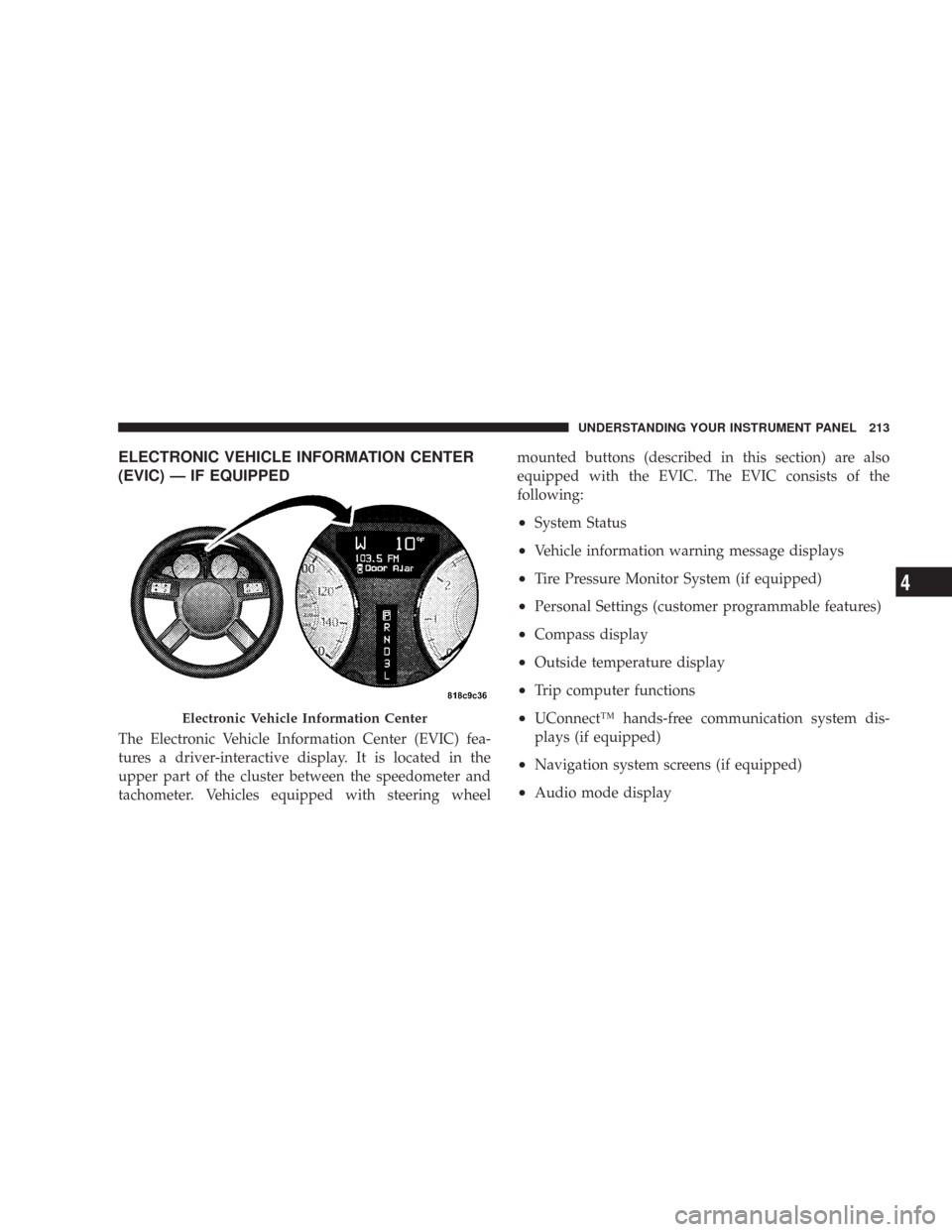
The Electronic Vehicle Information Center (EVIC) fea-
tures a driver-interactive display. It is located in the
upper part of the cluster between the speedometer and
tachometer. Vehicles equipped with steering wheelmounted buttons (described in this section) are also
equipped with the EVIC. The EVIC consists of the
following:
•System Status
•Vehicle information warning message displays
•Tire Pressure Monitor System (if equipped)
•Personal Settings (customer programmable features)
•Compass display
•Outside temperature display
•Trip computer functions
•UConnect™ hands-free communication system dis-
plays (if equipped)
•Navigation system screens (if equipped)
•Audio mode display
Electronic Vehicle Information Center
UNDERSTANDING YOUR INSTRUMENT PANEL 213
4
Page 215 of 520
The system allows the driver to select information by
pressing the following buttons mounted on the steering
wheel:
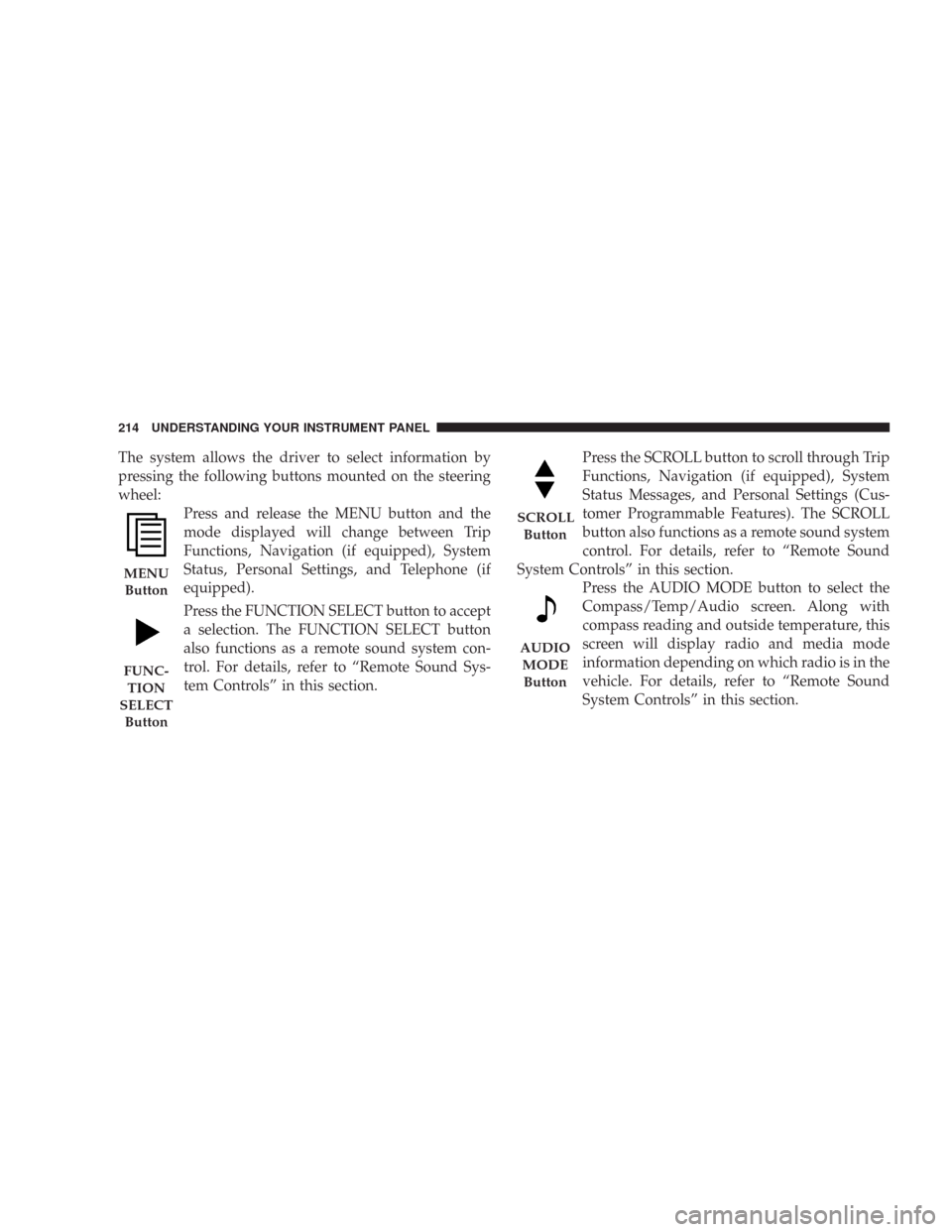
Press and release the MENU button and the
mode displayed will change between Trip
Functions, Navigation (if equipped), System
Status, Personal Settings, and Telephone (if
equipped).
Press the FUNCTION SELECT button to accept
a selection. The FUNCTION SELECT button
also functions as a remote sound system con-
trol. For details, refer to “Remote Sound Sys-
tem Controls” in this section.Press the SCROLL button to scroll through Trip
Functions, Navigation (if equipped), System
Status Messages, and Personal Settings (Cus-
tomer Programmable Features). The SCROLL
button also functions as a remote sound system
control. For details, refer to “Remote Sound
System Controls” in this section.
Press the AUDIO MODE button to select the
Compass/Temp/Audio screen. Along with
compass reading and outside temperature, this
screen will display radio and media mode
information depending on which radio is in the
vehicle. For details, refer to “Remote Sound
System Controls” in this section.
MENU
Button
FUNC-
TION
SELECT
Button
SCROLL
Button
AUDIO
MODE
Button
214 UNDERSTANDING YOUR INSTRUMENT PANEL
Page 227 of 520

The EVIC displays this symbol to indicate that
a phone connection has been made.
The EVIC displays this symbol to indicate that
the UConnect™ phone is currently not avail-
able.
Navigation — If Equipped
Navigation Display Control
Press and release the MENU button until Navigation
displays in the EVIC. When the Navigation System is On,
the steering wheel buttons can be used to select the Map
or Menu display on the Navigation Unit. When the Menudisplay is active, the SCROLL button can be used to scroll
through the list, the FUNCTION SELECT button can be
used to select an item, and the AUDIO MODE button can
be used to return to the previous menu. When the Map
display is active, pressing the FUNCTION SELECT but-
ton will change the Navigation Unit Display to the Menu.
Turn By Turn Directions
The EVIC displays turn-by-turn directions to a pro-
grammed destination when Turn by Turn Navigation is
enabled through Personal Settings. When enabled, the
EVIC displays the name of the approaching road at the
top of the screen, followed by an arrow to indicate the
direction to turn the vehicle, and a count down to
indicate the distance to the turn.
NOTE:Refer to your “Navigation User’s Manual” for
detailed operating instructions.
Call in
Progress
Phone
Not
Avail-
able
226 UNDERSTANDING YOUR INSTRUMENT PANEL
Page 238 of 520
SALES CODE REQ — AM/FM STEREO RADIO
AND 6–DISC CD/DVD CHANGER (MP3/WMA AUX
JACK)
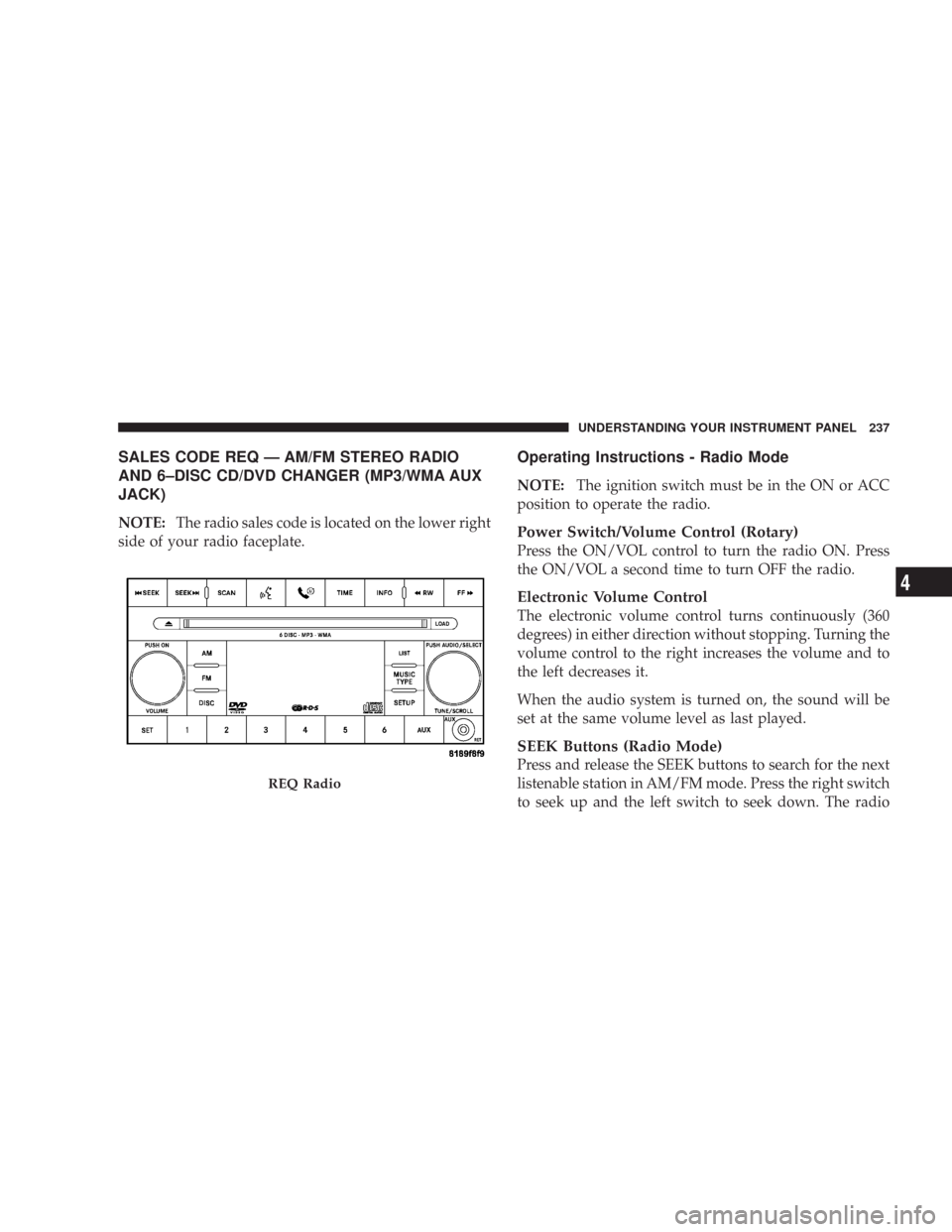
NOTE:The radio sales code is located on the lower right
side of your radio faceplate.
Operating Instructions - Radio Mode
NOTE:The ignition switch must be in the ON or ACC
position to operate the radio.
Power Switch/Volume Control (Rotary)
Press the ON/VOL control to turn the radio ON. Press
the ON/VOL a second time to turn OFF the radio.
Electronic Volume Control
The electronic volume control turns continuously (360
degrees) in either direction without stopping. Turning the
volume control to the right increases the volume and to
the left decreases it.
When the audio system is turned on, the sound will be
set at the same volume level as last played.
SEEK Buttons (Radio Mode)
Press and release the SEEK buttons to search for the next
listenable station in AM/FM mode. Press the right switch
to seek up and the left switch to seek down. The radio
REQ Radio
UNDERSTANDING YOUR INSTRUMENT PANEL 237
4
Page 245 of 520

Audio DRC — If Equipped
Selecting this item will allow the user to limit maximum
audio dynamic range - The default is set to\4High,\4and
under this setting, dialogues will play at 11 db higher
than if the setting is\4Normal.\4
Aspect Ratio — If Equipped
Selecting this item will allow the user to choose between
wide screen, pan scan, and letter box.
AutoPlay — If Equipped
When this is set to ON and a DVD video is inserted, it
will bypass the DVD menu screen and automatically play
the movie. In some rare cases, the DVD player may not
auto play the main title. In such cases, use the menu
button on the remote control to select desired title to play.
NOTE:The user will have to set these defaults before
loading a disc. If changes are made to these settings aftera disc is loaded, changes will not be effective. Also, the
defaults are effective only if the disc supports the
customer-preferred settings.
AM and FM Buttons (Radio Mode)
Press the buttons to select AM or FM Modes.
SET Button (Radio Mode) — To Set the
Push-Button Memory
When you are receiving a station that you wish to
commit to push-button memory, press the SET button.
The symbol SET 1 will now show in the display window.
Select the button (1-6) you wish to lock onto this station
and press and release that button. If a button is not
selected within 5 seconds after pressing the SET button,
the station will continue to play but will not be stored
into push-button memory.
You may add a second station to each push-button by
repeating the above procedure with this exception: Press
the SET button twice and SET 2 will show in the display
244 UNDERSTANDING YOUR INSTRUMENT PANEL
Page 246 of 520

window. Each button can be set for SET 1 and SET 2 in
both AM and FM. This allows a total of 12 AM, 12 FM,
and 12 Satellite (if equipped) stations to be stored into
push-button memory. The stations stored in SET 2
memory can be selected by pressing the push-button
twice.
Every time a preset button is used, a corresponding
button number will display.
Buttons1-6(Radio Mode)
These buttons tune the Radio to the stations that you
commit to push-button memory {12 AM, 12 FM, and 12
Satellite (if equipped) stations}.
DISC Button
Pressing the DISC button will allow you to switch from
AM/FM modes to Disc modes.
Operation Instructions - (DISC MODE for CD and
MP3/WMA Audio Play, DVD-VIDEO)
The radio DVD player and many DVD discs are coded by
geographic region. These region codes must match in
order for the disc to play. If the region code for the DVD
disc does not match the region code for the radio DVD
player, it will not play the disc. Customers may take their
vehicle to an authorized dealer to change the region code
of the player a maximum of 5 times.
CAUTION!
The radio may shut down during extremely hot
conditions. When this occurs, the radio will indicate
“Disc Hot” and shut off until a safe temperature is
reached. This shutdown is necessary to protect the
optics of the DVD player and other radio internal
components.
UNDERSTANDING YOUR INSTRUMENT PANEL 245
4
Page 257 of 520
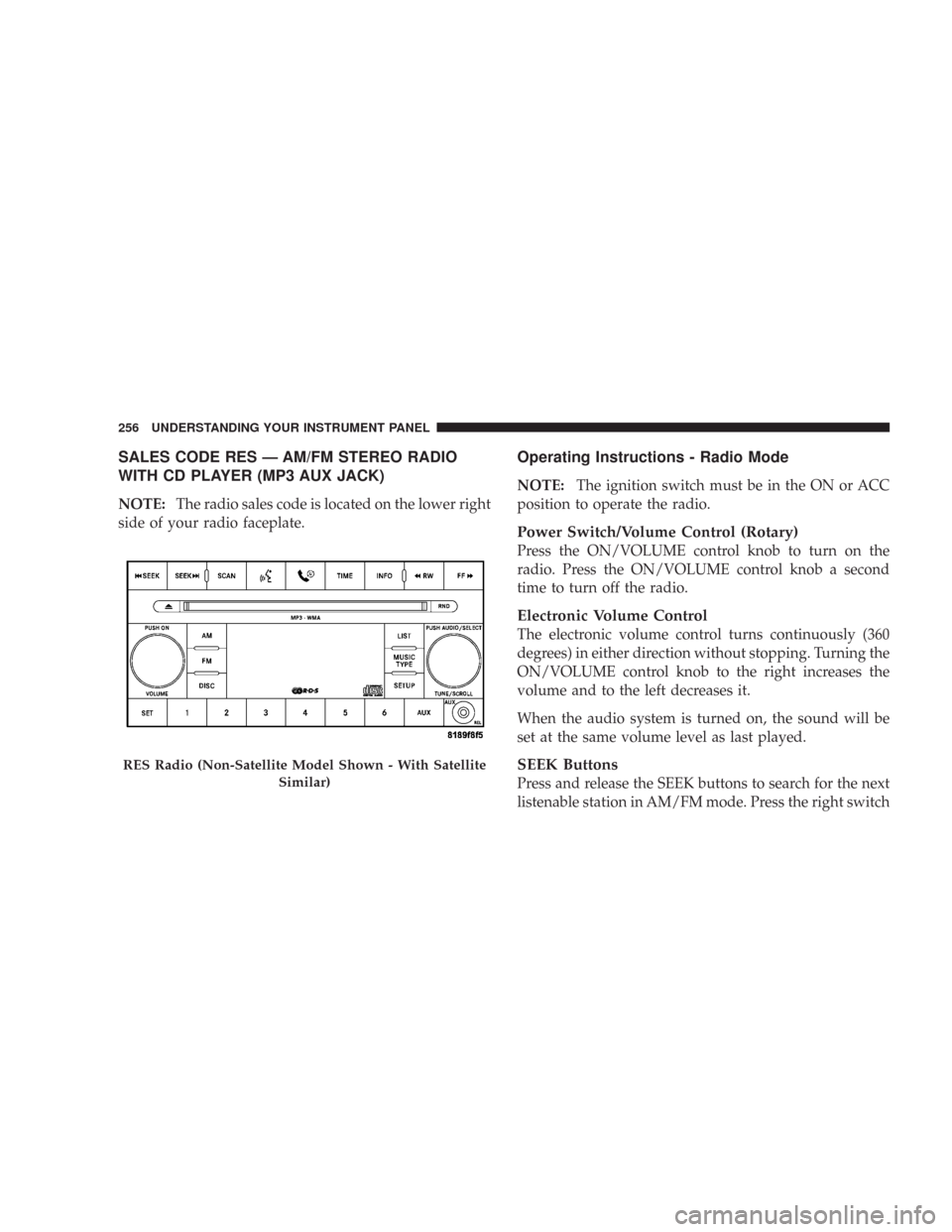
SALES CODE RES — AM/FM STEREO RADIO
WITH CD PLAYER (MP3 AUX JACK)
NOTE:The radio sales code is located on the lower right
side of your radio faceplate.
Operating Instructions - Radio Mode
NOTE:The ignition switch must be in the ON or ACC
position to operate the radio.
Power Switch/Volume Control (Rotary)
Press the ON/VOLUME control knob to turn on the
radio. Press the ON/VOLUME control knob a second
time to turn off the radio.
Electronic Volume Control
The electronic volume control turns continuously (360
degrees) in either direction without stopping. Turning the
ON/VOLUME control knob to the right increases the
volume and to the left decreases it.
When the audio system is turned on, the sound will be
set at the same volume level as last played.
SEEK Buttons
Press and release the SEEK buttons to search for the next
listenable station in AM/FM mode. Press the right switch
RES Radio (Non-Satellite Model Shown - With Satellite
Similar)
256 UNDERSTANDING YOUR INSTRUMENT PANEL
Page 259 of 520
Clock Setting Procedure
1. Press and hold the TIME button, until the hours blink.
2. Adjust the hours by turning the right side TUNE
control knob.
3. After adjusting the hours, press the right side TUNE
control knob to set the minutes. The minutes will begin to
blink.
4. Adjust the minutes using the right side TUNE control
knob. Press the TUNE control knob to save time change.
5. To exit, press any button/knob or wait 5 seconds.
The clock can also be set by pressing the SETUP button.
For vehicles equipped with satellite radio, press the
SETUP button, use the TUNE control to select SET
CLOCK, and then follow the above procedure, starting atStep 2. For vehicles not equipped with satellite radio,
press the SETUP button and then follow the above
procedure, starting at Step 2.
INFO Button
Press the INFO button for an RDS station (one with call
letters displayed). The radio will return a Radio Text
message broadcast from an FM station (FM mode only).
RW/FF
Pressing the RW (Rewind) or FF (Fast Forward) buttons
causes the tuner to search for the next frequency in the
direction of the arrows. This feature operates in either
AM or FM frequencies.
TUNE Control
Turn the right side rotary control clockwise to increase or
counter-clockwise to decrease the frequency.
258 UNDERSTANDING YOUR INSTRUMENT PANEL