radio CHRYSLER 300 S 2012 User Guide
[x] Cancel search | Manufacturer: CHRYSLER, Model Year: 2012, Model line: 300 S, Model: CHRYSLER 300 S 2012Pages: 116, PDF Size: 3.21 MB
Page 48 of 116
PLAYING iPod/USB/MP3 DEVICES
• There are many ways to play music from iPod®/MP3 players or USB devices through yourvehicle's sound system.
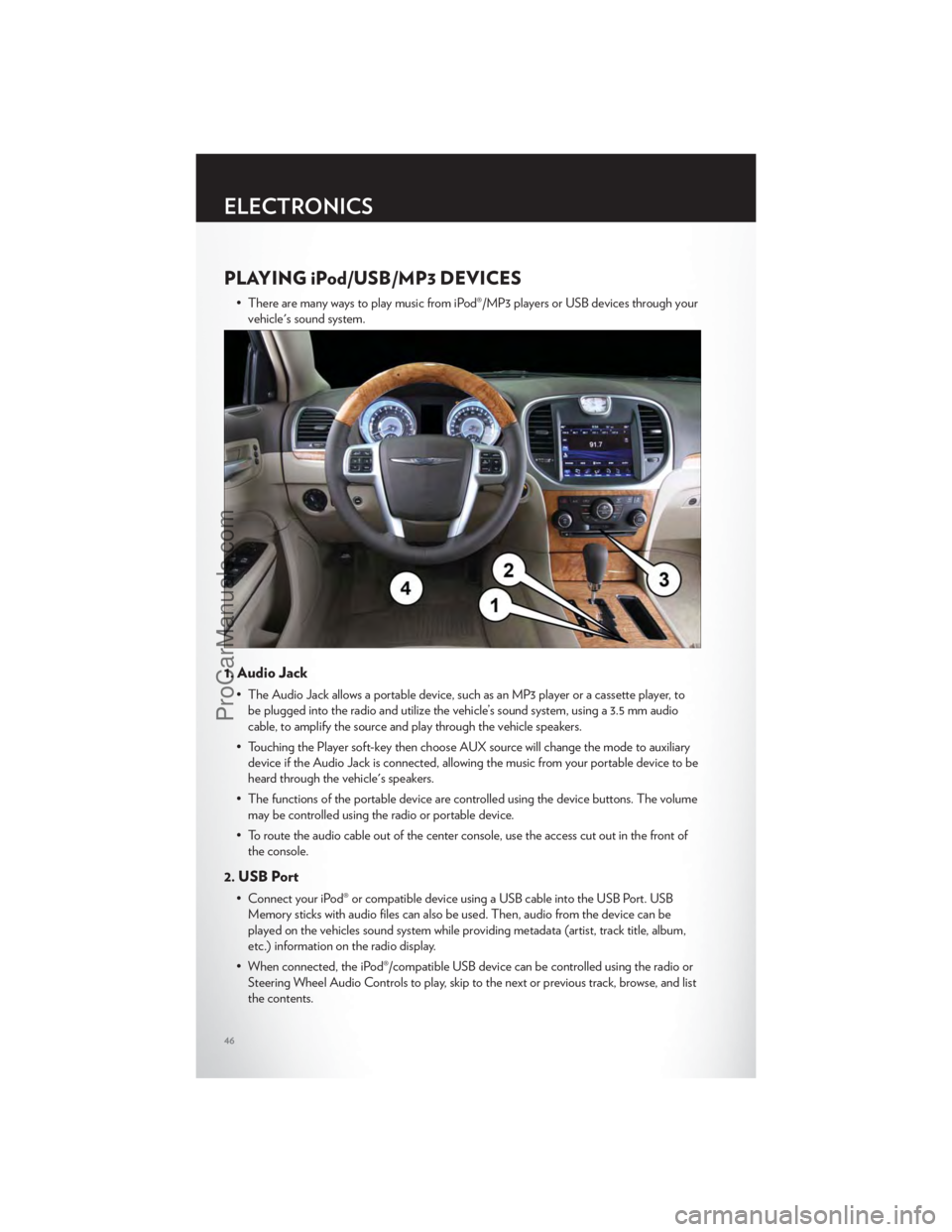
1. Audio Jack
• The Audio Jack allows a portable device, such as an MP3 player or a cassette player, tobe plugged into the radio and utilize the vehicle’s sound system, using a 3.5 mm audio
cable, to amplify the source and play through the vehicle speakers.
• Touching the Player soft-key then choose AUX source will change the mode to auxiliary device if the Audio Jack is connected, allowing the music from your portable device to be
heard through the vehicle's speakers.
• The functions of the portable device are controlled using the device buttons. The volume may be controlled using the radio or portable device.
• To route the audio cable out of the center console, use the access cut out in the front of the console.
2. USB Port
• Connect your iPod® or compatible device using a USB cable into the USB Port. USBMemory sticks with audio files can also be used. Then, audio from the device can be
played on the vehicles sound system while providing metadata (artist, track title, album,
etc.) information on the radio display.
• When connected, the iPod®/compatible USB device can be controlled using the radio or Steering Wheel Audio Controls to play, skip to the next or previous track, browse, and list
the contents.
ELECTRONICS
46
ProCarManuals.com
Page 49 of 116
• The iPod® battery charges when plugged into the USB port (if supported by the specificdevice).
• To route the USB/iPod® cable out of the center console, use the access cut out in the front of the console.
NOTE:
• When connecting your iPod® device for the first time, the system may take several minutesto read your music, depending on the number of files. For example, the system will take
approximately 5 minutes for every 1000 songs loaded on the device. Also during the
reading process, the Shuffle and Browse functions will be disabled. This process is needed to
ensure the full use of your iPod® features and only happens the first time it is connected.
After the first time, the reading process of your iPod® will take considerably less time unless
changes are made or new songs are added to the playlist.
• The USB port supports certain Mini, Classic, Nano, Touch, and iPhone® devices. The USB port also supports playing music from compatible external USB Mass Storage Class
memory devices. Some iPod® software versions may not fully support the USB port features.
Please visit Apple’s website for iPod® software updates.
3. SD Card
• Play songs stored on an SD card inserted into the SD card slot.
• Song playback can be controlled using the radio or Steering Wheel Audio Controls toplay, skip to the next or previous track, browse, and list the contents.
4. Bluetooth® Streaming Audio
• If equipped with Uconnect™ Voice Command, your Bluetooth-equipped iPod® devices,cell phones or other media players, may also be able to stream music to your vehicle's
sound system. Your connected device must be Bluetooth-compatible, and paired with
your Uconnect Touch® system (see Uconnect™ Phone for pairing instructions). You can
access the music from your connected Bluetooth® device by touching the Source soft-key
while in Player mode.
Uconnect™ Phone (Bluetooth® HANDS FREE CALLING)
• If the Uconnect™ PhoneButton exists on your steering wheel, then you have the
Uconnect™ Phone features.
• The Uconnect™ Phone is a voice-activated, hands-free, in-vehicle communications system with Voice Command Capability (see Voice Command section).
• The Uconnect™ Phone allows you to dial a phone number with your mobile phone using simple voice commands or using screen soft-keys.
• Refer to the Understand The Features Of Your Vehicle section of your vehicle's Owner's Manual on the DVD for further details.
NOTE:The Uconnect™ Phone requires a mobile phone equipped with the Bluetooth®
Hands-Free Profile, Version 1.0 or higher. For Uconnect™ customer support, call
1–877–855–8400 or visit www.chrysler.com/uconnect.
ELECTRONICS
47
ProCarManuals.com
Page 50 of 116
Pairing a Phone
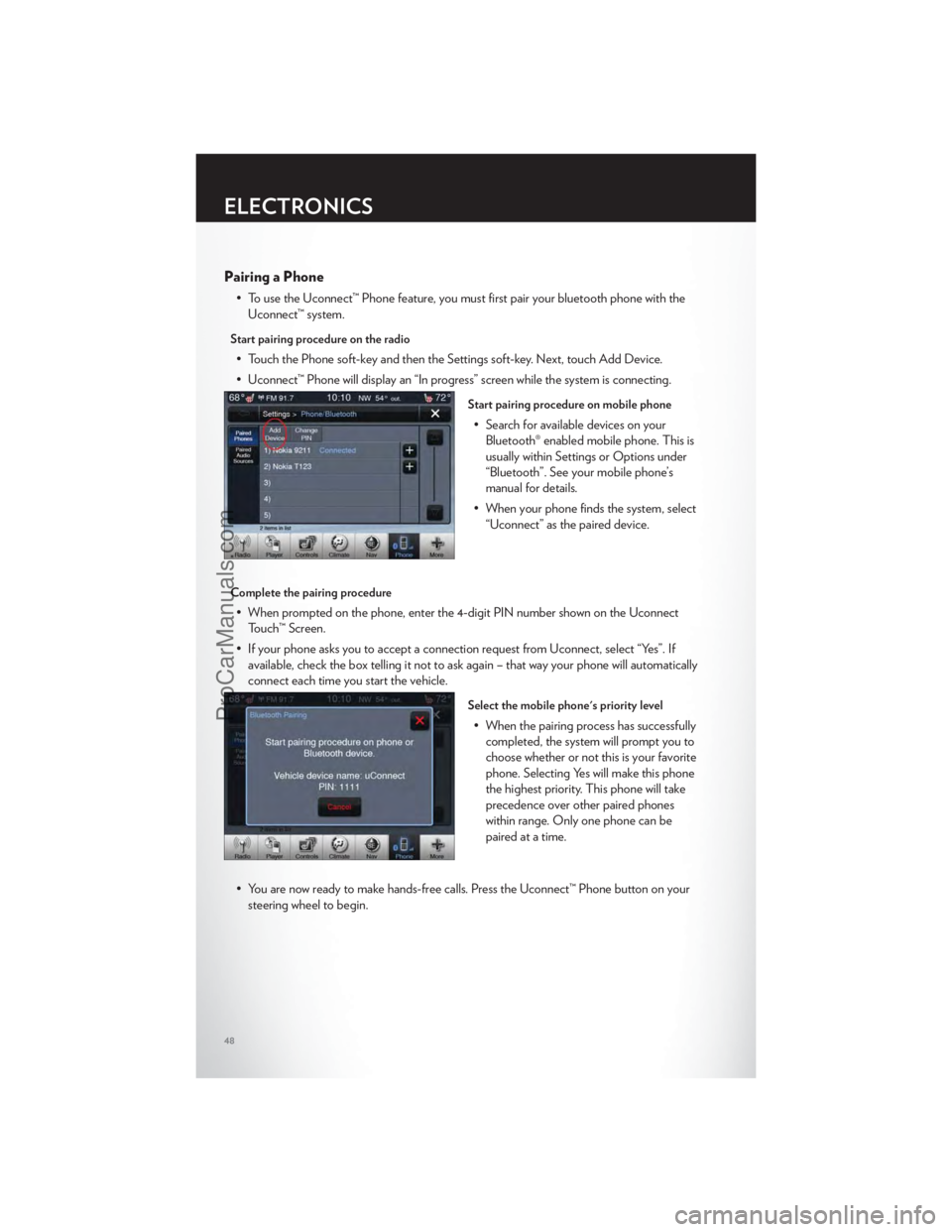
• To use the Uconnect™ Phone feature, you must first pair your bluetooth phone with theUconnect™ system.
Start pairing procedure on the radio
• Touch the Phone soft-key and then the Settings soft-key. Next, touch Add Device.
• Uconnect™ Phone will display an “In progress” screen while the system is connecting.
Start pairing procedure on mobile phone
• Search for available devices on yourBluetooth® enabled mobile phone. This is
usually within Settings or Options under
“Bluetooth”. See your mobile phone’s
manual for details.
• When your phone finds the system, select “Uconnect” as the paired device.
Complete the pairing procedure
• When prompted on the phone, enter the 4-digit PIN number shown on the UconnectTouch™ Screen.
• If your phone asks you to accept a connection request from Uconnect, select “Yes”. If available, check the box telling it not to ask again – that way your phone will automatically
connect each time you start the vehicle.
Select the mobile phone's priority level
• When the pairing process has successfullycompleted, the system will prompt you to
choose whether or not this is your favorite
phone. Selecting Yes will make this phone
the highest priority. This phone will take
precedence over other paired phones
within range. Only one phone can be
paired at a time.
• You are now ready to make hands-free calls. Press the Uconnect™ Phone button on your steering wheel to begin.
ELECTRONICS
48
ProCarManuals.com
Page 52 of 116
Common Phone Commands
Common Phone Commands (Examples)
“Call John Smith”
“Call John Smith mobile”
“Dial 1 248 555 1212”
“Call Emergency”
“Call Towing Assistance”
“Redial”
Phonebook
• Uconnect Touch™ radios will automatically download your phonebook from your pairedphone, if this feature is supported by your phone. Entries are updated each time that the
phone is paired. If your phone book entries do not appear, check the settings on your
phone. Some phones require you to enable this feature manually.
• Your phone book can be browsed on your radio screen, but editing can only be done on your phone. To browse, touch the Phone soft-key, then the Phonebook soft-key.
• Favorite phonebook entries can be saved as Favorites for quicker access. Favorites are shown at the top of your main phone screen.
Voice Recognition Tips
• Use longer names that are less easily mistaken for others. For examples, say “Call JohnDoe” instead of “Call John”.
• You can “chain” commands together for faster results. Say “Call John Doe, mobile”, for example.
• You can “barge in” while the system is talking to you, enabling you to enter your response without waiting. Just press the Voice Command button on the steering wheel to barge in.
Changing The Volume
• Start a dialogue by pressing the Phone button, then say a command for example -
"Help".
• Use the radio ON/OFF VOLUME rotary knob to adjust the volume to a comfortable level while the Uconnect™ system is speaking. Please note the volume setting for
Uconnect™ is different than the audio system.
NOTE:To access help, press the Uconnect™ Phonebutton on the steering wheel and
say "help." Touch the display or push either
orbutton and say "cancel" to cancel
the help session.
WARNING!
• Any voice commanded system should be used only in safe driving conditions following local laws and phone use. All attention should be kept on the roadway ahead. Failure to
do so may result in a collision causing you and others to be severely injured or killed.
(Continued)
ELECTRONICS
50
ProCarManuals.com
Page 53 of 116
WARNING!(Continued)
• In an emergency, to use Uconnect™ Phone, your mobile phone must be:• turned on,
• paired to Uconnect™ Phone,
• and have network coverage.
Uconnect™ Voice Command
• If the Uconnect™ Voice Commandbutton exists on your steering wheel, then
you have the Voice Command feature.
• The Voice Command feature lets you keep your hands on the steering wheel, and your eyes on the road.
• When you press the Voice Command button
located on the radio faceplate or
steering wheel, you will hear a beep. The beep is your signal to give a command. If you do
not know what commands to say, you can say "help" and the system will provide options
to you. If you ever wish to interrupt the system while it lists options, press the Voice
Command button
, listen for the BEEP, and say your command.
• You can “chain” commands together for faster results. Say “Call John Doe, mobile”, for example.
Changing The Volume
• Start a dialogue by pressing the Voice Command button, then say a command
(for example, “help”).
• Use the radio ON/OFF VOLUME rotary knob to adjust the volume to a comfortable level while the Voice Command system is speaking. The volume setting for Voice
Command is different than the audio system.
• Refer to the Understand The Features Of Your Vehicle section of your vehicle's Owner's Manual on the DVD for further details.
Common Voice Commands (Examples)
Switch Modes “FM”
“Satellite” “AM”
Radio (FM, AM) “95.5”
“95.5 FM”
Player “Play Album 'Greatest Hits”
“Play Artist 'Scott Joplin” “Play Genre 'Rock” “Play Song
'Maple Leaf Rag”
SIRIUS Satellite Radio “39”
“Tune to Satellite channel 39” “Foxxhole”
SIRIUS Travel Link “Show fuel prices”
“Show movie listings”
“Show current weather”
“Show extended weather”
“Show Travel Link favorites” “Show NFL headlines”
“Show NBA rankings”
“Show NFL schedules”
“Show NBA scores”
ELECTRONICS
51
ProCarManuals.com
Page 57 of 116
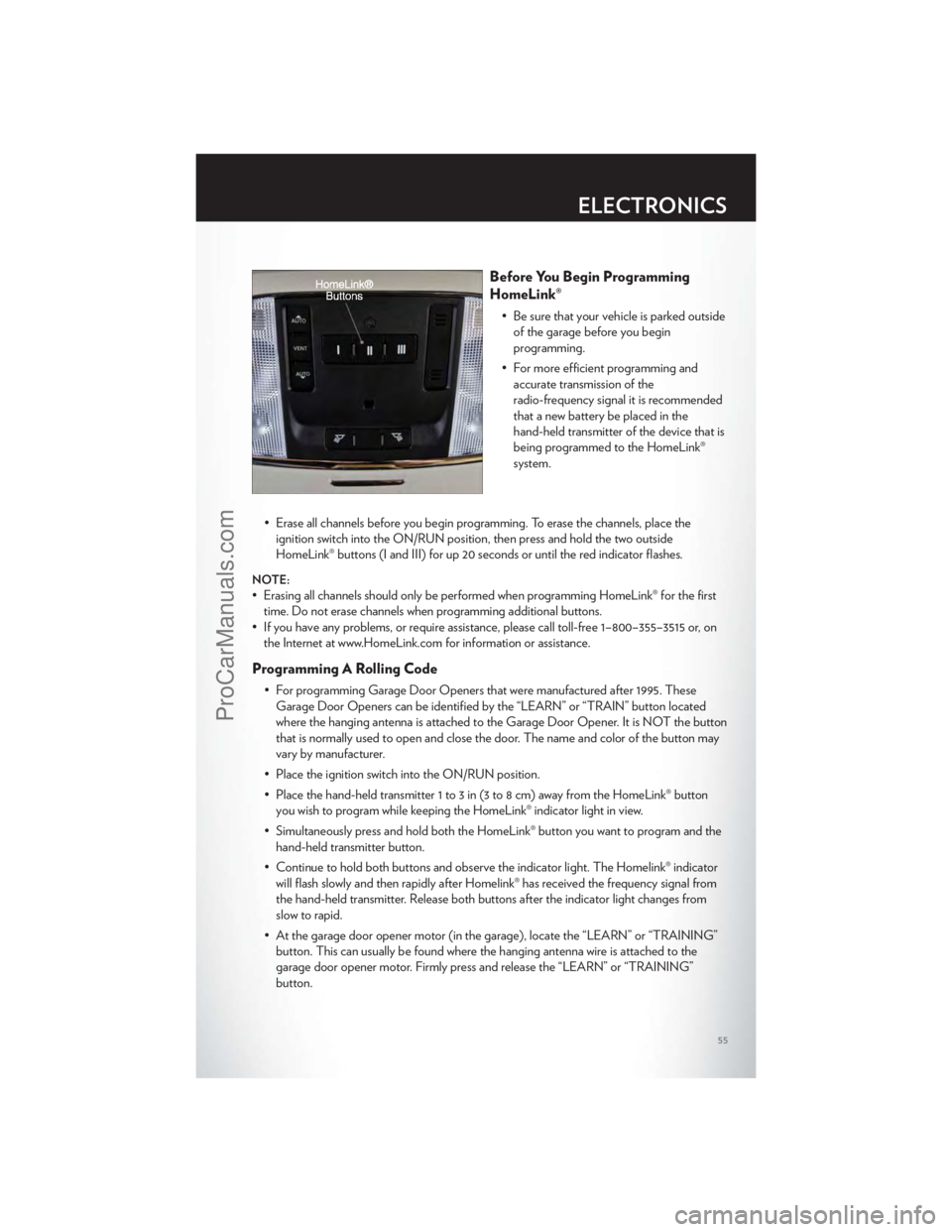
Before You Begin Programming
HomeLink®
• Be sure that your vehicle is parked outsideof the garage before you begin
programming.
• For more efficient programming and accurate transmission of the
radio-frequency signal it is recommended
that a new battery be placed in the
hand-held transmitter of the device that is
being programmed to the HomeLink®
system.
• Erase all channels before you begin programming. To erase the channels, place the ignition switch into the ON/RUN position, then press and hold the two outside
HomeLink® buttons (I and III) for up 20 seconds or until the red indicator flashes.
NOTE:
• Erasing all channels should only be performed when programming HomeLink® for the firsttime. Do not erase channels when programming additional buttons.
• If you have any problems, or require assistance, please call toll-free 1–800–355–3515 or, on the Internet at www.HomeLink.com for information or assistance.
Programming A Rolling Code
• For programming Garage Door Openers that were manufactured after 1995. TheseGarage Door Openers can be identified by the “LEARN” or “TRAIN” button located
where the hanging antenna is attached to the Garage Door Opener. It is NOT the button
that is normally used to open and close the door. The name and color of the button may
vary by manufacturer.
• Place the ignition switch into the ON/RUN position.
• Place the hand-held transmitter 1 to 3 in (3 to 8 cm) away from the HomeLink® button you wish to program while keeping the HomeLink® indicator light in view.
• Simultaneously press and hold both the HomeLink® button you want to program and the hand-held transmitter button.
• Continue to hold both buttons and observe the indicator light. The Homelink® indicator will flash slowly and then rapidly after Homelink® has received the frequency signal from
the hand-held transmitter. Release both buttons after the indicator light changes from
slow to rapid.
• At the garage door opener motor (in the garage), locate the “LEARN” or “TRAINING” button. This can usually be found where the hanging antenna wire is attached to the
garage door opener motor. Firmly press and release the “LEARN” or “TRAINING”
button.
ELECTRONICS
55
ProCarManuals.com
Page 76 of 116
WARNING!(Continued)
• The limited-use spare tires are for emergency use only. Installation of this limited-usespare tire affects vehicle handling. With this tire, do not drive more than 60 mph
(100 km/h). Keep inflated to the cold tire inflation pressure listed on either your tire
placard or limited-use spare tire and wheel assembly. Replace (or repair) the original tire
at the first opportunity and reinstall it on your vehicle. Failure to do so could result in loss
of vehicle control.
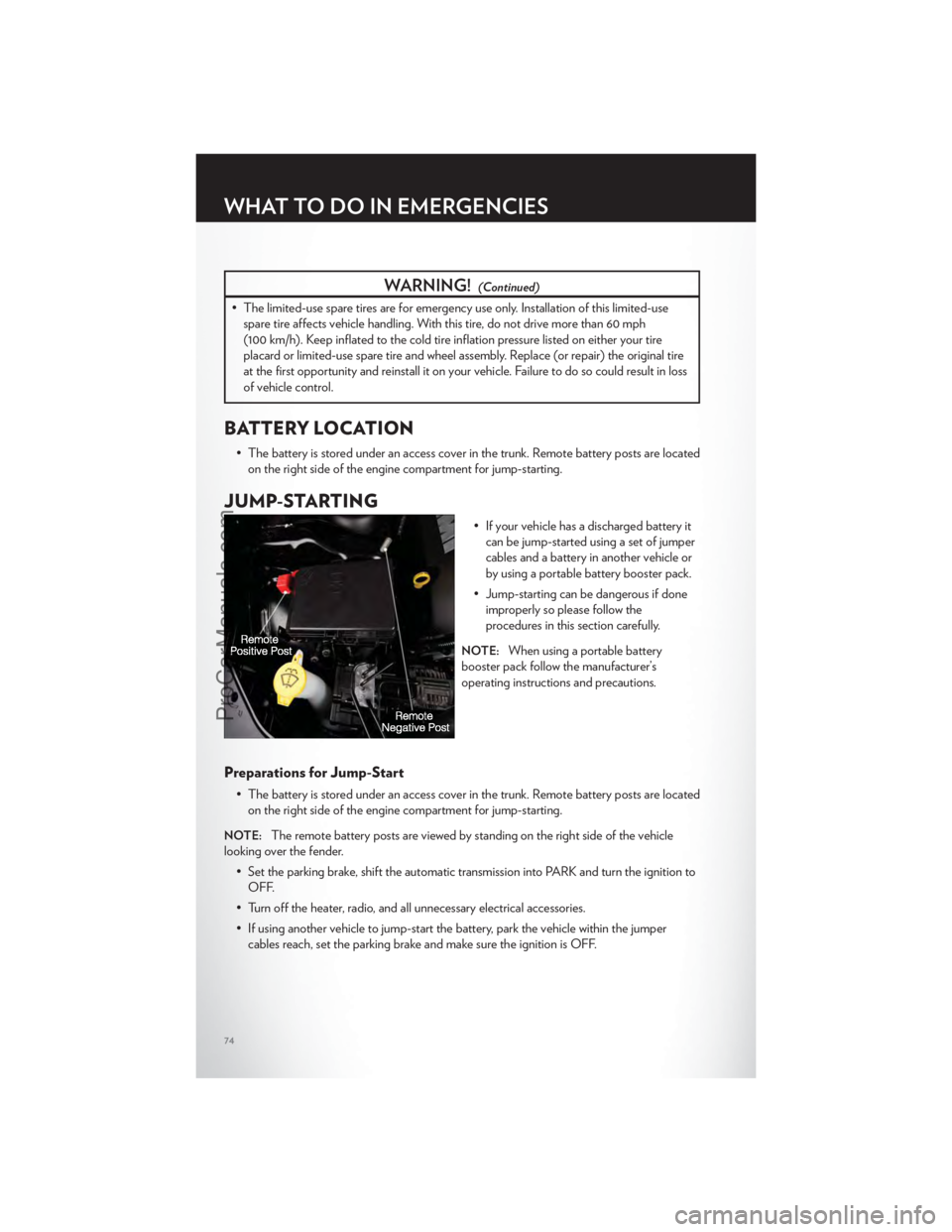
BATTERY LOCATION
• The battery is stored under an access cover in the trunk. Remote battery posts are locatedon the right side of the engine compartment for jump-starting.
JUMP-STARTING
• If your vehicle has a discharged battery itcan be jump-started using a set of jumper
cables and a battery in another vehicle or
by using a portable battery booster pack.
• Jump-starting can be dangerous if done improperly so please follow the
procedures in this section carefully.
NOTE:When using a portable battery
booster pack follow the manufacturer’s
operating instructions and precautions.
Preparations for Jump-Start
• The battery is stored under an access cover in the trunk. Remote battery posts are located on the right side of the engine compartment for jump-starting.
NOTE:The remote battery posts are viewed by standing on the right side of the vehicle
looking over the fender.
• Set the parking brake, shift the automatic transmission into PARK and turn the ignition toOFF.
• Turn off the heater, radio, and all unnecessary electrical accessories.
• If using another vehicle to jump-start the battery, park the vehicle within the jumper cables reach, set the parking brake and make sure the ignition is OFF.
WHAT TO DO IN EMERGENCIES
74
ProCarManuals.com
Page 100 of 116
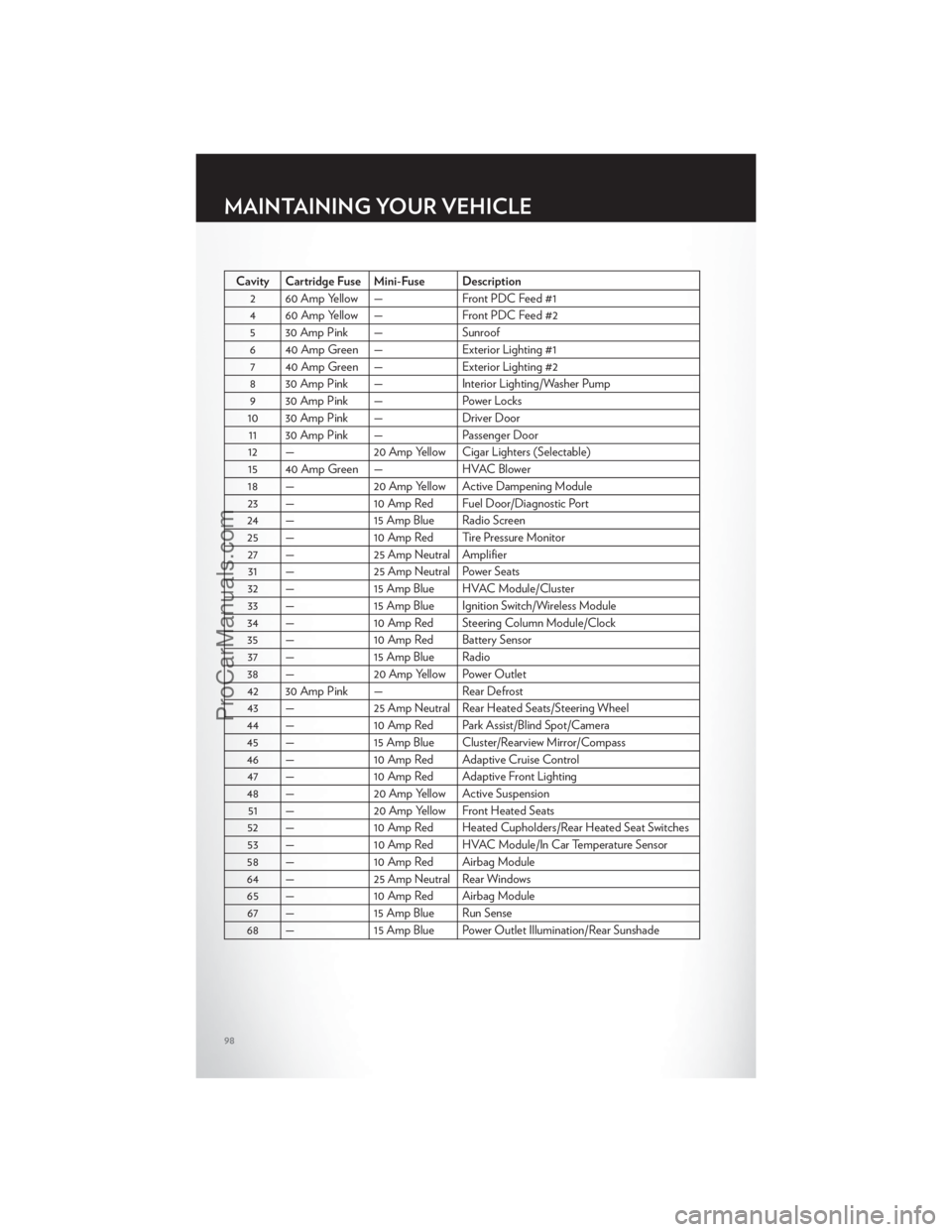
Cavity Cartridge Fuse Mini-Fuse Description2 60 Amp Yellow — Front PDC Feed #1
4 60 Amp Yellow — Front PDC Feed #2 5 30 Amp Pink — Sunroof
6 40 Amp Green — Exterior Lighting #1 7 40 Amp Green — Exterior Lighting #2
8 30 Amp Pink — Interior Lighting/Washer Pump 9 30 Amp Pink — Power Locks
10 30 Amp Pink — Driver Door 11 30 Amp Pink — Passenger Door
12 — 20 Amp Yellow Cigar Lighters (Selectable)
15 40 Amp Green — HVAC Blower
18 — 20 Amp Yellow Active Dampening Module
23 — 10 Amp Red Fuel Door/Diagnostic Port
24 — 15 Amp Blue Radio Screen 25 — 10 Amp Red Tire Pressure Monitor 27 — 25 Amp Neutral Amplifier 31 — 25 Amp Neutral Power Seats
32 — 15 Amp Blue HVAC Module/Cluster 33 — 15 Amp Blue Ignition Switch/Wireless Module
34 — 10 Amp Red Steering Column Module/Clock 35 — 10 Amp Red Battery Sensor 37 — 15 Amp Blue Radio
38 — 20 Amp Yellow Power Outlet
42 30 Amp Pink — Rear Defrost 43 — 25 Amp Neutral Rear Heated Seats/Steering Wheel
44 — 10 Amp Red Park Assist/Blind Spot/Camera 45 — 15 Amp Blue Cluster/Rearview Mirror/Compass
46 — 10 Amp Red Adaptive Cruise Control 47 — 10 Amp Red Adaptive Front Lighting
48 — 20 Amp Yellow Active Suspension 51 — 20 Amp Yellow Front Heated Seats
52 — 10 Amp Red Heated Cupholders/Rear Heated Seat Switches 53 — 10 Amp Red HVAC Module/In Car Temperature Sensor
58 — 10 Amp Red Airbag Module
64 — 25 Amp Neutral Rear Windows 65 — 10 Amp Red Airbag Module 67 — 15 Amp Blue Run Sense
68 — 15 Amp Blue Power Outlet Illumination/Rear Sunshade
MAINTAINING YOUR VEHICLE
98
ProCarManuals.com
Page 103 of 116
CHRYSLER GROUP LLC CUSTOMER CENTER
P.O. Box 21–8004
Auburn Hills, MI 48321–8004
Phone: 1–800–247–9753
CHRYSLER CANADA INC. CUSTOMER CENTER
P.O. Box 1621
Windsor, Ontario N9A 4H6
Phone: 1–800–465–2001 (English)
Phone: 1–800–387–9983 (French)
ASSISTANCE FOR THE HEARING IMPAIRED
• To assist customers who have hearing difficulties, the manufacturer has installed specialTDD (Telecommunication Devices for the Deaf ) equipment at its customer center. Any
hearing or speech impaired customer, who has access to a TDD or a conventional
teletypewriter (TTY) in the United States, can communicate with the manufacturer by
dialing 1–800–380–CHRY. Canadian residents with hearing difficulties that require
assistance can use the special needs relay service offered by Bell Canada. For TTY
teletypewriter users, dial 711 and for Voice callers, dial 1–800–855–0511 to connect with a
Bell Relay Service operator.
WARNING!
Engine exhaust, some of its constituents, and certain vehicle components contain, or emit,
chemicals known to the State of California to cause cancer and birth defects, or other
reproductive harm. In addition, certain fluids contained in vehicles and certain products of
component wear contain, or emit, chemicals known to the State of California to cause
cancer and birth defects, or other reproductive harm.
PUBLICATIONS ORDERING
•If you are the first registered retail owner of your vehicle,you may obtain one free
printed copy of the Owner's Manual, Warranty Booklet or Radio Manuals on your DVD by
calling 1–800–247–9753 (U.S.) or 1–800–387–1143 (Canada) or by contacting your dealer.
• Replacement User Guide kits or DVDs or, if you prefer, additional printed copies of the Owner's Manual, Warranty Booklet or Radio Manuals may be purchased by visiting
www.techauthority.com or by calling 1–800–890–4038 (U.S.) or 1–800–387–1143
(Canada). Visa, Master Card, American Express and Discover orders are accepted. If you
prefer mailing your order, please call the above numbers for an order form.
NOTE:A street address is required when ordering manuals (no P.O. Boxes).
CONSUMER ASSISTANCE
101
ProCarManuals.com
Page 107 of 116
Indicators.................7
Instrument Cluster Warning Lights ....6,64
Intermittent Wipers (Delay Wipers) ....23
Introduction .................2
iPod®/USB/MP3 Control .........46
Bluetooth Streaming Audio .......47
Jack Location ...............69
Jack Operation ..............71
Jacking Instructions ............71
Jump Starting ...............74
KeyFob...................8
Keyless Enter-N-Go ............9
Lock/Unlock ...............9
Starting/Stopping ............10
Lane Change Assist ............23
LATCH (Lower Anchors and Tether for
CHildren) .................14
Lights TurnSignal ...............23
Warning (Instrument Cluster
Description) ...............6
Maintenance Record ..........92,94
Maintenance Schedule .........90,93
Memory Seat ...............16
Mirrors Heated .................32
MOPAR® Accessories ..........103
Navigation .................41
Navigation Voice Commands .......52
New Vehicle Break-In Period ........22
Oil Change Indicator ...........67
Oil, Engine Capacity ................87
Outlet Power ..................57
Overheating, Engine ...........68
Panic Alarm .................8
Pedals, Adjustable .............20 Phone (Pairing)
..............48
Phone (Uconnect) .............47
Placard, Tire and Loading Information . . . 99
Power Glass Sunroof ..............33
Outlet (Auxiliary Electrical Outlet) . . . 57
Seats ..................16
Steering .................87
Tilt/Telescoping Steering Column ....21
Preparation for Jacking ..........70
Programmable Electronic Features . . . 54,61
Radio Operation ..............38
Rain Sensitive Wiper System ........23
Rear Heated Seats .............19
Rear Seat, Folding .............18
Recreational Towing ............59
Remote Starting System ..........8
Replacement Bulbs ............100
Reporting Safety Defects .........102
Restraints, Child ..............14
Seat Belts .................12
Seats ....................16
Ad
justment ...............17
Heated .................18
Lumbar Support .............16
Memory.................16
Power ..................16
Rear Folding ..............18
Setting the Clock .............37
Shift Lever Override ............76
Signals, Turn ................23
SIRIUSTravelLink .............45
SmartBeams ................24
SpareTire .................69
Spark Plugs ................87
Speed Control (Cruise Control) ......25
Starting Remote .................8
Steering Tilt Column ...............20
Store Radio Presets ............38
SunRoof..................33
Supplemental Restraint System - Airbag . . 13
Temperature Gauge, Engine Coolant . . . 68
INDEX
105
ProCarManuals.com