steering CHRYSLER 300 S 2012 User Guide
[x] Cancel search | Manufacturer: CHRYSLER, Model Year: 2012, Model line: 300 S, Model: CHRYSLER 300 S 2012Pages: 116, PDF Size: 3.21 MB
Page 48 of 116
PLAYING iPod/USB/MP3 DEVICES
• There are many ways to play music from iPod®/MP3 players or USB devices through yourvehicle's sound system.
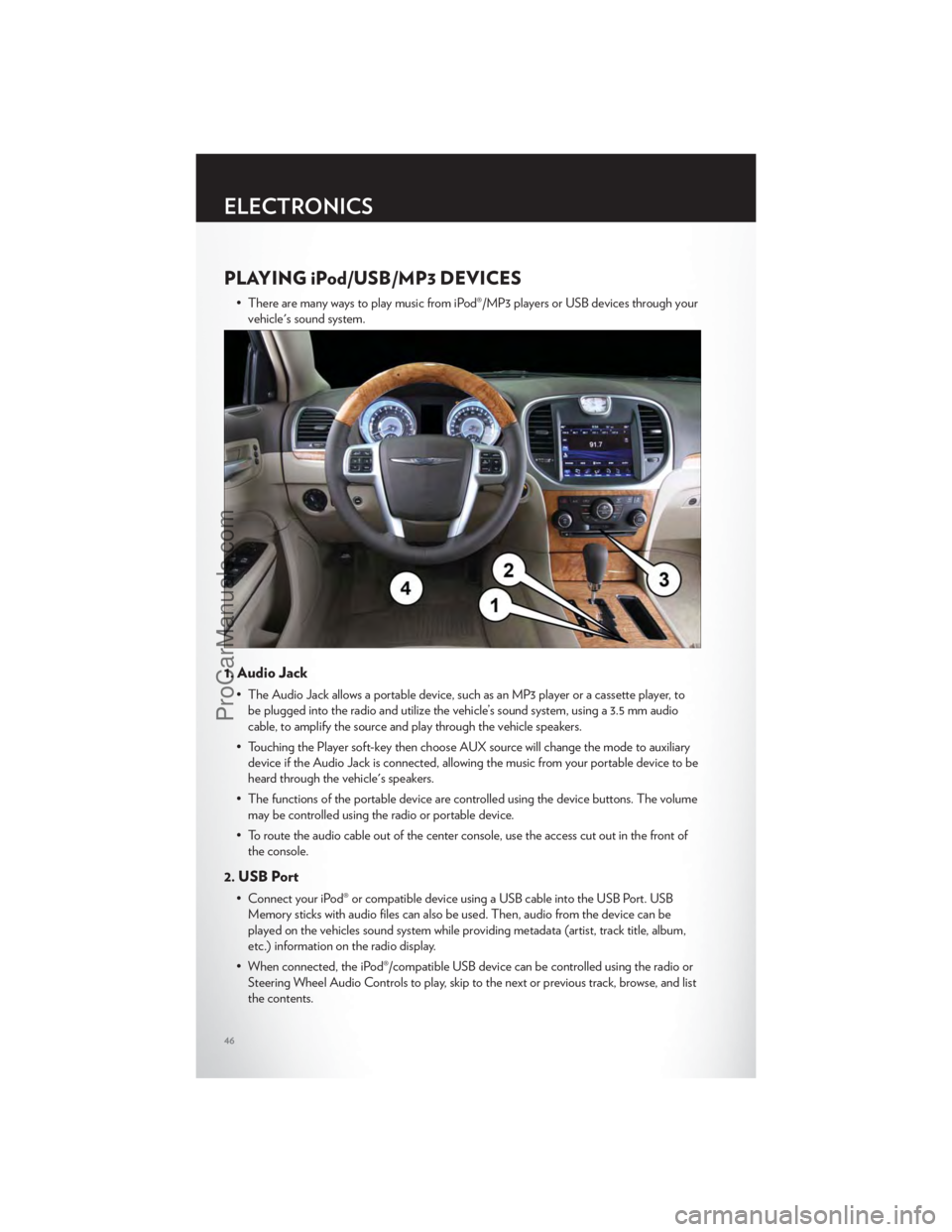
1. Audio Jack
• The Audio Jack allows a portable device, such as an MP3 player or a cassette player, tobe plugged into the radio and utilize the vehicle’s sound system, using a 3.5 mm audio
cable, to amplify the source and play through the vehicle speakers.
• Touching the Player soft-key then choose AUX source will change the mode to auxiliary device if the Audio Jack is connected, allowing the music from your portable device to be
heard through the vehicle's speakers.
• The functions of the portable device are controlled using the device buttons. The volume may be controlled using the radio or portable device.
• To route the audio cable out of the center console, use the access cut out in the front of the console.
2. USB Port
• Connect your iPod® or compatible device using a USB cable into the USB Port. USBMemory sticks with audio files can also be used. Then, audio from the device can be
played on the vehicles sound system while providing metadata (artist, track title, album,
etc.) information on the radio display.
• When connected, the iPod®/compatible USB device can be controlled using the radio or Steering Wheel Audio Controls to play, skip to the next or previous track, browse, and list
the contents.
ELECTRONICS
46
ProCarManuals.com
Page 49 of 116
• The iPod® battery charges when plugged into the USB port (if supported by the specificdevice).
• To route the USB/iPod® cable out of the center console, use the access cut out in the front of the console.
NOTE:
• When connecting your iPod® device for the first time, the system may take several minutesto read your music, depending on the number of files. For example, the system will take
approximately 5 minutes for every 1000 songs loaded on the device. Also during the
reading process, the Shuffle and Browse functions will be disabled. This process is needed to
ensure the full use of your iPod® features and only happens the first time it is connected.
After the first time, the reading process of your iPod® will take considerably less time unless
changes are made or new songs are added to the playlist.
• The USB port supports certain Mini, Classic, Nano, Touch, and iPhone® devices. The USB port also supports playing music from compatible external USB Mass Storage Class
memory devices. Some iPod® software versions may not fully support the USB port features.
Please visit Apple’s website for iPod® software updates.
3. SD Card
• Play songs stored on an SD card inserted into the SD card slot.
• Song playback can be controlled using the radio or Steering Wheel Audio Controls toplay, skip to the next or previous track, browse, and list the contents.
4. Bluetooth® Streaming Audio
• If equipped with Uconnect™ Voice Command, your Bluetooth-equipped iPod® devices,cell phones or other media players, may also be able to stream music to your vehicle's
sound system. Your connected device must be Bluetooth-compatible, and paired with
your Uconnect Touch® system (see Uconnect™ Phone for pairing instructions). You can
access the music from your connected Bluetooth® device by touching the Source soft-key
while in Player mode.
Uconnect™ Phone (Bluetooth® HANDS FREE CALLING)
• If the Uconnect™ PhoneButton exists on your steering wheel, then you have the
Uconnect™ Phone features.
• The Uconnect™ Phone is a voice-activated, hands-free, in-vehicle communications system with Voice Command Capability (see Voice Command section).
• The Uconnect™ Phone allows you to dial a phone number with your mobile phone using simple voice commands or using screen soft-keys.
• Refer to the Understand The Features Of Your Vehicle section of your vehicle's Owner's Manual on the DVD for further details.
NOTE:The Uconnect™ Phone requires a mobile phone equipped with the Bluetooth®
Hands-Free Profile, Version 1.0 or higher. For Uconnect™ customer support, call
1–877–855–8400 or visit www.chrysler.com/uconnect.
ELECTRONICS
47
ProCarManuals.com
Page 50 of 116
Pairing a Phone
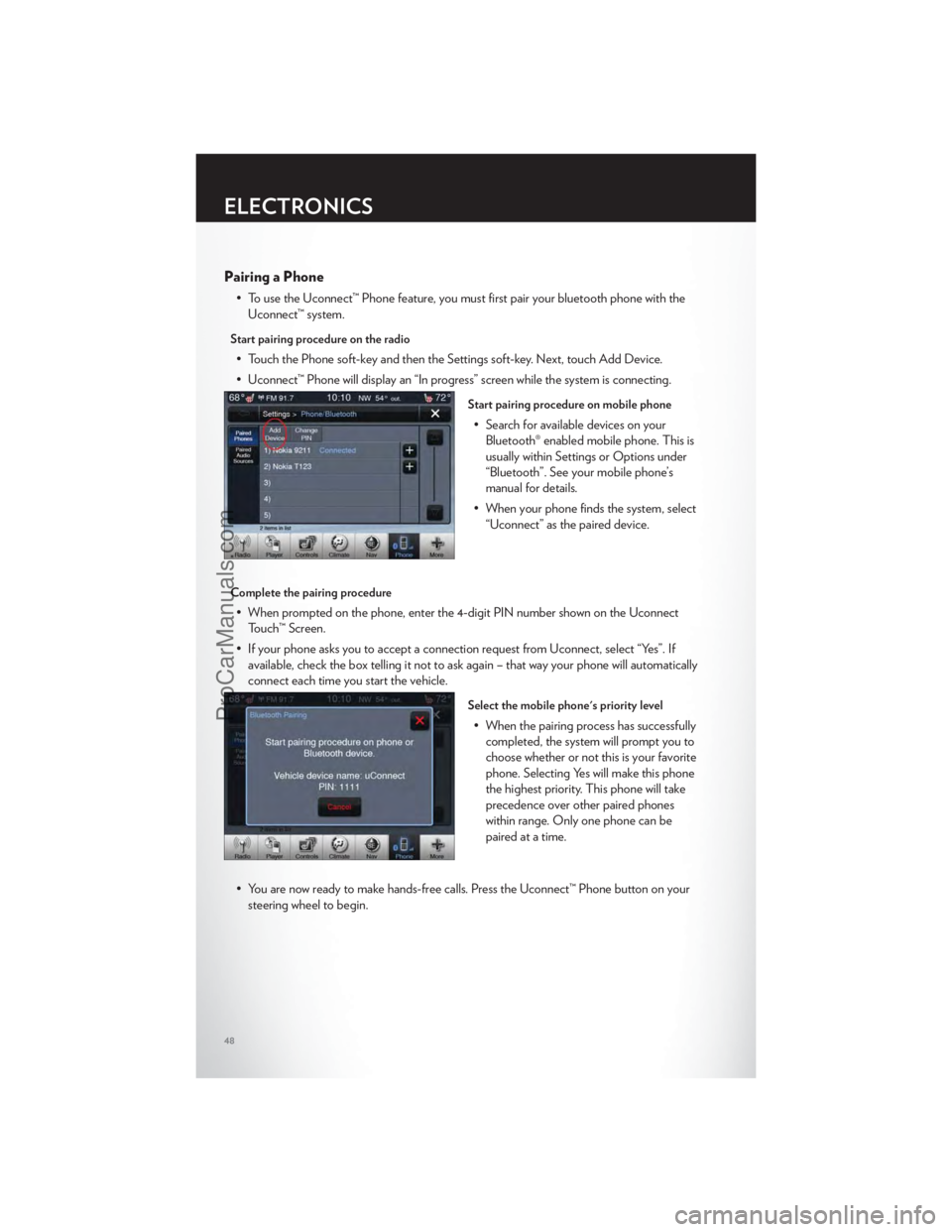
• To use the Uconnect™ Phone feature, you must first pair your bluetooth phone with theUconnect™ system.
Start pairing procedure on the radio
• Touch the Phone soft-key and then the Settings soft-key. Next, touch Add Device.
• Uconnect™ Phone will display an “In progress” screen while the system is connecting.
Start pairing procedure on mobile phone
• Search for available devices on yourBluetooth® enabled mobile phone. This is
usually within Settings or Options under
“Bluetooth”. See your mobile phone’s
manual for details.
• When your phone finds the system, select “Uconnect” as the paired device.
Complete the pairing procedure
• When prompted on the phone, enter the 4-digit PIN number shown on the UconnectTouch™ Screen.
• If your phone asks you to accept a connection request from Uconnect, select “Yes”. If available, check the box telling it not to ask again – that way your phone will automatically
connect each time you start the vehicle.
Select the mobile phone's priority level
• When the pairing process has successfullycompleted, the system will prompt you to
choose whether or not this is your favorite
phone. Selecting Yes will make this phone
the highest priority. This phone will take
precedence over other paired phones
within range. Only one phone can be
paired at a time.
• You are now ready to make hands-free calls. Press the Uconnect™ Phone button on your steering wheel to begin.
ELECTRONICS
48
ProCarManuals.com
Page 52 of 116
Common Phone Commands
Common Phone Commands (Examples)
“Call John Smith”
“Call John Smith mobile”
“Dial 1 248 555 1212”
“Call Emergency”
“Call Towing Assistance”
“Redial”
Phonebook
• Uconnect Touch™ radios will automatically download your phonebook from your pairedphone, if this feature is supported by your phone. Entries are updated each time that the
phone is paired. If your phone book entries do not appear, check the settings on your
phone. Some phones require you to enable this feature manually.
• Your phone book can be browsed on your radio screen, but editing can only be done on your phone. To browse, touch the Phone soft-key, then the Phonebook soft-key.
• Favorite phonebook entries can be saved as Favorites for quicker access. Favorites are shown at the top of your main phone screen.
Voice Recognition Tips
• Use longer names that are less easily mistaken for others. For examples, say “Call JohnDoe” instead of “Call John”.
• You can “chain” commands together for faster results. Say “Call John Doe, mobile”, for example.
• You can “barge in” while the system is talking to you, enabling you to enter your response without waiting. Just press the Voice Command button on the steering wheel to barge in.
Changing The Volume
• Start a dialogue by pressing the Phone button, then say a command for example -
"Help".
• Use the radio ON/OFF VOLUME rotary knob to adjust the volume to a comfortable level while the Uconnect™ system is speaking. Please note the volume setting for
Uconnect™ is different than the audio system.
NOTE:To access help, press the Uconnect™ Phonebutton on the steering wheel and
say "help." Touch the display or push either
orbutton and say "cancel" to cancel
the help session.
WARNING!
• Any voice commanded system should be used only in safe driving conditions following local laws and phone use. All attention should be kept on the roadway ahead. Failure to
do so may result in a collision causing you and others to be severely injured or killed.
(Continued)
ELECTRONICS
50
ProCarManuals.com
Page 53 of 116
WARNING!(Continued)
• In an emergency, to use Uconnect™ Phone, your mobile phone must be:• turned on,
• paired to Uconnect™ Phone,
• and have network coverage.
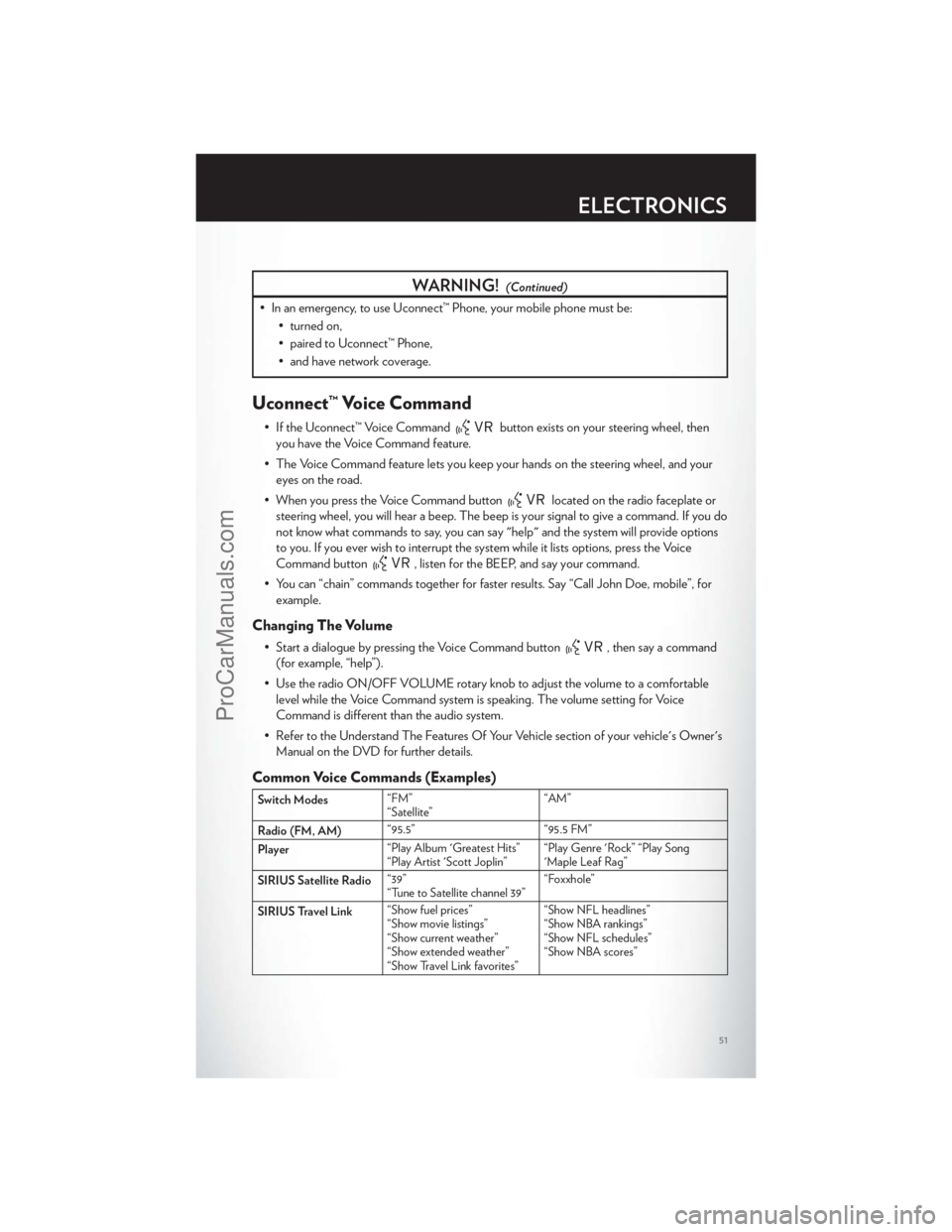
Uconnect™ Voice Command
• If the Uconnect™ Voice Commandbutton exists on your steering wheel, then
you have the Voice Command feature.
• The Voice Command feature lets you keep your hands on the steering wheel, and your eyes on the road.
• When you press the Voice Command button
located on the radio faceplate or
steering wheel, you will hear a beep. The beep is your signal to give a command. If you do
not know what commands to say, you can say "help" and the system will provide options
to you. If you ever wish to interrupt the system while it lists options, press the Voice
Command button
, listen for the BEEP, and say your command.
• You can “chain” commands together for faster results. Say “Call John Doe, mobile”, for example.
Changing The Volume
• Start a dialogue by pressing the Voice Command button, then say a command
(for example, “help”).
• Use the radio ON/OFF VOLUME rotary knob to adjust the volume to a comfortable level while the Voice Command system is speaking. The volume setting for Voice
Command is different than the audio system.
• Refer to the Understand The Features Of Your Vehicle section of your vehicle's Owner's Manual on the DVD for further details.
Common Voice Commands (Examples)
Switch Modes “FM”
“Satellite” “AM”
Radio (FM, AM) “95.5”
“95.5 FM”
Player “Play Album 'Greatest Hits”
“Play Artist 'Scott Joplin” “Play Genre 'Rock” “Play Song
'Maple Leaf Rag”
SIRIUS Satellite Radio “39”
“Tune to Satellite channel 39” “Foxxhole”
SIRIUS Travel Link “Show fuel prices”
“Show movie listings”
“Show current weather”
“Show extended weather”
“Show Travel Link favorites” “Show NFL headlines”
“Show NBA rankings”
“Show NFL schedules”
“Show NBA scores”
ELECTRONICS
51
ProCarManuals.com
Page 55 of 116
ELECTRONIC VEHICLE INFORMATION CENTER
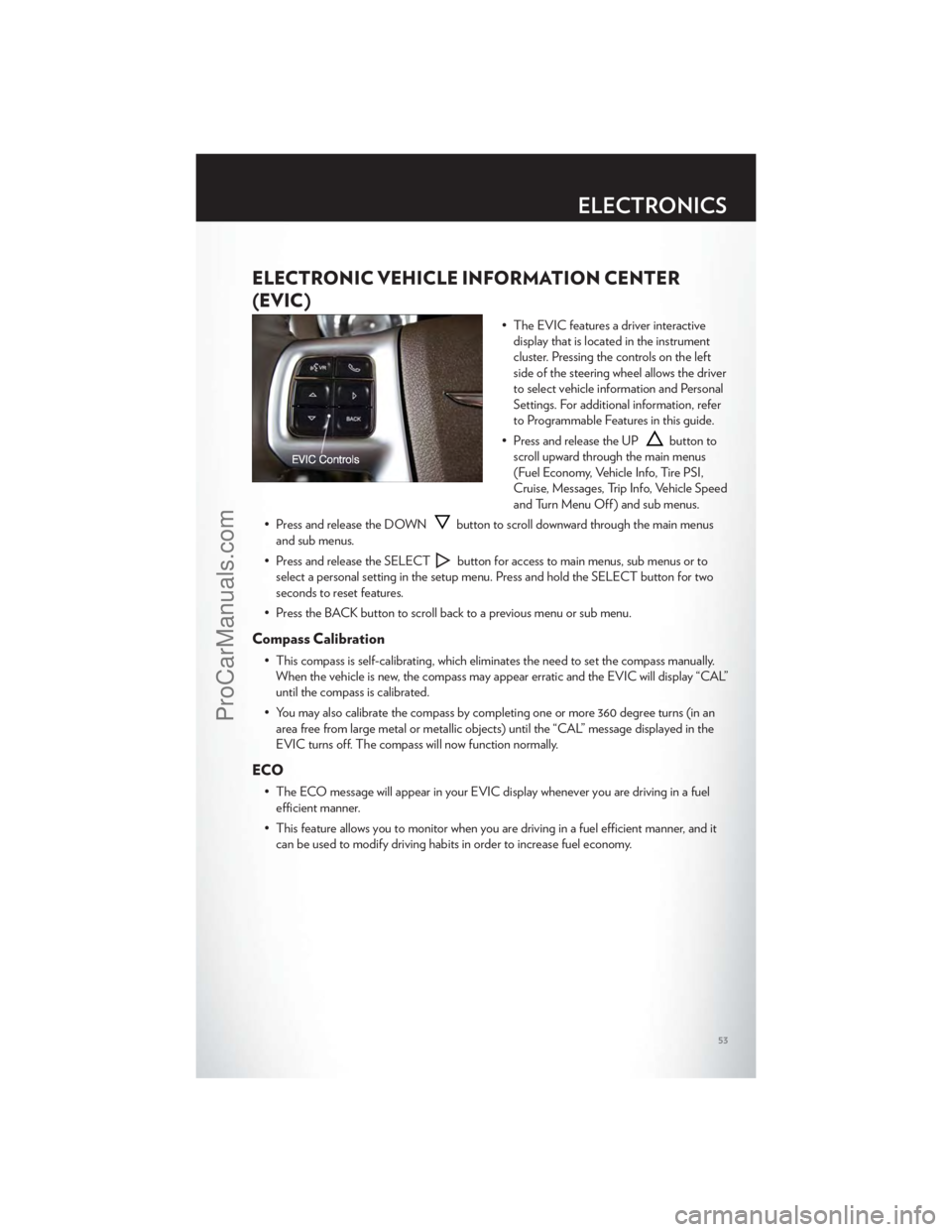
(EVIC)
• The EVIC features a driver interactivedisplay that is located in the instrument
cluster. Pressing the controls on the left
side of the steering wheel allows the driver
to select vehicle information and Personal
Settings. For additional information, refer
to Programmable Features in this guide.
• Press and release the UP
button to
scroll upward through the main menus
(Fuel Economy, Vehicle Info, Tire PSI,
Cruise, Messages, Trip Info, Vehicle Speed
and Turn Menu Off ) and sub menus.
• Press and release the DOWN
button to scroll downward through the main menus
and sub menus.
• Press and release the SELECT
button for access to main menus, sub menus or to
select a personal setting in the setup menu. Press and hold the SELECT button for two
seconds to reset features.
• Press the BACK button to scroll back to a previous menu or sub menu.
Compass Calibration
• This compass is self-calibrating, which eliminates the need to set the compass manually. When the vehicle is new, the compass may appear erratic and the EVIC will display “CAL”
until the compass is calibrated.
• You may also calibrate the compass by completing one or more 360 degree turns (in an area free from large metal or metallic objects) until the “CAL” message displayed in the
EVIC turns off. The compass will now function normally.
ECO
• The ECO message will appear in your EVIC display whenever you are driving in a fuelefficient manner.
• This feature allows you to monitor when you are driving in a fuel efficient manner, and it can be used to modify driving habits in order to increase fuel economy.
ELECTRONICS
53
ProCarManuals.com
Page 62 of 116
AUTOSTICK®
Steering Wheel Mounted Paddle Shifters Or Console Mounted Shifter
• AutoStick® is a driver-interactive transmission feature that offers manual gear shifting toprovide you with more control of the vehicle. AutoStick® allows you to maximize engine
braking, and improve overall vehicle performance.
• This system can also provide you with more control during passing, city driving, cold slippery conditions, mountain driving, trailer towing, and many other situations.
Operation
• When the shift lever is in the DRIVE position, the transmission will operate automatically,shifting between the five available gears. To engage AutoStick®, simply move the shift
lever to the right or left (+/-) while in the DRIVE position, or press one of the steering
wheel mounted shift paddles (+/-). When AutoStick® is active, the current transmission
gear is displayed in the Electronic Vehicle Information Center (EVIC) portion of the
instrument cluster. In AutoStick® mode, the transmission will shift when manually selected
by the driver (using the shift lever, or the shift paddles), unless an engine lugging or
overspeed condition would result. It will remain in the selected gear until another upshift
or downshift is chosen, except as described below:
• The transmission will automatically downshift as the vehicle slows (to prevent engine lugging) and will display the current gear.
• The transmission will automatically downshift to first gear when coming to a stop.
• You can start out in first or second gear. Tapping (+) (at a stop) will allow starting in second gear. Starting out in second gear is helpful in snowy or icy conditions.
• The system will ignore attempts to upshift at too low of a vehicle speed.
• Transmission shifting will be more noticeable when AutoStick® is engaged. To disengage AutoStick® mode, hold the shift lever to the right or press and hold the (+) shift paddle
until “D” is once again displayed in the instrument cluster. You can shift in or out of the
AutoStick® mode at any time without taking your foot off the accelerator pedal.
• An “UPSHIFT” message will appear in the Electronic Vehicle Information Center (EVIC) portion of the instrument cluster when using AutoStick®, to alert the driver to
upshift to the next gear. The “UPSHIFT” message will appear when approaching the
maximum engine speed.
Auto
• This is the default position when vehicle ignition is first turned on. This mode will give asporty, but comfortable ride. Within this mode, the suspension will adapt to the vehicle
inputs, including vehicle speed, steering inputs, braking and acceleration.
• If AutoStick® is engaged while in “Auto” mode, the transmission will automatically shift up if maximum engine speed is reached.
• Heavily pressing the accelerator pedal may generate an automatic downshift for improved acceleration.
• This mode should be used for most driving situations.
SRT8
60
ProCarManuals.com
Page 64 of 116
0-60 mph (0-100 km/h)
• When selected, this screen displays the time it takes for the vehicle to go from 0 to60 mph (0 to 100 km/h) within 10 seconds.
Braking Distance
• When selected, this screen displays the vehicle's braking distance and the speed at whichthe brake pedal was depressed.
1/8 Mile, 1/4 Mile
• When selected, this screen displays the time it takes the vehicle to travel 1/8 mile(1/4 mile) within 30 seconds and the vehicle's speed when it reaches 1/8 mile (1/4 mile).
Instantaneous G-Force
• When selected, this screen displays the current G-Force (lateral and longitudinal) alongwith a friction circle that displays the directions of the forces.
Peak G-Force
• When selected, this screen displays all four G-Force values (two lateral and twolongitudinal).
Uconnect Touch SRT8 Performance Features
• To access the SRT8 Performance Features, touch the “More” soft-key then touch the“SRT” soft-key. Press the UP or DOWN soft-key to cycle through the features. Press the
feature soft-key to select that feature.
• The Performance Page include the following:
• Timers • 1/8 Mile
• Engine Values • 1/4 Mile
• Digital Gauge Displays • Instantaneous G-Force
• 0-60 mph (0-100 km/h) • Peak G-Force
• Braking Distance • Digital Speedometer
Timers
0-60 mph (0-100 km/h), 1/8 Mile, 1/4 Mile • When selected, this screen displays the time it takes for the vehicle to go from 0 to60 mph (0 to 100 km/h), 1/8 mile or 1/4 mile.
Braking Distance • When selected, this screen displays the vehicle's braking distance and the speed at whichthe brake pedal was depressed.
G-Force
• When selected, this screen displays all four G-Force values (two lateral and twolongitudinal) as well as steering angle.
SRT8
62
ProCarManuals.com
Page 65 of 116
Gauges 1
• Oil Temperature
• Oil Pressure
• Battery Voltage
Gauges 2
• Coolant Temperature
• Oil Temperature
• Transmission Temperature
• Intake Air Temperature
• Oil Pressure
• Battery Voltage
Engine
• When selected, this screen displays miles per hour (mph), horsepower (hp), torque(ft/lb), oil pressure (psi) and gear selector values.
Handling
• When selected, this screen displays peak g-force, instantaneous g-force, steering and yawangles.
Options
• When selected, this screen allows you to choose a standard or customize display for yourSRT home page.
SPORTSport Mode
• To access the Sport Mode, touch the “Controls” soft-key then touch the “Sport” soft-key.When SPORT mode is enabled, a flag will light up in the instrument cluster.
• This mode provides performance based tuning with improved handling through an electronic controlled dampening system. This system reduces body roll and pitch in many
driving situations including cornering, acceleration and braking.
WARNING!
Measurement of vehicle statistics with the Performance Features is intended for
off-highway or off-road use only and should not be done on any public roadways. It is
recommended that these features be used in a controlled environment and within the limits
of the law. The capabilities of the vehicle as measured by the performance pages must
never be exploited in a reckless or dangerous manner, which can jeopardize the user’s safety
or the safety of others. Only a safe, attentive, and skillful driver can prevent accidents.
SRT8
63
ProCarManuals.com
Page 81 of 116
FREEING A STUCK VEHICLE
• If your vehicle becomes stuck in mud, sand or snow, it can often be moved by a rockingmotion. Turn your steering wheel right and left to clear the area around the front wheels.
Then, move the shift lever back and forth between REVERSE and DRIVE. Using minimal
accelerator pedal pressure to maintain the rocking motion, without spinning the wheels, is
most effective.
NOTE:If your vehicle is equipped with Electronic Stability Control (ESC) or Traction
Control
, turn the system off before attempting to “rock” the vehicle.
CAUTION!
• When “rocking” a stuck vehicle by moving between REVERSE and DRIVE, do not spin the wheels faster than 15 mph (24 km/h), or drivetrain damage may result.
• Revving the engine or spinning the wheels too fast may lead to transmission overheating and failure. It can also damage the tires. Do not spin the wheels above 30 mph (48 km/h)
while in gear (no transmission shifting occurring).
WARNING!
Fast spinning tires can be dangerous. Forces generated by excessive wheel speeds may
cause tire damage or failure. A tire could explode and injure someone. Do not spin your
vehicle's wheels faster than 30 mph (48 km/h) when you are stuck. Do not let anyone near
a spinning wheel, no matter what the speed.
WHAT TO DO IN EMERGENCIES
79
ProCarManuals.com