key CHRYSLER 300 SRT 2014 2.G Owner's Guide
[x] Cancel search | Manufacturer: CHRYSLER, Model Year: 2014, Model line: 300 SRT, Model: CHRYSLER 300 SRT 2014 2.GPages: 590, PDF Size: 4.08 MB
Page 130 of 590
•Hands Free text to speech listening of your incoming
SMS messages.
• Hands Free text messaging (“Send a message to John
Smith’s Mobile”).
• Redialing last dialed numbers (“Redial”).
• Calling Back the last incoming call number (“Call
Back”).
• View Call logs on screen (“Show incoming calls”,
“Show Outgoing calls”, “Show missed Calls”, “Show
Recent Calls”).
• Searching Contacts phone number (“Search for John
Smith Mobile”).
Screen Activated Features
• Dialing via Keypad using the touchscreen. •
Viewing and Calling contacts from Phonebooks dis-
played on the touchscreen.
• Setting Favorite Contact Phone numbers so they are
easily accessible on the Main Phone screen.
• Viewing and Calling contacts from Recent Call logs.
• Reviewing your recent Incoming SMS.
• Sending a text message via the touchscreen.
• Listen to Music on your Bluetooth® Device via the
touchscreen.
• Pairing up to 10 phones/audio devices for easy access
to connect to them quickly.
NOTE: Your phone must be capable of SMS messaging
via Bluetooth® for messaging features to work properly.
128 UNDERSTANDING THE FEATURES OF YOUR VEHICLE
Page 135 of 590
NOTE:
•You must have Bluetooth® enabled on your mobile
phone to complete this procedure.
• The vehicle must be in PARK.
To complete the pairing process, you will need to refer-
ence your mobile phone Owner’s Manual. The
Uconnect® website may also provide detailed instruc-
tions for pairing.
1. Press the “Phone” soft-key on the screen to begin.
2. If there is no phone currently connected with the system, a pop-up will appear. 3. Select “Yes” to begin the pairing process. Then, search
for available devices on your Bluetooth® enabled
mobile phone. When prompted on the phone, enter
the name and PIN shown on the Uconnect® screen.
• If “No” is selected, touch the “Settings” soft-key
from the Uconnect® Phone main screen.
Mobile Phone Pairing
3
UNDERSTANDING THE FEATURES OF YOUR VEHICLE 133
Page 136 of 590
•Touch the “Add Device” soft-key.
• Search for available devices on your Bluetooth®
enabled mobile phone. When prompted on the
phone, enter the name and PIN shown on the
Uconnect® screen.
• See step 4 to complete the process.
4. Uconnect® Phone will display an in progress screen while the system is connecting.
5. When the pairing process has successfully completed,the system will prompt you to choose whether or not
this is your favorite phone. Selecting “Yes” will make
this phone the highest priority. This phone will take
precedence over other paired phones within range.
Mobile Phone Pairing Progress
134 UNDERSTANDING THE FEATURES OF YOUR VEHICLE
Page 137 of 590
Pair Additional Mobile Phones
1. Touch the “Settings” soft-key from the Phone mainscreen.
2. Touch the “Add Device” soft-key.
3. Search for available devices on your Bluetooth® en- abled mobile phone. When prompted on the phone,
enter the name and PIN shown on the Uconnect®
screen.
4. Uconnect® Phone will display an in process screen while the system is connecting.
5. When the pairing process has successfully completed, the system will prompt you to choose whether or not
this is your favorite phone. Selecting “Yes” will make
this phone the highest priority. This phone will take
precedence over other paired phones within range. NOTE:
For phones which are not made a favorite, the
phone priority is determined by the order in which it was
paired. The latest phone paired will have the higher
priority.
You can also use the following VR commands to bring up
the Paired Phone screen from any screen on the radio:
• “Show Paired Phones”
• “Connect My Phone”
Pair A Bluetooth® Streaming Audio Device
1. Touch the “Player” soft-key to begin.
2. Change the Source to Bluetooth®.
3. Touch the “Bluetooth®” soft-key to display the Paired
Audio Devices screen.
4. Touch the “Add Device” soft-key.
3
UNDERSTANDING THE FEATURES OF YOUR VEHICLE 135
Page 138 of 590
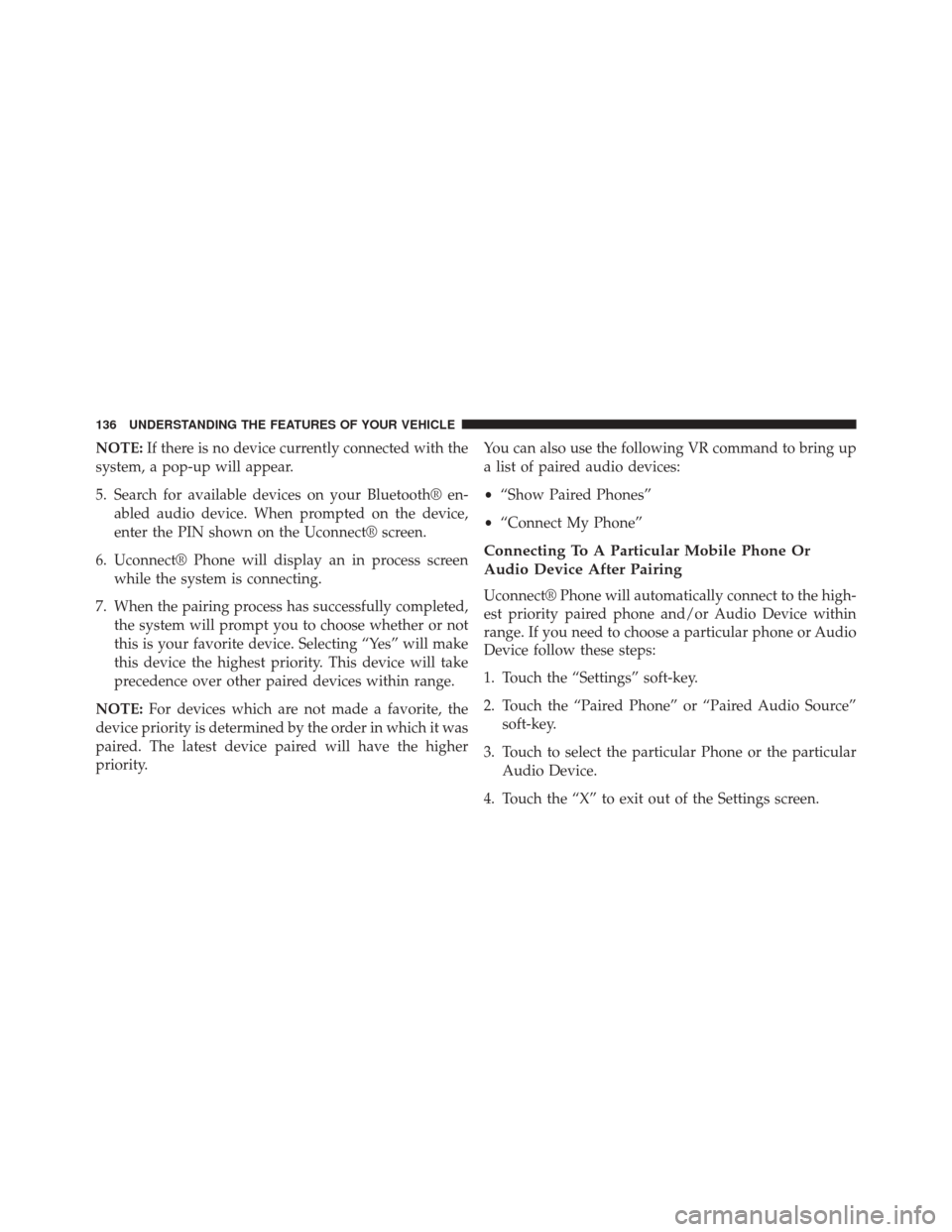
NOTE:If there is no device currently connected with the
system, a pop-up will appear.
5. Search for available devices on your Bluetooth® en- abled audio device. When prompted on the device,
enter the PIN shown on the Uconnect® screen.
6. Uconnect® Phone will display an in process screen while the system is connecting.
7. When the pairing process has successfully completed, the system will prompt you to choose whether or not
this is your favorite device. Selecting “Yes” will make
this device the highest priority. This device will take
precedence over other paired devices within range.
NOTE: For devices which are not made a favorite, the
device priority is determined by the order in which it was
paired. The latest device paired will have the higher
priority. You can also use the following VR command to bring up
a list of paired audio devices:
•
“Show Paired Phones”
• “Connect My Phone”
Connecting To A Particular Mobile Phone Or
Audio Device After Pairing
Uconnect® Phone will automatically connect to the high-
est priority paired phone and/or Audio Device within
range. If you need to choose a particular phone or Audio
Device follow these steps:
1. Touch the “Settings” soft-key.
2. Touch the “Paired Phone” or “Paired Audio Source”
soft-key.
3. Touch to select the particular Phone or the particular Audio Device.
4. Touch the “X” to exit out of the Settings screen.
136 UNDERSTANDING THE FEATURES OF YOUR VEHICLE
Page 139 of 590
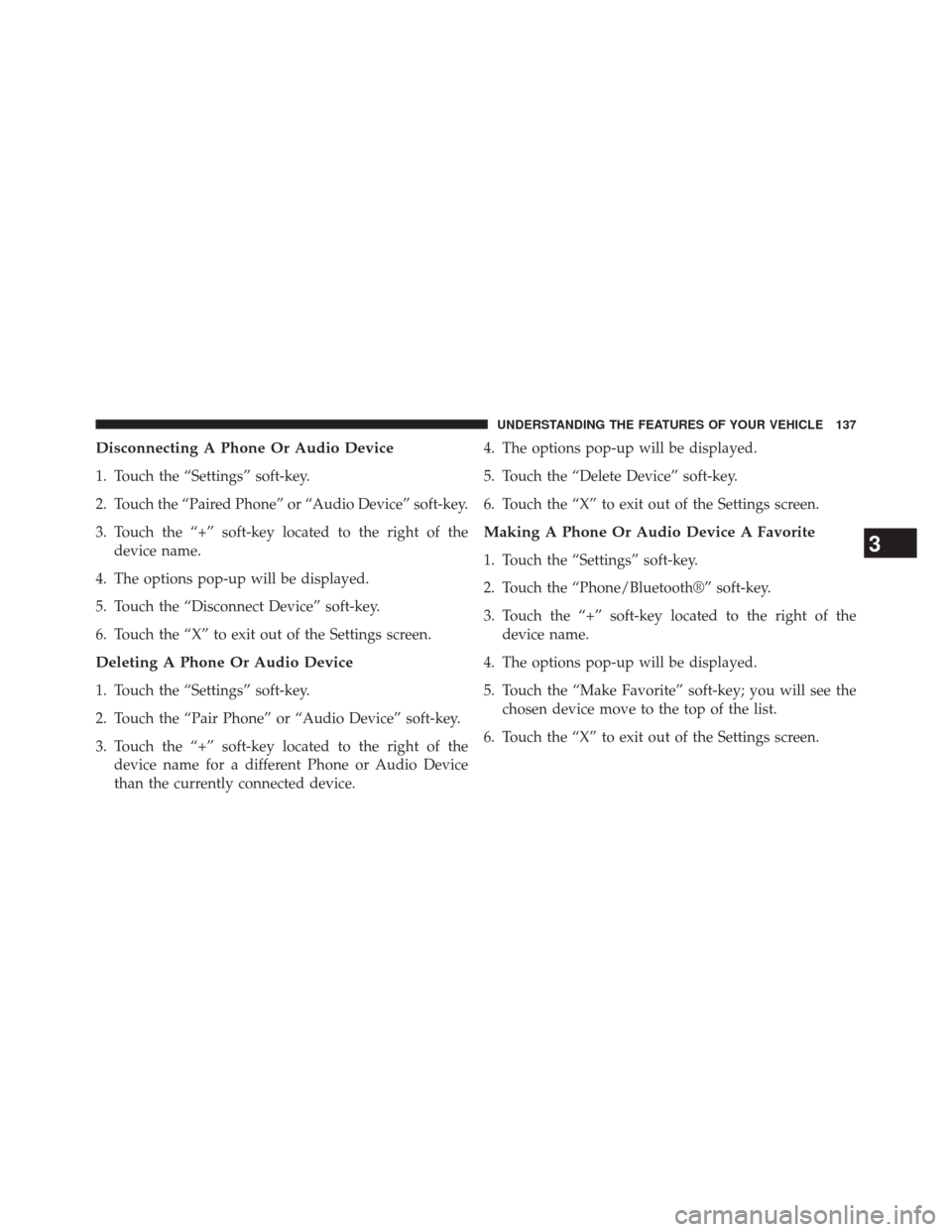
Disconnecting A Phone Or Audio Device
1. Touch the “Settings” soft-key.
2. Touch the “Paired Phone” or “Audio Device” soft-key.
3. Touch the “+” soft-key located to the right of thedevice name.
4. The options pop-up will be displayed.
5. Touch the “Disconnect Device” soft-key.
6. Touch the “X” to exit out of the Settings screen.
Deleting A Phone Or Audio Device
1. Touch the “Settings” soft-key.
2. Touch the “Pair Phone” or “Audio Device” soft-key.
3. Touch the “+” soft-key located to the right of the device name for a different Phone or Audio Device
than the currently connected device. 4. The options pop-up will be displayed.
5. Touch the “Delete Device” soft-key.
6. Touch the “X” to exit out of the Settings screen.
Making A Phone Or Audio Device A Favorite
1. Touch the “Settings” soft-key.
2. Touch the “Phone/Bluetooth®” soft-key.
3. Touch the “+” soft-key located to the right of the
device name.
4. The options pop-up will be displayed.
5. Touch the “Make Favorite” soft-key; you will see the chosen device move to the top of the list.
6. Touch the “X” to exit out of the Settings screen.3
UNDERSTANDING THE FEATURES OF YOUR VEHICLE 137
Page 141 of 590
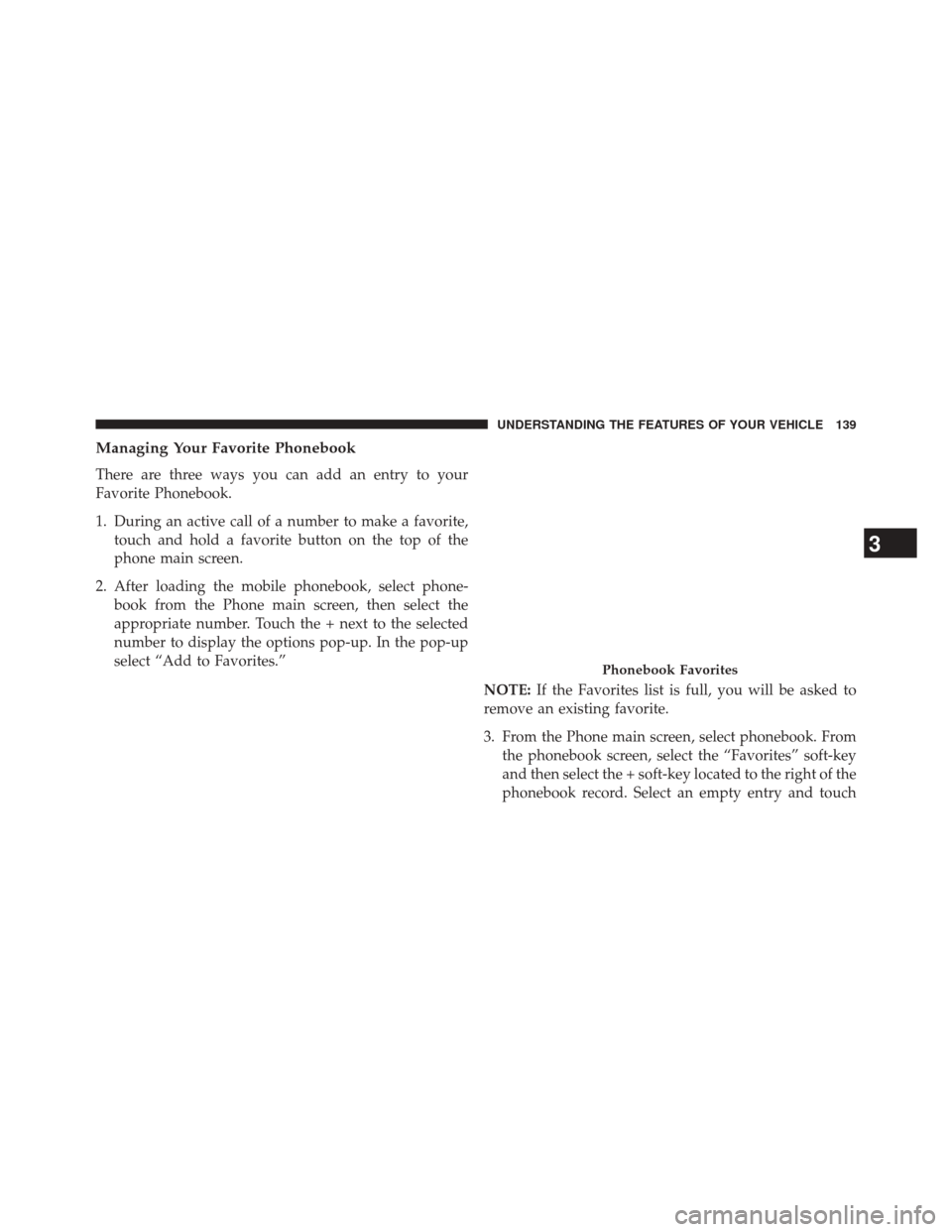
Managing Your Favorite Phonebook
There are three ways you can add an entry to your
Favorite Phonebook.
1. During an active call of a number to make a favorite,touch and hold a favorite button on the top of the
phone main screen.
2. After loading the mobile phonebook, select phone- book from the Phone main screen, then select the
appropriate number. Touch the + next to the selected
number to display the options pop-up. In the pop-up
select “Add to Favorites.”
NOTE:If the Favorites list is full, you will be asked to
remove an existing favorite.
3. From the Phone main screen, select phonebook. From the phonebook screen, select the “Favorites” soft-key
and then select the + soft-key located to the right of the
phonebook record. Select an empty entry and touch
Phonebook Favorites
3
UNDERSTANDING THE FEATURES OF YOUR VEHICLE 139
Page 142 of 590
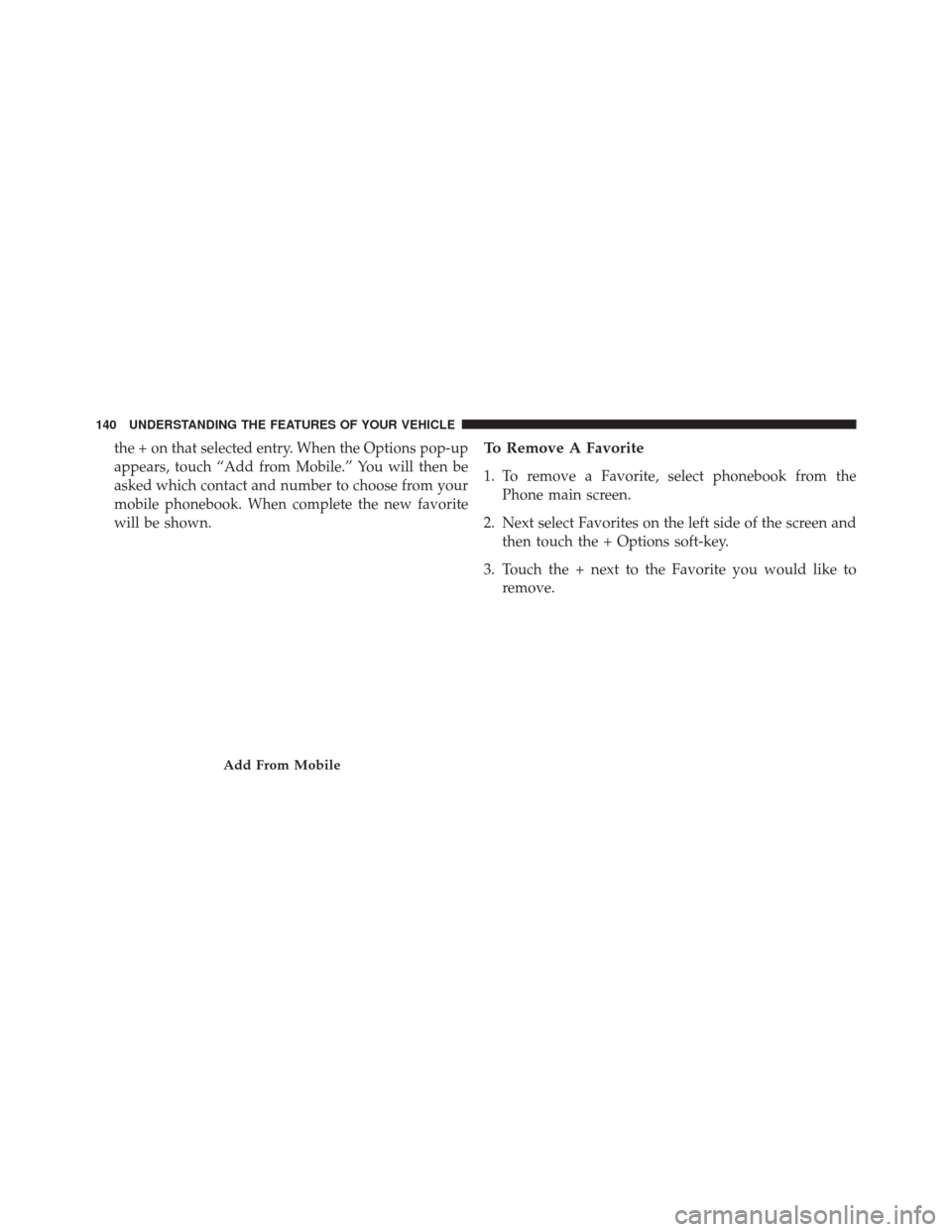
the + on that selected entry. When the Options pop-up
appears, touch “Add from Mobile.” You will then be
asked which contact and number to choose from your
mobile phonebook. When complete the new favorite
will be shown.To Remove A Favorite
1. To remove a Favorite, select phonebook from thePhone main screen.
2. Next select Favorites on the left side of the screen and then touch the + Options soft-key.
3. Touch the + next to the Favorite you would like to remove.
Add From Mobile
140 UNDERSTANDING THE FEATURES OF YOUR VEHICLE
Page 143 of 590
4. The Options pop-up will display, touch “Remove fromFavs.”
Emergency And Towing Assistance
The Emergency and Towing Assistance Favorite numbers
can only be altered. These cannot be deleted and the
names cannot be changed.
To change the Emergency or Towing Assistance numbers
follow these steps.
1. Touch the “Phonebook” soft-key from the Phone mainscreen.
2. Touch the “Favorites” soft-key. Scroll to the bottom of the list to locate the Emergency and Towing Assistance
Favorites.
3. Touch the + Options soft-key.
4. Touch the + next to appropriate Favorite that is to be altered.
Remove From Favorites
3
UNDERSTANDING THE FEATURES OF YOUR VEHICLE 141
Page 146 of 590
Touch-Tone Number Entry
1. Touch the “Phone” soft-key.
2. Touch the “Dial” soft-key.
3. The Touch-Tone screen will be displayed.
4. Use the numbered soft-keys to enter the number andtouch “Call.”
To send a touch tone using Voice Recognition (VR), press
the
button on your steering wheel while in a call
and say “Send 1234#” or you can say “Send Voicemail
Password” if Voicemail password is stored in your
mobile phonebook.
Recent Calls
You may browse up to 34 of the most recent of each of the
following call types: •
Incoming Calls
• Outgoing Calls
• Missed Calls
• All Calls
Recent Calls
144 UNDERSTANDING THE FEATURES OF YOUR VEHICLE