instrument panel CHRYSLER PACIFICA 2004 1.G Workshop Manual
[x] Cancel search | Manufacturer: CHRYSLER, Model Year: 2004, Model line: PACIFICA, Model: CHRYSLER PACIFICA 2004 1.GPages: 361, PDF Size: 5.21 MB
Page 166 of 361

Pinch Roller Release
If ignition power or the radio ON/OFF switch are turned
off, the pinch roller will automatically retract to protect
the tape from any damage. When power is restored to the
tape player, the pinch roller will automatically reengage
and the tape will resume play.
Dolby Noise Reduction
The Dolby Noise Reduction System* is on when-
ever the tape player is on, but may be switched
on/off.
To turn the Dolby Noise Reduction System on/off: Press
the Dolby NR button (button 2) after you insert the tape.
The NR light in the display will go off when the Dolby
System is off.
* ºDolbyº noise reduction manufactured under license
from Dolby Laboratories Licensing Corporation. Dolby
and the double-D symbol are trademarks of Dolby Labo-
ratories Licensing Corporation.
CD Player Operation
NOTE:The ignition switch must be in the ON or ACC
position and the volume control ON before the CD player
will operate.
Inserting The Compact Disc
You may either insert or eject a disc with the radio OFF.
If you insert a disc with the ignition ON and the radio off,
the display will show CD and the time of day will be
displayed.
If the power is on, the unit will switch from radio to CD
mode and begin to play when you insert the disc. The
display will show the track number and index time in
minutes and seconds. Play will begin at the start of
track 1.
166 UNDERSTANDING YOUR INSTRUMENT PANEL
Page 167 of 361
Seek
Press the top of the SEEK button for the next selection on
the CD. Press the bottom of the button to return to the
beginning of the current selection, or return to the
beginning of the previous selection if the CD is within the
first second of the current selection.
Scan
Press the SCAN button to play 10 seconds of each
selection. Press the SCAN button a second time to cancel
this feature.
EJT CD
Press the EJT CD button and the disc will unload and
move to the entrance for easy removal. The unit will
switch to the radio mode.
If you do not remove the disc within 15 seconds, it will be
reloaded. The unit will continue in radio mode.
The disc can be ejected with the radio and ignition off.
FF/TUNE/RW
Press FF (Fast Forward) and the CD player will begin to
fast forward until FF is released. The RW (Reverse)
button works in a similar manner.
Random Play Ð RND/Program Button 4
Press the RND (button 4) button while the CD is playing
to activate Random Play. This feature plays the selections
on the compact disc in random order to provide an
interesting change of pace.
Press the top of the SEEK button to move to the next
randomly selected track.
Press the RND (button 4) button a second time to stop
Random Play.
MODE
Press the MODE button to select between the CD player,
remote CD/DVD changer (if equipped), or satellite radio
(if equipped).
UNDERSTANDING YOUR INSTRUMENT PANEL 167
4
Page 168 of 361

To select Satellite Radio (if equipped), press the MODE
button until the word SIRIUSŸ appears. The following
will be displayed in this order: After three seconds, the
current channel name and number will be displayed for
five seconds. The current program type and channel
number will then be displayed for five seconds. The
current channel name and number will then be displayed
until an action occurs. A CD or tape may remain in the
player while in the Satellite Radio mode.
Time
Press the TIME button to change the display from
elapsed CD playing time to time of day.
CD/DVD Changer Operation Ð If Equipped
MODE
Press the MODE button to select between the CD player,
and the CD/DVD changer (if equipped).
Disc Up/Program Button 1
Press the DISC (button 1) button to play the next avail-
able disc.
Random Play Ð RND/Program Button 4
Press the RND (button 4) button while the CD is playing
to activate Random Play. This feature plays the selections
on the currently playing compact disc in random order to
provide an interesting change of pace.
Press the top of the SEEK button to move to the next
randomly selected track.
Press the RND (button 4) button a second time to stop
Random Play.
168 UNDERSTANDING YOUR INSTRUMENT PANEL
Page 169 of 361
FF/RW Ð TUNE
Press and hold the FF button for fast forward. Press and
hold the RW button for fast reverse. The audio output can
be heard when fast forward and fast reverse are acti-
vated.
Disc Down/Program Button 5
Press the DISC (button 5) button to play the previous
disc.
Seek
Press the top of the SEEK button for the next selection on
the CD. Press the bottom of the button to return to the
beginning of the current selection, or return to the
beginning of the previous selection if the CD is within the
first second of the current selection.
Time
Press the TIME button to switch between time of day and
CD track time.
Scan
Press the SCAN button to play 10 seconds of each track.
Press the SCAN button a second time to cancel the
feature.
UNDERSTANDING YOUR INSTRUMENT PANEL 169
4
Page 170 of 361

6 DISC CD/DIGITAL VIDEO DISC (DVD) CHANGER
The Rear Seat Audio/Video System allows passengers to
listen to a CD or DVD from the 6 disc CD/DVD changer
through the headphones, while the front seat passengers
listen to either AM/FM, Cassette or CDs from the radio.
A remote control is provided for functions such as
changing tracks or DVD functions, as well as selecting
discs loaded in the 6 disc CD/DVD changer while
listening to the Rear Audio/Video System.
Operating Instructions Ð CD/DVD Changer
Loading The CD/DVD Changer
The CD/DVD changer is a multi-disc changer,
and will accept up to six discs. Gently insert
one disc into the CD/DVD changer with the
label facing up. The disc will automatically be
pulled into the CD/DVD changer.
To insert additional discs into the changer, follow the
instructions shown:
1. Select and press any numbered button without an
illuminated light above it.
2. Insert the disc while the light above the chosen button
is flashing and the light below the loading slot is illumi-
nated.
3. Upon insertion, the disc will begin to play, and both
the button light and the light below the loading slot will
illuminate.
170 UNDERSTANDING YOUR INSTRUMENT PANEL
Page 171 of 361
4. Repeat the process for loading any additional CD/
DVDs. The CD/DVD changer will stop while additional
CD/DVDs are loaded.
If the volume control is ON, the unit will switch from
radio to CD/DVD mode and begin to play. The radio
display will show the chapter number and index time in
hours and minutes of the DVD, and the track number,
minutes and second of the CD. Play will begin automati-
cally in approximately 20 seconds. If the DVD does not
play automatically, press the ªENTERº button on the
remote control or on the side of the video screen to select
play from the menu options.
NOTE:
²You may eject a disc with the radio OFF. The ignition
switch must be in the ON or ACC position to insert a
disc with the radio OFF.
²If you insert a disc with the ignition ON and the radio
OFF, the DVD will automatically be pulled into the
DVD changer and the display will show the time of
day.
EJECT (EJT) Button
If there is a single disc in the changer, press the EJT
button and the disc will eject. The unit will switch to the
radio mode. If you do not remove the disc within 10
seconds, it will be reloaded and the display will show
PAUSE. The radio mode will continue to operate.
To eject additional discs from the changer, first select the
numbered button where the disc is located and then press
the EJT button.
The disc can be ejected with the radio OFF.
UNDERSTANDING YOUR INSTRUMENT PANEL 171
4
Page 172 of 361

Operating Instructions Ð Remote Control
Power Button (PWR)
Pressing the ªPOWERº button will turn the rear audio/
video system ON/OFF. The headphone symbol will flash
for approximately 5 seconds in the radio display and
sound can be heard from the headphones.
NOTE:
²The power button on the headphones must be turned
ON before sound can be heard from the headphones.
²When the rear audio/video system is ON, sound can
only be heard from the front speakers. The rear
speakers will turn back on when the rear audio/video
system is turned OFF.
MENU Button
This button only functions in the DVD video mode. Press
this button once to go to the on-screen menu, press the
button a second time to go to the main menu. When the
DVD is in stop mode, pressing the menu button for 3
seconds will display the set-up screen.
PAUSE/STOP/ PLAY Button
This button only functions in the DVD video mode. Press
this button once to pause the video, press a second time
to play the video. Press and hold this button for more
than 6 seconds to stop playing the video.
ENTER/ARROW Buttons
These buttons only function in the DVD video mode. Use
the ªENTERº button to play the DVD video or to enter
selections from the menu screens. Use the arrow buttons
to toggle through the menu screen options.
172 UNDERSTANDING YOUR INSTRUMENT PANEL
Page 173 of 361
MODE Button
No Function
SEEK Button
²
CD/DVD changer
Press the right side of the ªSEEKº button for the next
chapter or track on the disc. Press the left side to return to
the beginning of the current chapter or track. Press the
left side of the ªSEEKº button twice within 2 seconds to
return to the previous chapter or track. Each press of the
ªSEEKº button up or down will toggle through the
chapters or tracks.
FF/RW Button
²
CD/DVD changer
Press and hold ªFFº (Fast Forward) once and the CD/
DVD changer will begin to fast forward until the FF
button is released. The RW (Reverse) button works in a
similar manner.
Program Button (PROG)
No Function
Channel Button
Press this button to select between channel ªAº or
channel ªBº, or if interference is heard through the
headphones.
Remote Control Battery Service
²
To replace the batteries for the remote control slide the
cover rearward.
The replacement batteries for the remote control are two
AAA batteries.
UNDERSTANDING YOUR INSTRUMENT PANEL 173
4
Page 174 of 361

Operating Instructions Ð Video Screen
Push up on the release button to lower the video screen.
1. Screen Width Button
Changes the width of the screen picture.
2. Enter Button
This button will enter the selection from the on-screen
menu.
3. Brightness Button
Changes the brightness of the screen picture.
174 UNDERSTANDING YOUR INSTRUMENT PANEL
Page 175 of 361
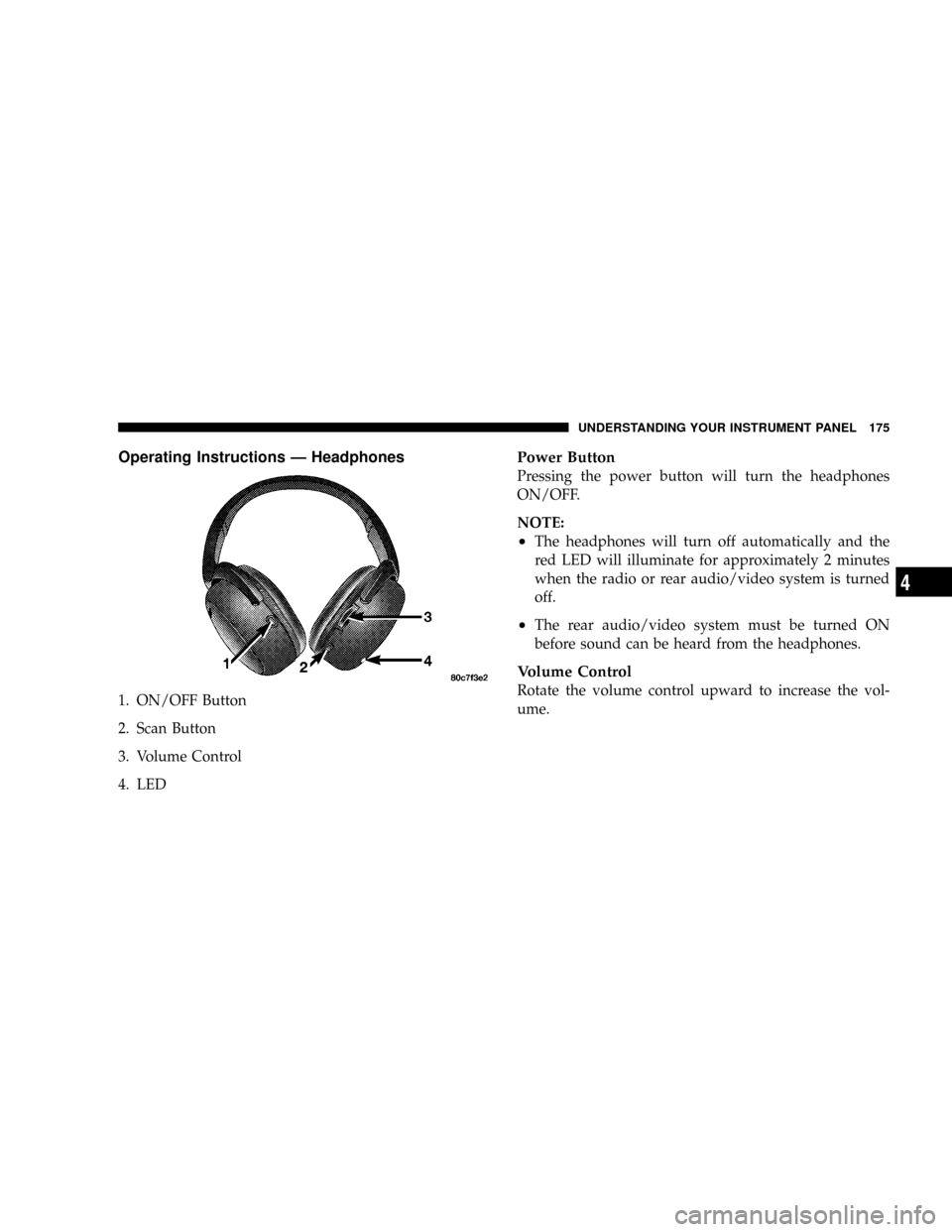
Operating Instructions Ð Headphones
1. ON/OFF Button
2. Scan Button
3. Volume Control
4. LED
Power Button
Pressing the power button will turn the headphones
ON/OFF.
NOTE:
²The headphones will turn off automatically and the
red LED will illuminate for approximately 2 minutes
when the radio or rear audio/video system is turned
off.
²The rear audio/video system must be turned ON
before sound can be heard from the headphones.
Volume Control
Rotate the volume control upward to increase the vol-
ume.
UNDERSTANDING YOUR INSTRUMENT PANEL 175
4