display CHRYSLER PACIFICA 2017 2.G Owners Manual
[x] Cancel search | Manufacturer: CHRYSLER, Model Year: 2017, Model line: PACIFICA, Model: CHRYSLER PACIFICA 2017 2.GPages: 828, PDF Size: 7.58 MB
Page 501 of 828
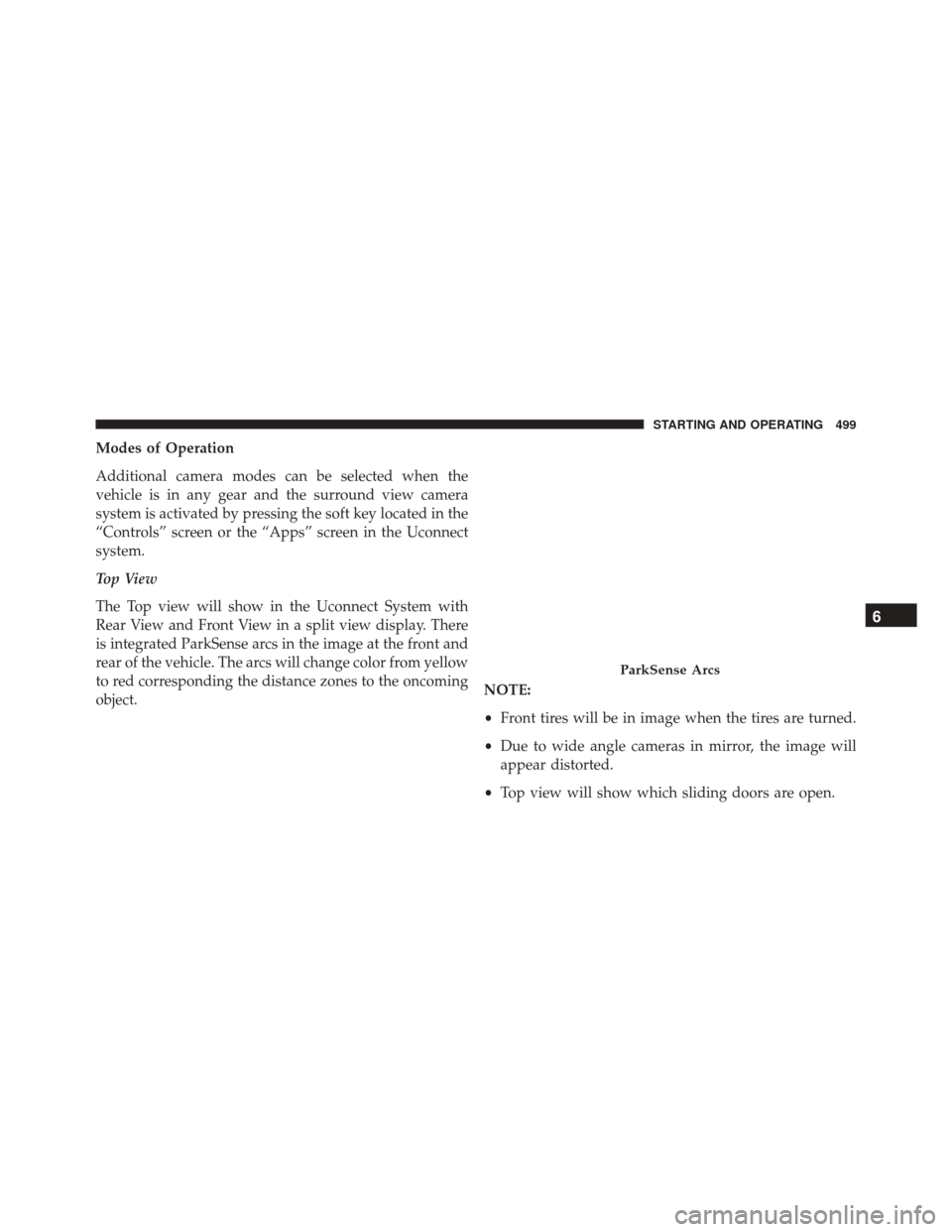
Modes of Operation
Additional camera modes can be selected when the
vehicle is in any gear and the surround view camera
system is activated by pressing the soft key located in the
“Controls” screen or the “Apps” screen in the Uconnect
system.
Top View
The Top view will show in the Uconnect System with
Rear View and Front View in a split view display. There
is integrated ParkSense arcs in the image at the front and
rear of the vehicle. The arcs will change color from yellow
to red corresponding the distance zones to the oncoming
object.NOTE:
•
Front tires will be in image when the tires are turned.
• Due to wide angle cameras in mirror, the image will
appear distorted.
• Top view will show which sliding doors are open.
ParkSense Arcs
6
STARTING AND OPERATING 499
Page 536 of 828
9-1-1 Call System Limitations
Vehicles sold in Canada and MexicoDO NOThave 9-1-1
Call system capabilities.
9-1-1 or other emergency line operators in Canada and
Mexico may not answer or respond to 9-1-1 system calls.
If the 9-1-1 Call system detects a malfunction, any of the
following may occur at the time the malfunction is
detected, and at the beginning of each ignition cycle:
• The Rearview Mirror light located between the ASSIST
and 9-1-1 buttons will continuously be illuminated
red.
• The Device Screen will display the following message
“Vehicle device requires service. Please contact your
dealer.”
• An In-Vehicle Audio message will state “Vehicle de-
vice requires service. Please contact your dealer.”WARNING!
• Ignoring the Rearview Mirror light could mean you
will not have 9-1-1 Call services. If the Rearview
Mirror light is illuminated, have an authorized
dealer service the 9-1-1 Call system immediately.
• The Occupant Restraint Control module turns on
the air bag Warning Light on the instrument panel
if a malfunction in any part of the system is
detected. If the Air Bag Warning Light is illumi-
nated, have an authorized dealer service the Occu-
pant Restraint Control system immediately.
Even if the 9-1-1 Call system is fully functional, factors
beyond FCA US LLC’s control may prevent or stop the
9-1-1 Call system operation. These include, but are not
limited to, the following factors:
• The ignition is in OFF position.
534 IN CASE OF EMERGENCY
Page 615 of 828
SCHEDULE SERVICING
Your vehicle is equipped with an automatic oil change
indicator system. The oil change indicator system will
remind you that it is time to take your vehicle in for
scheduled maintenance.
Based on engine operation conditions, the oil change
indicator message will illuminate. This means that ser-
vice is required for your vehicle. Operating conditions
such as frequent short-trips, trailer tow, extremely hot or
cold ambient temperatures will influence when the “Oil
Change Required” message is displayed. Severe Operat-
ing Conditions can cause the change oil message to
illuminate as early as 3,500 miles (5,600 km) since last
reset. Have your vehicle serviced as soon as possible,
within the next 500 miles (805 km).
Your authorized dealer will reset the oil change indicator
message after completing the scheduled oil change. If a
scheduled oil change is performed by someone otherthan your authorized dealer, the message can be reset by
referring to “Vehicle Info” in “Display” in “Getting To
Know Your Instrument Panel”.
NOTE:
Under no circumstances should oil change inter-
vals exceed 10,000 miles (16,000 km), twelve months or
350 hours of engine run time, whichever comes first. The
350 hours of engine run or idle time is generally only a
concern for fleet customers.
Once A Month Or Before A Long Trip:
• Check engine oil level.
• Check windshield washer fluid level.
• Check tire pressure and look for unusual wear or
damage. Rotate tires at the first sign of irregular wear,
even if it occurs before the oil indicator system turns
on.
8
MAINTAINING AND CARING FOR YOUR VEHICLE 613
Page 699 of 828
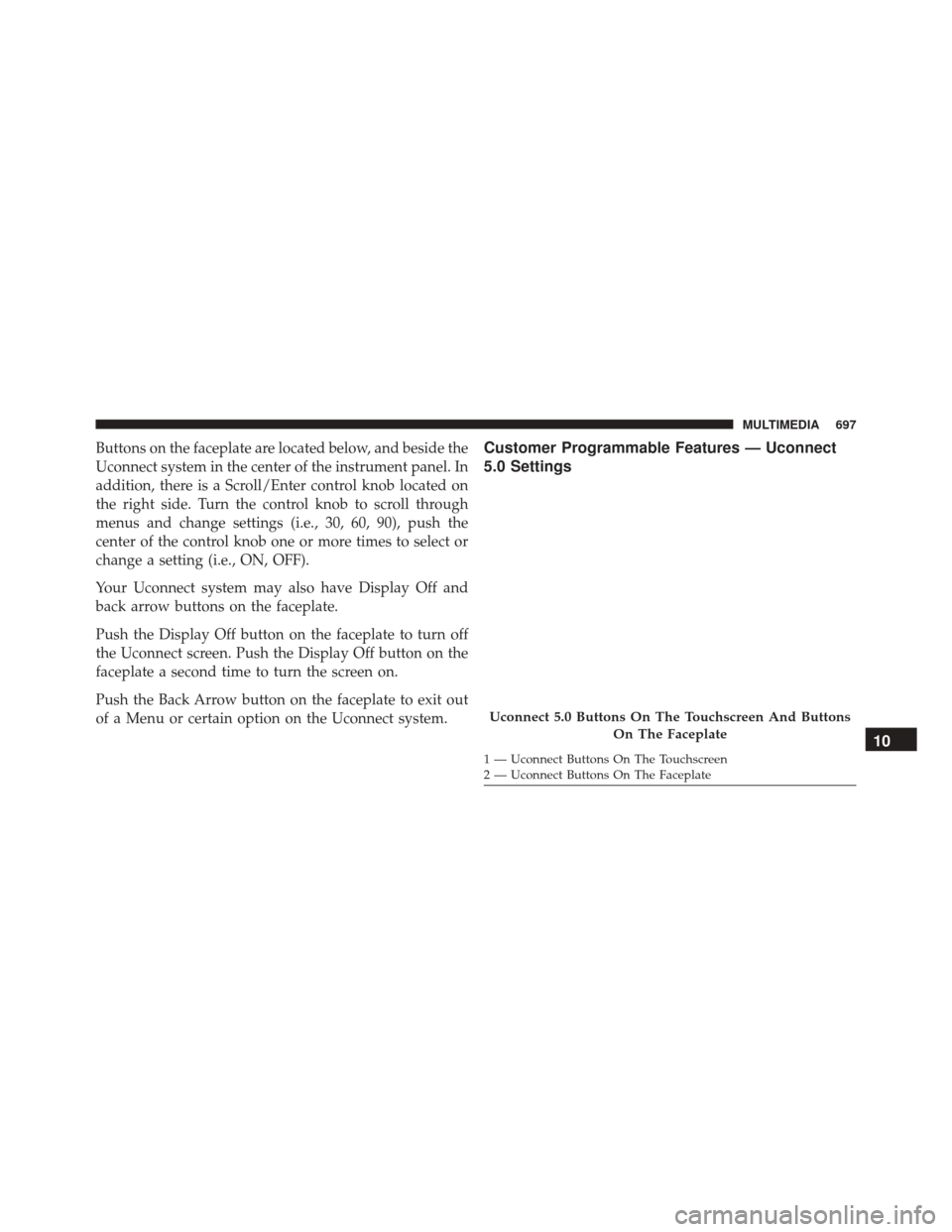
Buttons on the faceplate are located below, and beside the
Uconnect system in the center of the instrument panel. In
addition, there is a Scroll/Enter control knob located on
the right side. Turn the control knob to scroll through
menus and change settings (i.e., 30, 60, 90), push the
center of the control knob one or more times to select or
change a setting (i.e., ON, OFF).
Your Uconnect system may also have Display Off and
back arrow buttons on the faceplate.
Push the Display Off button on the faceplate to turn off
the Uconnect screen. Push the Display Off button on the
faceplate a second time to turn the screen on.
Push the Back Arrow button on the faceplate to exit out
of a Menu or certain option on the Uconnect system.Customer Programmable Features — Uconnect
5.0 Settings
Uconnect 5.0 Buttons On The Touchscreen And ButtonsOn The Faceplate
1 — Uconnect Buttons On The Touchscreen
2 — Uconnect Buttons On The Faceplate
10
MULTIMEDIA 697
Page 700 of 828
Push the MOREbutton on the faceplate, then press
the “Settings
” button on the touchscreen to display
the settings menu screen. In this mode the Uconnect
system allows you to access all of the available pro-
grammable features.
NOTE: Only one touchscreen area may be selected at a
time.
When making a selection, press the button on the touch-
screen to enter the desired mode. Once in the desired
mode, press and release the preferred setting and make
your selection. Once the setting is complete, either press
the Back arrow/Done button on the touchscreen or the
Back button on the faceplate to return to the previous
menu. Pressing the Up or Down Arrow buttons on the
right side of the screen will allow you to toggle up or
down through the available settings.
NOTE: All settings should be changed with the ignition
in the “ON/RUN” position.
KeySense
The vehicle’s KeySense settings are protected by a unique
4-digit PIN, which the vehicle owner creates when ac-
cessing the specific settings for the first time. This 4-digit
PIN can only be rest by an authorized dealer.
After pressing the “KeySense” button on the touchscreen,
and entering the KeySense PIN, the following settings
will be available:
• Forward Collision Warning
The Front Collision Warning (FCW) feature provides an
audible and/or visual warning to potential forward
collisions. The feature can be can be set to Near, Medium,
or Far.
• Forward Collision Sensitivity
The Forward Collision Warning (FCW) system will warn
you of a possible collision with the vehicle in front of you.
The feature can be set to Near, Medium, or Far.
698 MULTIMEDIA
Page 701 of 828
•Forward Collision Warning Active Braking
The FCW system includes Advanced Brake Assist (ABA).
When this feature is selected, the ABA applies additional
brake pressure when the driver requests insufficient
brake pressure to avoid a potential frontal collision. The
ABA system becomes active at 5 mph (8 km/h). The
system can be enabled or disabled by pressing “Forward
Collision Warning Active Braking” button on the touch-
screen.
• ParkSense — If Equipped
The ParkSense system will scan for objects behind the
vehicle when the transmission gear selector is in RE-
VERSE and the vehicle speed is less than 7 mph
(11 km/h). The system can be enabled with Sound Only,
or Sound and Display. •
Front ParkSense Volume
The chime volume settings include LOW, MEDIUM, and
HIGH. The KeySense default volume setting is ME-
DIUM. To make your selection, press the “Front
ParkSense Vol.” button on the touchscreen, until a check-
mark appears next to setting, indicating that the setting
has been selected. ParkSense will retain its last known
configuration state through ignition cycles.
• Rear ParkSense Volume
The chime volume settings include LOW, MEDIUM, and
HIGH. The KeySense default volume setting is ME-
DIUM. To make your selection, press the “Rear
ParkSense Vol.” button on the touchscreen, until a check-
mark appears next to setting, indicating that the setting
had been selected. ParkSense will retain its last known
configuration state through ignition cycles.
10
MULTIMEDIA 699
Page 703 of 828
•SiriusXM Setup
After pressing the “SiriusXM Setup” button on the touch-
screen, the following settings will be available:
• Channel Skip
SiriusXM can be programmed to skip channels. To
make your selection, press the “Channel Skip” button
on the touchscreen, select the channels you would
like to skip.
• Subscription Information
New vehicle purchasers or lessees will receive a free
limited time subscription to SiriusXM Satellite Radio
with your radio. Following the expiration of the free
services, it will be necessary to access the information
on the Subscription Information screen to re-
subscribe.
Press the “Subscription Info” button on the touchscreen
to access the Subscription Information screen. Write down the SIRIUS ID numbers for your receiver. To
reactivate your service, either call the number listed on
the screen or visit the provider online.
NOTE:
SiriusXM Travel Link is a separate subscription
and is available for U.S. residents only.
Display
After pressing the “Display” button on the touchscreen
the following settings will be available.
• Display Mode
When in this display you may select the “Auto” or
“Manual” display settings. To change Mode status, press
and release the “Auto” or “Manual” button on the
touchscreen.
10
MULTIMEDIA 701
Page 704 of 828
•Brightness
When in this display, you may select the overall screen
brightness with the headlights on or off. Adjust the
brightness with the “+” and “–” setting buttons on the
touchscreen or by selecting any point on the scale be-
tween the “+” and “–” buttons on the touchscreen.
• Language
When in this display, you may select one of multiple
languages (English/Español/Français) for all display no-
menclature, including the trip functions and the naviga-
tion system (if equipped). Press the “Language” button
on the touchscreen, then press the desired language
button on the touchscreen.
• Touchscreen Beep
When in this display, you may turn on or shut off the
sound heard when a touchscreen button is pressed. Press the “Touchscreen Beep” button on the touchscreen until a
check-mark appears next to the setting, showing that
setting has been selected.
Units
After pressing the “Units” button on the touchscreen you
may select each unit of measure independently displayed
in the Electronic Vehicle Information System (EVIC) or
Driver Information Display (DID). The following select-
able units of measure are listed below:
•
Custom
• Speed
Select from: “mph” or “kph.”
• Distance
Select from: “mi” or “km.”
• Fuel Consumption
Select from: “MPG” (US), “MPG” (UK), “L/100 km”
or “km/L.”
702 MULTIMEDIA
Page 705 of 828
•Pressure
Select from: “psi,” “kPa,” or “bar.”
• Temperature
Select from: “°C,” or “°F.”
Clock & Date
After pressing the “Clock & Date” button on the touch-
screen the following settings will be available:
• Set Time and Format
When in this display, you may set the time and format
manually. Press the “Set Time and Format” button then
choose from a 12 hour or 24 hour format. Press the
corresponding arrow above and below the current time
to adjust, then select “AM” or “PM.”
• Show Time Status — If Equipped
When in this display, you may turn on or shut off the
digital clock in the status bar. To change the Show Time Status setting press the “Show Time Status” button on the
touchscreen and select from “ON” or “OFF.”
•
Sync Time — If Equipped
When in this display, you may sync the time with GPS.
Press the “Sync Time” button on the touchscreen and
select from “ON” or “OFF.”
Safety/Assistance
After pressing the “Safety/Assistance” button on the
touchscreen the following settings will be available:
• ParkView Backup Camera — If Equipped
When the vehicle is shifted out of REVERSE (with camera
delay turned OFF), the rear camera mode is exited and
the navigation or audio screen appears again. When the
vehicle is shifted out of REVERSE (with camera delay
turned ON), the rear view image with dynamic grid lines
will be displayed for up to 10 seconds after shifting out of
“REVERSE” unless the forward vehicle speed exceeds
10
MULTIMEDIA 703
Page 706 of 828
8 mph (13 km/h), the transmission is shifted into PARK
or the ignition is switched to the OFF position.
•ParkView Backup Camera Delay — If Equipped
Press the “Parkview Backup camera Delay” button
on the touchscreen to turn the ParkView Delay ON or
OFF.
• ParkView Backup Camera Active Guide Lines — If
Equipped When this feature is enabled, active (dynamic) grid
lines are overlaid on the Rear Backup Camera image
to illustrate the width of the vehicle and its projected
back up path based on the steering wheel position. A
dashed center line overlay indicates the center of the
vehicle to assist with parking or aligning to a hitch/
receiver.
• Forward Collision Warning On/Off — If Equipped
The default status of FCW is “On”, this allows the system
to warn you of a possible collision with the vehicle in front of you. The forward collision button is located in
the Uconnect display in the controls settings. To turn the
FCW system OFF, push the forward collision button once
to turn the system OFF. To turn the FCW system back
ON, push the forward collision button again to turn the
system ON. Changing the FCW status to “OFF” prevents
the system from warning you of a possible collision with
the vehicle in front of you.
•
Forward Collision Warning-Plus (FCW+) — If
Equipped
The Front Collision Warning (FCW+) feature can be can
be set to Far, Med or Near. The default status of FCW+ is
the Med setting. This means the system will warn you of
a possible collision with the vehicle in front of you when
you are a relatively medium distance away. This gives
you the medium reaction time. To change the setting for
a more dynamic driving experience, select the Near
setting. This warns you of a possible collision when you
704 MULTIMEDIA