radio CHRYSLER PACIFICA 2018 Service Manual
[x] Cancel search | Manufacturer: CHRYSLER, Model Year: 2018, Model line: PACIFICA, Model: CHRYSLER PACIFICA 2018Pages: 696, PDF Size: 8.48 MB
Page 575 of 696
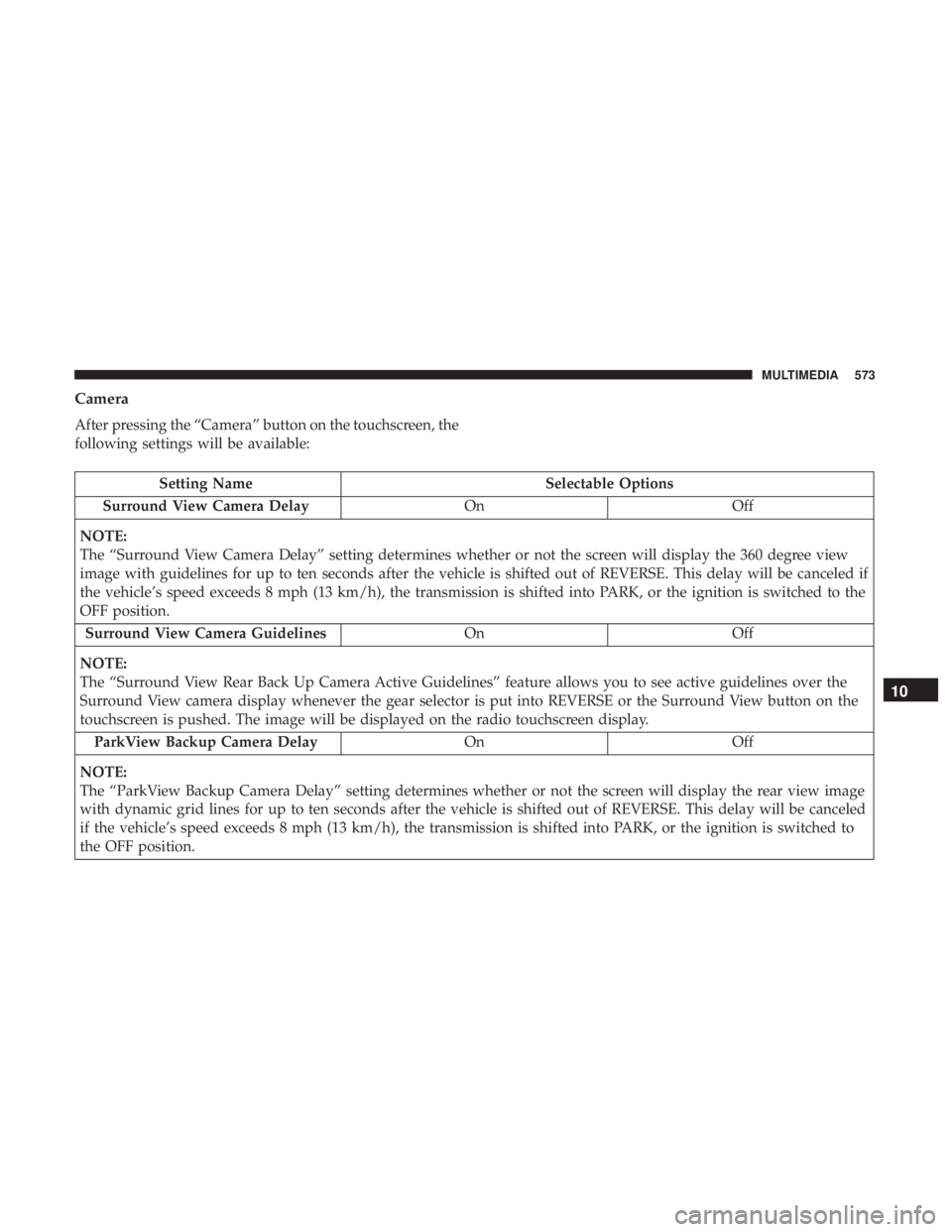
Camera
After pressing the “Camera” button on the touchscreen, the
following settings will be available:
Setting NameSelectable Options
Surround View Camera Delay OnOff
NOTE:
The “Surround View Camera Delay” setting determines whether or not the screen will display the 360 degree view
image with guidelines for up to ten seconds after the vehicle is shifted out of REVERSE. This delay will be canceled if
the vehicle’s speed exceeds 8 mph (13 km/h), the transmission is shifted into PARK, or the ignition is switched to the
OFF position. Surround View Camera Guidelines OnOff
NOTE:
The “Surround View Rear Back Up Camera Active Guidelines” feature allows you to see active guidelines over the
Surround View camera display whenever the gear selector is put into REVERSE or the Surround View button on the
touchscreen is pushed. The image will be displayed on the radio touchscreen display. ParkView Backup Camera Delay OnOff
NOTE:
The “ParkView Backup Camera Delay” setting determines whether or not the screen will display the rear view image
with dynamic grid lines for up to ten seconds after the vehicle is shifted out of REVERSE. This delay will be canceled
if the vehicle’s speed exceeds 8 mph (13 km/h), the transmission is shifted into PARK, or the ignition is switched to
the OFF position.
10
MULTIMEDIA 573
Page 583 of 696
Setting NameSelectable Options
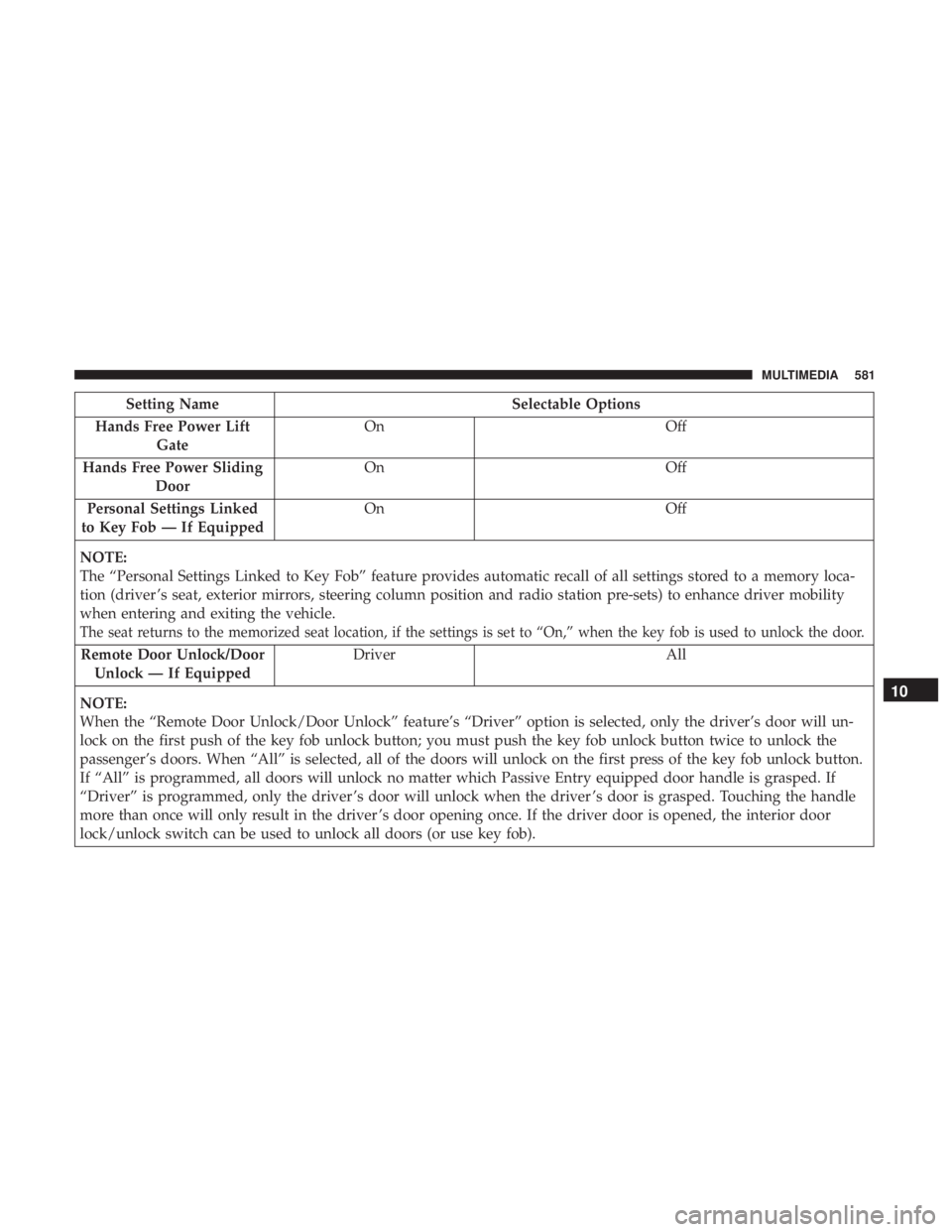
Hands Free Power Lift Gate On
Off
Hands Free Power Sliding Door On
Off
Personal Settings Linked
to Key Fob — If Equipped On
Off
NOTE:
The “Personal Settings Linked to Key Fob” feature provides automatic recall of all settings stored to a memory loca-
tion (driver ’s seat, exterior mirrors, steering column position and radio station pre-sets) to enhance driver mobility
when entering and exiting the vehicle.
The seat returns to the memorized seat location, if the settings is set to “On,” when the key fob is used to unlock the door.
Remote Door Unlock/Door Unlock — If Equipped Driver All
NOTE:
When the “Remote Door Unlock/Door Unlock” feature’s “Driver” option is selected, only the driver’s door will un-
lock on the first push of the key fob unlock button; you must push the key fob unlock button twice to unlock the
passenger’s doors. When “All” is selected, all of the doors will unlock on the first press of the key fob unlock button.
If “All” is programmed, all doors will unlock no matter which Passive Entry equipped door handle is grasped. If
“Driver” is programmed, only the driver ’s door will unlock when the driver ’s door is grasped. Touching the handle
more than once will only result in the driver ’s door opening once. If the driver door is opened, the interior door
lock/unlock switch can be used to unlock all doors (or use key fob).
10
MULTIMEDIA 581
Page 585 of 696
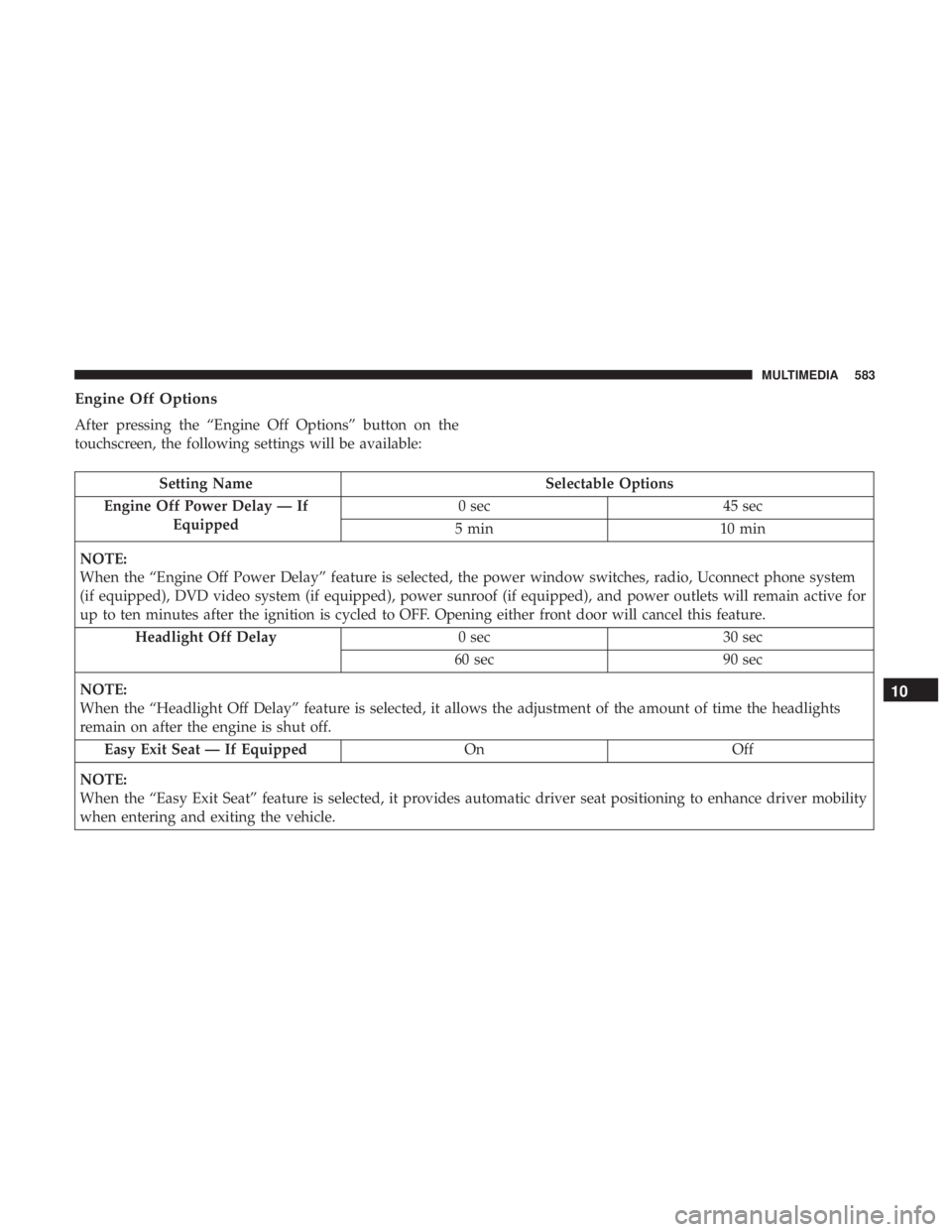
Engine Off Options
After pressing the “Engine Off Options” button on the
touchscreen, the following settings will be available:
Setting NameSelectable Options
Engine Off Power Delay — If Equipped 0 sec
45 sec
5 min 10 min
NOTE:
When the “Engine Off Power Delay” feature is selected, the power window switches, radio, Uconnect phone system
(if equipped), DVD video system (if equipped), power sunroof (if equipped), and power outlets will remain active for
up to ten minutes after the ignition is cycled to OFF. Opening either front door will cancel this feature. Headlight Off Delay 0 sec30 sec
60 sec 90 sec
NOTE:
When the “Headlight Off Delay” feature is selected, it allows the adjustment of the amount of time the headlights
remain on after the engine is shut off. Easy Exit Seat — If Equipped OnOff
NOTE:
When the “Easy Exit Seat” feature is selected, it provides automatic driver seat positioning to enhance driver mobility
when entering and exiting the vehicle.
10
MULTIMEDIA 583
Page 591 of 696
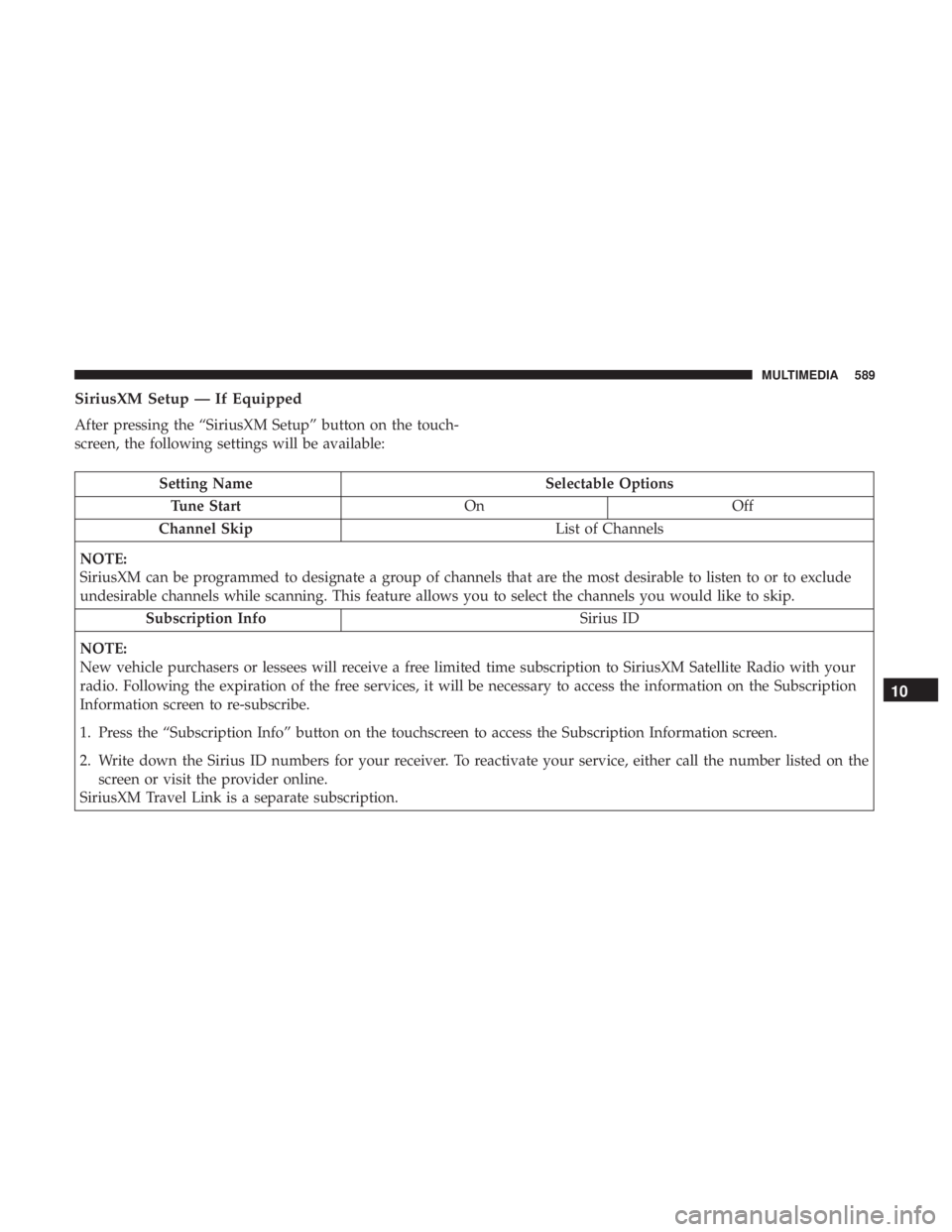
SiriusXM Setup — If Equipped
After pressing the “SiriusXM Setup” button on the touch-
screen, the following settings will be available:
Setting NameSelectable Options
Tune Start OnOff
Channel Skip List of Channels
NOTE:
SiriusXM can be programmed to designate a group of channels that are the most desirable to listen to or to exclude
undesirable channels while scanning. This feature allows you to select the channels you would like to skip. Subscription Info Sirius ID
NOTE:
New vehicle purchasers or lessees will receive a free limited time subscription to SiriusXM Satellite Radio with your
radio. Following the expiration of the free services, it will be necessary to access the information on the Subscription
Information screen to re-subscribe.
1. Press the “Subscription Info” button on the touchscreen to access the Subscription Information screen.
2. Write down the Sirius ID numbers for your receiver. To reactivate your service, either call the number listed on the screen or visit the provider online.
SiriusXM Travel Link is a separate subscription.
10
MULTIMEDIA 589
Page 595 of 696
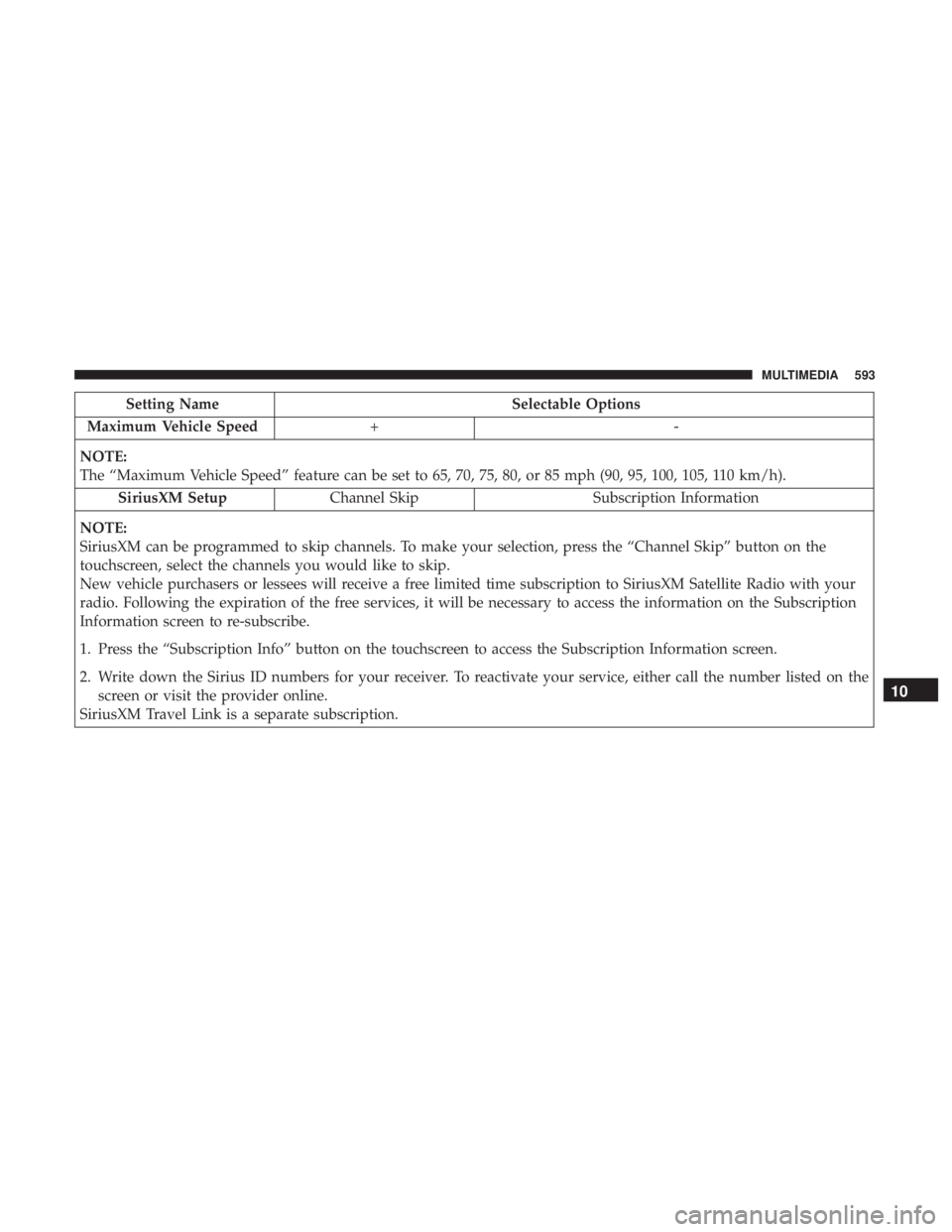
Setting NameSelectable Options
Maximum Vehicle Speed +-
NOTE:
The “Maximum Vehicle Speed” feature can be set to 65, 70, 75, 80, or 85 mph (90, 95, 100, 105, 110 km/h). SiriusXM Setup Channel Skip Subscription Information
NOTE:
SiriusXM can be programmed to skip channels. To make your selection, press the “Channel Skip” button on the
touchscreen, select the channels you would like to skip.
New vehicle purchasers or lessees will receive a free limited time subscription to SiriusXM Satellite Radio with your
radio. Following the expiration of the free services, it will be necessary to access the information on the Subscription
Information screen to re-subscribe.
1. Press the “Subscription Info” button on the touchscreen to access the Subscription Information screen.
2. Write down the Sirius ID numbers for your receiver. To reactivate your service, either call the number listed on the screen or visit the provider online.
SiriusXM Travel Link is a separate subscription.
10
MULTIMEDIA 593
Page 601 of 696
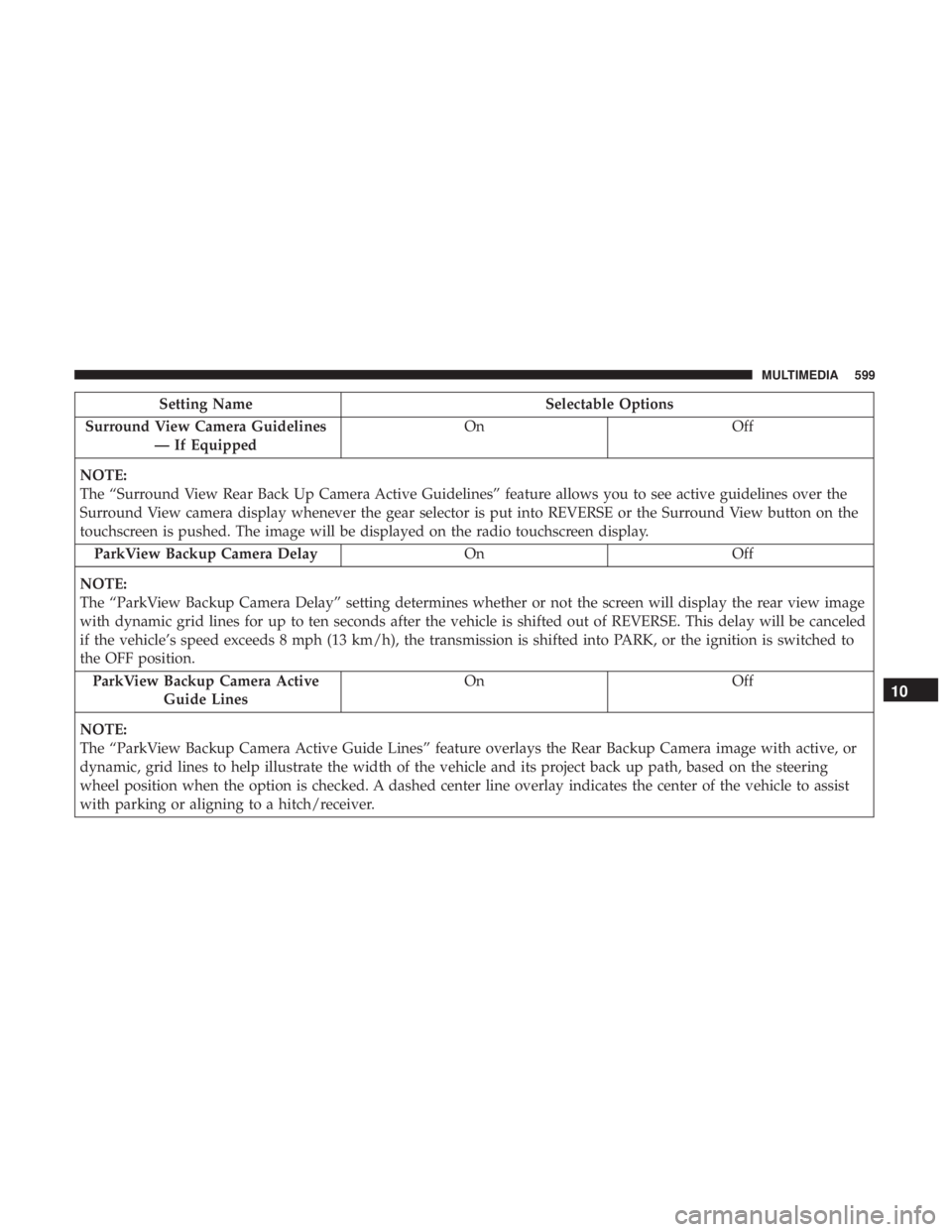
Setting NameSelectable Options
Surround View Camera Guidelines — If Equipped On
Off
NOTE:
The “Surround View Rear Back Up Camera Active Guidelines” feature allows you to see active guidelines over the
Surround View camera display whenever the gear selector is put into REVERSE or the Surround View button on the
touchscreen is pushed. The image will be displayed on the radio touchscreen display. ParkView Backup Camera Delay OnOff
NOTE:
The “ParkView Backup Camera Delay” setting determines whether or not the screen will display the rear view image
with dynamic grid lines for up to ten seconds after the vehicle is shifted out of REVERSE. This delay will be canceled
if the vehicle’s speed exceeds 8 mph (13 km/h), the transmission is shifted into PARK, or the ignition is switched to
the OFF position. ParkView Backup Camera Active Guide Lines On
Off
NOTE:
The “ParkView Backup Camera Active Guide Lines” feature overlays the Rear Backup Camera image with active, or
dynamic, grid lines to help illustrate the width of the vehicle and its project back up path, based on the steering
wheel position when the option is checked. A dashed center line overlay indicates the center of the vehicle to assist
with parking or aligning to a hitch/receiver.
10
MULTIMEDIA 599
Page 610 of 696
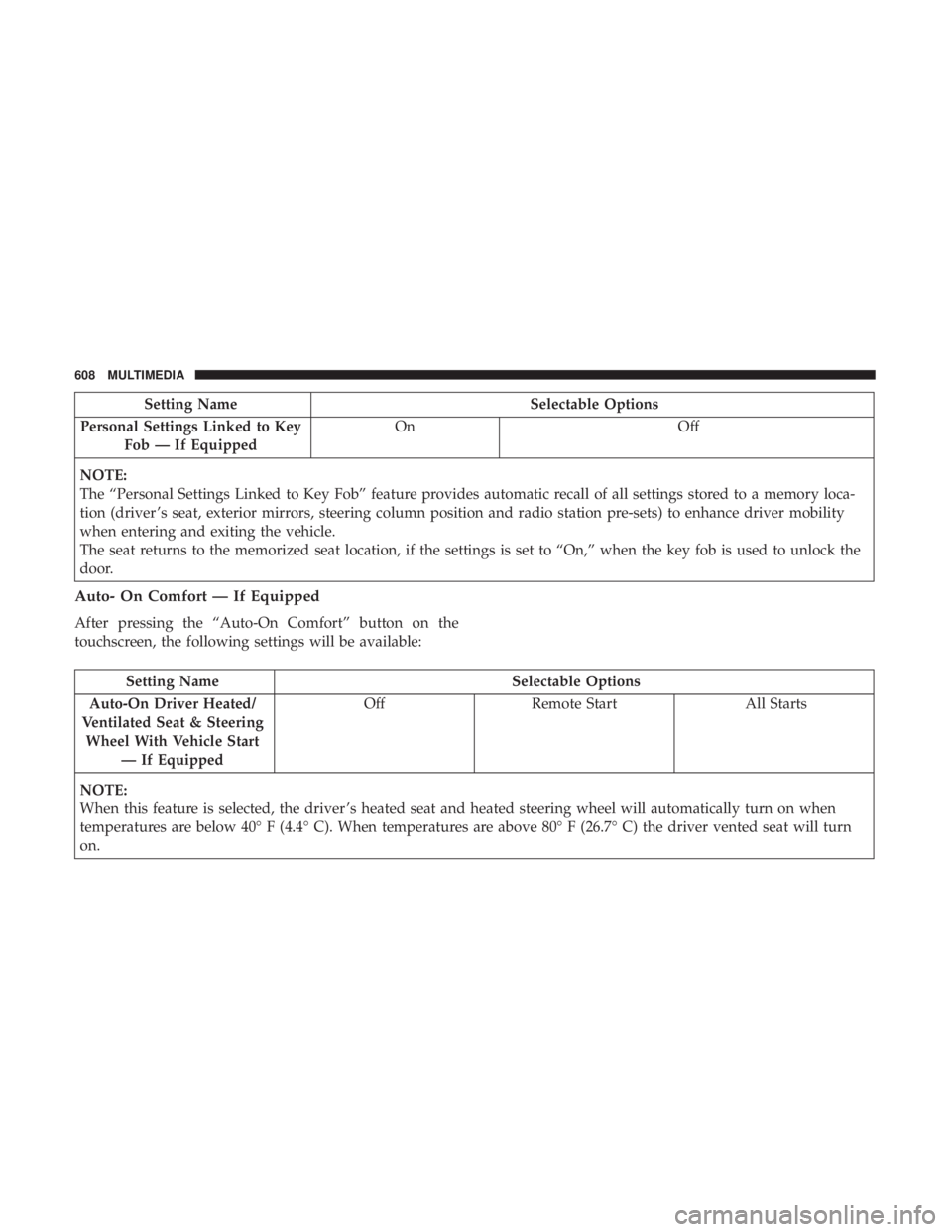
Setting NameSelectable Options
Personal Settings Linked to Key Fob — If Equipped On
Off
NOTE:
The “Personal Settings Linked to Key Fob” feature provides automatic recall of all settings stored to a memory loca-
tion (driver ’s seat, exterior mirrors, steering column position and radio station pre-sets) to enhance driver mobility
when entering and exiting the vehicle.
The seat returns to the memorized seat location, if the settings is set to “On,” when the key fob is used to unlock the
door.
Auto- On Comfort — If Equipped
After pressing the “Auto-On Comfort” button on the
touchscreen, the following settings will be available:
Setting Name Selectable Options
Auto-On Driver Heated/
Ventilated Seat & Steering Wheel With Vehicle Start — If Equipped Off
Remote Start All Starts
NOTE:
When this feature is selected, the driver ’s heated seat and heated steering wheel will automatically turn on when
temperatures are below 40° F (4.4° C). When temperatures are above 80° F (26.7° C) the driver vented seat will turn
on.
608 MULTIMEDIA
Page 611 of 696
Engine Off Options
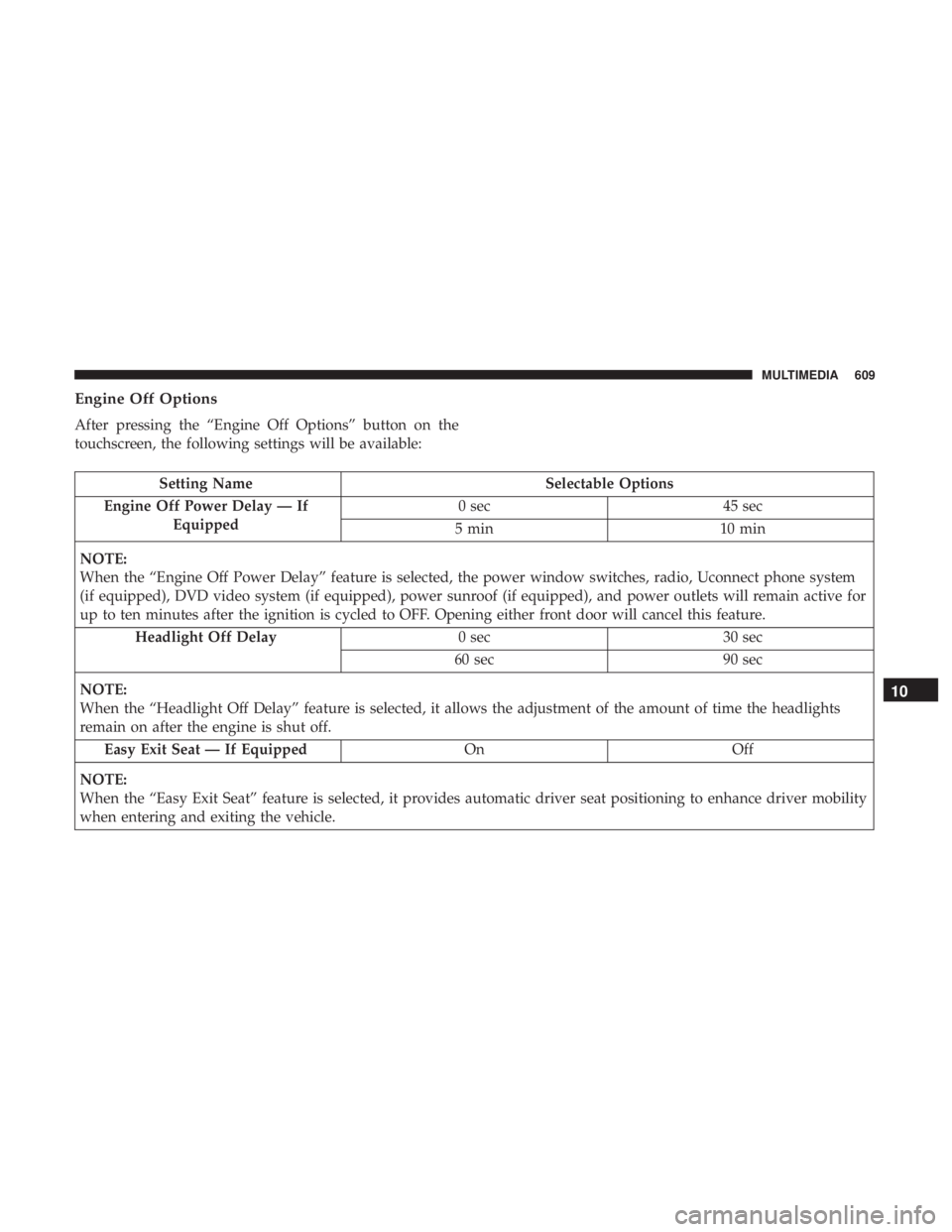
After pressing the “Engine Off Options” button on the
touchscreen, the following settings will be available:
Setting NameSelectable Options
Engine Off Power Delay — If Equipped 0 sec
45 sec
5 min 10 min
NOTE:
When the “Engine Off Power Delay” feature is selected, the power window switches, radio, Uconnect phone system
(if equipped), DVD video system (if equipped), power sunroof (if equipped), and power outlets will remain active for
up to ten minutes after the ignition is cycled to OFF. Opening either front door will cancel this feature. Headlight Off Delay 0 sec30 sec
60 sec 90 sec
NOTE:
When the “Headlight Off Delay” feature is selected, it allows the adjustment of the amount of time the headlights
remain on after the engine is shut off. Easy Exit Seat — If Equipped OnOff
NOTE:
When the “Easy Exit Seat” feature is selected, it provides automatic driver seat positioning to enhance driver mobility
when entering and exiting the vehicle.
10
MULTIMEDIA 609
Page 614 of 696
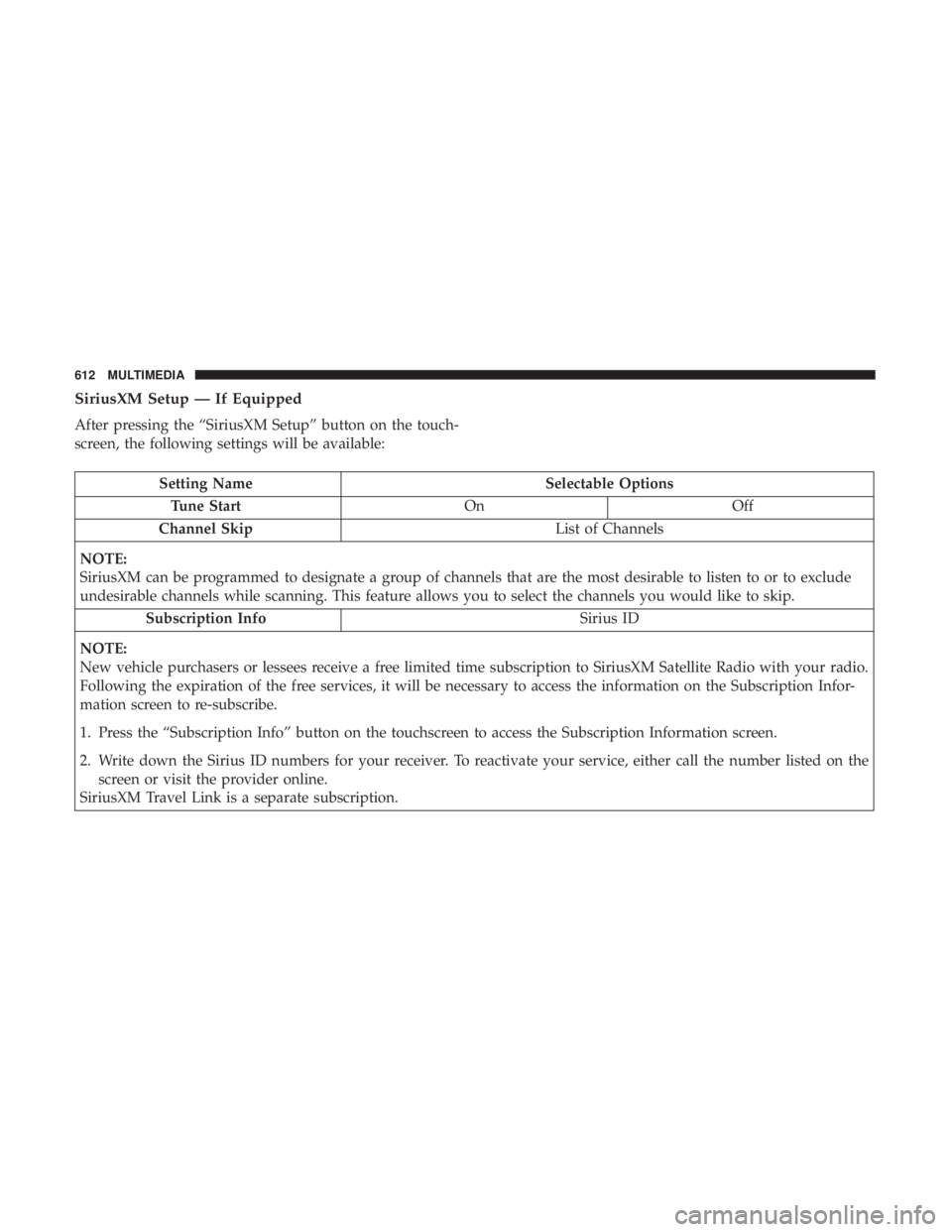
SiriusXM Setup — If Equipped
After pressing the “SiriusXM Setup” button on the touch-
screen, the following settings will be available:
Setting NameSelectable Options
Tune Start OnOff
Channel Skip List of Channels
NOTE:
SiriusXM can be programmed to designate a group of channels that are the most desirable to listen to or to exclude
undesirable channels while scanning. This feature allows you to select the channels you would like to skip. Subscription Info Sirius ID
NOTE:
New vehicle purchasers or lessees receive a free limited time subscription to SiriusXM Satellite Radio with your radio.
Following the expiration of the free services, it will be necessary to access the information on the Subscription Infor-
mation screen to re-subscribe.
1. Press the “Subscription Info” button on the touchscreen to access the Subscription Information screen.
2. Write down the Sirius ID numbers for your receiver. To reactivate your service, either call the number listed on the screen or visit the provider online.
SiriusXM Travel Link is a separate subscription.
612 MULTIMEDIA
Page 617 of 696
STEERING WHEEL AUDIO CONTROLS
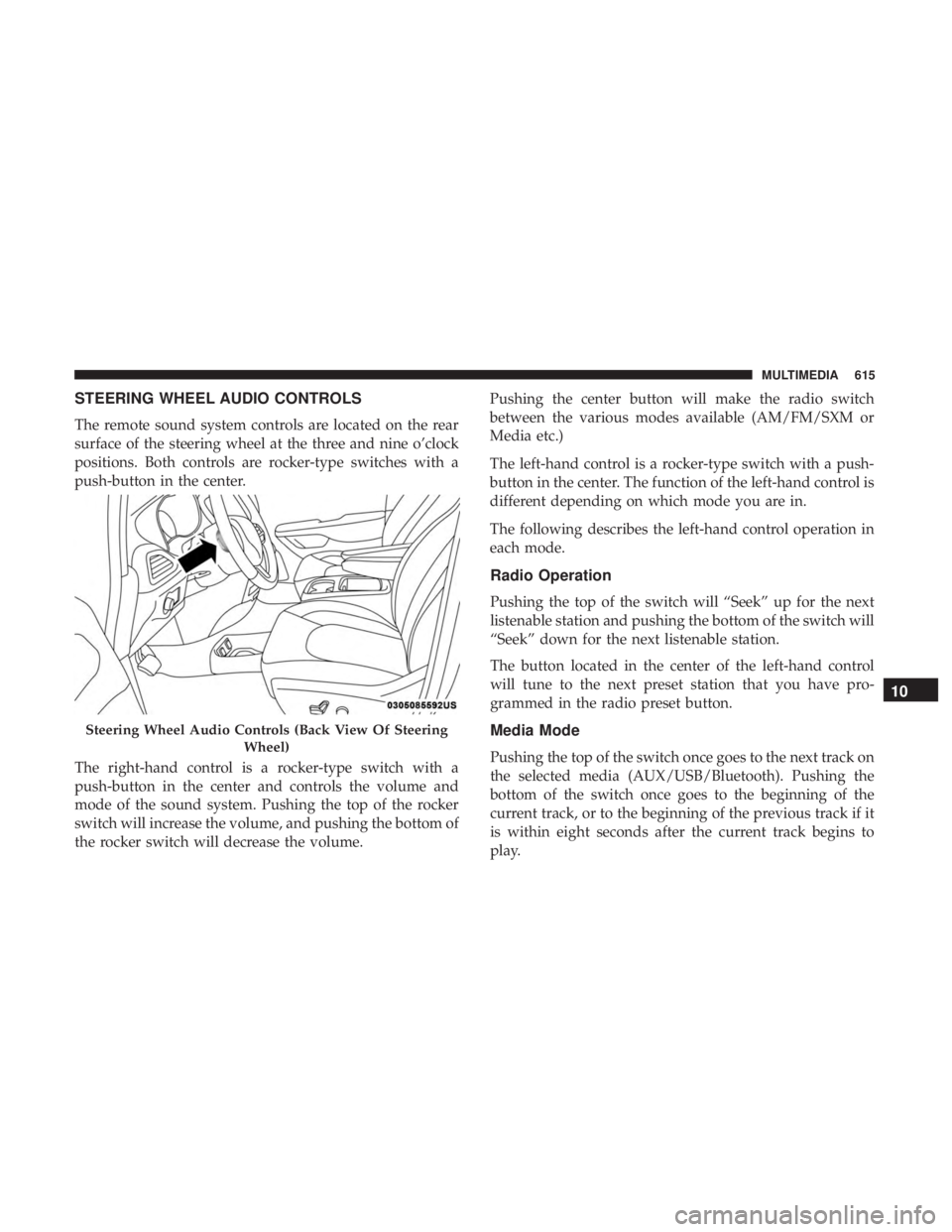
The remote sound system controls are located on the rear
surface of the steering wheel at the three and nine o’clock
positions. Both controls are rocker-type switches with a
push-button in the center.
The right-hand control is a rocker-type switch with a
push-button in the center and controls the volume and
mode of the sound system. Pushing the top of the rocker
switch will increase the volume, and pushing the bottom of
the rocker switch will decrease the volume.Pushing the center button will make the radio switch
between the various modes available (AM/FM/SXM or
Media etc.)
The left-hand control is a rocker-type switch with a push-
button in the center. The function of the left-hand control is
different depending on which mode you are in.
The following describes the left-hand control operation in
each mode.
Radio Operation
Pushing the top of the switch will “Seek” up for the next
listenable station and pushing the bottom of the switch will
“Seek” down for the next listenable station.
The button located in the center of the left-hand control
will tune to the next preset station that you have pro-
grammed in the radio preset button.
Media Mode
Pushing the top of the switch once goes to the next track on
the selected media (AUX/USB/Bluetooth). Pushing the
bottom of the switch once goes to the beginning of the
current track, or to the beginning of the previous track if it
is within eight seconds after the current track begins to
play.
Steering Wheel Audio Controls (Back View Of Steering
Wheel)
10
MULTIMEDIA 615