rear view mirror CHRYSLER PACIFICA 2019 User Guide
[x] Cancel search | Manufacturer: CHRYSLER, Model Year: 2019, Model line: PACIFICA, Model: CHRYSLER PACIFICA 2019Pages: 718, PDF Size: 8.6 MB
Page 445 of 718
HAZARD WARNING FLASHERS
The Hazard Warning flasher switch is located in the lower
center area of the instrument panel.Push the switch to turn on the Hazard Warning
flasher. When the switch is activated, all direc-
tional turn signals will flash on and off to warn
oncoming traffic of an emergency. Push the
switch a second time to turn off the Hazard Warning
flashers.
This is an emergency warning system and it should not be
used when the vehicle is in motion. Use it when your
vehicle is disabled and it is creating a safety hazard for
other motorists.
When you must leave the vehicle to seek assistance, the
Hazard Warning flashers will continue to operate even
though the ignition is placed in the OFF position.
NOTE: With extended use, the Hazard Warning flashers
may wear down your battery.
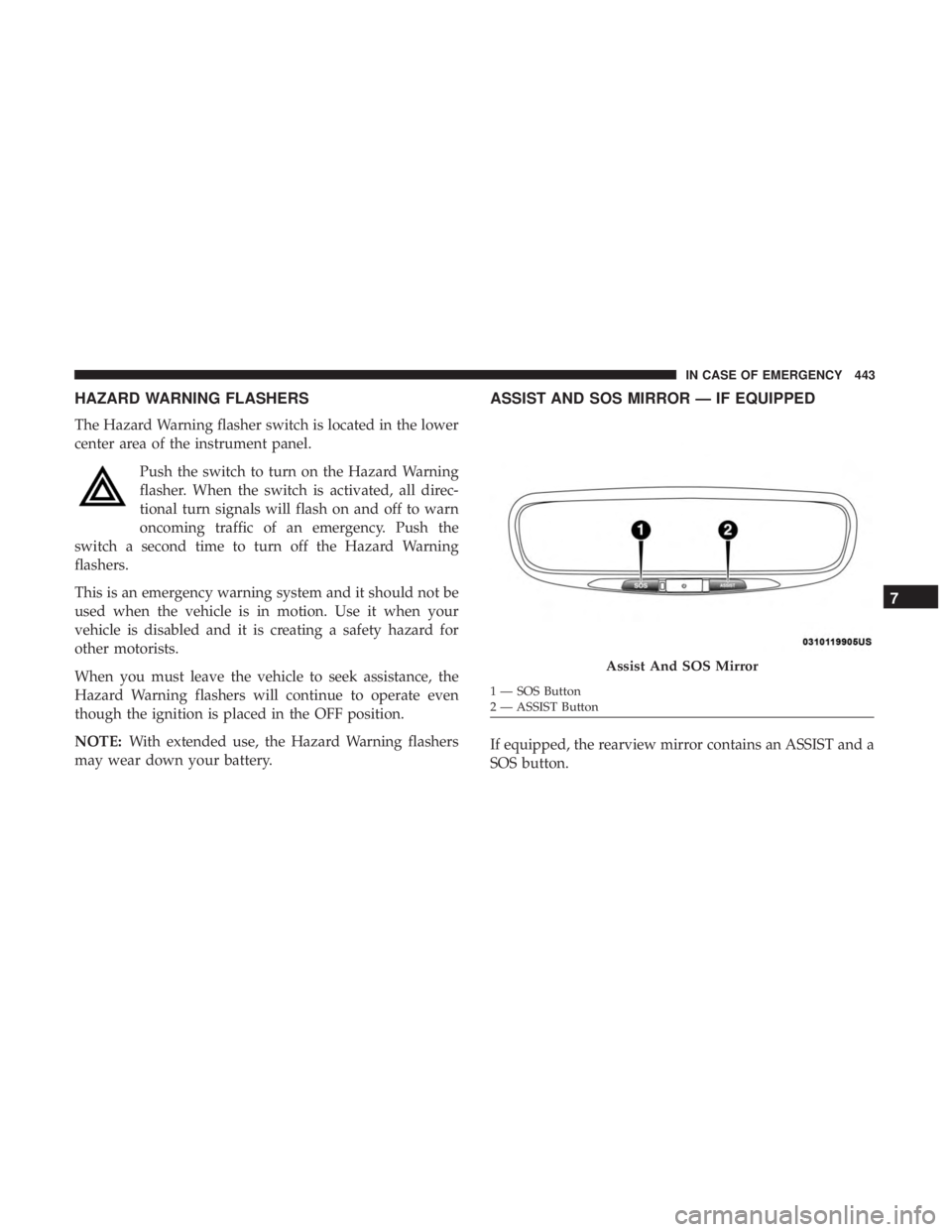
ASSIST AND SOS MIRROR — IF EQUIPPED
If equipped, the rearview mirror contains an ASSIST and a
SOS button.
Assist And SOS Mirror
1 — SOS Button
2 — ASSIST Button
7
IN CASE OF EMERGENCY 443
Page 446 of 718
WARNING!
ALWAYS obey traffic laws and pay attention to the
road. ALWAYS drive safely with your hands on the
steering wheel. You have full responsibility and as-
sume all risks related to the use of the features and
applications in this vehicle. Only use the features and
applications when it is safe to do so. Failure to do so
may result in an accident involving serious injury or
death.
NOTE:
• Your vehicle may be transmitting data as authorized by
the subscriber.
• The SOS and ASSIST buttons will only function if you
are connected to an operable LTE (voice/data) or 4G
(data) network. Other Uconnect services will only be
operable if your SiriusXM Guardian service is active and
you are connected to an operable LTE (voice/data) or 4G
(data) network. ASSIST Call
The ASSIST Button is used to automatically connect you to
any one of the following support centers:
•
Roadside Assistance – If you get a flat tire, or need a tow,
just push the ASSIST button and you will be connected
to a representative for assistance. Roadside Assistance
will know what vehicle you’re driving and its location.
Additional fees may apply for roadside assistance.
• SiriusXM Guardian Customer Care – In-vehicle support
for SiriusXM Guardian.
• Vehicle Customer Care – Total support for all other
vehicle issues.
SOS Call
1. Push the SOS Call button on the Rearview Mirror.
NOTE: In case the SOS Call button is pushed in error, there
will be a ten second delay before the SOS Call system
initiates a call to a SOS operator. To cancel the SOS Call
connection, push the SOS call button on the Rearview
Mirror or press the cancellation button on the Device
Screen. Termination of the SOS Call will turn off the green
LED light on the Rearview Mirror.
444 IN CASE OF EMERGENCY
Page 447 of 718
2. The LED light located between the ASSIST and SOSbuttons on the Rearview Mirror will turn green once a
connection to a SOS operator has been made.
3. Once a connection between the vehicle and a SOS operator is made, the SOS Call system may transmit the
following important vehicle information to a SOS op-
erator:
• Indication that the occupant placed a SOS Call.
• The vehicle brand.
• The last known GPS coordinates of the vehicle.
4. You should be able to speak with the SOS operator through the vehicle audio system to determine if addi-
tional assistance is needed.
WARNING!
ALWAYS obey traffic laws and pay attention to the
road. ALWAYS drive safely with your hands on the
steering wheel. You have full responsibility and as-
sume all risks related to the use of the features and
applications in this vehicle. Only use the features and
(Continued)
WARNING! (Continued)
applications when it is safe to do so. Failure to do so
may result in an accident involving serious injury or
death.
NOTE: •Your vehicle may be transmitting data as authorized
by the subscriber.
• Once a connection is made between the vehicle’s SOS
Call system and the SOS operator, the SOS operator
may be able to open a voice connection with the
vehicle to determine if additional assistance is needed.
Once the SOS operator opens a voice connection with
the vehicle’s SOS Call system, the operator should be
able to speak with you or other vehicle occupants and
hear sounds occurring in the vehicle. The vehicle’s
SOS Call system will attempt to remain connected
with the SOS operator until the SOS operator termi-
nates the connection.
5. The SOS operator may attempt to contact appropriate emergency responders and provide them with impor-
tant vehicle information and GPS coordinates.
7
IN CASE OF EMERGENCY 445
Page 448 of 718
WARNING!
•If anyone in the vehicle could be in danger (e.g., fire
or smoke is visible, dangerous road conditions or
location), do not wait for voice contact from an
Emergency Services Agent. All occupants should exit
the vehicle immediately and move to a safe location.
• Never place anything on or near the vehicle’s oper-
able network and GPS antennas. You could prevent
operable network and GPS signal reception, which
can prevent your vehicle from placing an emergency
call. An operable network and GPS signal reception
is required for the SOS Call system to function
properly.
• The SOS Call system is embedded into the vehicle’s
electrical system. Do not add aftermarket electrical
equipment to the vehicle’s electrical system. This
may prevent your vehicle from sending a signal to
initiate an emergency call. To avoid interference that
can cause the SOS Call system to fail, never add
aftermarket equipment (e.g., two-way mobile radio,
CB radio, data recorder, etc.) to your vehicle’s electri-
cal system or modify the antennas on your vehicle. IF
YOUR VEHICLE LOSES BATTERY POWER FOR
(Continued)
WARNING! (Continued)
ANY REASON (INCLUDING DURING OR AFTER
AN ACCIDENT), THE UCONNECT FEATURES,
APPS AND SERVICES, AMONG OTHERS, WILL
NOT OPERATE.
• Modifications to any part of the SOS Call system
could cause the air bag system to fail when you need
it. You could be injured if the air bag system is not
there to help protect you.
SOS Call System Limitations
Vehicles sold in Mexico DO NOThave SOS Call system
capabilities.
SOS or other emergency line operators in Mexico may not
answer or respond to SOS system calls.
If the SOS Call system detects a malfunction, any of the
following may occur at the time the malfunction is de-
tected, and at the beginning of each ignition cycle:
• The Rearview Mirror light located between the ASSIST
and SOS buttons will continuously be illuminated red.
• The Device Screen will display the following message
“Vehicle device requires service. Please contact your
dealer.”
446 IN CASE OF EMERGENCY
Page 449 of 718
•An In-Vehicle Audio message will state “Vehicle device
requires service. Please contact your dealer.”
WARNING!
• Ignoring the Rearview Mirror light could mean you
will not have SOS Call services. If the Rearview
Mirror light is illuminated, have your authorized
dealer service the SOS Call system immediately.
• The Occupant Restraint Control module turns on the
air bag Warning Light on the instrument panel if a
malfunction in any part of the system is detected. If
the Air Bag Warning Light is illuminated, have your
authorized dealer service the Occupant Restraint
Control system immediately.
Even if the SOS Call system is fully functional, factors
beyond FCA US LLC’s control may prevent or stop the SOS
Call system operation. These include, but are not limited
to, the following factors:
• Delayed accessories mode is active.
• The ignition is in the OFF position.
• The vehicle’s electrical systems are not intact. •
The SOS Call system software and/or hardware are
damaged during a crash.
• The vehicle battery loses power or becomes discon-
nected during a vehicle crash.
• LTE (voice/data) or 4G (data) network and/or Global
Positioning Satellite signals are unavailable or ob-
structed.
• Equipment malfunction at the SOS operator facility.
• Operator error by the SOS operator.
• LTE (voice/data) or 4G (data) network congestion.
• Weather.
• Buildings, structures, geographic terrain, or tunnels.
WARNING!
ALWAYS obey traffic laws and pay attention to the
road. ALWAYS drive safely with your hands on the
steering wheel. You have full responsibility and
assume all risks related to the use of the features and
(Continued)
7
IN CASE OF EMERGENCY 447
Page 569 of 718
soils can be removed easily with a soft cloth and Mopar
Total Clean. Care should be taken to avoid soaking your
leather upholstery with any liquid. Please do not use
polishes, oils, cleaning fluids, solvents, detergents, or
ammonia-based cleaners to clean your leather upholstery.
Application of a leather conditioner is not required to
maintain the original condition.
NOTE:If equipped with light colored leather, it tends to
show any foreign material, dirt, and fabric dye transfer
more so than darker colors. The leather is designed for easy
cleaning, and FCA recommends Mopar total care leather
cleaner applied on a cloth to clean the leather seats as
needed.
CAUTION!
Do not use Alcohol and Alcohol-based and/or Ketone
based cleaning products to clean leather seats, as
damage to the seat may result.
Glass Surfaces
All glass surfaces should be cleaned on a regular basis with
Mopar Glass Cleaner, or any commercial household-type
glass cleaner. Never use an abrasive type cleaner. Use
caution when cleaning the inside rear window equipped
with electric defrosters or windows equipped with radio
antennas. Do not use scrapers or other sharp instruments
that may scratch the elements.
When cleaning the rear view mirror, spray cleaner on the
towel or cloth that you are using. Do not spray cleaner
directly on the mirror.
8
SERVICING AND MAINTENANCE 567
Page 610 of 718
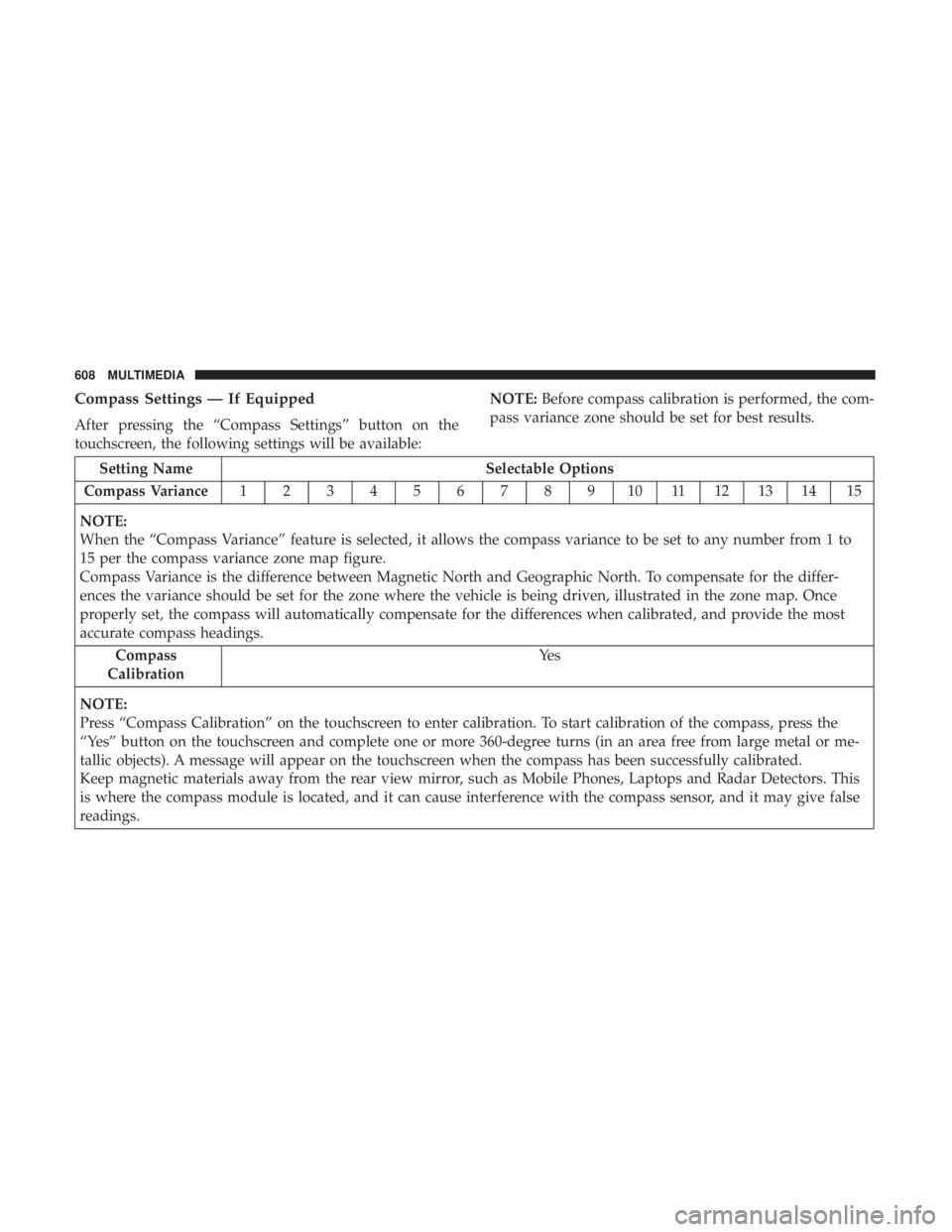
Compass Settings — If Equipped
After pressing the “Compass Settings” button on the
touchscreen, the following settings will be available:NOTE:
Before compass calibration is performed, the com-
pass variance zone should be set for best results.
Setting Name Selectable Options
Compass Variance 1 2 3 4 5 6 7 8 9 10 11 12 13 14 15
NOTE:
When the “Compass Variance” feature is selected, it allows the compass variance to be set to any number from 1 to
15 per the compass variance zone map figure.
Compass Variance is the difference between Magnetic North and Geographic North. To compensate for the differ-
ences the variance should be set for the zone where the vehicle is being driven, illustrated in the zone map. Once
properly set, the compass will automatically compensate for the differences when calibrated, and provide the most
accurate compass headings. Compass
Calibration Ye s
NOTE:
Press “Compass Calibration” on the touchscreen to enter calibration. To start calibration of the compass, press the
“Yes” button on the touchscreen and complete one or more 360-degree turns (in an area free from large metal or me-
tallic objects). A message will appear on the touchscreen when the compass has been successfully calibrated.
Keep magnetic materials away from the rear view mirror, such as Mobile Phones, Laptops and Radar Detectors. This
is where the compass module is located, and it can cause interference with the compass sensor, and it may give false
readings.
608 MULTIMEDIA
Page 667 of 718
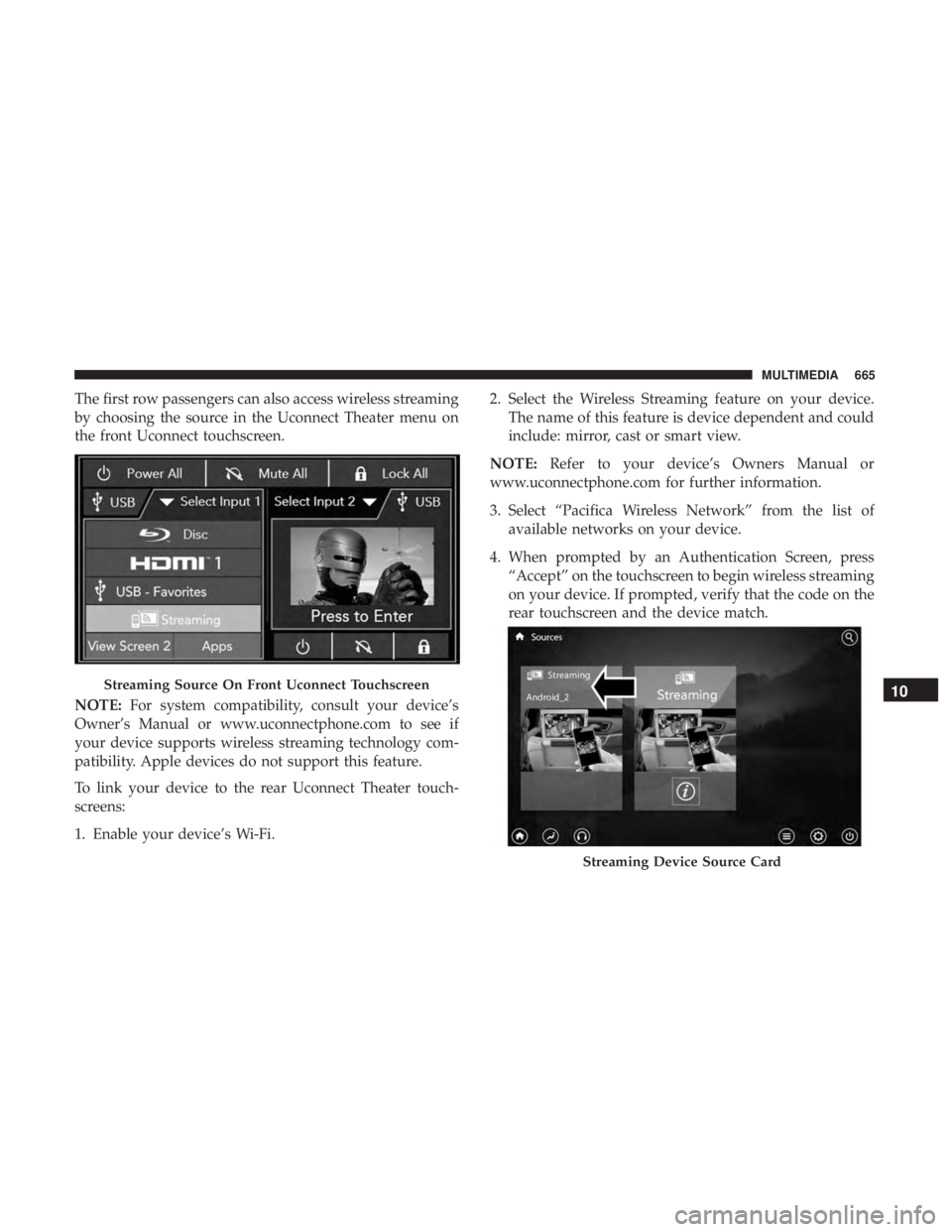
The first row passengers can also access wireless streaming
by choosing the source in the Uconnect Theater menu on
the front Uconnect touchscreen.
NOTE:For system compatibility, consult your device’s
Owner’s Manual or www.uconnectphone.com to see if
your device supports wireless streaming technology com-
patibility. Apple devices do not support this feature.
To link your device to the rear Uconnect Theater touch-
screens:
1. Enable your device’s Wi-Fi. 2. Select the Wireless Streaming feature on your device.
The name of this feature is device dependent and could
include: mirror, cast or smart view.
NOTE: Refer to your device’s Owners Manual or
www.uconnectphone.com for further information.
3. Select “Pacifica Wireless Network” from the list of available networks on your device.
4. When prompted by an Authentication Screen, press “Accept” on the touchscreen to begin wireless streaming
on your device. If prompted, verify that the code on the
rear touchscreen and the device match.
Streaming Source On Front Uconnect Touchscreen
Streaming Device Source Card
10
MULTIMEDIA 665
Page 678 of 718
Get Started
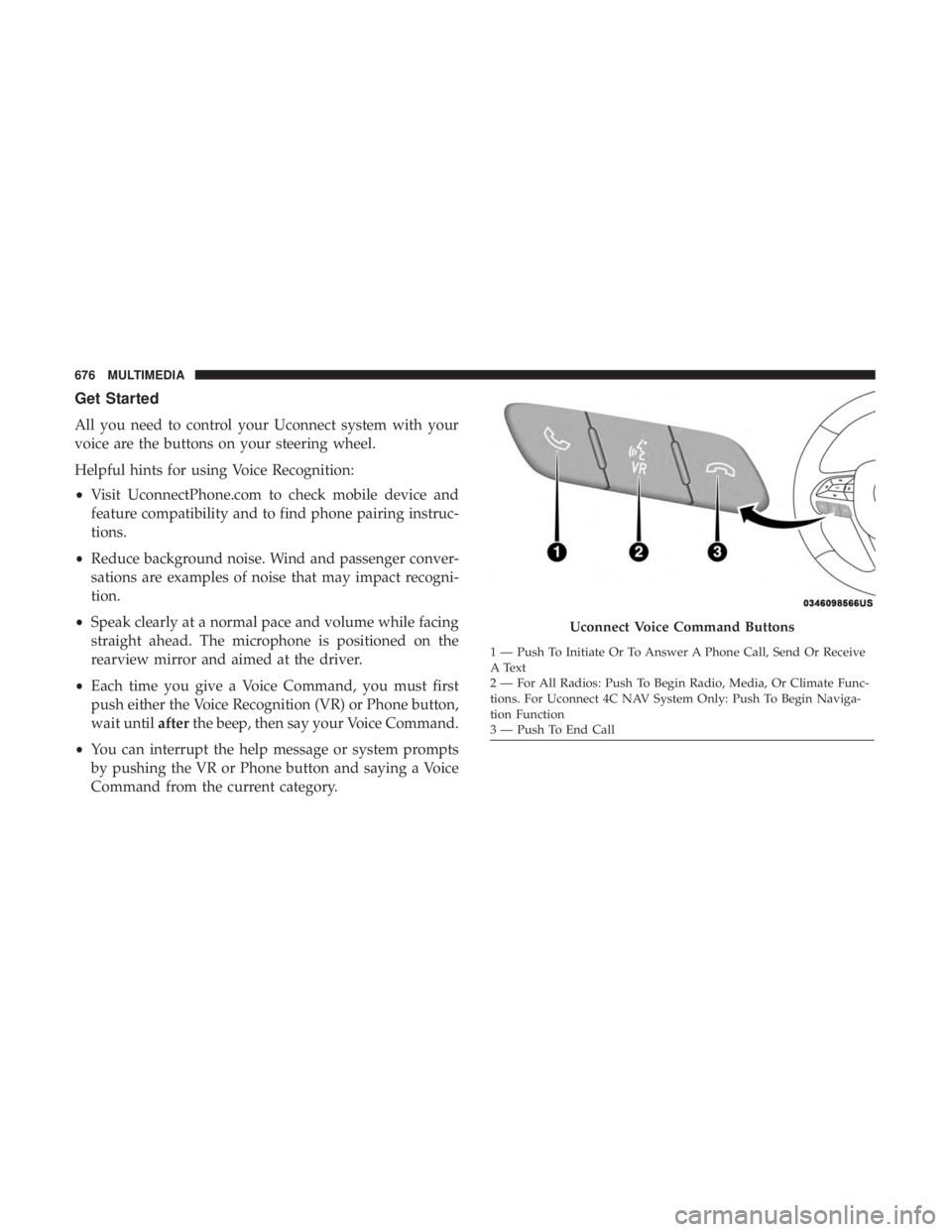
All you need to control your Uconnect system with your
voice are the buttons on your steering wheel.
Helpful hints for using Voice Recognition:
•Visit UconnectPhone.com to check mobile device and
feature compatibility and to find phone pairing instruc-
tions.
• Reduce background noise. Wind and passenger conver-
sations are examples of noise that may impact recogni-
tion.
• Speak clearly at a normal pace and volume while facing
straight ahead. The microphone is positioned on the
rearview mirror and aimed at the driver.
• Each time you give a Voice Command, you must first
push either the Voice Recognition (VR) or Phone button,
wait until afterthe beep, then say your Voice Command.
• You can interrupt the help message or system prompts
by pushing the VR or Phone button and saying a Voice
Command from the current category.
Uconnect Voice Command Buttons
1 — Push To Initiate Or To Answer A Phone Call, Send Or Receive
A Text
2 — For All Radios: Push To Begin Radio, Media, Or Climate Func-
tions. For Uconnect 4C NAV System Only: Push To Begin Naviga-
tion Function
3 — Push To End Call
676 MULTIMEDIA
Page 708 of 718
Ignition..................................28
Switch .................................28
Inside Rearview Mirror ....................92, 443
Instrument Cluster ......................... .191
Descriptions ........................... .215
Display .............................. .192
Menu Items ........................... .197
Instrument Panel Lens Cleaning ................566
Interior And Instrument Lights .................101
Interior Appearance Care .....................565
Interior Lights ............................ .101
Intermittent Wipers (Delay Wipers) ..............105
Introduction ................................4
In Vehicle Help Vehicle User Guide ........................18
Inverter Power ............................... .177
Jack Location ............................ .466
Jack Operation ........................ .466, 538
Jump Starting ............................ .495
KeyFob..................................20 Arm The System ..........................35
Disarm The Alarm ........................35 Programming Additional Key Fobs
..........26, 34
Key Fob Battery Service (Remote Keyless Entry) .....24
Key Fob Programming (Remote Keyless Entry) ......26
Keys ....................................20
Replacement .............................34
Lane Change And Turn Signals .................97
Lane Change Assist ..................... .97, 101
LaneSense ............................... .412
Lap/Shoulder Belts ........................ .249
Latches ................................. .315
Hood ................................ .145
Lead Free Gasoline ........................ .572
Leaks, Fluid ............................. .315
Life Of Tires ............................. .552
Liftgate ................................. .146
Power ............................... .148
Light Bulbs .......................... .315,
453
Lighter Cigar ................................ .179
Lights .................................. .315
AirBag .........................205, 263, 313
Battery Saver .......................... .101
Brake Assist Warning ..................... .226
Brake Warning ......................... .205
706 INDEX