service CHRYSLER PACIFICA 2020 Owners Manual
[x] Cancel search | Manufacturer: CHRYSLER, Model Year: 2020, Model line: PACIFICA, Model: CHRYSLER PACIFICA 2020Pages: 516, PDF Size: 28.69 MB
Page 416 of 516
414MULTIMEDIA
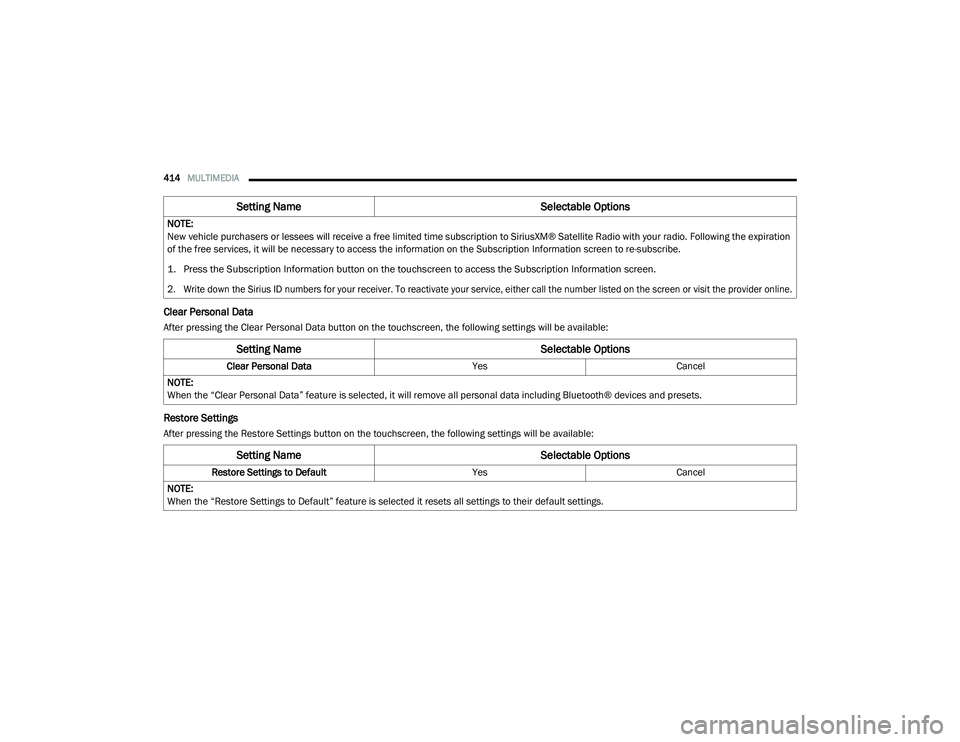
Clear Personal Data
After pressing the Clear Personal Data button on the touchscreen, the following settings will be available:
Restore Settings
After pressing the Restore Settings button on the touchscreen, the following settings will be available:NOTE:
New vehicle purchasers or lessees will receive a free limited time subscription to SiriusXM® Satellite Radio with your radio. Following the expiration
of the free services, it will be necessary to access the information on the Subscription Information screen to re-subscribe.
1. Press the Subscription Information button on the touchscreen to access the Subscription Information screen.
2. Write down the Sirius ID numbers for your receiver. To reactivate your service, either call the number listed on the screen or visit the provider online.
Setting Name
Selectable Options
Setting NameSelectable Options
Clear Personal DataYesCancel
NOTE:
When the “Clear Personal Data” feature is selected, it will remove all personal data including Bluetooth® devices and presets.
Setting Name Selectable Options
Restore Settings to DefaultYesCancel
NOTE:
When the “Restore Settings to Default” feature is selected it resets all settings to their default settings.
20_RU_OM_EN_US_t.book Page 414
Page 420 of 516
418MULTIMEDIA
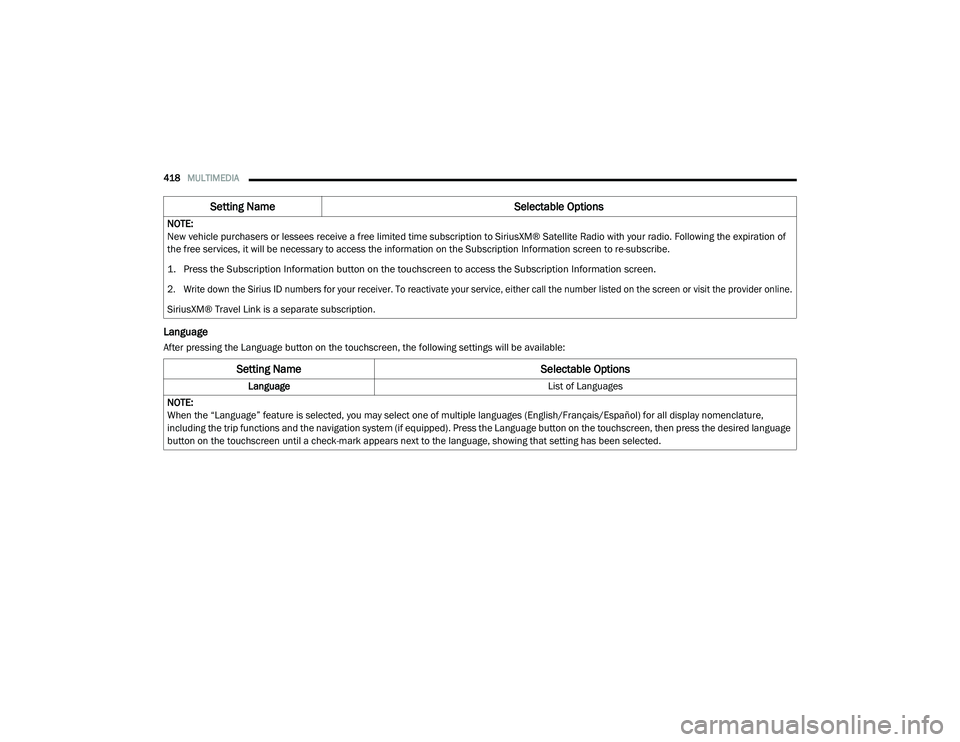
Language
After pressing the Language button on the touchscreen, the following settings will be available:NOTE:
New vehicle purchasers or lessees receive a free limited time subscription to SiriusXM® Satellite Radio with your radio. Following the expiration of
the free services, it will be necessary to access the information on the Subscription Information screen to re-subscribe.
1. Press the Subscription Information button on the touchscreen to access the Subscription Information screen.
2. Write down the Sirius ID numbers for your receiver. To reactivate your service, either call the number listed on the screen or visit the provider online.
SiriusXM® Travel Link is a separate subscription.
Setting Name
Selectable Options
Setting NameSelectable Options
Language List of Languages
NOTE:
When the “Language” feature is selected, you may select one of multiple languages (English/Français/Español) for all display nomenclature,
including the trip functions and the navigation system (if equipped). Press the Language button on the touchscreen, then press the desired language
button on the touchscreen until a check-mark appears next to the language, showing that setting has been selected.
20_RU_OM_EN_US_t.book Page 418
Page 429 of 516
MULTIMEDIA427
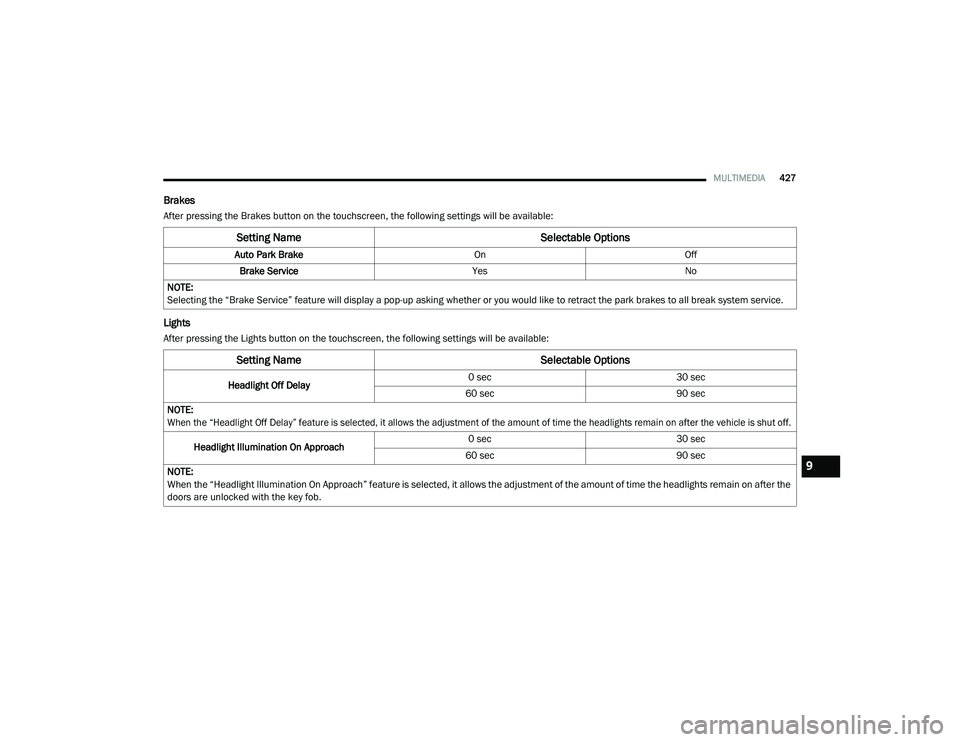
Brakes
After pressing the Brakes button on the touchscreen, the following settings will be available:
Lights
After pressing the Lights button on the touchscreen, the following settings will be available:
Setting Name Selectable Options
Auto Park BrakeOnOff
Brake Service YesNo
NOTE:
Selecting the “Brake Service” feature will display a pop-up asking whether or you would like to retract the park brakes to all break system service.
Setting Name Selectable Options
Headlight Off Delay0 sec
30 sec
60 sec 90 sec
NOTE:
When the “Headlight Off Delay” feature is selected, it allows the adjustment of the amount of time the headlights remain on after the vehicle is shut off.
Headlight Illumination On Approach 0 sec
30 sec
60 sec 90 sec
NOTE:
When the “Headlight Illumination On Approach” feature is selected, it allows the adjustment of the amount of time the headlights remain on after the
doors are unlocked with the key fob.
9
20_RU_OM_EN_US_t.book Page 427
Page 430 of 516
428MULTIMEDIA
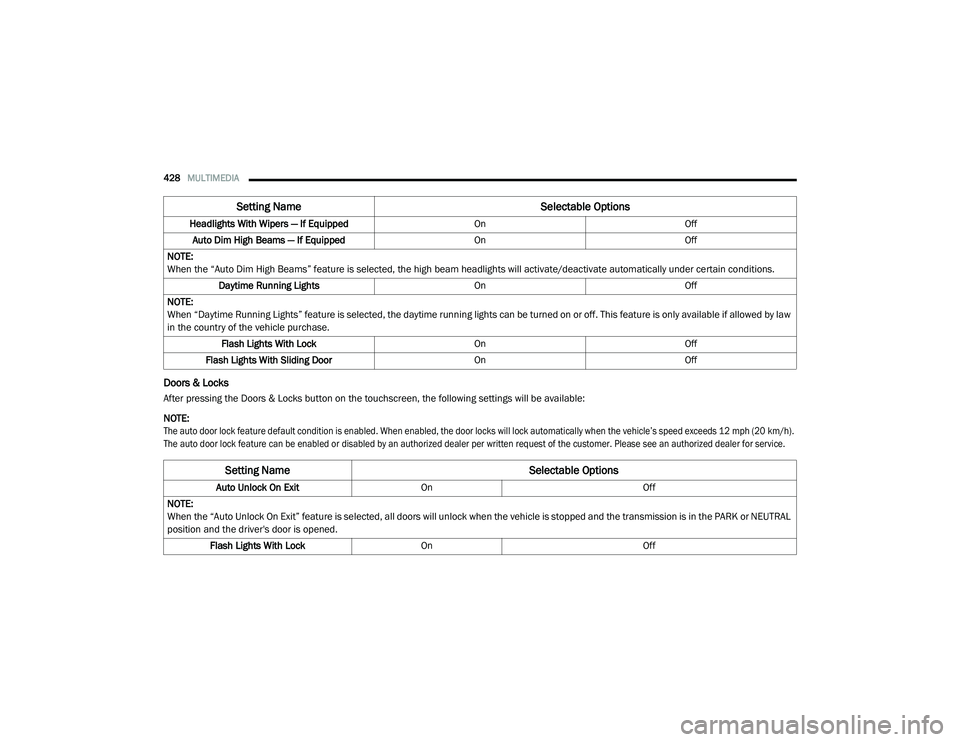
Doors & Locks
After pressing the Doors & Locks button on the touchscreen, the following settings will be available:
NOTE:
The auto door lock feature default condition is enabled. When enabled, the door locks will lock automatically when the vehicle’s speed exceeds 12 mph (20 km/h).
The auto door lock feature can be enabled or disabled by an authorized dealer per written request of the customer. Please see an authorized dealer for service.
Headlights With Wipers — If Equipped
OnOff
Auto Dim High Beams — If Equipped OnOff
NOTE:
When the “Auto Dim High Beams” feature is selected, the high beam headlights will activate/deactivate automatically under certain conditions. Daytime Running Lights OnOff
NOTE:
When “Daytime Running Lights” feature is selected, the daytime running lights can be turned on or off. This feature is only available if allowed by law
in the country of the vehicle purchase. Flash Lights With Lock OnOff
Flash Lights With Sliding Door OnOff
Setting Name Selectable Options
Setting NameSelectable Options
Auto Unlock On ExitOn Off
NOTE:
When the “Auto Unlock On Exit” feature is selected, all doors will unlock when the vehicle is stopped and the transmission is in the PARK or NEUTRAL
position and the driver's door is opened. Flash Lights With Lock On Off
20_RU_OM_EN_US_t.book Page 428
Page 435 of 516
MULTIMEDIA433
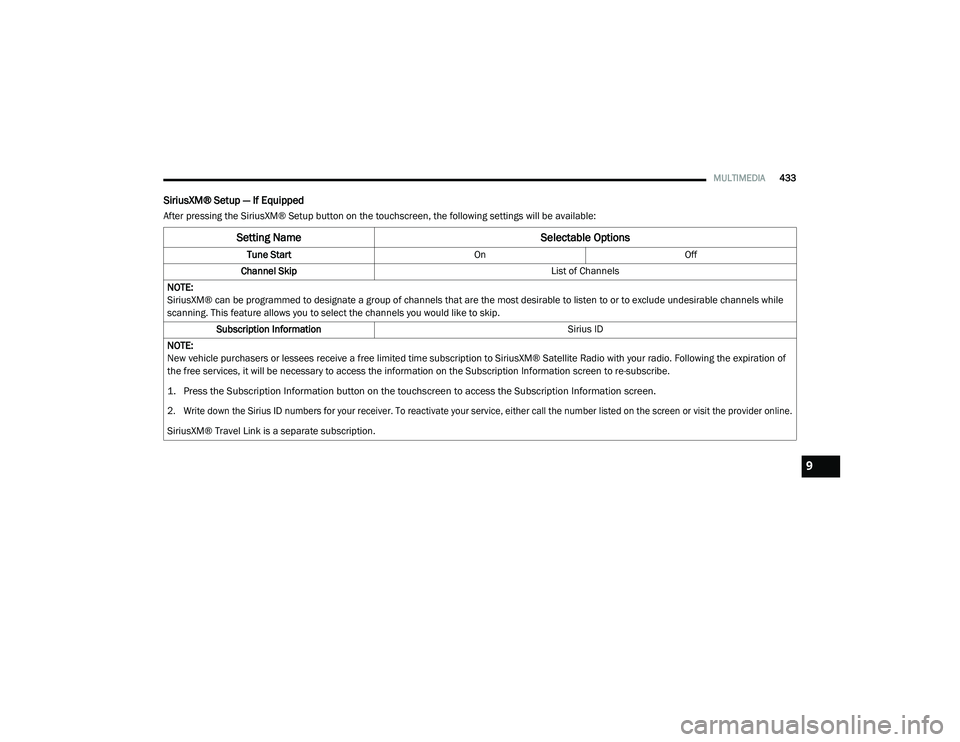
SiriusXM® Setup — If Equipped
After pressing the SiriusXM® Setup button on the touchscreen, the following settings will be available:
Setting Name Selectable Options
Tune StartOnOff
Channel Skip List of Channels
NOTE:
SiriusXM® can be programmed to designate a group of channels that are the most desirable to listen to or to exclude undesirable channels while
scanning. This feature allows you to select the channels you would like to skip. Subscription Information Sirius ID
NOTE:
New vehicle purchasers or lessees receive a free limited time subscription to SiriusXM® Satellite Radio with your radio. Following the expiration of
the free services, it will be necessary to access the information on the Subscription Information screen to re-subscribe.
1. Press the Subscription Information button on the touchscreen to access the Subscription Information screen.
2. Write down the Sirius ID numbers for your receiver. To reactivate your service, either call the number listed on the screen or visit the provider online.
SiriusXM® Travel Link is a separate subscription.
9
20_RU_OM_EN_US_t.book Page 433
Page 440 of 516
438MULTIMEDIA
5. Controls
Press the Controls button on the touch -
screen to adjust the heated and vented
seats or heated steering wheel (If
Equipped).
6. Phone Press the Phone button on the touchscreen
to access the Uconnect Phone feature.
7. Settings Press the Settings button on the touch -
screen to access the Uconnect Settings
menu.Drag & Drop Menu Bar
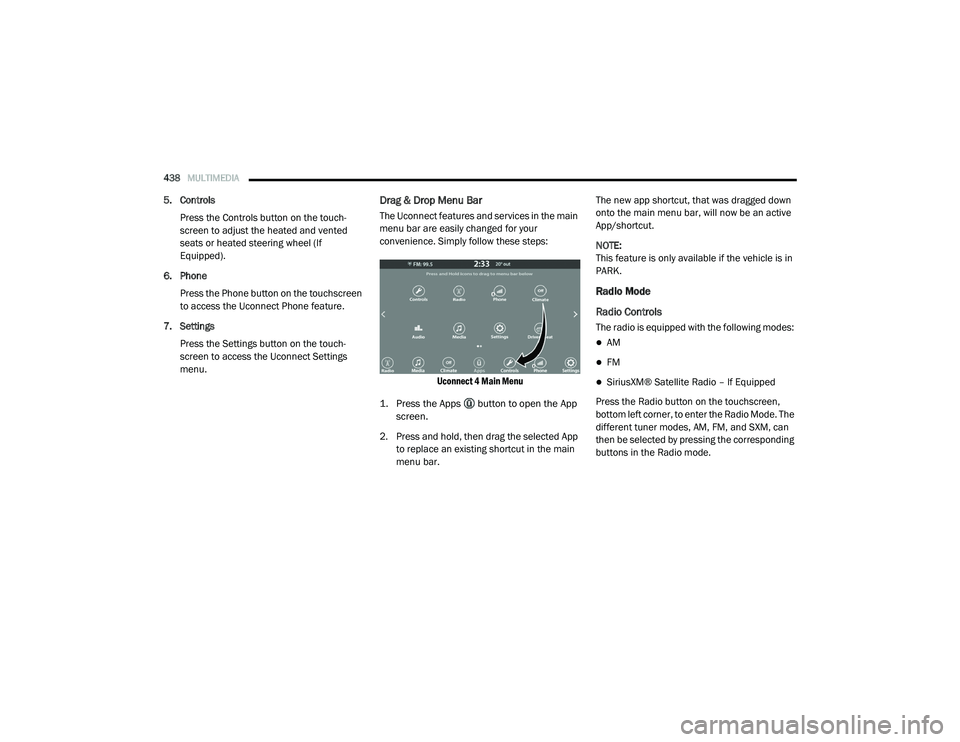
The Uconnect features and services in the main
menu bar are easily changed for your
convenience. Simply follow these steps:
Uconnect 4 Main Menu
1. Press the Apps button to open the App screen.
2. Press and hold, then drag the selected App to replace an existing shortcut in the main
menu bar. The new app shortcut, that was dragged down
onto the main menu bar, will now be an active
App/shortcut.
NOTE:
This feature is only available if the vehicle is in
PARK.
Radio Mode
Radio Controls
The radio is equipped with the following modes:
AM
FM
SiriusXM® Satellite Radio – If Equipped
Press the Radio button on the touchscreen,
bottom left corner, to enter the Radio Mode. The
different tuner modes, AM, FM, and SXM, can
then be selected by pressing the corresponding
buttons in the Radio mode.
20_RU_OM_EN_US_t.book Page 438
Page 442 of 516
440MULTIMEDIA
Tune screen will close. The system will
automatically tune to that station.
The selected Station or Channel number is
displayed in the Direct Tune text box.
Setting Presets
The Presets are available for all Radio Modes,
and are activated by pressing any of the six
Preset buttons on the touchscreen, located at
the top of the screen.
When you are receiving a station that you wish
to commit into memory, press and hold the
desired numbered button on the touchscreen
for more than two seconds or until you hear a
confirmation beep.
The Radio stores up to 12 presets in each of the
Radio modes. A set of six presets are visible at
the top of the radio screen.
You can switch between the two radio presets
by pressing the Arrow button located in the
upper right of the radio touchscreen. Browse In AM/FM
When in either AM or FM, the Browse Screen
provides a means to edit the Presets List and is
entered by pushing the ENTER/BROWSE
button.
Scrolling Preset List
Once in the Browse Presets screen, you can
scroll the preset list by rotation of the TUNE/
SCROLL knob, or by pressing the Up and Down
arrow keys, located on the right of the screen.
Preset Selection From List
A Preset can be selected by pressing any of the
listed Presets or by pushing the ENTER/
BROWSE button on the TUNE/SCROLL knob to
select the currently highlighted Preset.
When selected, the radio tunes to the station
stored in the Preset and returns to the main
radio screen.
Deleting Presets
A Preset can be deleted in the Presets Browse
screen by pressing the Trash Can icon for the
corresponding Preset.Return To Main Radio Screen
You can return to the Main Radio Screen, by
pressing the X button on the touchscreen when
in the Browse Presets screen.
SiriusXM® Satellite Radio Mode — If
Equipped
SiriusXM® Satellite Radio uses direct
satellite-to-receiver broadcasting technology to
provide clear, coast to coast radio content.
SiriusXM® is a subscription based service.
SiriusXM® All Access Package
All satellite radio equipped vehicles come with a
one year trial to the SiriusXM® All Access
package, providing over 160 channels of the
best programming for all the places life takes
you.
In your vehicle — You’ll get every channel
available on your radio, including all the
premium programming like Howard Stern,
every NFL® game, every MLB® game, every
NASCAR® race, Oprah Radio, and more.
20_RU_OM_EN_US_t.book Page 440
Page 443 of 516
MULTIMEDIA441
On the go — With a SiriusXM® Internet Radio
subscription included with the All Access trial,
you’ll get SiriusXM® on your computer,
smartphone, or tablet. Including:
A huge On Demand catalog
Xtra Channels featuring SiriusXM®
Latino – a collection of Spanish-language
channels
MySXM – allowing you to personalize
your favorite music channels
Go to siriusxm.com/getallaccess for more
information
SiriusXM® services require subscriptions, sold
separately after the 12-month trial included
with the new vehicle purchase. If you decide to
continue your service at the end of your trial
subscription, the plan you choose will
automatically renew and bill at then-current
rates until you call SiriusXM® at 866-635-2349
to cancel. See SiriusXM® Customer Agreement
for complete terms at www.siriusxm.com. All
fees and programming subject to change. Our
satellite service is available only to those at
least 18 and older in the 48 contiguous USA
and D.C. Our SiriusXM® satellite service is also available in PR (with coverage limitations). Our
Internet radio service is available throughout
our satellite service area and in AK. © 202
1
SiriusXM® Radio Inc. Sirius, XM and all related
marks and logos are trademarks of SiriusXM®
Radio Inc. Service available in Canada; see
www.siriusxm.ca.
This functionality is only available for radios
equipped with a Satellite receiver. In order to
receive satellite radio, the vehicle needs to be
outside with a clear view to the sky.
If the screen shows Acquiring Signal, you might
have to change the vehicle’s position in order to
receive a signal. In most cases, the satellite
radio does not receive a signa l in underground
parking garages or tunnels.
No Subscription
Radios equipped with a Satellite receiver,
require a subscription to the SiriusXM® Service.
When the Radio does not have the necessary
subscription, the Radio is able to receive the
Pre-View channel only.
Acquiring SiriusXM® Subscription
To activate the SiriusXM® Satellite Radio
subscription, US residents call:
1-800-643-2112
Canadian residents call:
1-877-438-9677
NOTE:
You will need to provide the SiriusXM® ID (RID)
located at the bottom of the Channel 0 screen.
The Satellite Mode is activated by a press of the
SXM button on the touchscreen.
When in Satellite mode:
The SXM button on the touchscreen is high -
lighted.
The SiriusXM® Presets are displayed at the
top of the screen.
The Genre is displayed below the Presets
Bar.
The SiriusXM® Channel Number is displayed
in the center.9
20_RU_OM_EN_US_t.book Page 441
Page 464 of 516
462MULTIMEDIA
Depending on the maximum number of
entries downloaded, there may be a short
delay before the latest downloaded names
can be used. Until then, if available, the previ -
ously downloaded phonebook is available for
use.
Only the phonebook of the currently
connected mobile phone is accessible.
This downloaded phonebook cannot be
edited or deleted on the Uconnect Phone.
These can only be edited on the mobile
phone. The changes are transferred and
updated to Uconnect Phone on the next
phone connection.
Managing Your Favorites
There are two ways you can add an entry to your
Favorites.
1. After loading the mobile phonebook, press the Favorites button on the touchscreen,
and then press one of the +Add favorite
Contact buttons that appears on the list.
2. After loading the mobile phonebook, select
Contacts from the Phone main screen, and
then select the appropriate number. Press
the Down arrow symbol button next to the
selected number to display the options
pop-up. In the pop-up select Add to
Favorites.
NOTE:
If the Favorites list is full, you will be asked to
remove an existing favorite.
To Remove A Favorite
1. To remove a Favorite, select “Favorites” from the Phone main screen.
2. Next select the Down arrow icon next to the contact you want to remove from your
favorites. This will bring up the options for
that favorite contact.
3. Press Remove from Favs.
Phone Call Features
The following features can be accessed through
the Uconnect Phone if the feature(s) are
available and supported by Bluetooth® on your
mobile service plan. For example, if your mobile
service plan provides three-way calling, this
feature can be accessed through the Uconnect
Phone. Check with your mobile service provider
for the features that you have.
Ways To Initiate A Phone Call
Listed below are all the ways you can initiate a
phone call with Uconnect Phone.
Redial
Dial by pressing in the number
Voice Commands (Dial by Saying a Name,
Call by Saying a Phonebook Name, Redial or
Call Back)
Favorites
Mobile Phonebook
Recent Call Log
SMS Message Viewer
20_RU_OM_EN_US_t.book Page 462
Page 483 of 516
MULTIMEDIA481
Replacing The Headphone Batteries
Each set of headphones requires two AAA
batteries for operation.
To replace the batteries:
1. Locate the battery compartment on the left
ear cup of the headphones, and then slide
the battery cover downward.
2. Remove the old batteries and follow battery recycling procedures for your area.
3. Install new batteries, making sure to orient them according to the polarity diagram
shown inside the battery compartment.
4. Replace the battery compartment cover.
Stereo Headphone Lifetime Limited
Warranty
Who Does This Warranty Cover? This warranty
covers the initial user or purchaser ("you" or
"your") of this particular Aptiv PLC (“Aptiv”)
wireless headphone ("Product"). The warranty is
not transferable.
How Long Does the Coverage Last? This
warranty lasts as long as you own the Product. What Does This Warranty Cover?
Except as
specified below, this warranty covers any
Product that in normal use is defective in
workmanship or materials.
What Does This Warranty Not Cover? This
warranty does not cover any damage or defect
that results from misuse, abuse or modification
of the Product other than by Aptiv. Foam
earpieces, which will wear over time through
normal use, are specifically not covered
(replacement foam is available for a nominal
charge). APTIV IS NOT LIABLE FOR ANY
INJURIES OR DAMAGES TO PERSONS OR
PROPERTY RESULTING FROM THE USE OF, OR
ANY FAILURE OR DEFECT IN, THE PRODUCT,
NOR IS APTIV LIABLE FOR ANY GENERAL,
SPECIAL, DIRECT, INDIRECT, INCIDENTAL,
CONSEQUENTIAL, EXEMPLARY, PUNITIVE OR
OTHER DAMAGES OF ANY KIND OR NATURE
WHATSOEVER. Some states and jurisdictions
may not allow the exclusion or limitation of
incidental or consequential damages, so the
above limitation may not apply to you. This
warranty gives you specific legal rights. You may
also have other rights, which vary from
jurisdiction to jurisdiction. What Will Aptiv Do?
Aptiv, at its option, will
repair or replace any defective Product. Aptiv
reserves the right to replace any discontinued
Product with a comparable model. THIS
WARRANTY IS THE SOLE WARRANTY FOR THIS
PRODUCT, SETS FORTH YOUR EXCLUSIVE
REMEDY REGARDING DEFECTIVE PRODUCTS,
AND IS IN LIEU OF ALL OTHER WARRANTIES
(EXPRESS OR IMPLIED), INCLUDING ANY
WARRANTY FOR MERCHANTABILITY OR
FITNESS FOR A PARTICULAR PURPOSE.
If you have any questions or comments
regarding your Aptiv wireless headphones,
please email [email protected] or phone:
888-293-3332
Display Settings
When watching a video source, pressing the
Settings icon on the touchscreen activates
the Settings menu. These settings control the
appearance of the video on the screen. The
factory default settings are already set for
optimum viewing, so there is no need to change
these settings under normal circumstances.
To change the settings, use one of the
touchscreens or remote. To reset all values
back to the original settings, select “Reset to
Defaults”, then select “YES.”
9
20_RU_OM_EN_US_t.book Page 481