light CHRYSLER PACIFICA 2020 Owners Manual
[x] Cancel search | Manufacturer: CHRYSLER, Model Year: 2020, Model line: PACIFICA, Model: CHRYSLER PACIFICA 2020Pages: 516, PDF Size: 28.69 MB
Page 449 of 516
MULTIMEDIA447
Media Mode
USB/iPod® Mode
Overview
USB/iPod® Mode is entered by either inserting
a USB device or iPod® and cable into the USB
Port or by pressing the Select Source button on
the left side of the display, and then selecting
USB 1, or USB 2 (if equipped).
Seek Up /Seek Down
Press and release the Seek Up button on the
touchscreen for the next selection on the USB
device/iPod®. Press and release the Seek
Down button on the touchscreen to return to the
beginning of the current selection or to return to
the beginning of the previous selection if the
USB device/iPod® is within the first three
seconds of the current selection.
Browse
Press the Browse button on the touchscreen to
display the browse window. The left side of the
browse window displays a list of ways you can
browse through the contents of the USB device/
iPod®. If supported by the device, you can
browse by Folders, Artists, Playlists, Albums,
Songs, etc. Press the desired button on the left
side of the screen. The center of the browse window shows items and its sub-functions,
which can be scrolled by pressing the Up and
Down buttons to the right. The Tune/Scroll knob
can also be used to scroll.
Media Mode
Press the Media button on the touchscreen to
select the desired audio source: USB.
Repeat
Press the Repeat button on the touchscreen to
toggle the repeat functionality. The Repeat
button on the touchscreen is highlighted when
active. The Radio will continue to play the
current track, repeatedly, as long as the repeat
is active. Press the Repeat button on the
touchscreen a second time to turn this feature
off.
Shuffle
Press the Shuffle button on the touchscreen to
play the selections on the USB/iPod® device in
random order to provide an interesting change of
pace. Press the Shuffle button on the touchscreen
a second time to turn this feature off.
Info
Press the Info button on the touchscreen to
display the current track information. Press the
Info button on the touchscreen a second time to
cancel this feature.
Tracks
Press the Tracks button on the touchscreen to
display a pop-up with the Song List. The
currently playing song is indicated by an arrow
and lines above and below the song title. When
in the Tracks List screen, you can rotate the
Tune/Scroll knob to highlight a track (indicated
by the line above and below the track name)
and then push the Enter/Browse knob to start
playing that track.
Pressing the Tracks button on the touchscreen
while the pop-up is displayed will close the
pop-up.
Audio
Refer to Radio Mode for adjusting the audio
settings.
9
20_RU_OM_EN_US_t.book Page 447
Page 453 of 516
MULTIMEDIA451
Android Auto™ Communication
With Android Auto™ connected, press and hold
the VR button on the steering wheel to activate
voice recognition specific to the Android Auto™.
This will allow you to send and reply to text
messages, have incoming text messages read
out loud, and place and receive hands-free calls.
Android Auto™ Apps
The Android Auto™ App will display all the
compatible apps that are available to use with
Android Auto™, every time it is launched. You
must have the compatible app downloaded,
and you must be signed in to the app for it to
work with Android Auto™.
Refer to g.co/androidauto to see the latest list
of available apps for Android Auto™.
Apple CarPlay® Integration
NOTE:
Feature availability depends on your carrier and
mobile phone manufacturer. Some Apple
CarPlay® features may or may not be available
in every region and/or language. Uconnect works seamlessly with Apple
CarPlay®, the smarter, more secure way to use
your iPhone® in the car, and stay focused on
the road. Use your Uconnect Touchscreen
display, the vehicle's knobs and controls, and
your voice with Siri to get access to Apple
Music®, Maps, Messages, and more.
To use Apple CarPlay®, make sure you are
using iPhone® 5 or later, have Siri enabled in
Settings, ensure your iPhone® is unlocked for
the very first connection only, and then use the
following procedure:
1. Connect your iPhone® to one of the media
USB ports in your vehicle.
NOTE:
Be sure to use the factory-provided Lightning
cable that came with your phone, as after -
market cables may not work.
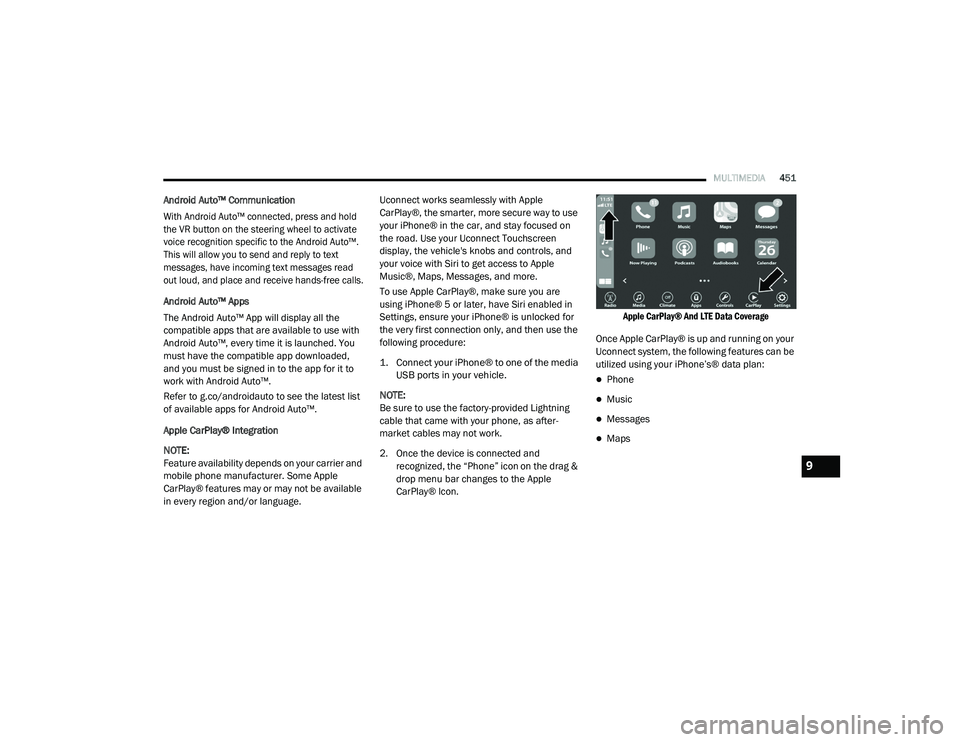
2. Once the device is connected and recognized, the “Phone” icon on the drag &
drop menu bar changes to the Apple
CarPlay® Icon.
Apple CarPlay® And LTE Data Coverage
Once Apple CarPlay® is up and running on your
Uconnect system, the following features can be
utilized using your iPhone’s® data plan:
Phone
Music
Messages
Maps
9
20_RU_OM_EN_US_t.book Page 451
Page 473 of 516
MULTIMEDIA471
NOTE:
There will be a touchscreen notification
message when pairing is successful.
Test to make sure the remote is successfully
paired by dragging your finger across the
gesture pad. If you do not see the On-screen
Arrow, try using the Screen button on the
remote to switch between rear screen one
and rear screen two to make sure the remote
is controlling the intended screen. It may take
several seconds for the remote to react when
initially paired.
If remote does not pair, refer to “Pairing The
Remote” in this section for an alternative
pairing process.
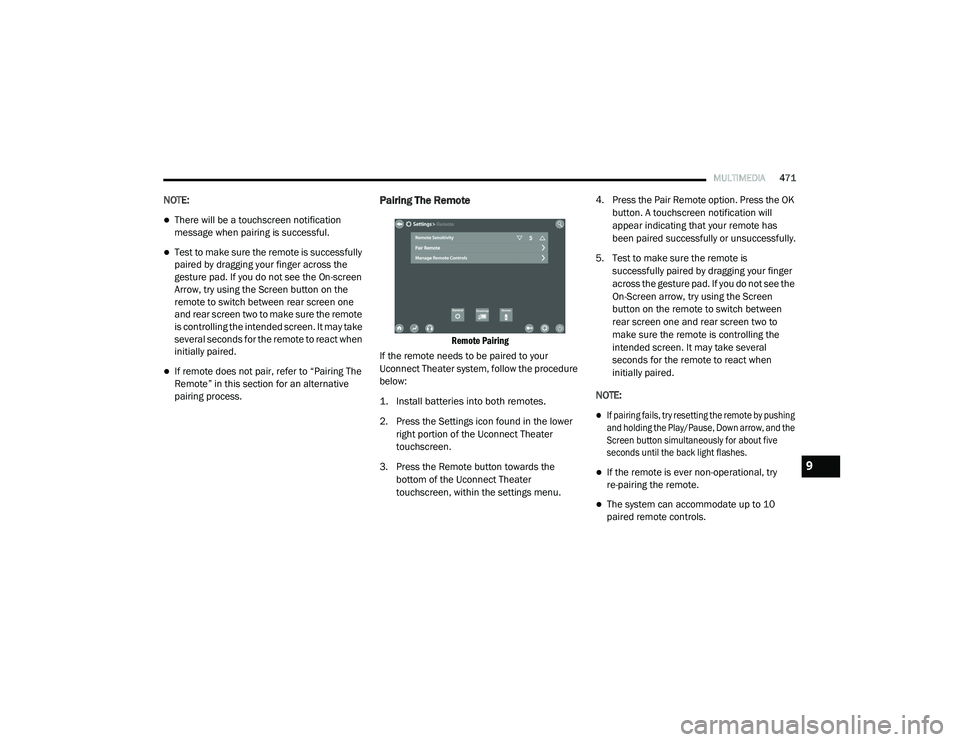
Pairing The Remote
Remote Pairing
If the remote needs to be paired to your
Uconnect Theater system, follow the procedure
below:
1. Install batteries into both remotes.
2. Press the Settings icon found in the lower right portion of the Uconnect Theater
touchscreen.
3. Press the Remote button towards the bottom of the Uconnect Theater
touchscreen, within the settings menu. 4. Press the Pair Remote option. Press the OK
button. A touchscreen notification will
appear indicating that your remote has
been paired successfully or unsuccessfully.
5. Test to make sure the remote is successfully paired by dragging your finger
across the gesture pad. If you do not see the
On-Screen arrow, try using the Screen
button on the remote to switch between
rear screen one and rear screen two to
make sure the remote is controlling the
intended screen. It may take several
seconds for the remote to react when
initially paired.
NOTE:
If pairing fails, try resetting the remote by pushing
and holding the Play/Pause, Down arrow, and the
Screen button simultaneously for about five
seconds until the back light flashes.
If the remote is ever non-operational, try
re-pairing the remote.
The system can accommodate up to 10
paired remote controls.
9
20_RU_OM_EN_US_t.book Page 471
Page 475 of 516
MULTIMEDIA473
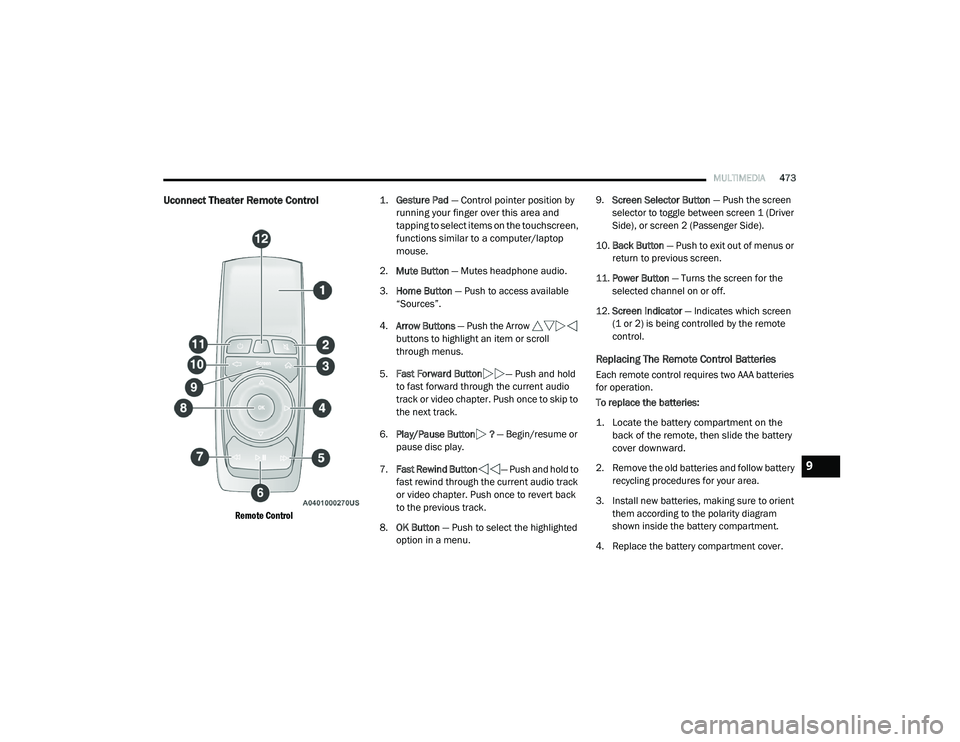
Uconnect Theater Remote Control
Remote Control
1.
Gesture Pad
— Control pointer position by
running your finger over this area and
tapping to select items on the touchscreen,
functions similar to a computer/laptop
mouse.
2. Mute Button — Mutes headphone audio.
3. Home Button — Push to access available
“Sources”.
4. Arrow Buttons — Push the Arrow
buttons to highlight an item or scroll
through menus.
5. Fast Forward Button — Push and hold
to fast forward through the current audio
track or video chapter. Push once to skip to
the next track.
6. Play/Pause Button ? — Begin/resume or
pause disc play.
7. Fast Rewind Button — Push and hold to
fast rewind through the current audio track
or video chapter. Push once to revert back
to the previous track.
8. OK Button — Push to select the highlighted
option in a menu. 9.
Screen Selector Button — Push the screen
selector to toggle between screen 1 (Driver
Side), or screen 2 (Passenger Side).
10. Back Button — Push to exit out of menus or
return to previous screen.
11. Power Button — Turns the screen for the
selected channel on or off.
12. Screen Indicator — Indicates which screen
(1 or 2) is being controlled by the remote
control.
Replacing The Remote Control Batteries
Each remote control requires two AAA batteries
for operation.
To replace the batteries:
1. Locate the battery compartment on the back of the remote, then slide the battery
cover downward.
2. Remove the old batteries and follow battery recycling procedures for your area.
3. Install new batteries, making sure to orient them according to the polarity diagram
shown inside the battery compartment.
4. Replace the battery compartment cover.
9
20_RU_OM_EN_US_t.book Page 473
Page 476 of 516
474MULTIMEDIA
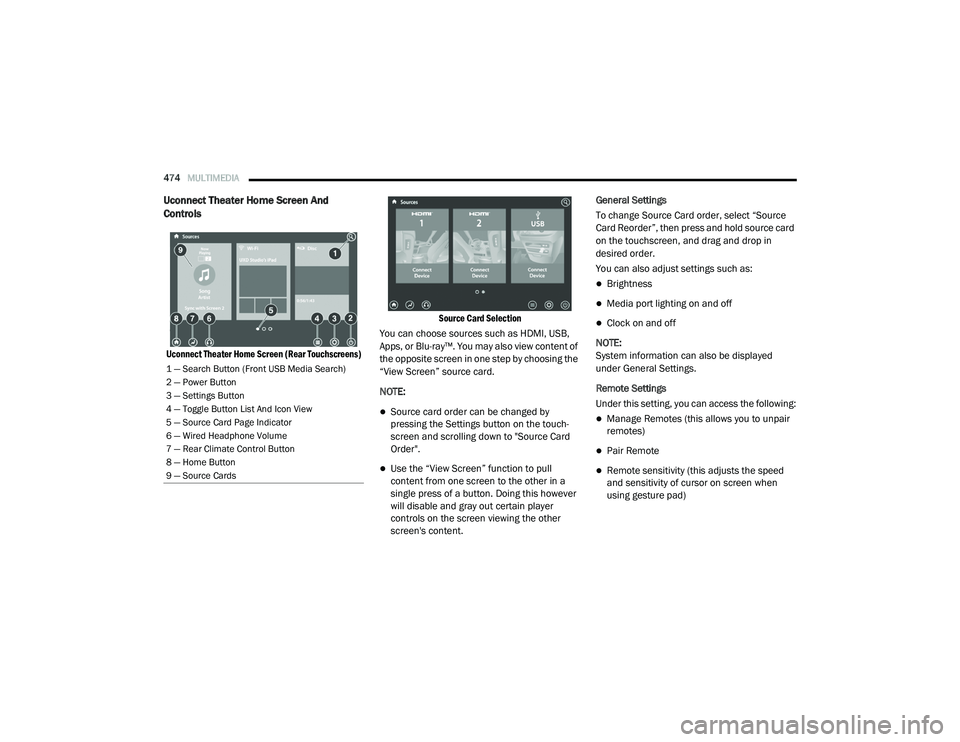
Uconnect Theater Home Screen And
Controls
Uconnect Theater Home Screen (Rear Touchscreens) Source Card Selection
You can choose sources such as HDMI, USB,
Apps, or Blu-ray™. You may also view content of
the opposite screen in one step by choosing the
“View Screen” source card.
NOTE:
Source card order can be changed by
pressing the Settings button on the touch -
screen and scrolling down to "Source Card
Order".
Use the “View Screen” function to pull
content from one screen to the other in a
single press of a button. Doing this however
will disable and gray out certain player
controls on the screen viewing the other
screen's content. General Settings
To change Source Card order, select “Source
Card Reorder”, then press and hold source card
on the touchscreen, and drag and drop in
desired order.
You can also adjust settings such as:
Brightness
Media port lighting on and off
Clock on and off
NOTE:
System information can also be displayed
under General Settings.
Remote Settings
Under this setting, you can access the following:
Manage Remotes (this allows you to unpair
remotes)
Pair Remote
Remote sensitivity (this adjusts the speed
and sensitivity of cursor on screen when
using gesture pad)
1 — Search Button (Front USB Media Search)
2 — Power Button
3 — Settings Button
4 — Toggle Button List And Icon View
5 — Source Card Page Indicator
6 — Wired Headphone Volume
7 — Rear Climate Control Button
8 — Home Button
9 — Source Cards
20_RU_OM_EN_US_t.book Page 474
Page 496 of 516
494MULTIMEDIA
Each time you give a Voice Command, you
must first push either the Voice Recognition
(VR) or Phone button, wait until after the
beep, then say your Voice Command.
You can interrupt the help message or
system prompts by pushing the VR or Phone
button and saying a Voice Command from
the current category.
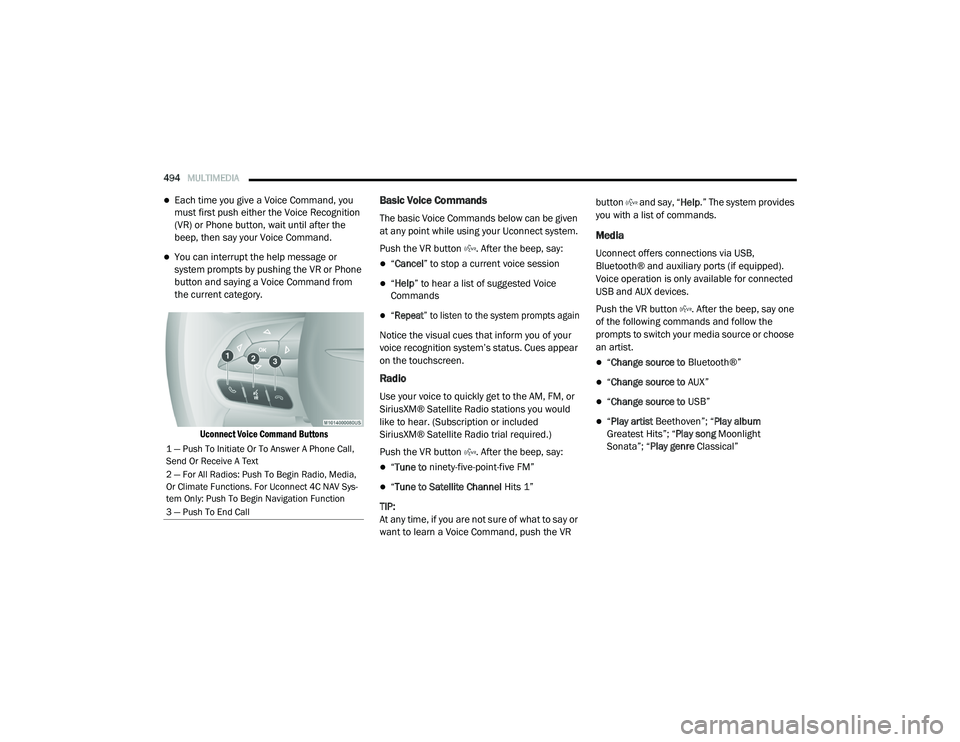
Uconnect Voice Command Buttons
Basic Voice Commands
The basic Voice Commands below can be given
at any point while using your Uconnect system.
Push the VR button . After the beep, say:
“Cancel ” to stop a current voice session
“Help ” to hear a list of suggested Voice
Commands
“Repeat ” to listen to the system prompts again
Notice the visual cues that inform you of your
voice recognition system’s status. Cues appear
on the touchscreen.
Radio
Use your voice to quickly get to the AM, FM, or
SiriusXM® Satellite Radio stations you would
like to hear. (Subscription or included
SiriusXM® Satellite Radio trial required.)
Push the VR button . After the beep, say:
“ Tune to ninety-five-point-five FM”
“Tune to Satellite Channel Hits 1”
TIP:
At any time, if you are not sure of what to say or
want to learn a Voice Command, push the VR button and say, “
Help.” The system provides
you with a list of commands.
Media
Uconnect offers connections via USB,
Bluetooth® and auxiliary ports (if equipped).
Voice operation is only available for connected
USB and AUX devices.
Push the VR button . After the beep, say one
of the following commands and follow the
prompts to switch your media source or choose
an artist.
“ Change source to Bluetooth®”
“Change source to AUX”
“Change source to USB”
“Play artist Beethoven”; “ Play album
Greatest Hits”; “ Play song Moonlight
Sonata”; “ Play genre Classical”
1 — Push To Initiate Or To Answer A Phone Call,
Send Or Receive A Text
2 — For All Radios: Push To Begin Radio, Media,
Or Climate Functions. For Uconnect 4C NAV Sys-
tem Only: Push To Begin Navigation Function
3 — Push To End Call
20_RU_OM_EN_US_t.book Page 494
Page 499 of 516
MULTIMEDIA497
NOTE:
Only the beginning of your custom message
will be seen on the touchscreen.
Reply with text message is not compatible
with iPhones®.
Auto reply with text message is only available
on phones that supporting Bluetooth® MAP.
Android Auto™ — If Equipped
NOTE:
Feature availability depends on your carrier and
mobile phone manufacturer. Some Android
Auto™ features may or may not be available in
every region and/or language.
Android Auto™ allows you to use your voice to
interact with Android’s™ best-in-class speech
technology through your vehicle’s voice
recognition system, and use your smartphone’s
data plan to project your Android™ powered
smartphone and a number of its apps onto your
Uconnect touchscreen. Connect your Android™
5.0 (Lollipop), or higher, to one of the media
USB ports, using the factory-provided USB
cable, and press the new Android Auto™ icon
that replaces your “Phone” icon on the main menu bar to begin Android Auto™. Push and
hold the VR button on the steering wheel, or
press and hold the “Microphone” icon within
Android Auto™, to activate Android’s™ VR,
which recognizes natural voice commands, to
use a list of your smartphone’s features:
Maps
Music
Phone
Text Messages
Additional Apps
Refer to your Uconnect Owner’s Manual
Supplement for further information.
NOTE:
Requires compatible smartphone running
Android™ 5.0 (Lollipop) or higher and download
app on Google Play. Android™, Android Auto™,
and Google Play are trademarks of Google Inc.
Apple CarPlay® — If Equipped
NOTE:
Feature availability depends on your carrier and
mobile phone manufacturer. Some Apple CarPlay® features may or may not be available
in every region and/or language.
Apple CarPlay® allows you to use your voice to
interact with Siri through your vehicle’s voice
recognition system, and use your smartphone’s
data plan to project your iPhone® and a number
of its apps onto your Uconnect touchscreen.
Connect your iPhone® 5, or higher, to one of the
media USB ports, using the factory-provided
Lightning cable, and press the new Apple
CarPlay® icon that replaces your “Phone” icon on
the main menu bar to begin Apple CarPlay®.
Press and hold the VR button on the steering
wheel, or press and hold the “Home” button
within Apple CarPlay®, to activate Siri, which
recognizes natural voice commands to use a list
of your iPhone’s® features:
Phone
Music
Messages
Maps
Additional Apps
Refer to your Uconnect Owner’s Manual
Supplement for further information.
9
20_RU_OM_EN_US_t.book Page 497
Page 503 of 516
CUSTOMER ASSISTANCE501
FCA US LLC is not responsible for any service
contract you may have purchased from another
manufacturer. If you require service after the
FCA US LLC New Vehicle Limited Warranty
expires, please refer to the contract documents,
and contact the person listed in those
documents.
We appreciate that you have made a major
investment when you purchased the vehicle. An
authorized dealer has also made a major
investment in facilities, tools, and training to
assure that you are absolutely delighted with
the ownership experience.WARRANTY INFORMATION
See the Warranty Information for the terms and
provisions of FCA US LLC warranties applicable
to this vehicle and market.
MOPAR PARTS
Mopar original equipment parts & accessories
and factory filled fluids are available from an
authorized dealer. They are recommended for
your vehicle to keep it operating at its best and
maintain its original condition.
REPORTING SAFETY DEFECTS
In The 50 United States And Washington,
D.C.
If you believe that your vehicle has a
defect that could cause a crash or cause
injury or death, you should immediately
inform the National Highway Traffic
Safety Administration (NHTSA) in
addition to notifying FCA US LLC.
If NHTSA receives similar complaints, it may
open an investigation, and if it finds that a
safety defect exists in a group of vehicles, it
may order a recall and remedy campaign. However, NHTSA cannot become involved in
individual problems between you, an
authorized dealer or FCA US LLC.
To contact NHTSA, you may call the
Vehicle Safety Hotline toll free at
1-888-327-4236 (TTY: 1-800-424-9153);
or go to
http://www.safercar.gov
; or write
to: Administrator, NHTSA, 1200 New
Jersey Avenue, SE., West Building,
Washington, D.C. 20590. You can also
obtain other information about motor
vehicle safety from
http://
www.safercar.gov
.
In Canada
If you believe that your vehicle has a safety
defect, you should contact the Customer
Service Department immediately. Canadian
customers who wish to report a safety
defect to the Canadian government should
contact Transport Canada, Motor Vehicle
Defect Investigations and Recalls at
1-800-333-0510 or go to
wwwapps.tc.gc.ca/Saf-Sec-Sur/7/
PCDB-BDPP
.
WARNING!
Engine exhaust (internal combustion engines
only), some of its constituents, and certain
vehicle components contain, or emit,
chemicals known to the State of California to
cause cancer and birth defects, or other
reproductive harm. In addition, certain fluids
contained in vehicles and certain products of
component wear contain, or emit, chemicals
known to the State of California to cause
cancer and birth defects, or other
reproductive harm.
10
20_RU_OM_EN_US_t.book Page 501
Page 505 of 516
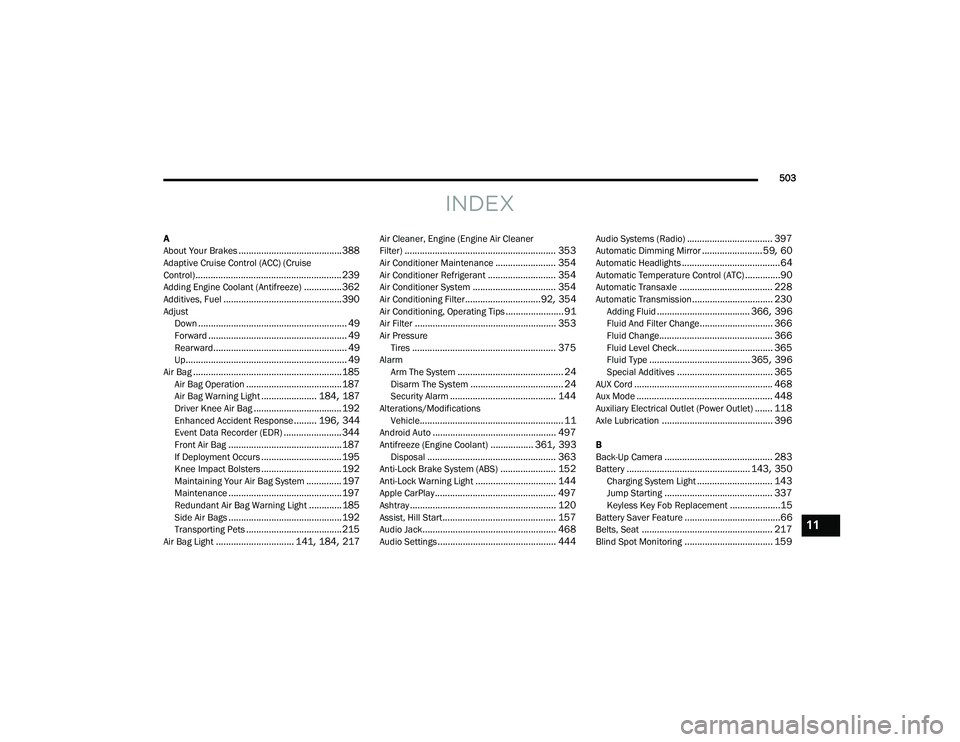
503
INDEX
A
About Your Brakes......................................... 388Adaptive Cruise Control (ACC) (Cruise
Control).......................................................... 239Adding Engine Coolant (Antifreeze)............... 362Additives, Fuel............................................... 390AdjustDown........................................................... 49Forward....................................................... 49Rearward..................................................... 49Up................................................................ 49Air Bag........................................................... 185Air Bag Operation...................................... 187Air Bag Warning Light...................... 184, 187Driver Knee Air Bag................................... 192Enhanced Accident Response......... 196, 344Event Data Recorder (EDR)....................... 344Front Air Bag............................................. 187If Deployment Occurs................................ 195Knee Impact Bolsters................................ 192Maintaining Your Air Bag System.............. 197Maintenance............................................. 197Redundant Air Bag Warning Light.............185Side Air Bags............................................. 192Transporting Pets...................................... 215Air Bag Light............................... 141, 184, 217
Air Cleaner, Engine (Engine Air Cleaner
Filter)............................................................ 353Air Conditioner Maintenance........................ 354Air Conditioner Refrigerant........................... 354Air Conditioner System................................. 354Air Conditioning Filter..............................92, 354Air Conditioning, Operating Tips....................... 91Air Filter........................................................ 353Air PressureTires......................................................... 375AlarmArm The System.......................................... 24Disarm The System..................................... 24Security Alarm.......................................... 144Alterations/ModificationsVehicle......................................................... 11Android Auto................................................. 497Antifreeze (Engine Coolant)................. 361, 393Disposal................................................... 363Anti-Lock Brake System (ABS)...................... 152Anti-Lock Warning Light................................ 144Apple CarPlay................................................ 497Ashtray.......................................................... 120Assist, Hill Start............................................. 157Audio Jack..................................................... 468Audio Settings............................................... 444
Audio Systems (Radio).................................. 397Automatic Dimming Mirror........................59, 60Automatic Headlights.......................................64Automatic Temperature Control (ATC)..............90Automatic Transaxle..................................... 228Automatic Transmission................................ 230Adding Fluid..................................... 366, 396Fluid And Filter Change............................. 366Fluid Change............................................. 366Fluid Level Check...................................... 365Fluid Type........................................ 365, 396Special Additives...................................... 365AUX Cord....................................................... 468Aux Mode...................................................... 448Auxiliary Electrical Outlet (Power Outlet)....... 118Axle Lubrication............................................ 396
B
Back-Up Camera........................................... 283Battery................................................. 143, 350Charging System Light.............................. 143Jump Starting........................................... 337Keyless Key Fob Replacement....................15Battery Saver Feature......................................66Belts, Seat.................................................... 217Blind Spot Monitoring................................... 159
11
20_RU_OM_EN_US_t.book Page 503
Page 506 of 516
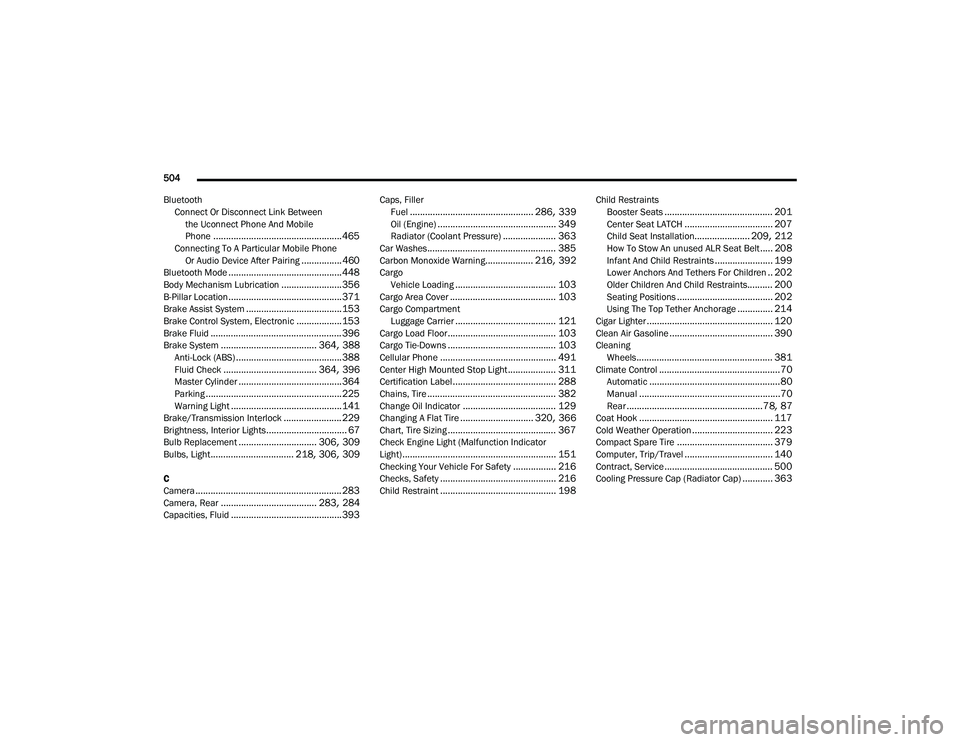
504
Bluetooth Connect Or Disconnect Link Betweenthe Uconnect Phone And Mobile
Phone
................................................... 465Connecting To A Particular Mobile PhoneOr Audio Device After Pairing................460Bluetooth Mode............................................. 448Body Mechanism Lubrication........................ 356B-Pillar Location............................................. 371Brake Assist System...................................... 153Brake Control System, Electronic.................. 153Brake Fluid.................................................... 396Brake System...................................... 364, 388Anti-Lock (ABS).......................................... 388Fluid Check..................................... 364, 396Master Cylinder......................................... 364Parking...................................................... 225Warning Light............................................ 141Brake/Transmission Interlock....................... 229Brightness, Interior Lights................................ 67Bulb Replacement............................... 306, 309Bulbs, Light................................. 218, 306, 309
C
Camera.......................................................... 283Camera, Rear...................................... 283, 284Capacities, Fluid............................................ 393
Caps, FillerFuel................................................. 286, 339Oil (Engine)............................................... 349Radiator (Coolant Pressure)..................... 363Car Washes................................................... 385Carbon Monoxide Warning................... 216, 392CargoVehicle Loading........................................ 103Cargo Area Cover.......................................... 103Cargo CompartmentLuggage Carrier........................................ 121Cargo Load Floor........................................... 103Cargo Tie-Downs........................................... 103Cellular Phone.............................................. 491Center High Mounted Stop Light................... 311Certification Label......................................... 288Chains, Tire................................................... 382Change Oil Indicator..................................... 129Changing A Flat Tire............................. 320, 366Chart, Tire Sizing........................................... 367Check Engine Light (Malfunction Indicator
Light)............................................................. 151Checking Your Vehicle For Safety................. 216Checks, Safety.............................................. 216Child Restraint.............................................. 198
Child RestraintsBooster Seats........................................... 201Center Seat LATCH................................... 207Child Seat Installation...................... 209, 212How To Stow An unused ALR Seat Belt..... 208Infant And Child Restraints....................... 199Lower Anchors And Tethers For Children.. 202Older Children And Child Restraints.......... 200Seating Positions...................................... 202Using The Top Tether Anchorage.............. 214Cigar Lighter.................................................. 120Clean Air Gasoline......................................... 390CleaningWheels...................................................... 381Climate Control................................................70Automatic....................................................80Manual........................................................70Rear......................................................78, 87Coat Hook..................................................... 117Cold Weather Operation................................ 223Compact Spare Tire...................................... 379Computer, Trip/Travel................................... 140Contract, Service........................................... 500Cooling Pressure Cap (Radiator Cap)............ 363
20_RU_OM_EN_US_t.book Page 504